Got a tip for us?

Reviews

What does NordVPN offer that others don’t?
Most VPNs use the same underlying technology, so how much better can it possibly be?
Is it better than ExpressVPN, PIA, Cyberghost, IPVanish, Surfshark and other highly rated services?

How fast is NordVPN?
Can NordVPN unblock region-locked websites (Netflix, BBC iPlayer, Amazon Prime Video)?
Is NordVPN safe and private?
Does NordVPN work in China?
Is it really better than the cheaper alternatives?
I’ll cover all that and more in this NordVPN review.

During my time with NordVPN I used it to secure my connection while traveling to China and for unblocking video streams that I couldn’t normally access from my home in Turkey. I also put it through a battery of tests to gauge its speed and security.

I summarized my thoughts on NordVPN below, but read the full review to get a comprehensive look at this premium VPN service.

NordVPN Review Summary

NordVPN is a true jack of all trades, able to unblock all sorts of region-locked content, bypass China’s Great Firewall, and quickly download files. It boasts better performance than most when it comes to streaming. I challenge anyone to find a VPN with more advanced security while keeping the experience simple and novice-friendly.

What Is a VPN?

A VPN is a piece of software that helps to make you more anonymous online, encrypts your internet use, and lets you effectively trick your laptop or mobile device into thinking it’s in another location. And in case you’re wondering… it’s short for ‘virtual private network’!

In short, VPNs have become really handy, affordable everyday tools. By choosing the best VPN service out there, you’ll be equipping your laptop, PC, mobile – even your games console – with a potentially game-changing bit of software. VPN has so many benefits. You may want to use them to help keep your online life completely anonymous from prying eyes – especially now that so many of us are working or schooling at home. Maybe you’re a keen torrenter and you don’t want your ISP to know. Or perhaps its the eyes of your government that you want to avoid.

But because the best VPNs also let you change your IP address to one in a completely different city or country, these services have taken on a much wider use. VPNs are fantastic for streamers, for example, who want to have access to a whole world of shows and films on Netflix and more. While if you’re on holiday and find your favorite app is banned (think about some of the internet censorship in Cuba, Turkey, China – even Canada), an online VPN will let you use the internet in the way you’ve become accustomed. And that’s just for starters…

But these days, VPN services are a dime a dozen. When you search on App Store or on Google, you’ll find hundreds of VPN services, with names you’ve never heard of and with backgrounds you can’t trust. How then, can you pick a safe, secure, fast and feature-rich VPN service? A VPN service that will actually protect you? We’ve simplified your search by picking the best VPN app for iPhone, iPad and Mac.

The best VPN on the market today is NordVPN. In this NordVPN review we’ll show you why this popular VPN is one of the best VPNs around.

NordVPN is one of the most popular VPN services online and it’s easy to see why. A lot of VPN apps have old and convoluted apps. NordVPN’s app is simple and modern. Just turn it on, select the location if you want and then forget about it. The iOS app is simple and the Mac app provides you with pro customization tools if you wish to tweak the settings.

The VPN market is a tough one, with a lot of competition around, but NordVPN knows exactly how to stand out from the crowd: it piles on the professional features, delivering way more than just about anybody else.

Top-notch platform support includes apps for Windows, Mac, Android, iOS, and Linux.

Pros:

  • Consistently tops the list of best VPNs for reputable sources
  • Automated kill switch disables the internet on the device when VPN is not connected
  • Double VPN feature encrypts your internet traffic twice
  • Clear and easy-to-use interface
  • Works in China
  • Works with streaming services like Netflix, HBG Go and more

Cons:

NordVPN pricing

NordVPN offers tiered pricing depending on the length of the plan you can commit to. NordVPN has a very clear pricing policy with no hidden fees. They also offer a 30-day money-back guarantee for all pricing packages. Here’s what NordVPN costs:

  • The 1-month plan costs $11.95
  • The 1-year plan is $4.92 per month
  • The 2-year plan is $3.71 per month

Is There a Free Version of NordVPN?

Unlike TunnelBear, ProtonVPN, and other ‘freemium’ VPNs, NordVPN has never offered a completely free VPN service.

However, you can get a seven-day 100% free trial on mobile (iOS and Android) devices.

If you need more time before deciding to purchase, you can try NordVPN out for free with its 30 day money-back guarantee (

What methods can you use to pay for NordVPN?

The company accepts payment by all major credit cards, PayPal, and other services such as Bitcoin and other cryptocurrencies (via CoinPayments), and assorted other systems (AmazonPay, UnionPay, SOFORT Banking and more).

Is NordVPN really better than the cheaper alternatives?

No matter how broke you are or how desperately you’re in need of security, you should never resort to a cheap VPN. The likes of TigerVPN, TunnelBear, Hola and more may actually be sabotaging your security and anonymity.

Come to think of it, there’s no such thing as a cheap VPN, a catch is always there. Once you operate with a cheap VPN, you’re actually paying the price with your personal info, data, and credentials. So are they worth the risk? NO. Let’s read why.

WHAT ELSE IS AT RISK?

According to the Threat Research Center president:

“The lower the cost of the app, the greater the chance they have security problems.”
Well, I agree with him 100%. Nothing good comes out of entrusting a cheap VPN. Shall I explain why?

  • First of all, cheap stuff attracts millions. Can you imagine how many of those are using the same servers? There goes speed.
  • They sell your personal information for profit.
  • There are a few cheap VPNs that impersonate a legit software. In other words, they’re present to steal your information, send you spam emails, or make your device vulnerable enough for hacking.
  • Their encryption is very limited, that’s of course if there is any, to begin with.
  • Over time, you’ll be bombarded with unwanted ads.
  • Privacy is everything and you won’t be able to sleep at night knowing that these VPNs collect user-data and store them for further use. (Sell them to sister companies).
  • You might be suddenly directed to websites with malicious software that might target your device.

With all that being said, we can safely say that you have been warned. Subscribe to a real VPN service provider and avoid subjecting yourself to attacks and theft of that nature.

NordVPN Servers and Server Locations

Part of what you are paying for with a VPN subscription is access to the company’s fleet of VPN servers. These are the machines through which your web traffic will flow. Generally speaking, it’s good to have a diverse distribution of servers, since this will ensure that you’ll be able to find one close by, no matter where you travel, and likely get better service because of that closeness. It also gives you more options for spoofing your location.

NordVPN offers 5542 servers distributed across 59 countries. Among my top-rated VPNs, NordVPN offers the best balance of hardware and virtual servers in the most countries. In addition to having the most server locations, NordVPN also excels in geographic diversity, with several in Asia and excellent coverage across Europe and America. This means you can specifically select a server nearer to you within a certain country, so you can enjoy better speeds, lower latency, and more reliability.

NordVPN Security, privacy, and logging

Many VPNs make big claims about their security features and privacy, and NordVPN is no exception. I was curious to find out whether NordVPN can walk the talk.

When you use a VPN, you’re entrusting it with access to your web traffic. If the VPN company were lacking in morals, it could easily monetize your personal information much the same way an ISP can. The VPN might also be targeted by law enforcement to hand over information relating to its customers. This is why it’s important to read and understand a VPN’s privacy policy. Don’t worry, I’ve read the fine print for you. I’m happy to say that NordVPN goes to impressive lengths to protect customer privacy and secure its data and infrastructure. It’s one of the few companies whose claims have been tested by crisis, and clearly makes the effort to do well by consumers.

NordVPN does an excellent job of being transparent to customers in an understandable way and more companies should emulate its efforts.

NordVPN is clear about the limits of its data gathering. The company says: ‘Nord guarantees a strict no-logs policy for NordVPN Services, meaning that your internet activity… is not monitored, recorded, logged, stored or passed to any third party. We do not store connection time stamps, used bandwidth, traffic logs, IP addresses or browsing data,’ That’s what you want to hear from a VPN company. Better still, NordVPN makes it clear in its policy (and verified to me) that it only generates revenue through the sale of VPN subscriptions. The company does not sell user data.

Kill Switch

This is an advanced security feature that keeps your IP address and traffic secure, even if the VPN connection drops.
It’s designed to block traffic if your connection is compromised, keeping your data and IP address hidden.

NordVPN offers you two options:

  • Internet Kill Switch will completely shut down your internet access when you’re not connected to the VPN or if your connection drops. Mac OS OpenVPN client doesn’t feature this option, but its IKEv2 client has both types of switches. This is great for added security (you can be sure that your data won’t leak) when you’re torrenting or using Tor.
  • App Kill Switch gives you the ability to choose which apps will get closed if your connection fails. So, for example, you can choose to only shut down Google Chrome or a different browser but not your other apps. This is available on Windows and Mac OS. It’s good to use when you’re streaming, so the streaming platform won’t detect that you’re using a VPN and block you.

This feature isn’t enabled by default, but it’s really easy to set up. You simply need to turn it on in settings and select the apps if you decide to use the app Kill Switch.

NordVPN browser extensions

The NordVPN clients are generally very polished and user-friendly, but they’re not your only way to work with the VPN. The company also offers Chrome and Firefox extensions which allow you to control the client and service directly from your browser.

You install the add-on directly in your browser and just click on the extension to connect. It’s ideal if you’re just looking to encrypt your browser traffic quickly, like when using Chrome and a public WiFi connection.

Is NordVPN customer service any good?

Much like any other networking technology, a VPN can misbehave in many ways, and figuring out exactly what’s going on can be a real challenge. That’s why even the most experienced user can benefit from quality VPN support.

NordVPN’s support site gets off to a good start with its lengthy list of troubleshooting guides. Whether you’re trying to diagnose slow speeds or dropped connections, understand error messages, change your password or cancel your account, there’s useful information to hand.

Most articles are well-written and deliver in all the key areas. They don’t assume technical knowledge, instead taking the time to explain the background, offering multiple suggestions to resolve most problems, and linking to other relevant articles. For example, where other VPNs might have a single line suggesting you “try another server” to help diagnose speed problems, NordVPN also links to a detailed article explaining how to find the best location for you.

Competent customer support staff are available around the clock via live chat on the NordVPN website.

I’ve contacted NordVPN’s 24/7 live chat support on several occasions, and never have I had to wait more than five minutes to get a response.

Besides the live chat option, you can send a direct email.

Streaming – Does NordVPN Work With Netflix, Amazon Prime Video, and Other Services?

Yes

To get a feel for NordVPN’s unblocking abilities, we ran several tests, checking whether we could access Netflix, Amazon Prime Video, BBC iPlayer, Disney+ and geoblocked YouTube sites while connected to various NordVPN servers.

I started with the UK and US Netflix libraries, both of which were a success. I even tested the US Netflix library across NordVPN’s US servers, and I was able to unlock content to stream in HD easily on each one.

Then I headed over to Netflix Australia, which I was also able to access hassle-free.

South America was my final test. I tested Netflix libraries in Brazil, Chile, and Peru, and I was able to stream in HD across all.

Netflix results were great, with five out of five locations unblocking the service. It’s no surprise that it’s the best Netflix VPN in 2021.

Amazon Prime Video worked, too. After connecting to a US NordVPN location, we logged into Amazon.com rather than our usual Amazon.co.uk, and were able to stream US content.

(Keep in mind that Amazon’s Prime Video terms states the company will ‘use technologies to verify your geographic location’ and ‘you may not use any technology or technique to obscure or disguise your location’, so you break these rules at your own risk.)

Unblocking YouTube is always much easier, and sure enough, NordVPN gave us instant access from each of our test US servers.

BBC iPlayer has far better VPN protection than YouTube. Getting access proved far more difficult, too, but one of the servers got us in, and that allowed us to stream whatever content we liked.

NordVPN ended on a strong note, too, instantly bypassing Disney+ protection with the first location we tried (the second and third worked, too.)

While testing, I found that NordVPN can stream Netflix, Hulu, Disney Plus, BBC iPlayer, Amazon Prime Video, HBO Go, and more in Full HD.

NordVPN is also reliable for unblocking Google, Facebook, and other popular sites that are often blocked in schools and workplaces, as well as in heavily censored countries like China and Russia.

If streaming is your primary reason for choosing a VPN, NordVPN is a sure bet.

Does NordVPN allow torrenting?

Yes.

NordVPN has unlimited bandwidth and data caps for completely unrestricted torrenting. But it also allows torrenting and P2P sharing across any of its servers.

Since NordVPN keeps no logs and is headquartered in a privacy-friendly location, your torrenting activity or history cannot be leaked to anyone. It’s safe to use with uTorrent or any other BitTorrent client, with guaranteed anonymity.

DNS protection through NordVPN’s own DNS on every server further protects you from leaks and revealing your torrenting activity. It’s a solid choice for torrenting and P2P sharing, not just for security, but also for its speed and performance.

Unlike most VPN providers, NordVPN doesn’t even push me to torrent on specific servers. I usually just pick a fast server near where I live and start downloading.

kill switch stops all internet traffic if the VPN unexpectedly disconnects. That means your P2P traffic is always encrypted no matter what. NordVPN excels here for actually having two kill switches. A general internet kill switch blocks all net access when you’re not connected to the VPN (this can be easily turned off if it’s inconvenient), while an app kill switch closes your chosen applications if the connection goes down.

Does NordVPN work in China?

Yes.

NordVPN is a veteran VPN provider in China and provides fairly reliable access to the free and open internet from the mainland. I spent some time in Beijing shortly before writing this review and kept NordVPN connected on my iPhone pretty much the whole time. I didn’t have to change any settings; it just works. In addition, NordVPN has features like the Kill Switch which will make sure that your online activity is never exposed, even if your VPN connection fails. Plus, since it doesn’t have servers in China, it doesn’t have to apply strict local laws when it comes to internet usage and data logging. This means that nothing you do online will reach the Chinese government.

The only downside is that you can’t use it if you’re already in China. NordVPN doesn’t have a website there, so you won’t be able to download it. If you’re going to China, make sure that you install and set it up before you leave your country.

Speed: Is NordVPN fast?

NordVPN is the fastest VPN we’ve tested to date, thanks largely in part to its new, proprietary protocol: NordLynx. It’s based on WireGuard which is currently the fastest protocol on the market.

I was really impressed by NordVPN’s consistently fast speeds. Every VPN will slow you down a little bit as it sends your traffic to different servers (and the further away a server is, the slower your speeds will be). But while testing different NordVPN servers across the world, I didn’t notice the speed drops at all as there was no difference in my browsing, streaming, or even gaming experience.

With NordVPN’s servers, you’ll get fast speeds no matter how far the server is from your location
NordVPN’s fast download speeds allowed me to stream shows for hours without lag or buffering, while the low ping made it easy for me to play games. I even managed to have high-quality video calls thanks to its upload speeds.

Apps: What devices work with NordVPN?

NordVPN makes apps for more devices than any other VPN provider I know of. NordVPN offers apps for Android, iOS, macOS, and Windows. I highly recommend that people use an app with a VPN, since it is easier to use, requires no manual configuration, and grants access to additional features. Another thing that impressed me was that NordVPN has an app for Linux as well. Most VPNs don’t have Linux clients but you can install NordVPN on Ubuntu (I tested this one and it worked great), Debian, Linux Mint, and Elementary OS. What’s even more surprising is that its app is really easy to use on Linux so you don’t have to operate it through command prompts.

Simultaneous Device Connections — One Account Supports 6 Devices

I can connect six devices at once to my NordVPN account. . This is quite beneficial considering ExpressVPN offers 5. I tested this out by installing NordVPN on 2 of my iPhones, my MacBook, Linux laptop, and LG TV. With all of these devices using the connection simultaneously, I still didn’t notice any drop in speed.

In addition, you can install it on your router. This way, your entire network will be under VPN protection. Not all routers support VPNs, so make sure that you choose one that does. It’s also worth mentioning that you might not be able to install any VPN if you use an ISP modem.

App design is fairly consistent across all platforms, so if you know how to use one, then using another should feel familiar. NordVPN apps are simple to set up and easy to use.

NordVPN Client setup

Getting a VPN client installed and working properly can sometimes be a challenge, but the well-designed NordVPN app has clearly been set up to keep hassles to an absolute minimum. NordVPN is really easy to install and set up.

Once you download the app, it will open and prompt you to log in. When you click on that button, a web page will open up and ask for your login credentials. You can enter them, and the app will open again and you can start using NordVPN immediately.

NordVPN doesn’t require any special setup. Everything is ready for you to use it.

Mac client

NordVPN’s macOS app is notable in its simplicity. After logging in and agreeing to give access to your Apple Keychain, you can Quick Connect to any of NordVPN’s many servers around the globe. If you want a bit more control over your experience, you can scroll through the list of countries on the left side of the app window, choose a country, and open a drop-down menu that reveals a list of all of the servers in that country. It’s easier to just choose a spot on the map and use the VPN server located there, but it’s useful that the macOS version gives you a choice when it comes to servers. That isn’t the case with the iPhone version.

iOS app

From the Settings menu you can choose your VPN protocol, find auto-connect options, and set up your VPN profile. There’s also a “Tools” menu, which allows you to turn on an ad and malware blocker, a “Dark Web Monitor” which tells you if information related to your email address is included in Dark Web leaks, and Siri shortcuts so you can connect and disconnect with your voice.

Final verdict

This is a top-quality VPN which exceeded our expectations in everything from platform support and privacy, to ease of use, unblocking abilities and its excellent support. This is a polished, powerful and professional service. NordVPN is one of our favorite VPNs. It excels in speed, security, and torrenting. It has a network of 5,515 servers in 59 countries, and it unblocks fifteen Netflix libraries on its user-friendly apps. Currently, NordVPN is one of the best VPNs you can get and it’s affordably priced.

Overall Rating: 9.5/10.
Apple offers one of the robust data backup and restore techniques using iCloud on Mac. You might have come across situations where you inadvertently press one option instead of another leading to loss of files. You may also download a software that contains a virus and consequently erase all data from your Mac. Lastly, if your device (Pendrive, USB Flash drive, etc), system is corrupted then there is a chance to lose data.In such cases, recovering data using iCloud or iTunes is not an option. If you are facing the above-mentioned problems and having a hard time recovering lost or deleted data on your Mac, you can opt for iBeesoft Data Recovery software which recovers the deleted data with ease.

What is iBeesoft Data Recovery for Mac? And Why Should You Buy It?

iBeesoft Data Recovery is a data recovery software for retrieving the data files on Mac. The software is capable of scanning Desktop, Recycle Bin, Hard Disk Drive, External Removable devices (USB Flash Drives, Pendrives, SD Cards), Mac Disc Recovery (Which means to Retrieve lost files on Mac due to volume loss, deleted, hidden, inaccessible, re-partition or damaged, Virtual Disk Drives, etc to recover your lost data.

With iBeesoft Data Recovery, you can recover data in over thirty types of image formats, over seventy types of document formats, about thirty types of video formats, over twenty types of audio files, ZIP, RAR, etc.

Features of iBeesoft Mac Data Recovery Tool

  • High Recovery Rate: iBeesoft Data Recovery software offers all-around scanning feature meaning that it can recover data from many locations at a high rate than the other data recovery software for Mac.
  • Lost File Filter: The File Filter in iBeesoft Data Recovery let’s you locate the lost file by it’s location in a single click.
  • Fast Scanning: iBeesoft Data recovery Features a special algorithm for quick scanning. When you select the location and click on the Scan option then the scanning process will start. Within a few minutes you can see the files that you want to recover from the specified location.
  • Free Scan and Preview: iBeesoft Data recovery software offers a free scan feature to scan the lost data. It also provides a preview feature to view the file which you want to recover before you can go ahead and recover it.
  • Recover lost data from any type of storage devices: With iBeesoft Data Recovery software, you can recover data from any type of storage device such as Mac (MacBook Pro, MacBook Air, MacBook mini), External Removable devices (USB Flash Drives, Pendrives, SD Cards), Hard Disk Drive, Virtual Disk Drives, SSD, HDD, Digital devices (Camera, iPod, Player), Mac Disc Recovery (Which means to Retrieve lost files on Mac due to volume loss, deleted, hidden, inaccessible, re-partition or damaged, etc. So you can recover your data irrespective of the storage device on Mac.
  • Support numerous File Types: You can recover lost data of any format such as
    • Documents: DOC/DOCX, PPT/PPTX, XLS/XLSX, PDF, HTML/HTM, INDD, etc.
    • Images: JPG/JPEG, PNG, GIF, BMP, PSD, CRW, TIFF/TIF, CR2, SR2, MRW, DCR, WMF, NEF, ORF, RAF, DNG, RAW, etc,
    • Videos: MP4, M4V, AVI, MOV, WMV, MPEG,MKV, ASF, FLV, SWF, 3GP, 3G2,MPG, RM/RMVB, etc.
    • Audio Files: M4A, MP3, AIF/AIFF, APE, MID/MIDI, WAV, WMA, OGG, AAC, VQF, RealAudio, etc.
    • Emails: PST, DBX, EMLX, etc Archive and Others: Archives means you can’t see those files though you didn’t delete those. It can recover the Archives (such as ZIP, RAR, SIT, ISO, etc.) and exe, HTML, SITX, etc.

How to use iBeesoft Data Recovery to recover lost data on Mac

Now in this section, i’ll walk you through the steps for installing and using iBeesoft Data Recovery on your Mac.

Follow the steps below to recover the lost data on Mac using the iBeesoft Data Recovery tool.

Step 1: Download and install iBeesoft Data Recovery
Step 2: Click on Start option:
Once you click on the Start Now option, you will get a screen showing internal drive and other attached disks like external SSD, SD card, pen drive, etc. You need to select the location from which you want to recover lost data. And then click on the Scan from the top left.

Step 3: wait for the scan process to complete:
When you click on the Scan option, the scanning process will start. It takes some time to complete scanning. Wait until the scanning is completed.

Step 4: Select file and click on Recover:
Once the scanning is completed, make your selection from the left sidebar On top, you can also click on Type to view the recovered list via file formats. Additionally, click on the tiny square icon in the top right to see the files’ preview. select the file type which you want to recover. and then hit Recover.

Step 5: Select partition (place) to save recover files:
Choose the destination that you prefer and click on Save.
With this step, the recovery is completed successfully.

Step 6: View the recovered file
Now you can go ahead and view the recovered file. Navigate to the location which you select at the time of saving the file. And select the path of the recovered file. You can also export (and import) scan results by clicking on the small icon located at the top right of the recovery results screen.

These are the steps to be followed to use iBeesoft Data Recovery software to recover lost data files on Mac.

iBeesoft Data Recovery for Mac Availability and Price

iBeesoft Data Recovery is available as a free download on Mac. The free version, however, won’t let you recover the data. It’s strictly limited to performing a scan and preview lost data.

You can buy the full version at $55.95 for 1 Mac or opt for the family license for $89.95 for 5 Macs. There is also Company License for Unlimited Macs at 299.95.

The bottom line

iBeesoft Data Recovery can be your ultimate go-to solution to recover deleted data on Mac. Download iBeesoft Data Recovery for Mac and do give it a try. While you are at it, do let us know about your favorite feature of the iBeesoft Daata Recovery software.

The Apple Watch SE is an excellent smartwatch for relatively little money, provided you do not attach too much value to an important function of watches: checking what time it is. We have had the Apple Watch SE on our wrist for months now and in this second impression we give an updated purchase judgment.

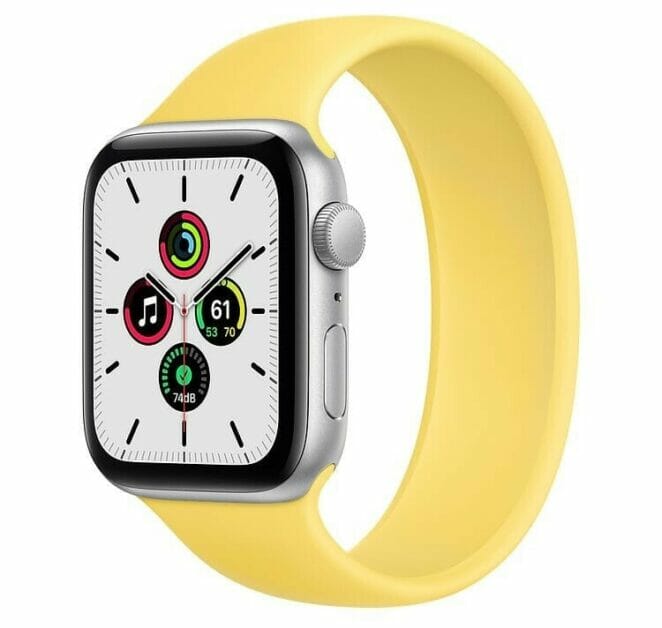
Apple Watch SE: Front view Silver Aluminum Case with Solo Loop

Second impression: Apple Watch SE after five months

2020 was a hugely busy year for Apple. Not only the iPhone family got a new member in the form of the iPhone 12 mini , the Apple Watch could also count on family expansion. At the same time as the Apple Watch Series 6, the company released the Apple Watch SE.

We have had this affordable entry-level model on our wrist every day since its release, and in this article we take stock. Is the smaller price tag justified, or is it better to save up and get the Series 6? We answer that question in this second impression of the Apple Watch SE.
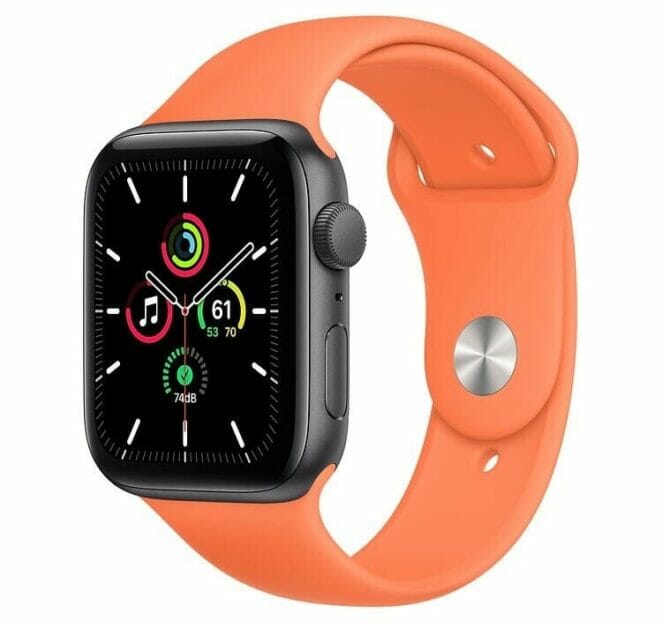
Apple Watch SE: Front view Space Gray Aluminum Case with Sport BandApple Watch SE: Front view Gold Aluminum Case with Solo Loop

No lack of functions

In our initial Apple Watch SE review (after one week of testing) we write that entry-level model “has it all”. We still stand behind those words, but a nuance is in order. The SE is especially recommended for people who are now walking around with a somewhat older Watch. In our opinion, people with newer models have little reason to switch.

Compared to previous models (Series 3 and older), the Apple Watch SE has everything you would expect from a modern smartwatch. For example, the heart rate monitor works great, the watch uses Activity rings to map out how active you are and the waterproof housing is ideal for a rainy country like the Netherlands. Wearing the Watch in the shower is also no problem.

Furthermore, thanks to watchOS 7, the major Apple Watch software update of 2020, the watch has a sleep tracker. This keeps track of how (in) effective your night’s sleep is and gives tips to improve the quality. In addition, the watch is quick to use thanks to the S5 chip, which is also in the Apple Watch Series 5 , and paying with Apple Pay is a snap.

Negatives

However, the entry-level watch is not perfect. This is because an important screen function is missing. The Apple Watch SE does not have an always-on display, which means that you cannot directly read the time and notifications from the screen. To do this, you must first tap the screen or lift your wrist. How (not) annoying you find this is probably very personal. In any case, it bothers us quite a bit.

Another disadvantage is the battery life. The watch lasts about a day on a full battery. After this you have to charge the Watch and that is easier said than done. To make full use of the sleep functions in watchOS 7 , you also have to wear it on your wrist at night. This is annoying, because many people want to use the night hours to charge electronics.

Now you have to provide the watch with power during the day and that is not convenient. It takes about two hours to get the battery of the Apple Watch SE completely full. In practice, it therefore means that we put the watch on the charger several times a day and recharge it a bit, instead of going to 100 percent in one go.

Differences from Series 6

There are three major differences between the Apple Watch Series 6 and Watch SE. The former has a pulse oximeter to measure the oxygen level in your blood, a sensor to make heart films and an always-on display. How much value you attach to these functions is very personal.

The fact remains that these extras come with a price tag. The Apple Watch Series 6 has a suggested retail price of 429 euros, although you can now also get it for less. The Watch SE is more than 100 euros cheaper and starts at 299 euros. Here too, you can buy the watch for less at some stores.

See also: Apple Watch Series 6: Our second impression after five months

Conclusion Apple Watch SE second impression

The Apple Watch SE is a great smartwatch with an impressive price-quality range. The watch has all the functions you would expect from a modern smartwatch, contributes to a healthier life, looks stylish and does all this without asking the main prize.

The biggest drawback of the Apple Watch SE is the lack of an always-on display. As a result, you cannot immediately check the time or notifications received on the screen: you have to tap the display or lift your wrist. The battery life could also have been better. If you don’t weigh too much on this, the Apple Watch SE is a good and affordable alternative to the Series 6.

The Apple Watch Series 6 has been around our wrist every day for five months now. Its high time for a second impression.

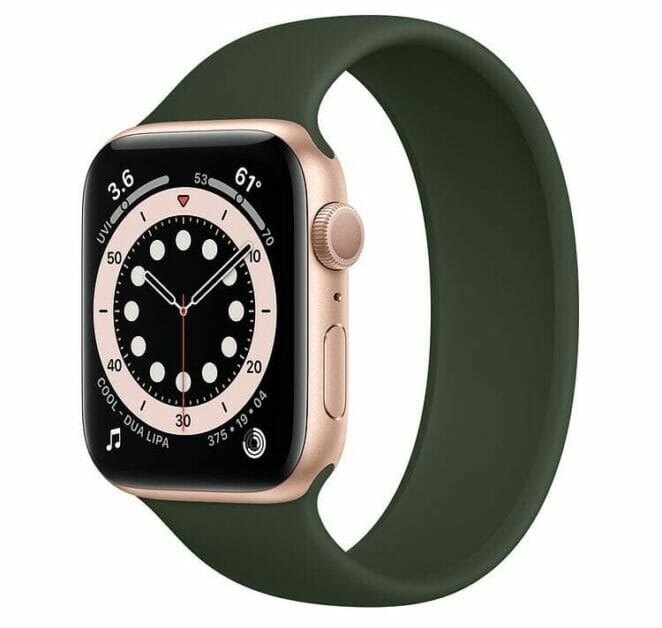
Apple Watch series 6: Front view Gold Aluminum Case with Solo Loop  

The Apple Watch Series 6 after five months

Let me get straight to the point: as someone who has had the latest model on their wrist every year since the first Apple Watch, the Watch Series 6 felt the least as a big step forward.

The Series 4 introduced a new design with a larger screen two years ago, the Series 5 had the always-on display that came in handy, but with Series 6 the noticeable improvements are more difficult to find.

The biggest innovation of the latest Watch is the pulse oximeter and accompanying Saturation app. This measures the blood oxygen content: the closer to 100 percent, the better. This says something about your overall health and could even give an indication of whether you have or will soon be affected by the flu.

Apple Watch series 6: Front view Gold Aluminum Case with Solo Loop  

Saturation app is too clumsy to use

The biggest drawback of the app is its sensitivity. During the day, the Watch does its best to independently take saturation measurements, so that you do not have to consciously think about it, but can still check what the percentages are. The disadvantage is that the app gives so many error messages that measurements almost only work if you take them manually.

You have to keep your wrist still so long that this makes automatic measurements almost impossible. And even then, the question is whether the measurement is correct. Every time I take several measurements in close succession, a different result comes out. The major innovation of the Series 6 is therefore mainly a nice extra (if the app does what it promises), but nothing more than that.

Fortunately, the Series 6 is much more than a way to visualize your blood oxygen level. Apple is fortunate that the functions we already know from older Watch models are still very useful today. For example, the always on display that the Series 5 introduced is nice to be able to read the time without activating the screen. There are also enough sensors for the average athlete to be able to use it.

Add to this that in addition to the hardware, the software of the Watch is also getting better every year. WatchOS 7 introduced the long-awaited Sleep app at the end of last year, with which you can map your sleep rhythm in an accessible way.

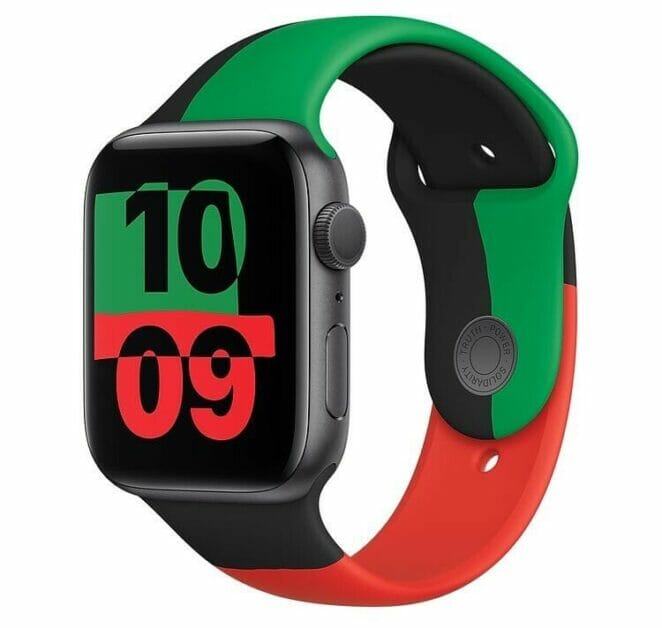
Apple Watch series 6: Front view Black Unity Aluminum Case with Sport Band

Personal wish list complete

With that, Apple filled the last box on my personal wish list for the Watch and the software is now surprisingly complete. Over the years, the Watch has become the ultimate health gadget that you can carry with you every day, providing a detailed report on your overall health and fitness.
See also: Second impression: Apple Watch SE after five months of daily use
The Apple Watch is therefore my ultimate motivation during the corona crisis. The watch reminds me to get up regularly, the three colored rings (and those of my friends) motivate me to exercise extra and with the growing list of apps I can record my sports performance.

You may already feel it coming: everything I mentioned above I can also do with an older Apple Watch or Apple Watch SE , the cheaper version that appeared at the same time as the Series 6. Months later, the added value of this more expensive version has not yet been proven. Unless you find an always on screen or the Saturation app very important, I would recommend everyone to get a SE instead of a Series 6.

Conclusion Apple Watch Series 6 second impression

The quality of the Apple Watch SE does not alter the fact that the Series 6 is still an excellent smartwatch. In fact, apart from a different design, I can think of few things that Apple can add to make the Watch better. In terms of the Apple Watch as a product, I wouldn’t want to be without it, but I do wonder if the Series 7 can do enough this year to really differentiate itself from a new SE.

How to manage multimedia on your iPhone

Managing multimedia on your iPhone can be a hassle because there are a lot of complexities in the iPhone. For instance, you have to pay money just for downloading music on your iPhone. After you have bought the music, there is a lot of hustle to add the music in the library. So for this reason, I started looking for an easier way to download the music from different platforms such as Youtube, Facebook, and others on iPhone.

When I was searching for how to convert a Youtube video to MP3 for iPhone, I stumbled across various apps. Still, I did not find the proper application that converted a Youtube video to MP3 for iPhone. After a lot of searching, I found the perfect app for this specific reason called Softorino Youtube Converter 2.

The Softorino YouTube converter to iPhone can convert any Youtube video to MP3 Music for iPhone or other Apple devices. But not just this, you can also make Ringtones for your iPhone, and also there is a Built-in browser in the app that lets you download music in MP3 from different platforms such as Vimeo, Soundcloud, and more. Moreover, you can transfer data to your iPhone as well.

Let us stick to the topic, which is how to manage multimedia on your iPhone. As we listen to music a lot, we need to find a source that will help us manage that issue. Here I will give you a step by step guide on how you can convert Youtube Music to MP3 for your iPhone.

How To Convert Youtube to MP3 for iPhone

Step 1: The first step is to download the Softorino Youtube Converter 2 application on your PC. Although the app is paid, it still gives you a one-day trial to test how it works. To download the application, click on the link given below at the end of this guide.
Step 2: After installing the application, you need to plug your iPhone into the PC. The application will automatically recognize the link of the video that you have copied on the top of the bar. Now you have to select the format of the video, which will be MP3 in this situation.
Step 3: In the third step, you have to decide where you would want your music to be saved. For instance, there are options available like PC or iPhone, iPod: you have to choose the option iPhone to download into your phone.
Step 4: In this step, you have to select in which format you want your music. You will be provided with three options: Video, Audio, Ringtone. As you are trying to manage your multimedia meaning that you will require a format that will not take much storage: in this case, Audio format.
Step 5: After selecting every option, you now have to click on the Convert & Transfer To IPhone Button. This will download your desired music on your iPhone device. Enjoy!

Not only this, but you can also download different Youtube music from the Softorino application into your iPhone without plugging the device into your PC or Mac. The procedure for this is given below.

How you can download music to iPhone without plugging the device into your PC

Downloading your desired music onto your iPhone via a cable is one way to go, but there is another way as well. Softorino Youtube Converter 2 for iPhone allows you to download your desired music without plugging in your device to the PC.

For this, you have to go Preferences > WI-FI and then select the device on which you want to download your music. The rest of the process is the same, and it is as simple as it gets. And for next time you want to download any music, Softorino App will remember your device. This means whether your phone is in a different room, you can download the music without any hassle.

What makes Softorino Stand out from the rest?

If you are using an Android version, then downloading youtube music and transferring files might not be a big issue, but when you are using an IOS version, the complications start to grow. However, with Softorino YouTube Converter 2, it is easy to download any music from Youtube or other platforms. Furthermore, you will not face any difficulties whatsoever when transferring data to your iPhone with Softorino Youtube Converter 2 application.

As we said before, it is not about just downloading music from Youtube; It also supports more than 60 platforms from which you can download your desired audio or videos. The list includes big names such as Facebook, Dailymotion, Soundcloud, and more.
Final Verdict

In this article, we guided you on how to manage your multimedia on iPhone by using the application Softorino Youtube Converter 2. As the app gives a free one day trial, you can download and convert different music on your iPhone from 66 platforms. So, stop wasting time and get on to enjoy the experience of the Softorino Youtube Converter 2 for yourself by clicking on the link below. Let’s start converting now without any hassle!

Readers interested in learning more about their Apple devices should take note of iPhoneGeeks, an emerging blog covering all things apple.

Find out more about iPhoneGeeks, and its founder Moses Gitari, below.

According to Gitari, “iphonegeeks.com focuses on producing and delivering authentic and unbiased content. for Apple fans, providing them with the latest information regarding Apple products and exciting trends in technology. We troubleshoot iOS problems and reveal the latest rumors on Apple products. Technologies are in our DNA, and that’s why discovering new things and give a hands-on to that become our habits.” His team of professional bloggers cover Apple news from an accessibility viewpoint, as well as more mainstream news that extends beyond the realm of accessibility.

iPhoneGeeks Helps thousands of Apple fans solve problems with their iPhones, iPads , Macs and other devices through easy to understand tutorials and its support community lead by experts.

“Moreover, according to Gitari, ” we teach people how to better use their Apple devices and apps, and review the latest product releases.”

Gitari began the blog last year amid numerous personal and professional doubts. He has spoken candidly about his struggles with writing and impostor syndrome, and with finding his own niche in the increasingly crowded tech blogging space. His passion and that of his team for Apple products, and his deep-seeded love of teaching and personal improvement, help him to continue the work that he loves. “I learn things better through teaching them in my blog posts, as teaching is the best way to learn,” Says gitari.

iPhoneGeeks writers pride themselves on their professionalism and informative writing. According to Gitari, “The iPhoneGeeks team shares an outstanding passion for innovative gadgets, common interests in exploring Apple devices, and the unmatched desire to play with the latest gadgetry.” This enables them to provide premium content, which has been refined through countless hours of writing and testing.

Currently, iPhoneGeeks offers a mix of factual instruction pieces, just like my own articles, and opinion pieces about the state of Apple in 2021.

For more on iPhoneGeeks, check out their mac, iphone, iPad and apple watch content.

Source: iPhoneGeeks.

There is nothing more frustrating than losing precious data like the iMessages you exchanged with your family or loved ones. The reality is, however, it happens now and then due to accidental deletion, sync-up failure, or MacOS update error. Thankfully, it’s pretty easy to recover deleted iMessages on Mac or PC using a third-party software.

How to retrieve deleted iMessages on Mac or PC

Recovering iMessages you have deleted on Mac can be quite challenging. If you’ve backed up your machine with iCloud or iTunes you may be less concerned but still unsure about how to recover deleted iMessages on Mac without losing other precious data.

If you haven’t got an iCloud or iTunes backup for your device, you may be wondering how to restore deleted iMessages on Mac or Pc. In this article, I’ll show you how to recover deleted iMessages on your Mac or PC in a few simple steps.

Why might I need to recover deleted iMessages on Mac or PC?

The vast majority of people will have deleted precious data from their Mac or PC at some point. It’s easy to inadvertently hit ‘delete’ when highlighting messages or conversation threads. Even an MacOS update can sometimes lead to data loss.

iMessages are often throwaway pieces of communication, but sometimes they are extremely valuable. Imagine erasing a precious conversation thread from the beginnings of a relationship, or deleting the address your contact sent you for a job interview.

If you are in a situation where you just have to know how to restore deleted iMessages on Mac or PC then continue reading. We’ll walk you through the options and methods that will help you to recover iMessages to your Mac or PC with, or without, a backup file.

How to get back deleted iMessages on Mac or PC

There are two main methods to consider when looking at iMessage recovery on Mac or PC. The first method is for those with iTunes or iCloud backup. The second is the best solution for those who have not backed up their Mac or PC to either iCloud or iTunes. It uses third-party software to quickly scan your device for the lost iMessages, which are still in the back-end memory of your device despite being deleted. They remain there until the space is needed for fresh data, so it’s best to retrieve the deleted iMessages as soon as possible after erasing them.

Part 1: How to recover Deleted iMessages on PC/Mac Using iCloud

If you have iCloud or iTunes backups, then you can use them to restore your machine to an earlier state before those messages were deleted.

There are several problems with this method, however. If your backups don’t go back very far, they may not have the information you want. For instance, if you want to restore a conversation from three months ago, but your backup file only goes back three weeks, that conversation won’t be available.

The major problem, however, is that in order to apply a backup to your Mac, you have to erase your machine and restore it with older data from an earlier point in time. This means you will lose any newer data between now and the time the backup was made (not to mention waste a lot of time waiting for the Mac to restore from backup).

To recover iMessages from iCloud:

Step-1: Start by signing out of iMessage on your Mac and quit the app
Step-2: Launch Finder
Step-3: Click Go from the Finder menu
Step-4: Locate your library
Step-5: Find a file named ‘messages’ from an iCloud backup date that is before the day the files you are looking for is deleted
Step-6: Open this messages folder
Step-7: Click restore

It’s safe to say that this method is far from ideal, as few people are going to want to wipe their devices clean and spend the time restoring from backup for messages that might still be there (while removing any new data in the process). This begs for a less destructive, more elegant solution.

Part-2: How to recover deleted iMessages On PC/Mac with no backup

If you want to recover deleted iMessages on your Mac or PC quickly, use a third-party data recovery tools. These software not only scans your iCloud backups and iTunes backups but they can also “deep scan” the device itself to find deleted but not-yet-overwritten data.

We tested a range of data recovery tools but settled on iBeesoft Data recovery and FonePaw iPhone Data Recovery. They were the fastest and had reliable results.

Recovering deleted iMessages Using iBeesoft Data Recovery for Mac

What is iBeesoft Data recovery? Why should you download it

iBeesoft Data Recovery is a data recovery software program that allows us to recover permanently deleted iMessages even after they have been deleted from our Mac or if we don’t have a backup. The iMessages are still there, but we just can’t see them.

iBeesoft Data Recovery Features

  • Support different types of file recovery from Mac
  • Offers two scanning modes to recover deleted files
  • Offers an option to preview before recovery
  • Offers an option to selectively restore data
  • Easy to use
  • Available on windows and PC

Please follow these steps to recover iMessages with iBeesoft Data Recovery software:

Step 1: Download and launch the iBeesoft Data Recovery software for Mac.

By default, all file types are selected. You will need to only check the file type you intend to recover. This will accelerate the scanning process for deleted iMessages on Mac.
Next, click on Start.

Step 2: Select the appropriate disc where your iMessages were saved. Now, click on Scan.

Step 3: When the scanning process is complete, you can filter out the useful files by deleting file types, then the file extension on the left side. When finding the “chat.db”, “chat.db-shm”, or “chat.db-wal”, select them all and click “Recover” to save them on your Mac.
Copy the recovered files to the ~/Library/Messages directory and restart iMessages to find deleted messages on Mac.
Now, my deleted iMessages were recovered within no time and pricing was also cheap and affordable.

How much does iBeesoft Data Recoverycost?

iBeesoft Data Recovery is available as a free download on Windows and Mac. The free version, however, won’t let you recover deleted iMessages. It only give you the ability to performing a scan and preview lost iMessages.

You can buy the full version at $55.95 for 1 Mac or $45.95 for 1 PC.

should I buy iBeesoft Data Recovery?

iBeesoft Data recovery for Mac is trusted by millions of users around the world and has also received tons of praise from reputable media outlets. Their product is easy to use; above all, it does the job very well.

iBeesoft Data recovery for Mac is a brilliant software . Actually, it might just be the best in its class in that respect.

How Do I Download iBeesoft Data Recovery?

The Windows and Mac versions of iBeesoft Data Recovery are available for download on iBeesoft website. Download iBeesoft Data Recovery and do give it a try.

Recovering deleted iMessages Using FonePaw iPhone Data Recovery

What is FonePaw iPhone Data Recovery? Why Should You Download It?

FonePaw iPhone Data Recovery is a professional tool that lets you recover lost data from any iPhone, iPad, iPod or Mac. This software has so many features and is one of the most user-friendly apps out there. With FonePaw iPhone Data Recovery, you can recover lost data from iDevices directly, iTunes Backup, or iCloud Backup. Let’s take an overview at all the FonePaw iPhone Data Recovery software features.

FonePaw iPhone Data Recovery Features

  • Support 30+ File Types Recovery from iOS devices
  • Offers three modes to recover lost files
  • Offers an option to preview before recovery
  • Offers an option to selectively restore data
  • Simple to use
  • Available on windows and PC

Below we’ll walk you step-by-step on how to recover deleted iMessages on Mac using FonePaw iPhone Data Recovery. Let’s get started.

Here’s how to retrieve deleted iMessages from Mac or PC when you don’t have a back-up file.

Step-1: First, you need to download the FonePaw iPhone Data Recovery software on your Mac or PC.

Homepage of FonePaw iPhone Data Recovery

Step-2: After installing the FonePaw iPhone Data Recovery, choose the data type and the location of lost data you want to recover. For deleted iMessages, choose “Other”. And select the hard disk drives that possibly store the deleted iMessages to continue.

Step-3: Click on “Scan” located at the right bottom to scan for files that contain deleted iMessages.

Step-4: FonePaw iPhone Data Recovery will automatically start the quick scan. It also offers a “Deep Scan” mode for more data search on the computer. But if you don’t want to use this option, simply jump to the next step.

Step-5: Once the scan process is complete, find the file named “chat.db”, “chat.db-shm “, and “chat.db-wal “. Make sure the iMessages files are created before your iMessages are deleted. Select the files and click on “Recover” to the path of “Library/Messages” on the Mac.

Next, launch Messages app on your Mac and sign in using your credentials. The deleted iMessages should be restored and seen.

View iMessages:

Using an app like FonePaw iPhone Data Recovery is far more convenient, less time consuming, and less risky than wiping your device and restoring from a backup—though it is paid for. The cost may very well be worth it if it means you can recover an important conversation, photos, or contacts without resorting to the more nuclear option.

How much does FonePaw iPhone Data Recovery cost?

FonePaw iPhone Data Recovery costs $59.95 for the Windows version and $69.95 for the Mac version.

Should I Buy FonePaw iPhone Data Recovery?

If you need to recover deleted photos, WhatsApp messages, iMessages, videos, or any files that maybe have been accidentally lost,FonePaw iPhone Data Recovery is a great choice. FonePaw iPhone Data Recovery is incredibly user-friendly — at any point in the process, you’re only just a few clicks away from recovering data of your choice.

Furthermore, FonePaw iPhone Data Recovery software retrieves deleted iMessages on Mac very quickly. Each time I initiated the recovery process, it was finished in seconds. If you’re in need of a fast solution to recover lost iMessages, FonePaw iPhone Data Recovery is a great option.

How Do I Download FonePaw iPhone Data Recovery?

The Windows and Mac versions of FonePaw iPhone Data Recovery are available for download on FonePaw website. Download FonePaw iPhone Data Recovery and do give it a try.

Recover deleted iMessages on PC/Mac Made Easy!

FonePaw iPhone Data Recovery and iBeesoft Data recovery are great softwares that makes it easy to recover deleted iMessages on Mac or PC. If you’re looking for an intuitive and powerful Solution that can help you to recover lost data on iPhone, iPad, iPod, or Mac, FonePaw iPhone Data Recovery and iBesoft Data Recovery are the best options.

We are sure that these data recovery softwares are the best software to recover deleted iMessages on Mac. Did you like this? Share your feedback with us in comment box below.

Garageband is used to create the music and by today it is superlative. This is only present in the reach of iPhone and Mac users. Windows & Android users belong to a modern music world who don’t want an Apple loop then here are some GarageBand alternatives which can be used by Windows Android users. Scroll down to read more about GarageBand for windows.

There were not too many opportunities to perform live recording and overdubbing. In short, the legendary Fab Four recorded every song in the first shot so a single mistake can cost them huge financial loss if any mistake occurs.
Today’s generation of kids sparse all the recorded sessions into their smartphones without any musical instruments. Through mobile apps now anyone can take music bands in their pockets.

Best GarageBand Alternatives in 2024

1. Magix Music Maker Jam

This app generates music with a cluster of loops. They are made of small music parts out of which it plays over in a loop. There are around 8 channels to combine and 100 variable styles which promotes creativity.
This app can be used for outer voice recordings like singing, rapping, and some other sounds and also add your own singing. After you are done with recording, share that through apps.

2. n-Track Studio Music DAW

This app claims to shoot the phone into the music studio. It permits recording within audio and MIDI tracks. You can also merge sounds and put audio effects to enhance quality.
It has the benefit of built-in MIDI featuring 128 general MIDI other instrumental music. It includes different effects such as reverb, echo, chorus, and tremolo. This app can easily be searched on android.

3. Walk Band

This is one of the best Garageband replacement apps among the others for the android. These characteristics are packed such as synthesizers, musical instruments, studio-quality recording, and many more. You will get around 50 musical instruments on this app.
Walk Band was also awarded as the best editor’s choice on the Google Play store. From piano to drum pad you will find every instrument available on this app. You can also connect your keyboard through USB MIDI through your smartphones. you can also record your own voice and mix it with synthesizers.

4. Band Lab

Band Lab is the trendy application on android which used to create music from rhythm. It permits you to edit records and create multi-track music with different creative beats, vocals, loops.
If you are a big fan of EDM, dubstep, etc then it has the option to build your own music in the trailblazer. It works on networking sites where you can publish your own track records.

5. Song Maker

It is all about creating new tracks for pre-recorded music, beats, and rhythms. Garageband became the biggest part of Apple’s music studio to create and edit modern music. It also allows you to make your own songs and mix them with different sounds, rhythms, and beats.
It is recommendable for people to use song maker apps if they like EDM and hip hop kind of music.

6. FL Studio

This app is designed for android devices for multi-track recording studios. It is also available on PCs. It has various instruments with 133 high quality such as drum kits, sliced loops, and more.
It is used to import or export midi files which can be transferred through mails, or some other services like cloud storage services. It gives high-quality audio as well as does not sustain much battery too. The music dormancy is dependent on the processing of the device. It is capable of providing the ultimate features.

7. Audio Evolution

It is similar to a walking band. It is a multi-track system used for recording purposes but is more advanced. It consists of a recording option in which you can record external voices such as singing, live concerts while using instruments, and with a microphone. it also allows you to play midi pianos to record your own songs.
Summary:
Although Garageband is made for iPhone & MacBook, there are some alternative to Garageband run on android devices. Some apps work on multi-tracking sound systems while in some apps you can create your own songs with the help of musical instruments such as drum, piano, guitar, etc. These apps are very efficient and must be tried once by music lovers who want to explore their talent of music and want to showcase their talent to the world.

Finally, the Cupertino tech giant unveild the iPhone 12 Pro and iPhone 12 Pro Max with numerous new features and changes. The 2020 iPhone 12 series was released after a month delay due to the ongoing pandemic. Both the iPhone 12 Pro and iPhone 12 Pro Max offers a better design and performance than the last year’s iPhone 11 Pro lineup. Now the entire body is made up of aluminum and Apple redesigns the antenna adjustments for enhanced network connectivity. The iPhone 12 Pro lineup offers a major improvements in the camera, performance, and connectivity department.

Design and Display

The iPhone 12 series received a Huge design enhancement. All the iPhone 12 models have a shape like the latest iPad Pro, boxy design with a stainless steel body. The iPhone 12 Pro comes in a 6.1-inches OLED display which is a leap forward from the last year’s iPhone 11 Pro which was a 5.7-inches OLED display. The Cupertino based brand achieved this by shrinking the bezels of the iPhone 12 Pro. While on the other side the iPhone 12 Pro Max comes in a 6.7-inches OLED display which is a leap forward from the last year’s iPhone 11 Pro Max which was 6.5-inches. Both devices have a Super Retina XDR display. The displays do support Dolby Vision, HDR10, and HLG.
According to Apple, the 2020 iPhone 12 series has the toughest screen glass in any smartphone in the market and they call this glass “Ceramic Shield”. The glass is 4X better drop resistant than any available smartphone in the market. Also, it improved IP68 certification rated for up to 6m depth now.

Camera Improvement and LiDAR

The iPhone 12 Pro lineup features a triple camera setup with a LiDAR (Light Detection and Ranging). There is a difference in the camera setup of the iPhone 12 Pro and iPhone 12 Pro Max. Let’s start with the LiDAR sensor. The primary purpose of this sensor is to use in Augmented reality(AR) but Apple also used this sensor for the enhancement of camera performance. According to Apple, this sensor enhances low-light photos and help the pro model iPhones to take good photos in dark environment.
The iPhone 12 Pro features a 12-megapixel main camera with OIS(Optical Image Stabilization) with an f/1.6 aperture. The main sensor uses a new 7P lens that offers better low-light performance.
While the iPhone 12 Pro Max features a bigger 12-megapixel main camera that’s 47% larger with 1.7um large pixels. It also features a sensor-shift OIS for better low-light photos which help for stabilization up to 2 seconds of handheld exposure time in low-light shots.
Both iPhones comes with a 12-megapixel ultra-wide shooter with a 120-degree field of view and f/2.4 aperture. The Cupertino based company also introduced the night mode feature in the ultra-wide camera and also the front selfie camera. Both the iPhone can record better low light videos and night mode time-lapse with the help of Smart HDR3. Apple is also releasing the Apple ProRAW feature for iPhone 12 Pro and Pro Max users which will come later this year. This feature will allow users to take full control over colors, contrast, and much more. This feature will allow pro users to post-process photos while still taking advantage of Apple’s Smart HDR3.
For video recording, the 10bit HDR video recording feature is coming in the iPhone Pro and Pro Max models. Both the iPhones are the first in the market to record in Dolby Vision HDR at 4K60fps. Also, it is possible to edit Dolby Vision videos straight from iPhone.

A14 Bionic Chipset Performance

This year Apple introduced the A14 Bionic Chipset in the iPhone 12 series. This system on chip is built on a 5nm technology. This is the first 5nm chip in any smartphone in the market. It consists of 11.8 billion transistors. The 6 core CPU of A14 bionic offers a 40% boost in performance and the 4 core GPU offers a 30% boost in performance. Apple also claims that the A14 Bionic CPU and GPU performance is 50% faster than any mobile processor in the market. The Neural Engine has also gotten a major boost and now boasts of 16 cores making it twice as fast as before. With this performance boost, iPhone 12 lineup again came on the top of the performance list.

5G with Smart Data Mode

Apple introduced 5G compatibility on all four iPhone 12 models. With the 5G iPhone will be able to get faster internet speed and faster download/upload speed. There is also a Smart data mode that will be available on the 5G devices to give users a better internet speed experienced by switching seamlessly between 5G and 4G LTE network. When the user needs more internet speed it will automatically switch to 5G mode otherwise it will give stay on 4G LTE mode, of course, it will help in battery life. While testing Apple has seen the iPhone 12 reach download speeds as high as 4Gbps. All the iPhone 12 models sold in the US will support millimeter wave technology.

MagSafe

One of the interesting features in iPhone 12 series is the MagSafe. It is a technology that allows connecting wireless charges easier to the back of your iPhone. The iPhone 12 series can also charge at up to 15W speeds wirelessly. According to Apple, you can not only use this for wireless charging but also they have new cases and accessories that you can use to connect with your iPhone.

No Charger and Earphones

Apple decided to get rid of the power adapter and the wired earphones from the box for the reduction of carbon emission from the environment. This makes the size of the iPhone 12 lineup so small than previous models of iPhones. While on the other side the whole iPhone 12 lineup is coming with a USB-C to lightning cable.

Price, Availability, and Colors

The iPhone 12 Pro lineup comes in 4 different colors including Gold, Pacific Blue, Graphite, and Silver. They are available for pre-order starting on 16th October 2020 and will be available in stores on the 23rd of October 2020. The devices will be available in three storage options: 128Gb (Base storage), 256GB, and 512GB. The iPhone 12 Pro is starting from $999 while the iPhone 12 Pro Maxis starting from $1099.
Thanks for reading. If you found this article helpful make sure to share it with others.

Finally, the Cupertino Tech giant revealed its 2020 lineup of iPhone models which include the iPhone 12, iPhone 12 Mini, iPhone 12 Pro, and the iPhone 12 Pro Max, at their October 2020 online event.
While a 5G connectivity could be seen coming from a distance already, there are still numerous new features and upgrades. An A14 Bionic Chip will aid the camera with it’s faster image processing(there’s a new night mode on the front-facing camera) and accelerate ML computation tasks by leaps and bounds.
In addition, the re-emergence of a MagSafe charger coupled with the flat design might bring back the nostalgia of the iPhone 4/5 at a time when The fast majority of people were missing it.
But surprisingly, despite the tremendous improvement, Apple’s new iPhone 12 lineup is the most un-apple like in recent years.
5G connectivity, the most hyped iPhone 12 feature is still in nascent stages. More importantly, the four variants not only make the lineup a little fragmented(something that was only seen in Android earlier) but also have some contrasting differences in hardware and camera technology.

Apple’s iPhone 12 Bets On 5G Connectivity Which Is Neither Ready Nor In Their Control

In the lead up to the event, most Apple fans had pinned their hopes for a 120Hz display. While those dreams were quick to perish, yet the oddest thing during the event was the level of significance given to 5G connectivity.
As soon as Tim Cook unveiled the new iPhone 12, the CEO of Verizon was given center stage to give a glimpse of the potential speeds a user can receive with 5G networks.
Letting a third party carrier service steal the show from their launch event was strange on Apple’s part. More so since the Cupertino based brand is well known to draw the customer’s focus towards their in-house innovations(be it by highlighting their camera upgrades or silicon chip hardware).
This makes their decision to market the iPhone 12 based on the next-generation 5G wireless networks(where they already are a late entry) a little weird. The 5G technology is yet to see the light in most place around the globe which is something beyond Apple’s control.
If the disappearance of chargers from the boxes doesn’t pull the trigger, the unavailability of 5G in most places currently might repel some customers from buying. Worse, Apple might face a backslash as the prices would probably remain the same in countries without 5G support capabilities.
It’s fair to say that Apple by highlighting the “super-fast” but absent 5G feature might have missed a trick or two in promoting the new iPhone 12 lineup.

Apple’s iPhone 12 Lineup Has Too Many Variants With Startling Differences

All four variants of the iPhone 12 support 5G capabilities, possess the super-powerful A14 bionic chip and introduce the new Dolby Vision format for recording. But that’s where the similarities end.
The iPhone 12 Mini which is the tiniest of the lot comes with a 5.7 inch OLED display and a dual-camera system much like the iPhone 12. There is a possibility that the mini version is Apple’s attempt to cash in on the success of the much loved iPhone SE 2020. Yet, the iPhone 12 Mini is devoid of the best camera hardware and technology seen in the iPhone 12 Pro models.
Both the iPhone 12 Pro and iPhone 12 Pro Max variants bring the triple camera system with an enhanced lens system and a LiDAR sensor. LiDAR technology helps in better auto-focus and gives fantastic results in Night Mode. Even better, it’s helpful for 3D scanning and will help boost the adoption of Augmented Reality.
Now a user looking for a normal size phone would either have to sacrifice on the camera front or they’ll be compelled to select the Pro models. Even among the Pro and Pro Max models, there’s a contrasting difference in camera technology specifications.
Specifically, the iPhone 12 Pro Max model offers a longer telephoto lens and its wide camera contains a sensor-shift Optical Image Stabilization(OIS). This certainly would give way better image results. But then again, it’s a strict departure from Apple’s earlier lineups wherein the Max variants were meant to emphasize only on the size without any changes in hardware.

Conclusion

Apple’s iPhone 12 series would surely be a breakthrough success. It won’t be surprising to see the sales numbers surge towards the north of a million very rapidly.
Despite that, the diversity amongst the variants with respect to sizes and their astonishingly different camera hardware technologies isn’t something you’d expect from Apple.
Perhaps, the Cupertino tech giant is looking to tap into a wider set of audience by offering a diverse range of models to pick from. But in doing so, the new iPhone 12 lineup stands fragmented. It’s a classic example of too many cooks can spoil the broth — which can easily annoy customers, give them selection headaches, and even alienate a few of them.
That’s it for this one. If you enjoyed reading this article, please share it with others.