Got a tip for us?

Reviews

You want to convert PDF file on your Mac, iPhone, or iPad, but you’re not sure how.  /”>CleverPDF is an online tool that converts PDF files on iPhone, iPad, and Mac. In this article, I’ll review CleverPDF and show you how to convert PDF files on your iPhone, iPad, or Mac!

CleverPDF Review: The Best Online PDF Converter

While there is no shortage of PDF converters, most of the premium offerings comes with a very high price point. As for the free PDF converters, most of them are trash – forget about deriving a reliable PDF solution.

So, when I stumbled upon CleverPDf, an online PDF converter, a few days ago, I (kind of) pushed it aside almost instantaneously. It was only when I tried it out that I realized that CleverPDF is different from the rest on several pivotal fronts – so much so that most online PDF tools can fail to compete with its versatility. And that’s what has propelled me to write a comprehensive review of this online PDF converter.

If you’ve ever needed to convert PDF to word on Mac, you know how challenging it can be. That’s where CleverPDF and its arsenal of online PDF tools come into the picture. It lets you quickly convert PDF to Word, PDF to Excel, PDF to JPG, PDF to Image, and dozens of other formats in just a few steps. Not only can you convert PDF to Word on Mac, you can also shrink PDF on Mac smoothly and compress them with one of the numerous tools CleverPDF offers. And if you need to encrypt PDF on Mac, let CleverPDF make it painless by allowing you to protect your PDF file with a password easily. Let’s dive into the breakdown!

CleverPDF Review: The Best Online PDF Converter

Best Free Online PDF Converter for Everyone

More Than 40 Tools

Candidly speaking, my biggest criticism about online PDF converters is the lack of efficient tools. Very few of them are capable of delivering a complete PDF solution. But that is not the case with CleverPDF as it not only boasts over 40 highly efficient tools but also accomplishes its intended goal in a very short amount of time.

If you visit their homepage, you will see a list of all PDF Tools that they offer. CleverPDF provides over 40 amazing PDF tools, including the conversion of PDF files and other format files, such as Word to PDF, Excel to PDF, Images to PDF, PNG to PDF, and more. Tools such as Compress PDF, Split PDF, ETC. are also available. These tools are all free to use, and it is not difficult to get started. Even if you are using it for the first time, CleverPDF can quickly help you out even if you have no IT expertise at hand.

To test its efficiency, I threw many challenges at it. The first one was to see how well it’s able to convert PDF to Excel on Mac. While many other apps and services can get it done, very few can do it with accuracy. Frankly speaking, I would say that CleverPDF passed this test with pretty good results. It performed the task fast and with the desired proficiency.

CleverPDF Review: The Best Online PDF Converter

The next challenge that I put before CleverPDF is to check its ability to convert PDF to Word on Mac. Again, not many online PDF converters can get through it proficiently. So, I was keen to see how well it fares. Again, the results were excellent.

CleverPDF Review: The Best Online PDF Converter

Another challenge that I put before CleverPDF is to check its ability to shrink PDF on Mac. I needed to extract some pages in a PDF file and compress them so that I can send a smaller email attachment to my coworker by email, so I used the Split PDF and Compress PDF tools. Then I was pleasantly surprised to find that the Split PDF tool provides various options. I can freely select the pages that need to be extracted. After I successfully downloaded the new PDF file, I uploaded my file to Compress PDF tool, which also provides various options, giving me the ability to choose the compression level according to my needs. To my surprise, a large PDF file was compressed to a smaller file with precision.

CleverPDF Review: The Best Online PDF Converter

CleverPDF Review: The Best Online PDF Converter

Ease of use

I have tried a ton of PDF online tools from feature-rich to lightweight. From what I have experienced, I can say that only a few of them are easy-to-use. Additionally, most of them demand a steep learning curve that kind of spoils the whole experience.

For first-time users with no technical background, CleverPDF is a boon. The best part of this tool is that it comes with clear descriptions under each feature. So, whether you are into PDF converting games professionally or have to deal with PDFs only once in a blue moon, you can get through your job without being enmeshed into any complexity.

Integrated with Several Cloud Storage Platforms

It’s worth mentioning that CleverPDF provides multiple ways to upload and download files. CleverPDF has integrated with Google Drive and Dropbox, which are the most popular file storing platforms. As such, users can upload and save files from and to different cloud storing platforms. Thus, you can seamlessly access your stored files and convert them anytime and anywhere.

Free and Safe to Use

After I used CleverPDF many times, I confirmed that the web-based app is totally free. Its user interface is simple, and navigating it on Apple devices is a breeze.

Premium license for Offline versions (Mac and Windows) are also available. So, if you want to carry out your tasks offline, perform batch processing and convert larger files, you can take advantage of this all-in-one solution to handle your PDFs without any hassles.

Apple devices are renowned for their security, but that also requires user participation to a certain extent. If you want to protect your privacy, you must eliminate potential loopholes by imposing necessary safeguards. To help with that, CleverPDF will automatically delete uploaded files within 30 minutes after the conversion is completed. To further safeguard your privacy, CleverPDF gives users the ability to manually remove the files from the server instantly in a single click. So, you shouldn’t worry about the security and privacy of your data.

Universal Compatibility

Needless to say but I wish to emphasize that CleverPdf works perfectly on any OS. So, regardless of which side of the stream you belong to – Windows, macOS, Linux, iOS or Android, – You can easily convert files with your device at anytime and anywhere. That’s the advantage of being a modern online tool.

 Final thoughts……

Using CleverPDF made me realize how much I missed the quick conversion and simple interface of online PDF tools. While other tools are quite capable, the speed of CleverPDF simply blows my mind. After my testing, i can confirm that CleverPDF is a very efficient tool for those who often need to deal with PDFs and want to have reliable tools to get the job done. Loaded with an array of tools, a perfect file encryption mechanism, and a reliable privacy policy, this all-in-one PDF converter can come in handy to the people who have to often deal with PDFs and want a tool that can perform various tasks with the needed precision.

Go ahead give CleverPDF a try. While you are at it, do let us know about your favorite function of the tool.

Tag: PDF

One of the most common questions regarding using MacBook is how to download YouTube videos on Mac. This is a deceptively simple question, and we’re going to push aside any of the complexities of downloading YouTube videos on Mac, and instead we’ll show you the single most direct method of downloading videos from YouTube on Mac in 2022, since that is usually what most people are looking to do.

There are numerous reasons why you might want to download videos from YouTube on Mac – being able to watch them when you’re on a train, for instance, or if you just want to save something for future use. Thankfully, downloading videos on YouTube is dead simple!

Downloading YouTube videos on Mac is easy, and there are lots of reasons to give it a try. For example, it lets you watch them without an internet connection, which is fantastic for keeping yourself entertained during the long traffic and trips to places without reliable internet connection.

We’ve all been there before. You’re downloading your favorite videos and everything’s going fine. Suddenly, the internet grinds to a halt for no apparent reason, and your whole night is shot. Would it surprise you to learn that someone might be doing this to you on purpose? It’s called internet throttling — and tools like VPNs can help you bypass it entirely. Only when throttling is used against you should you do something about it. In the meantime, you can download videos from YouTube on Mac and use them when your internet service provider (ISP) slows down your internet on purpose.

Downloading YouTube videos on Mac is also great if you have a Wi-Fi connection. You can download YouTube playlist to your Mac using your home Wi-Fi, and watch them on the move without risking going over your data allocation.

Which software should you use, though? Well, that’s where things get tricky.

There are a couple of YouTube downloader softwares for Mac on the market and most of them are quite good. However, there is a software that is preferred out there that always snag the most recommendations.

We took a look at some of those YouTube downloader softwares for Mac and came up with the best.

The best YouTube downloader for Mac right now is 4K Video Downloader.

Of all the YouTube downloaders we’ve tried, 4K Video Downloader is the best.

YouTube downloader software for Mac

4K Video Downloader is the world’s first YouTube downloader for MacBook. It provides a complete solution to download high-resolution videos from the major social networks including YouTube, Vimeo, TikTok, SoundCloud, Instagram, Tumblr, and more. Unlike many other YouTube video downloader software for Mac, 4K Video Downloader supports all kinds of video formats and types including 3D video, 360-degree video, and more.

How to download YouTube videos on Mac using 4K video downloader

Let’s take a look at how to download YouTube videos on Mac using 4K Video Downloader. As you’ll see, downloading videos from YouTube on Mac is a simple and straightforward process. Below are step-by-step instructions for how to download YouTube videos on Mac using 4K Video Downloader.

Step 1: Get 4K Video Downloader

Download, install and launch 4K Video Downloader on your Mac.

Step 2: Copy and paste the video URL

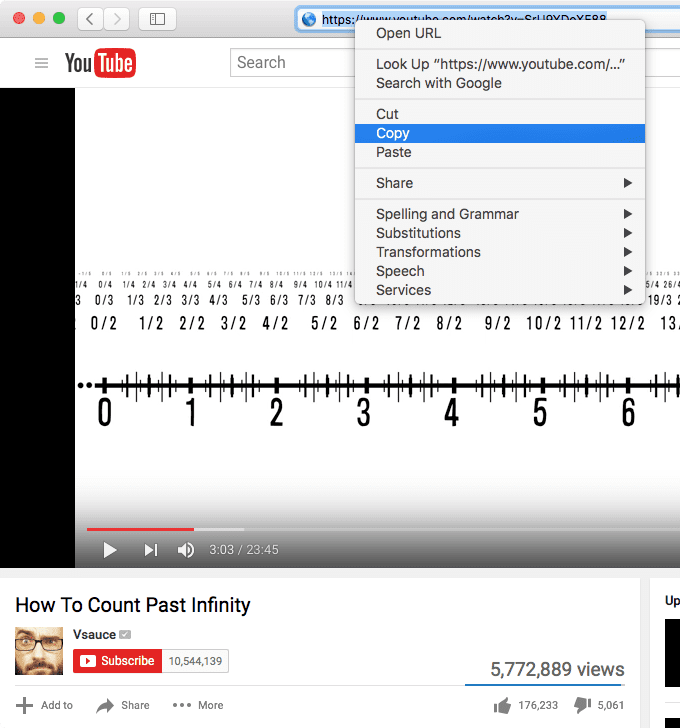
Open your web browser, find the video you want to download from YouTube and copy its URL from the address bar.

How to Download YouTube Videos on Mac

Next, open 4K Video Downloader and click The Paste Link button located at the upper left-hand corner.

How to Download YouTube Videos on Mac

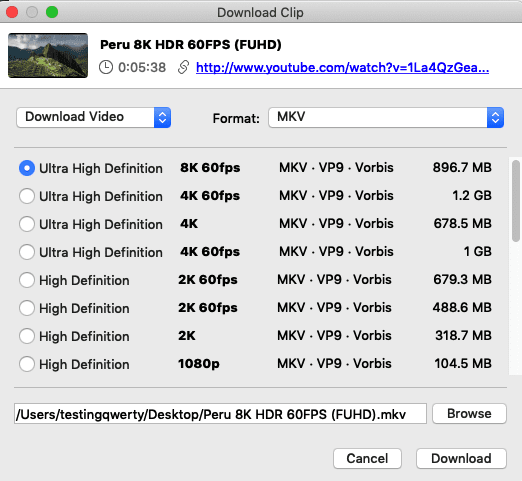
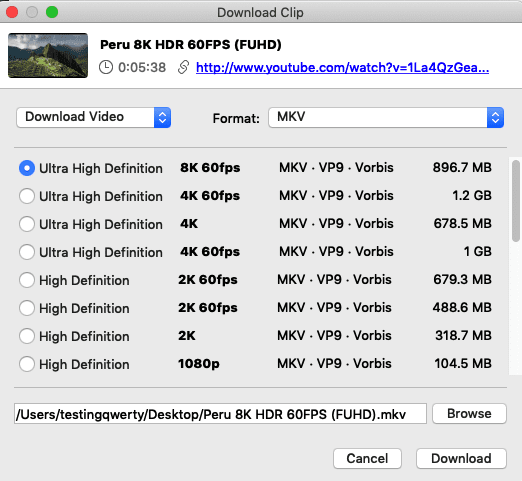
4K Video Downloader will fetch information about the video and open the video menu with the video name, choice of quality options, format and download location.

Step 3: Choose the quality and format

4K Video Downloader will allow you to download whole YouTube videos, or just extract the audio. Choose your preferred selection using the drop-down menu located on the left, and then choose a format using the menu located on the right.

Next, choose your quality. For playing back video on your TV or Mac, it’s a good idea to choose the highest resolution.

How to download YouTube videos on Mac

You can also choose where the downloaded video should be saved using the Browse button located at the bottom. Next, click Download.

Step 4: Download the YouTube video

Click the download button and the YouTube video will now be downloaded on your computer. If there are other videos in the creator’s channel, 4K Video Downloader will ask whether you want to download those as well. It can download up to 24 videos simultaneously.

Once the video has finished downloading, it will appear in the destination folder. You can also right-click it in 4K Video Downloader and select Play. Unless you adjust the settings, the video will remain in this list until you choose to remove it – even if you close and restart the software.

There you go! Now you can enjoy watching YouTube videos on your computer or TV even when you are offline.

Should I buy 4K Video Downloader?

4K Video Downloader is the best free YouTube downloader on the market. It’s easy to use, highly customizable, ad-free, and doesn’t include any malware. Unlike other YouTube downloader software that work only on a single operating system, 4K video downloader supports Windows, macOS and Linux, and this gives it an edge over other software. 4K video downloader is used by beginners as well as experts in Apple products. And therefore, we recommend this to our readers.

How Do I Download 4K Video Downloader?

4K Video Downloader is available on Mac, Windows, and Linux. Purchasing a key will let you download longer playlists and playlists with captions. The pricing for the personal license starts at $15, which is a one-time purchase for up to three computers.

You can download 4K YouTube Video Downloader and give it a try.

Highlights of 4K Video Downloader

  • Download annotations and subtitles along with YouTube videos
  • Download YouTube playlist and channels
  • Download private YouTube videos and playlists
  • Download YouTube videos in HD 1080p, HD 720p, 4K, and 8K resolution
  • Downloads 4K and 360-degree videos
  • Downloads from YouTube, Vimeo, TikTok, SoundCloud, DailyMotion and more
  • Supports 3D and 360-degree videos
  • Great choice of formats including MP4, MKV, FLV, 3GP and much more
  • Available for Windows, macOS and Linux.

Conclusion

4K Video Downloader is intuitive, user-friendly, and accomplishes its intended goal in a very short amount of time.

You’ve successfully downloaded YouTube videos on your Mac using 4K Video Downloader! A different option is to use VideoProc Converter to download playlists, videos, and audios in bulk in MP4, MP3, and other formats. Additionally, it offers a few free add-on features including the ability to convert brief audio and video files, edit downloaded movies quickly (e.g., cut, trim, crop, merge, rotate, modify speed/volume, etc.), and record webcam and the screen on an iPhone, Mac, or PC. If you have any question about this software or our 4K Video Downloader review, leave a comment down below.

If you want an easy way to download photos or videos from Instagram on your Mac, check out this software!

How to download from Instagram on Mac using 4K Stogram

You want to download from Instagram on Mac, but you’re not sure how? 4K Stogram is a software that helps you Download Instagram photos and videos easily. In this article, I’ll review 4K Stogram and show you how to download photos, videos, and stories from Instagram accounts on Mac!

Instagram doesn’t allow you to download photos, videos, or user stories. So if you come across a beautiful scenery picture or those outrageously funny videos from Instagram, you can’t download it on your Mac and share it with friends and family. You only have the ability to share the Instagram post link, which is not convenient. Enter 4K Stogram, an app that will let you download any photo or video you desire from Instagram on your Mac. Saving Instagram content is just a few clicks away. Let’s get started:

What is 4K Stogram?

4K Stogram is an Instagram Photo, Video Viewer and Downloader for Windows, Mac, and Ubuntu. It allows you to directly downloads complete Instagram profiles and save them on your device so that you can access photos, videos, and stories in offline mode. It works for both public and private accounts.

How to download from Instagram on Mac using 4K Stogram

What Types of Instagram Data Can I download With 4K Stogram?

With 4K Stogram, you can download Instagram stories, photos, accounts, hashtags, locations, and much more. The software also lets you download Instagram photos of private account straight to your Mac!

4K Stogram doesn’t stop there. The software offers a unique Instagram viewing experience on the big screen. The software also lets you subscribe to unlimited user accounts, follow trends with hashtags, and even lets you backup your entire Instagram account in just one click.

How to download from Instagram on Mac using 4K Stogram

Ease of Use

The configuration of the software with your Mac computer is easy, quick and time-saving. For first-time users with no technical background, this software is a boon. The best part of this software is that it comes with clear descriptions under each feature and you can always revert to its website.

How to Download Instagram Videos and Photos on Mac with 4K Stogram

step 1– Download install and launch the Stogram software.

How to download from Instagram on Mac using 4K Stogram

Step 2– from Stogram user interface, log in to your Instagram account.

Step 3– From the Stogram search box, type in the Instagram username, hashtag, or location.

Step 4– Select the desired account or hashtag from the search results that appears.

Step 5– Configure the download options from the Advanced Downloads Options menu.

Step 6– The Advanced Download Options allows you to select the date range for an account or hashtag. You can also leave out photos, videos, stories, or highlights by unchecking the boxes from the download menu.How to download from Instagram on Mac using 4K Stogram

Step 7– After configuring the download options, click the subscribe button and the content will start downloading.

Step 8– 4K Stogram will download all the photos and videos associated with the added account or hashtag from Instagram.

The Bottom Line: Should I Buy 4K Stogram?

If you need to download Instagram photos, videos, hashtags, locations, or user stories on Mac, 4K Stogram is a great choice. 4K Stogram is incredibly user-friendly — at any point in the process, you’re only just a few clicks away from downloading Instagram data of your choice.

Furthermore, 4K Stogram completes downloads very quickly. Each time I initiated the download, it was finished in seconds. If you’re in need of a fast solution, 4K Stogram is a great option.

How Do I Download 4K Stogram?

4K Stogram comes in three versions: for Mac, Windows and Ubuntu. It has a free version, of course, with limited number of subscriptions, posts download, and stories download. You can try out the free version before buying this software. The premium version offers additional features like unlimited downloads, account access, etc. There are two options available in the premium version:

  • Personal License, that costs about $10 as a one-time fee for three computers.
  • Pro Professional license, that costs about $30 as a one-time fee for three computers.

The Windows, Mac and Ubuntu versions of 4K Stogram are available for download on 4K Stogram’s website. Simply select which version you’d like to purchase and download.

Of course, the price may not be a factor when you’re trying to download something as priceless as the first photo of your child or those outrageously funny videos from Instagram.

Highlights of 4K Stogram

  • Download Instagram posts by username, Hashtag, or Location
  • Download Instagram stories and highlights
  • Download Instagram video posts
  • Download private Instagram photos or videos
  • Download Instagram posts from specific time periods
  • Backup your entire Instagram account in just one click
  • Import the list of subscriptions that you have made on Instagram
  • Powerful filters and sortings
  • Available on Mac, Windows and Ubuntu
  • A free version is available

Download Instagram Videos and Photos on Mac Made Easy!

4K Stogram makes it easy to download any user’s Instagram photos, videos, stories on Mac. The software performs very well. It does the downloading quickly and at the same time does not compromise the quality of downloaded content.

4K Stogram can also backup your Instagram account in seconds. It also gives you the ability to browse and download the photos easily by location and by hashtags. The software works as an Instagram viewer and downloader through which you can download Instagram stories highlights, pictures and videos from your favorite accounts, backup your Instagram profile and do a lot more. If you wish to download videos from services such as YouTube, TikTok, etc., well, you just need to download their other software called 4K Video Downloader. The software lets you download YouTube playlists, channels, 360-degree videos, and more in just a few clicks.

Leave us a comment down if you have any other questions or if you’d like to tell us your experience with 4K Stogram.

Wondering how to post to Instagram from Mac? You’re in the right place! In this article, you’ll find out which tool you should use to post to Instagram from Mac in 2021.

A few years ago, scheduling Instagram posts and Stories and publishing them automatically on Mac was a nightmare. Without the right tools, it continues to be a nightmare even today. If you are an avid Instagram user, then one thing is certain that you need to be active on the Instagram platform on a regular basis to engage your followers and grab their interest. That’s where Combin Scheduler comes in. The folks behind Combin produce some amazing software that focuses on Instagram marketing and content planning solutions. One of their software, Combin Scheduler allows you to schedule Instagram posts and stories on Mac for automated publishing. The best thing about Combin Scheduler is that it’s pretty easy and simple to use. Most of the work is done by the software automatically once you plan and schedule Instagram content.

what is Combin Scheduler? Why Should You Download It?

Combin Scheduler is a tool that lets you manage your Instagram account better and schedule posts and stories on Mac. This software has so many features and is one of the most user-friendly apps out there. With Combin Scheduler, you can Plan your Instagram posts & Stories conveniently in advance, organize and streamline the order of publications, update the Stories in bulk etc. Let’s take an overview at all the Combin Scheduler software features.

Combin Scheduler Features

  • Scheduling ahead and instant posting
  • Fully automated publishing
  • Image size editing
  • location and users tagging
  • Hashtags and accounts mentioning
  • Hashtags management
  • Bulk stories uploading

In this post, we will cover a step by step guide on how to Post to instagram from Mac using Combin Scheduler. We will also talk about other features in detail. Let’s get started.

How to post to Instagram from Mac with Combin Scheduler

Here’s how you can schedule your Instagram Posts on Mac:
Step 1– First, you need to download the Combin Scheduler software.

Download: Combin Scheduler and install it on your Mac.

Step 2– After installing the Combin Scheduler, on the first page, enter your Instagram username and password to continue. If you have enabled a two-step verification for your Instagram account, then an OTP will be sent to your mobile number that will help you log in successfully and get started with your work.

Step 3– Once you login, you’ll be able to see your recent photos and images, the number of followers, likes, and comments. And on your dashboard, you can search, see your tasks, and get statistics. Click add new post located at the bottom of application window.

How to Post to Instagram from Mac

Step 4– Drag and drop images or click Choose Photo to select pictures for the post.

Step 5– Type in the text for caption into the input field.

Step 6– Add a location tag to your post if necessary.

Step 7– Select the date and time you want to share your post (or check the box to “Post Immediately”)

Step 8– Finish schedule by clicking the Create button.

How to Post to Instagram from Mac

After hitting Create, you’re post is officially scheduled. Come the date and time of your scheduled post, your post will automatically post to Instagram without any effort on your side.

How to Post to Instagram from Mac

Combin Scheduler Does A Lot More

As I mentioned, Combin Scheduler isn’t limited to Instagram posting. It can be your ultimate Instagram toolkit with the following features.

Schedule a post for immediate or future publication

If you post several times a day, it can be quite cumbersome, especially when you don’t have much time. Sometimes we may be caught up for days and this is where Combin Scheduler comes in handy. You can use the Combin Scheduler built-in feature to plan Instagram posts and Stories for hours, days, weeks, and months ahead. If you want to share the content instantly, you can easily do so by publishing it right away.

Create a bunch of Stories in One Click

Combin Scheduler built-in powerful feature makes it easy to bulk upload photos and videos to Instagram Stories on Mac.

Style your Instagram grid layout

As the name suggest, you can use the built-in Combin Scheduler feature to curate a stylish Instagram profile with strong visual voice that attracts new followers like nobody’s business. And even better, you can preview what your future posts would look like together in the in-app calendar.

Totally automated publication of posts

This one can be essential for many out there. Instagram native app doesn’t provide you with automatic-publishing feature. Combin Scheduler can automatically publish all the content types offered by Instagram. You simply need to choose the image, date and time when you want the post to appear and there you have it! You are good to go.

Image size editing

Combin Scheduler offers you the ability to resize the images so that they fit the aspect ratio supported by Instagram. You can also Crop or zoom, change the size of your content to square, vertical, landscape or portrait. The software allows you to edit already scheduled Stories too.

hashtag management

Combin Scheduler offers great hashtag management. As such, you can store packs of different hashtags in Templates and use them when needed.

Location tagging

It’s easy to tag a location alongside your photo using Combin Scheduler. You simply need to specify the location of the post in the Combin Scheduler and the software will take care of the rest.

Upload stories in bulk

You can easily upload multiple images or videos to feature on your Instagram Storie on Mac. This can help you gain a lot of popularity and followers.

Repost on Instagram

Reposting also known as regramming, is an easy way for users to re-share special memories and exquisite posts of friends and other followers on your Instagram page. Instagram does not offer this feature, therefore, it is highly sought after by users. With Combin Scheduler, you can repost on Instagram from Mac in just a few simple clicks.

Beautiful user Interface

Combin Scheduler has one of the best interfaces out there. Its features options are robust, but you’ll never struggle to navigate them. The software is designed to let you schedule instagram posts and Stories on Mac and publish them automatically. It allows you to create inspiring and appealing Instagram feeds with minimal effort. It succeeds at that goal.

How much does Combin Scheduler cost?

Combin Scheduler is absolutely free with all the features. For free, You will get fully automated Instagram publishing from your Mac. You can Schedule Instagram content for hours, days, weeks or just post them instantly.

How Do I Download Combin Scheduler?

The Windows, Mac and Ubuntu versions of Combin Scheduler are available for download on Combin’s website. Download Combin Scheduler and do give it a try.

Final Thoughts

In conclusion, Combin is an amazing Instagram scheduler that helps you save time and manage your Instagram account on your Mac. If you’re looking for an intuitive and powerful Instagram Marketing and Content Planning Solution that can help you to attract new Instagram followers, Combin Scheduler is the best option.

We are sure that this Combin Scheduler is the best Instagram reposting software for Mac. Did you like this? Share your feedback with us in comment box.

Choosing between iPad Pro and MacBook depends on what features and specs are most important to you. Here’s what you need to know to make the right decision.

Apple’s tagline for the 2020 iPad Pro is “ Your next computer is not a computer”. It’s a fancy way to address the tension at the heart of most of the buyers. It costs more than any laptop, but will it be able to replace your MacBook?

So to this comparison, both the devices hovering around a range of $1000 price point and since we have more updates coming to the iPad Pro, they are bridging the gap between a laptop and a dedicated tablet. And i’m pretty sure people are experiencing difficulty choosing which device to go for!
The MacBook Air has a starting price of $999 but if you spend additional $200 and get the 16 GB Ram and 512 GB storage capacity, and also the i5 processor that will be about $1300, that will be a Machine that will serve you for a longer time. And people are also wondering whether they should get a MacBook Air or a 13 inch MacBook Pro which will also be about $1300-$1400.

The iPad Pro, in contrast, are a bit of a tougher choice because A — we have two different sizes and B — the accessories that are necessary to buy with an iPad which if you add, would round you up to a MacBook. Apple Pencil for $129, the smart keyboard folio or another $100 and after this you might want to get yourself a trackpad to get a feeling of a laptop, that’s another $75 you need to fork out. In all, you will be spending $300 more in just accessories. So purchasing an iPad for $699 or $999 depending on what size and spec you choose, you will have to part with a couple of hundred dollars just to complete its setup. Why not buy a MacBook? A macbook you don’t need to spend extra cash on, which is going to perform everything at the best speed and the main reason to buy a MacBook is that it’s a laptop, not a Tablet. In an iPad, you will be getting the mobile OS and it is similar to using an iPhone with just a big body.
Well, what device you choose is totally for what you are going to use it for and also it’s your choice. Personally, I think that iPad is a great device. But for productivity tasks such as editing videos and replying to emails, that’s the main work of a Computer. If you find yourself typing a lot, go for a MacBook because the MacBook offers you a better response rather than the iPad keyboard. Like if you are sitting in a park and you have to send a couple of emails, you cannot sit all the time keeping your thighs together typing on a shaking device. That’s what a laptop is made for.
Coming to a field where the iPad leaves the MacBook in the dust, The Editing. After comparing the time that a MacBook Air and iPad Pro takes to edit a video, the iPad Pro edits the videos faster than the MacBook as it has an advantage of running on a mobile OS. Same for the photo editing. Photo editing on the MacBook vs editing it on the iPad using the Apple Pencil gives you a better response.

Using the Apple Pencil, you can draw pretty fantastic things and for someone who is into designing, the iPad for sure would help you design better than any device. And as I mentioned, photographers, the iPad thrushes the MacBook hands down.
Another area where the iPad Pro leaves the MacBook in the dust is gaming. You can play games on the iPad without worries of getting overheated. iPadOS offers you an array of games compared to a MacBook. Actually, the MacBook’s were never made for gaming however you can play short and light games on it. Well, the iPad has a powerful processor and dedicates graphics which offers you a smoother gaming experience.
With the iPad weighing 1.09 pounds and the MacBook weighing 1.29 pounds, both are one of the thinnest devices in the market. But the only thing that holds me back that if you/re dropping a thousand bucks on a device is that compatibility and use.
As far as the cameras are concerned, the MacBook Air comes with a 720p camera which I think is disappointing because at such a high price range, you should be getting a 1080p camera. Some of the windows PC at similar price range offers face unlock and yet the MacBook still has the touch id. On the other hand, Apple has put in the 12-megapixel main wide sensor with an f/1.8 aperture which captures great pictures but isn’t able to match the low light performance. Apple also added another 10-megapixel ultrawide sensor at f/2.4 with a 125-degree field of view. They didn’t stop here.

The biggest change is the camera system. You can’t miss it. The big camera bump on the back of the iPad Pro is now a square now. It features two regular camera sensors and a new LIDAR sensor. The iPad also features a selfie camera which is also used to unlock the device similar to the newer iPhone models.
So if you’re a student or you are just getting into the Apple Ecosystem, close your eyes and get the MacBook Air as a laptop is what a student needs. And if you are looking for a device which has a faster processor, better performance, lighter weight, and also if those cameras matter to you, get yourself the iPad Pro. If you’re an Apple fan boy, you would keep both and hey, don’t listen to what I or other people say, get a device that would suits your needs.

See also:
How to Get into the Apple Ecosystem for Less than $1500

So… you’ve got that gorgeous iPhone and- if you followed the
previous fight
– a shiny new pair of AirPods 2 (unless you, like me, couldn’t decide and got both AirPods and BeatsX).
But… that colleague sitting besides you just went in on a pair of AirPods Pro… and you now have AirPod envy.
Are her Pro-labeled Pods better than your second-generation ear-toothbrushes?
In this article, I’m comparing the
AirPods 2
and the
AirPods Pro
because… well, just because. It’s up to the contest to determine which are the better choice. Set?
3… 2… 1… Fight!

Price

As with my comparison of AirPods 2 Vs. BeatsX, we need to talk about how much these toys are going to cost you. And, like with my comparison of AirPods 2 Vs. BeatsX, I feel obliged to remind you that your gorgeous iPhone came with a beautiful , perfectly usable pair of wired EarPods, EarPods that I personally misplaced within a week of getting the new iPhone. EarPods which cost $29.99 to replace, should you choose to.

Right. Let’s tear the band-aid. AirPods Pro will set you back the “premium” price of $249.99. Yowza. For that amount, you could have bought both pairs of headphones from the previous fight. We’ll discuss what that sum of cash gets you in a moment.

The AirPods 2 comes in two price tags: $159 for the regular pair, and $199 if you want the wireless charger case.

In case you haven’t bought AirPods 2, the Pro model will cost you an additional $90 over the standard 2’s, and $50 over the wireless charging Pods. Or, if you, like me, have already bought AirPods 2, you will have to fork out additional $249.99, which, admittedly, is a tough pill to swallow.

Winner: Too soon to tell.

Battery Life and Connection

One good thing about battery life is that both the AirPods 2 and the AirPods Pro have more or less the same battery life.

Both sets will get you around 5 hours on a charge, and both charging cases carry a max of 24 hours of recharge when you put the Pods away.
That does not mean everything is the same; if you choose to use the AirPods Pro’s Transparency or Noise Cancelling features, you’ll shorten the battery life by about 30 minutes per charge.
Having said that, Apple estimates that in the case with both pairs, you will get about an hour of use after five minutes of charging.

As far as the connection is concern, both are bundled with the same H1 chip and therefore will pair instantly and seamlessly with your Apple devices, and can quickly switch between devices associated with your Apple ID.

Winner: The AirPods 2 have a half-an-hour lead over the AirPods Pro if you utilize the more advanced features (which honestly, you are, because why else would you purchase the AirPods Pro?), but with the similarly quick charge time in the case, I personally don’t think 30 minutes is enough to claim victory here. So, tie.

Sound and Features

Finally. This is where the differences start to emerge. Because I talked a lot about the features of the AirPods 2 in my last fight, I’ll mostly discuss what the Pro’s offers in comparison.

I’ll discuss fit in another category, but the first and most clear difference between the two sets of Pods is the Pods themselves. Not only do the Pro Pods come with a wireless charging case without having to fork out a few extra bucks, but the Pro’s have a complete different form factor. Of course you still have the stem that makes them appear like EarPods with the wires chopped off, but what you’ll notice is the way they go into your ear. While the traditional AirPods have maintained the same design of the EarPods, the AirPods Pro have adopted in-ear design complete with removable silicone tips.

Personally, , I’m not a fan of silicone tip headsets. But outside of Apple’s Ear and AirPod designs and over the ear headphones, most companies have adopted silicone tips. It’s all you ever see. For me personally, they give me a headache and make me feel as if I’m underwater.

One thing I didn’t know until I tested the AirPods Pro is that this is because this style of headset is putting pressure on your ears. Unlike AirPods (1 and 2) and EarPods, which are open enough to still let air in and out of your ears, the silicone tip design block everything up. Except for the AirPods Pro. Apple’s design includes vents that reduce the pressure, making them feel more comfortable than any other headphones of the same nature out there.

But the true magic happens when you pop them in your ears. After identifying the right tip size for your AirPods (via Settings, you can do a size test to find which tips fit the best; Thankfully, mine work with all three, but the smallest ones felt the most comfortable) and you pop them in, they sound… well, they sound almost the same as standard AirPods. However, they include two different modes you can activate.
The first is Transparency Mode, which uses the microphones to allow outside sounds to get in, making it feel almost like you aren’t wearing them at all. This mode allows you to keep abreast of your surroundings and even hold conversations with the Pods in (keep in mind, if music is playing, it’s a good idea to keep the volume low to avoid asking people to repeat themselves). Having said that, there’s a stigma with wearing headsets while trying to hold a conversation; even though you are pretty sure you can hear the other person with Transparency on, there’s a likelihood that the person you are conversing with may think you aren’t attentive because you didn’t take out your headsets.

While the Transparency mode is convenient, comparing them to the AirPods 2 and the original AirPods (which allows in ambient noise by design, whether intentional or not) there’s not much of a difference. Granted, you may not always want your AirPods to let in outside sound (and we’ll discuss that in a bit ), but if Transparency is the main reason you are considering the Pro’s over the 2’s, consider that you will hear ambient noise just as easily with either pair.

The second mode- and arguably the best- is Noise Cancellation. The Cupertino based brand states that with this mode, the Pro Pods play “anti-noise” which cancels out the outside sounds before they reach your ears. Now, I think calling it noise “cancelling” is a stretch; in real-life usage, it is more like noise dimming. As soon as you enable it, it feels as if someone turned the volume down on the external environment. You can still hear it- especially louder noises and voices- but it is definitely muted. Listening to music in this mode certainly enhanced sound and clarity over the regular Pods, and it is better for you, too; you don’t have to turn the volume up to unsafe levels to hear the music.

With Noise Cancellation enabled, the AirPods Pro certainly have better sound quality than the AirPods 2. In Transparency mode or with all modes turned off, the sound quality is, frankly, similar. I switched back and forth between the AirPods Pro and AirPods 2 and couldn’t notice a difference. At least, not enough of a difference to justify the extra bucks. Similarly, with the AirPods 2 in, I could still hear my surroundings about as well as I could with Transparency enabled with the Pros. If you are planning on utilizing Transparency mode at all time, the AirPods 2 are perhaps a better- at least a cheaper- option for you. However, if the Noise Cancellation feature sounds interesting, then definitely go for Pro.

Since both includes the H1 chip, they both can activate Siri with your voice. But the way you control them is totally different. If you are used to regular AirPods, the Pro design takes some getting used to. Instead of tapping your Pod, you are required to squeeze the stem. Each stem has a touch-capacitive button that produces a satisfying click sound in your ear (the click is played through whichever Pod you are interacting with). One squeeze plays or pauses the media, two squeezes plays the next track, three the previous track, and a long squeeze jumps between Noise Cancelling and Transparency.

While you can customize the tap settings for regular AirPods, you can only customize the long squeeze, selecting between mode switching and Siri summoning, the latter which is redundant because you can easily activate Siri with your voice. That said, you do get more controls with the squeezing than with tapping, as the regular AirPods can only have a maximum of one control per Pod.

There is no way to control volume outside of asking Siri to do it or using your iPhone or Apple Watch to do it.

Winner: I give it to AirPods Pro in this category. The Noise Cancellation mode alone is a big leap forward, but I also like that Apple found a solution for the pressure that makes it hard for me to use this style of an headphone. I’m not sure if Apple is the first company to vent the pressure, but they are the first one that I’ve tried.

Fit

Ah. Now, here’s where we come to it. If there’s Been one universal gripe about the original AirPods, is been that they are one size fits few. How then to the Pro Pods stack up?

They fit quite well at first; and unlike the regular AirPods design that is one-size-fits-a-few, the inclusion of different tip sizes means you will surely find the size that fits your ears perfectly.

Having said that, original AirPods have always fit my ears perfectly. But the AirPods Pro are a bit slippery, and that’s even before you pop them in your ears. I fumbled or dropped at least one of the Pro Pods while taking them out of the case around 50% more often than I ever had with the regular AirPods.

To make things worse, while they are in my ears, they have a tendency to slip out. Actually, I’ve tried all three tip sizes, and with each after a few minutes, I find myself pushing one of the pods (usually the left one) back in place. Granted, the regular AirPods and the EarPods have always had this issue, and I am one of the lucky few whose ears wonderfully fit the original design, but it just feels more prevalent with the AirPods Pro, or at least more noticeable; if you have activated the Noise Cancelling mode, the moment a pod begins to loosen its hold on your inner ear, sound begins to trickle in, a sound that otherwise the Pods would be actively cancelling.

I did a headache-inducing head-shake test, and the standard AirPods stayed in longer than the Pros. And I’m not the only one facing this issue; A lot of people online have talked about the AirPods Pro getting slicker over time and having challenge keeping them in.

Winner: Depends on your ears; I give this to the AirPods 2 because I just can’t keep a decent enough seal with the AirPods Pro to make the noise-cancelling feature worthwhile- or to shake the sensation that sooner or later I am going to lose one of the Pro Pods in the toilet or something. And that would be quite unfortunate. However, you may be lucky, particularly if the standard AirPods don’t fit your ears pretty well.

Everyday Usage

So here, sadly, is where AirPods Pro started to fall apart for me. Especially since I am upgrading from AirPods 2, which, frankly, are still pretty new to my headset collection. But this is possibly the most subjective category, so your experiences might differ from mine.

The first thing I noted about my usage of the AirPods Pro was that I wasn’t using them; they spent more time in my pocket than they did in my ears. However, that’s also the case about the AirPods 2. Although, I can use Transparency with the Pro’s and can hear my surroundings pretty well with the 2’s, if I’m not listening to something, I don’t like to have them in my ears. That, however, is mostly a personal preference.
My other usage issue is also of a personal nature, and this, dear reader, is where you will need to do your own homework to find out if this will be an issue for you. The AirPods Pro make my head hurt.

Here is the thing: apparently my ears are sensitive to the anti-noise that the Pods produce to cancel out the regular noise. This combination of noise and anti-noise brings about sensation of pressure in my ears. Even with Apple’s pressure vent, it simply feels like it is strengthening. It only takes minutes of listening in Noise Cancelling mode for the symptoms to manifest themselves, and while the sensation dispels the instant I switch to my AirPods 2 or my BeatsX headsets, a dull ache radiates through the back of my head for a few hours. It’s quite sad, but it is there. I’ve read online that some people are able to get over it, and others don’t experience it at all. But sadly, I’m not one of those people.

I also suffer from Tinnitus, which becomes much more noticeable with active noise cancellation. While music is playing there is no issue, but if my ears are ringing before I put the AirPods Pro in, it can get worse once they are blocking out the sound. On a possibly unrelated note, I’ve also noticed some disorientation while using them in Transparency mode, as if the pass-through effect is fidgeting with my equilibrium.

Again, perhaps my ears are just too sensitive to certain things; I’ve tried other styles of headsets that cause similar effects; both the ANC on Beats Studio 3 and the vibrations of Aftershockz Bone Conduction headphones give me headaches of the same nature, and the BeatsX definitely give me a similar feeling of pressure when they are inserted (though I attribute that more to the stuffing of silicone into my ear canal). There is no absolute best pair of headsets out there. However, I’m not about to part with $250 to have headaches all the time, no matter how charming the noise cancellation feature is.

Winner: Again, I give it to AirPods, for the simple reason that they don’t give me headaches that last for hours.

Bonus Round

I’ve explained in details on how the AirPods Pro stack up against the AirPods 2. But I want to take a moment now to compare them to other headphones I’ve got lying around.

For starters, the BeatsX headphones that I compared the AirPods to in my previous contest. While the BeatsX have a lot in common with AirPods Pro in the style of headphone, there are some pros and cons in each. Of course, the BeatsX have no active noise cancelling feature, however, if with the right size tips on them (and I wish Apple would extent the ear tip fit test in Settings to their other headphones), I couldn’t tell much of a difference between the active noise cancelling of the AirPods Pro and the passive noise cancelling of the BeatsX. Though with the AirPods, you don’t get that irritating rustling sound that persists with the BeatsX cable. But on the flip side, the around-the-neck design of the BeatsX means that even if one falls out of your ear, it isn’t going anywhere.

When looking at headphones with active noise cancelling, I also considered the Beats Studio3. It’s almost unfair to compare the massive over-the-ear Beats to the tiny in-ear AirPods, but since they both bundle this anti-noise feature, they are worth taking a look. While the Studio Beats do have the advantage of passive noise cancellation given their design, comparing the ANC head to head with the AirPods Pro is about equal. If I had to choose one, I think I would have chosen the AirPods, as the silence of the ANC is- I don’t want to say more noticeable, but maybe more apparent- however, with the Beats, the Active Noise Cancellation is optional and doesn’t affect the sound quality of the music (again, that passive noise cancellation does a good job in most cases ), whereas you get a noticeable increase in sound quality when you enable active noise cancellation with the AirPods Pro.

And while the AirPods Pro design minimizes noise and adds bass that the original design can’t compare to, it’s still no match against a proper pair of headphones. The Studio3 (and even the wired, on-ear Beats EP and the aforementioned BeatsX) deliver much more punch than the AirPods Pro can achieve. Granted, Beats are popular for being bass-heavy, but even compared to my fiance’s Skullcandy Hesh 3 headphones or JLab’s GoFlex sports headphones, the AirPods Pro are still lacking in delivering the oomph that other headphones in this price range can deliver.

And if the price is a key determiner, with $70, you can get JLab’s Air Sport or Air Executive, both of which will probably stay in your ears better than the AirPods Pro (particularly the Sport, which have an over-the-ear hook too hold them in place), fantastic passive noise cancellation (when I tried the Sports last year, I could hardly hear the lawnmower engine through the headphones), and a similar pass-through feature to Apple’s Transparency Mode called Be Aware Audio (although this admittedly sounds much more electronic than Apple’s version; you won’t be fooled out of knowing you are listening to a recording of the outside world).

I’m not going to pronounce a winner here, as this fight is exclusively between the AirPods Pro and the AirPods 2, but allow me to say that even for the charm of the AirPods Pro, there are better- and cheaper- options on the market.

Conclusion

Parting is such sweet sorrow. That’s what flashed through my mind as I drove to the Apple Store to return the AirPods Pro. I really wanted to love them. I really did.
But as you have seen, the AirPods 2 won this fight hands down, at least for me. Again, many of these categories are subjective and you may not find the issues I faced affect you at all. Take this less as a condemnation of the AirPods Pro and more of a personal experience that I am sharing with you.

But for shits and giggle’s, let’s run it down. The AirPods 2 are cheaper (especially if you already own them). Personally, they fit perfectly (and while they might not fit you well, many users have complained that the AirPods Pro are unnecessarily slick and that the silicone tips do very little to help them stay in), and they don’t cause headaches.

But even if those don’t hit you the same way they hit me, consider that the Active Noice Cancellation with the AirPods isn’t really that much better than the passive noise cancelling you get with the BeatsX, which costs $150 less; the Transparency mode feature, while a cool party trick, isn’t really any more transparent than the standard AirPods already were; and for the amount of $250, you can grab a much better headsets(albeit without the H1 chip and Apple’s magic pairing). Actually, with the same amount of money, you can get both pairs of headphones from the previous fight and have the best of both worlds (and more battery life between them).

It’s all, honestly, up to you. Personally, they didn’t work for me, but that isn’t saying that the AirPods Pro aren’t outstanding pieces of technology. I really loved the idea of having one pair of headsets that could do everything I needed them to while fitting inside the smallest pocket of my jeans. But alas, earwax*.

*Earwax is something significant to consider when wearing your headsets; particularly if your headsets are getting shoved into your ear canal. Be sure to clean your Headsets on a regular basis. And fun fact; Apple included a mesh filter inside the silicone ear tips of the AirPods Pro to trap earwax before it gets all over the headset grill. Sounds good, right. If I had done a category about earwax, the AirPods Pro would have taken the crown. Oh well.

Tag: AirPods

It’s no secret that I’m a writer- I mean, hell, you’re reading something I’ve written right now.

But to be a writer in 2020, you’re going to need some technology. And that’s what I’d like to talk about in this article. Whether you write on a MacBook or a PC, a Chromebook or an iPad, you’ve got to write on something. Pen and paper is now a thing of the past.

But in this article, I don’t want to compare laptops or tablets or even keyboards. No, I want to talk software. Because having a piece of tech to write on is the first step, but finding a program to translate your chaotic key-presses into something worth reading is equally significant.

And it depends, a great deal, on what you are going to need to do in your writing program. Do you need total control over every aspect of how the document appears? Do you need to have the ability to share your document with others to collaborate on? Are you- like me- writing a novel or a series of novels? Are you writing school papers? Work documents?

While there are numerous programs and apps on the market to get your writing done, I want to pit the big three-
Microsoft’s Word,
Apple’s Pages,
And
Google’s Docs.

*Please keep in mind: For reference, I will only be talking about the personal versions of these programs; if there’s any differences between the standard programs and
their business counterparts- like G-Suite or Office for Business- I won’t talk about it here.

3…2…1… FIGHT!

Cost

This is always my starting point. If you’re considering which program to write with, it’s always a good idea to consider how much it will cost you to use them.

Thankfully, there are free versions of all three of these programs- but they vary in superiority and usefulness.

Google Docs, actually, is completely free; all you may have to pay for is Goole Drive storage, and that’s only if you exhaust the 15gb Google Offers you for free (this includes your Gmail, photos, and anything else you have in Drive besides your writing).

Apple’s Pages is another free program to use, which is quite awesome; Apple used to charge for this software ($19.99 on Macs, and $9.99 on iOS). It’s also a bummer, because I’m pretty sure I paid for the iPad version when it was first released. Just like Google Docs, all you would have to pay for would be additional iCloud storage if you need it.

Microsoft is the only app that will cost you; to use the desktop version of Word- or the app on any device with a screen that is 10.1 inches or larger- you must pay for a Microsoft 365 subscription, which starts at $6.99 a month (or $69.99 a year). The advantage of this plan is that it automatically comes with 1tb of OneDrive cloud storage, so at least you are not limited to a meager 5gb storage capacity.

Having said that, Microsoft does offer a free web-version of Word; it is not that feature-rich, but it’s there and can be used in almost any web browser. The shortcoming, of course, is that you need to be connected to the internet to use this free model.

Winner: I could argue that required subscription from Microsoft is advantageous because of the extra cloud storage, but truth be told: free is free. Apple and Google tie in this category, leaving Microsoft in the dust.

Availability

Whether a program is free or not, you need to consider when and where you can use it.

This depends primarily on the devices you use. For instance, you can only use Pages on Apple devices- An iPhone, iPad or Mac. Apple offers a web version of Pages on iCloud.com, but frankly , it’s a far cry from the real processor; it will help you in no time, but you aren’t going to want to use the web app on a daily basis.

Microsoft Word has a much wider reach, with fully-fledged programs available on both Windows 10 and macOS. While it’s web version is somewhat – and I mean somewhat- better than Pages in iCloud, it still isn’t something to use on the regular. And if you use an iPad or a Chromebook, there is an app version of Word that has gotten pretty good over the years, but still isn’t as good as the desktop version.

Google Docs has the advantage over the others – or should I say the Chrome – because it is available everywhere. On most devices, Google Docs is only web app- but unlike the web versions of Pages or Word, it is fully functional- in fact, it is more functional on the web than the downloadable app versions.

Google Docs is accessible from anywhere provided that you have a web browser. In fact, you don’t have to use Chrome; if you do use Chrome, it features a built-in offline mode so that you can access and edit your docs on the go (Simply ensure you’ve allowed Google Drive to store files offline). If you use an iPad or Android device (including Chromebooks that run Android apps), there is a Google Docs app you can download, but similar to the web versions of Word and Pages, it is nowhere near as useful as the real deal.

Winner: Google Docs. Whether you use a Mac, a PC, a Chromebook, an Android device, or an iPhone/iPad, Google Docs is readily available. Although the app isn’t as fantastic (we’ll talk about that shortly ), if you have a web browser, you’ve got access to Google Docs. Microsoft Word comes in at a close second, especially if you prefer the desktop program compared to a web app or mobile app. Apple Pages… well, it’s best if used inside the walled garden.

Saving and the Cloud

Saving your work is very crucial. If you don’t, well… why waste your energy writing it, right?

Personally, I’ve been burned before as far as saving my work is concern; Windows once lost 12 whole chapters I had been writing, and I’ve never really forgiven it for that. But that was way before the introduction of cloud storage and autosaving; today, there’s a lot of peace of mind built into these programs. Having said that, I’m a paranoid writer; I always keep back up copies of my work so that I’m not depending on a single cloud service or my computer’s hard drive.

For years, Google Docs has been my gold standard as far as savings your work is concern. It saves after every. keystroke. instantly. Even when you are using it offline, it saves every single added character and instantly uploads it to Google Drive the moment it gets a scent of Wi-Fi. Personally, this is the single reason I keep going back to Google Docs; I know that if my laptop dies mid-sentence, Docs saved that half-a-sentence. And because it is all saved in the cloud, if someone came and shattered my laptop as I work on a document, all I need to do is sign into Google on another device to keep on chugging.

Microsoft Word has really improved when it comes to saving in recent years; while it has had its own auto-save feature for a long time, it used to only save every Two minutes. Yes, that is still pretty often, but potentially offers enough elapsed time that you could loose something. Word includes a redundancy feature that recovers documents that weren’t saved before a shut down or power loss, but in my testing, this is quite unpredictable.

These days, if you enable autosave (for some reason, this is an option and not a default), it will save every time you stop typing, and it will upload it to OneDrive- either instantly or as soon as your device is connected back to the internet, and is very almost as reliable as Google Docs gold standard. The only problem I have experienced is that occasionally, Word gets an error where it can’t figure out which version of the document is the most up-to-date, but the problem only seems to occur when I’m editing a document on one device and then I switch to another (for instance, going from Word on the iPhone to Word on a Mac). But even when that happens, Word will prompt you to check the differences or ask you to save one version as a copy.

To be honest, Pages method of saving annoys me. It autosaves too, and seems to do so as well as the other two. However, the problem is that it doesn’t indicate it is saving. It just does it- and it just works, as with most Apple products- but this is the one time I’d really like Apple to tell me what it is doing. Essentially, you just have to belief when you close a document that it saved everything just how you wanted it. What’s worse, sometimes Pages- at least the macOS version- prompts you to save before closing, which to me says that it wasn’t autosaving a damn thing.

Both Google Docs and Word will notify you at the top of the page when it is saving and when everything is saved, and will even let you know if it is waiting to upload your file to their respective clouds. Because Pages doesn’t do this- ever- it makes me not want to rely on it, especially when writing something as long as a novel.

While we’re on the topic of saving, we should also discuss the issue of the cloud. I’m not going to break down cloud storage or the pros and cons of each service- that’s probably a subject for another fight – but I do want to talk about how using the cloud to store your documents will work with each service.

With Google Docs, your documents are automatically uploaded to Google Drive, and, if you are using Chrome, Google Drive will automatically store your files on your computer for offline use. The process is quite simple, and you really don’t have to do anything; provided that you are signed into Google Drive for the first time in Chrome, the offline download starts automatically. Having said that, it’s quite challenging to use Google Docs to open an edit documents that aren’t saved in Drive- basically, Google will prompt you to upload it to Drive first- and possibly convert it into Google Docs format- before you can do everything you need to with it. If you are using the Google Docs app, you can toggle specific documents to always stay downloaded to your phone or tablet, but you will be required to go document by document; at the time of writing, there’s no way to mass-download the documents.

In Word, you can create word documents that only live offline (as long as you are using the full desktop version on a Mac or PC; the app versions and the web apps will require OneDrive to save files), or you can save files in OneDrive. I love this functionality because it makes it easy to save a back-up copy on your computer’s hard drive in case your cloud becomes inaccessible, and the other way round. OneDrive also includes a “Personal Vault” where you can store documents behind some added encryption, but in my experience, it was difficult to access and edit documents if they are in the vault; Word, for instance, can’t search the vault to open a document. As far as offline work is concerned, you can instruct Windows to always keep specific documents or folders downloaded to your computer so that they are always at your disposal wherever you are. In the Word apps for iOS and Android, there’s absolutely no way to specify which files you want to stay downloaded; Word will automatically download and store documents you’ve recently opened, but those downloads won’t stay for a long time.

Pages, by the same token, offers you the ability to open and create documents stored both on your Mac (or iPad or iPhone) and in iCloud. In addition, you can instruct iCloud to download a folder or a file, but, at least in iOS, iCloud appears to automatically remove those downloads after a while, which is annoying because you either have to remember to re-download the documents you’re gonna want while offline, or you discover too late that your documents are unavailable when you need them. I haven’t managed to test whether or not macOS will also automatically dump downloaded files back into iCloud when they haven’t been used in a while, but I personally don’t expect it to work any differently than it does on iOS.

Winner: Once again, the award goes to Google Docs. It remains the gold standard for saving, and it makes keeping documents offline something you don’t have to think about, provided that you are using Google Chrome as your browser. Once more, Word comes in at a close second; they’ve really worked hard in the last couple of years to get their autosaving up to par with Google’s, and while saving cloud documents for offline use is done manually, it is still relatively simple to make sure your files are downloaded and stay downloaded. In this case, Apple’s jingle that “it just works” isn’t enough, especially for a paranoid writer like me.

Features

It is important to talk about what you can do with these programs… you know, besides writing. For the vast majority of people, all they need is something to type in, but every now and then, there are other thing you’re gonna need.

In this section, I am going to particularly discuss the desktop versions of Word and Pages, in addition to the web version of Google Docs, since we’ve already established that their apps aren’t as full featured, and I’ve promised I’ll talk about the apps in another section.

Obviously, all 3 of these programs do the basics- formatting, fonts, and footnotes. If you’re a font fiend like me, it’s worth noting that Google Docs only supports fonts from its own catalog, while Windows and Apple will only allow you to install fonts you’ve downloaded or purchased, as well as fonts from services like Adobe Creative Cloud.

Also, please note that Pages seems to have a weird formatting bug with some fonts; depending on the font you use (and it may only apply to third-party fonts), Pages will “lose” parts of each page once in a while. Thankfully, none of your writing gets lost, but where the page breaks, sentences and even whole paragraphs won’t displayed. You can fix this by copying the entire document and pasting it into a new document, but unless you change the font, it will only happen again after a while. It’s somehow annoying, especially if you have a preference for a specific font for your work. I also couldn’t get bold to work in certain third party fonts in Pages. I thought maybe there was a separate bold font I needed to install for this to work, but the same font installed in Microsoft Word appeared in bold whenever I hit the command.

Each of them includes collaboration feature as well, in the event you need to share your document with others. All three gives you the ability to share a document either with full permission to edit or with only the ability to view the document, but Google goes a step further by adding a third option, where you can allow people you share with to add comments. I love this option because I can allow proofreaders the ability to make notes without actually being able to change the original document.

Google Docs allows you to see a collaborator working in real time, with a separate cursor (in a different color) and their name next to it. There are two modes here- suggesting and editing – with the latter allowing them to make direct changes that will fall in line with the rest of the document, and the other highlighting their changes for you to accept or reject before they are incorporated into the document.

In Word, this collaboration becomes quite a bit more robust. Real-time changes don’t show up quite as fast – however, still within a few seconds- but changes are tracked so that you can easily find, approve, and reject changes made by others. Formatting or font changes are marked with a red line to the left of the segment that was changed, and clicking on that line will show you the notes in the comments panel to the right that identify what was changed, while text changes will be in red and will underline what was added or cross out what was removed.

Pages, more or less, works the same. I encountered some difficulty seeing real-time changes in the documents, though it could be an issue with iOS vs. macOS; I know I said I wasn’t talking about the apps in this category, but I don’t have an extra MacBook to try Pages on. If I made a change on the iPad, it took Approximately 10–20 seconds to show up on the MacBook, but if I made a change on the MacBook, the iPad compelled me to close the file and reload it before the change could reflect. Working Mac to Mac, I think it would work more like Word, but to be honest, I used the app versions of Google Docs and Word on the same iPad to test collaboration and never had to reload the document manually. Tracking changes works the same as it does in Word; added words are marked in red, erased words also appear in red and crossed out, and changes are also indicated by a red line to the left of the segment that was changed, and a note in the comments section.

To be honest, I can’t talk about all of the features packed in these programs- I’m not a power user- and most things- such as changing headers and whatnot- Works pretty much the same and as well in each that it isn’t worth writing about. But there are a couple of other things I wish to point out in this category.

Among the three, Google Docs is arguably the least feature-heavy. It is definitely more for lighter users, which is made explicit by lengthy documents- even on a computer with a good processor, Google Docs will lag some in large documents (you know, like a manuscript).

Pages appears to have virtually all the feature Word has, but nearly does not get you an invitation to the Headless Hunt. Certain things- such as adding a page break- just don’t work as beautifully as they do in Word or Docs; Pages insists always on adding a whole blank page to the document, which I then have to delete. Pages also has a few drabacks that Word does not. For instance, I had numbered paragraphs in one section of a document, and then more at a later point in the same document. Pages insisted that the second set should continue the numbering from earlier, while Word allowed me to restart the count at one. Maybe Pages can do this as well, but they didn’t make this feature in any way findable.

While in the tsubject of finding thinks… Word has a handy search bar- not the one where you can search words or phrases in the document- but to search for features in the program. This makes it incredibly useful if you are aware of the feature you want but don’t know where to find it.

All three processors includes spelling and grammar checker. Google Docs’ appears to depend on the internet, however; when in offline mode, it will simply ignore your mistakes. Pages, in contrast, has some weird drabacks of its own; for some reason, it insists on capitalizing after a question mark in a quote, resulting in “Where is she?” They asked… instead of “Where is she? they asked. It also tried to convince me that I should be typing “Your wrong” instead of “You’re wrong.” I mean, words like their, they’re, and there are hard enough without Pages incorrectly telling you which one to use.

If you own a PC that has a touchscreen and supports the use of a stylus- for instance the Surface Pen- Word supports drawing in the document. This is a super useful tool, and one I personally like for writing notes in my documents because it makes the notes stand out from regular text. Pages supports this as well, but only on the iPad.

Lastly, if you are looking to get your work published, it’s worth noting that Microsoft Word is the standard for the most publishers. While Docs and Pages can export into a Word document, I’ve noted that sometimes there are formatting issues when trying to open those files in Word. Pages, for example, sometimes entirely forgets to translate tabs over, which I think is somehow connected to its auto-tab feature. Having said that, if you are looking at self publishing, Pages does have it’s own macOS app built for publishing into Apple Books.

Winner: Microsoft Word. It is hands down the most feature-rich of all the three word processors, and it is also the writing standard for most publishing companies. In addition, collaboration is at its best in Word. Obviously, it really depends on what your needs are; I don’t use half of the capabilities Microsoft Word offers, however, apparently I use just enough that Pages sometimes falls short. Moreover, Pages sometimes just doesn’t understand grammar, and that right their is a huge problem.

Apps

I promised to talk about the apps, and I meant it. So here we are. All the three programs offer app versions of their word processors, but the apps are not created equal.

As I pointed out, Google Docs’ app for iOS and Android is a far cry from the full-fledged web program; it is missing most of the features that are built into Google Docs proper, including some basics such as footnote support (indeed and in fact, you can’t even see footnotes that are in the document unless you look at the Print Preview). It also lacks what I consider Google Docs signature feature- its instant saving. Instead of seeing it save after every keystroke, you have to tap a check mark at the top of the screen to save your changes. Generally, the app just feels old-fashioned; Google has done very little to update it in years, at least from a visual angle, and honestly they seem very slow to release major feature updates too. Candidly, the Google Docs app feels like an entirely separate program from the main web version.

Microsoft’s Word for iOS and Android has come a lot closer to the full desktop app- it can even support third-party fonts on the iPad now- but it still isn’t on same level with the desktop app. First of all, you can’t open multiple documents at the same time, even though Apple introduced this feature with iPadOS 13 (don’t worry, Google Docs can’t do it either). Secondly, some of the keyboard shortcuts- such as inserting those dreaded footnotes- don’t work in the app, even when paired with a physical keyboard. The top bar also feels like a slimmed down version of the tool panel you get in the full Word experience, but almost everything is pretty much where it should be if you are conversant with the desktop version. I couldn’t figure out a way to view all of my headers in a large document, though, which is a bummer for navigation.

Pages on iOS works pretty much the same as Pages on macOS. The layout of things like the formatting menu is the almost similar, although some of the options are split to feature at the bottom of the iPad display, where, ideally, it is closer to your fingers when you’re typing on the screen. Unfortunately that makes it quite challenging to find things sometimes; an option for, say, a footnote is down at the bottom of the display rather than at the top in the menu (and same as Word, the familiar keyboard shortcut doesn’t do a damn thing). Other stuff, such as the table of contents, are presented only as a drop down menu and not as a permanent fixture beside the document, which, again, is a bummer for navigating a large document.

But the apps aren’t exclusive to the ones you download; Pages and Word also offer online web apps. In this category, though, Google Docs wins by a clear distance, simply because the primary version is a web app. Pages and Word are, more or less, the same as the mobile app that you install on your device, except that they require internet connection and are lacking in even a couple of more areas- such as font support for anything but the basics that are built into the programs.

Winner: When compared to their desktop (or web, in the case of Google) counterparts, none of these really compare. Having said that, Word at least bear a resemblance to
the desktop program in terms of design, therefore, at least there isn’t too much of a learning curve as far as finding what you need is concern. Pages, if anything, is fuller featured on the iPad than any of the others, but only by comparison. While it’s quite tough to decide between Pages and Word as a winner here, I think it is Fair to say the Google Docs app is definitely the loser. It feels like it was designed by a completely company. It sucks.

Note-Taking

The final thing I want to talk about has nothing to do with the programs themselves. But if you’re a writer, more than likely you’re going to take notes at some point in time.

Each of these companies also makes a note-taking app, which in some way works together with the main program. Of course, you can easily use a third party program like Evernote for your note-taking, however, I’d like to take a moment to consider what Google, Apple, and Microsoft have to offer and how they interact with their word processors.

Similar to Google Docs, Google Keep primarily resides on the web. Unlike the Docs web app, however, it doesn’t include an offline mode. For that purpose, you’d need to be using a device- such as a Chromebook or an iPad- that can install the Keep mobile app. Keep notes are also kept in the cloud and synced so that you can access notes from all your devices.

As far as I’m concern, Keep is a little lacking in organization. While it includes features such as searchable labels and the ability to pin the most essential notes to the top of the list, it doesn’t include an option for folders to better organize notes. But the bonus of using Keep is that it is quick to start a new note, and from Google Docs you can directly import a note from Keep- to do this, just tap the Keep icon to the right of the document and your list of notes appears. Also, you can set reminders directly in your notes, so that your note reappears when you need it to, and you can add photos to your notes.

Apple, likewise, stocks its Notes app on iOS and macOS. Like Pages, it’s not available on PC, Chromebook, or Android users however, for people in Apple’s ecosystem, it’s an automatic choice. Unlike Keep, Notes offers the ability to create folders for organization, and like Keep you can pin important notes to the top of each notebook. While it’s impossible to set up a reminder within the note, you can share a note to Apple’s Reminders app, where it will appear as an attachment when the reminder goes off. On iPhone and iPad, you can draw in Notes, and if you own an iPad that supports the Apple Pencil, you can easily open a new note from the lock-screen by tapping the Pencil to the screen. And, like Keep, you can add photos to notes. Unfortunately, there’s no way to easily import a note into Pages beyond copying the text in Notes and pasting it in Pages. Not a big issue, but nowhere near as fast as Keep’s built-in function within Docs. Another nag is that sometimes Notes will open a new note in between other notes rather than in order. It’s a pain, but you can easily move the notes around if you need to.

Lastly, Microsoft offers OneNote, which incidentally is the only free part of their Office Suite; you don’t need that 365 subscription to use OneNote. I like OneNote, because it not only supports folders for organization, it supports subfolders within those folders. Among the three programs, it probably takes the longest from opening the app to starting a note, but once you get going, you’ve got a lot of tools to work with. Actually, you have almost the same tools that you have in Microsoft Word. You can use a pen on supported devices to create handwritten notes or drawings. OneNote does not seem to have an easier way to share notes into Word besides copying and pasting, but one advantage that it has is the ability to attach damn almost any type of file to your note. It’s worth mentioning that OneNote has a very fluid layout; while the others are pretty static typing interfaces, OneNote allows free formatting so that you can put your notes and images and whatever else where it works for you in the note. For creatives and non-linear thinkers, it’s absolutely a great feature.

Similar with the word processors themselves, there are other features- such as voice dictation- that I don’t use often enough to compare them for you.

Winner: OneNote. While it doesn’t have the fast sharing method that Google Docs and Keep have, it’s certainly the most robust note-taking app available from these three companies. And while it doesn’t tie into Word in any significant way, the tool bar in OneNote is very similar to Word’s, which means if you use one, you should easily be able to slip into the other. Additionally, the free style of OneNote is an absolute win for creatives.

Closing thoughts

So Google Docs won this fight, at least on paper, but which writing program is right for you? As with all things, I think it depends on your needs.

Google Docs is fantastic for light users who need a free word processor, and it is great because it saves instantly and it available everywhere. However, steer clear of the mobile app; it’s not worth it.

Pages is a great step up from Docs- especially for a free program- and will definitely suit most users’ needs. But it isn’t for everyone- literally, if you don’t own a mac or an iPad, you shouldn’t even think about it.

Microsoft Word is my processor of choice, since it’s available on most computers, it is feature-rich, and it is the publishing standard (again, whether or not that matters to you). While it does cost cash, it at least pairs that monthly charge with a load of cloud storage. And while the mobile app isn’t great, it doesn’t suck either.

See also:
Best Notepad Apps for iPad

So, what about you? Which writing program do you use, and what makes you love (or hate) it? I’d be interested to know in the comments section below.


Tag: Pages

You want to Take Videos with Music on iOS device but you’re worried you won’t be able to Play Music While Recording a Video on your iPhone? Well, we have some great news for you.

Can you play music while recording video on iPhone?

As soon as you try recording a video in the Camera app on your iPhone, any music playing on your device comes to a halt. This is an iOS restriction by Apple. The good news is that you can use a third-party app to play music while recording a video on your iPhone. Whether you are playing audio from Spotify, Apple Music, Pandora, Tidal, Deezer, Podcasts, YouTube, SoundCloud ETC, the process is actually quite simple. Which app should you use, though? Well, that’s where things gets complicated.

The good news is that there is an app that is preferred out there that always snags the most recommendations. You can take advantage of the third-party app, like
Mideo
to play music while recording a video on iPhone within few simple clicks. In this article, I’ll review Mideo and show you How to record video with background music on iPhone! Continue reading to learn how you can use Mideo to record video with music playing on iPhone.

Mideo is an extremely convenient application that allows you to record unlimited length videos while playing music in very high quality without any hassle. As such, you can live stress free without the worry of paused audio playback during video recording.
Yes, you heard it right… in our testing, we were blown away because Music played on the iPhone continued to play even when we captured video. This is a great achievement worthy of a thousand accolades!

First off, Mideo has one of the best mobile interfaces out there. The app is designed to allow you to record video without pausing music. It succeeds at that goal. What separates Mideo from the pack, is much simpler interface than other video recording apps out there, which makes it easier for anyone to navigate and use.  

Mideo doesn’t stop there, though. It also lets you save your recording to Camera Roll and you can share them via your favorite apps with a few clicks.

The recording feature works like magic. You just need to play audio from any source, launch the Mideo app and perform a single Click.

Mideo has been steadily improved with new features and design enhancements that now make it a fantastic companion to iPhone Camera if you care about playing music while recording video on iPhone.

With that in mind, let’s look at how to play music while recording a video on iPhone using Mideo app.

How to Play Music While Recording a Video on iPhone With the Mideo App

Step 1- Play a SongFirst, you’ll need to play a song on your iPhone from any source. It doesn’t matter if you play it from Apple Music, Spotify, YouTube or any other music app or streaming service that supports background playback. The only important thing is that the song can play in the background, meaning you can launch other apps, and it will continue playing.

Step 2- Record a Video
To record a video while music is playing, launch the Mideo app and start recording. As you record video, the song playing will continue to play in the background from your iPhone’s built-in speakers, and it will be audible inside the saved video. After you’re done filming, your recording will be saved to Camera Roll

Step 3- use Control Center to handle playback while recording
While recording in Mideo, you can restart, resume, or change the song from the Control Center.

Should I Buy Mideo app?

As soon as you try recording a video in the Camera app on your iPhone, any music playing on your device comes to a halt. No matter what you’re listening to, as soon as you switch to “Video” in the Camera app, the music will stop. However, if you want background music in your video files, Mideo offers you a perfect workaround to let you add an audio track in your recordings.

Mideo is especially useful for dancers, weightlifters, acters, or singers. If you want background music in your movie files, you simply won’t be able to add it without an app like Mideo.

And this brings me to my favorite feature of Mideo — it’s hands-free. You play a Song on your iPhone, iPad, or iPod, Open the Mideo app and start recording, and you’ll be bypassing iOS restriction in no time at all!

How Do I Download Mideo app?

You can
Download Mideo
 by visiting the app store.

Highlights of Mideo app

  • Allows you to Play Music While Recording
  • Allows you to Trim and edit recordings
  • Compatible with all iPhone models including iPhone 6s, 7, 8, X, and 11
  • Compatible with all versions of iOS including iOS 13
  • Compatible with All Music Apps
  • Uses the Built-In Camera
  • Available to download on iOS and Android
  • Saves the recordings to Camera Roll

Signing off

Mideo app is intuitive, user-friendly, and accomplishes its intended goal in a very short amount of time.

You’ve successfully recorded video with music on iPhone using Mideo app! If you have any other questions about this App or our Mideo review, leave a comment down below.

Notice

For this review, I received a subscription to use Cash Reader: bill identifier, worth US $17.99 from the developer. The opinions expressed in the review however are my own. I received no other compensation related to this content.

Intro

Of the numerous ways the iPhone can improve the quality of life for people with disabilities, one of the most intriguing to me is currency identification. In the case of the US dollar, for example, all banknotes are the same size and feel exactly alike with no way to independently identify the denomination without seeing the print. However, with apps like Cash Reader and Microsoft Seeing AI, a user like myself can simply place a banknote under a smartphone camera and hear its denomination spoken.


For several years, I had used NantMobile Money Reader, formerly Looktel Money Reader for this purpose, but it has since been removed from the AppStore and is no-longer maintained. Due to the stagnation of this once promising product, I’ve Since transitioned to using Microsoft Seeing AI, and recently, Cash Reader: Bill Identifier. In this review, I will give an overview of this money reader app, as well as an objective comparison to Seeing AI.
Cash Reader app: bill identifier

Comparison between Cash Reader and Seeing AI

While both Cash Reader and Seeing AI are apps that aim to make the visual world more accessible to blind and low-vision users, there are several notable differences between the two.


To start, Cash Reader is a standalone currency identifier, meaning the only function it serves is to identify the denominations of banknotes. By contrast, Seeing AI is what many refer to as a, “Swiss Army knife,” of assistive apps, combining short text, document, product, and face recognition with light and color detection, as well as currency identification. Also, where all of the processing for Seeing AI is done remotely, Cash Reader downloads data for your currency of choice, meaning all processing is done on the device. If you are somewhere where your Internet connection is poor, currency identification with Cash Reader might come in handy, as no Internet connection is required to use it.

 
Another difference between the two money reader apps is that Seeing AI is completely free, whereas Cash Reader is subscription based. My theory for why one app is free and another requires a paid subscription is that Seeing AI is a research project by Microsoft, a very large corporation who most likely can comfortably afford the cost of developing and maintaining an app as well as the cloud servers that do the heavy lifting. By contrast, Cash Reader is developed by a team with a comparatively smaller budget to develop and maintain an app.


A potential advantage to Cash Reader is that as data is processed on device, readouts are significantly faster than with Seeing AI. Whether that is worth paying for a subscription to you is of course your call, but I’d definitely recommend checking out the 14-day free trial to get a sense of the benefit in speed and performance.


Before I conclude this section, I’d also like to give a brief mention to another free currency identifier app called EyeNote, which is intended exclusively for identifying US dollars. While this app is free and has the added advantage of determining whether a particular banknote is front or back side up, I have found its recognition speed to be lacking when compared to other money reader apps for iPhone.

Using Cash Reader

Once you download the app and select a subscription, you will be asked to select a default currency, in my case US dollars. From there, it will download the data for that currency and present the obligatory user agreement.


Once agreed to, the app’s main interface will be displayed, which is nothing but the name of the selected currency and a settings button. Don’t let that fool you, however, as this money reader app is very fast and powerful. In my experience, I could place a banknote under my
iPhone SE (2020)
camera, and hear the denomination spoken by
VoiceOver
in approximately one-second or less. This is much faster than Seeing AI, and even faster than the now discontinued NantMobile Money Reader.
Photo of hands with mobile and banknote


Using Cash Reader made me realize how much I missed the quick identification and simple interface of standalone currency identifiers like NantMobile Money Reader. While Seeing AI’s money reading abilities are quite capable, the speed of Cash Reader simply blows my mind.


When you select the settings button, a list of options, organized by heading, is displayed. In this review, I will cover a few notable customizations that, in my opinion, set Cash Reader apart from the competition. Keep in mind that this is not an exhaustive list of settings, as many of them are presumably intended for low-vision users. As I am totally blind, I am unable to test or comment on visual features.

Silent mode

In addition to identifying money by spoken feedback, Cash Reader can also convey denominations with a pattern of vibrations or haptics, depending on your preference.


One vibration or haptic will be given for the lowest denomination, two for the second lowest, and so on. You can configure this mode to always be enabled, always be disabled, or determined by the position of the hardware silent switch on the device; if the switch is toggled to silent mode, denominations will not be spoken, and if it isn’t, they will be spoken. This mode can be especially useful in public or loud environments, where you may not want to broadcast how much money you’re carrying around at the given time.

Siri Shortcuts

In addition to simply opening the app and placing a banknote of your default currency under the camera, you can also configure Siri shortcuts to open the app or identify alternative currencies using your voice. From this section of the settings, you can record a phrase that Siri will recognize to open the app or select an alternative currency for identification. For me, I recorded a shortcut to open the app and identify US dollars by engaging Siri and saying, “What’s the value of this bill?”


Of course, I can also tell Siri to open Cash Reader, so this feature holds little practical utility for me. However, I can see it being useful for people who, for example, need to identify multiple currencies and don’t want to dive into the app settings each time. Not having access to additional currency samples, however, I was not able to test how this works in practice.

Banknote announcement style

If you’re working with only one currency, it may not be necessary for VoiceOver to announce it for each bill. This area is where you can choose whether or not the name of the currency is spoken, or just the denomination, E.G., 20 American dollars versus simply 20.

Send photo for inspection

If you know Cash Reader is misidentifying money, you can send a photo of that particular banknote as well as the surrounding environment so that the developers can investigate the issue and improve recognition accuracy in the future. However, I have not yet, to my knowledge, encountered inaccurate bill identification, and thus haven’t used this feature.

Availability and Price

Cash Reader: Bill Identifier, is available on both iOS and Android. In US, however, the application costs US$17.99 for iPhone users and $16 for Android for lifetime usage. Users can alternatively subscribe to monthly or yearly packages, or use a 14-day free trial.
Download Cash Reader for iOS
Download Cash Reader for Android

Conclusion

The first time I remember using a currency identification app was in 2011, using the app then known as Looktel Money Reader on my new iPhone. Smartphone technology and accessibility has evolved by leaps and bounds since then, but the central principle of holding a banknote under a camera and hearing the denomination spoken by VoiceOver remains the same today.


However, this money reader app appears to be noticeably faster and more customizable than other apps I’ve tried. I’d also be interested to know the utility of the visual features, as that seems to be one unique differentiating factor of this money reader app for the blind. If you have any experience with this app or any currency identification apps, be they positive, negative or neutral, I’d like to know. Sound off in the comments.

No, it’s not the Magic Keyboard for iPad
The virtual keyboard on the iPad Pro is excellent. Having the possibility to make it smaller and drag it anywhere on the screen is a great feature that allows you to type only with one hand.

Even if the virtual keyboard is a lot better than it used to be, it’s not a perfect solution if you want to use your iPad Pro as your primary working device.

My first keyboard was the
Apple Smart keyboard Folio case
Unlike most people, I didn’t hate the feeling of the keys. I did find the keys a little small and hard to be precise on.

Don’t get me wrong, it was super great for small typing tasks, like replying to a few texts and typing a few emails, but it got very annoying to use for longer texts. I was consistently hitting the wrong key, sometimes I wasn’t pressing hard enough, and the noise it was making was somehow irritating to me.

It did indeed enjoy the portability of it, though. It was keeping my iPad secure, pretty thin, and rather light — especially since the 12.9 inch iPad Pro is already quite heavy.

The form factor was a crucial feature for me, and that’s why I wasn’t attracted to any other keyboards. Most of them were turning the iPad Pro into such a thick device or making it extremely heavy. If I need a thick and heavy device, I might as well just use a MacBook.

The New Magic Keyboard for the iPad Pro Could Have Been Great…

The new Magic Keyboard for iPad looks great. It turns the iPad into some sort of iMac, and having this (small) touchpad is probably going to have a significant impact on people’s productivity, as it’s going to make the iPad way much better to use. Overall, the product looks premium, the typing experience seems fantastic according to what all these geek bloggers are saying, and the trackpad works like a breeze. When I saw this product being released, I was certain that it was what I needed until some people got it and started doing reviews.

People are complaining about the weight of the device, particularly with the 12.9-inch model. The combined weight of the iPad and the keyboard makes it heavier than a 13 inch MacBook Pro. If I need to carry something this heavy, why would I bother with the iPad? My MacBook would seem like a better option.

I don’t understand this Magic Keyboard. It seems great to have on your desk so that you don’t have to carry it around all day. But then what’s the point of having an iPad if you just use it at your desk? And if you are only using it at your desk, why don’t you use a MacBook or even an iMac or something? These devices are a lot easier to work on. I guess some folks will love it. I’m just not in that group of people. Some would argue that I need to try it out before I express my opinion on it. I’d say that I’m not willing to give it a try since the price has been set this high!

The Canopy

For sometimes now, I’ve been using a regular Apple Magic Keyboard with my iPad, and it’s been great. I like the feeling of typing on this keyboard, it’s quite compact, and it has incredible battery life. I know that it’s not the best keyboard on the market, but for what I do, I think it’s my best bet.

Alongside this keyboard, I’m using the Canopy from Studio Neat (not affiliate). It’s both a sleeve for the Magic keyboard and an iPad stand. The sleeve makes transporting the keyboard pretty easy. The sleeve opens in an iPad stand. The final result appears very sleek. The complete setup is the most practical one I’ve found yet. It’s highly portable, it doesn’t make the iPad insanely thick or heavy, and the typing experience is outstanding since you’re typing on an actual keyboard, and not some sort of compact compromise.

I’m astounded this solution is not more popular. No one came up with the perfect product yet, but I feel like this solution is the best available today. Unlike the iPad Magic Keyboard, it doesn’t make your iPad untransportable.

I am now trying to figure out the best way to have a mouse or trackpad with this setup because that’s the only thing that I’m interested in trying. Currently, I’m using a Logitech MX Anywhere 2S. It’s highly portable, and the battery life is super great. But I’m not super sold on the ergonomics of the mouse. Again, since I’m need something portable, it’s quite difficult to find a product that doesn’t compromise on the comfort and ease of use. Finding the right mouse or trackpad is the last step for building my ideal iPad setup. I trust I’ll find the right fit.