Got a tip for us?

Mac Apps

In the world of multimedia systems, the continued evolution of video content and file formats over the past decade has sparked breakthroughs in the broadening of the video landscape. That has also led to the birth of a multitude of video converting software as people seek to transcode incompatible or obsolete digital video to a better-supported or modern format. And thus here in this post, we have compiled the 10 best video converters for Mac that feature the most up-to-date video conversion algorithms with the maximum conversion efficiency for you to leverage.

1. VideoProc Converter

Verdict: The overall best video converter for Mac

VideoProc Converter can quickly tackle and efficiently address all the issues related to Mac media formats, codec, quality, size, processing, etc. Encompassing 370 input formats and 420 output codecs with 8K resolution and above, the program allows you to convert video to any Mac-supported formats including MP4, MKV, MOV, AVI, DVD, ISO, VIDEO_TS, AVCHD, WebM, QuickTime, MP3, AAC, Apple ALAC, etc., and customize the video file properties for resolution, bit rate, frame rate, and more.

What’s more, packed with Full GPU acceleration and a full-fledged conversion engine, the Mac video converter can advance the conversion speed 47x real-time faster while retaining your video quality. Largely characterized by its intuitiveness, compatibility, and stability, the video converter is open to beginners and experts.

Price: Free trial version to try all features without watermark; Offers premium plans for video conversion longer than 5 minutes.

Pros:

  • Batch convert media file to video/audio/image sequence, 420 formats.
  • Support Mac computers running M1, M1 Pro, or M1 Max systems.
  • Support video remux, 2-pass encoding, and x265 high entropy codec.
  • Up to 47x real-time increase in conversion speed along with an average of 2% CPU usage only
  • Simple and intuitive interface to ensure an easy and streamlined conversion process
  • Apple-ready output profile for Mac, Apple TV, iPhone, iPad, and iPod.
  • Toolkit to edit video, record screen, compress, download video, copy DVD…

Cons:

  • Free trial is limited to five-minute videos.

2. DivX Video Converter

Verdict: The best paid Mac video converter for beginners.

As the full-featured Mac video convert, DivX Video Converter offers the largest library of conversion and optimization profiles, and allows you to convert videos to core Mac formats like MOV, MP4, M4V, MP3, MPG, AVI, DivX, MKV, and delve into advanced transcoding options to alter bitrate, resolution and file size. The free version includes three components where you can enjoy high-quality video playback, convert video, and cast media from Mac to any DNLA-compatible device. But other advanced features like DVD backups, Google compatibility, and custom workflow optimization then require additional purchases.

Price: Free version; $19.99 Pro version.

Pro:

  • Broad format support with high-quality video output.
  • A decent video suite to convert, playback, and stream video on the Mac computer.
  • Customizable video settings to take full control of the conversion process.

Cons:

  • Ads and upsells show in the free version.
  • The bundled software might be installed on your Mac during use.

3. HandBrake

Verdict: Best free Mac video converter for cross-platform users.

HandBrake, a capable free Mac video converter, enables you to convert between any video format and codec. With an array of features to draw on, you can have a full hold over the video output and get quick results by simply loading up the video into the Mac program and using one of the many presets in the side panel to convert to different formats with various settings in place. Moreover, you are allowed to customize the encoding settings, apply effects, tweak frame rates, and change codecs in the Output Setting section.

Price: Free

Pros:

  • An extremely free yet powerful video converter for Mac.
  • Batch convert audio or video files between H.264, H.265, MPEG-2, MPEG-4, VP8 AAC, MP3, FLAC, AC3, etc.
  • A handful of preset options to work with for the pixel perfectionists.

Cons:

  • The interface might seem somewhat intimidating to beginners.
  • Something of a learning curve

4. Any Video Converter

Verdict: Best Mac video converter for DVD burning.

Programmed as a fully-fledged yet easy-to-use Mac video converter, just as the name suggests, Any Video Converter can convert almost any video, audio, or DVD file without any kind of limitations thanks to its rich list of video, audio, and device formats. Also included is the option to merge multiple video files and thereafter convert them into a single video file. Better yet, the Mac tool can perform other extra functions like 4K video downloading, DVD burning, and video editing, making it an all-in-one solution for video processing.

Price: Free; $39.95 Full version.

Pros:

  • Batch files processing to work on multiple video files simultaneously.
  • Rich video editing tools to further refine the video or audio file before converting.
  • Intuitive interface, great output quality, tons of options…
  • No ads, spyware, or malware.

Cons:

  • Sluggish conversion speed when converting the large video file.
  • Limited trial version.

5. QuickTime Player

Verdict: Best built-in Mac video converter

As an extensible multimedia framework developed by Apple Inc., QuickTime is capable of handling various formats of digital video, picture, and sound, and can quickly convert videos to or from the major file formats. It may not fare so well with video conversion on obscure file formats, but would be an ideal option for those who are reluctant to use a third-party Mac video converter to convert video files. The free version is limited only to some basic conversion and playback options, and more advanced features like video recording and editing require a QuickTime Pro subscription.

Price: Free; $30 for QuickTime Pro version.

Pros:

  • Support for H.264 compression to deliver brilliant, crisp HD video with less bandwidth and storage.
  • Audio playback integration.

Cons:

  • Many extra codecs are needed for playback.
  • Installs bloatware.
  • Lack of support on some common video formats.

6. VLC

Verdict: Best free Mac video converter for batch conversion.

Apart from its strong media playback capability, VLC also boasts a sound performance in video conversion that allows Mac users to convert between different formats, and adjust various audio and video parameters to personalize the output to your needs. The free Mac video converter equips customizable and editable conversion profiles to rid you of the need to tinker with a ton of options that you may not be familiar with. Besides, laden with a plethora of features, the tool offers the ability to dump the raw input while converting media files, which could help to cut down the amount of time needed to convert from one format to another.

Price: Free

Pros:

  • Supports a ton of formats and codecs like H.264. H.263, MPEG, MKV, MP3…
  • Offers hotkeys to help quicken various conversion tasks.
  • Offers video and audio clipping options to extract just the media sections you need.

Cons:

  • The old-fashioned user interface is unpleasant to work with.
  • Crashes occur while converting videos on Mac device.

7. Avidemux

Verdict: Best free Mac video converter with basic editing options.

Programmed as a free and open-source software application for non-linear video editing and transcoding multimedia files, Avidemux is another Mac video converter that you can leverage. It supports most standard formats and can read and convert MP4, AVI, MPEG, and DVD, to name a few. Besides, the advanced interlacing and deinterlacing controls enable you to handle adjustments of older video types, greatly expanding the source range that the Mac tool could access.

Price: Free

Pros:

  • Full editing control to fulfill the needs of video editing.
  • Simple and easy interface.
  • Remux video without encoding or losing quality.

Cons:

  • Difficult to customize the encoding settings.
  • Constant crashes during the video conversion process.

8. FFmpeg

Verdict: Best free Mac video converter for advanced users or engineers.

Functioning as a complete, free and cross-platform solution to record, convert and stream audio and video, FFmpeg is another video converter for Mac. It supports the most obscure ancient formats up to the cutting edge, the Mac tool can decode, encode, transcode, mux, demux, stream, filter, and play literally anything that you can possibly imagine. But you definitively have to dig deep into the document when doing anything more advanced in the FFmpeg environment, meaning that it may take some time to accomplish what you want.

Price: Free

Pros:

  • A huge feature set offered to
  • Expendable or interfaced with by 3rd party hardware accelerators.
  • Very thorough documentation.

Cons:

  • Steep learning curve.

9. CloudConvert

Verdict: Best online video converter for Mac

Characterized by its strong support for over 200 formats, CloudConvert can convert almost every file piece you throw to it on Mac. Included is not only the ability to access audio, video, document, and image but also ebook, archive, spreadsheet, and presentation formats. Embedded with a clean and straightforward interface, the tool brings to Mac users the most effortless online conversion workflow. Besides, data security is ensured for all uploads and downloads, and you can rest assured to use the service to convert your video files.

Price: Free for up to 25 conversions per day; Offer flexible payment options to suit users’ needs.

Pros:

  • An online video converter software chrome extension support.
  • Popular input and output formats.
  • Easy and safe to use.

Cons:

  • Slow conversion process under the bad network environment.
  • No batch conversion support.
  • Limited free conversions minutes.

10. Zamzar

Verdict: Best online Mac video converter for casual users.

As one of the leading web-based Mac video converters, Zamzar is capable of handling various types of conversion for free. With its great multi-functionality, usability, and accessibility, users are allowed to convert a vast array of files including videos, documents, images, audio, and archives on Mac to other more compatible formats. All you need is to upload your original video files, choose the format you want to convert to, and hit the Convert button to convert.

Price: Free to perform two conversion tasks within a 24 hour (with a 50MB size limit per file); Offer subscription plans for basic, pro, and business needs.

Pros:

  • Straightforward and quick conversion process.
  • Easy and safe to use.

Cons:

  • 50 MB file size limit makes it difficult to use for video.
  • Lack of some common video formats support.
With the consumption of video on digital devices on the rise as the number of streaming services rocket each year, gone are the days when watching movies and television from the comfort of a couch via cable TV was a norm. But if you are on the go or suffering from a spotty internet connection where streaming video could lead to choppy video playback, downloading videos on your Mac to watch offline would make for a more enjoyable experience. Thus in this post, we compiled the 10 best free video downloaders for Mac featuring the most up-to-date video downloading capability. Read through to see what we have on the menu!

1. VideoProc Converter AI

Compatibility: Mac, Windows.

Pricing: Free

Designed as a dedicated free video downloader for Mac, VideoProc Converter AI boasts support for media downloads of any sort. Its built-in downloader feature is free to use.
The free version gives you everything you need to get started. It allows you to download video on Mac from 10 sites including YouTube, Instagram, etc. With the batch download option, you can effortlessly save the entire playlists with no concurrent download limits. The best part? This downloader allows you to save audio and videos in their original resolution, whether it’s 1080p or 4K.

For those who want more, the paid version unlocks some really useful extras. For example, you can use the AI features to upscale the downloads to up to 4K resolution without quality loss, if the saved video isn’t clear enough. In addition, it also includes editing features to trim, crop, and convert videos to multiple formats, making it perfect for users looking for a comprehensive solution. If you don’t need the entire video file, it can save just the audio track of that file. Or, if you want to convert all videos to MP4 format, you can set it to do the conversion automatically.

Pros:

  • Support 8K, 4K, and 1080p video downloading in their original resolutions
  • Stable, fast and batch download videos easily
  • No limits to simultaneous downloads
  • Downloads playlists, channels, and subtitles
  • Video toolkit built-in: AI enhancements, convert to 420 formats, extract audio, rip DVDs

Cons:

  • I haven’t noticed any drawbacks using the free video downloader for Mac yet.

2. 4K Video Downloader Plus

Compatibility: Mac, Windows, Linux, Android.

Pricing: Free; US$15 for the licensed version (one-time fee for multiple devices); US$25

As the lightweight yet full-featured Mac free video downloader, 4K Video Downloader Plus enables you to download videos from YouTube, Vimeo, Twitch, TikTok, SoundCloud, Facebook, and more. The Mac free video downloader excels in both speed and performance, preparing your videos with only a few seconds.

While easily downloading videos in any resolution (anything from 720p HD to 8K UHD) is the key feature, 4K Video Downloader Plus offers a number of features to make itself a unique app worth having on your Mac.

It has a built-in browser – which makes it easier than ever to find your favorite videos to download. On top of that, if you’re logged in, you can access protected content. Typically, you’re unable to download private YouTube videos on your Mac, but with 4K Video Downloader Plus, so long as you’re authorized – you have that ability.

There’s also a feature called smart mode, which speeds up future downloads by saving your preferred preferences that are best for your device. 4K Video Downloader Plus also offers a built in proxy, so you can access YouTube on networks where it might be blocked.

Additionally, as mentioned earlier, there’s a feature to subscribe to a playlist or channel and auto download future videos. This means 4K Video Downloader Plus will work in the background for you, and you can easily have the files for your favorite video creator or series right after it gets uploaded.

All in all, 4K Video Downloader Plus is an incredibly nifty tool for heavy video consumers. Between the ability to easily download videos, audio tracks, and playlists from any resolution from 720p to 8K, it’s a worthwhile app to check out on your Mac.

With the free version, you can download 10-15 videos per day, which is still rather generous. For unlimited downloads, paid plans start at $15/year. For multiple devices, you can pay $25 for a lifetime version, and if you need commercial usage you can purchase a lifetime license for $45.

Pros:

  • Simple UI adds to a clutter-free downloading experience.
  • Smart download mode to auto-apply specific settings to all future downloads on Mac.
  • Allow for 3D videos and 360°/virtual reality videos download.
  • Strong ability to handle all common formats including MP4, FLV, MKV, 3GP, MP3, M4A, OGG, etc.
  • Customization feature to adjust video format, resolution, duration, and more.

Cons: With the free version, you can download a maximum of 15 videos per day.

3. MacX YouTube Downloader

Compatibility: Mac OS X 10.5 or higher

Price: Free

Running as a straightforward and capable video downloader for Mac, MacX YouTube Downloader enables you to quickly download videos from 1000 websites including YouTube, Facebook, Vimeo, Instagram, Dailymotion, and more. With a single click of the mouse, these videos can be downloaded and saved in formats such as MP4 or WebM in the best available quality up to 8K resolution. The batch downloading option allows you to download multiple videos simultaneously and features a simple user interface so you need only paste a video URL, select your preferred quality and format, and let the program handle the rest.

MacX YouTube Downloader stands out for its straightforward approach—no complicated settings, no annoying ads, and no unnecessary bloat. It’s designed to do one thing and do it well: download videos fast and reliably from a massive range of websites. Whether you’re downloading a single video or batch downloading an entire playlist, this free downloader delivers consistent performance.

Pros:

  • Download from 1000 websites including YouTube, Facebook, Vimeo, Instagram, and Dailymotion
  • Support for 8K, 4K, and 1080p video downloads without quality loss
  • Batch downloading capability for downloading multiple videos simultaneously
  • Simple, clean interface with no annoying ads
  • Download and save subtitles from videos
  • Preview videos before downloading
  • Fast download speeds with support for multiple simultaneous downloads

Cons:

  • No built-in video conversion after download
  • Limited to downloading only; lacks editing features
  • No GPU/hardware acceleration for faster downloads

4. YTD Video Downloader for Mac

Compatibility: Mac.

Price: Free; Pro version available for unlimited downloads

YTD Video Downloader for Mac constitutes a fast and functional tool for downloading streaming videos. Including a neat interface with straightforward functionality, the Mac free video downloader offers all of the options that one would expect for video downloading and some additional ones for video conversion.

The free version allows downloading videos from all major streaming sites with some limitations—the free edition supports a daily download limit of a few videos, making it ideal for casual users. For those who need unlimited downloads and advanced features, the paid Pro version removes these restrictions and offers batch downloading capabilities.

Pros:

  • Download, convert and play videos from all major streaming sites.
  • You are allowed to pause, resume, or cancel downloads anytime you want.
  • Batch download is available in the Pro version.

Cons:

  • Free version has daily download limits (typically 3-10 videos per day)
  • Downloading speed is quite sluggish, notably when downloading videos in bulk.
  • Pro version required for unlimited downloads and batch features

5. iFunia YouTube Downloader

Compatibility: Mac

Price: Free trial available; US$42.99 for 1 Mac lifetime license

Providing the one-stop solution to download videos and playlists for offline use, iFunia YouTube Downloader is one of the best video downloaders for Mac users to save videos from YouTube, Facebook, Instagram, and 1000 other websites. Incorporating a cutting-edge downloading engine into its design, the program enables you to batch download online videos in such qualities as 1080P, 2K, 4K, and 8K, and convert them to the formats you desire.

iFunia offers a free trial that allows you to test the software before committing to a purchase. The full version includes lifetime support and access to all features without recurring subscription fees.

Pros:

  • Download high-resolution videos and playlists from more than 1000 websites
  • Built-in preview and playback of different media files in 1080p quality and support for 3D videos
  • Convert videos to desired formats like MKV, MOV, WMV, MP4, etc.
  • Batch download capability for downloading multiple videos at once

Cons:

  • Requires paid license for full functionality beyond trial period
  • Occasional crashes reported during video downloading process

6. ClipGrab

Compatibility: Mac, Windows, Linux.

Price: Free

ClipGrab, another free video downloader for Mac, allows you to download streaming videos from various websites and convert them to key formats along the process. Besides, the search feature that is overlooked by most of its peers provides such a quick and easy way to find a video you wish to download, saving you from the hassle of manually switching to another browser time and again. The whole user experience is quite approachable as the program can quickly analyze the links you add, making the downloading work straightforward.

Pros:

  • Support a handful of video websites including YouTube, Dailymotion, Vimeo, and Facebook.
  • Download videos in high/standard/low definition based on your liking.
  • Integrated search feature and conversion option help to streamline the workflow.
  • Beautifully designed graphical user interface.

Cons:

  • The search tools return limited results each query.
  • The installation package might bundle adware with it.

7. GetTube for Mac

Compatibility: macOS 10.7 or later

Price: Free

Functioning as another Mac free video downloader, GetTube enables you to store any video hosted on popular video platforms to your Mac device in any quality from 144p to 4K so that you can enjoy your choice videos without draining your data plan. As a standalone app, it works well with Safari and Firefox. Once installed, you can see a download button in the browser while surfing on YouTube, and when you find a video you wish to download, simply click on the video and choose the format you want to work with, and the downloading process will start.

Pros:

  • The lightweight macOS video downloader to save videos in high quality.
  • Direct connection to YouTube and downloading without using a web browser.

Cons:

  • Limited output formats to choose from.

8. PasteDownload

Compatibility: Web tool

Price: Free

As one of the most reliable and safe online services built to help Mac users free download videos or music easily, PasteDownload allows download from over 500 video sharing platforms by simply pasting the URL of the video without installing any application.

Pros:

  • Resumable download support; simple and safe-to-use.
  • Website is regularly updated.
  • Download video in quality ranging from low quality up to 1080p Full HD.

Cons:

  • Downloading speed can be sluggish with a low internet connection

9. QDownloader

Compatibility: Web tool

Price: Free

QDownloader is a free online video downloader for Mac users to save videos from a range of websites including YouTube, Facebook, Vimeo, and Instagram within simple clicks. The conversion engine incorporated helps convert video from websites to MP4, MP3, and other formats on Mac or PC. In addition, it comes with browser extension version that can be applied in Safari, Firefox, Opera, and Chrome. The platform is completely free and safe to use.

Pros:

  • Download video in HD, 720p, SD, and many other available resolutions.
  • Unlimited downloads without any restrictions.
  • Free and safe to use without registering for an account.
  • Fast downloads and conversions with no rate limits

Cons:

  • Annoying pop-up ads.
  • Audio quality limited to standard bitrates

10. Keepvid

Compatibility: Web tool

Price: Free

As one of the best free online video downloaders for Mac, Keepvid allows you to download videos of any sort from YouTube, Facebook, Vimeo, Dailymotion, and more. On top of that, it also enables you to convert videos to MP3 and save them as your new ringtone.

Pros:

  • Fast in video download and service.
  • Keep subtitles in various languages

Cons:

  • No batch download support.
  • Downloading speed can be slow sometimes, and crashes are frequently found.

See also: 4K YouTube to MP3 Review: Best app to download YouTube videos in MP3 on Mac

One of the most common questions regarding using MacBook is how to download videos from YouTube and save them as MP3s on Mac. This is a deceptively simple question, and we’re going to push aside any of the complexities of downloading YouTube videos in MP3 format on Mac, and instead we’ll show you the single most direct method of downloading videos from YouTube in MP3 format on Mac in 2023, since that is usually what most people are looking to do.

There are numerous reasons why you might want to download YouTube videos in MP3 on Mac – being able to listen to them when you’re on a train, for instance, or if you just want to save something for future use. Thankfully, downloading your favorite YouTube videos in MP3 on Mac is dead simple!

Downloading YouTube videos to MP3 on Mac is easy, and there are lots of reasons to give it a try. For example, it lets you listen to music without an internet connection, which is fantastic for keeping yourself entertained during the long traffic and trips to places without reliable internet connection.

Downloading YouTube videos to MP3 on Mac is also great if you have a Wi-Fi connection. You can download YouTube playlist to your Mac using your home Wi-Fi, and listen to music on the move without risking going over your data allocation.

Which tool should you use, though? Well, that’s where things get complicated.

There are a couple of YouTube videos to MP3 downloader softwares for Mac on the market and most of them are quite good. However, there is a software that is preferred out there that always snag the most recommendations.

We took a look at some of those YouTube videos to MP3 downloader software for Mac and came up with the best.

The best YouTube to MP3 converter for Mac right now is: 4K YouTube to MP3.

4K YouTube to MP3

Of all the YouTube to MP3 converter applications we’ve tried, 4K YouTube to MP3 is the best.

Whether you want to listen to music from a video offline whenever you like, or turn your favorite YouTube’s channel into a podcast that you can enjoy when you’re working, 4K YouTube to MP3 is the best tool for the job. Provided that you have the copyright owner’s permission, that is – bear in mind that YouTube’s terms of service explicitly prohibit unauthorized downloading.

4K YouTube to MP3 is the world’s first YouTube to MP3 converter for MacBook. It provides a complete solution to download high-quality audio from the major social networks including YouTube, Soundcloud, Vimeo, Instagram, Facebook, Flickr, Dailymotion, Metacafe, Twitch,, Tumblr and more. Unlike many other YouTube to MP3 converter software for Mac, 4K YouTube to MP3 supports all kinds of audio formats and types including MP3, M4A and OGG.

How to download YouTube videos in MP3 format on Mac using 4K YouTube to MP3

Let’s take a look at how to download YouTube videos to MP3 and save them on your Mac using 4K YouTube to MP3. As you’ll see, downloading YouTube playlists and channels in MP3, M4A or OGG on Mac is a simple and straightforward process. Below are step-by-step instructions for how to download YouTube videos in MP3 format on Mac using 4K YouTube to MP3.

Step 1: Get 4K YouTube to MP3

Download, install and launch 4K YouTube to MP3 on your Mac.

4K YouTube to MP3

Step 2: Copy and paste the video URL

Launch your web browser, find the content you want to download from YouTube and copy its URL from the address bar.

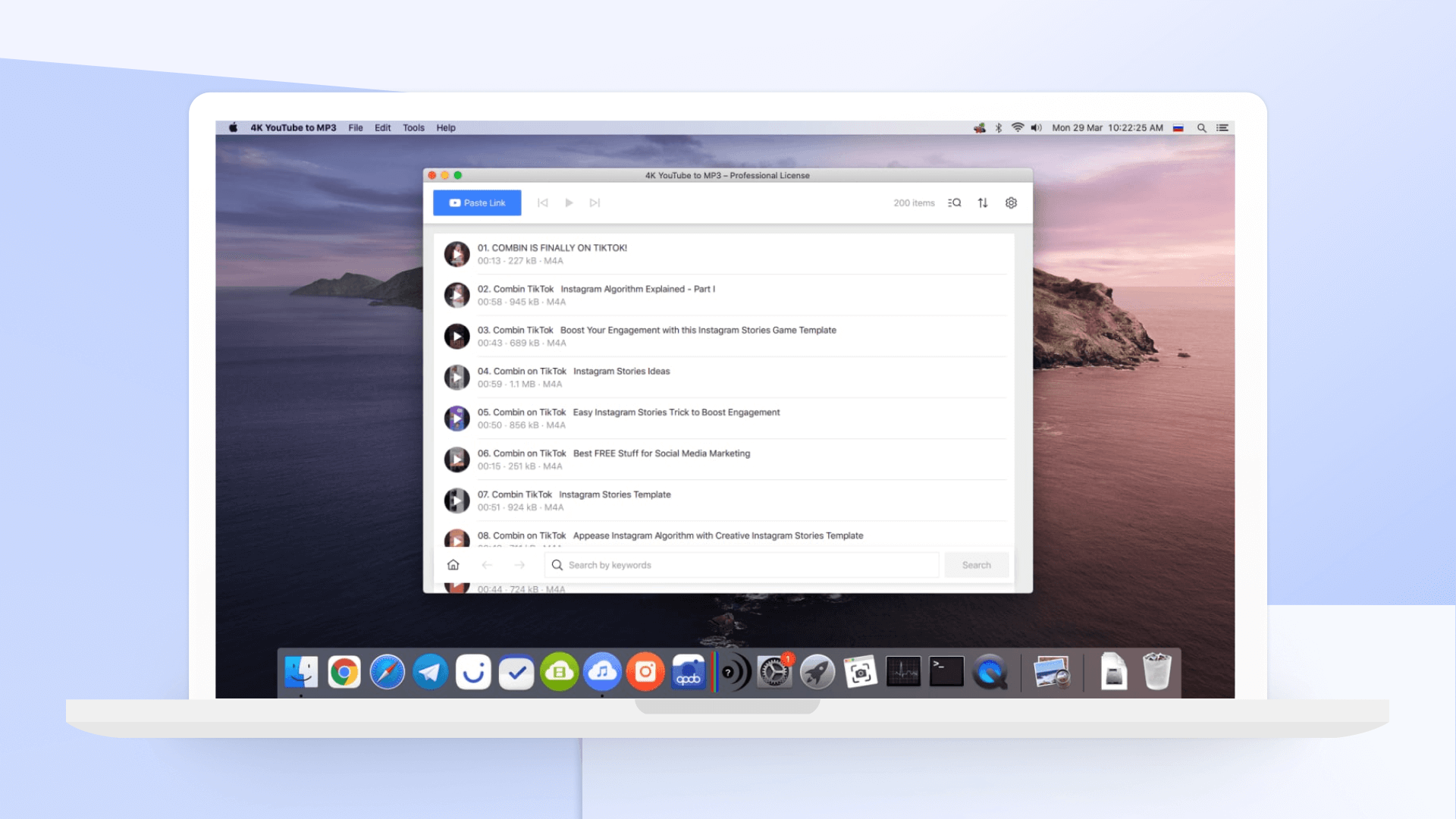
Step 3: Open 4K YouTube to MP3 and click The Paste URL button.

Step 4: Wait until the download process is complete.

Once the audio has finished downloading, it will appear in the destination folder. You can also right-click it in 4K YouTube to MP3 and select Play. Unless you adjust the settings, the audio will remain in this list until you choose to remove it – even if you close and restart the software.

There you go! Now you can enjoy listening to YouTube audio on your Mac even when you are offline.

Should I buy 4K YouTube to MP3?

Absolutely! 4K YouTube to MP3 is the best free YouTube to MP3 converter on the market. It’s easy to use, highly customizable, ad-free, and doesn’t include any malware. Unlike other YouTube to MP3 converter software that work only on a single operating system, 4K YouTube to MP3 supports Windows, macOS and Linux, and this gives it an edge over other software. 4K YouTube to MP3 is used by beginners as well as experts in Apple products. And therefore, we recommend it to our readers.

Availability and price

4K YouTube to MP3 is available on Mac, Windows, and Linux.

4K YouTube to MP3 is free to use. However, Upgrading to the premium version for a one-off fee will unlock additional features, including unlimited downloads, concurrent downloads, ad-free usage, and the ability to download entire channels, playlist, etc.

Licenses start from $15 for a Personal license and go up to $65 for a Bundle that includes licenses for 4K Video Downloader Pro and 4K Stogram Pro, and 4K YouTube to MP3.

Highlights of 4K YouTube to MP3

  • Download YouTube playlist and channels
  • Download private YouTube content with access in original quality.
  • Built-in music player
  • Download audio in the same quality it is stored on the website.
  • Supports many video sites including YouTube, Soundcloud, Vimeo, Instagram, Facebook, Flickr, Dailymotion, Metacafe, Twitch, and Tumblr
  • YouTube Premium download
  • Audiobooks download
  • Download speed control
  • Great choice of audio formats including MP3, M4A and OGG.
  • Smart file organization
  • Simple to use
  • Available for Windows, macOS and Linux.

Start downloading and converting YouTube videos to MP3

You’ve successfully downloaded Youtube videos in mp3 format on your Mac using 4K YouTube to MP3! 4K YouTube to MP3 is intuitive, user-friendly, and accomplishes its intended goal in a very short amount of time.

Go ahead download 4K YouTube to MP3 and give it a try. If you have any other questions about this software or our 4K YouTube to MP3 review, drop us a comment and let us know.

Looking for the best YouTube video downloader for Mac? Well, In this article, we’ve compiled a comprehensive list of the best YouTube downloader for Mac in 2025.

YouTube, a pretty major aspect of an individual’s life. It has made its name because of the ease of its usage and its ability to stream almost any video uploaded to it. Without a doubt, it is the most preferred channel to stream videos online. It comprises of almost everything on it.

From funny short compilations of videos to long and detailed documentaries, everything is available on their database. Therefore, it is without a question became the epicenter of entertainment for more than 80% of people present out there. But to download YouTube videos on Mac, you need a YouTube downloader for mac, windows, and any device.

Although the service has been out for more than 10 years from then, still it doesn’t allow you to download the videos straight to your device. But, it did provide the users with an offline download option that users can utilize to download the videos in the youtube application.

Again, what if you want to share it with your friend to his/her device or for some reason you have a slow internet connection and you want to stream something well, you will be out of luck for the same.

Therefore, in this article, we will talk about some of the best YouTube video downloader for Mac available today.

About YouTube

YouTube is an American video-sharing stage headquartered in San Bruno, California. Three previous PayPal workers Chad Hurley, Steve Chen, and Jawed Karim—made the administration in February 2005. Google purchased the site in November 2006 for US$1.65 billion.

YouTube now works as one of Google’s backups. Although, it is coined as an American video-sharing platform but not to forget, since the initial release it has registered more users worldwide than in America itself. Furthermore, the application features videos of all kinds induced into a format that anyone can enjoy from anywhere in the world.

Although, as of today’s time YouTube has developed to be a pretty convenient application over the years. It allows you to share video links, Stream videos into greater quality like that of a 4K.

Apart from that it also lets users create their channel and share their videos with the world. Not only that, it has now a stream option for gamers and content creators to create a live stream which they can share with the world in Real-time, hence helping them grow and develop their work and talent.

The Best YouTube Downloader for Mac 2025

Despite all this progress one thing you can’t carry out is to download the videos, there is a download option, but it won’t save it on your device, rather it will download the video in the youtube application.

There are numerous reasons why you may need a YouTube downloader for Mac, one being the internet issue, maybe you don’t have a fast internet connection to stream videos, apart from that downloading the video will be a better option in that case. Whereas there might be many other reasons for the same cause.

With that in mind, here are the best YouTube downloader for Mac in 2025:

1. 4K Video Downloader

4K YouTube Video Downloader is one of the best YouTube downloader for MacBook out there. It provides a complete solution to download high-resolution videos from the major social networks including YouTube, Vimeo, TikTok, SoundCloud, Instagram, Tumblr, and more. Unlike many other YouTube video downloader software for Mac, 4K Video Downloader supports all kinds of video formats and types including 3D video, 360-degree video, and more.

4K Video downloader comes in two versions – one is the free version for which you do not need to pay anything. And, the second is the premium version which is paid. The free version itself is awesome as it allows you to download the videos free, so it’s definitely worth trying.

The premium version lets you download longer playlists and playlists with captions. Moreover, the premium version gives some add-on benefits like an unlimited number of downloads, no ads, channel subscriptions, and priority support.

4K Video Downloader stands out from other video download services as it is not like those online services that promise you to download videos from YouTube, but finally, turn up as a trick or publicity stunt to just grab your attention for marketing purposes. It is different. It is not a web service, instead, it’s a comprehensive desktop application that gets the video downloading job done for you.

2. MacX YouTube Downloader

If you are a Mac client, regardless of MacBook, MacBook Pro, MacBook Air, iMac, Mac smaller than normal, regardless of Mac OS X, OS X, macOS 10.12, 10.13, 10.14, 10.15, and want to download YouTube videos, MacX YouTube Downloader for Mac helps you attain the same.

It is a free tool that helps you save videos from famous platforms like Facebook, Dailymotion, Vevo, Vimeo, and multiple popular video hosting websites.

Despite that, the full free version of the software lets you download the videos in a resolution of choice, such as 720P, 1080P, 2K, 4K & 8K, etc. Whereas, it also tends to keep the videos in mp4 and WebM format, since these are the preferred formats and supported by almost every device.

Incorporated with a simple to-utilize interface and cutting edge innovation, MacX YouTube Downloader settles on it a definitive decision for you to download well-known recordings and music at a quick speed with negligible quality misfortune.

3. Airy

Airy offers the component to download full HD 1080P, 4K, and 8K Ultra HD videos from YouTube pretty conveniently and easily. You additionally get alternatives on video formats, for example, MP4, WebM, FLV, OGG and 3GP, and so forth.

On the off chance that you need to spare soundtracks in MP3 design, and not keep the entire music video, Airy can superbly complete this work, and it can even download the collection of the album for you. Airy additionally can save and download the whole playlist or channel from YouTube.

Apart from that, it also features a pause and resumes download feature in it as well. So, if you tend to leave your computer pretty often, you don’t have to worry bout it, just pause it, and when ur back on it again, simply resume it.

Note: Airy only works for downloading the videos associated with YouTube.

4. VideoProc Converter

If you want to bulk download online videos in 4K/HD quality for free, VideoProc Converter is an excellent choice. The built-in downloader engine is simple to use, powerful, and quick.

Simply paste and analyze a video or playlist URL, select an output format, and then click “Download Selected Videos” to save the files to your preferred folder. It costs nothing to simultaneously download multiple videos with subtitles, download full playlists, record live streams, and so on.

Additionally, you can edit your downloaded videos by cutting, merging, cropping, rotating, splitting, etc., and convert them to formats like MP4 HEVC/H.264, AVI, MOV, MKV, MP3, WAV, M4A, OGG, and FLAC, iPhone, iPad, Android, and so on, for flawless playback, sharing, or storage.

5. ClipGrab

The next up in the list is ClipGrab. As the ClipGarb, it has a lot to offer to its users. This particular application, it comprises 2 versions, ClipGrab and ClipGrab Legacy.

The Legacy variant, in general, was created to work for older Mac workstations and 32-bit or PPC processors, such as Mavericks, Mountain Lion, Lion and Snow Leopard, etc. Whereas the ClipGrab works for a newer version of Mac, such as that of macOS 10.10, including Catalina, Mojave, High Sierra, Sierra, EI Capitan & Yosemite.

Furthermore, ClipGrab features a search bar that lets you directly search the video and its link from the application itself using the keywords.

Although there is a disadvantage to this feature since it is only capable of showing 4 video results at most which tend to match the keywords. But, when it comes to downloading the video, ClipGrab carries out the process with ease.

All you need to do is simply copy and paste the link in the address box and select the video and click on the “Grab this clip!” button. That’s that your videos will be saved.

Note: The ClipGrab only supports resolution up to 1080p not more than that, so even if you provide the link of the video which is set to be in greater resolution. It still will be get downloaded in 1080p resolution.

6. MediaHuman YouTube Downloader

MediaHuman YouTube Downloader is another application that can help you carry out the process of downloading videos from youtube. As for this particular application, it comprises many practical features. Such as synchronous download, downloading HD and UHD recordings, for example, 1080P, 2K, 4K, and 8K, and the capacity to download whole YouTube playlist and channel at once.

It can likewise screen the clipboard, at whatever point you duplicate a connection from its upheld and connected sites, it will recognize it and afterward add it to the download line. At the point when it completes the process of downloading, you will get a notification regardless of whether you are doing different things.

Furthermore, it provides users with features to extract only audio from videos, which is a boon for music lovers and can also provide original audio without quality loss. It also follows up on some advanced features like preventing sleep while downloading, ignoring 30+ fps videos, using format priority list, etc.

7. 5K Player

For YouTube download software on Mac, 5KPlayer is truly outstanding. 5KPlayer is free, we rehash, this application is available for free. What’s more, we can vouch that this application is one of only a handful few applications that you would not lament downloading.

This application works immaculately on the Mac framework to download recordings and motion pictures in MP4, WebM, MKV, 3GP relying upon your inclinations. It additionally underpins video goals from 360P, 720P, 1080P to 4K and 8K, which implies it will permit you to download truly elevated goals recordings.

This is ideal for the individuals who need to download clear long recordings, for example, full element movies and narratives.

8. Apowersoft

The next up on the list is Apowersoft. This application provides you with different options in regards to format way more suitable for the much more portable devices like PSP, iPhones, iPad, etc.

Therefore, explaining the need for videos to be formatted in a way to be friendly with portable devices as well. It additionally encourages you to download high-resolution videos outside of YouTube.

You can likewise utilize this application to download videos from Twitter, Vimeo, Dailymotion, Facebook.

This furthermore allows users to download the youtube playlist as well. Not only that, but it also provides you with additional features like that of the screen record and video conversion section. Hence making it a one-stop solution for everything.

9. Wondershare AllMyTube

Wondershare AllMyTube is a truly mainstream application, presumably one of the most utilized YouTube video downloader for Mac. Supporting numerous mainstream locales, AllMyTube can likewise change videos to different configurations or music files, snatch entire playlists, and handle cluster downloads at the same time.

It’s a shareware so you get restricted features, the free form can just permit clients to download 2 videos, and there’s a 30-day money-back guarantee.

The plan of AllMyTube is exceptionally natural, it has 4 sections: downloading, downloaded, converted, and WiFi transfer.

At the point when you wrap up your YouTube recordings, you can change over them to different configurations that are perfect with Android and iPhone cell phones, and send them to your telephones straightforwardly by filtering the QR code.

10. iTube Studio for Mac

iTube Studio for Mac is another pretty useful and helpful application when it comes to downloading YouTube videos. This application is that it’s incorporated with numerous helpful functions, for example, video downloading, recording, converting, and transferring, all inherited in one single tool.

Outfitted with a private mode, presently you can utilize it to download videos covertly. As an expert video recorder, iTube permits you to record videos from Netflix, Hulu, iTunes and BBC iPlayer, and so on. So if a video webpage is denied from downloading, you can simply record them, please plan.

11. Total Video Downloader

As for the Total Video Downloader, it is one of the fastest and best YouTube Downloader available to download at the moment. This application is intended to download any video uploaded on the Internet, and it works precisely well for what it’s intended for.

This application offers an interface that resembles an internet browser, so clients can have simple access to numerous hot videos on YouTube, Dailymotion, Vimeo, and Lynda. However, if this application is in running for one of the top applications to use while downloading videos, it will fall behind with regards to format conversion.

Although that is not a serious deal, you can utilize different applications to convert videos. Nonetheless, with regards to downloading videos, this application is highly suggested.

12. YTD

YTD is additionally a famous application present out there in the market. Users can undoubtedly explore through this application and continue ahead with their download without the test of getting familiar with the interface. This Mac YouTube downloader has just three buttons induced in it.

YTD likewise lets you download videos simply like other YouTube downloaders, yet with an additional feature of permitting you to convert videos to various formats and slice them videos to your favored length. As for the most likable thing about this downloader is that it’s one of the most helpful applications. It is exceptionally basic, and in this manner simple to utilize.

Therefore, that sums up the explanation of all the best YouTube Downloader for Mac you can download at the moment from the above list.

Is It Legal To Download Videos From YouTube?

As for the answer to the question, it is illegal to download the videos from YouTube. As per the statement stated in the “Terms and Conditions” registered by YouTube, “You shall not download any Content unless you see a “download” or similar link displayed by YouTube on the Service for that Content.

You shall not copy, reproduce, make available online or electronically transmit, publish, adapt, distribute, transmit, broadcast, display, sell, license, or otherwise exploit any Content for any other purposes without the prior written consent of YouTube or the respective licensors of the Content.

YouTube and its licensors reserve all rights not expressly granted in and to the Service and the Content.” hence, according to this, it’s illegal to download and watch videos offline.

Although keep in mind it’s safe to download and will be considered legal to download videos until and unless don’t publish them elsewhere. So, as for the practical review on this question. there is no harm in downloading a video until you use it for commercial purposes.

16 Free YouTube Downloader for Macbook

Listed below are the top 16 best YouTube Downloader for Macbook:

  1. 4K Video Downloader
  2. MacX YouTube Downloader
  3. Airy
  4. VideoProc
  5. ClipGrab
  6. MediaHuman YouTube Downloader
  7. 5K Player
  8. Apowersoft
  9. Wondershare AllMyTube
  10. iTube Studio for Mac
  11. Total Video Downloader
  12. YTD
  13. Softorino YouTube Converter 2
  14. Downie
  15. PullTube
  16. Gihosoft TubeGet for Mac

There you have it. These are the best YouTube Downloader for Mac in 2024.

Note: These are still third party applications and might not be preferred by most of the readers, but keep in mind these are pretty easy to use applications and as of my research, safe too.

Final thoughts onthe Best YouTube Downloader Mac

In this article, we’ve covered 16 of the best YouTube downloaders for Mac which you can directly download on your machine.

We hope you now understand different types of YouTube downloader for mac out there. Go ahead and download the one that perfectly suits your needs and help you download YouTube videos on Mac with ease.

One of the most common questions regarding using MacBook is how to download YouTube videos on Mac. This is a deceptively simple question, and we’re going to push aside any of the complexities of downloading YouTube videos on Mac, and instead we’ll show you the single most direct method of downloading videos from YouTube on Mac in 2022, since that is usually what most people are looking to do.

There are numerous reasons why you might want to download videos from YouTube on Mac – being able to watch them when you’re on a train, for instance, or if you just want to save something for future use. Thankfully, downloading videos on YouTube is dead simple!

Downloading YouTube videos on Mac is easy, and there are lots of reasons to give it a try. For example, it lets you watch them without an internet connection, which is fantastic for keeping yourself entertained during the long traffic and trips to places without reliable internet connection.

We’ve all been there before. You’re downloading your favorite videos and everything’s going fine. Suddenly, the internet grinds to a halt for no apparent reason, and your whole night is shot. Would it surprise you to learn that someone might be doing this to you on purpose? It’s called internet throttling — and tools like VPNs can help you bypass it entirely. Only when throttling is used against you should you do something about it. In the meantime, you can download videos from YouTube on Mac and use them when your internet service provider (ISP) slows down your internet on purpose.

Downloading YouTube videos on Mac is also great if you have a Wi-Fi connection. You can download YouTube playlist to your Mac using your home Wi-Fi, and watch them on the move without risking going over your data allocation.

Which software should you use, though? Well, that’s where things get tricky.

There are a couple of YouTube downloader softwares for Mac on the market and most of them are quite good. However, there is a software that is preferred out there that always snag the most recommendations.

We took a look at some of those YouTube downloader softwares for Mac and came up with the best.

The best YouTube downloader for Mac right now is 4K Video Downloader.

Of all the YouTube downloaders we’ve tried, 4K Video Downloader is the best.

YouTube downloader software for Mac

4K Video Downloader is the world’s first YouTube downloader for MacBook. It provides a complete solution to download high-resolution videos from the major social networks including YouTube, Vimeo, TikTok, SoundCloud, Instagram, Tumblr, and more. Unlike many other YouTube video downloader software for Mac, 4K Video Downloader supports all kinds of video formats and types including 3D video, 360-degree video, and more.

How to download YouTube videos on Mac using 4K video downloader

Let’s take a look at how to download YouTube videos on Mac using 4K Video Downloader. As you’ll see, downloading videos from YouTube on Mac is a simple and straightforward process. Below are step-by-step instructions for how to download YouTube videos on Mac using 4K Video Downloader.

Step 1: Get 4K Video Downloader

Download, install and launch 4K Video Downloader on your Mac.

Step 2: Copy and paste the video URL

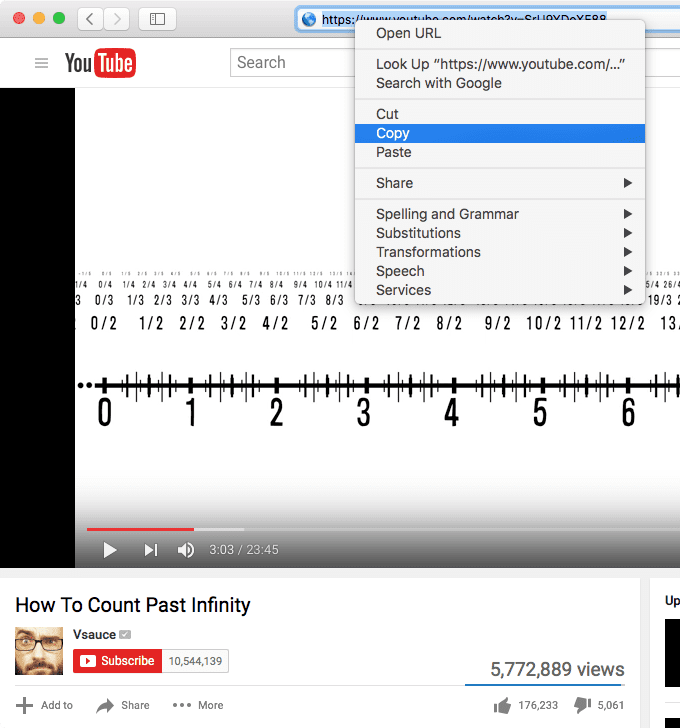
Open your web browser, find the video you want to download from YouTube and copy its URL from the address bar.

How to Download YouTube Videos on Mac

Next, open 4K Video Downloader and click The Paste Link button located at the upper left-hand corner.

How to Download YouTube Videos on Mac

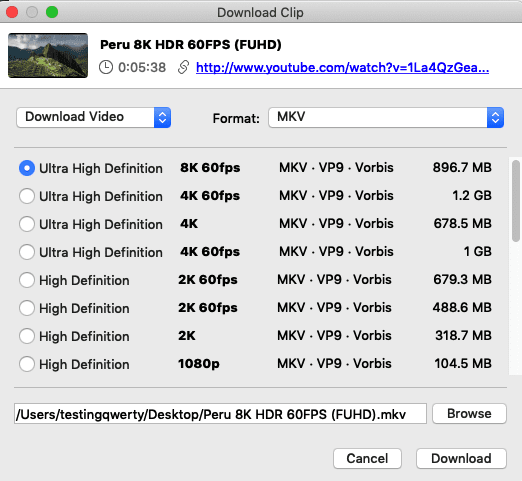
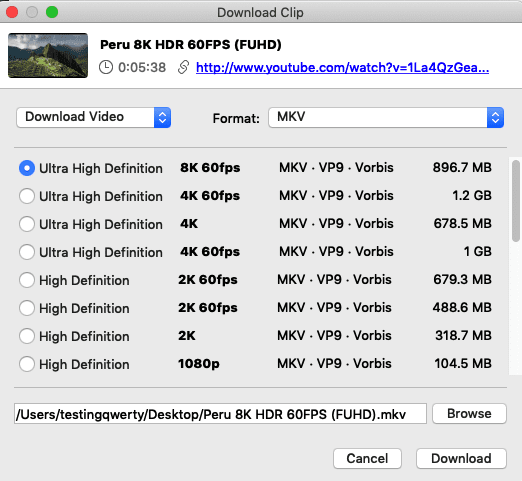
4K Video Downloader will fetch information about the video and open the video menu with the video name, choice of quality options, format and download location.

Step 3: Choose the quality and format

4K Video Downloader will allow you to download whole YouTube videos, or just extract the audio. Choose your preferred selection using the drop-down menu located on the left, and then choose a format using the menu located on the right.

Next, choose your quality. For playing back video on your TV or Mac, it’s a good idea to choose the highest resolution.

How to download YouTube videos on Mac

You can also choose where the downloaded video should be saved using the Browse button located at the bottom. Next, click Download.

Step 4: Download the YouTube video

Click the download button and the YouTube video will now be downloaded on your computer. If there are other videos in the creator’s channel, 4K Video Downloader will ask whether you want to download those as well. It can download up to 24 videos simultaneously.

Once the video has finished downloading, it will appear in the destination folder. You can also right-click it in 4K Video Downloader and select Play. Unless you adjust the settings, the video will remain in this list until you choose to remove it – even if you close and restart the software.

There you go! Now you can enjoy watching YouTube videos on your computer or TV even when you are offline.

Should I buy 4K Video Downloader?

4K Video Downloader is the best free YouTube downloader on the market. It’s easy to use, highly customizable, ad-free, and doesn’t include any malware. Unlike other YouTube downloader software that work only on a single operating system, 4K video downloader supports Windows, macOS and Linux, and this gives it an edge over other software. 4K video downloader is used by beginners as well as experts in Apple products. And therefore, we recommend this to our readers.

How Do I Download 4K Video Downloader?

4K Video Downloader is available on Mac, Windows, and Linux. Purchasing a key will let you download longer playlists and playlists with captions. The pricing for the personal license starts at $15, which is a one-time purchase for up to three computers.

You can download 4K YouTube Video Downloader and give it a try.

Highlights of 4K Video Downloader

  • Download annotations and subtitles along with YouTube videos
  • Download YouTube playlist and channels
  • Download private YouTube videos and playlists
  • Download YouTube videos in HD 1080p, HD 720p, 4K, and 8K resolution
  • Downloads 4K and 360-degree videos
  • Downloads from YouTube, Vimeo, TikTok, SoundCloud, DailyMotion and more
  • Supports 3D and 360-degree videos
  • Great choice of formats including MP4, MKV, FLV, 3GP and much more
  • Available for Windows, macOS and Linux.

Conclusion

4K Video Downloader is intuitive, user-friendly, and accomplishes its intended goal in a very short amount of time.

You’ve successfully downloaded YouTube videos on your Mac using 4K Video Downloader! A different option is to use VideoProc Converter to download playlists, videos, and audios in bulk in MP4, MP3, and other formats. Additionally, it offers a few free add-on features including the ability to convert brief audio and video files, edit downloaded movies quickly (e.g., cut, trim, crop, merge, rotate, modify speed/volume, etc.), and record webcam and the screen on an iPhone, Mac, or PC. If you have any question about this software or our 4K Video Downloader review, leave a comment down below.