









Created a fun Contact Poster for yourself on your iPhone 18 Pro Max, but none of your contacts can view it? Whether it’s a software bug preventing the feature from working as it should or an innocent mistake you made when creating your poster, we’ll help you resolve this issue quickly.
1. Enable Name and Photo Sharing with Contacts
If you created your Contact Poster recently, you may have accidentally disabled the feature that allows you to share your poster with your contacts. It’s alright—mistakes happen, and enabling the feature again will only take a few seconds! Follow the steps below:
- Go to the Contacts app on your iPhone.
- Tap My Card at the top, tap Edit, then tap your contact photo.
- Now, check whether Name & Photo Sharing is enabled. If not, toggle it on.
- Make sure the Share Automatically setting is set to Contacts Only.
If someone you know has set up their Contact Poster and you can’t see it, simply ask them to follow the steps above and ensure the feature is enabled!
2. Delete and Recreate the Contact Poster
If the above fix doesn’t work, we recommend deleting your Contact Poster entirely and creating a new one. Here’s how you can delete your current Contact Poster:
- Go to the Contacts app on your iPhone.
- Tap My Card at the top, tap Edit, then tap your contact photo.
- Tap Remove Photo.
-
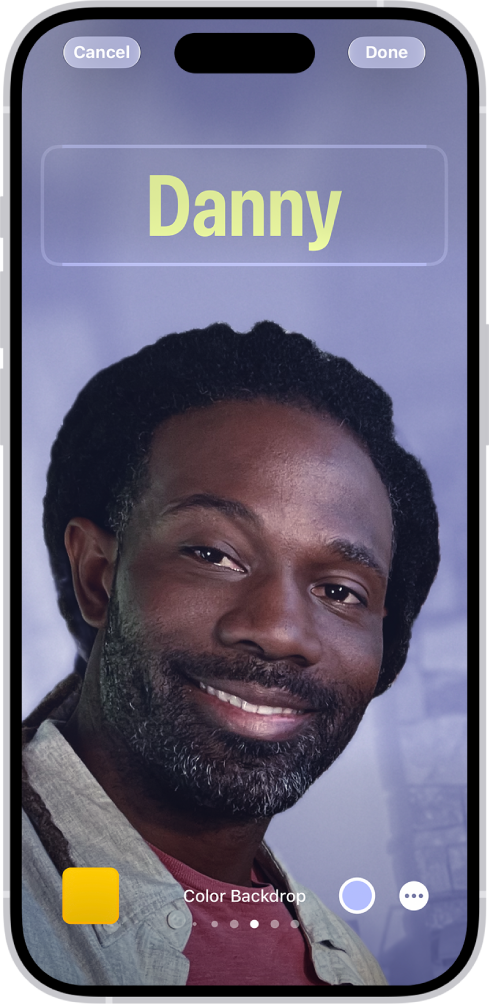
Finally, create and customize a new Contact Poster for yourself and your contacts. Tap your contact photo, then choose a style. Tap Customize to edit your avatar and poster.
3. Disable Name and Photo Sharing and Restart Your iPhone
Perhaps a software bug is the culprit behind this issue. Fortunately, the simplest way to fix software glitches like this one is restarting your iPhone 18 Pro or iPhone 18 Pro Max. Before you restart your iPhone, head to Contacts > My Card > Edit, tap your contact photo, and disable Name & Photo Sharing.
Simultaneously press and hold the side button and either volume button until the sliders appear, then drag the Power Off slider. Press and hold the side button until the Apple logo appears. After you turn your iPhone back on, follow the steps above to enable Name & Photo Sharing again.

It’s Time to Get Your Contact Posters Back
If none of the troubleshooting steps we mentioned above worked, you may be experiencing this issue due to an iOS bug. Fortunately, Apple periodically rolls out software updates to resolve well-known problems like this. While it isn’t ideal, we recommend waiting it out until a new update is available. Alternatively, you can contact Apple Support for expert assistance.


