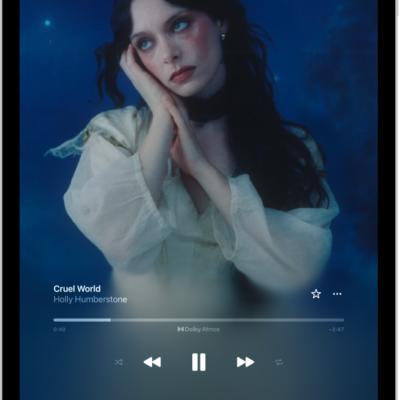
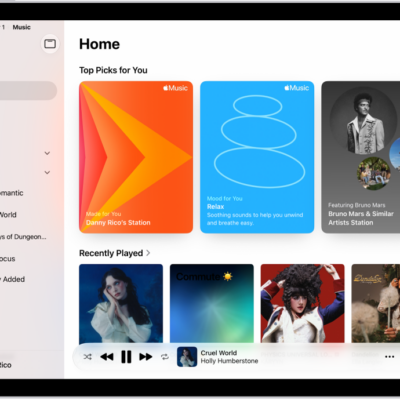
Listen to songs from your iPad music library with the Music app. When you subscribe to Apple Music, you can stream from the Apple Music catalog, and you can access all your music on your devices signed in to the same Apple Account. You can also search for music, create a playlist, and build your library.
As a subscriber, you can select artists as favorites, view song lyrics, and more, and you can organize songs for a specific theme, mood, or occasion in a playlist.
Subscribe to Apple Music
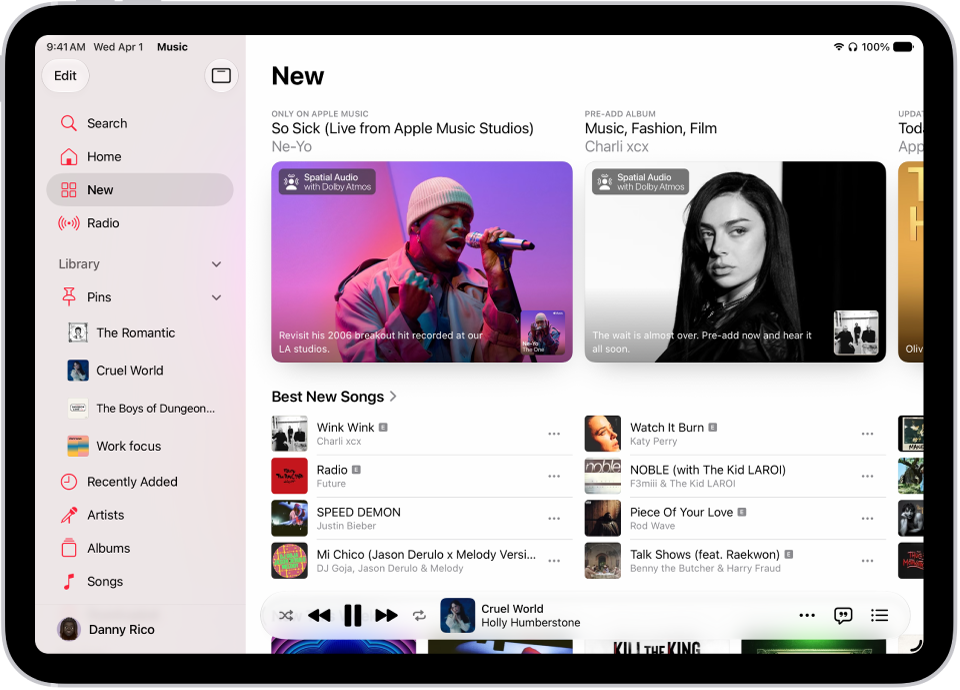
To get the most from the Music app, subscribe to Apple Music, and choose from millions of songs to stream or download. Go to Settings > Apps > Music, then tap Join Apple Music. After you become an Apple Music subscriber, you can select artists as favorites (and receive notifications about them), view song lyrics, and more.
Find music
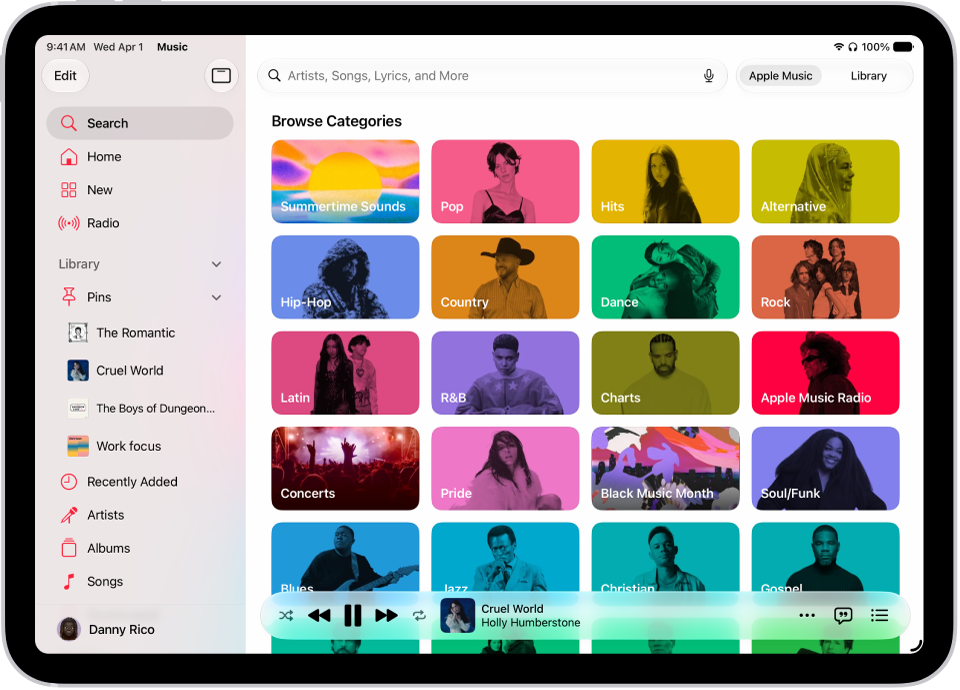
Use the Search feature to quickly find music. Tap Search in the sidebar to browse music by category or enter an artist, lyric, or other keyword in the field to find songs, albums, and playlists.
Create a playlist
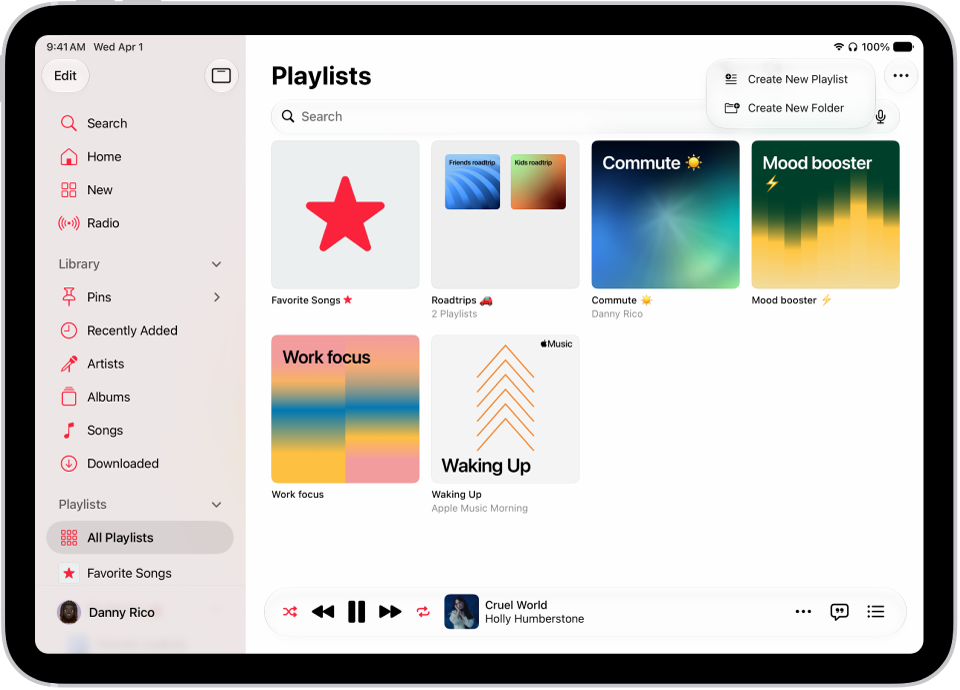
Organize songs for a specific theme, mood, or occasion with a playlist. Tap the Show Sidebar button in the tab bar at the top of the screen, scroll to the bottom of the sidebar, then tap New Playlist. To add a song to the playlist, tap the More button next to a song, then tap Add to a Playlist.
Build your library
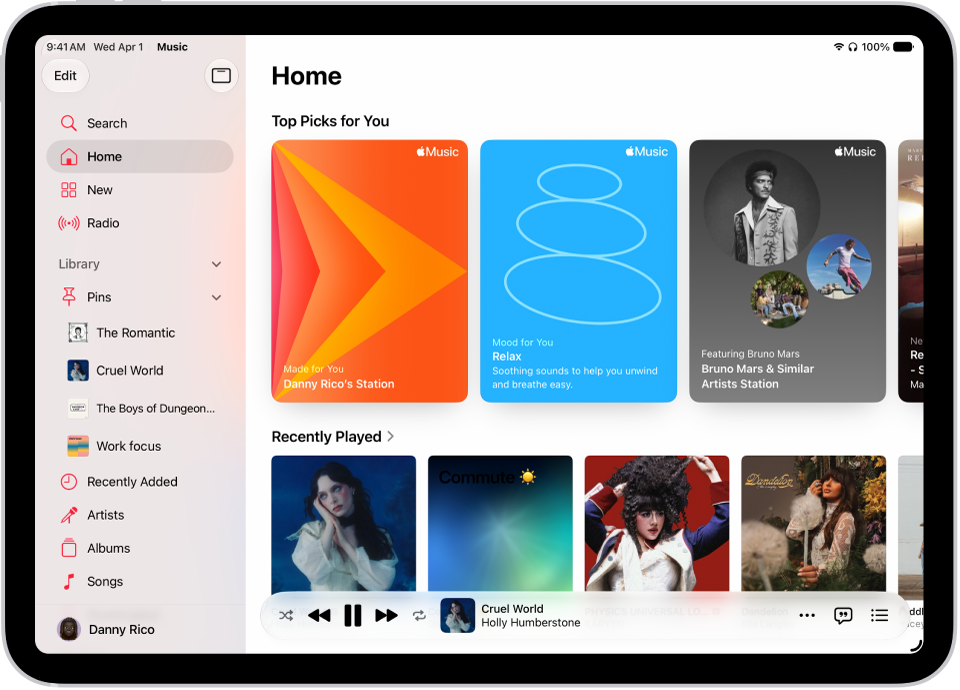
You can add music to your library in a variety of ways. For example, subscribe to Apple Music or buy your favorite albums from the iTunes Store. If you’re already using a Mac, go to Settings > Apps > Music, then tap Sync Library—your entire music library is then available on your iPad.
If you’d like to get more from Music, start here:
- Subscribe to Apple Music on iPad
- Search for music on iPad
- Create, edit, and delete music playlists on iPad
- Get music on iPad
- Get music in the iTunes Store on iPad
- Add music to iPad and listen offline