You can save a draft to finish later and see all draft emails from all of your accounts. There’s a shortcut, too, since a message you’re writing can be saved for later and brought back from the bottom of the screen. Unfinished emails can even be handed off between your iPhone and your Mac.
Save a draft for later
- Start the Mail app on your iPhone.
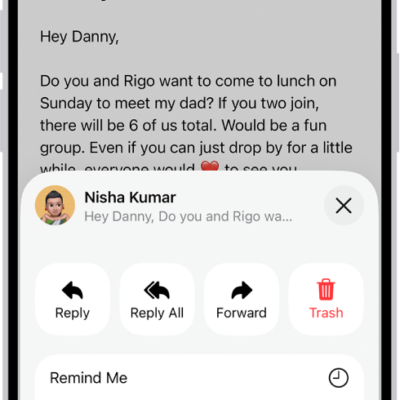
- In a message you’re writing, tap the Close button. Then tap Save Draft.
-
To resume work on a message you saved as a draft, touch and hold the Compose button and select a draft.
You can also swipe down on the title bar of a message you’re writing to save it for later.
When you’re ready to return to your message, tap its title at the bottom of the screen.
Tip: You can also hand off unfinished emails between your iPhone and your Mac.
Show draft emails from all your accounts
If you have multiple email accounts, you can show draft emails from all of them.
- Start the Mail app on your iPhone.
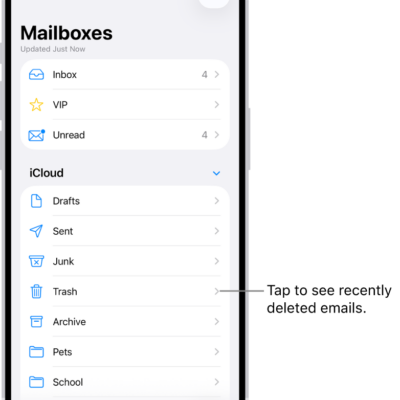
- Tap the Mailboxes button in the upper-left corner until you see Mailboxes.
- Tap Edit at the top of the list.
- Turn on the All Drafts mailbox.
Tag: Mail