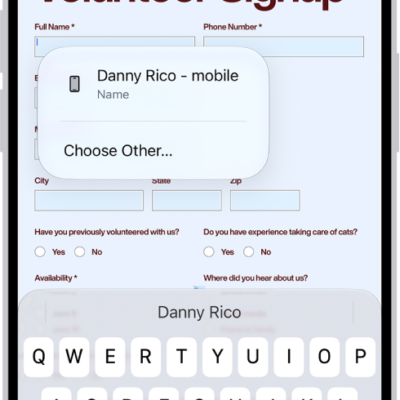
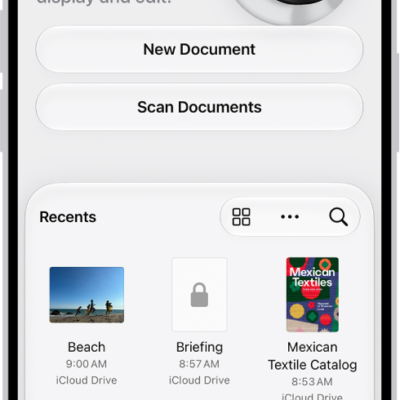
You can share a PDF or image from the Preview app on your iPhone. You can collaborate on the file, send a copy, or copy it to the Clipboard to paste it into another app. When you collaborate, you can allow only invitees to view and edit the contents, or allow anyone with the link to view the contents.
- Start the Preview app on your iPhone.
- Open a PDF or image.
- Tap the Share button. Then choose whether to collaborate on the file, send a copy of it, or copy it to the Clipboard. When you copy a file to the Clipboard, you can paste it into another app.
-
If you choose Collaborate, tap the Forward button next to Only invited people can edit and then do one of the following:
-
Allow only invitees to view and edit the contents: Tap Only invited people and then tap Can make changes.
Turn off “Allow others to invite” if you don’t want people you share the file with to invite others to view and edit it.
- Allow only invitees to view the contents: Tap Only invited people and then tap View only.
- Allow anyone with the link to view and edit the contents: Tap Anyone with the link and then tap Can make changes.
- Allow anyone with the link to view the contents: Tap Anyone with the link and then tap View only.
-
Allow only invitees to view and edit the contents: Tap Only invited people and then tap Can make changes.
- Tap the Done button.
- Choose a sharing method, such as Mail or Messages.
Tag: Preview