- If your iPhone won’t send pictures to Android after iOS 26 update, ensure you’ve configured your phone’s settings correctly to avoid issues.
- Double-check the recipient’s number for typos and make sure you’ve enabled SMS before texting an Android user.
- Enable MMS Messaging in your iPhone’s settings to send messages over your carrier. Note that some carriers may not support MMS.
You’re trying to send pictures to an Android user from your iPhone, but they won’t go through. A simple typo in the recipient’s number or a disabled setting might be the culprit. If you started experiencing this problem after iOS 26 update, there are steps you can take to fix the issue. In this article, I’ll explain why your iPhone won’t send pictures to Android after iOS 26 update and how to diagnose and fix the problem for good.
Please note, this article focuses on sending pictures to android through the native Messages app for iPhone.
1. Make Sure You’r Texting The Correct Phone Number
If you’re trying to send a picture using your iPhone to an Android user, but they aren’t receiving it, the first thing you should do is make sure that you are texting the right number.
Often, many people tend to ignore small mistakes like this, and mistyping a digit or two of a phone number could be the reason your message isn’t getting delivered.
Confirm the recipient’s phone number to ensure you have the correct contact details. If the contact number is correct, the recipient might have blocked your phone number.
2. Restart the Messages App
A simpler solution would be to force quit and restart the Messages app if it has been operating in the background.
Here’s how to do it:
- Swipe up and hold to reveal the background app on your iPhone’s Home Screen.
- Look for the Messages app and swipe up to force close the app.
This solution will refresh the app and relaunch it.
3. Make Sure MMS Messaging Is Turned On
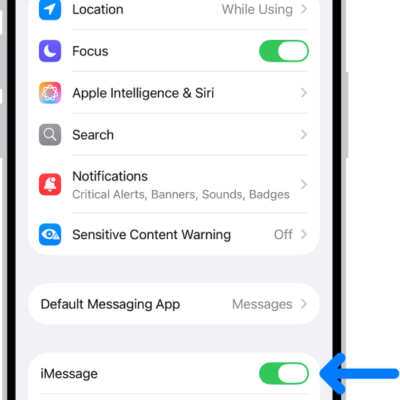
If MMS is turned off on your iPhone, regular text messages (SMS) will still go through, but pictures will not. To make sure MMS is turned on, go to Settings -> Apps -> Messages and make sure the switch next to MMS Messaging is turned on.
If you don’t see the MMS Messaging option in the Settings menu, it might be because your carrier doesn’t support it. However, if you’ve enabled the option, return to the Messages app and try resending the image. Next, ask the recipient to check if their carrier supports MMS messaging on their Android device.
4. Enable Send as SMS
Using the Messages app, you can send a text, photo, or video to another iPhone user via iMessage. However, if you want to send anything to an Android user, you need to enable the Send as SMS. To make sure Send as SMS is turned on, go to Settings -> Apps -> Messages and make sure the switch next to Send as SMS is turned on.
After this, return to the conversation and try sending the image again.
5. Check For A Carrier Settings Update
Apple and your wireless carrier routinely push carrier settings updates to help improve your iPhone’s connection to your carrier’s network. Your iPhone could experience cellular issues if the carrier settings aren’t up to date.
A pop-up typically appears on the screen when a carrier settings update is available. If you see the pop-up on your iPhone, tap Update.
You can manually check for a carrier settings update by opening Settings and tapping General -> About. A pop-up will appear here in about ten seconds if a carrier settings update is available. Tap Update. Please make sure that your iPhone is connected to the Internet before checking for carrier settings update.
If you don’t get an update pop-up, that means you’re using the latest carrier settings. After this, go back to the Messages app and check if you can send the message.
6. Update Your iPhone
Software updates are essential for your iPhone, as it brings new features and bug fixes to enhance your experience. Apple regularly rolls out software updates for iPhones to introduce new features, improve performance, and keep things in check. It’s possible Apple has already released a new iOS 26 update to fix the problem you are experiencing. Go to Settings -> General -> Software Update. If a new iOS 26 update is available, tap Update Now and follow the onscreen instructions.
7. Restart Your iPhone
Restarting your iPhone is the most effective and quickest way to fix most software issues you might be facing on your iPhone. Therefore, turn your iPhone off and back on, and then check if you can send the image in Messages. This is also one of the best fixes for when iMessage doesn’t deliver your texts.
8. Reset Network Settings
An inadvertent change in the Settings app can cause connection problems that can be tricky to diagnose, but there’s a good way to fix them all at once. Reset Network Settings is a great way to reset just those settings that affect the way your iPhone connects to wireless network, without affecting any of your personal information. You will have to reconnect to your Wi-Fi network again, so make sure you know the password before completing this step.
To reset the network settings on your iPhone, go to Settings -> General -> Transfer or Reset iPhone -> Reset -> Reset Network Settings, enter your passcode, and tap Reset Network Settings. Try sending another test message after your iPhone reboots to see if the problem was resolved.
All the potential solutions discussed here should help you send images from your iOS 26 device to an Android user using the Messages app. If you still cannot send it for some reason, contact Apple Support for further help. Also, don’t hesitate to reach out to your carrier and check if you’re on a plan that supports MMS.
See also: How to Fix iPhone Not Sending Texts to Android After iOS 26 Update