A broken volume button is often unexpected and can be annoying to deal with. After all, we don’t realize how much we use it until it no longer works. Not being able to turn your volume down when an annoying video plays or your song is too loud can also be embarrassing.
If your iPhone volume buttons aren’t working after updating to iOS 26, you should fix them as soon as possible. Luckily, there are plenty of solutions, and you can do many of them yourself.
How to fix iPhone volume buttons not working on iOS 26
1. Turn On Change With Buttons
If you’re trying to increase or decrease the ringer volume on your iPhone using the volume buttons, make sure Change with Buttons is turned on. If this setting is off, the volume buttons will only adjust the volume for things like music, podcasts, and videos when played through headphones or your iPhone’s speakers. This setting is already enabled by default on an iPhone, but it’s possible it was turned off during iOS 26 update.
To check this, go to Settings ⇒ Sounds & Haptics and toggle on the switch next to Change with Buttons. If this isn’t enabled, this could be why your iPhone volume buttons aren’t adjusting ringer volume on your iPhone. If it’s already enabled, toggle it off and back on.
2. Remove Your iPhone From Its Case
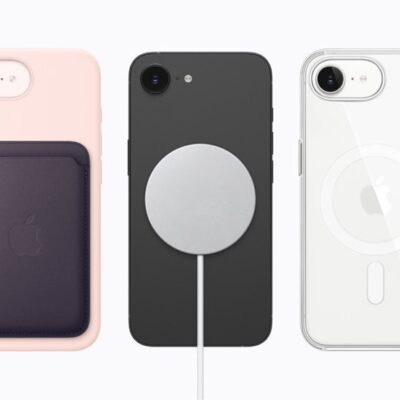
The iPhone is expensive, so it’s likely that most of you use a case to protect it. A lot of the time, cheap rubber cases can jam the buttons on your iPhone and prevent them from working. Try taking the case off of your iPhone and pressing the volume buttons again. If they work now, you’ll need to get a new case. After all, you probably want to keep your iPhone protected.
It’s also possible that prolonged use of a case can cause your volume buttons to get dirty. If that’s the case, proceed to the next step.
3. Restart your iPhone
Like any other gadget, the iPhone isn’t exempt from temporary unit failure or malfunction. If your iPhone’s volume buttons still don’t work on iOS 26, it’s probably due to a temporary volume control malfunction. Restarting your iPhone might fix the issue.
- Open Settings.
- Tap General.
- Scroll down and tap Shut Down.
- Drag the Slide to Power off slider to power off your device.
- Let your device shut down completely, and then turn on your device by pressing and holding’ the Side button.
4. Clean Your iPhone’s Volume Buttons Using Alcohol
We use our phones so much that dirt and grime can sometimes get under the buttons, especially when not using a case. So, press down on your buttons a few times to check if your iPhone volume buttons are stuck. You might need to clean them if they’re stuck or don’t seem to click down.
To clean your volume buttons, take a cotton swab and dip it in isopropyl alcohol. The best option for cleaning electronics is 99 percent isopropyl alcohol, as it dries quickly and doesn’t contain much water. It also removes dirt and grime by breaking up oils.
Use the cotton swab to clean around your volume button the best you can. If you can push down on the buttons, doing so might help you clean it better. There’s no need to overdo it with the alcohol, as it doesn’t take much to work.
After cleaning, wait a few minutes for the alcohol to dry. If your volume buttons are working now, great! If they are only working a bit better, that’s a sign that they are still dirty, and you should keep cleaning them. Unfortunately, if your iPhone volume buttons are completely stuck, you’ll probably have to get your iPhone repaired. Scroll down to the bottom of this article to explore your volume button repair options!
5. Control Your iPhone Volume Without Using Volume Buttons
If the volume buttons are stuck and you can’t get your iPhone repaired anytime soon, you can use other methods to adjust the volume. If you use apps like Spotify, you can control the volume within the app without a physical button. If all else fails, there are still ways to control your volume without using the buttons.
When iPhone is locked or when you’re using an app, you can adjust the volume in Control Center. Open Control Center, then drag the volume slider.
You can also use Siri to turn the volume up or down. Activate Siri and say something like: “Turn up the volume” or “Turn down the volume.
If you have AirPods, you can say, “Hey Siri, turn up the volume.” Other Bluetooth headphones typically have built-in volume controls, which you can use as well. This means that you won’t have to keep going to your phone when you want to change the volume.
To adjust the ringer volume, go to Settings ⇒ Sounds & Haptics. Use a finger to drag the volume slider below Ringtone & Alerts. The further left you drag the slider, the quieter your iPhone will ring. The further right you drag the slider, the louder it will ring. When you drag the slider, a pop-up will appear on the center of the display to let you know the ringer volume has been adjusted.
6. Update Your iPhone
An iOS 26 bug can also cause your iPhone volume buttons to stop working properly. To be safe, try updating your iPhone to the latest iOS 26 version and see if it resolves the issue.
You can update it by heading to Settings ⇒ General ⇒ Software Update. Here, you can see if a new iOS version is available. If you’re using a beta version of iOS, it might be time to switch back to the stable public build and report this issue to Apple.
7. Reset or Restore Your iPhone
Sometimes, firmware updates can change how the buttons on our phones work. Since your iPhone’s volume buttons stopped working after updating to iOS 26, try restarting your phone by going to Settings ⇒ General ⇒ Shut Down. Drag the Slide to Power off slider towards the right to power down your iPhone. Wait a few seconds, then press the power button to power your iPhone back on.
If that doesn’t help, you might need to reset your device. This means backing up your iPhone and erasing all the content settings. A full reset might also work if your iPhone volume button stops working after an app download or a jailbreak attempt.
To do this, first, you’ll need to back up your iPhone. Then, go to Settings ⇒ General ⇒ Transfer or Reset iPhone ⇒ Erase All Content and Settings.
This will wipe your phone clean and essentially make it like new. Before restoring a backup, go into the device and test the volume buttons. If they work, restore your backup.
In some cases, restoring your backup might make them not work again. If that’s the case, it might have been an app you tried to download, or your backup could be corrupted. Sadly, this means starting from scratch unless you have an older backup you can try restoring.
8. Get Your Volume Buttons Repaired
If cleaning your buttons and resetting your iPhone doesn’t fix the volume buttons, you most likely need to get the buttons repaired. This is especially true if you recently damaged your iPhone or exposed it to water.
Your best bet for a reliable repair is to set up an appointment at the Apple Store near you and get your iPhone diagnosed by a licensed technician. Alternatively, you can reach out to Apple’s support team online, through the mail, or over the phone to find out what your repair options might be.
Turn Up The Volume!
Your volume buttons are working again! Next time your iPhone volume buttons are not working after an iOS update, you’ll know how to fix the problem. Drop a comment down below and let me know which fix solved your iPhone’s problem!