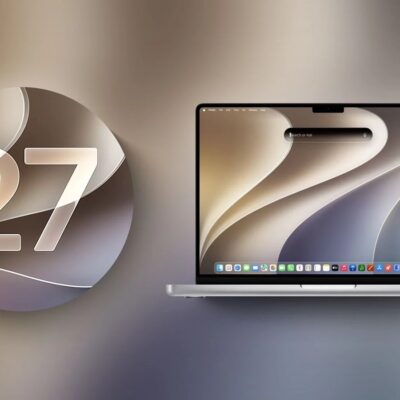
macOS 27 Golden Gate is the latest major version of the Mac operating system. It is one of those rare upgrades (like going from Leopard to Snow Leopard, for those who remember it) that focuses more on improving what’s already there than on new features. To be sure, there _are_new features, including a few big ones. But even those–I’m thinking of Siri AI in particular–are mostly revisions of existing features rather than entirely novel capabilities.
This comprehensive guide rounds up all of our macOS Golden Gate coverage, making it a useful resource for casual users who haven’t had a chance to test out macOS Golden Gate 27 and those who might not remember all of the new features. It’s also a great resource to send to friends and family members who have questions about macOS 27 Golden Gate changes.
The complete list of changes
Apple’s own page for this release is unusually sparse. The long feature lists circulating online all trace back to a single slide shown for under two seconds at the WWDC keynote. The focus here is on what’s different from Tahoe and other recent versions of macOS.
- What’s New in macOS 27 Golden Gate
- 35 New Features in macOS 27 Golden Gate That Are Not AI
- What Changed in macOS Since Monterey
- macOS 27 Golden Gate Is the Last Version to Support Rosetta
Can your Mac run macOS 27
macOS 27 runs on all currently shipping Macs, as well as most models introduced within the past five years or so. Sadly, macOS 27 does drop support for some Mac models that were able to run macOS 26 Tahoe. So it is worth verifying that your hardware is fully compatible before you start.
Installing the macOS 27 upgrade
Up through 2019, I wrote an entire book every year on the process of upgrading to the latest Mac operating system. These articles condense all of those upgrading instructions.
- How to Prepare Your Mac Before Upgrading to macOS 27
- Clean Install or In-Place Upgrade for macOS 27
- How to Download the macOS 27 Installer
- How to Make a Bootable macOS Installer
- How to Install macOS 27 Golden Gate on Your Mac
- How to Do a Clean Install of macOS 27
- What Setup Assistant Asks After You Install macOS
- How to Use Migration Assistant to Move Your Data
- What to Do After Installing macOS 27
When it goes wrong
Even if you diligently follow all the instructions, you might encounter problems while upgrading. I can’t anticipate every difficulty you may have (or provide solutions in every case), but here are two of the most likely issues and how to deal with them.
Liquid Glass, walked back
The most controversial change in Apple’s version 26 operating systems, including Tahoe, was the new Liquid Glass interface, which greatly increased the use of transparency and glass-like distortion effects that added some glitz to the screen without increasing usability. In many cases, the new appearance made text harder to read, icons more difficult to decipher, and windows more cumbersome to use.
Over subsequent Tahoe releases, Apple made some adjustments to Tahoe to address a few of the most frequent Liquid Glass criticisms. But in macOS 27, Apple has gone further still, tacitly acknowledging that Liquid Glass went too far the first time around while retaining the overall look and feel introduced in Tahoe.
If you hated Liquid Glass in Tahoe, you’ll probably find it less objectionable in macOS 27, but make no mistake: the user interface looks far more like that of Tahoe than that of Sequoia.
Siri AI on the Mac
Siri AI has a complete guide of its own, covering both platforms. Anyone with even a casual awareness of the news about the version 27 operating systems will have heard that the marquee feature is the long-promised and long-delayed Siri, now called Siri AI.
- Siri AI on the Mac: What’s New in macOS 27
- Every Siri Setting in macOS 27
- Everything New in Siri AI Compared to the Old Siri
- What to Ask Siri AI: Examples That Actually Work
- How Siri AI and Spotlight Merged Into One Field
- The Siri AI Privacy Limits Apple Doesn’t Advertise
- Where to Find Apple Intelligence in Each App
- The Apple Intelligence Features to Skip in iOS 27
For the family
macOS 27 expands the existing Family features parents and guardians can use to restrict their kids’ screen usage, with an emphasis on safety. (You must first enable a Family account and add family members in System Settings > Family.) These new features require that both the parents’ and kids’ devices are running version 27 or later of their respective operating systems; if you haven’t already done so, a message at the top of the Family setting pane reminds you.
- Child Safety Features in macOS 27
- How to Set Up Safe User Accounts on a Shared Mac
- How to Set Up Screen Time and Parental Controls in iOS 27
The Mac apps
Beyond the bigger features, many Mac apps received smaller tweaks. Although fewer apps received noteworthy updates in macOS 27 than in past versions, several are worth knowing about.
- Finder, Calendar and Notes on Mac in macOS 27
- Mail, Messages and Find My on Mac in macOS 27
- Photos on Mac: Shared Albums and AI Editing in macOS 27
- Freeform, Journal and Safari on Mac in macOS 27
- Spotlight and Shortcuts on Mac in macOS 27
- iCloud Sharing, Sidecar Touch and More in macOS 27
Securing the Mac afterwards
An upgrade is a good moment to check the settings you set once and then forget. These come from a separate guide to securing Apple devices rather than from the macOS 27 release notes, so they apply whichever version you are running.
- Do You Need More Security Than Apple’s Defaults?
- The Mac Privacy and Security Settings Worth Changing
- How to Turn On FileVault and Encrypt Your Mac
- Where to Find Your FileVault Recovery Key
- How Gatekeeper Decides Which Mac Apps Can Run
- How to Protect Your Mac From Malware and Ransomware
- Do Macs Need Antivirus Software? What Apple Already Does
- How macOS Protects Its Own System Files From Malware
- How to Reset a Forgotten Mac Password
- How to Securely Erase a Mac Drive Before Selling It
- How to Turn On Advanced Data Protection for iCloud
Finding a Mac that goes missing
Find My covers the Mac as well as the iPhone, and the two behave differently in ways worth knowing before you need them.
- How to Turn On Find My on iPhone, iPad and Mac
- How to Find a Lost iPhone or Mac
- How to Mark an iPhone as Lost and Lock It
- How to Unlock a Mac You Locked With Find My
- How to Erase a Lost iPhone or Mac Remotely
- How Activation Lock Protects a Lost or Stolen Device