Got a tip for us?

accessibility

Siri is often the easiest way to start using accessibility features with your Apple Watch. Use Siri to open apps, turn many settings on or off, or act as your intelligent personal assistant.

You can set how long Siri waits for you to finish speaking. And you can use Siri without speaking at all, by typing your requests instead.

Here’s how to use accessibility features with Siri on Apple Watch.

Siri: Ask Siri something like, “Turn on VoiceOver.” See Control your Apple Watch and smart home accessories with Siri.

Set how long Siri waits for you to finish speaking

  1. Start the Settings app on your Apple Watch.
  2. Go to Accessibility, tap Siri, scroll down, and tap Default, Longer, or Longest below Siri Pause Time.

Type instead of speaking to Siri

You can use Siri without speaking. Follow these steps to type rather than speak Siri requests.

  1. Start the Settings app on your Apple Watch.
  2. Go to Accessibility, tap Siri, and turn on Type to Siri.

See also

AssistiveTouch helps you use Apple Watch if you have difficulty touching the screen or pressing the buttons. The built-in sensors on Apple Watch can help you answer calls, control an onscreen pointer, and launch a menu of actions—all through hand gestures.

There’s also the Motion Pointer, for controlling your Apple Watch by tilting it, plus quick actions that help you respond whenever your Apple Watch shows an alert. With gestures in AssistiveTouch, you can perform these and other actions:

  • Tap the display
  • Press and turn the Digital Crown
  • Swipe between screens
  • Hold the side button
  • Access Notification Center, Control Center, and the App Switcher
  • Show apps
  • Use Apple Pay
  • Confirm double-clicks of the side button
  • Activate Siri
  • Run a Siri shortcut

Note: The universal double tap gesture stops being available when you turn on AssistiveTouch.

Set up AssistiveTouch

  1. Start the Settings app on your Apple Watch.
  2. Go to Accessibility, tap AssistiveTouch, and turn on AssistiveTouch.
  3. Tap Hand Gestures, then turn on Hand Gestures.

    Tip: To learn how to use hand gestures, tap “Learn more” below the Hand Gestures switch, then tap each gesture. When you tap a gesture, an interactive animation shows you how to perform and perfect the gesture.

You can also go to the Apple Watch app on your iPhone, tap My Watch, go to Accessibility > AssistiveTouch, then turn on AssistiveTouch.

Use AssistiveTouch with Apple Watch

With AssistiveTouch and Hand Gestures on, use the following default gestures to navigate your Apple Watch:

  • Tap: Forward
  • Double tap: Back
  • Clench: Tap
  • Double clench: Show the Action Menu

For example, with the Meridian watch face showing, use AssistiveTouch with the Activity app by following these steps:

  1. Double-clench to activate AssistiveTouch.

    A highlight appears around the Music complication.

  2. Tap three times to move to the Activity complication and then clench to tap it.
  3. When the Activity app opens, double-clench to show the Action Menu.
  4. Tap once to select the System action, tap again to select the Scroll Up action, and then clench to choose it.
  5. Clench to scroll to the next screen.
  6. Double-tap to show the Action Menu.

    Tap to move forward through the actions; double-tap to move back.

  7. Select the Press Crown action. Clench once to return to the watch face.

Use the Motion Pointer

In addition to tapping and clenching, with the Motion Pointer you can control your Apple Watch by tilting the watch up and down and side to side. For example, use the Motion Pointer to navigate the Stopwatch app by following these steps:

  1. With the watch face showing, double-clench to activate AssistiveTouch.
  2. Double-clench again to show the Action Menu.

    The Press Crown action is selected.

  3. Clench to choose the Press Crown action and open the Home Screen.
  4. Double-clench to show the Action Menu, tap to move to the Interaction action and then clench to tap it.

    Motion Pointer is selected.

  5. Clench to turn on the Motion Pointer.

    A cursor appears on the screen.

  6. Tilt the watch to place the cursor at the bottom edge of the screen to scroll down.
  7. Hold the cursor over the Stopwatch app for a short time to open it.
  8. Hold the cursor over the start button to tap it.
  9. To return to the watch face, double-clench to show the Action Menu, tap to select the Press Crown action and then clench to tap it.

Use quick actions

Quick actions help you respond when your Apple Watch shows an alert. For example, when you have an incoming call, a prompt lets you know that you can double-tap to answer it. You can also use quick actions to snooze an alarm or stop a timer, start a workout when Apple Watch detects workout-like activity, and take a photo when the viewfinder and shutter button are showing in the Camera app. To turn quick actions on or off, follow these steps:

  1. Start the Settings app on your Apple Watch.
  2. Go to Accessibility and tap Quick Actions. Choose an option.

    You can choose to have quick actions available at all times, available only when AssistiveTouch is enabled, or off. You can also choose Full appearance (a banner appears and the action button is highlighted) or Minimal appearance (the action button is highlighted with no banner).

Quick tip: To practice the quick actions gesture, tap “Try it out.”

Adjust AssistiveTouch settings

You can change the actions assigned to tap, clench, and the Motion Pointer gestures, as well as adjust the sensitivity of the Motion Pointer.

Go to the Settings app on your Apple Watch, go to Accessibility > AssistiveTouch, then do any of the following:

  • Customize gestures: Tap Hand Gestures, tap a gesture, then choose an action or a Siri shortcut.
  • Customize the Motion Pointer: Tap Motion Pointer, then adjust settings for sensitivity, activation time, movement tolerance, and hot edges.
  • Scanning style: Choose between Automatic scanning, where actions are automatically highlighted one after the other, or Manual, where you use gestures to move between actions.
  • Appearance: Turn on High Contrast to make the highlight bolder. Tap Color to choose a different highlight color.
  • Customize Menu: Add favorite actions, adjust the position and size of the Action Menu, and change autoscroll speed.
  • Confirm with AssistiveTouch: Turn on to use AssistiveTouch to confirm payments with the passcode or any time double-clicking the side button is required.

You can also go to the Apple Watch app on your iPhone, tap My Watch, tap Accessibility, then tap AssistiveTouch.

See also

You can use MFi hearing aids or sound processors with iPhone and adjust their settings. It’s not limited to one device, either. You can use your hearing devices with more than one device, and turn on Hearing Aid Compatibility.

If you have AirPods Pro 2 or AirPods Pro 3, you can use your iPhone to take a hearing test, and if you have perceived mild to moderate hearing loss, you can get hearing assistance with the Hearing Aid feature.

Pair hearing devices with iPhone

If your hearing devices aren’t listed in Settings > Accessibility > Hearing Devices, you need to pair them with iPhone.

If your hearing devices are already paired to another nearby device, such as a Mac or iPad, make sure Bluetooth® is turned off on those devices. (When you finish pairing your hearing devices to your iPhone, you can turn Bluetooth on again on those devices.)

  1. Open the Settings app on your iPhone.
  2. Tap Accessibility and tap Hearing Devices. Tap Pair MFi Hearing Device
  3. Follow the onscreen instructions to setup your hearing aids or sound processors.

You only need to pair your devices once (and your audiologist might do it for you). Then your hearing devices reconnect to iPhone automatically each time they turn on.

Adjust the settings and view the status of your hearing devices

  • In Settings: Go to Settings > Accessibility > Hearing Devices > MFi Hearing Devices.
  • By triple-clicking the side or Home button: Use the Accessibility Shortcut if you’ve set it up.
  • In Control Center: Tap the Hearing Devices button. (If you don’t see the Hearing Devices button, add it to Control Center.)
  • On the Lock Screen: Go to Settings > Accessibility > Hearing Devices > MFi Hearing Devices, then turn on Control on Lock Screen. From the Lock Screen, you can do the following:
    • Check battery status.
    • Adjust ambient microphone volume and equalization.
    • Choose which hearing device (left, right, or both) receives streaming audio.
    • Control Live Listen.
    • Choose whether phone and media audio are routed to the hearing device.
    • Choose to play ringtones through the hearing device.

Use your hearing devices with more than one device

Pair your hearing devices with more than one device, like both iPhone and iPad, and the connection for your hearing devices switches automatically from one to the other. That happens when you receive a phone call on iPhone, or when you do something on the other device that generates audio.

When you change hearing device settings on one device, those changes sync automatically with your other devices.

  1. Sign in to your Apple Account on all the devices.
  2. Connect all the devices to the same Wi-Fi network.

Turn on Hearing Aid Compatibility

With some hearing aid models, Hearing Aid Compatibility may reduce interference and improve audio quality.

  1. Open Settings, tap Accessibility, and then tap Hearing Devices.
  2. Turn on Hearing Aid Compatibility.

Hearing aid compatibility ratings aren’t a guarantee that a particular hearing aid works well with a particular phone. Some hearing aids might work well with phones that do not meet the FCC requirements for hearing aid compatibility. To ensure that a particular hearing aid works well with a particular phone, use them together before purchasing.

Stream audio to your hearing devices

You can stream audio from phone calls, music, movies, podcasts, Siri, and more.

  1. Tap the Playback Destination button in Control Center, on the Lock Screen, or in the Now Playing controls for the app you’re listening to.
  2. Choose your hearing device.

You can also automatically route audio calls to a hearing device.

With VoiceOver, a gesture-based screen reader, you can use iPhone even if you can’t see the screen. VoiceOver gives audible descriptions of what’s on your screen, for example, the battery level, who’s calling, or what item your finger is on. You can also customize the VoiceOver speaking voice to suit your needs.

When you touch the screen or drag your finger over it, VoiceOver speaks the name of the item your finger is on, including icons and text. To interact with the item, such as a button or link, or to move to another item, use VoiceOver gestures.

When you go to a new screen, VoiceOver plays a sound, then selects and speaks the name of the first item on the screen, typically in the top-left corner. It also tells you when the screen changes orientation, when the screen becomes dimmed or locked, and what’s active on the Lock Screen when you wake iPhone.

Turn VoiceOver on or off

Important: VoiceOver changes the gestures you use to control iPhone. When VoiceOver is on, you must use VoiceOver gestures to operate iPhone.

To turn VoiceOver on or off, use any of the following:

  • Go to Settings > Accessibility > VoiceOver, then turn VoiceOver on or off.
  • Use Control Center if you’ve added VoiceOver there.
  • Use the Accessibility Shortcut if you’ve set it up to turn on VoiceOver.

Siri: Ask Siri something like, “Turn on VoiceOver.” Learn how to use Siri.

Siri knows when VoiceOver is on and often reads more information back to you than appears on the screen. You can also use VoiceOver to read what Siri shows on the screen.

Use an interactive tutorial to learn VoiceOver

The interactive VoiceOver Tutorial is where you can learn VoiceOver basics and practice essential gestures.

With VoiceOver turned on, go to Settings > Accessibility > VoiceOver, then tap VoiceOver Tutorial to get started.

Practice VoiceOver gestures

To safely try out VoiceOver gestures and hear what they do, use the VoiceOver Practice area, where they won’t perform any action or otherwise affect iPhone.

Try different techniques to discover which works best for you. If a gesture doesn’t work, try a quicker movement, especially for a double tap or swipe gesture. To swipe, try brushing the screen quickly with your finger or fingers. For best results using multifinger gestures, touch the screen with some space between your fingers.

  1. Open Settings, tap Accessibility, and then tap VoiceOver.
  2. Turn on VoiceOver, tap VoiceOver Practice, and then double-tap to start.
  3. Practice the following gestures with one, two, three, and four fingers:
    • Tap
    • Double tap
    • Triple tap
    • Swipe left, right, up, or down
  4. When you finish practicing, tap Done. Then double-tap to exit.

To make it easier to see what’s on your iPhone screen, you can invert and filter colors or make transparent items solid.

Smart Invert reverses colors everywhere except images, while Classic Invert reverses all the colors onscreen. You can also apply a filter for grayscale or color vision deficiencies. A dark background makes text stand out, especially in apps that don’t support Dark Mode.

Here’s how to change display colors on iPhone to make it easier to see what’s onscreen.

Quick tip: Quickly set brightness with the slider in Control Center.

Invert colors

A dark background helps text and content stand out, which is especially useful in apps and websites that don’t support Dark Mode.

  1. Open Settings, tap Accessibility, and then tap Display & Text Size.
  2. Turn on one of the following:
    • Smart Invert: Reverse colors everywhere except images.
    • Classic Invert: Reverse all the colors onscreen.

Differentiate or tone down colors

A filter can tint the screen a color of your choosing, adjust colors for color vision deficiencies, or show the entire screen in grayscale.

  1. Open Settings, tap Accessibility, and then tap Display & Text Size.
  2. Tap Color Filters, turn on Color Filters, and then tap a color filter to apply it.

You can drag any slider that appears to adjust the intensity or hue. The pencils reflect how the filter affects a range of colors.

Note: Color filters can change the look of images and videos.

To tone down the intensity of bright colors, turn on Reduce White Point.

Night Shift makes screen colors warmer as it gets dark out. It automatically removes inverted colors and color filter effects, except grayscale.

The Magnifier app can also capture an image of nearby objects or text, then apply a color filter to it.

Make transparent items solid

By default, some backgrounds appear transparent or blurred. Giving them a solid color makes these transparent backgrounds opaque, which simplifies those parts of your screen and makes them easier to see.

  1. Open Settings, tap Accessibility, and then tap Display & Text Size.
  2. Turn on Reduce Transparency.

Differentiate without color

When screen items rely on color to convey information, you can replace that with alternative ways to tell them apart, like text or shapes.

  1. Open Settings, tap Accessibility, and then tap Display & Text Size.
  2. Turn on Differentiate Without Color.

Use symbols for on/off switches

When switches are on, they turn green. They can also show a vertical line when they’re on and a circle when they’re off.

  1. Open Settings, tap Accessibility, and then tap Display & Text Size.
  2. Turn on On/Off Labels.

Increase contrast between colors

You can also increase the contrast between different elements on your iPhone, such as apps and background colors.

  1. Open the Settings app on your iPhone.
  2. Tap Accessibility, tap Display & Text Size, turn on Increase Contrast.

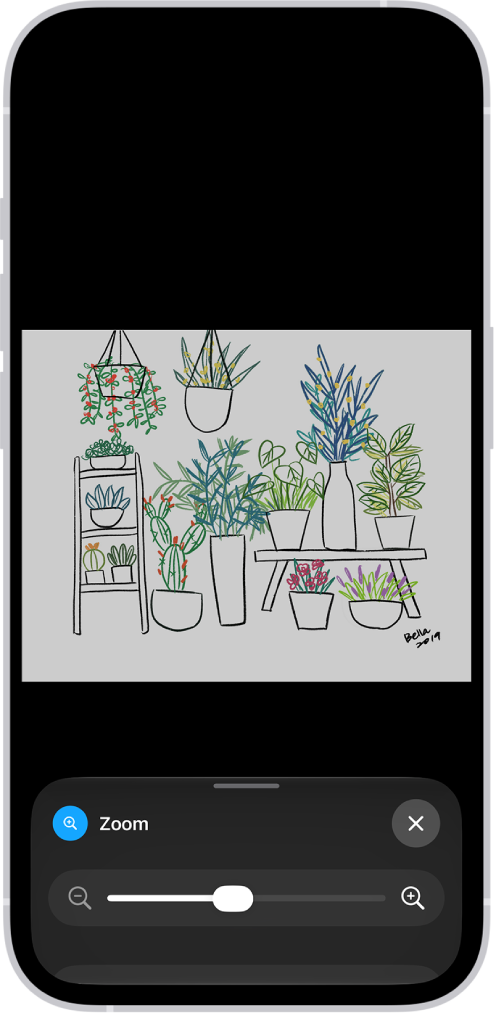
In many apps, you can zoom in or out on specific items. For example, you can look closer in Photos or expand webpage columns in Safari. You can also use the Zoom feature to magnify the screen no matter what you’re doing.

You can magnify the entire screen (Full Screen Zoom) or magnify only part of the screen with a resizable lens (Window Zoom). Zoom can also follow your selections, the text insertion point, and your typing. And you can use Zoom together with VoiceOver.

An iPhone showing a zoomed in illustration of plants.

Set up Zoom

  1. Open Settings, tap Accessibility, tap Zoom, and turn on Zoom.
  2. Adjust any of the following:
    • Follow Focus: Track your selections, the text insertion point, and your typing.
    • Smart Typing: Switch to Window Zoom when a keyboard appears.
    • Keyboard Shortcuts: Control Zoom using shortcuts on an external keyboard.
    • Zoom Controller: Turn the controller on, set controller actions, and adjust the color and opacity.
    • Zoom Region: Choose Full Screen Zoom or Window Zoom.
    • Zoom Filter: Choose None, Inverted, Grayscale, Grayscale Inverted, or Low Light.
    • Maximum Zoom Level: Drag the slider to adjust the level.
  3. If you use iPhone with a pointer device, you can also set the following below Pointer Control:
    • Zoom Pan: Choose Continuous, Centered, or Edges to set how the screen image moves with the pointer.
    • Adjust Size with Zoom: Allow the pointer to scale with zoom.
  4. To add Zoom to Accessibility Shortcut, open Settings, tap Accessibility and tap Accessibility Shortcut. Tap Zoom.

Use Zoom

  1. Double-tap the screen with three fingers or use Accessibility Shortcut to turn on Zoom.
  2. To see more of the screen, do any of the following:
    • Adjust the magnification: Double-tap the screen with three fingers (without lifting your fingers after the second tap). Then drag up or down. Or triple-tap with three fingers. Then drag the Zoom Level slider.
    • Move the Zoom lens: (Window Zoom) Drag the handle at the bottom of the Zoom lens.
    • Pan to another area: (Full Screen Zoom) Drag the screen with three fingers.
  3. To adjust the settings with the Zoom menu, triple-tap with three fingers and then adjust any of the following:
    • Choose Region: Choose Full Screen Zoom or Window Zoom.
    • Resize Lens: (Window Zoom) Tap Resize Lens and then drag any of the round handles that appear.
    • Choose Filter: Choose Inverted, Grayscale, Grayscale Inverted, or Low Light.
    • Show Controller: Show the Zoom Controller.
  4. To use the Zoom Controller, do any of the following:
    • Show the Zoom menu: Tap the controller.
    • Zoom in or out: Double-tap the controller.
    • Pan: When zoomed in, drag the controller.

When you use Zoom with Magic Keyboard, the Zoom region follows the insertion point and keeps it in the center of the screen.

To turn off Zoom, double-tap the screen with three fingers or use Accessibility Shortcut.

You can use VoiceOver Recognition on iPhone to scan your surroundings and get live descriptions of the scenes detected in the camera view. With Apple Intelligence,* you can also get information and ask questions about onscreen images and interface elements, even in apps and on webpages that don’t provide accessibility information.

With Live Recognition, you can get descriptions and ask questions about your surroundings. It works while VoiceOver is on, and you can start it with a VoiceOver gesture.

Important: VoiceOver Recognition should not be relied upon in circumstances where you could be harmed or injured, in high-risk situations, for navigation, or for the diagnosis or treatment of any medical condition.
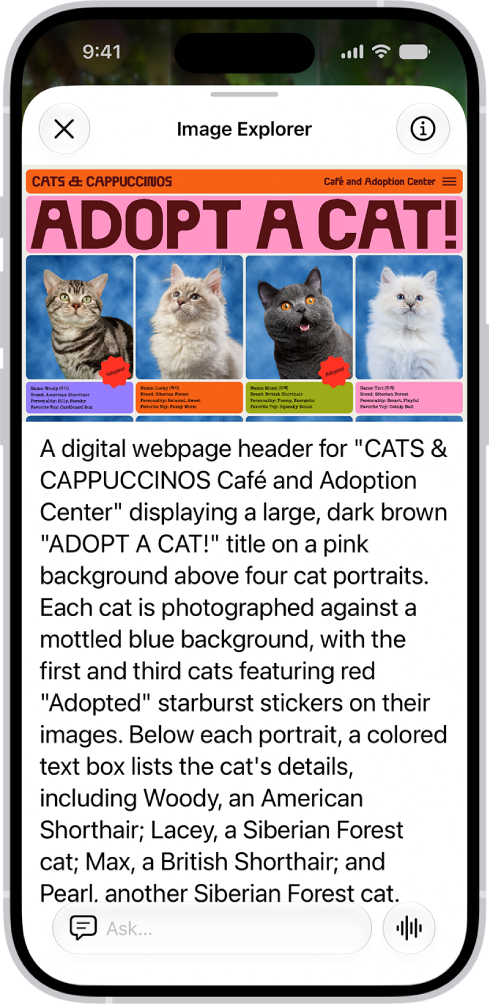
An Image Explorer screen giving a description of a cat adoption flyer.

Get descriptions and ask questions about your surroundings with Live Recognition

  1. With VoiceOver on, triple-tap the screen with four fingers to start Live Recognition.
  2. Do any of the following:

    • Ask questions and get information about your surroundings: Double-tap when you hear Ask to turn it on or off. The default question “What is this?” is asked automatically unless you Customize Live Recognition settings.
    • Get descriptions about your surroundings: Choose the kinds of visual information you want VoiceOver to describe, like scenes, people, doors, furniture, or text. Select a category and then double-tap to turn it on or off. If you turn on Point and Speak, you can point your finger at text and have VoiceOver read it aloud.

      Note: Detection of people, doors, and furniture is available only on supported iPhone models.

    • Get information about a document: Double-tap when you hear Document Capture to turn it on or off. Position iPhone so the rear camera can detect what’s around you. VoiceOver describes what the camera detects. To interrupt VoiceOver speech and move to the next detected item, tap the screen with two fingers.
  3. To turn off Live Recognition, triple-tap the screen with four fingers. Or if the VoiceOver cursor is focused on an interface element for Live Recognition, do a two-finger scrub (move two fingers back and forth three times quickly, making a “z”).

Quick tip: For faster access, set up a shortcut to quickly start and stop Live Recognition.

To detect and describe scenes, people, and more, you can also use Detection Mode in the Magnifier app.

To quickly access VoiceOver and the Magnifier app, you can customize the Action button. And you can set the Action Button to ask a question in Live Recognition.

Customize Live Recognition settings

  1. Open the Settings app on your iPhone.
  2. Tap Accessibility, then tap Live Recognition.
  3. Do any of the following:

    • Set a default question that’s asked automatically: Turn on Default Question which is “What is this?” by default. You can also enter your own default question.
    • Choose whether to speak or type by default: Tap Speak or Type.
    • Use the volume buttons to take a picture: Turn on Use Volume Buttons to Recapture.
    • Select what options appear in the rotor: Tap Live Recognition Rotor. Tap an option, like People, Doors, Scenes, or Ask. You can also drag each option up or down to rearrange the order in the rotor.

      Note: Detection of people, doors, and furniture is available only on supported iPhone models.

    • Create a custom activity that you can quickly turn on: Tap Activities, tap the Add button, and then enter an activity name. Select the detection modes that are on by default in the activity. You can also turn on Speech, Braille, Sounds, and Haptics for different detection modes.

Get descriptions and ask questions about images

Even in apps and on webpages that don’t provide accessibility information, VoiceOver Recognition can describe the people, objects, and text in images. Apple Intelligence adds enhanced descriptions, and you can ask questions about images, too.

Note: Apple Intelligence on iOS 27 or later is available on an Apple Intelligence-enabled iPhone 15 Pro, iPhone 15 Pro Max, or iPhone 16 model or later. Apple Intelligence is not available in all languages or regions. Usage limits may apply.*

  1. Open the Settings app on your iPhone.
  2. Tap Accessibility, tap VoiceOver and tap VoiceOver Recognition. Do any of the following:
    • Explore content in an image, get descriptions, and ask questions: Turn on Explore Image.
    • Ask questions and get information about images: Turn on Ask About Image.
    • Get detailed descriptions of images: Turn on Intelligent Image Description.
    • To get descriptions of text found in images, turn on Text Recognition.
  3. Go to an app such as Photos or Safari and select an image.
  4. Swipe down to hear more options and then double-tap when you hear Intelligent Image Description, Explore Image, or Ask About Image.
  5. Move your finger around the image to find out the position of each object.

Note: Image descriptions aren’t available in all languages.

Get information and ask questions about content on your screen

When VoiceOver is focused on the Dynamic Island, Apple Intelligence can help you explore what’s on your screen in detail, and you can ask follow-up questions about what’s displayed. And you can choose which custom actions appear while VoiceOver is focused on the Dynamic Island.

Note: Apple Intelligence on iOS 27 or later is available on an Apple Intelligence-enabled iPhone 15 Pro, iPhone 15 Pro Max, or iPhone 16 model or later. Apple Intelligence is not available in all languages or regions. Usage limits may apply.*

Only iPhone models with a Dynamic Island have this feature.

  1. Open the Settings app on your iPhone.
  2. Tap Accessibility, tap VoiceOver, tap VoiceOver Recognition, and tap Image Descriptions.
  3. Do any of the following:
    • Get detailed descriptions of what’s on your screen: Turn on Explore Screen.
    • Ask questions and get information about what’s on your screen: Turn on Ask About Screen.
  4. With VoiceOver focused on the Dynamic Island, swipe up to hear more options and then double-tap when you hear Explore Screen or Ask About Screen.

Add custom descriptions of images in Photos

  1. Open the Photos app on your iPhone.
  2. Double-tap the image you want to add a custom description to.
  3. Double-tap the Edit button, then double-tap the Markup button.
  4. Double-tap the Add button and then double-tap Image Description.
  5. Enter your custom description.
  6. Double-tap the Done button, then double-tap the Done button again.

After you add a custom description to a photo in the Photos app, you’ll hear the description when you select the photo in the photo picker, and when you double-tap it.

Get descriptions of interface elements

VoiceOver Recognition can also describe interface elements when apps and webpages don’t provide accessibility information.

  1. Open the Settings app on your iPhone.
  2. Tap Accessibility, tap VoiceOver, and then tap VoiceOver Recognition.
  3. Tap Screen Recognition and turn on Screen Recognition.
  4. Tap Apply to Apps and select an app from the list to improve the accessibility of a specific app.

*Apple Intelligence is available with Siri and device language set to Chinese (Simplified), Chinese (Traditional), Danish, Dutch, English, French, German, Italian, Japanese, Korean, Norwegian, Portuguese, Spanish, Swedish, Turkish, or Vietnamese. Some features may not be available in all regions or languages. Some devices may not be available in all regions. Siri AI is available in beta in iOS 27, iPadOS 27, macOS 27, watchOS 27, and visionOS 27 and requires an Apple Intelligence–enabled device set to a supported language. Available in English to start. Siri AI will not be initially available in the EU on iOS, iPadOS, and watchOS. Certain Apple Intelligence features that rely on server-side models are subject to daily usage limits, including but not limited to Siri AI, Intelligent Photo Editing Tools, Image Playground, and AFM 3 Cloud models in Shortcuts. Daily limits may vary by feature, request complexity, system demand, system policies, and other factors. Expanded access to such features will be available for a fee in the future. Use of these features is subject to the Apple Intelligence Terms and Conditions.


To set up Switch Control, you need to connect and add one or more switches, then assign an action to each switch. You can choose a scanning style and fine-tune other settings to suit your needs. You can use only one switch, or multiple switches for different actions, like selecting an item or moving the cursor to the next item.

After you turn it on, you may need to change the assigned actions or readjust the settings. If you have difficulty with these steps, you can get personalized help at your nearest Apple Store.

Step 1: Connect an external switch (optional)

To use a joystick, game controller, adaptive accessory, or MFi device for Switch Control, first connect it to iPhone by following the manufacturer’s instructions. And if the switch connects using Bluetooth®, you’ll need to pair it with iPhone.

You can add nonexternal switches as well, like sounds or AirPod Gestures.

  1. Turn on the switch.
  2. Open Settings, tap Bluetooth, turn on Bluetooth, tap the name of the switch, and then follow the onscreen instructions.

Step 2: Add switches, recipes, and switch sets

Use a single switch, or several to accommodate different actions, with each one performing an assigned action, such as moving the cursor to the next item or selecting an item.

  1. Start the Settings app on your iPhone.
  2. Tap Accessibility and tap Switch Control. Then tap Switches.
  3. Tap Add New Switch. Choose External, Screen, Camera, Back Tap, Sound, or AirPod Gestures.

    If you’re trying to add an external switch but it isn’t shown in the list, make sure it’s connected to your iPhone as described above in Step 1: Connect an external switch (optional).

  4. Assign an action to the switch.

    The action for the switch depends on the number of switches you have and the scanning style you choose in Step 3: Choose a scanning style, below. If you don’t know which action to assign, choose Select Item, which is compatible with Auto Scanning (the default scanning style). You can return to this setting later to change the assigned action.

Quick tip: Your iPhone can double as a game controller using gestures you’ve already set up, such as the switch (or alternative input method) you navigate and control your iPhone with. You could also reuse your Back Tap gestures instead.

You can also assign recipes—a set of temporary, specialized actions—to your switches. Use recipes for repetitive, complex actions in apps such as turning pages in the Books app. To create a recipe, go to Settings > Accessibility > Switch Control > Recipes.

If you have multiple sets of switches or recipes that you switch between, you can create a Switch Set for your settings. To create a profile, go to Settings > Accessibility > Switch Control > Switch Sets > Add New Switch Set.

Step 3: Choose a scanning style

The cursor moves from one item to the next automatically after a specified duration by default, but if you’d rather move it manually, you can choose a different scanning style.

Go to Settings > Accessibility > Switch Control > Scanning Style, then choose one of the following:

  • Auto Scanning: The cursor automatically moves to the next item after a specified duration. This is the default scanning style.

    If you use Auto Scanning with just one switch, make sure the Select Item action is assigned to the switch.

  • Manual Scanning: When you activate your Move to Next Item switch, the cursor moves to the next item.

    Manual Scanning requires at least two switches. Make sure the Move to Next Item action is assigned to one switch, and the Select Item action is assigned to another switch.

  • Single Switch Step Scanning: When you activate the Move to Next Item switch, the cursor moves to the next item; if no action is taken within a specified duration, the current item is automatically selected.

    This scanning style requires only one switch. Make sure the Move to Next Item action is assigned to the switch.

Step 4: Fine-tune Switch Control settings

To suit your specific needs and style, you can adjust how Switch Control behaves in a variety of ways. You might change the scanning speed, for example, or have iPhone speak the highlighted items.

Go to Settings > Accessibility > Switch Control, then adjust any of the following:

  • Auto Scanning Time: Adjust the item scanning speed.
  • Pause on First Item: Set scanning to pause on the first item in a group.
  • Loops: Choose how many times to cycle through the screen before hiding Switch Control.
  • Move Repeat: Set the delay before moving to the previous or next item while a switch is pressed.
  • Long Press: Set whether a different action occurs when you press and hold a switch, and how long to wait before performing that action.
  • Tap Behavior: Choose a tap behavior and set the interval for performing a second switch action to show the Scanner menu.
  • Focused Item After Tap: Choose whether Switch Control resumes scanning at an item you tap or from the beginning.
  • Scan Same Key After Tap: Turn on scanning the same key after tapping.
  • Always Tap Keyboard Keys: Turn on always tapping keyboard keys.
  • Extended Predictions: Turn on extended predictions.
  • Hold Duration: Specify how long you need to press and hold a switch before it’s accepted as a switch action.
  • Ignore Repeat: Ignore accidental repeated switch triggers.
  • Sound Effects: Turn on sound effects.
  • Speech: Speak items as they’re scanned.
  • Menu Items: Choose the actions shown in the Scanner menu and the order in which they appear.
  • Group Items: Group items for faster navigation.
  • Large Cursor: Make the highlight more prominent.
  • Cursor Color: Choose a different highlight color.
  • Saved Gestures: Create a custom gesture.
  • Confirm with Switch Control: Turn on Confirm with Switch Control to confirm payments with your passcode or any time double-clicking the side button is required.

Step 5: Turn on Switch Control

Important: When Switch Control is turned on, you can’t use the standard gestures on the touchscreen to exit Switch Control.

Go to Settings > Accessibility > Switch Control, then turn on Switch Control.

Quick tip: You can add Switch Control to Accessibility Shortcut, then quickly turn it on or off, just by triple-clicking the side button (on iPhone models with Face ID) or the Home button (on other iPhone models).

Even if VoiceOver is turned off, you can have iPhone read text on the screen out loud. Have iPhone read the entire screen or a specific selection, or hear what you type spoken out loud, character by character or word by word.

Accessibility Reader lets you read or listen to text in a full-screen view, with your own fonts, layouts, and background colors, and you can change how spoken content sounds.

Here’s how to hear iPhone speak the screen, selected text, and typing feedback.

Have iPhone speak onscreen text

  1. Start the Settings app on your iPhone.
  2. Tap Accessibility and tap Read & Speak.
  3. Turn on and customize any of the following:

    • Accessibility Reader: Turn on Accessibility Reader to read or listen to text in a full-screen view, and customize fonts, layouts, and background colors. Turn on Autoplay if you want Accessibility Reader to automatically read text aloud.
    • Speak Screen: Tap Speak Screen and then turn on Speak Screen to have iPhone read all text on the screen, then do any of the following:
      • Highlighting: Customize the highlight style, color, and selection for in-app text that is spoken aloud.
      • Show Controller: Turn on Show Controller to keep the Speak Screen controls on the screen.
      • Controller Actions: Choose what happens when you long press or double-tap the screen. You can also reduce the size of the speech controller when you’re not using it.
    • Speak Selection: Turn on Speak Selection to have iPhone speak the text you select. Customize the highlight style, color, and selection for in-app text that is spoken aloud.
  4. Do any of the following:

    • Hear selected text (if you turned on Speak Selection): Select the text you want spoken, then tap Speak.
    • Hear all text on the screen (if you turned on Speak Screen): Swipe down with two fingers from the top of the screen.

      Use the controls that appear to pause speaking, adjust the rate, navigate forward or back to the content you want to hear, or use Speak on Touch (tap the text you want iPhone to read).

    Siri: Ask Siri something like, “Speak screen.”

Change how spoken content sounds

  1. Start the Settings app on your iPhone.
  2. Tap Accessibility and tap Read & Speak.
  3. Adjust any of the following:
    • Voices: Choose a voice and dialect.
    • Default Language: Choose a default language that iPhone will speak.
    • Detect Languages: Turn on Detect Languages to have iPhone automatically detect and speak multiple languages.
    • Speaking Rate: Drag the slider.
    • Pronunciations: Dictate or spell out how you want certain phrases to be spoken.

iPhone comes with built-in accessibility features for hearing, tools designed to help you hear better—or stay connected without hearing a sound.

With Live Captions, you can get a transcription of the audio from any app, and even from live conversations around you. iPhone can listen for sounds like a doorbell or siren and alert you when it recognizes them, and it can listen for your name, too. You can also make Real-Time Text (RTT) calls, and experience music as taps, textures, and refined vibrations. You’ll also find transcriptions of audio messages and podcasts.

To explore accessibility features for hearing, go to Settings > Accessibility, then scroll down to the Hearing section.

Use alternatives to sound

  • Get real-time captions of spoken audio

    With Live Captions, get a transcription of the audio from any app and from live conversations around you.

    Get live captions of spoken audio

  • Customize subtitles and captions

    Change how subtitles look. Or instead of standard subtitles, use closed captions and SDH when available.

    Display subtitles and captions

  • Get notified if someone says your name

    With Name Recognition, have iPhone listen for your name and alert you when it recognizes it.

    Recognize your name

  • Get notified about sounds around you

    With Sound Recognition, have iPhone listen for sounds—such as a doorbell or siren—and alert you when it recognizes them.

    Recognize sounds

  • Feel the music

    Experience music as taps, textures, and refined vibrations that are synchronized with a song’s audio.

    Play music as vibrations and other haptics

  • Type to Siri

    Type your Siri requests instead of speaking them.

    Change Siri accessibility settings

  • Make Real-Time Text (RTT) calls

    Type to communicate on a phone call. The person you’re talking to sees your message as you type it.

    Set up and use RTT and TTY

  • Blink the iPhone light for notifications

    If you can’t hear your alerts, get notified visually.

    Flash the iPhone screen or indicator light for notifications

Transcriptions are also available for audio messages, podcasts, and HomePod intercom messages.

Use hearing devices and make audio adjustments

  • Hearing devices

    Pair Made for iPhone (MFi) hearing aids or sound processors with iPhone and adjust their settings.

    Use hearing devices

  • Live Listen

    Stream sound from the iPhone microphone to your MFi hearing devices or AirPods.

    Use iPhone as a remote microphone with Live Listen

  • Audio balance

    Play stereo audio as mono, adjust left-right stereo balance, and more.

    Adjust audio settings

  • AirPods

    Set accessibility options for AirPods and other Apple headphones paired with your iPhone.

    Adjust the accessibility settings for AirPods

  • Background sounds

    Have your iPhone play ambient sounds—such as ocean waves or rain—to help you focus or rest.

    Play background sounds

Siri can also announce calls and notifications on your MFi hearing devices.

Quick tip: With the click of a button or from Control Center, you can control your go-to accessibility features and settings.