Got a tip for us?

accessibility

With sound and speech feedback, Magnifier’s Detection Mode can describe what’s around you, which helps if you’re blind or have low vision. Make sure Silent mode is off, or you won’t hear it. With the Magnifier app on iPhone, you can get helpful information about:

  • Doors, including their attributes and how to open them
  • People, and how close they are to help you maintain physical or social distance
  • Furniture, when chairs or sofas are detected, and whether they’re occupied

Important: Detection Mode should not be relied on in high-risk or emergency situations, in circumstances where you may be harmed or injured, or for navigation.

Only supported iPhone models can detect doors, people, and furniture.
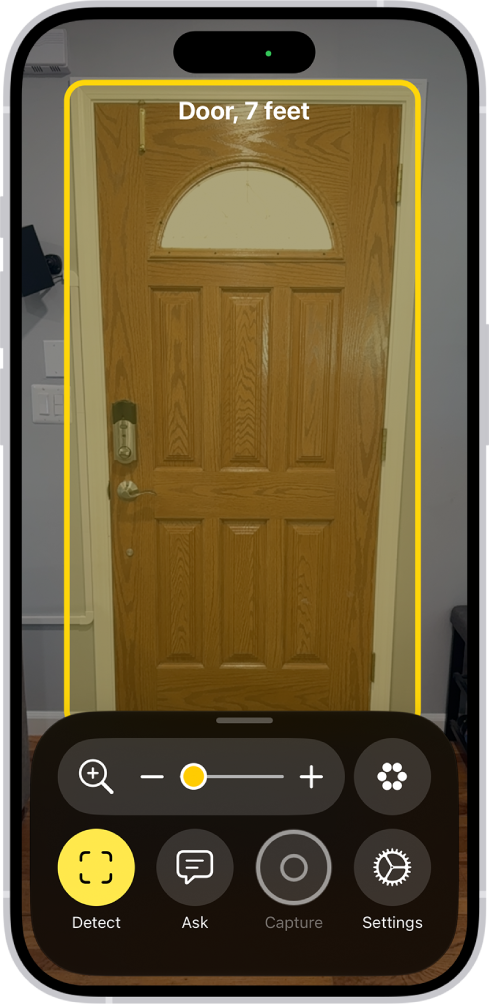
The Magnifier app is open and a door is being detected. A description shows how far away the door is.

Detect doors, people, and furniture near you

  1. Open the Magnifier app on your iPhone.
  2. Tap the Detection Mode button to start Detection Mode.

    If you don’t see the Detection Mode button, you can add it.

  3. Touch and hold the Detection Mode button, then select any of the following:

    • People
    • Furniture
    • Doors
  4. Position iPhone so the rear camera can detect your surroundings.

    When doors, people, or furniture are detected nearby, you’re notified with sounds, speech, or haptic feedback.

    The feedback becomes more frequent as you get closer.

    If you don’t hear sound or speech feedback, make sure Silent mode isn’t on.

  5. To temporarily pause detection, double-tap the screen with two fingers.

    Double-tap again with two fingers to resume detection.

  6. To stop Detection Mode, tap the Detection Mode button.

Customize the settings for detecting doors

  1. Open the Magnifier app on your iPhone.
  2. Tap the Settings button and then tap Detect.
  3. Tap Doors. Then customize any of the following: Units: Choose Meters or Feet.

    • Sound pitch distance: Tap the Decrement button or the Increment button to adjust the distance for sound feedback.

    When a door is detected within this distance, the pitch of the sound feedback increases.

    Feedback: Turn on any combination of Labels, Speech, Sounds and Haptics.

    If you turn on Speech, iPhone speaks the distance between you and the door.

    Color: Select a color to outline detected doors.

    Back tap: When you double-tap the back of your iPhone, you can hear more information about doors around you.

    Door Attributes: Turn on any combination of door attributes, such as the size of the detected door, how to open the door, and if the door is currently open.

    Door Decorations: Turn on Door Decorations to get information about text and signs on or near the detected door, such as a sign for an accessible entrance or a restroom.

    When you’re finished, tap the Back button, tap it again, then tap the Done button.

Customize the settings for detecting people

  1. Open the Magnifier app on your iPhone.
  2. Tap the Settings button and then tap Detect.
  3. Tap People. Customize any of the following: Units: Choose Meters or Feet.

    • Sound pitch distance: Tap the Decrement button or the Increment button to adjust the distance for sound feedback.

    When people are detected within this distance, the pitch of the sound feedback increases.

    Feedback: Turn on any combination of Labels, Speech, Sounds and Haptics.

    If you turn on Speech, iPhone speaks the distance between you and another person.

    People Detection Actions: Turn on People Detection Actions to get information about people holding the doors near you.

    When you’re finished, tap the Back button, tap it again, then tap the Done button.

Customize the settings for detecting furniture

  1. Open the Magnifier app on your iPhone.
  2. Tap the Settings button and then tap Detect.
  3. Tap Furniture and then customize any of the following: Units: Choose Meters or Feet.

    • Sound pitch distance: Tap the Decrement button or the Increment button to adjust the distance for sound feedback.

    When furniture is detected within this distance, the pitch of the sound feedback increases.

    Feedback: Turn on any combination of Labels, Speech, Sounds, and Haptics.

    If you turn on Speech, iPhone speaks the distance between you and the furniture.

    Announce Seat Occupancy: Turn on Announce Seat Occupancy to get information about the number of people occupying chairs and sofas.

    When you’re finished, tap the Back button, tap it again, then tap the Done button.
You can personalize the Magnifier app to show your most frequently used controls for easy access. You can also create custom activities for recurring tasks and customize settings of live scene descriptions.

Up to two of your controls can be primary controls, which appear on the main screen when Magnifier opens. You can also set your preferred controls for an activity.

Here’s how to customize controls in Magnifier on iPhone.

Add or remove controls

  1. Open the Magnifier app on your iPhone.
  2. Tap the Settings button and then do any of the following: Show or hide Ask Magnifier, Capture, or Detection Mode: Tap Ask Magnifier, Capture, or Detect, then turn Show in Control Panel on or off.

    • Add or remove other controls: Tap the Insert button or the Remove button next to a control.

    You can choose up to two primary controls.

    Primary controls appear on the main screen when you open Magnifier.

    If you add more than two controls, you can swipe up on the control panel at the bottom of the screen to access secondary controls.

    Reorder other controls: Drag the Reorder button next to a control to move it up or down.

Control Description
Brightness Adjust the brightness.
Contrast Adjust the contrast.
Filters Apply a color filter. When you add the Filters control, you can select just the filters you use most often.
Flashlight Turn on the flashlight.
Focus Lock Lock the magnifier focus.
Cameras Switch between the front and rear cameras, or choose Close-up when you need to see something very small that’s very close to the camera. Note: Close-up is available on iPhone 13 Pro and iPhone 13 Pro Max or later.
Capture Mode Switch between modes for taking single photos, multiple photos, or for taking photos of documents.

Set your preferred controls for an activity

For recurring tasks or situations, you can save the controls you use as activities, then switch between different activities as needed.

An activity for reading a menu at a restaurant is one example.

  1. Open the Magnifier app on your iPhone.
  2. Tap the Activities button. Tap Save Current Settings As New Activity to create a new activity using the current controls.
  3. Enter a name for the activity and then tap the Done button.

Customize settings for Ask Magnifier

Ask Magnifier isn’t available on devices without Apple Intelligence.

Note: Apple Intelligence on iOS 27 or later is available on an Apple Intelligence-enabled iPhone 15 Pro, iPhone 15 Pro Max, or iPhone 16 model or later.

Apple Intelligence is not available in all languages or regions, Apple says.

Usage limits may apply.* Go to the Magnifier app on your iPhone.

  1. Tap the Settings button and tap Ask Magnifier.

    Do one of the following: Input: Choose whether to speak or type your questions by default.

    Default Question: Turn on to ask the same question automatically each time you open Ask Magnifier.

    You can use the default question (“What is this?”) or enter your own.

Customize settings for live scene descriptions

  1. Open the Magnifier app on your iPhone.
  2. Tap the Settings button and then tap Detect.
  3. Tap Scenes and then turn on any combination of Labels or Speech feedback.
  4. To return to the live Magnifier lens, tap the Back button, tap it again, and then tap the Done button.

    *Apple Intelligence is available with Siri and device language set to Chinese (Simplified), Chinese (Traditional), Danish, Dutch, English, French, German, Italian, Japanese, Korean, Norwegian, Portuguese, Spanish, Swedish, Turkish, or Vietnamese.

    Some features may not be available in all regions or languages.

    Some devices may not be available in all regions.

    Siri AI is available in beta in iOS 27, iPadOS 27, macOS 27, watchOS 27, and visionOS 27 and requires an Apple Intelligence–enabled device set to a supported language.

    Available in English to start.

    Siri AI will not be initially available in the EU on iOS, iPadOS, and watchOS.

    Certain Apple Intelligence features that rely on server-side models are subject to daily usage limits, including but not limited to Siri AI, Intelligent Photo Editing Tools, Image Playground, and AFM 3 Cloud models in Shortcuts.

    Daily limits may vary by feature, request complexity, system demand, system policies, and other factors.

    Expanded access to such features will be available for a fee in the future.

  5. Use of these features is subject to the Apple Intelligence Terms and Conditions.

With AssistiveTouch on iPhone, you can adapt the touchscreen to fit your needs. If certain gestures don’t work for you, you can replace them with a tap or alternate gesture, or use a simple sound. You can also use AssistiveTouch when you need to press iPhone buttons.

AssistiveTouch works with or without a compatible adaptive accessory, such as a joystick. When it’s on, the AssistiveTouch menu button appears on the screen, and you can customize the top-level menu with up to eight icons.

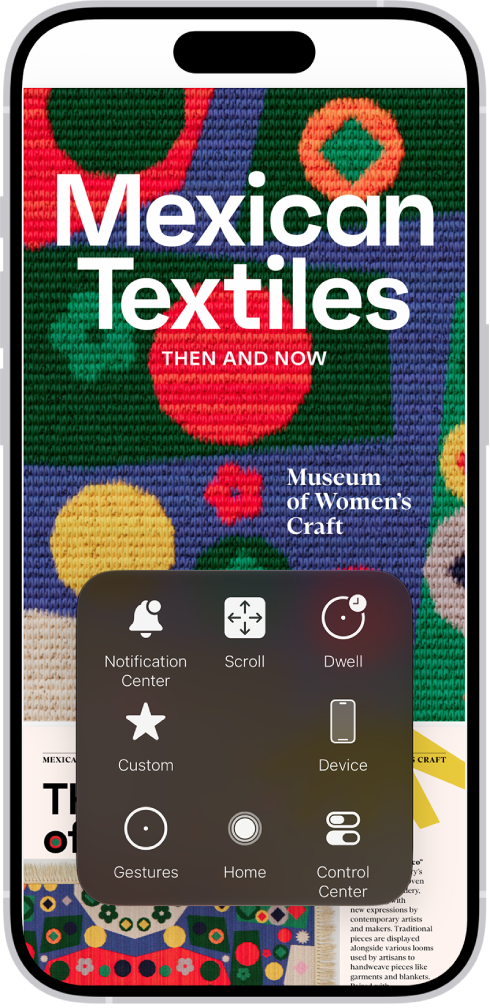
An iPhone with the AssistiveTouch menu visible, showing controls for Notification Center, Device, Control Center, Home, Gestures, and Custom.

AssistiveTouch lets you perform actions such as these:

  • Go to the Home Screen
  • Double-tap
  • Perform multifinger gestures
  • Perform scroll gestures
  • Activate Siri
  • Access Control Center, notifications, the Lock Screen, or the App Switcher
  • Adjust the volume on iPhone
  • Shake iPhone
  • Take a screenshot
  • Use 3D Touch (on supported iPhone models)
  • Use Apple Pay
  • Use Emergency SOS
  • Speak screen
  • Adjust dwell settings
  • Restart iPhone

Set up AssistiveTouch

Siri: Ask Siri something like, “Turn on AssistiveTouch.”

Or do the following:

  1. Open Settings, tap Accessibility, tap Touch, and then tap AssistiveTouch.
  2. Turn on AssistiveTouch. The AssistiveTouch menu button appears on the screen.
  3. To customize AssistiveTouch, tap any of the following:
    • Customize Top Level Menu: Tap an icon to change its action. Tap the Decrement button or the Increment button to change the number of icons in the menu. The menu can have up to eight icons.
    • Single-Tap, Double-Tap, Long Press, or 3D Touch: Assign custom actions that run when you interact with the menu button. 3D Touch is available only on supported iPhone models.
    • Create New Gesture: Add your favorite gestures.
    • Idle Opacity: Adjust the visibility of the menu button when not in use.
    • Confirm with AssistiveTouch: On an iPhone with Face ID, confirm payments with Face ID by using AssistiveTouch instead of double-clicking the side button.

Quick tip: After you set up the Accessibility Shortcut, triple-click the side or Home button to turn AssistiveTouch on or off quickly.

Use AssistiveTouch

When AssistiveTouch is on, tap the AssistiveTouch menu button , then choose an action or gesture.

To return to the previous menu, tap the arrow in the center of the menu. To exit the menu without performing a gesture, tap anywhere outside the menu.

To move the AssistiveTouch menu button, drag it to a new location on the screen.

When you need to perform a multifinger gesture, do the following:

  • Pinch and Rotate: Tap Custom, then tap Pinch and Rotate. When the two pinch circles appear, touch anywhere on the screen to move the pinch circles, then drag them in or out to perform a pinch or rotate gesture. When you finish, tap the menu button.
  • Multifinger swipe or drag: Tap Device > More > Gestures, then tap the number of digits needed for the gesture. When the circles appear on the screen, swipe or drag in the direction required by the gesture. When you finish, tap the menu button.

Control iPhone with a pointer device

Assistive pointer devices can connect over Bluetooth® or USB. That includes trackpads, mouse devices, and game controllers.

  1. Open Settings, tap Accessibility, tap Touch, and then tap AssistiveTouch.
  2. Turn on AssistiveTouch.
  3. Below Pointer Devices, tap any of the following:
    • Devices: Pair or unpair devices and customize buttons.
    • Mouse Keys: Allow the AssistiveTouch pointer to be controlled using the keyboard.
    • Pointer Style: Adjust the size, color, and auto-hide settings.
    • Show Onscreen Keyboard: Display the onscreen keyboard.
    • Sound on Click: Play a sound when the pointer device is clicked.
    • Always Show Menu: Show the AssistiveTouch menu when a pointer device is connected.
    • Tracking Sensitivity: Adjust how quickly the pointer moves when you drag the mouse or your finger on the trackpad.

Set up Dwell Control

When you keep the cursor still on a screen element or part of the screen, iPhone performs a selected action.

  1. Open Settings, tap Accessibility, tap Touch and tap AssistiveTouch. Turn on Dwell Control.
  2. Adjust any of the following:
    • Fallback Action: Turn on to revert the dwell action to the selected fallback action after performing an operation.
    • Movement Tolerance: Adjust the distance the cursor can move while dwelling on an item.
    • Hot Corners: Perform a selected action—such as take a screenshot, open Control Center, activate Siri, scroll, or use a shortcut—when the cursor dwells in a corner of the screen.
    • Extended Predictions: Under Keyboard, turn on Extended Predictions to get more word suggestions while typing.
    • Key Dwell Time: Under Keyboard, adjust the amount of time it takes to tap on a keyboard key by tapping the Decrement button or the Increment button. You can also enter a number of seconds.
    • Slide to Type: Under Keyboard, turn on Slide to Type to type by drawing a path with your cursor along the keyboard.
    • Time needed to initiate a dwell action: Tap the Decrement button or the Increment button.

Use simple sounds to perform gestures

Make a simple sound, like a mouth pop or an S-sound, and AssistiveTouch can have iPhone perform a gesture or other action.

  1. Open Settings, tap Accessibility, tap Touch, tap AssistiveTouch, and turn AssistiveTouch on.
  2. Tap Sound Actions, then tap a sound.
  3. Select the gesture or other action you want performed when you make the sound.
  4. To perform the gesture or action, just make the sound.

Create custom gestures

You can add gestures you use often (such as touch and hold or two-finger rotation) to the AssistiveTouch menu. You can even create several gestures with, for example, different degrees of rotation.

  1. Open Settings, tap Accessibility, tap Touch, tap AssistiveTouch, and then tap Create New Gesture.
  2. Perform your gesture on the recording screen. For example:

    • Touch-and-hold gesture: Touch and hold your finger in one spot until the recording progress bar reaches halfway. Lift your finger. Be careful not to move your finger while recording, or the gesture will be recorded as a drag.
    • Two-finger rotation gesture: Rotate two fingers on the iPhone screen around a point between them. (You can do this with a single finger or stylus—just create each arc separately, one after the other.)

    If you record a sequence of taps or drag gestures, they’re all played back at the same time. For example, using one finger or a stylus to record four separate, sequential taps at four locations on the screen creates a simultaneous four-finger tap.

  3. If your gesture doesn’t turn out quite right, tap Cancel. Then try again.
  4. When you’re satisfied with your gesture, tap Save. Name the gesture.

To use your custom gesture, tap the AssistiveTouch menu button , tap Custom, then choose the gesture. When the blue circles representing your gesture appear, drag them to where you want to use the gesture, then release.

You can use the onscreen VoiceOver rotor to change how VoiceOver works. You can adjust the VoiceOver volume or speaking rate, move from one item to the next on the screen, select special input methods such as Braille Screen Input or Handwriting, and more.

When you use Magic Keyboard to control VoiceOver, use the rotor to adjust settings such as volume, speech rate, use of pitch or phonetics, typing echo, and reading of punctuation. On the screen, you use the rotor by rotating two fingers as if you’re turning a dial.

Use the VoiceOver rotor

  1. When VoiceOver is turned on, rotate two fingers on your screen as if you’re turning a dial. If you prefer to use one finger on each hand, simultaneously drag up with one finger and drag down with the other.

    VoiceOver speaks the rotor setting. Keep rotating your fingers to hear more settings. Stop rotating your fingers when you hear the setting you want.

  2. Swipe your finger up or down on the screen to use the setting.

    The available rotor settings and their effects depend on what you’re doing. For example, if you choose Headings when you’re browsing a webpage, swipe down or up to move the VoiceOver cursor to the next or previous heading.

Customize the VoiceOver rotor

  1. Open Settings, tap Accessibility, and then tap VoiceOver.
  2. Do any of the following:
    • Add or reorder the rotor settings: Tap Rotor. Then choose the settings you want, or drag the Reorder button to reorder settings.
    • Add another voice to the rotor:
    • Have VoiceOver confirm rotor actions: Tap Verbosity, then turn on Speak Confirmation.

With Braille Screen Input in VoiceOver, you can use your fingers to type braille directly on the iPhone screen, without a physical braille keyboard. You can also use Braille Screen Input to enter braille commands for navigating and controlling your iPhone.

You can use it in tabletop mode, with iPhone flat in front of you, or in screen away mode, with the screen facing away from you. Gestures let you enter a space, delete the previous character, move to a new line, or cycle through spelling suggestions.

Enter braille on the screen

  1. With VoiceOver turned on, do one of the following to start Braille Screen Input:

    • Use a gesture: Place one finger from each hand at the top and bottom edges of the screen and double-tap. If the gesture doesn’t work, open Settings, tap Accessibility, tap VoiceOver, and then tap Braille. Tap Braille Screen Input and turn on Use Activation Gestures.
    • Use the rotor: When you’re in a text input area, set the rotor to Braille Screen Input. If Braille Screen Input isn’t in the rotor, go to Settings > Accessibility > VoiceOver > Rotor. Tap Rotor Items, then select Braille Screen Input.
  2. Place iPhone in one of the following positions:

    • Tabletop mode: Lay iPhone flat in front of you.
    • Screen away mode: Hold iPhone in landscape orientation with the screen facing away from you. Your fingers wrap around the sides of iPhone to tap the screen.
  3. Enter braille characters by tapping the screen with one or more fingers at the same time.

    Tip: To hear where each dot is located, touch and hold, then drag your finger around the screen. To move the entry dots to match your natural finger positions, tap and lift your right three fingers all at once to position dots 4, 5, and 6, followed immediately by your left three fingers for dots 1, 2, and 3.

    You can also use gestures to perform actions such as the following:

    Action Gesture
    Enter a space Swipe right with one finger; in screen away mode, swipe to your right
    Delete the previous character Swipe left with one finger
    Move to a new line Swipe right with two fingers
    Cycle through spelling suggestions Swipe up or down with one finger
    Enter a carriage return, or send a message (in Messages) Swipe up with three fingers
    Cycle through modes (like Braille Entry Mode and Command Mode) Swipe left or right with three fingers
    Translate immediately (if you’re typing contracted braille) Swipe down with two fingers
    Switch to the next braille table Swipe up with two fingers
  4. To exit Braille Screen Input, slide two fingers in opposite directions, or do a two-finger scrub (draw the letter “z” by quickly moving two fingers back and forth three times).

Quick tip: To view and edit the commands and gestures you can perform with Braille Screen Input turned on, go to Settings > Accessibility > VoiceOver > Commands > Braille Screen Input.

Type on the screen to enter braille commands

Braille Screen Input Command Mode lets you control iPhone by typing braille commands on the screen, using the same commands you’d use with a refreshable braille display.

  1. With VoiceOver turned on, place one finger from each hand at the top and bottom edges of the screen and double-tap to start Braille Screen Input.
  2. Switch to Command Mode by swiping left or right with three fingers.
  3. Type braille commands directly on the screen.

Change Braille Screen Input settings

  1. Open the Settings app on your iPhone.
  2. Tap Accessibility, then tap VoiceOver.
  3. Tap Braille, then tap Braille Screen Input.
  4. Set any of the following:
    • Use Activation Gestures: To start Braille Screen Input, place one finger from each hand at the top and bottom edges of the screen and double-tap. If this option is off, use the rotor to start Braille Screen Input.
    • Start Automatically when Editing Text: Have Braille Screen Input start automatically when you enter a text input area.
    • Keep Active until Dismissed: After you launch an app or choose an item in Braille Entry Mode, automatically switch to Command Mode and keep it active.
    • Customize Commands: Go to the command you want to customize and tap Assign New Braille Keys.
    • Learn Dot Positions: Have Braille Screen Input calibrate the positions of dots as you enter them. Reverse Dot Positions: For six-dot braille, swap the positions of dots 1 and 3, and dots 4 and 6.
    • Visual Text Feedback: As you type in braille, display a text translation of what you’re typing.
    • Typing Feedback: Get sound or haptic feedback as you enter text with Braille Screen Input.
    • Single Hand Mode Style: Choose one of the following options to type in Portrait orientation:
      • Right Hand or Left Hand: Type a column of dots and swipe right to enter an empty column. Double-tap to enter one braille cell. (Dots 1 and 4, dots 2 and 5, and dots 3 and 6 are oriented from left to right.) Right Hand is turned on by default.
      • Slate and Stylus: Your screen acts as a braille cell with 6 dots. (Dots 1, 2, and 3 are on the right side, and dots 4, 5, 6 are on the left side.)
      • Reversed Slated and Stylus: Your screen acts as a braille cell with 6 dots. (Dots 1, 2, and 3 are on the left side, and dots 4, 5, 6 are on the right side.)
    • Mode Announcements: When you switch Braille Screen Input modes, have VoiceOver speak, play sounds, or both.
    • Choose a Braille table: Select a braille format.

If you experience discomfort when you use iPhone while riding as a passenger in a car or other on-road vehicle, you can turn on Vehicle Motion Cues—onscreen cues that may help reduce motion sickness. Vehicle Motion Cues appear as animated dots on the edges of the screen that represent how the vehicle is moving without interfering with what you’re doing on iPhone.

You can customize the pattern, color, and visibility of the dots, like using larger dots or more dots.

Note: Vehicle Motion Cues should not be used while operating a moving vehicle and in other situations requiring attention to safety.

Vehicle Motion Cues work best when you’re seated facing forward in the vehicle.

Use iPhone more comfortably while riding in a vehicle

  1. Open the Settings app on your iPhone.
  2. Tap Accessibility, then tap Motion.
  3. Tap Vehicle Motion Cues and tap an option. If you choose Automatic, animated dots appear on the screen when iPhone detects that you’re riding in a car or other on-road vehicle; the dots are hidden when the motion stops.
  4. To manually show or hide Vehicle Motion Cues, open Control Center and tap the Vehicle Motion Cues button. Tap an option.

Quick tip: Another way to turn Vehicle Motion Cues on or off is to set up a shortcut.

Customize Vehicle Motion Cues

  1. Open the Settings app on your iPhone.
  2. Tap Accessibility, then tap Motion.
  3. Tap Vehicle Motion Cues and tap Customize Appearance.
  4. Customize any of the following:
    • Pattern: Select Regular for a stable and predictable pattern, or Dynamic for a more engaging visual experience.
    • Color: Select a color. Color saturation will automatically adjust to maintain contrast with the content behind each dot.
    • Visibility: Select Larger Dots to increase the size of the dots or More Dots to increase the number of dots.

The accessibility features for speech on iPhone are built-in tools for communicating in the way that works best for you, whether you’re nonspeaking, at risk of speech loss, or someone with a speech disability. You can have what you type spoken out loud, create a synthesized voice that sounds like you, and more.

You can even control iPhone with your voice, using spoken commands or simple sounds like an S-sound or a mouth pop. Siri can also wait longer for you to finish speaking, and Dictation lets you enter text using just your voice.

To explore accessibility features for speech on an iPhone, go to Settings > Accessibility, then scroll down to the Speech section.

Type to speak

  • Live Speech: If you’re unable to speak or you have a speech disability, type what you want to say and have iPhone speak it.
  • Personal Voice: If you’re at risk of losing your ability to speak, create a synthesized voice that sounds like you.
  • Type to Siri: Type your Siri requests instead of speaking them.

Control iPhone with your voice

  • Use voice commands: Speak commands to navigate and interact with what’s on the screen, dictate and edit text, and more.
  • Use simple sounds: You can use voiced or voiceless sounds—like an S-sound or a mouth pop—to navigate and interact with what’s on the screen.
  • Vocal Shortcuts: Have iPhone perform an action when you speak a word or another sound of your choosing.
  • Have Siri listen for atypical speech: If you have an acquired or progressive condition that affects speech, have Siri recognize a wider range of atypical speech patterns.

Siri can also wait longer for you to finish speaking. And with Dictation, you can enter text using just your voice.

Quick tip: Your go-to accessibility features and settings are a button click away, or you can control them from Control Center.

With VoiceOver, you can connect a Bluetooth® wireless refreshable braille display and use it to control and navigate iPhone and read what’s on the screen. The braille you type on the display is automatically translated into text, and the display shows what you’re typing in context. You can read and type using contracted or uncontracted braille, with support for many international braille tables.

You can also output closed captions in braille during media playback, and use a 2D braille display.

Connect a braille display and learn commands to control iPhone

  1. Turn on the braille display.
  2. On iPhone, open Settings, tap Bluetooth, turn on Bluetooth, and then choose the display.
  3. On iPhone, open Settings, tap Accessibility, tap VoiceOver and tap Braille. Then choose the display.
  4. To see the braille commands for controlling iPhone, tap More Info and tap Braille Commands.

Change the braille display settings

  1. On iPhone, open Settings, tap Accessibility, tap VoiceOver, and then tap Braille.
  2. Set any of the following:
Setting Description
Match Input and Output Tables Set the braille display to use the same table for both the input and read output.
Input and Output Choose the braille table you want to use to type braille input and output. You can choose from tables for additional languages as well as six-dot or eight-dot and contracted or uncontracted braille.
Braille Screen Input Choose the input method for entering braille using the screen.
Braille Tables Add tables to the braille table rotors.
Braille Access Quickly access braille notes, BRF files, and more using a braille display.
Item Overview Adjust the number of cells displayed per item. Press dots 6, 7, and 8 at the same time to turn Item Overview on or off.
Automatic Translation Turn this option on to automatically translate the braille you type into text soon after you stop typing.
Status Cells Turn on the general and text status cells and choose their location.
Equations use Nemeth Code Turn on Nemeth Code for mathematical equations.
Show Onscreen Keyboard Display the keyboard on the screen.
Turn Pages when Panning Automatically turn pages when panning.
Word Wrap Wrap words to the next line.
Text Formatting Display text formatting attributes like bold and italics.
Use Underline Cursor Display the cursor as an underline.
Braille Alert Messages When turned on, your braille display shows an alert message for the specified duration.
Ignore Chord Duration Adjust the amount of time required before subsequent key presses are recognized as braille chords.
Auto Advance Duration Adjust this setting to your preferred reading speed.
Sound Curtain When a braille display is connected to iPhone, mute most sounds. Emergency alerts will still play sounds.
Enable Bluetooth on Start Automatically turn on Bluetooth when you turn on VoiceOver so that braille displays can connect to iPhone.

Output closed captions in braille during media playback

  1. On iPhone, open Settings, tap Accessibility, tap VoiceOver, and then tap Verbosity.
  2. Choose Braille or Speech and Braille.

Use a 2D braille display

On a supported 2D braille display, you can switch between different output modes with the rotor, like a mode for displaying images or one for reading text on multiple lines.

  1. Connect your braille display to iPhone.
  2. With VoiceOver turned on, use the Braille Text Mode rotor to switch between output modes.

If you use Magic Keyboard with iPhone, you can use keyboard shortcuts to activate VoiceOver commands.

You can also use VoiceOver Help to learn the keyboard layout and the actions associated with various key combinations. It speaks keys and keyboard commands as you type them, without performing the associated action. And Quick Nav lets you use the arrow keys.

Here’s how to use VoiceOver on iPhone with an Apple external keyboard.

Choose the VoiceOver modifier

The modifier is a key or set of keys you press with one or more other keys to enter VoiceOver commands. You can set the modifier to be the Caps Lock key or the Control and Option keys pressed at the same time.

  1. Open Settings, tap Accessibility, tap VoiceOver, tap Typing, and then tap Modifier Keys.
  2. Choose the modifier for VoiceOver commands: the Caps Lock key or the Control and Option keys.

This modifier is abbreviated as “VO” below.

VoiceOver keyboard commands

You can control VoiceOver using key combinations.

(VO = modifier keys)

Action Shortcut
Turn on VoiceOver Help VO-K
Turn off VoiceOver Help Esc (Escape)
Select the next or previous item VO-Right Arrow or VO-Left Arrow
Activate the selected item VO-Space bar
Touch and hold the selected item VO-Shift-M
Read from the current position VO-A
Read from the top VO-B
Pause or resume reading Control
Copy the last spoken text to the clipboard VO-Shift-C
Search for text VO-F
Mute or unmute VoiceOver VO-S
Go to the Home Screen VO-H
Move to the status bar VO-M
Open the notifications screen Move to the status bar (VO-M), then Option-Up Arrow
Open Control Center Move to the status bar (VO-M), then Option-Down Arrow
Open Search Option-Up Arrow
Open the App Switcher VO-H-H
Open the Item Chooser VO-I
Change the label of the selected item VO-Slash
Start, stop, or pause an action VO-Hyphen
Swipe up or down VO-Up Arrow or VO-Down Arrow
Turn the rotor left or right VO-Command-Left Arrow or VO-Command-Right Arrow
Adjust the setting specified by the rotor VO-Command-Up Arrow or VO-Command-Down Arrow
Turn the screen curtain on or off VO-Fn-Hyphen (or VO-Globe key-Hyphen, depending on your keyboard)
Return to the previous screen Esc

Quick Nav using the arrow keys

Turn on Quick Nav to control VoiceOver using the arrow keys.

Action Shortcut
Turn Quick Nav on or off Left Arrow-Right Arrow
Select the next or previous item Right Arrow or Left Arrow
Select the next or previous item specified by the rotor Up Arrow or Down Arrow
Select the first or last item Control-Up Arrow or Control-Down Arrow
Tap an item Up Arrow-Down Arrow
Scroll up, down, left, or right Option-Up Arrow, Option-Down Arrow, Option-Left Arrow, or Option-Right Arrow
Adjust the rotor Up Arrow-Left Arrow or Up Arrow-Right Arrow

Single-key Quick Nav for web browsing

To navigate a webpage quickly, turn on Quick Nav (VO-Q), then press keys on the keyboard to navigate to specific item types, such as headings or links. To move to the previous item, hold the Shift key as you press a key for the item type.

Item type Shortcut
Heading H
Link L
Text field R
Button B
Form control C
Image I
Table T
Static text S
ARIA landmark W
List X
Item of the same type M
Level 1 heading 1
Level 2 heading 2
Level 3 heading 3
Level 4 heading 4
Level 5 heading 5
Level 6 heading 6

Text editing

Use these commands (with Quick Nav turned off) to work with text. VoiceOver reads the text as you move the insertion point.

Action Shortcut
Go forward or back one character Right Arrow or Left Arrow
Go forward or back one word Option-Right Arrow or Option-Left Arrow
Go up or down one line Up Arrow or Down Arrow
Go to the beginning or end of the line Command-Left Arrow or Command-Down Arrow
Go to the beginning or end of the paragraph Option-Up Arrow or Option-Down Arrow
Go to the previous or next paragraph Option-Up Arrow or Option-Down Arrow
Go to the top or bottom of the text field Command-Up Arrow or Command-Down Arrow
Select text as you move Shift + any of the insertion point movement commands above
Select all text Command-A
Copy, cut, or paste the selected text Command-C, Command-X, or Command-V
Undo or redo last change Command-Z or Shift-Command-Z

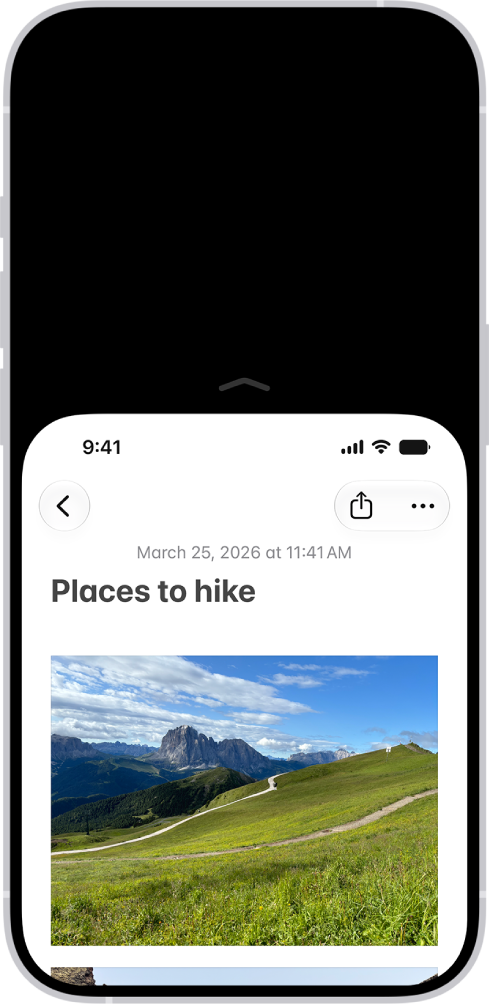
When you use iPhone with one hand in portrait orientation, you can use Reachability to lower the top half of the screen so it’s within easy reach of your thumb. It works on iPhone models with Face ID and with a Home button, and you turn it on in Accessibility settings.

The iPhone screen with Reachability activated. The top of the screen has moved down so it’s within easy reach of your thumb.

  1. Open Settings, tap Accessibility, tap Touch, and turn on Reachability.
  2. To lower the top half of the screen, do one the following:
    • On an iPhone with Face ID: Swipe down on the bottom edge of the screen.
    • On an iPhone with a Home button: Lightly double-tap the Home button.
    • While VoiceOver is on: Swipe up from the bottom of the screen with one finger, then, without lifting your finger, swipe down.
  3. To return to the full screen, tap the upper half of the screen.