Got a tip for us?

accessibility

With built-in accessibility features for mobility, you can navigate and interact with iPhone using just your eyes, spoken commands, assistive devices, an external keyboard, and more. You can also set options so it’s easier to use gestures and press iPhone buttons.

Some of these features let you skip touching the screen entirely. Eye Tracking, Head Tracking, and Voice Control can all be used to navigate your iPhone hands-free. Others, like Slow Keys, Sticky Keys, and Touch Accommodations, adjust the sensitivity of your input.

To explore accessibility features for mobility, go to Settings > Accessibility, then scroll down to the Physical and Motor section.

Action Related features and settings
Navigate your iPhone hands-free Eye Tracking
Head Tracking
Voice Control
Siri
Shortcuts
Call audio routing
Use simple sounds to perform gestures
Let iPhone type for you Dictation
Predictive text
Connect other inputs Switch Control
Keyboards
Bluetooth accessories
Head tracking
Control other devices Apple Watch Mirroring
Apple TV 4K remote
Control nearby devices
Platform Switching
Customize gestures AssistiveTouch
Back tap
Reachability
AirPods
Pointer scrolling speed
Side or Home button
Face ID and attention
Adjust the sensitivity of your input Slow Keys and Sticky Keys
Siri Pause Time
Touch accommodations
Turn off vibration Vibration

Quick tip: You can control your go-to accessibility features and settings from Control Center or with the click of a button.

With Head Tracking, you can control iPhone using just your head. An onscreen pointer follows the movement of your head, and when you look at an item and hold your head steady, or dwell, you perform an action, such as a tap.

Head Tracking uses the front-facing camera, so iPhone should sit on a stable surface about 18 inches from your face, with your face adequately lit. When your head points toward an item, an outline appears around it.

Note: Head Tracking is available on iOS 26 and later.

Before you begin

Head Tracking works with the built-in, front-facing camera on iPhone. To get the best results, the camera needs a clear view of your face, and your face should be adequately lit. Set iPhone on a stable surface, about 18 inches from your face.

Turn on Head Tracking

  1. Start the Settings app on your iPhone.
  2. Tap Accessibility, tap Head Tracking, and turn on Head Tracking.

Use Head Tracking

Once Head Tracking is on, an onscreen pointer follows the movement of your head, and an outline appears around any item on the screen your head is pointed toward. Wherever you face, the pointer always moves with your head, and the faster you move, the faster it goes.

When you hold your head steady at a location on the screen, the dwell pointer appears where you’re looking and the dwell timer begins (the dwell pointer circle starts to fill). When the dwell timer finishes, an action—tap, by default—is performed.

For additional onscreen gestures or physical button presses, there’s the AssistiveTouch menu.

Set options for Head Tracking

You can customize actions like a Single-Tap or Double Tap to different facial movements, like smiling, blinking, or scrunching your nose. You can also set options for how the Head Tracking pointer responds to your head’s movement.

  1. Start the Settings app on your iPhone.
  2. Do any of the following:

    • Actions: Select a facial expression (like Raise Eyebrows or Open Mouth). Then choose an action from the list (like Open Menu or Single-Tap).

      Sensitivity: Choose the amount of expressiveness needed to perform the expression.

    • Pointer: Select an option to have the pointer move with face movements, when facing screen edges, or based on head position.
    • Pointer Speed: Select the Increment button or Decrement button to adjust how quickly the pointer moves with head movement.
    • Snap to Item: Have the pointer automatically move to the item on the screen that’s closest to where your head is pointing.
    • Dwell Control: Turn Dwell Control on or off.

VoiceOver changes how you use the onscreen keyboard when you activate an editable text field. You can enter, select, and delete text, change the keyboard language, and more.

Once a text field is active, the insertion point and the onscreen keyboard appear. Standard typing is one way to enter text, and you can also edit text and change the keyboard settings.

Here’s how to use the onscreen keyboard with VoiceOver on iPhone.

Enter text with the onscreen keyboard

  1. Select a text field, then double-tap.

    The insertion point and the onscreen keyboard appear.

  2. To enter text, do one of the following:

    • Standard typing: Select a key by swiping left or right on the keyboard and then double-tap to enter the character. Or move your finger around the keyboard to select a key and, while continuing to touch the key with one finger, tap the screen with another finger. VoiceOver speaks the key when it’s selected, and again when the character is entered.
    • Touch typing: Touch a key on the keyboard to select it and then lift your finger to enter the character. If you touch the wrong key, slide your finger to the key you want. VoiceOver speaks the character for each key as you touch it, but doesn’t enter a character until you lift your finger.
    • Direct Touch typing: VoiceOver is disabled for the keyboard only, so you can type just as you do when VoiceOver is off.
    • Dictation: Use a two-finger double tap on the keyboard to start and stop dictation.

To enter an accented character, do one of the following:

  • Standard typing: Select the plain character, then double-tap and hold until you hear a tone indicating alternate characters have appeared. Drag left or right to select and hear the choices. Release your finger to enter the current selection.
  • Touch typing: Touch and hold a character until the alternate characters appear.

Edit text with the onscreen keyboard

  • Move the insertion point: Use the rotor to choose whether you want to move the insertion point by character, by word, or by line. Swipe up or down to move the insertion point forward or backward in the text. To jump to the beginning or end, double-tap the text. VoiceOver makes a sound when the insertion point moves, and speaks the character, word, or line that the insertion point moves across. When moving forward by words, the insertion point is placed at the end of each word, after the space or punctuation that follows. When moving backward, the insertion point is placed before the first character of the word.
  • Move the insertion point past the punctuation at the end of a word or sentence: Use the rotor to switch back to character mode. When moving the insertion point by line, VoiceOver speaks each line as you move across it. When moving forward, the insertion point is placed at the end of the next line. When moving backward, the insertion point is placed at the beginning of the line that’s spoken.
  • Delete a character: Use the Delete key.
  • Select text: Do any of the following:
    • Set the rotor to Text Selection, swipe up or down to choose Character, Word, Line, or Sentence, then swipe left or right to move backward or forward. (You may need to enable Text Selection—go to Settings > Accessibility > VoiceOver > Rotor.)
    • Set the rotor to Edit, swipe up or down to choose Select or Select All, then double-tap. If you choose Select, the word closest to the insertion point is selected when you double-tap. To increase or decrease the selection, do a two-finger scrub (move two fingers back and forth three times quickly, making a “z”) to dismiss the pop-up menu, then pinch.
  • Cut, copy, or paste: Set the rotor to Edit, select the text, swipe up or down to choose Cut, Copy, or Paste, then double-tap.
  • Fix misspelled words: Set the rotor to Misspelled Words, then swipe up or down to jump to the previous or next misspelled word. Swipe left or right to choose a suggested replacement, then double-tap to use the replacement.
  • Undo: Shake iPhone, swipe left or right to choose the action to undo, then double-tap.

Change the keyboard settings

  1. Open Settings, tap Accessibility, and then tap VoiceOver.
  2. Tap any of the following:
    • Typing Style: You can choose a new style. Or, set the rotor to Typing Mode and then swipe up or down.
    • Phonetic Feedback: Speak text character by character. VoiceOver first speaks the character, then its phonetic equivalent—for example, “f” and then “foxtrot.
    • Typing Feedback: Choose to speak characters, words, both, or nothing.
    • Verbosity: Tap Deleting Text. To have VoiceOver speak deleted characters in a lower pitch, tap Change Pitch.

If you have hearing or speech difficulties, you can communicate by telephone on iPhone using Teletype (TTY) or real-time text (RTT), protocols that transmit text as you type and allow the recipient to read the message right away. RTT is the more advanced protocol that transmits audio as you type text.

You don’t need extra equipment. Software RTT and TTY are built right into the Phone app, and the RTT protocol is used by default whenever your carrier supports it. iPhone also supports Hardware TTY, so you can even connect iPhone to an external TTY device with the iPhone TTY Adapter, sold separately in many regions.

Important: RTT and TTY aren’t supported by all carriers or in all countries or regions. RTT and TTY functionality depends on your carrier and network environment. When making an emergency call in the U.S., iPhone sends special characters or tones to alert the operator. The operator’s ability to receive or respond to these tones can vary depending on your location. Apple doesn’t guarantee that the operator will be able to receive or respond to an RTT or TTY call.

Set up RTT and TTY

  1. Open Settings, tap Accessibility, and then tap RTT/TTY.

    Note: Depending on your carrier, you might see RTT, TTY, or RTT/TTY.

  2. Turn on Software RTT and then do any of the following:

    • If your iPhone has Dual SIM, choose a line.
    • Tap Relay Number, then enter the phone number to use for relay calls using Software RTT.
    • Turn on Send Immediately to send each character as you type. Turn it off to complete messages before sending.
    • Turn on Answer All Calls as RTT/TTY.
  3. If you want to answer and make TTY calls from an external TTY device instead of from your iPhone, turn on Hardware TTY.

When RTT or TTY is turned on, you’ll see the TTY icon in the status bar at the top of the screen.

Connect iPhone to an external TTY device

If you turned on Hardware TTY in Settings > Accessibility > RTT/TTY, connect your iPhone to your TTY device using a compatible third-party TTY adapter. If Software TTY is also turned on, incoming calls default to Hardware TTY. For information about using a particular TTY device, see the documentation that came with it.

Start an RTT or TTY call

  1. Open the Phone app on your iPhone.
  2. Tap Contacts, then choose a contact.
  3. Tap Call and then choose RTT/TTY Call or RTT/TTY Relay Call.
  4. Wait for the call to connect and then tap the RTT button.

Whenever the carrier supports it, iPhone defaults to the RTT protocol.

If you haven’t turned RTT on and you receive an incoming RTT call, tap the RTT button to answer the call with RTT.

Type text during an RTT or TTY call

  1. When you accept or start an RTT or TTY call, tap Use RTT. Tap the RTT button.
  2. Enter your message in the text field.

If you turned on Send Immediately in Settings, your recipient sees each character as you type. Otherwise, tap the Send button to send the message.

  1. To also transmit audio, tap the Microphone Off Muted button in the top-right corner.

Note: Continuity features aren’t available for RTT and TTY support. Standard voice call rates apply for both Software RTT/TTY and Hardware TTY calls.

If you don’t want your iPhone to vibrate, you can turn vibration off for specific uses or all alerts. It’s your call. You can set vibration options for specific alerts in Sounds & Haptics, or turn off all vibrations at once in Touch settings.

  • Set vibration options for specific alerts: Go to Settings > Sounds & Haptics.
  • Turn off all vibrations: Go to Settings > Accessibility > Touch, then turn off Vibration.

Note: This setting turns off vibrations for earthquake, tsunami, and other emergency alerts.

With Eye Tracking, you can control iPhone using just your eyes. An onscreen pointer follows the movement of your eyes, and when you hold your gaze steady on an item—or dwell—you perform an action, such as a tap. All data used to set up and control Eye Tracking is processed on device.

It uses the built-in, front-facing camera, and you need to calibrate it every time you turn it on.

Before you begin

Eye Tracking relies on the built-in, front-facing camera on iPhone, so for the best results, make sure the camera has a clear view of your face and your face is adequately lit. Your iPhone should sit on a stable surface about a foot and a half from your face.

On supported iPhone models, Eye Tracking is available.

Turn on Eye Tracking

  1. Open Settings, tap Accessibility, tap Eye Tracking, and then turn on Eye Tracking.
  2. Follow the onscreen instructions to calibrate Eye Tracking. As a dot appears in different locations around the screen, follow its movement with your eyes.

Note: You need to calibrate Eye Tracking again each time you turn it on.

Use Eye Tracking

When you’ve turned on and calibrated Eye Tracking, iPhone follows the movement of your eyes. By default, an outline appears around an item on the screen when you look at it.

If Snap to Item is turned off, when you hold your gaze steady at a location on the screen, the dwell pointer appears where you’re looking and the dwell timer begins (the dwell pointer circle starts to fill). When the dwell timer finishes, an action—tap, by default—is performed.

Use the AssistiveTouch menu to perform additional onscreen gestures or physical button presses.

Recalibrate Eye Tracking

Changing the position of your face or your iPhone automatically starts Eye Tracking calibration if recalibration is needed, but you can also start calibration manually.

  1. Look at the top-left corner of your screen and hold your gaze steady.

    The dwell pointer appears and the dwell timer begins (the dwell pointer circle starts to fill). When the dwell timer finishes, Eye Tracking calibration starts.

  2. Follow the onscreen instructions to calibrate Eye Tracking. As a dot appears in different locations around the screen, follow its movement with your eyes.

To start recalibration, you need to look at a corner of the screen. You can change which corner that is, or assign actions to the other corners.

Set options for Eye Tracking

The Eye Tracking pointer has options you can set for how it responds to your gaze.

  1. Open Settings, tap Accessibility and tap Eye Tracking. Adjust any of the following:
    • Smoothing: Increase this value to make the movement of the pointer smoother. Or decrease this value to make the pointer more responsive.
    • Snap to Item: Have the Eye Tracking pointer automatically move to the item on the screen that’s closest to where you’re looking.
    • Zoom on Keyboard Keys: When you dwell on the keyboard, zoom in on the section of the keyboard you’re looking at. Dwell again on a key to tap it.
    • Auto-Hide: Show the Eye Tracking pointer when you hold your gaze steady for the amount of time specified. The pointer automatically fades while your eyes are moving.
    • Dwell Control: Turn Dwell Control on or off.
    • Show Face Guidance: Turn Show Face Guidance on or off to get help adjusting how you’re positioned.

To change the size or color of the Eye Tracking pointer, go to Settings > Accessibility > Pointer Control.


When VoiceOver is on, standard touchscreen gestures have different effects, and additional gestures let you move around the screen and control individual items. VoiceOver gestures include two-, three-, and four-finger taps and swipes.

You can use different techniques to perform VoiceOver gestures. For example, a two-finger tap can be done with two fingers on one hand, one finger on each hand, or your thumbs. And instead of selecting an item and double-tapping it, you can use a split-tap gesture. As you explore, VoiceOver names each item you touch.

Explore and speak items on the screen

To explore the screen, drag your finger over it. VoiceOver speaks the name of each item you touch.

You can also use VoiceOver gestures to explore the screen in order, from top to bottom and left to right.

Action Gesture
Select and speak an item Tap or touch the item
Select the next item Swipe right
Select the previous item Swipe left
Move into a group of items Two-finger swipe right
Move out of a group of items Two-finger swipe left
Select the first item on the screen Four-finger tap near the top of the screen
Select the last item on the screen Four-finger tap near the bottom of the screen
Speak the entire screen from the top Two-finger swipe up
Speak the entire screen from the selected item Two-finger swipe down
Pause or continue speaking Two-finger tap
Speak additional information, such as the position within a list or whether text is selected Three-finger tap

Scroll up, down, left, and right

Use VoiceOver gestures to move to another page.

Action Gesture
Scroll up one page Three-finger swipe down
Scroll down one page Three-finger swipe up
Scroll left one page Three-finger swipe right
Scroll right one page Three-finger swipe left

Take action on an item

Use VoiceOver gestures to perform actions on an item.

Action Gesture
Select an item Tap
Activate the selected item Double tap
Touch and hold (long press) the item Triple tap
Drag a slider Tap the slider to select it, then swipe up or down with one finger; or double-tap and hold the slider until you hear three rising tones, then drag the slider
Start or stop the current action (for example, play or pause music or a video, take a photo in Camera, start or stop a recording, start or stop the stopwatch) Two-finger double tap
Dismiss an alert or return to the previous screen Two-finger scrub (move two fingers back and forth three times quickly, making a “z”)
Edit an item’s label to make it easier to find Two-finger double tap and hold
Lower the top half of the screen Swipe up from the bottom of the screen with one finger, then, without lifting your finger, swipe down

Quick tip: Instead of selecting an item and double-tapping to activate it, you can touch and hold the item with one finger, then tap the screen with another.

Use gestures to control VoiceOver

Action Gesture
Mute or unmute VoiceOver Three-finger double tap. If both VoiceOver and Zoom are turned on, use the three-finger triple-tap gesture.
Turn the screen curtain on or off (When the screen curtain is on, the screen contents are active even though the display is black and appears to be turned off.) Three-finger triple tap. If both VoiceOver and Zoom are turned on, use the three-finger quadruple-tap gesture.
Use a standard gesture Double-tap and hold your finger on the screen until you hear three rising tones, then make the gesture. When you lift your finger, VoiceOver gestures resume. For example, to drag a volume slider with your finger instead of swiping up and down, select the slider, double-tap and hold, wait for the three tones, then slide left or right.
Open the Item Chooser Two-finger triple tap. To move quickly through the list of items, type a name in the search field, swipe right or left to move through the list alphabetically, or tap the table index to the right of the list and swipe up or down. You can also use handwriting to select an item by writing its name. If you use Braille Screen Input to type braille directly on the screen, when you’re not entering text, you can type to search for an item. To dismiss the Item Chooser without making a selection, do a two-finger scrub (move two fingers back and forth three times quickly, making a “z”).
Open the VoiceOver quick settings Two-finger quadruple tap.
Start or stop Live Recognition Four-finger triple tap.

Use the VoiceOver rotor

With the onscreen rotor, you can jump from one item to the next on the screen, change VoiceOver settings, select special input methods like Braille Screen Input or Handwriting, and more.

You can use these gestures with the rotor.

Action Gesture
Choose a rotor setting Two-finger rotation
Move to the previous item or increase (depending on the rotor setting) Swipe up
Move to the next item or decrease (depending on the rotor setting) Swipe down

You can use mono audio, adjust left-right stereo balance, and—with supported headphones—amplify soft sounds and adjust certain frequencies to best suit your hearing needs.

With Mono Audio on, the left and right speakers play the same content. Stereo Audio Balance lets the sound lean toward the left or right. And with Headphone Accommodations on supported Apple and Beats headphones, you can make soft sounds louder and make dialogue in videos sound clearer.

Balance the audio

  1. Open the Settings app on your iPhone.
  2. Tap Accessibility, then tap Audio & Visual.
  3. Adjust any of the following:
    • Mono Audio: Turn on Mono Audio to make the left and right speakers play the same content.
    • Stereo Audio Balance: Drag the Balance slider left or right.

Use phone noise cancellation

By using air pressure to reduce ambient background noise, phone noise cancellation helps you hear better in certain noisy environments when you’re holding the receiver to your ear. It’s available on iPhone 12 and earlier, where it’s on by default, but you can turn it off for your comfort.

  1. Open the Settings app on your iPhone.
  2. Tap Accessibility, then tap Audio & Visual.
  3. Turn Phone Noise Cancellation off or on.

Adjust certain frequencies and soft sounds

Headphone Accommodations can adjust certain sounds to best suit your hearing on supported Apple and Beats headphones. Soft sounds get louder, and boosting some frequencies makes phone calls and media sound crisper and clearer.

  1. Make sure you’re in a quiet environment and that you’ve paired your AirPods or paired other supported Bluetooth® headphones.
  2. Open the Settings app on your iPhone.
  3. Tap Accessibility, then tap Audio & Visual.
  4. Tap Headphone Accommodations and turn on Headphone Accommodations.
  5. Adjust any of the following:
    • Frequencies: Below Audio Tuning, choose an option to boost different frequencies.
    • Soft sounds: Drag the slider to set an amplification level for soft sounds.
  6. Scroll down and then do any of the following:
    • Turn on Phone to apply the settings to phone calls.
    • Turn on Media to apply the settings to media playback like music, movies, and podcasts.
    • Turn on Transparency to apply the settings to transparency mode, if you’re using AirPods model with Transparency Mode.

With some supported headphones, you can use Headphone Accommodations to personalize your audio based on what sounds good to you. You can use an audiogram to help customize your audio, and depending on your country or region, you may see the option to customize your transparency settings. Tap Customize Audio, then follow the onscreen instructions.

Quick tip: The Headphone Accommodations button in Control Center gets you to Headphone Accommodations quickly. If the button isn’t there, you can add it: Tap the Add button and tap Add a Control, then scroll down to Hearing Accessibility and tap Headphone Accommodations.

Make dialogue sound clearer in videos

Turn on voice isolation, and the dialogue is easier to hear when you watch supported video content. During dialogue, it isolates voices and substantially reduces all other audio.

  1. Open the Settings app on your iPhone.
  2. Tap Accessibility, tap Audio & Visual, and then turn on Add Voice Isolation.
  3. While watching a supported video in the Apple TV app, tap the More Controls button. Tap Audio.
  4. Tap Enhance Dialogue and then tap Enhance or Enhance More.

Have iPhone play a sound effect when it’s turned on and off

If you have an iPhone 14 or later, iPhone can play a sound when you turn it on and off.

  1. Open the Settings app on your iPhone.
  2. Tap Accessibility, then tap Audio & Visual.
  3. Turn on Power On & Off Sounds.

It’s possible to share your Accessibility settings with another iPhone or iPad for a while. Say you’re borrowing a friend’s iPhone or using a public iPad: You can use your settings on that device, then remove them when you’re done. Here are some settings you can share with another device:

  • Zoom
  • Hover Text and Hover Typing
  • Display & Text
  • VoiceOver
  • Touch Accommodations
  • Read & Speak
  • Full Keyboard Access
  • Live Speech
  • Music Haptics
  • Audio & Visual
  • Side Button

Note: During the sharing session, the other device only gets your Accessibility settings.

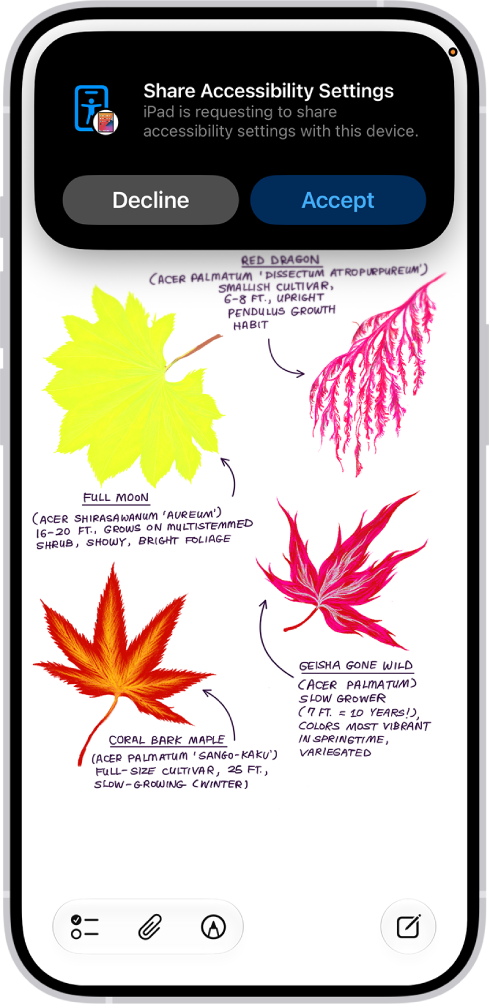
An iPhone showing a notification that Danny’s iPhone is requesting to share accessibility settings.

Share your Accessibility settings with another device

  1. Open the Settings app on your iPhone.
  2. Tap Accessibility, then tap Share Accessibility Settings. (You may need to scroll down.)
  3. Tap Share Accessibility Settings, then tap Continue.
  4. Make sure both devices have Bluetooth and Wi-Fi turned on and then do one of the following:
    • Select a device: Tap a device in your contacts or a device signed in to your iCloud account.
    • Bring your iPhone to another iPhone: Hold the top of your iPhone near the top of another iPhone.
    • Bring your iPhone to an iPad: Tap Search People Nearby and tap and hold the screen on the other device with three fingers to create a six-digit code. Enter the code on your device and select the name of the device.

Note: To hear the six-digit code spoken aloud, continue to tap and hold the screen on the other device with three fingers.

  1. Do either of the following on the other device to accept your request to share your accessibility settings:
    • Tap Accept.
    • Tap and hold the screen on the other device with three fingers.
  2. Start using the other device with your Accessibility settings.
  3. When you’re finished using the device, do any of the following:
    • iPhone models with a Dynamic Island: Tap the Accessibility button at the top of the screen and then tap Stop Sharing.
    • iPhone models without a Dynamic Island: Tap the Share Accessibility Settings button in the Status Bar. Then tap Stop Sharing.
    • All iOS models:
      • Lock your device and let it go to sleep.
      • Triple-click the side or home button.

Note: If you move more than 30 feet away from the device that has your Accessibility settings, the session ends automatically.

If you add Share Accessibility settings to your Control Center, you can start sharing directly from there.

Sync your Share Accessibility Settings to iCloud

Using different Accessibility settings on different devices? Sync your preferences to iCloud, and they’ll be available when you share Accessibility settings between devices. Say you sync your iPhone settings, then later share from your iPad to another iPhone: Your iPhone accessibility preferences can be used.

  1. Open the Settings app on your iPhone.
  2. Tap Accessibility, then tap Share Accessibility Settings. (You may need to scroll down.)
  3. Turn Sync to iCloud on or off.

You can customize VoiceOver gestures and keyboard shortcuts on iPhone. You can list the gestures and the associated commands, including the gestures for handwriting and Braille Screen Input, and assign new braille keys. You can also clear your custom gestures and keyboard shortcuts, and turn on Magic Tap to pause or play media.

  1. Start the Settings app on your iPhone.
  2. Tap Accessibility and tap VoiceOver. Then tap Commands.
  3. Tap any of the following:
    • All Commands: Go to the command you want to customize. Then tap Edit, Add Gesture, or Add Keyboard Shortcut.
    • Touch Gestures: List the gestures and the associated commands.
    • Keyboard Shortcuts: Go to the shortcut you want to customize and then enter the key combination.
    • Magic Tap: Turn on Magic Tap to pause or play media when no other action is available.
    • Handwriting: List the gestures for handwriting and the associated commands.
    • Braille Screen Input: List the gestures for Braille Screen Input and the associated commands.
    • Braille Screen & Braille Keyboard Input: Go to the command you want to customize and tap Assign New Braille Keys.

To clear your custom gestures and keyboard shortcuts, tap Reset VoiceOver Commands.