Got a tip for us?

accessibility

You can stream sound from the microphone on iPhone to your MFi hearing devices, AirPods, or supported Beats headphones. This can help you hear better in some situations, for example, when having a conversation in a noisy environment.

You can also start, stop, or jump back in on a Live Listen session from your paired Apple Watch or another nearby Apple device.

Here’s how to use iPhone as a remote microphone with Live Listen.

Note: Live Captions in Live Listen isn’t available in all languages, countries, or regions. The accuracy of Live Captions may vary and shouldn’t be relied upon in high-risk or emergency situations. To use Live Listen with your AirPods, AirPods Pro, AirPods Max, Powerbeats Pro, Beats Fit Pro, or Powerbeats Fit, you need an iPhone with iOS 14.3 or later. To use Live Captions with Live Listen, you need an iPhone with iOS 26 or later.

Use iPhone as a remote microphone with Live Listen

  1. Do one of the following:

    • If you’re using a hearing device: Wear your hearing device and make sure it’s paired to your iPhone.
    • If you’re using AirPods or Beats: Wear one or both of your AirPods or wear your Beats and make sure they’re connected to your iPhone.
  2. To turn on Live Listen, do one of the following:

    • Go to Settings > Accessibility > Audio & Visual > Live Listen > then tap Start Live Listen.
    • Open Control Center, then tap the Live Listen button.

      If you don’t see the Live Listen button, add it to Control Center.

    • Open Control Center, tap the Hearing Devices button, tap your hearing device or AirPods, then tap Live Listen.

      If you don’t see the Hearing Devices button, add it to Control Center.

    • If you’ve set up the Accessibility Shortcut, triple-click the side button or Home button, tap Hearing Devices, then tap Live Listen.
    • If you’re using hearing aids, go to Settings > Accessibility > Hearing Devices, then turn on Live Listen.
  3. Position iPhone near the sound source, then sounds around you will become louder.
  4. In Control Center, tap the Live Listen button and tap Live Listen. Then do any of the following:

    • View Live Captions: View captions of the Live Listen session in real time.
    • Rewind: Tap the Go Back 10 Seconds button to go back to something that may have been missed.
    • Skip forward: Tap the Skip Back to Live button to go back to the live audio.
    • Stop Live Listen: Tap the Live Listen switch button to stop the Live Listen session.

Control a Live Listen session with another nearby device

While you’re using Live Listen on your iPhone, you can start, stop, or jump back in on a session remotely from your paired Apple Watch or another nearby Apple device, like another iPhone or iPad, that’s signed in to the same Apple Account. As your iPhone picks up audio, the text shows up on the other device in real time, too, so you can follow along on either one.

To use Live Listen on multiple devices, start a Live Listen session, then start a session on your second device.

You can have iPhone play Background Sounds—such as ocean waves or rain—to help you focus or rest.

You can choose a sound and adjust the volume, use Background Sounds when other media is playing, and adjust the frequency ranges with the equalizer to hear wider frequency ranges with a richer sound. You can also set a timer, or turn off Background Sounds when iPhone locks. They’re in Control Center, too.

  1. Open the Settings app on your iPhone.

    Tip: Control Background Sounds with the click of a button or from Control Center.

  2. Tap Accessibility, tap Audio & Visual, tap Background Sounds, and then turn on Background Sounds.
  3. Do any of the following:

    • Choose a sound: Tap a sound. Select the name of a sound.
    • Adjust the volume: Drag the slider to increase or decrease the volume of the background sound.
    • Use Background Sounds when other media is playing: Turn on Use When Media is Playing.
    • Adjust the Background Sounds volume when other media is playing: Drag the Volume with Media slider to increase or decrease the volume of Background Sounds.
    • Adjust the frequency ranges: Tap Equalizer and then turn on Equalizer.

      Adjust the tone: Drag your finger across the grid to select specific frequency ranges. Select Broad to hear wider frequency ranges with a richer sound or select Focused to hear specific frequency ranges with less audio distraction.

      Adjust the sound balance: Drag the Balance slider left or right to adjust the sound balance.

      Note: You’ll see settings for Tone and Balance after you turn on Equalizer.

    • Set a timer: Tap Stop Sound with a Timer and then turn on Timer. Select At a specific time or After an amount of time and then choose an option.

      Tip: Turn on “Always use these settings” if you plan to use the settings you selected in your daily routine—like during downtime or focus time.

    • Turn off Background Sounds when iPhone locks: Turn on Stop Sounds When Locked.

In the Magnifier app, you can use your iPhone like a magnifying glass to zoom in on text or objects around you. With Apple Intelligence,* you can also use Ask Magnifier to get information about your surroundings.

You can do more with what you capture, too. You can temporarily freeze the frame, view captured text in a format for easier reading, listen to it, or get live descriptions of your surroundings.

Here’s how to magnify or get information about things around you with Magnifier on iPhone.

Note: Apple Intelligence on iOS 27 or later is available on an Apple Intelligence-enabled iPhone 15 Pro, iPhone 15 Pro Max, or iPhone 16 model or later.

Apple Intelligence is not available in all languages or regions, Apple says.

Usage limits may apply.*
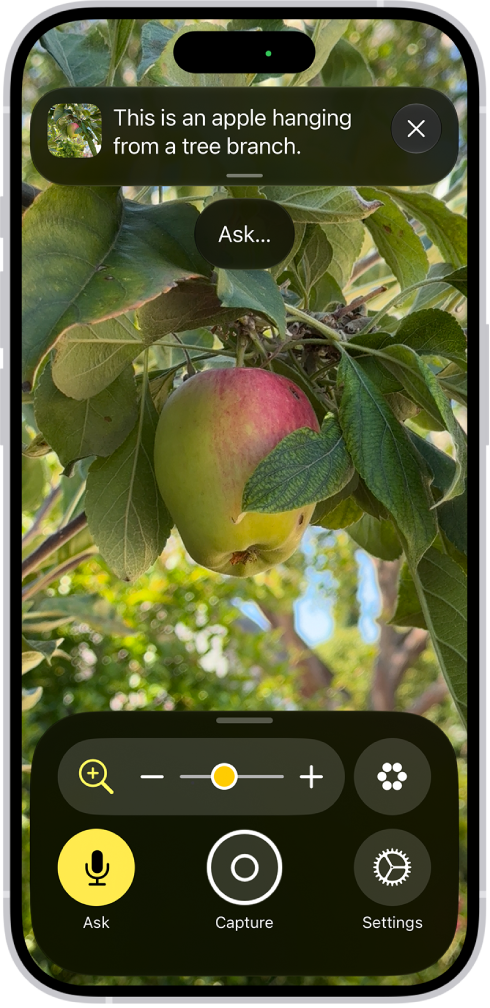
The Magnifier app showing a close-up of an unripe apple.

Magnify nearby text or objects

  1. Open the Magnifier app on your iPhone.
  2. Point the iPhone camera at the text or object you want to magnify and drag the slider to zoom in or out.

    You can also use any of the following controls: Tap the Activities button to switch between your default controls and custom sets of controls you’ve defined for recurring tasks or situations (called activities).

  3. Tap the Ask button, to get information about your surroundings.
  4. Tap the Freeze frame button to temporarily freeze the frame.
  5. Tap the Settings button to add more controls, including Detection Mode, or edit activities you’ve created.

    Tip: Set up a shortcut to quickly open Magnifier by clicking or pressing an iPhone button or tapping the back of iPhone, or from Control Center.

    On supported models, you can also customize the Camera Control to open Magnifier.

Ask questions and get information about your surroundings

Apple Intelligence can describe your surroundings and answer questions about what your camera sees, like the color of a shirt or the total on a bill.

You can choose a default question that gets answered automatically.

  1. Open the Magnifier app on your iPhone.
  2. Point the iPhone camera at the text or object you want to see, tap Ask. Do one of the following: Select a default question: Select What is this? or a default question you created in your Ask Magnifier settings.
    • Type or speak a question: Select Type or Speak and then ask a question about your surroundings.

Temporarily freeze the frame

Without saving it to Photos, you can temporarily capture what’s in the frame.

  1. Open the Magnifier app on your iPhone.
  2. Tap the Capture button and then do one of the following: Take one or more photos: Press and hold the Capture button, then select Single Photo or Multi-Photo to take a photo or multiple photos.

    If you select Multi-Photo, you’ll see a group of photos in the bottom right corner of the screen.

    Capture text and reframe it: Press and hold the Capture button, then select Document.

    Follow the written and spoken instructions to get the text in frame or drag the corners of the box that appear around the text, then tap Confirm.

    After you tap Confirm, tap the Reader button to view the text with Accessibility Reader.

    Customize and listen to text: If you’re magnifying text, tap the Reader button to view your captured text in a format for easier reading or to listen to your captured text.

    Share captured images: Tap the Share button for more options, such as sharing the captured frame or saving it to your photos.

    Stop viewing captured images: Tap the Close button to unfreeze the frame and return to the live Magnifier lens.

    To reset Magnifier, press and hold the Capture button anytime and select Document, Multi-Photo, or Single-Photo.

View your captured text in a format for easier reading

When you magnify a frame with text in it, you can view the text in a format adapted for easier reading.

Even fonts, layouts, and background colors can be adjusted.

  1. Open the Magnifier app on your iPhone.
  2. Tap the Capture button to capture the frame and then tap the Reader button.

    Magnifier alerts you if no text is detected in the frame you captured.

  3. Tap the More button, then tap Customize Reader.
  4. Select a theme, then tap Edit.

    Do any of the following: Text Color: Choose a color or tap Custom Color.

    Background Color: Choose a color or tap Custom Color.

    Text Size: Drag the slider left or right to make the text smaller or larger.

    Font: Choose a font.

    High Legibility Characters: Turn on High Legibility Characters.

    Note: This option is only available when using System Font.

    Bold Text: Turn on Bold Text.

    Line Spacing: Choose the Default button, the Loose button, or the Open button to customize the space between lines.

    Word Spacing: Choose the Default button, the Loose button, or the Open button to customize the space between words.

    Character Spacing: Choose the Default button, the Loose button, or the Open button to customize the space between characters.

    Hyperlinks: Turn Show Links on or off.

    When turned on, you can customize the color.

    Playback: Turn Highlighting on or off.

    When turned on, you can customize the style or highlight color.

    Rename: Enter a name for the settings you choose.

    Reset to Default: Reset all themes to their default settings.

    Tip: Rename a theme with your custom settings so you can easily find it and reuse it later.

    You can also use Accessibility Reader to customize the text in apps.

Listen to your captured text

  1. Open the Magnifier app on your iPhone.
  2. Tap the Capture button to capture the frame and then tap the Reader button.

    Magnifier alerts you if no text is detected in the frame you captured.

    Do any of the following: Listen to the text: Tap the Play button.

    Pause the text: Tap the Pause button.

    Skip backward or forward: Tap the Rewind button or the Forward button.

    Increase or decrease the speed: Tap the Speaking Rate One Times button, then select a speed.

  3. Go to a specific time: Drag the slider left or right.

    Note: You can hide or show audio controls: Tap the More button, then tap the Hide Audio Controls button.

Get live descriptions of your surroundings

If you’re blind or have low vision, Detection Mode in the Magnifier app on iPhone can scan your surroundings and give you live descriptions of the scenes detected in the camera view.

Live descriptions come as text or speech.

Important: Detection Mode should not be relied on in high-risk or emergency situations, in circumstances where you may be harmed or injured, or for navigation.

  1. Open the Magnifier app on your iPhone.
  2. Tap the Detection Mode button to start Detection Mode.

    If you don’t see the Detection Mode button, you can add it.

  3. Touch and hold the Detection Mode button, select Scenes, and do any of the following: On supported iPhone models, detect doors, people, and furniture near you.

    On all iPhone models, detect text in the camera frame and have it read out loud or point your finger at text to have it spoken.

  4. To temporarily pause detection, double-tap the screen with two fingers.

    Double-tap again with two fingers to resume detection.

  5. To stop Detection Mode, tap the Detection Mode button.

    If you use VoiceOver, you can turn on Live Recognition from any screen on iPhone and get descriptions of your surroundings without going to the Magnifier app.

    *Apple Intelligence is available with Siri and device language set to Chinese (Simplified), Chinese (Traditional), Danish, Dutch, English, French, German, Italian, Japanese, Korean, Norwegian, Portuguese, Spanish, Swedish, Turkish, or Vietnamese.

    Some features may not be available in all regions or languages.

    Some devices may not be available in all regions.

    Siri AI is available in beta in iOS 27, iPadOS 27, macOS 27, watchOS 27, and visionOS 27 and requires an Apple Intelligence–enabled device set to a supported language.

    Available in English to start.

    Siri AI will not be initially available in the EU on iOS, iPadOS, and watchOS.

    Certain Apple Intelligence features that rely on server-side models are subject to daily usage limits, including but not limited to Siri AI, Intelligent Photo Editing Tools, Image Playground, and AFM 3 Cloud models in Shortcuts.

    Daily limits may vary by feature, request complexity, system demand, system policies, and other factors.

    Expanded access to such features will be available for a fee in the future.

  6. Use of these features is subject to the Apple Intelligence Terms and Conditions.

You can have iPhone continuously listen for your name and notify you when it’s detected. You can also record how you or someone else says your name to help iPhone recognize it.

If you go by more than one name, iPhone can recognize multiple names. And to quickly turn Name Recognition on or off, you can add it to Control Center.

Here’s how to have iPhone notify you when your name is called.

Note: Name Recognition is available on iOS 26 and later. Name Recognition is only available in select languages. Don’t rely on your iPhone to recognize your name in circumstances where you may be harmed or injured or in high-risk or emergency situations.

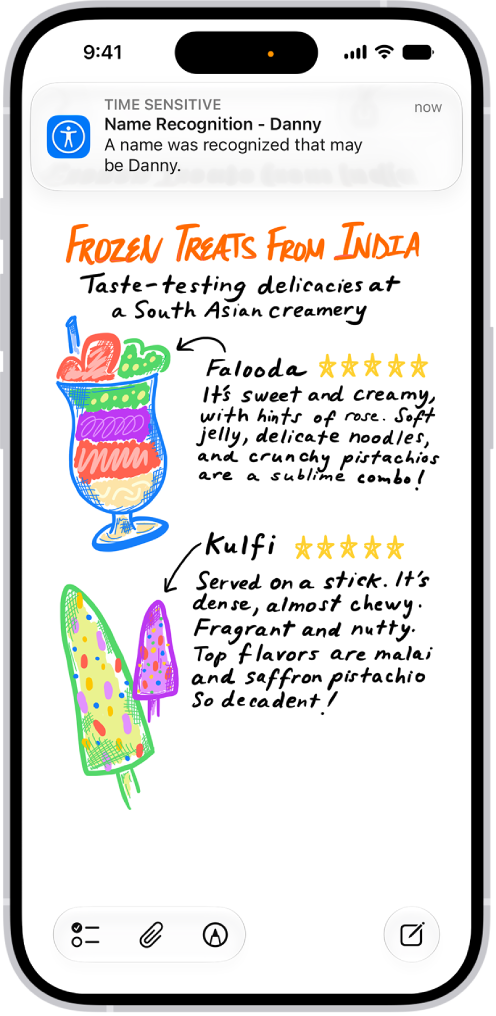
A notification is shown on iPhone that Name Recognition recognized a sound that may be a name.

Set up Name Recognition

  1. Start the Settings app on your iPhone.
  2. Tap Accessibility, tap Sound & Name Recognition, tap Name Recognition, and then tap Set Up Name Recognition.
  3. Follow the onscreen instructions.

Add more than one name to Name Recognition

Have more than one name you go by? You can have iPhone recognize multiple names.

  1. Start the Settings app on your iPhone.
  2. Tap Accessibility, tap Sound & Name Recognition and tap Name Recognition. Then tap Add Name.
  3. Follow the onscreen instructions.

Quick tip: Add Name Recognition to Control Center, and you can turn it on or off quickly.

With Guided Access, you can temporarily restrict iPhone to a single app. This can be useful for parents, teachers, and caregivers, or when you want to stay focused on a task. You can set a time limit, and customize which features, hardware buttons, and areas of the screen are available.

You decide how a session ends, too. You can end a Guided Access session with a passcode, or with Face ID or Touch ID.

Here’s how to lock iPhone to one app with Guided Access.

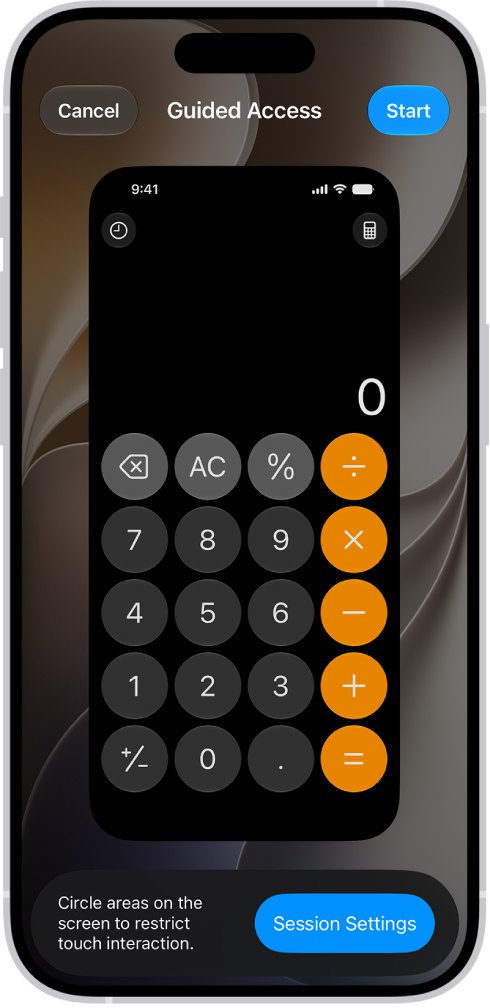
An iPhone screen showing Guided Access being set up. iPhone is being temporarily locked to just the Calculator app, and one of the buttons in the app has been disabled.

Set up Guided Access

  1. Open the Settings app on your iPhone.
  2. Tap Accessibility, tap Guided Access, and turn on Guided Access.
  3. Do any of the following for Guided Access sessions:
    • End a session with a passcode: Tap Passcode Settings, tap Set Guided Access Passcode, and enter a passcode.
    • End a session with Face ID or Touch ID: Tap Passcode Settings. Turn on Face ID (on an iPhone with Face ID) or Touch ID (on other iPhone models).
    • Play a sound to announce time limits: Tap Time Limits, tap Sound, and then select a sound or tap Tone Store to browse other options.
    • Hear time limits spoken: Tap Time Limits. Turn on Speak to hear the time remaining before a Guided Access session ends.
    • Allow Accessibility Shortcut during a session: Turn on Accessibility Shortcut.
    • Set how long it takes iPhone to lock automatically: Tap Display Auto-Lock, then select an option.

Start a Guided Access session

  1. Go to the app you want to use.
  2. To turn on Guided Access, do one of the following:
    • Siri: Ask Siri something like, “Turn on Guided Access.”
    • Use Control Center if you’ve added Guided Access there.
    • Use the Accessibility Shortcut.
  3. Circle any areas of the screen you want to disable. Drag the mask into position or use the handles to adjust its size.
  4. Tap Session Settings and then turn on or off any of the following:
    • Side Button
    • Volume Buttons
    • Motion (to prevent iPhone from switching from portrait to landscape or from responding to other motions)
    • Software Keyboards
    • Touch
    • Time Limit
  5. Tap Done and tap Start.

Important: Crash Detection and Emergency Services aren’t available while using Guided Access. Exit Guided Access to use Crash Detection or to make emergency calls.

End a Guided Access session

To end a Guided Access session, you’ll enter your Guided Access passcode or use Face ID, depending on which passcode options you chose when you set up Guided Access.

  • Use the passcode: Triple-click the side button (on an iPhone with Face ID) or Home button (on other iPhone models), then enter your Guided Access passcode.
  • Use Face ID or Touch ID: If you turned on the Face ID or Touch ID option in Guided Access Passcode Settings, triple-click the side button or Home button, then unlock your iPhone with Face ID or Touch ID (depending on your iPhone model).

With Sound Recognition, your iPhone can continuously listen for certain sounds, such as a doorbell, siren, or crying baby, and notify you when it recognizes these sounds.

You can choose the sounds you want iPhone to recognize, and add your own, like a custom alarm, appliance, or doorbell, with a name you enter. Don’t rely on Sound Recognition in high-risk or emergency situations, or for navigation, though.

Here’s how to recognize sounds using iPhone.

Note: Don’t rely on your iPhone to recognize sounds in circumstances where you may be harmed or injured, in high-risk or emergency situations, or for navigation.

Set up Sound Recognition

  1. Start the Settings app on your iPhone.
  2. Tap Accessibility, tap Sound & Name Recognition, tap Sound Recognition, and turn on Sound Recognition.

    Note: After you turn on Sound Recognition, you may need to wait for iPhone to download the available sounds to your device.

  3. Tap Sounds and turn on the sounds you want iPhone to recognize.

Quick tip: Add Sound Recognition to Control Center to turn it on or off quickly.

Add a custom alarm, appliance, or doorbell

If iPhone doesn’t recognize a custom alarm, appliance, or doorbell automatically, you can set it up to recognize them.

  1. Start the Settings app on your iPhone.
  2. Tap Accessibility, tap Sound & Name Recognition and tap Sound Recognition. Tap Sounds.
  3. Tap Custom Alarm or Custom Appliance or Doorbell and enter a name.
  4. When your alarm, appliance, or doorbell is ready, place iPhone near the sound and minimize background noise.
  5. Tap Start Listening, then follow the onscreen instructions.

With Live Captions on iPhone, you can get a real-time transcription of spoken audio. Use Live Captions to more easily follow the audio in any app, such as FaceTime or Podcasts, as well as live conversations around you.

You can customize the text, size, and color of the captions, and choose how long to keep captions from your calls.

Here’s how to get live captions of spoken audio on iPhone.

Note: Live Captions is available on iPhone 11 or later. Live Captions isn’t available in all languages, countries, or regions. The accuracy of Live Captions may vary and shouldn’t be relied upon in high-risk or emergency situations.

Set up and customize Live Captions

  1. Start the Settings app on your iPhone.
  2. Tap Accessibility and tap Live Captions. Then turn on Live Captions.
  3. Tap Appearance to customize the text, size, and color of the captions.
  4. Tap Keep Call Captions and then choose an option:
    • 1 Minute: Select 1 Minute to save captions from calls for up to one minute during a call. All call captions are cleared after the call ends. If you select 1 Minute, you won’t be able to copy, take a screenshot, or take a screen recording of the call transcription.
    • 1 Hour: Select 1 Hour to save captions from calls for up to one hour after a call ends. If you select 1 Hour, you’ll be able to copy, take a screenshot, and take a screen recording of the call transcription.

Note: When you choose 1 Hour, all call participants hear a brief audio announcement (“This call is being transcribed”) at the start of the call. If Live Captions is paused or the Keep Call Captions option is changed from 1 Hour to 1 Minute during a call, all participants hear an audio announcement (“This call is no longer being transcribed”).

Use Live Captions

With Live Captions on, iPhone automatically transcribes the spoken audio in apps, or the dialogue around you, and you can do any of the following:

  • Transcribe an in-person conversation: Tap Live Captions, then tap Microphone.
  • Transcribe iPhone audio: Tap Live Captions, then tap iPhone Audio.
  • Pause the transcription: Tap Live Captions, then tap Pause Listening.
  • Copy the transcription: Tap the More Options button, then tap Copy Captions. You can paste your transcriptions in another app—like in Notes or Messages.
  • Clear the transcription: Tap the More Options button, then tap Clear All.
  • Move the Live Captions window: Drag the Live Captions window to reposition it on the screen.
  • Hide the Live Captions window: The Live Captions window is automatically hidden when no audio is detected. If the window is showing, swipe left or right on the window to hide it. To restore the window, tap the Live Captions Collapsed button.
  • Make the transcription window full-screen: Tap the Maximize button. To restore the window to the smaller size, tap the Minimize button.
  • Take a screenshot or screen recording of the transcription: Position the Live Captions window, then take a screenshot or take a screen recording.

Note: Screenshots, screen recordings, and copying transcriptions only work during and after a call if you chose 1 Hour while setting up Live Captions.

You can choose different color, text size, and motion settings for certain apps or for the Home Screen and App Library. In Per-App Settings, you add an app from the list, or the Home Screen and App Library. Each one gets its own settings.

  1. Open Settings, tap Accessibility, and then tap Per-App Settings.
  2. Tap Add App. Then choose an app from the list (or Home Screen & App Library).
  3. Tap the name of the app (or Home Screen & App Library) to access its settings.

When VoiceOver is on, you need to use special gestures to unlock iPhone, go to the Home Screen, open Control Center, switch apps, and more.

How you unlock depends on your model, whether it has a Home button, Touch ID in the top button, or Face ID. You can also enter your passcode silently using handwriting mode, switch to another app, or use the App Switcher.

Here’s how to operate iPhone when VoiceOver is on.

Unlock iPhone

  • On an iPhone with Face ID: Wake iPhone and glance at it, then drag up from the bottom edge of the screen until you feel a vibration or hear two rising tones.
  • On an iPhone with Touch ID: Press the Home button using the finger you registered with Touch ID.

If prompted, enter your passcode. To avoid having your passcode spoken as you enter it, enter your passcode silently using handwriting mode or type onscreen braille.

Go to the Home Screen

  • On an iPhone with Face ID: Drag one finger up from the bottom edge of the screen until you feel a vibration or hear two rising tones, then lift your finger.
  • On an iPhone with a Home button: Press the Home button.

Switch to another app

Swipe right or left with four fingers to cycle through the open apps.

Alternatively, you can use the App Switcher.

  1. To open the App Switcher, do one of the following:
    • On an iPhone with Face ID: Drag one finger up from the bottom edge of the screen until you feel the second vibration or hear three tones. Lift your finger.
    • On an iPhone with a Home button: Double-click the Home button.
  2. To browse the open apps, swipe left or right until the app you want is selected.
  3. Double-tap to open the app.

Open Control Center

  • On an iPhone with Face ID: Drag one finger down from the top edge of the screen until you feel a vibration or hear the second tone.
  • On all iPhone models: Tap any item in the status bar, then swipe up with three fingers. Or touch and hold the bottom of the screen until you hear a tone, then swipe up.

To dismiss Control Center, do a two-finger scrub (move two fingers back and forth three times quickly, making a “z”).

View notifications

  • On an iPhone with Face ID: Drag one finger down from the top edge of the screen until you feel the second vibration or hear the third tone.

    To dismiss the notifications screen, do a two-finger scrub (move two fingers back and forth three times quickly, making a “z”).

  • On all iPhone models: Tap any item in the status bar, then swipe down with three fingers. Or touch and hold the top of the screen until you hear a tone, then swipe down.

    To dismiss the notifications screen, do a two-finger scrub (move two fingers back and forth three times quickly, making a “z”).

Speak status bar information

  1. Tap the status bar at the top of the screen.
  2. Swipe left or right to hear the time, battery state, Wi-Fi signal strength, and more.

Rearrange apps on your Home Screen

To rearrange apps with VoiceOver, do one of the following:

  • Drag and drop: Tap an icon on the Home Screen, then double-tap and hold your finger on the screen until you hear three rising tones. The item’s relative location is described as you drag. Lift your finger when the icon is in its new location. Drag an icon to the edge of the screen to move it to another Home Screen.
  • Move actions: Tap an app, then swipe down to hear available actions. When you hear “Edit Mode,” double-tap to start arranging apps. Find the app you want to move, then swipe down to the Move action and double-tap. Move the VoiceOver cursor to the new destination for the app, then choose from the available actions: Cancel Move, Create New Folder, Add to Folder, Move Before, or Move After.

When you’re finished, tap Done, then double-tap.

Search from the Home Screen

  1. Tap anywhere on the Home Screen outside the status bar.
  2. Swipe down with three fingers.

If you have difficulty seeing or following the pointer when you use a mouse or trackpad with iPhone, you can change its size and color so it’s easier to locate on the screen. It’s all in Pointer Control, in Accessibility settings.

Go to Settings > Accessibility > Pointer Control, then adjust any of the following:

  • Increase Contrast
  • Automatically Hide Pointer
  • Color
  • Pointer Size
  • Scrolling Speed

To customize the buttons of the pointing device, go to Settings > Accessibility > Touch > AssistiveTouch > Devices.