Got a tip for us?

accessibility

With Braille Screen Input in VoiceOver, you can use your fingers to type braille directly on the iPad screen, without a physical braille keyboard. You can also use Braille Screen Input to enter braille commands for navigating and controlling your iPad.

You can use it in tabletop mode, with iPad flat in front of you, or in screen away mode, with the screen facing away from you. Gestures let you enter a space, delete the previous character, move to a new line, or cycle through spelling suggestions.

Enter braille on the screen

  1. With VoiceOver turned on, do one of the following to start Braille Screen Input:

    • Use a gesture: Place one finger from each hand at the top and bottom edges of the screen and double-tap. If the gesture doesn’t work, open Settings, tap Accessibility, tap VoiceOver, and then tap Braille. Tap Braille Screen Input and turn on Use Activation Gestures.
    • Use the rotor: When you’re in a text input area, set the rotor to Braille Screen Input. If Braille Screen Input isn’t in the rotor, open Settings, tap Accessibility, tap VoiceOver, and then tap Rotor. Tap Rotor Items, then select Braille Screen Input.
  2. Place iPad in one of the following positions:

    • Tabletop mode: Lay iPad flat in front of you.
    • Screen away mode: Hold iPad in landscape orientation with the screen facing away from you. Your fingers wrap around the sides of iPad to tap the screen.
  3. Enter braille characters by tapping the screen with one or more fingers at the same time.

    Tip: To hear where each dot is located, touch and hold, then drag your finger around the screen. To move the entry dots to match your natural finger positions, double-tap all six typing fingers at the same time (your right three fingers for dots 4, 5, and 6, and your left three fingers for dots 1, 2, and 3).

    You can also use gestures to perform actions such as the following:

    Action Gesture
    Enter a space Swipe right with one finger; in screen away mode, swipe to your right
    Delete the previous character Swipe left with one finger
    Move to a new line Swipe right with two fingers
    Cycle through spelling suggestions Swipe up or down with one finger
    Enter a carriage return, or send a message (in Messages) Swipe up with three fingers
    Cycle through modes (like Braille Entry Mode and Command Mode) Swipe left or right with three fingers
    Translate immediately (if you’re typing contracted braille) Swipe down with two fingers
    Switch to the next braille table Swipe up with two fingers
  4. To exit Braille Screen Input, slide two fingers in opposite directions, or do a two-finger scrub (draw the letter “z” by quickly moving two fingers back and forth three times).

Quick tip: Go to Settings > Accessibility > VoiceOver > Commands > Braille Screen Input, and you can view and edit the commands and gestures you can use when Braille Screen Input is turned on.

Type on the screen to enter braille commands

Braille Screen Input Command Mode means you can control iPad by typing braille commands on the screen, using the same commands you use with a refreshable braille display.

  1. With VoiceOver turned on, place one finger from each hand at the top and bottom edges of the screen and double-tap to start Braille Screen Input.
  2. Switch to Command Mode by swiping left or right with three fingers.
  3. Type braille commands directly on the screen.

Change Braille Screen Input settings

  1. Start the Settings app on your iPad.
  2. Tap Accessibility, then tap VoiceOver.
  3. Tap Braille, then tap Braille Screen Input.
  4. Set any of the following:
    • Use Activation Gestures: To start Braille Screen Input, place one finger from each hand at the top and bottom edges of the screen and double-tap. If this option is off, use the rotor to start Braille Screen Input.
    • Start Automatically when Editing Text: Have Braille Screen Input start automatically when you enter a text input area.
    • Keep Active until Dismissed: After you launch an app or choose an item in Braille Entry Mode, automatically switch to Command Mode and keep it active.
    • Customize Commands: Go to the command you want to customize and tap Assign New Braille Keys.
    • Learn Dot Positions: Have Braille Screen Input calibrate the positions of dots as you enter them.
    • Reverse Dot Positions: For six-dot braille, swap the positions of dots 1 and 3, and dots 4 and 6.
    • Visual Text Feedback: As you type in braille, display a text translation of what you’re typing.
    • Typing Feedback: Get sound feedback as you enter text with Braille Screen Input.
    • Mode announcements: When you switch Braille Screen Input modes, have VoiceOver speak, play sounds, or both.
    • Choose a Braille table: Select a braille format.

See also

You can customize VoiceOver gestures and keyboard shortcuts on iPad. You can list the gestures and the associated commands, including the gestures for handwriting and Braille Screen Input, and assign new braille keys. You can also clear your custom gestures and keyboard shortcuts, and turn on Magic Tap to pause or play media.

  1. Start the Settings app on your iPad.
  2. Tap Accessibility and tap VoiceOver. Then tap Commands.
  3. Tap any of the following:
    • All Commands: Go to the command you want to customize. Then tap Edit, Add Gesture, or Add Keyboard Shortcut.
    • Touch Gestures: List the gestures and the associated commands.
    • Keyboard Shortcuts: Go to the shortcut you want to customize and then enter the key combination.
    • Magic Tap: Turn on Magic Tap to pause or play media when no other action is available.
    • Handwriting: List the gestures for handwriting and the associated commands.
    • Braille Screen Input: List the gestures for Braille Screen Input and the associated commands.
    • Braille Screen & Braille Keyboard Input: Go to the command you want to customize and tap Assign New Braille Keys.

To clear your custom gestures and keyboard shortcuts, tap Reset VoiceOver Commands.

See also

If you use an Apple external keyboard with iPad, you can use keyboard shortcuts to activate VoiceOver commands.

VoiceOver Help can teach you the keyboard layout and the actions associated with various key combinations, since it speaks keys and keyboard commands as you type them without performing the action. You can set the VoiceOver modifier to Caps Lock, or to Control and Option together. Then you control VoiceOver with key combinations, like VO-K to turn on VoiceOver Help.

Choose the VoiceOver modifier

The modifier is a key or set of keys you press with one or more other keys to enter VoiceOver commands. You can set the modifier to be the Caps Lock key or the Control and Option keys pressed at the same time.

  1. Open Settings, tap Accessibility, tap VoiceOver, tap Typing, and then tap Modifier Keys.
  2. Choose the modifier for VoiceOver commands: the Caps Lock key or the Control and Option keys.

    This modifier is abbreviated as “VO” below.

VoiceOver keyboard commands

You can control VoiceOver using key combinations.

(VO = modifier keys)

Action Shortcut
Turn on VoiceOver Help VO-K
Turn off VoiceOver Help Esc (Escape)
Select the next or previous item VO-Right Arrow or VO-Left Arrow
Activate the selected item VO-Space bar
Touch and hold the selected item VO-Shift-M
Read from the current position VO-A
Read from the top VO-B
Pause or resume reading Control
Copy the last spoken text to the clipboard VO-Shift-C
Search for text VO-F
Mute or unmute VoiceOver VO-S
Go to the Home Screen VO-H
Move to the status bar VO-M
Open the notifications screen Move to the status bar (VO-M), then Option-Up Arrow
Open Control Center Move to the status bar (VO-M), then Option-Down Arrow
Open Search Option-Up Arrow
Open the App Switcher VO-H-H
Switch apps Command-Tab or Command-Shift-Tab
Open the Item Chooser VO-I
Change the label of the selected item VO-Slash
Start, stop, or pause an action VO-Hyphen
Swipe up or down VO-Up Arrow or VO-Down Arrow
Turn the rotor left or right VO-Command-Left Arrow or VO-Command-Right Arrow
Adjust the setting specified by the rotor VO-Command-Up Arrow or VO-Command-Down Arrow
Turn the screen curtain on or off VO-Fn-Hyphen (or VO-Globe key-Hyphen, depending on your keyboard)
Return to the previous screen Esc

Quick Nav using the arrow keys

Turn on Quick Nav to control VoiceOver using the arrow keys.

Action Shortcut
Turn Quick Nav on or off Left Arrow-Right Arrow
Select the next or previous item Right Arrow or Left Arrow
Select the next or previous item specified by the rotor Up Arrow or Down Arrow
Select the first or last item Control-Up Arrow or Control-Down Arrow
Tap an item Up Arrow-Down Arrow
Scroll up, down, left, or right Option-Up Arrow, Option-Down Arrow, Option-Left Arrow, or Option-Right Arrow
Adjust the rotor Up Arrow-Left Arrow or Up Arrow-Right Arrow

Single-key Quick Nav for web browsing

To navigate a webpage quickly, turn on Quick Nav (VO-Q), then press keys on the keyboard to navigate to specific item types, such as headings or links. To move to the previous item, hold the Shift key as you press a key for the item type.

Item type Shortcut
Heading H
Link L
Text field R
Button B
Form control C
Image I
Table T
Static text S
ARIA landmark W
List X
Item of the same type M
Level 1 heading 1
Level 2 heading 2
Level 3 heading 3
Level 4 heading 4
Level 5 heading 5
Level 6 heading 6

Text editing

Use these commands (with Quick Nav turned off) to work with text. VoiceOver reads the text as you move the insertion point.

Action Shortcut
Go forward or back one character Right Arrow or Left Arrow
Go forward or back one word Option-Right Arrow or Option-Left Arrow
Go up or down one line Up Arrow or Down Arrow
Go to the beginning or end of the line Command-Left Arrow or Command-Right Arrow
Go to the beginning or end of the paragraph Option-Up Arrow or Option-Down Arrow
Go to the previous or next paragraph Option-Up Arrow or Option-Down Arrow
Go to the top or bottom of the text field Command-Up Arrow or Command-Down Arrow
Select text as you move Shift + any of the insertion point movement commands above
Select all text Command-A
Copy, cut, or paste the selected text Command-C, Command-X, or Command-V
Undo or redo last change Command-Z or Shift-Command-Z

See also

When VoiceOver is on, standard touchscreen gestures have different effects, and additional gestures let you move around the screen and control individual items. VoiceOver gestures include two-, three-, and four-finger taps and swipes.

You can use different techniques to perform VoiceOver gestures. For example, a two-finger tap can be done with two fingers on one hand, one finger on each hand, or your thumbs. And instead of selecting an item and double-tapping it, you can use a split-tap gesture. As you explore, VoiceOver names each item you touch.

Explore and speak items on the screen

To explore the screen, drag your finger over it. VoiceOver speaks the name of each item you touch.

You can also use VoiceOver gestures to explore the screen in order, from top to bottom and left to right.

Action Gesture
Select and speak an item Tap or touch the item
Select the next item Swipe right
Select the previous item Swipe left
Move into a group of items Two-finger swipe right
Move out of a group of items Two-finger swipe left
Select the first item on the screen Four-finger tap near the top of the screen
Select the last item on the screen Four-finger tap near the bottom of the screen
Speak the entire screen from the top Two-finger swipe up
Speak the entire screen from the selected item Two-finger swipe down
Pause or continue speaking Two-finger tap
Speak additional information, such as the position within a list or whether text is selected Three-finger tap

For more information about navigation styles, see Use flat or grouped navigation.

Scroll up, down, left, and right

Use VoiceOver gestures to move to another page.

Action Gesture
Scroll up one page Three-finger swipe down
Scroll down one page Three-finger swipe up
Scroll left one page Three-finger swipe right
Scroll right one page Three-finger swipe left

Take action on an item

Use VoiceOver gestures to perform actions on an item.

Action Gesture
Select an item Tap
Activate the selected item Double tap
Touch and hold (long press) the item Triple tap
Drag a slider Tap the slider to select it, then swipe up or down with one finger; or double-tap and hold the slider until you hear three rising tones, then drag the slider
Start or stop the current action (for example, play or pause music or a video, take a photo in Camera, start or stop a recording, start or stop the stopwatch) Two-finger double tap
Dismiss an alert or return to the previous screen Two-finger scrub (move two fingers back and forth three times quickly, making a “z”)
Edit an item’s label to make it easier to find Two-finger double tap and hold

Quick tip: Besides selecting an item and double-tapping to activate it, there’s another way: Touch and hold an item with one finger, and then tap the screen with another.

Use gestures to control VoiceOver

Action Gesture
Mute or unmute VoiceOver Three-finger double tap.

If both VoiceOver and Zoom are turned on, use the three-finger triple-tap gesture.

Turn the screen curtain on or off

(When the screen curtain is on, the screen contents are active even though the display is black and appears to be turned off.)

Three-finger triple tap.

If both VoiceOver and Zoom are turned on, use the three-finger quadruple-tap gesture.

Use a standard gesture Double-tap and hold your finger on the screen until you hear three rising tones, then make the gesture. When you lift your finger, VoiceOver gestures resume.

For example, to drag a volume slider with your finger instead of swiping up and down, select the slider, double-tap and hold, wait for the three tones, then slide left or right.

Open the Item Chooser Two-finger triple tap.

To move quickly through the list of items, type a name in the search field, swipe right or left to move through the list alphabetically, or tap the table index to the right of the list and swipe up or down. You can also use handwriting to select an item by writing its name. If you use Braille Screen Input to type braille directly on the screen, when you’re not entering text, you can type to search for an item.

To dismiss the Item Chooser without making a selection, do a two-finger scrub (move two fingers back and forth three times quickly, making a “z”).

Open the VoiceOver quick settings Two-finger quadruple tap.
Start or stop Live Recognition Four-finger triple tap. See Get live descriptions of your surroundings with VoiceOver.

Use the VoiceOver rotor

With the onscreen rotor, you can change VoiceOver settings, jump between items on the screen, select special input methods like Braille Screen Input or Handwriting, and more; read our guide, Control VoiceOver using the rotor.

You can use these gestures with the rotor.

Action Gesture
Choose a rotor setting Two-finger rotation
Move to the previous item or increase (depending on the rotor setting) Swipe up
Move to the next item or decrease (depending on the rotor setting) Swipe down

See also

With handwriting mode in VoiceOver, you can enter text by writing characters on the screen with your finger. In addition to typing or dictation, you can use handwriting mode to enter your iPad passcode silently or to open apps from the Home Screen.

You can also use it to quickly navigate a long list, and to select an item on the Home Screen by spelling its name, even when there are multiple matches.

Use handwriting mode

  1. Set the rotor to Handwriting.

    If Handwriting isn’t in the rotor, go to Settings > Accessibility > VoiceOver > Rotor, then add it.

  2. To choose a character type (lowercase, numbers, uppercase, or punctuation), swipe up or down with three fingers.

    To hear the selected character type, tap with three fingers.

  3. Trace a character on the screen with your finger.

    You can also do any of the following:

    • Enter an alternate character (a character with an accent, for example): Write the character and then swipe up or down with two fingers until you hear the character you want.
    • Enter a space: Swipe right with two fingers.
    • Go to a new line: Swipe right with three fingers.
    • Delete the previous character: Swipe left with two fingers.
  4. To exit handwriting mode, do a two-finger scrub (move two fingers back and forth three times quickly, making a “z”), or set the rotor to a different setting.

Enter your passcode silently with handwriting mode

  1. On the passcode screen, set the rotor to Handwriting.
  2. Write the characters of your passcode with your finger.

Select an item on the Home Screen

  1. On the Home Screen, set the rotor to Handwriting.
  2. Start writing the name of the item with your finger.

    If there are multiple matches, continue to spell the name until it’s unique, or swipe up or down with two fingers to choose from the current matches.

Quickly navigate a long list

  1. Select the index to the right of the list (for example, next to your Contacts list or in the VoiceOver Item Chooser).
  2. Set the rotor to Handwriting and then use your finger to write the letter you want to go to.

See also

You can use the onscreen VoiceOver rotor to change how VoiceOver works. You can adjust the VoiceOver volume or speaking rate, move from one item to the next on the screen, and select special input methods.

VoiceOver speaks each rotor setting as you rotate your fingers, and the available settings depend on what you’re doing. You can also add or reorder rotor settings, and with an Apple external keyboard, use the rotor to adjust settings like typing echo.

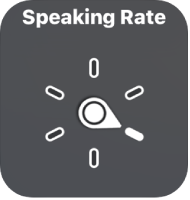
The rotor control with the dial pointing to the Speaking Rate setting.

When you use an Apple external keyboard to control VoiceOver, use the rotor to adjust settings such as volume, speech rate, use of pitch or phonetics, typing echo, and reading of punctuation.

Use the VoiceOver rotor

  1. When VoiceOver is turned on, rotate two fingers on your screen as if you’re turning a dial. If you prefer to use one finger on each hand, simultaneously drag up with one finger and drag down with the other.

    VoiceOver speaks the rotor setting. Keep rotating your fingers to hear more settings. Stop rotating your fingers when you hear the setting you want.

  2. Swipe your finger up or down on the screen to use the setting.

    The available rotor settings and their effects depend on what you’re doing. For example, if you choose Headings when you’re browsing a webpage, swipe down or up to move the VoiceOver cursor to the next or previous heading.

Customize the VoiceOver rotor

  1. Open Settings, tap Accessibility, and then tap VoiceOver.
  2. Do any of the following:
    • Add or reorder the rotor settings: Tap Rotor. Then choose the settings you want, or drag the Reorder button to reorder settings.
    • Add another language: See Change the speaking voice.
    • Have VoiceOver confirm rotor actions: Tap Verbosity, then turn on Speak Confirmation.

See also

You can customize the settings for VoiceOver, such as the audio options, language, voice, speaking rate, and verbosity.

You can adjust the volume of VoiceOver speech and sounds, temporarily reduce the volume of other audio while VoiceOver is speaking, and change the speaking voice. Your iPad’s volume buttons control the volume of VoiceOver speech, too, along with all other iPad audio.

Here’s how to change your VoiceOver settings on iPad.

Adjust the volume of VoiceOver speech and sounds

  • To increase or decrease your iPad’s volume, including the volume of VoiceOver speech and sounds, as well as all other iPad audio, press the volume buttons on iPad.
  • To temporarily reduce the volume of other iPad audio while VoiceOver is speaking, go to Settings > Accessibility > VoiceOver > Audio, tap Audio Ducking, then select When Speaking. Drag the Ducking Amount slider to set how much the volume decreases for other iPad audio—like media and calls—when VoiceOver is speaking.
  • To set other audio options, go to Settings > Accessibility > VoiceOver > Audio, then set options such as the following:
    • Sounds: Adjust and preview sound effects.
    • Send to HDMI: Route audio to externally connected devices, such as an instrument amplifier or a DJ mixer.

Set the VoiceOver language

  • Change the primary language: VoiceOver uses the same language you choose for your iPad. To choose a different primary language, go to Settings > General > Language & Region, then tap Add Language.
  • Switch languages using the rotor: Use the rotor to switch to a voice for another language.
  • Automatically switch languages: VoiceOver can detect text in another language and automatically switch to a voice for that language. Go to Settings > Accessibility > VoiceOver > Speech, then turn on Detect Languages.

Note: VoiceOver isn’t available in all languages.

Change the speaking voice

Change the VoiceOver speaking voice, or add another voice, then use the rotor to move between voices as needed.

  1. Open Settings, tap Accessibility, and then tap VoiceOver.
  2. Tap Speech, then do one of the following:
    • Change the primary voice: Tap the name of the current primary voice, then tap Voice.
    • Add another voice: Tap Add Rotor Voice.
  3. Choose a voice. To choose an enhanced voice, tap the Download button first.

Adjust the speaking voice

Go to Settings > Accessibility > VoiceOver, then do any of the following:

  • Adjust the speaking rate: Drag the Speaking Rate slider.
  • Adjust the pitch: Tap Speech, tap a voice, then drag the slider. You can also turn on Pitch Change to have VoiceOver use a higher pitch when speaking the first item of a group (such as a list or table) and a lower pitch when speaking the last item of a group.
  • Specify the pronunciation of certain words: Tap Speech > Pronunciations, tap the Add button, enter a phrase, then dictate or spell out how you want the phrase to be pronounced.

    Note: You can dictate only if you turned on Enable Dictation in Settings > General > Keyboard.

Set how much VoiceOver tells you

Go to Settings > Accessibility > VoiceOver > Verbosity, then do any of the following:

  • Change how VoiceOver speaks punctuation: Tap Punctuation, then choose a group. You can also create new groups—for example, a programming group in which “[” is spoken as “left bracket.”
  • Change how VoiceOver reads notifications: Tap System Notifications. By default, VoiceOver reads notifications, including incoming text messages, as they occur—even if iPad is locked. Unacknowledged notifications are repeated when you unlock iPad.
  • Choose additional options: Have VoiceOver speak hints, uppercase letters, embedded links, and more. VoiceOver can even confirm rotor actions and tell you when the flashlight is turned on.

Customize VoiceOver settings for an activity

Say you’re programming. Customize a group of VoiceOver settings for that activity, and the settings for speech, audio, verbosity, typing, navigation, and braille kick in automatically when you open certain apps or adjust the rotor.

  1. Open Settings, tap Accessibility, tap VoiceOver, and then tap Activities.
  2. Choose an existing activity or tap Add Activity.
  3. Adjust the settings and then below Automatic Switching, do any of the following:
    • Apply the settings for certain apps: Tap Apps and then select the ones you want this setting to apply to.
    • Apply the settings for certain contexts: Tap Context, then select one or more contexts, such as Word Processing, Messaging, or Console.

Use flat or grouped navigation

Go to Settings > Accessibility > VoiceOver > Navigation Style, then choose one of the following:

  • Flat: VoiceOver moves sequentially through each item on the screen when you use the move next and previous commands.
  • Grouped: VoiceOver moves through items and groups of items on the screen. To move into a group, use a two-finger swipe right. To move out of a group, use a two-finger swipe left.

Set a delay between touching the screen and selecting an item

You can control the amount of time between when you touch the screen and when VoiceOver selects the item you’ve touched. Increasing this value may help reduce accidental touches.

Go to Settings > Accessibility > VoiceOver, tap Delay before Selection, then tap the Increment button or the Decrement button to increase or decrease the delay.

Adjust VoiceOver visuals

Go to Settings > Accessibility > VoiceOver, then turn on any of the following:

  • Large Cursor: If you have difficulty seeing the outline around the selected item, you can enlarge and thicken the outline.
  • Caption Panel: The text spoken by VoiceOver is displayed at the bottom of the screen.

Use Quick Settings to adjust VoiceOver from anywhere

When VoiceOver is turned on, you can access Quick Settings by doing a two-finger quadruple tap.

To customize Quick Settings, do the following:

  1. Open Settings, tap Accessibility, tap VoiceOver, and then tap Quick Settings.
  2. Choose the settings you want, or drag the Reorder button to reorder settings.

Reset VoiceOver settings

  1. Start the Settings app on your iPad.
  2. Tap Accessibility, then tap VoiceOver.
  3. Tap Reset VoiceOver Settings. (You may need to scroll down.)

Reset VoiceOver Commands

  1. Start the Settings app on your iPad.
  2. Tap Accessibility, then tap VoiceOver, then tap Commands.
  3. Tap Reset VoiceOver Commands.

See also

If you use a pointer device with iPad, you can adjust how it works with VoiceOver. You can set the pointer to ignore, follow, or move the VoiceOver cursor, and adjust the delay before VoiceOver speaks the item under the pointer. You can also make the pointer easier to see.

  1. Open Settings, tap Accessibility, and then tap VoiceOver.
  2. Below Pointer Control, tap any of the following:
    • Pointer: Set the pointer to ignore, follow, or move the VoiceOver cursor.
    • Speak Under Pointer: You can adjust the delay to speak the item under the pointer.

See also

If you can’t see your screen and your content includes audio descriptions, you can listen to an audio description—a separate audio track that narrates or describes the visual content of a clip, show, or movie. You can also get live descriptions of your surroundings.

  1. Open Settings, tap Accessibility, and then tap Audio Descriptions.
  2. Turn on Audio Descriptions.

See also

Even if VoiceOver is turned off, you can have iPad read text on the screen out loud. Have iPad read the entire screen or a specific selection, or hear what you type spoken out loud, character by character or word by word.

Accessibility Reader lets you read or listen to text in a full-screen view, with your own fonts, layouts, and background colors, and you can change how spoken content sounds.

Here’s how to hear iPad speak the screen, selected text, and typing feedback.

Have iPad speak onscreen text

  1. Start the Settings app on your iPad.
  2. Tap Accessibility and tap Read & Speak.
  3. Turn on and customize any of the following:

    • Accessibility Reader: Turn on Accessibility Reader to read or listen to text in a full-screen view, and customize fonts, layouts, and background colors. Turn on Autoplay if you want Accessibility Reader to automatically read text aloud.

      See Read or listen to text in apps with Accessibility Reader.

    • Speak Screen: Tap Speak Screen. Then turn on Speak Screen to have iPad read all text on the screen, then do any of the following:

      Highlighting: Customize the highlight style, color, and selection for in-app text that is spoken aloud.

      Show Controller: Turn on Show Controller to keep the Speak Screen controls on the screen.

      Controller Actions: Choose what happens when you long press or double-tap the screen. You can also reduce the size of the speech controller when you’re not using it.

    • Speak Selection: Turn on Speak Selection to have iPad speak the text you select. Customize the highlight style, color, and selection for in-app text that is spoken aloud.
  4. Do any of the following:

    • Hear selected text (if you turned on Speak Selection): Select the text you want spoken, then tap Speak.
    • Hear all text on the screen (if you turned on Speak Screen): Swipe down with two fingers from the top of the screen.

      Use the controls that appear to pause speaking, adjust the rate, navigate forward or back to the content you want to hear, or use Speak on Touch (tap the text you want iPad to read).

Siri: Ask Siri something like, “Speak screen.” Learn how to use Siri.

Change how spoken content sounds

  1. Start the Settings app on your iPad.
  2. Tap Accessibility and tap Read & Speak.
  3. Adjust any of the following:
    • Voices: Choose a voice and dialect.
    • Default Language: Choose a default language that iPad will speak.
    • Detect Languages: Turn on Detect Languages to have iPad automatically detect and speak multiple languages.
    • Speaking Rate: Drag the slider.
    • Pronunciations: Dictate or spell out how you want certain phrases to be spoken.

See also