Got a tip for us?

accessibility

iPad comes with built-in tools for communicating in the way that works best for you, whether you’re nonspeaking, at risk of speech loss, or someone with a speech disability.

You can have what you type spoken out loud, create a synthesized voice that sounds like you, and control iPad with your voice. Siri can also wait longer while you finish speaking, and Dictation lets you enter text with just your voice.

To explore accessibility features for speech, go to Settings > Accessibility, then scroll down to the Speech section.

Type to speak

Control iPad with your voice

  • Use voice commands

    Speak commands to navigate and interact with what’s on the screen, dictate and edit text, and more.

    Use Voice Control to interact with iPad

  • Use simple sounds

    You can use voiced or voiceless sounds—like an S-sound or a mouth pop—to navigate and interact with what’s on the screen.

    Use sound actions with Switch Control

  • Vocal Shortcuts

    Have iPad perform an action when you speak a word or another sound of your choosing.

    Use Vocal Shortcuts

  • Have Siri listen for atypical speech

    If you have an acquired or progressive condition that affects speech, have Siri recognize a wider range of atypical speech patterns.

    Change Siri accessibility settings

You can also have Siri wait longer for you to finish speaking, or use Dictation to enter text using just your voice.

Quick tip: For quick control of your go-to accessibility features and settings, use the click of a button or Control Center. Check out our guide, Quickly open features with Accessibility Shortcut.

See also

If you’re at risk of speech loss or someone with a speech disability, you can use Personal Voice on iPad to create a synthesized voice that sounds like you. You can use it with Live Speech and have what you type spoken out loud in person, in Phone and FaceTime calls, and in assistive communication apps.

Your Personal Voice is saved securely on your iPad, and it can be shared across your devices with iCloud. Apps can even request to use it, too.

Note: Personal Voice is available in English (U.S.), Mandarin Chinese (China mainland), and Spanish (Mexico) and is available on iPad mini (A17 Pro) and iPad models with M1 and later.

  1. Start the Settings app on your iPad.
  2. Tap Accessibility and then tap Personal Voice.
  3. Tap Create a Personal Voice and then follow the onscreen instructions.

    (If you need to pause your recording session, tap Done. To resume, tap Continue Recording.)

    To allow your Personal Voice to be used on all of your devices with iCloud, turn on Share Across Devices. To allow apps to request to use your Personal Voice, turn on Allow Apps to Request to Use.

Note: To see the option to create your Personal Voice, you must first set a passcode. Personal Voice is available on supported iPad models and isn’t available in all languages.

Your Personal Voice is saved securely on your iPad for you to use during Phone and FaceTime calls, in-person conversations, and third-party alternative and augmentative communication (AAC) apps, according to Apple.

Important: Personal Voice can be used only with Live Speech and with third-party apps that you allow, such as Augmentative and Alternative Communication (AAC) apps. You can use Personal Voice only to create a voice that sounds like you on device, using your own voice, and for your own personal, noncommercial use. Your Legacy Contact won’t be able to access your Personal Voice.

See also

With AssistiveTouch on iPad, you can adapt the touchscreen to fit your needs. If certain gestures don’t work for you, you can replace them with a tap or alternate gesture, or use a simple sound. You can also use AssistiveTouch when you need to press iPad buttons.

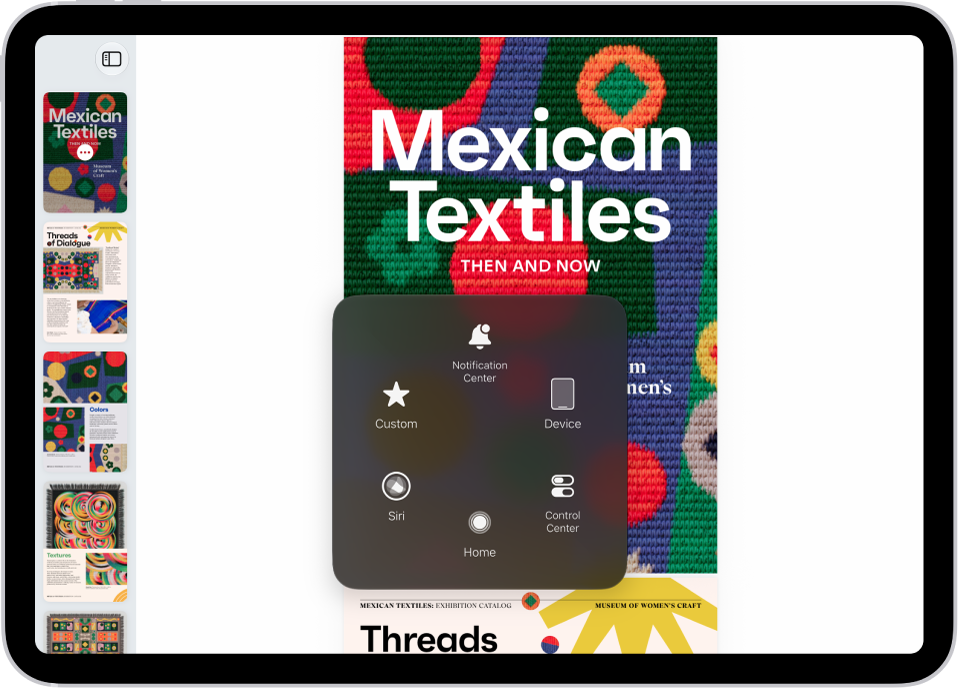
AssistiveTouch works with or without a compatible adaptive accessory, such as a joystick. When it’s on, the AssistiveTouch menu button appears on the screen, and you can customize the top-level menu with up to eight icons.

An iPad with the AssistiveTouch menu visible, showing controls for Notification Center, Device, Control Center, Home, Siri, and Custom.

AssistiveTouch can perform actions such as the following for you:

  • Go to the Home Screen
  • Double-tap
  • Perform multifinger gestures
  • Perform scroll gestures
  • Activate Siri
  • Access Control Center, notifications, the Lock Screen, or the App Switcher
  • Adjust the volume on iPad
  • Shake iPad
  • Take a screenshot
  • Use Apple Pay
  • Speak screen
  • Adjust dwell settings
  • Control Analytics
  • Restart iPad

Set up AssistiveTouch

Siri: Ask Siri something like, “Turn on AssistiveTouch.” Learn how to use Siri.

Or do the following:

  1. Open Settings, tap Accessibility, tap Touch, and then tap AssistiveTouch.
  2. Turn on AssistiveTouch. The AssistiveTouch menu button appears on the screen.
  3. To customize AssistiveTouch, tap any of the following:
    • Customize Top Level Menu: Tap an icon to change its action. Tap the Decrement button or the Increment button to change the number of icons in the menu. The menu can have up to eight icons.
    • Single-Tap, Double-Tap, or Long Press: Assign custom actions that run when you interact with the menu button.
    • Create New Gesture: Add your favorite gestures.
    • Idle Opacity: Adjust the visibility of the menu button when not in use.
    • Virtual Trackpad: Turn a small region of the screen into a resizable trackpad. See Use an adjustable onscreen trackpad.
    • Confirm with AssistiveTouch: On an iPad with Face ID, use AssistiveTouch to confirm payments with Face ID instead of double-clicking the top button. Or on iPad (10th generation and later), iPad mini (6th generation), iPad mini (A17 Pro), and iPad Air (4th generation and later), use AssistiveTouch to confirm payments with your passcode instead of double-clicking the top button.

Quick tip: Once you set up the Accessibility Shortcut, triple-click the top or Home button to quickly turn AssistiveTouch on or off.

Use AssistiveTouch

When AssistiveTouch is on, tap the AssistiveTouch menu button, then choose an action or gesture.

To return to the previous menu, tap the arrow in the center of the menu. To exit the menu without performing a gesture, tap anywhere outside the menu.

To move the AssistiveTouch menu button, drag it to a new location on the screen.

If you need to perform a multifinger gesture, do the following:

  • Pinch and Rotate: Tap Custom, then tap Pinch and Rotate. When the two pinch circles appear, touch anywhere on the screen to move the pinch circles, then drag them in or out to perform a pinch or rotate gesture. When you finish, tap the menu button.
  • Multifinger swipe or drag: Tap Device > More > Gestures, then tap the number of digits needed for the gesture. When the circles appear on the screen, swipe or drag in the direction required by the gesture. When you finish, tap the menu button.

Control iPad with a pointer device

Trackpads, game controllers, mouse devices, and other assistive pointer devices can connect over Bluetooth® or USB.

  1. Open Settings, tap Accessibility, tap Touch, and then tap AssistiveTouch.
  2. Turn on AssistiveTouch.
  3. Below Pointer Devices, tap any of the following:
    • Devices: Pair or unpair devices and customize buttons.
    • Mouse Keys: Allow the AssistiveTouch pointer to be controlled using the keyboard.
    • Pointer Style: Adjust the size, color, and auto-hide settings.
    • Show Onscreen Keyboard: Display the onscreen keyboard.
    • Sound on Click: Play a sound when the pointer device is clicked.
    • Always Show Menu: Show the AssistiveTouch menu when a pointer device is connected.
    • Tracking Sensitivity: Adjust how quickly the pointer moves when you drag the mouse or your finger on the trackpad.

You can also change the appearance of the pointer.

Set up Dwell Control

Keep the cursor still on a screen element or any area of the screen, and iPad performs a selected action.

  1. Open Settings, tap Accessibility, tap Touch and tap AssistiveTouch. Turn on Dwell Control.
  2. Adjust any of the following:
    • Fallback Action: Turn on to revert the dwell action to the selected fallback action after performing an operation.
    • Movement Tolerance: Adjust the distance the cursor can move while dwelling on an item.
    • Hot Corners: Perform a selected action—such as take a screenshot, open Control Center, activate Siri, scroll, or use a shortcut—when the cursor dwells in a corner of the screen.
    • Extended Predictions: Under Keyboard, turn on Extended Predictions to get more word suggestions while typing.
    • Key Dwell Time: Under Keyboard, adjust the amount of time it takes to tap on a keyboard key by tapping the Decrement button or the Increment button. You can also enter a number of seconds.
    • Time needed to initiate a dwell action: Tap the Decrement button or the Increment button.

Use simple sounds to perform gestures

AssistiveTouch can turn a simple sound like a mouth pop or an S-sound into a gesture or other action on iPad.

  1. Open Settings, tap Accessibility, tap Touch, tap AssistiveTouch, and turn AssistiveTouch on.
  2. Tap Sound Actions, then tap a sound.
  3. Select the gesture or other action you want performed when you make the sound.
  4. To perform the gesture or action, just make the sound.

Create custom gestures

You can add gestures you use often (such as touch and hold or two-finger rotation) to the AssistiveTouch menu. You can even create several gestures with, for example, different degrees of rotation.

  1. Open Settings, tap Accessibility, tap Touch, tap AssistiveTouch, and then tap Create New Gesture.
  2. Perform your gesture on the recording screen. For example:

    • Touch-and-hold gesture: Touch and hold your finger in one spot until the recording progress bar reaches halfway. Lift your finger. Be careful not to move your finger while recording, or the gesture will be recorded as a drag.
    • Two-finger rotation gesture: Rotate two fingers on the iPad screen around a point between them. (You can do this with a single finger or stylus—just create each arc separately, one after the other.)

    If you record a sequence of taps or drag gestures, they’re all played back at the same time. For example, using one finger or a stylus to record four separate, sequential taps at four locations on the screen creates a simultaneous four-finger tap.

  3. If your gesture doesn’t turn out quite right, tap Cancel. Then try again.
  4. When you’re satisfied with your gesture, tap Save. Name the gesture.

To use your custom gesture, tap the AssistiveTouch menu button, tap Custom, then choose the gesture. When the blue circles representing your gesture appear, drag them to where you want to use the gesture, then release.

See also

With Vocal Shortcuts, you can teach iPad to perform an action when you speak a word or another sound of your choosing. Vocal Shortcuts can be useful if you have moderate to severe atypical speech but can reliably vocalize certain utterances. Audio is processed on device.

An action can even be a request to Siri. While Vocal Shortcuts is listening, the Microphone In Use icon appears in the status bar.

Set up Vocal Shortcuts

  1. Open Settings, tap Accessibility, and then tap Vocal Shortcuts.
  2. Tap Set Up, then tap Continue.
  3. Choose an action for iPad to perform when you say the shortcut. If you want the action to be a request to Siri, tap Siri Request. Enter the request.
  4. Enter the phrase you’ll say when you want iPad to perform the action and then follow the onscreen instructions to repeat the phrase out loud so that iPad can recognize it.

After you set up Vocal Shortcuts, the Microphone In Use icon is shown in the status bar to indicate that Vocal Shortcuts is using the iPad microphone to listen for shortcuts. When you don’t want Vocal Shortcuts to use the microphone, go to Settings > Accessibility > Vocal Shortcuts, then turn off Vocal Shortcuts.

Add a Vocal Shortcut

  1. Open Settings, tap Accessibility, and then tap Vocal Shortcuts.
  2. Tap Add Action, then tap Continue.
  3. Choose an action for iPad to perform when you say the shortcut. If you want the action to be a request to Siri, tap Siri Request. Enter the request.
  4. Enter the phrase you’ll say when you want iPad to perform the action and then follow the onscreen instructions to repeat the phrase out loud so that iPad can recognize it.

Use a Vocal Shortcut

With Vocal Shortcuts set up, just say the phrase for one of the shortcuts you’ve created.

Delete a Vocal Shortcut

  1. Open Settings, tap Accessibility, and then tap Vocal Shortcuts.
  2. Tap Edit, tap the Remove button next to the shortcut you want to delete, and tap Delete.

Quick tip: If you have an acquired or progressive condition that affects speech, you can have Siri listen for and recognize a wider range of atypical speech patterns. See Change Siri accessibility settings.

See also

You can quickly turn many accessibility features on or off by clicking an iPad button. You can also use Control Center, Siri, or Vocal Shortcuts.

With the Accessibility Shortcut, the top button or Home button turns the features you choose on or off, and if you select only one feature, it turns on or off right away. iPad can even recognize a slower triple-click.

Here’s how to quickly turn accessibility features on or off on iPad.

Use the Accessibility Shortcut

Triple-click the top button or Home button to turn the accessibility features of your choice on or off.

  1. Open Settings, tap Accessibility, tap Accessibility Shortcut, and select the features you want.

    If you select only one feature, the feature is immediately turned on or off when you click the button shortcut.

  2. Triple-click one of the following:

    • The Home button (on an iPad with a Home button)
    • The top button (on other iPad models)

    To have iPad recognize a slower triple-click, see Adjust settings for the top or Home button.

  3. Tap the feature you want to turn on or off (if Accessibility Shortcut is set up with more than one feature).

Note: Some features, like Assistive Access or Guided Access, need to be set up before you can add them to the Accessibility Shortcut. The Accessibility Shortcut can enter and exit Assistive Access, but while Assistive Access is active, you can’t use it to turn on other features. And to use the Accessibility Shortcut while Guided Access is on, turn on Accessibility Shortcut in Guided Access settings.

Use Control Center

You can add accessibility features to Control Center for quick access when you swipe down from the top-right corner of the screen.

  1. To change the features available in Control Center, swipe down from the top-right corner of the screen and tap the Add button in the top-left corner. Tap Add a Control.
  2. Tap a control to add it to Control Center. Scroll down to see more controls, including categories of controls for accessibility, hearing, mobility, and vision.

You can change which features appear when you tap the Hearing button in Control Center. Go to Settings > Accessibility > Hearing Control Center, then add or remove features.

Use Siri

Siri: Ask Siri something like, “Turn on Voice Control.” Learn how to use Siri.

Use a Vocal Shortcut

iPad can learn to turn on an accessibility feature whenever you say a word or make another sound of your choosing. Read our guide, Use Vocal Shortcuts.

Use the Shortcuts app

You can create a shortcut to get one or more tasks done with your apps using just a tap or by asking Siri. For example, if you have short-term memory loss, you can use Remember This to log what happens throughout the day. You can also run the In Case of Emergency shortcut to send your location to your chosen emergency contacts, share a message with custom instructions, and display a message of your choice onscreen for first responders to see.

See also

With Voice Control on your iPad, you can speak commands to interact with what’s on the screen, perform gestures and button presses, dictate and edit text, and more. And with Apple Intelligence, you can describe onscreen elements in your own words instead of using exact labels—refer to an item by its name, what it does, its color, or where it appears on the screen.

You can pause or resume Voice Control, see what commands you can use, label onscreen items, and show a numbered grid on the screen.

Note: When Voice Control is on, you use Voice Control to dictate text; standard iPadOS Dictation isn’t available. If you just want to enter text using Dictation, without controlling your iPad with your voice, see Dictate text. Voice Control isn’t available in all languages.

Note: Apple Intelligence on iPadOS 27 or later is available on an Apple Intelligence-enabled iPad mini (A17 Pro) and iPad models with M1 or later. Apple Intelligence is not available in all languages or regions. Usage limits may apply.* To use Apple Intelligence with Voice Control, you must have your system language and Voice Control language set to English. See Change the language and region and Set up Voice Control.

Set up Voice Control

The first time you turn on Voice Control, iPad has to be connected to the internet over a Wi-Fi network. After iPad finishes a one-time file download from Apple, you can use Voice Control without an internet connection.

  1. Start the Settings app on your iPad.
  2. Tap Accessibility, tap Voice Control, tap Set Up Voice Control, and follow the onscreen instructions.

    When the download is complete, the Voice Control icon appears in the status bar to indicate that Voice Control is turned on.

  3. Set options such as the following:

    • Language: Set the language and download languages for offline use.
    • Commands: View the available commands and create new commands.
    • Vocabulary: Teach Voice Control to recognize new words and phrases. You can enter a word or phrase and teach Voice Control how you pronounce it, or import a vocabulary list.

      Note: Not all Voice Control languages support a custom vocabulary.

    • Show Confirmation: When Voice Control recognizes a command, a visual confirmation appears at the top of the screen.
    • Play Sound: When Voice Control recognizes a command, a sound plays.
    • Show Hints: See command suggestions and hints.
    • Flexible Item Names: With Apple Intelligence, you can refer to onscreen items in your own words instead of using their exact labels. This is turned on by default and can be turned off to use exact labels.
    • Continuous Overlay: Display numbers, names, or a grid over screen elements.
    • Attention Aware: On an iPad with Face ID, Voice Control wakes up when you look at your iPad and goes to sleep when you look away.
    • Prefer Bluetooth Mic: Use AirPods or Bluetooth® headsets when connected instead of the iPad microphone.

      Note: Using Voice Control with AirPods and third-party headsets impacts audio quality and audio features like Siri announcements and Share Audio with AirPods.

Turn Voice Control on or off

After Voice Control is set up, you can quickly turn it on or off by doing any of the following:

Start using commands

Using Voice Control on your iPad is as simple as saying a command. And with Apple Intelligence, you can describe what you want to act on instead of giving its exact label.

Voice Control: Say, for example, “Open Control Center,” “Go home,” “Tap item name,” or “Turn up volume.” Or with Apple Intelligence, say “Tap the button that sends the message” or “Tap the button at the bottom right.”

Quick tip: To get familiar with Voice Control and practice essential commands, try the interactive Voice Control Tutorial. Go to Settings > Accessibility > Voice Control, where you can tap Open Voice Control Tutorial.

Pause or resume Voice Control

If you don’t want what you say treated as commands or dictation, pause Voice Control. Resume Voice Control when you want it listening for commands and dictation again.

Voice Control: Say “Stop listening” or “Start listening.”

See what commands you can use

The list of available commands varies depending on the app you’re working in and what you’re doing, so text formatting commands show up while you’re writing a document, for example. Apple Intelligence also understands an item described in your own words, rather than by its exact label.

Voice Control: Say “Show commands.”

To browse the full list of supported commands and see examples of how to use them, go to Settings > Accessibility > Voice Control > Commands.

Label onscreen items

If you’re not sure what to call something, a name or number can appear next to each item on the screen, and you can use it to interact with the item. Or, with Apple Intelligence, skip the name or number and describe the item in your own words.

Voice Control: Say “Show names,” “Show numbers,” or “Show text numbers.” Or with Apple Intelligence, say “Tap the blue button at the bottom.”

To interact with an item, say its name or number, or say a command—such as “Long press”—followed by the item’s name or number. The item names or numbers disappear after you say the command.

Show a numbered grid on the screen

For easier interaction with a precise area of the screen, you can superimpose a grid.

Voice Control: Say “Show grid.”

  • Interact with a location on the grid: If a number is at the location you want to interact with, say any command—such as “Tap”—followed by the grid number. The grid disappears after you say the command.
  • Drill down on an area of the grid: If you need to further refine the location, say a grid number to show a more detailed grid in that area.

Say “Hide names,” “Hide numbers,” or “Hide grid” to turn the overlay off.

Enter text

In a text input area, you can use Dictation mode to dictate word by word, or Spelling mode to go character by character. Command mode, meanwhile, has Voice Control respond only to commands, so you don’t mistakenly enter a Voice Control command as text.

When you’re in a text input area and label onscreen items with numbers, numbers are shown next to each line of text. Select a line or another section of the text to display a number for each word in the selection; select a single word to show a number for each character in the word. To interact with a text item (such as a line or a word), say a command followed by the item’s name or number. For example, you can say “Delete [item number]” or “Uppercase [item number].”

Command Description
Voice Control: Say “Dictation mode.” Dictate word by word.

Any words you say that aren’t Voice Control commands are entered as text. Dictation mode is on by default.

In some Voice Control languages, if several words phonetically match what you say, they appear onscreen. Tap to choose the one you want.

Voice Control: Say “Spelling mode.” Dictate character by character.

Spelling mode is helpful when you need to enter a password, a web address, or another sequence of characters that wouldn’t be recognized as a word in Dictation mode.

When Spelling mode is on, the Spelling Mode icon appears in the text input area.

To increase accuracy when entering letters, you can use the letter’s phonetic alphabet code word (for example, say “Alfa Bravo Charlie” to enter “abc”).

Note: Spelling mode isn’t available in all Voice Control languages.

Voice Control: Say “Command mode.” Voice Control responds only to commands.

Words and characters that aren’t commands are ignored and aren’t entered as text. Command mode is helpful when you need to say a series of commands and don’t want them inadvertently entered in a text input area.

When Command mode is on, the Command Mode icon appears in the text input area to indicate you can’t dictate to enter text.

*Apple Intelligence is available with Siri and device language set to Chinese (Simplified), Chinese (Traditional), Danish, Dutch, English, French, German, Italian, Japanese, Korean, Norwegian, Portuguese, Spanish, Swedish, Turkish, or Vietnamese. Some features may not be available in all regions or languages. Some devices may not be available in all regions. Siri AI is available in beta in iOS 27, iPadOS 27, macOS 27, watchOS 27, and visionOS 27 and requires an Apple Intelligence–enabled device set to a supported language. Available in English to start. Siri AI will not be initially available in the EU on iOS, iPadOS, and watchOS. Certain Apple Intelligence features that rely on server-side models are subject to daily usage limits, including but not limited to Siri AI, Intelligent Photo Editing Tools, Image Playground, and AFM 3 Cloud models in Shortcuts. Daily limits may vary by feature, request complexity, system demand, system policies, and other factors. Expanded access to such features will be available for a fee in the future. Use of these features is subject to the Apple Intelligence Terms and Conditions.

See also

You can set up a shortcut to quickly start Live Recognition when VoiceOver is on. If VoiceOver is off, the same shortcut opens the Magnifier app in Detection Mode instead.

You can use a VoiceOver gesture or the Accessibility Shortcut, and you can even assign a different gesture. It’s one of many accessibility features for vision on iPad.

  • Use a VoiceOver gesture: When VoiceOver is on, triple-tap the screen with four fingers to turn Live Recognition on or off. To assign a different gesture, go to Settings > Accessibility > VoiceOver > Commands > Touch Gestures.
  • Triple-click the top button or Home button: Go to Settings > Accessibility > Accessibility Shortcut, then select Live Recognition. See Quickly turn accessibility features on or off.

See also

You can use VoiceOver Recognition on iPad to scan your surroundings and get live descriptions of the scenes detected in the camera view. With Apple Intelligence, you can also get information and ask questions about onscreen images and interface elements, even in apps and on webpages that don’t provide accessibility information.

With Live Recognition, you choose the kinds of visual information you want VoiceOver to describe.

Here’s how to hear what’s on your screen and around you with VoiceOver on iPad.

Important: VoiceOver Recognition should not be relied upon in circumstances where you could be harmed or injured, in high-risk situations, for navigation, or for the diagnosis or treatment of any medical condition.

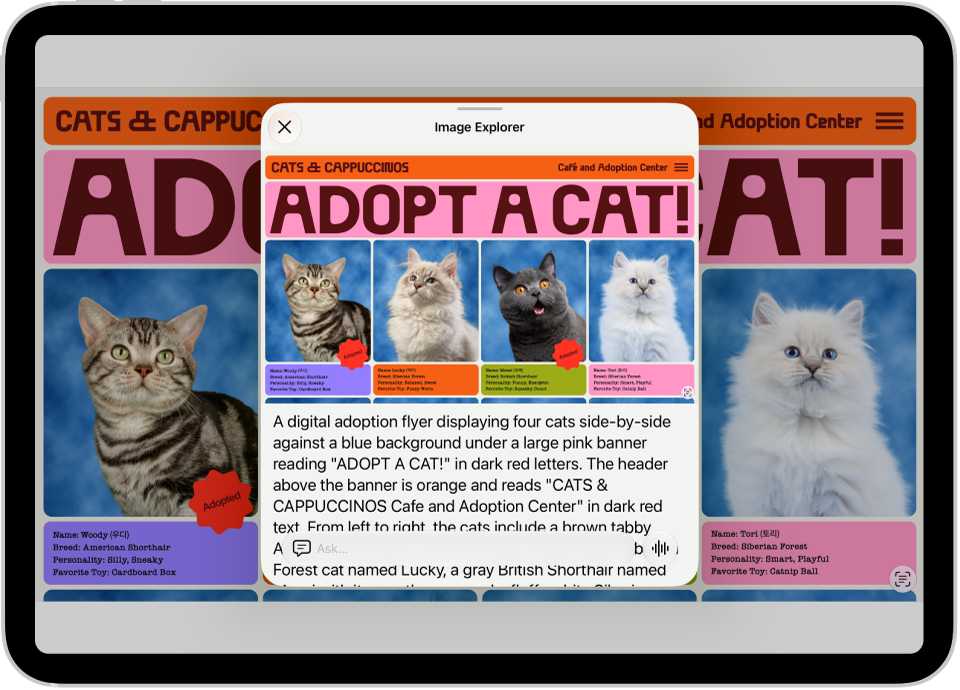
An Image Explorer screen giving a description of a cat adoption flyer.

Get descriptions and ask questions about your surroundings with Live Recognition

  1. With VoiceOver on, triple-tap the screen with four fingers to start Live Recognition.
  2. Do any of the following:

    • Ask questions and get information about your surroundings: Double-tap when you hear Ask to turn it on or off. The default question “What is this?” is asked automatically unless you Customize Live Recognition settings.
    • Get descriptions about your surroundings: Choose the kinds of visual information you want VoiceOver to describe, like scenes, people, doors, furniture, or text. Select a category and then double-tap to turn it on or off. If you turn on Point and Speak, you can point your finger at text and have VoiceOver read it aloud.

      Note: Detection of people, doors, and furniture is available only on supported iPad models.

    • Get information about a document: Double-tap when you hear Document Capture to turn it on or off.
  3. Position iPad so the rear camera can detect what’s around you. VoiceOver describes what the camera detects.

    To interrupt VoiceOver speech and move to the next detected item, tap the screen with two fingers.

To turn off Live Recognition, triple-tap the screen with four fingers. Or if the VoiceOver cursor is focused on an interface element for Live Recognition, do a two-finger scrub (move two fingers back and forth three times quickly, making a “z”).

Quick tip: You can set up a shortcut that quickly starts and stops Live Recognition. See our guide, Set up shortcuts for Live Recognition.

Detection Mode in the Magnifier app can also detect and describe scenes, people, and more. Check out our article, Get live descriptions of visual information around you with Magnifier.

Customize Live Recognition settings

  1. Open the Settings app on your iPad.
  2. Tap Accessibility, tap VoiceOver, tap VoiceOver Recognition, and tap Live Recognition.
  3. Do any of the following:

    • Set a default question that’s asked automatically: Turn on Default Question which is “What is this?” by default. You can also enter your own default question.
    • Choose whether to speak or type by default: Tap Speak or Type.
    • Use the volume buttons to take a picture: Turn on Use Volume Buttons to Recapture.
    • Select what options appear in the rotor: Tap Live Recognition Rotor, then tap an option, like People, Doors, Scenes, or Ask. You can also drag each option up or down to rearrange the order in the rotor.

    Note: Detection of people, doors, and furniture is available only on supported iPad models.

    • Create a custom activity that you can quickly turn on: Tap Activities, tap the Add button, and then enter an activity name. Select the detection modes that are on by default in the activity. You can also turn on Speech, Braille, Sounds, and Haptics for different detection modes.

Get descriptions and ask questions about images

VoiceOver Recognition describes the people, objects, and text in images, even in apps and on webpages that don’t provide accessibility information. And with Apple Intelligence, you can also ask questions about images and get enhanced descriptions.

Note: Apple Intelligence on iPadOS 27 or later is available on an Apple Intelligence-enabled iPad mini (A17 Pro) and iPad models with M1 or later. Apple Intelligence is not available in all languages or regions. Usage limits may apply.*

  1. Open the Settings app on your iPad.
  2. Tap Accessibility, tap VoiceOver and tap VoiceOver Recognition. Do any of the following:

    • Explore content in an image, get descriptions, and ask questions: Turn on Explore Image.
    • Ask questions and get information about images: Turn on Ask About Image.
    • Get detailed descriptions of images: Turn on Intelligent Image Description.
  3. To get descriptions of text found in images, turn on Text Recognition.
  4. Go to an app such as Photos or Safari and select an image.
  5. Swipe down to hear more options and then double-tap when you hear Intelligent Image Description, Explore Image, or Ask About Image.
  6. Move your finger around the image to find out the position of each object.

    Note: Image descriptions aren’t available in all languages.

Add custom descriptions of images in Photos

  1. Open the Photos app on your iPad.
  2. Double-tap the image you want to add a custom description to.
  3. Double-tap the Edit button, then double-tap the Markup button.
  4. Double-tap the Add button and then double-tap Image Description.
  5. Enter your image description.
  6. Double-tap the Done button, then double-tap the Done button again.

After you add a custom description to a photo in the Photos app, you’ll hear the description when you select the photo in the photo picker, and when you double-tap it.

Get descriptions of interface elements

When apps and webpages don’t provide accessibility information, VoiceOver Recognition still describes interface elements.

  1. Open the Settings app on your iPad.
  2. Tap Accessibility, tap VoiceOver, and then tap VoiceOver Recognition.
  3. Tap Screen Recognition and turn on Screen Recognition.
  4. Tap Apply to Apps and select an app from the list to improve the accessibility of a specific app.

*Apple Intelligence is available with Siri and device language set to Chinese (Simplified), Chinese (Traditional), Danish, Dutch, English, French, German, Italian, Japanese, Korean, Norwegian, Portuguese, Spanish, Swedish, Turkish, or Vietnamese. Some features may not be available in all regions or languages. Some devices may not be available in all regions. Siri AI is available in beta in iOS 27, iPadOS 27, macOS 27, watchOS 27, and visionOS 27 and requires an Apple Intelligence–enabled device set to a supported language. Available in English to start. Siri AI will not be initially available in the EU on iOS, iPadOS, and watchOS. Certain Apple Intelligence features that rely on server-side models are subject to daily usage limits, including but not limited to Siri AI, Intelligent Photo Editing Tools, Image Playground, and AFM 3 Cloud models in Shortcuts. Daily limits may vary by feature, request complexity, system demand, system policies, and other factors. Expanded access to such features will be available for a fee in the future. Use of these features is subject to the Apple Intelligence Terms and Conditions.

See also

With Hover Text on iPad, you can move the pointer over text and other items on the screen (such as icons) to view a larger version of them. Or use Hover Typing to display a separate window with a larger version of text that you’re typing.

Hover Text works with a pointing device such as a trackpad or mouse, and on supported models, Apple Pencil (2nd generation) or Apple Pencil Pro. You don’t need a pointing device for Hover Typing, and you can customize both.

Before you begin

You’ll need a pointing device, such as a trackpad or mouse, connected to your iPad to use Hover Text. Apple Pencil (2nd generation) or Apple Pencil Pro can also serve as the pointing device on supported iPad models.

You don’t need to connect a pointing device to use Hover Typing.

Show a larger version of text when you hover over it

  1. Start the Settings app on your iPad.
  2. Tap Accessibility, tap Hover Text, and then turn on Hover Text.
  3. Move the pointer over text to display a larger version of it. Or hover the tip of a supported Apple Pencil over the text.
  4. If you have a connected keyboard, you need to press and hold the Control key to show the Hover Text window.

If you use iPad with a connected keyboard, you can have the Hover Text window automatically displayed when you move the pointer over text, without needing to press and hold a key every time. Go to Settings > Accessibility > Hover Text, then turn on Activation Lock. To use activation lock, quickly press the Control key three times.

You can change the key you press to activate Hover Text and activation lock. Tap Activation Modifier, then choose another key.

Show a larger version of text you’re typing

  1. Start the Settings app on your iPad.
  2. Tap Accessibility, tap Hover Text, tap Hover Typing, and turn on Hover Typing.
  3. As you type in a text entry field, a larger version of what you’re typing is displayed.

    To temporarily hide the Hover Typing window, swipe on it. It reappears when you start typing again.

Customize Hover Text

  1. Start the Settings app on your iPad.
  2. Tap Accessibility, then tap Hover Text.
  3. Customize any of the following:
    • Display mode: Choose where to show the Hover Text or Hover Typing window—inline (near the cursor), at the top of the screen, or directly above the onscreen keyboard.
    • Content: Choose to show Text, Color, or Text & Color.
    • Scrolling speed: Choose a faster or slower speed (for scrolling in the Hover Text window when viewing large blocks of text).
    • Font: Choose a custom font.
    • Size: Adjust the slider to change your preferred reading size.
    • Text Color: Choose a text color by Grid, Spectrum, or Sliders.
    • Background Color: Choose a background color by Grid, Spectrum, or Sliders.
    • Border color: Choose a border color by Grid, Spectrum, or Sliders.
    • Activation Modifier: Choose Control, Option, or Command.
    • Activation Lock: Turn on Activation Lock.

Customize Hover Typing

  1. Start the Settings app on your iPad.
  2. Tap Accessibility and tap Hover Text. Tap Hover Typing.
  3. Customize any of the following:
    • Display mode: Choose where to show the Hover Text or Hover Typing window—inline (near the cursor), at the top of the screen, or directly above the onscreen keyboard.
    • Font: Choose a custom font.
    • Size: Adjust the slider to change your preferred reading size.
    • Text Color: Choose a text color by Grid, Spectrum, or Sliders.
    • Insertion Point Color: Choose an insertion point color by Grid, Spectrum, or Sliders.
    • Background Color: Choose a background color by Grid, Spectrum, or Sliders.
    • Border color: Choose a border color by Grid, Spectrum, or Sliders.
    • Misspelled Word Color: Choose a color for misspelled words by Grid, Spectrum, or Sliders.
    • Autocorrected Word Color: Choose a color for autocorrected words by Grid, Spectrum, or Sliders.

See also

With Accessibility Reader on iPad, you can read or listen to text in a full-screen view, and customize fonts, layouts, and background colors. You can use it with any app on your iPad.

With Apple Intelligence, you can also format content for easier reading, summarize text, and translate it into one of your preferred languages. Accessibility Reader is built into the Magnifier app, too, so you can customize text around you, like in restaurant menus or books. See View your captured text in a format for easier reading and Listen to your captured text.

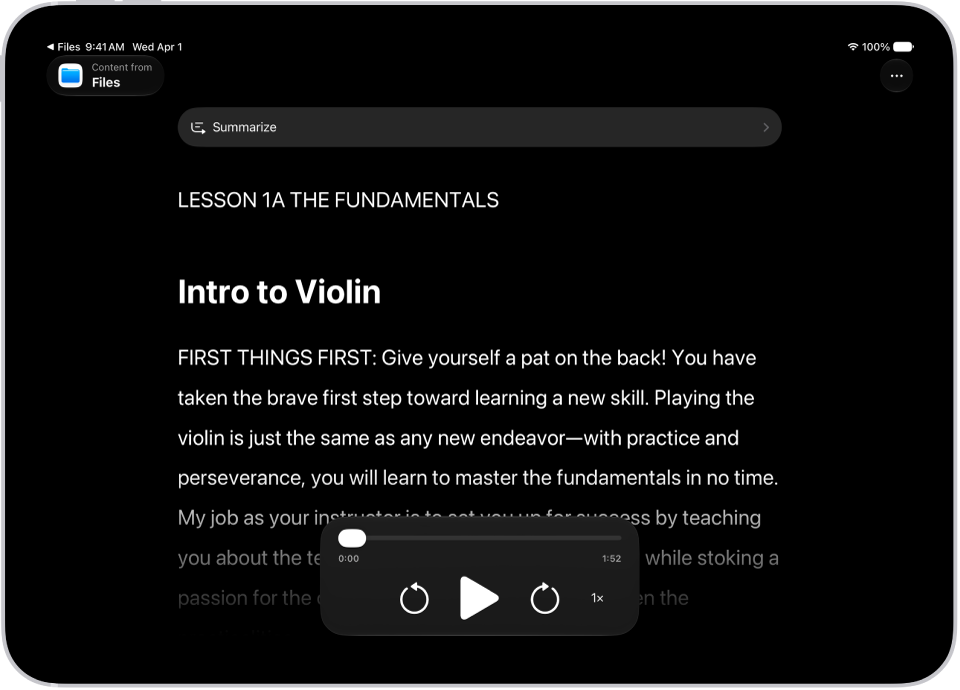
The Accessibility Reader screen showing content from Files in white text on a black background.

Turn on and use Accessibility Reader

  1. Open the Settings app on your iPad.
  2. Tap Accessibility and tap Read & Speak.
  3. Tap Accessibility Reader and turn on Accessibility Reader.
  4. To customize Accessibility Reader, do any of the following:

    • Set up autoplay: Turn on Autoplay in Accessibility Reader.
    • Automatically format and structure content for readability with Apple Intelligence: Turn on Content Cleanup.
  5. To start using Accessibility Reader, do one of the following:

    • Use the Accessibility Shortcut: Open an app, triple-click the top button or Home button on your iPad and tap Accessibility Reader.

      Note: To learn how to add Accessibility Reader to your Accessibility Shortcuts, see Use the Accessibility Shortcut.

    • Use Control Center: Open an app, open Control Center, then tap Accessibility Reader.
    • Use the share menu in any app to send content directly to Accessibility Reader: Tap the Share button, then select Accessibility Reader.

Use Apple Intelligence in Accessibility Reader

With Apple Intelligence, Accessibility Reader can translate text into one of your preferred languages, summarize long text, and format content for easier reading.

Note: Apple Intelligence on iPadOS 27 or later is available on an Apple Intelligence-enabled iPad mini (A17 Pro) and iPad models with M1 or later. Apple Intelligence is not available in all languages or regions. Usage limits may apply.*

  1. Open any app on your iPad and open Accessibility Reader.

    See Turn on and use Accessibility Reader.

  2. Do any of the following:

    • Summarize text: Tap Summarize at the top of the content to show a summary. To hide it, tap the summary again.
    • Translate text: Tap the Translate button. Choose one of your preferred languages. To see your content in the original language, tap the Translate button. Tap View Original.

      Note: Translation is available for the languages in your Preferred Languages list. To add a language, see Change the language and region on iPad.

    • Reformat content: Tap the More button and tap Cleanup Content. When you do this, text and some visual elements that aren’t relevant to the content, such as ads, are removed. To remove Cleanup Content formatting, tap the More button again and tap Remove Formatting.

Customize text color, font, and spacing in apps

  1. Open any app on your iPad and open Accessibility Reader.

    See Turn on and use Accessibility Reader.

  2. Tap the More button and then tap the Customize Reader button.
  3. Select a theme, then tap Edit.
  4. Do any of the following:

    • Text Color: Choose a color or tap Custom Color.
    • Background Color: Choose a color or tap Custom Color.
    • Text Size: Drag the slider left or right to make the text smaller or larger.
    • Font: Choose a font.
    • High Legibility Characters: Turn on High Legibility Characters for System Fonts.

      Note: This option is only available when using System Font.

    • Bold Text: Turn on Bold Text.
    • Line Spacing: Choose the Default button, the Loose button, or the Open button to customize the space between lines.
    • Word Spacing: Choose the Default button, the Loose button, or the Open button to customize the space between words.
    • Character Spacing: Choose the Default button, the Loose button, or the Open button to customize the space between characters.
    • Readable Content Width: Choose the Default button, the Loose button, or the Open button to customize the text width.
    • Hyperlinks: Turn Show Links on or off. When you turn on Show Links, you can customize the color.
    • Playback: Turn Highlighting on or off. When you turn on Highlighting, you can customize the style or highlight color.
    • Rename: Enter a name for the settings you choose.
    • Reset to Default: Reset all themes to their default settings.

    Tip: Rename a theme with your custom settings so you can easily find it and reuse it later.

Listen to spoken text in apps

  1. Open any app on your iPad and open Accessibility Reader.

    See Turn on and use Accessibility Reader.

  2. Do any of the following:

    • Listen to the text: Tap the Play button.
    • Pause the text: Tap the Pause button.
    • Skip backward or forward: Tap the Rewind button or the Forward button.
    • Increase or decrease the speed: Tap the Speaking Rate One Times button. Then select a speed.
    • Go to a specific time: Drag the slider left or right.

    Note: You can hide or show audio controls in Accessibility Reader: Tap the More button, then tap Hide Audio Controls or Show Audio Controls.

*Apple Intelligence is available with Siri and device language set to Chinese (Simplified), Chinese (Traditional), Danish, Dutch, English, French, German, Italian, Japanese, Korean, Norwegian, Portuguese, Spanish, Swedish, Turkish, or Vietnamese. Some features may not be available in all regions or languages. Some devices may not be available in all regions. Siri AI is available in beta in iOS 27, iPadOS 27, macOS 27, watchOS 27, and visionOS 27 and requires an Apple Intelligence–enabled device set to a supported language. Available in English to start. Siri AI will not be initially available in the EU on iOS, iPadOS, and watchOS. Certain Apple Intelligence features that rely on server-side models are subject to daily usage limits, including but not limited to Siri AI, Intelligent Photo Editing Tools, Image Playground, and AFM 3 Cloud models in Shortcuts. Daily limits may vary by feature, request complexity, system demand, system policies, and other factors. Expanded access to such features will be available for a fee in the future. Use of these features is subject to the Apple Intelligence Terms and Conditions.

See also