Got a tip for us?

Shortcuts

The Shortcuts app lets you automate tasks you do often with just a tap or by asking Siri. You can create shortcuts to get directions to the next event in your Calendar, move text from one app to another, and more.

There are ready-made shortcuts in the Gallery. Or you can build your own with different apps, and it’ll run multiple steps in a task for you.

With Vocal Shortcuts, you can teach iPad to perform an action when you speak a word or another sound of your choosing. Vocal Shortcuts can be useful if you have moderate to severe atypical speech but can reliably vocalize certain utterances. Audio is processed on device.

An action can even be a request to Siri. While Vocal Shortcuts is listening, the Microphone In Use icon appears in the status bar.

Set up Vocal Shortcuts

  1. Open Settings, tap Accessibility, and then tap Vocal Shortcuts.
  2. Tap Set Up, then tap Continue.
  3. Choose an action for iPad to perform when you say the shortcut. If you want the action to be a request to Siri, tap Siri Request. Enter the request.
  4. Enter the phrase you’ll say when you want iPad to perform the action and then follow the onscreen instructions to repeat the phrase out loud so that iPad can recognize it.

After you set up Vocal Shortcuts, the Microphone In Use icon is shown in the status bar to indicate that Vocal Shortcuts is using the iPad microphone to listen for shortcuts. When you don’t want Vocal Shortcuts to use the microphone, go to Settings > Accessibility > Vocal Shortcuts, then turn off Vocal Shortcuts.

Add a Vocal Shortcut

  1. Open Settings, tap Accessibility, and then tap Vocal Shortcuts.
  2. Tap Add Action, then tap Continue.
  3. Choose an action for iPad to perform when you say the shortcut. If you want the action to be a request to Siri, tap Siri Request. Enter the request.
  4. Enter the phrase you’ll say when you want iPad to perform the action and then follow the onscreen instructions to repeat the phrase out loud so that iPad can recognize it.

Use a Vocal Shortcut

With Vocal Shortcuts set up, just say the phrase for one of the shortcuts you’ve created.

Delete a Vocal Shortcut

  1. Open Settings, tap Accessibility, and then tap Vocal Shortcuts.
  2. Tap Edit, tap the Remove button next to the shortcut you want to delete, and tap Delete.

Quick tip: If you have an acquired or progressive condition that affects speech, you can have Siri listen for and recognize a wider range of atypical speech patterns. See Change Siri accessibility settings.

See also

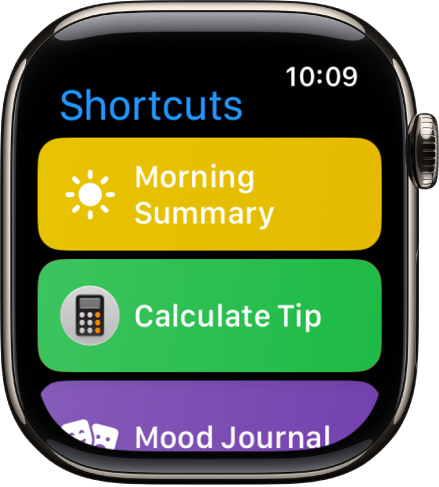
The Shortcuts app lets you automate tasks you do often with just a tap or by asking Siri. With the shortcuts you create on your iPhone, you can quickly get directions home, create a top 25 playlist, and more.

When you add a new shortcut on your iPhone, it also appears on your Apple Watch, as long as it’s compatible. Not every iPhone shortcut works on your watch, though.

Here’s how to use shortcuts on Apple Watch.

Note: Not all shortcuts on iPhone are compatible with Apple Watch.

The Shortcuts app on showing three shortcuts: Break Timer, Compass, and Record Backtrack.

Run a shortcut

  1. Open the Shortcuts app on your Apple Watch.
  2. Tap a shortcut.

Add more shortcuts to Apple Watch

A new shortcut you add on your iPhone also appears on Apple Watch, as long as it’s compatible.

Quickly access your shortcuts

To quickly access your shortcuts, do any of the following:

See also

You can set up a shortcut to quickly start Live Recognition when VoiceOver is on. If VoiceOver is off, the shortcut opens the Magnifier app in Detection Mode instead. There’s more than one way to do it: you can use a VoiceOver gesture, assign a different gesture, or use the Accessibility Shortcut.

  • Use a VoiceOver gesture: When VoiceOver is on, triple-tap the screen with four fingers to turn Live Recognition on or off.
  • To assign a different gesture, go to Settings > Accessibility > VoiceOver > Commands > Touch Gestures.
  • Triple-click the side button or Home button: Go to Settings > Accessibility > Accessibility Shortcut, then select Live Recognition.
  • Tap the back of iPhone: Go to Settings > Accessibility > Touch > Back Tap, choose Double Tap or Triple Tap, then choose Live Recognition.
  • Press the Action button: Customize the Action button to start Live Recognition.

Note: The Action button is available on supported iPhone models.

You can double-tap or triple-tap the back of iPhone to perform actions such as taking a screenshot, turning on an accessibility feature, running a shortcut, and more. It’s called Back Tap, and you can choose an action for Double Tap and Triple Tap.

  1. Open Settings, tap Accessibility, tap Touch, and then tap Back Tap.
  2. Choose Double Tap or Triple Tap. Then choose an action.
  3. To perform the action you set, double-tap or triple-tap the back of iPhone.

To turn off Back tap, go to Settings > Accessibility > Touch > Back Tap, choose Double Tap or Triple Tap, then tap None.

With Vocal Shortcuts, you can teach iPhone to perform an action when you speak a word or another sound of your choosing. Vocal Shortcuts can be useful if you have moderate to severe atypical speech but can reliably vocalize certain utterances. Audio is processed on device.

You can add a Vocal Shortcut, use it, and delete it when you no longer need it.

Here’s how to use Vocal Shortcuts on iPhone.

Set up Vocal Shortcuts

  1. Open Settings, tap Accessibility, and then tap Vocal Shortcuts.
  2. Tap Set Up, then tap Continue.
  3. Choose an action for iPhone to perform when you say the shortcut. If you want the action to be a request to Siri, tap Siri Request. Enter the request.
  4. Enter the phrase you’ll say when you want iPhone to perform the action and then follow the onscreen instructions to repeat the phrase out loud so that iPhone can recognize it.

After you set up Vocal Shortcuts, the Microphone In Use icon is shown in the status bar to indicate that Vocal Shortcuts is using the iPhone microphone to listen for shortcuts. When you don’t want Vocal Shortcuts to use the microphone, go to Settings > Accessibility > Vocal Shortcuts, then turn off Vocal Shortcuts.

Add a Vocal Shortcut

  1. Open Settings, tap Accessibility, and then tap Vocal Shortcuts.
  2. Tap Add Action, then tap Continue.
  3. Choose an action for iPhone to perform when you say the shortcut. If you want the action to be a request to Siri, tap Siri Request. Enter the request.
  4. Enter the phrase you’ll say when you want iPhone to perform the action and then follow the onscreen instructions to repeat the phrase out loud so that iPhone can recognize it.

Use a Vocal Shortcut

Once Vocal Shortcuts is set up, say the phrase for one of the shortcuts you’ve created.

Delete a Vocal Shortcut

  1. Open Settings, tap Accessibility, and then tap Vocal Shortcuts.
  2. Tap Edit, tap the Remove button next to the shortcut you want to delete, and tap Delete.

Quick tip: If you have an acquired or progressive condition that affects speech, you can have Siri listen for and recognize a wider range of atypical speech patterns.


The Shortcuts app lets you automate tasks you do often with just a tap or by asking Siri. You can create shortcuts to get directions to the next event in your Calendar, move text from one app to another, and more.

You don’t have to start from scratch, either. You can choose ready-made shortcuts from the Gallery, or build your own using different apps to run multiple steps in a task.