Got a tip for us?

FaceTime

While you’re on a call using the FaceTime app, you can use other apps, for example, to look up information, write a note, or perform a calculation. The call keeps going, and you can get back to it at any time.

  1. Go to the Home Screen on your iPhone.
  2. Tap an app icon to open the app.
  3. To return to the FaceTime screen, tap the green bar (or the FaceTime icon) at the top of the screen.

While using another app, you can also share your screen with the other people in your FaceTime call.

In the FaceTime app, you can block FaceTime calls from unknown callers and report the calls as spam or junk. You can block a caller while the call is ringing, during a call, or after a call has ended, and report the call to Apple as spam. You can also unblock a caller later.

Block a FaceTime call

Getting an unwanted FaceTime call? You can block the caller.

Do one of the following:

  • While the call is ringing, tap the left side of the call notification, tap Join FaceTime at the top of the screen, then tap Block Caller.
  • During a call, tap the email address or phone number, tap Block Caller, then tap Block. (You may need to tap the FaceTime window for the email address or phone number to appear.)
  • In your FaceTime call history, tap the call, tap Block Contact, then tap Block.

Block a Group FaceTime call

If you receive an unwanted Group FaceTime call from unknown callers, you can block the call initiator (or all participants) by doing one of the following:

  • While the call is ringing: Tap the left side of the notification to expand the window, tap the people count at the top of the screen, then tap Block All Participants.
  • During a Group FaceTime call: Tap the people count at the top of the screen, then tap Block Unknown Participants or Block All Participants.
  • After a Group FaceTime call has ended: Tap the call in the call history, then tap Block All Participants.

Report a FaceTime call as spam

When an unwanted FaceTime call comes from an unknown caller, you can report it to Apple as spam.

Touch and hold the tile in your call history, then tap Report Spam.

Unblock a caller

Do one of the following:

  • In the FaceTime app: Tap the call in the call history.

    Tap the caller’s contact information (if the call was a Group FaceTime call), then tap Unblock Contact.

  • In the Settings app: Tap Apps, tap FaceTime, then tap Blocked Contacts.

    Swipe left on the contact information, then tap Unblock.

You can use the FaceTime app to visit face-to-face with friends and family, over Wi-Fi or cellular. In a FaceTime call, you can also watch TV shows and movies, listen to music, and even work out together.

If you sign in to your Apple Account in FaceTime, you can move the call between your devices. And if someone doesn’t answer, you can leave a video message.

Here’s how to get started with FaceTime on iPhone.

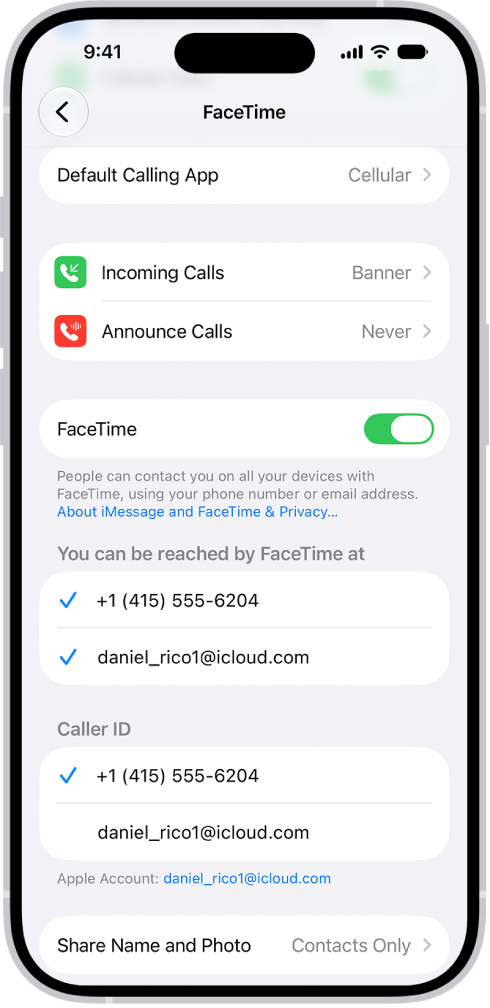
The FaceTime Settings screen, showing the Default Calling App option, the control to turn FaceTime on or off, and the Apple Account that is being used for FaceTime.

Set up FaceTime

Go to the Settings app , tap Apps, then tap FaceTime. Make sure FaceTime is turned on, and sign in to your Apple Account if you want to use it with FaceTime (so you can move the call between your devices, for example). You can choose a default calling option for audio calls below Default Calling App. If more than one contact method appears below “You can be reached by FaceTime at,” tap to select or deselect it.

The screen for sending a recorded video message to the person who missed your call. At the top left is the Cancel button. At the top right is the Save button, which saves your video message to Photos. In the middle of the screen is the Play button, which allows you to preview the video message before sending. At the bottom is the Send button and the Retake button.

Leave a video message

If someone doesn’t answer your FaceTime video call, you can leave a video message. Tap Record Video, then record your message. When you’re finished recording, tap the Stop button, then tap the Send button to send the message.

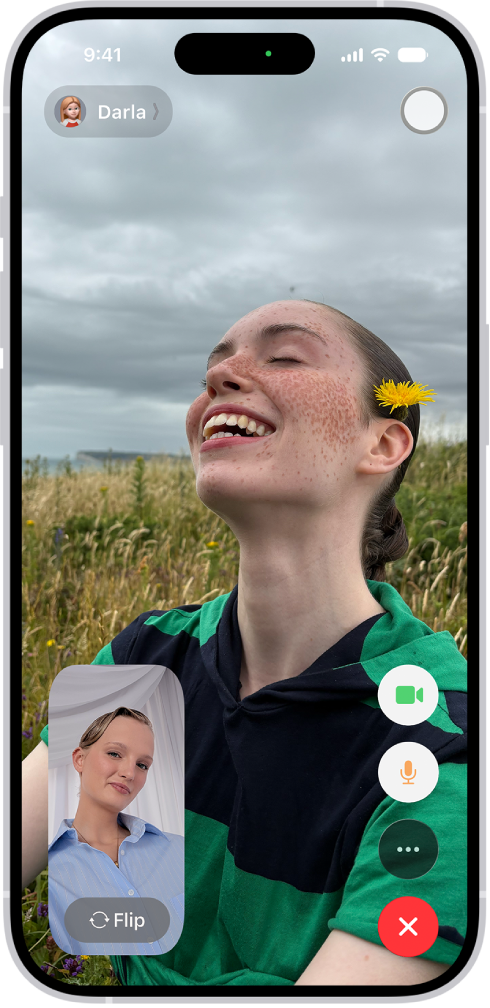
The FaceTime screen showing a call in progress. At the top of the screen is the name of the participant shown in the larger image. The other participant’s image appears in a small rectangle in the lower left, along with the Flip Camera button. The images of the other participants appear in tiles above it. Additional FaceTime controls are at the bottom right of the screen: Camera, Microphone, More, and End Call buttons.

Adjust your camera

While on a FaceTime call, tap your tile to switch cameras or apply Portrait mode. On supported models with iOS 27 or later, you can share both cameras when the other participant has iOS 27, iPadOS 27, macOS 27, or later. If you don’t see the controls, tap your screen.

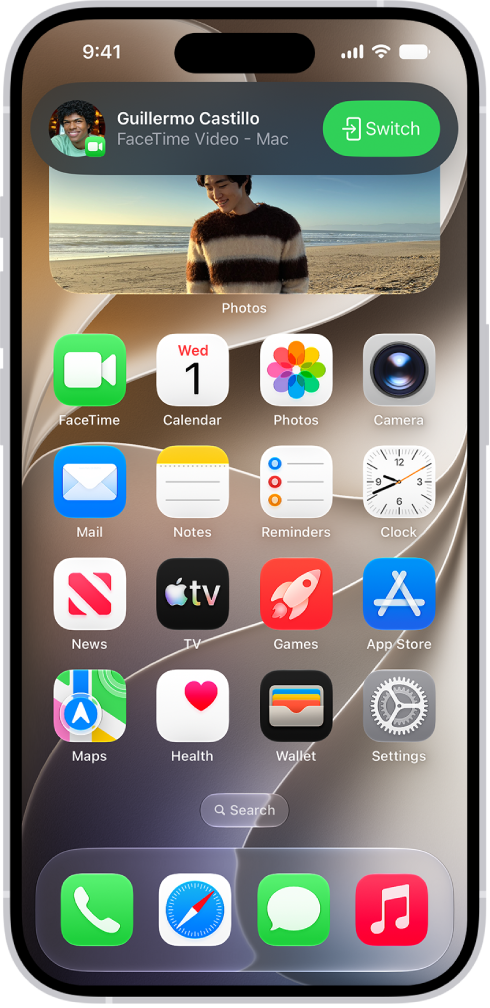
The iPhone Home Screen showing a FaceTime video call notification from an iPad at the top. Tap the Switch button to the right of the notification to move the call to your iPhone

Switch a FaceTime call to another device

When you’re signed in to your Apple Account on multiple devices, you can start a FaceTime call on one of them, then move it to your iPhone. You can also move your call from your iPhone to another device. On the device you want to switch to, tap the FaceTime video call button or the FaceTime audio call button at the top of the screen or the suggestion “Move call to this [device],” then tap Switch.

Note: Not all features and content are available in all countries or regions.

When you’re on a video call in the FaceTime app, you can take a FaceTime Live Photo to capture a moment of your conversation (not available in all countries or regions). The camera captures what happens just before and after you take the photo, including the audio, so you can see and hear it later just the way it happened.

You can take one during a one-to-one call or a Group FaceTime call, as long as FaceTime Live Photos is on.

Note: Check that FaceTime Live Photos is turned on in Settings > Apps > FaceTime.

  1. During a video call in the FaceTime app, tap the screen to show the FaceTime controls (if they aren’t visible).
  2. Do one of the following:
    • During a call with one other person: Tap the Take Live Photo button.
    • During a Group FaceTime call: Tap the tile of the person you want to take a picture of. Then tap the Take Live Photo button.

Once the photo’s taken, you both get a notification, and the Live Photo is saved in your Photos app.

Spatial Audio in the FaceTime app makes it sound like your friends are in the room with you. Their voices are spread out and sound like they’re coming from the direction in which each person is positioned on the screen.

You can adjust other audio settings during a FaceTime call. Voice Isolation prioritizes your voice and blocks out the ambient noise, while Wide Spectrum lets your voice and all the sounds around you be heard. And if your mic is muted, you’re notified when you start speaking.

Note: You can also use Spatial Audio with AirPods 3, AirPods Pro (all models), and AirPods Max.

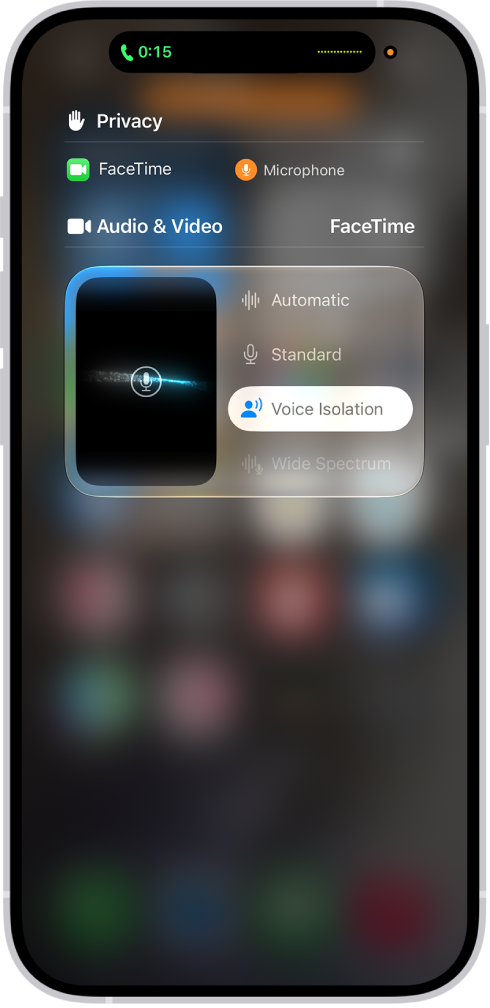
The Control Center settings for FaceTime calls, showing the audio settings Automatic, Standard, Voice Isolation, and Wide Spectrum.

Filter out background sounds

For your voice to be heard clearly in a FaceTime call with other sounds filtered out, turn on Voice Isolation. It prioritizes your voice and blocks out the ambient noise.

  1. During a call in the FaceTime app on your iPhone, open Control Center.
  2. Tap FaceTime and select Voice Isolation.

Include the sounds around you

Turn on Wide Spectrum when you want all the sounds around you, along with your voice, to be heard in a FaceTime call.

  1. During a call in the FaceTime app on your iPhone, open Control Center.
  2. Tap Mic Mode, then select Wide Spectrum.

Adjust audio automatically

  1. During a call in the FaceTime app on your iPhone, open Control Center.
  2. Tap FaceTime, then select Automatic.

Mute the mic

  1. During a call in the FaceTime app on your iPhone, tap the screen to show the FaceTime controls (if they aren’t visible).
  2. Tap the Microphone Switch button to turn off the sound.

Tap the Microphone Switch button to turn the mic back on.

When your sound is turned off, your mic detects whether you’re speaking, and you’re notified that your mic is muted and that you can tap the Microphone Switch button to unmute it.

In some countries and regions, you can record a FaceTime audio call when you’re talking to one other person, and view the transcript of the call in the Notes app. You can also use Hold Assist to get a notification when a live agent becomes available while you’re placed on hold.

You’ll both hear an audio notice when recording starts, and the recording lands in a Call Recordings folder in Notes. You can turn off Call Recording, too.

Use Hold Assist

Stuck on hold during a FaceTime audio call? Hold Assist can let you know when a live agent is available.

Note: Hold Assist isn’t available in all countries or regions.

Record an audio call

Before you begin, check the iOS and iPadOS Feature Availability website to see if call recording is available in your language and region, and make sure the other call participant is willing to be recorded.

  1. During a one-to-one audio call in the FaceTime app, tap the More button and then tap Call Recording.

    Both call participants hear a notice that the call is being recorded.

  2. To stop recording, tap the Stop button.

    If the Stop button doesn’t appear, tap the More button, then tap Stop next to Call Recording. Call recording also stops when you end the call.

    Call recordings are automatically saved to a Call Recordings folder in the Notes app.

Play a call recording

  1. Open the Notes app on your iPhone.
  2. Select a note in the Call Recordings folder and then tap the Play button.

View a call transcript

In select regions and languages, the Notes app shows the transcript of a recorded call. It might not be ready right away, though. You may see a message that the transcription is in progress.

Note: Before relying on a transcription, check its accuracy, since it might not be a perfect representation of the conversation.

  1. Open the Notes app on your iPhone.
  2. Select a note in the Call Recordings folder. Tap the Transcript button.

    Note: Spoken words in supported languages are automatically transcribed. If you don’t see Transcript, your iPhone doesn’t meet the minimum requirements or detect a supported language.

    In the transcript, the speaker of each statement is identified.

  3. While viewing the transcript, you can do any of the following:

    • Play the audio from a specific point: Select the text you want to hear.
    • Search the transcript: Tap the More button and then tap Find in Transcript.
    • Copy the transcript: Tap the More button and choose Add Transcript to Note or Copy Transcript.
    • Save or delete the audio recording: Tap the More button. Choose Save Audio to Files or Delete.

      Note: Deleting the audio recording also deletes the transcript.

    • View the waveform of the recording: Tap the Hide Transcript button.

With Apple Intelligence*, you can summarize a recorded FaceTime call.

Turn off Call Recording

Call Recording is turned on by default, but you can turn it off.

  1. Open the Settings app on your iPhone.
  2. Tap Apps, then tap Phone.
  3. Tap Audio Call Recording and turn off Audio Call Recording.

*Apple Intelligence is available with Siri and device language set to Chinese (Simplified), Chinese (Traditional), Danish, Dutch, English, French, German, Italian, Japanese, Korean, Norwegian, Portuguese, Spanish, Swedish, Turkish, or Vietnamese. Some features may not be available in all regions or languages. Some devices may not be available in all regions.

Siri AI is available in beta in iOS 27, iPadOS 27, macOS 27, watchOS 27, and visionOS 27 and requires an Apple Intelligence–enabled device set to a supported language. Available in English to start. Siri AI will not be initially available in the EU on iOS, iPadOS, and watchOS. Certain Apple Intelligence features that rely on server-side models are subject to daily usage limits, including but not limited to Siri AI, Intelligent Photo Editing Tools, Image Playground, and AFM 3 Cloud models in Shortcuts.

Daily limits may vary by feature, request complexity, system demand, system policies, and other factors. Expanded access to such features will be available for a fee in the future. Use of these features is subject to the Apple Intelligence Terms and Conditions.

In a FaceTime call, you can collaborate on a shared document. You can initiate collaboration in a FaceTime call that’s in progress, or you can initiate collaboration from the app where the document was created.

You can share the document through FaceTime, AirDrop, Mail, or Messages. Everyone who opens it can make changes and see changes made by others, and when someone makes a change, everyone who’s collaborating gets a notification.

  1. Start a conversation in the FaceTime app with the people you want to collaborate with.
  2. Open the app you want to use and then open a document.
  3. Do one of the following:
    • Tap Collaborate in the notification that appears.
    • Tap the Share button, choose how to share the document (FaceTime, AirDrop, Mail, or Messages), then tap Collaborate.
  4. Tap Start in the collaboration notification that appears at the top of your screen.

Participants get a notification that you’ve shared a document you want to collaborate on. When they tap Open in the notification, the document opens on their device.

Anyone who receives and opens the document can make changes and see the ones others make. Every change sends a notification to everyone who’s collaborating on the document.

You can control how FaceTime handles calls from unknown numbers and suspected spam. Screening gets more information from callers before the call comes through, and with Silence Unknown Callers, calls from unknown numbers are sent to voicemail. FaceTime Spam filters calls identified as spam, too.

Screen unknown FaceTime audio calls

To get more information from callers before the call comes through, you can screen FaceTime audio calls from unknown numbers.

Silence or filter FaceTime calls

  1. Start the Settings app on your iPhone.
  2. Tap Apps, then tap FaceTime.
  3. Do any of the following:
    • Silence unknown callers: Turn on Silence Unknown Callers. Calls from unknown numbers are silenced, sent to voicemail, and displayed on the Recents list. Incoming calls will continue to ring from people in your contacts, recent outgoing calls, and Siri Suggestions.
    • Filter calls from unknown numbers: Turn on Unknown Callers. Missed calls and voicemails from unknown numbers are moved to the Unknown Callers list in your call history (tap the Filter button to see the list).
    • Filter calls identified as spam: Turn on FaceTime Spam. Spam calls are silenced and moved to the Spam list in your call history (tap the Filter button to see the list).

With an internet connection, you can make and receive calls in the FaceTime app, though you may need to set up FaceTime first.

There’s more than one way to start. You can make a FaceTime call from the app or start one from a Messages conversation, and you can view information when starting a FaceTime call. And if someone doesn’t answer, you can record a video message or leave a voicemail.

You can also make FaceTime calls over a cellular data connection. (Calling and data rates may apply.) To turn this feature off, go to the Settings app , tap Cellular, then turn off FaceTime below Cellular Data.

Note: FaceTime audio calls and Group FaceTime calls aren’t available in all countries or regions.

Make a FaceTime call
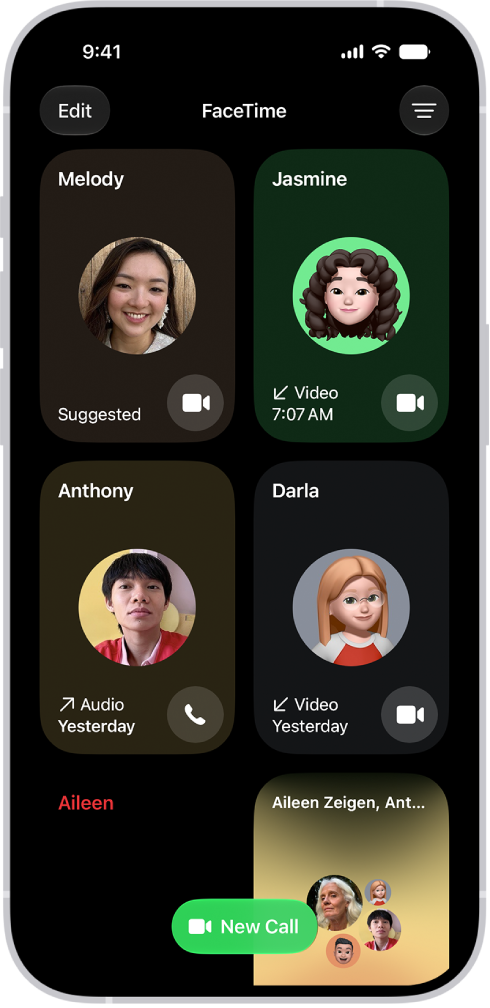
The screen for making a FaceTime call. The New Call button is at the bottom of the screen.

  1. Start the FaceTime app on your iPhone.
  2. Tap New Call.
  3. Enter the name, number, or email of the person you want to call. Alternatively, you can tap the Add Contact button to open Contacts and add people from there, or tap a suggested contact.
  4. Tap FaceTime to make a video call or the Audio Call button to make an audio call.

Quick tip: In some countries and regions, you can record a one-to-one FaceTime audio call and view the call transcript in Notes.

Siri: Ask Siri something like, “Call Eliza’s mobile.”

Quick tip: A FaceTime video call shows more when you rotate iPhone to landscape orientation.

View information when starting a FaceTime call

With Apple Intelligence, when you start a FaceTime call, a Call Context card with related information may appear. This can include an upcoming or recent birthday during a call to a contact, or it can include tickets, orders, or confirmation numbers during a call to certain businesses. Tap the card to view the information in the related app, such as Mail, Messages, or Wallet.

Note: Apple Intelligence on iOS 27 or later is available on an Apple Intelligence-enabled iPhone 15 Pro, iPhone 15 Pro Max, or iPhone 16 model or later. Apple Intelligence is not available in all languages or regions. Usage limits may apply.

Record a video message

If someone doesn’t answer your FaceTime video call, record a video message to get across exactly what you want to say.

  1. Tap Record Video, wait for the countdown (from 5 to 1). Record your message.
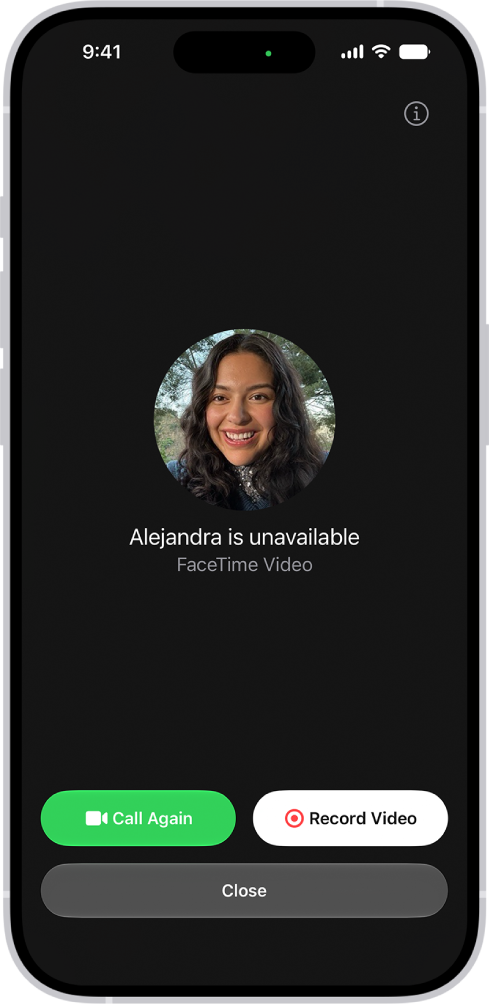
    The screen for recording a video message when the person you’re calling is unavailable. It includes a Call Again button and a Record Video button you can tap to record a video message.

  2. Tap the Stop button to stop recording.
  3. Tap the Send button to send your recorded message, or tap Retake to rerecord the message. You can also tap Save to save the video message to Photos.

The recipient is notified after you send your video message.
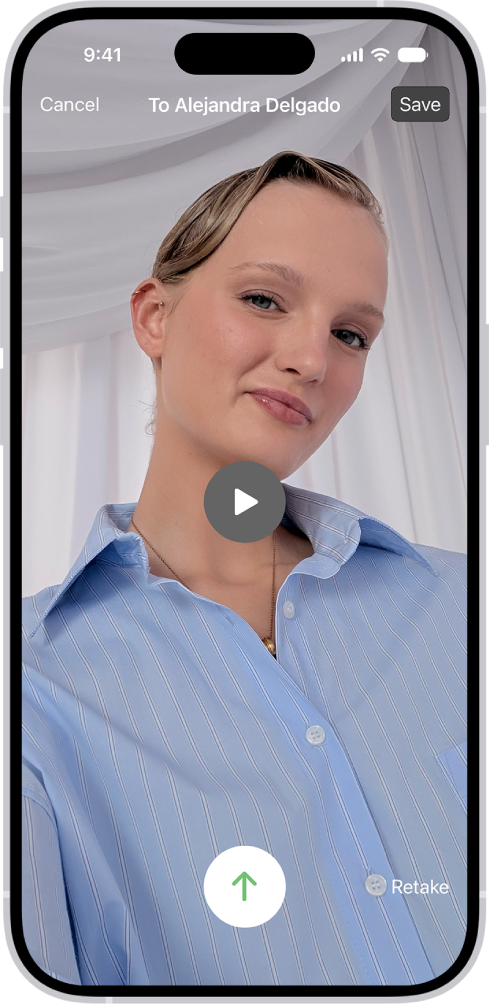
The screen for sending a recorded video message to the person who missed your call. At the top left is the Cancel button. At the top right is the Save button, which saves your video message to Photos. In the middle of the screen is the Play button, which allows you to preview the video message before sending. At the bottom is the Send button and the Retake button.

Note: Video messages only come from saved contacts, people you’ve called, and people suggested by Siri.

Note: Only saved contacts, people you’ve called, and people suggested by Siri can send you video messages.

Leave a voicemail

If someone doesn’t answer your FaceTime audio call, and the person you’re calling has Live Voicemail turned on in Settings > Apps > Phone, you’re prompted to leave a voicemail.

Leave a voicemail, and your message is transcribed on their screen as you speak. That lets them know what you’re calling about, and it gives them a chance to pick up your call.

Call again

To call someone back in FaceTime, do either of the following:

  • Tap Call Again on the Record Video screen.
  • In your call history, tap the name or number of the person (or group) you want to call again, then tap the Call or Video button.

Start a FaceTime call from a Messages conversation

While chatting with someone in an iMessage conversation, you can start a FaceTime call with them.

  1. Tap the FaceTime button at the top right of the iMessage conversation.
  2. Do any of the following:
    • Tap FaceTime Audio.
    • Tap FaceTime Video.

Important: If you remove the FaceTime app from your iPhone, or if you removed FaceTime in an earlier version of iOS, you won’t be able to make or receive FaceTime calls or use SharePlay on your iPhone unless you redownload the app. Cellular calls won’t be relayed from your iPhone to your iPad, Mac, or Apple Watch until FaceTime is reinstalled. Settings and contact cards won’t show FaceTime options. However, if your Apple Watch has its own SIM, it can still make calls through your service provider.

*Apple Intelligence is available with Siri and device language set to Chinese (Simplified), Chinese (Traditional), Danish, Dutch, English, French, German, Italian, Japanese, Korean, Norwegian, Portuguese, Spanish, Swedish, Turkish, or Vietnamese. Some features may not be available in all regions or languages. Some devices may not be available in all regions.

Siri AI is available in beta in iOS 27, iPadOS 27, macOS 27, watchOS 27, and visionOS 27 and requires an Apple Intelligence–enabled device set to a supported language. Available in English to start. Siri AI will not be initially available in the EU on iOS, iPadOS, and watchOS. Certain Apple Intelligence features that rely on server-side models are subject to daily usage limits, including but not limited to Siri AI, Intelligent Photo Editing Tools, Image Playground, and AFM 3 Cloud models in Shortcuts.

Daily limits may vary by feature, request complexity, system demand, system policies, and other factors. Expanded access to such features will be available for a fee in the future. Use of these features is subject to the Apple Intelligence Terms and Conditions.


In the FaceTime app, you can answer video and audio calls, decline calls, view video messages or listen to voicemails, and delete calls from your call history. If you’re on a FaceTime audio call and another one comes in, you can put the current call on hold, and Siri can announce incoming calls, too.

Note: Live Voicemail isn’t available in all languages or regions.

Answer a FaceTime call

As a FaceTime call comes in, you can do any of the following:

  • Accept the call: To answer a video call, tap the Accept button, then tap the Join button. To answer an audio call, tap the Accept button.

    If a slider appears, you can drag it right to answer.

  • Decline the call: Tap Decline or the End button.

    For FaceTime video calls, tap Message to send a text message or tap Remind Me to set a reminder to call back. For FaceTime audio calls, tap Message to send a text message or tap Voicemail to send the caller to voicemail. (You may need to tap the incoming call banner to see these options.)

  • Accept an incoming call and place the current call on hold: Tap the Accept button.

    Note: This option is only available if you’re on a FaceTime audio call and you receive another incoming FaceTime audio call. Otherwise, accepting an incoming call will end the current call.

View information when receiving a FaceTime call

When you receive a FaceTime call, a Call Context card with related information may appear. This can include an upcoming or recent birthday during a call to a contact, or it can include tickets, orders, or confirmation numbers during a call to certain businesses. Tap the card to view the information in the related app, such as Mail, Messages, or Wallet.

Note: Apple Intelligence on iOS 27 or later is available on an Apple Intelligence-enabled iPhone 15 Pro, iPhone 15 Pro Max, or iPhone 16 model or later. Apple Intelligence is not available in all languages or regions. Usage limits may apply.*

View a video message or listen to a voicemail

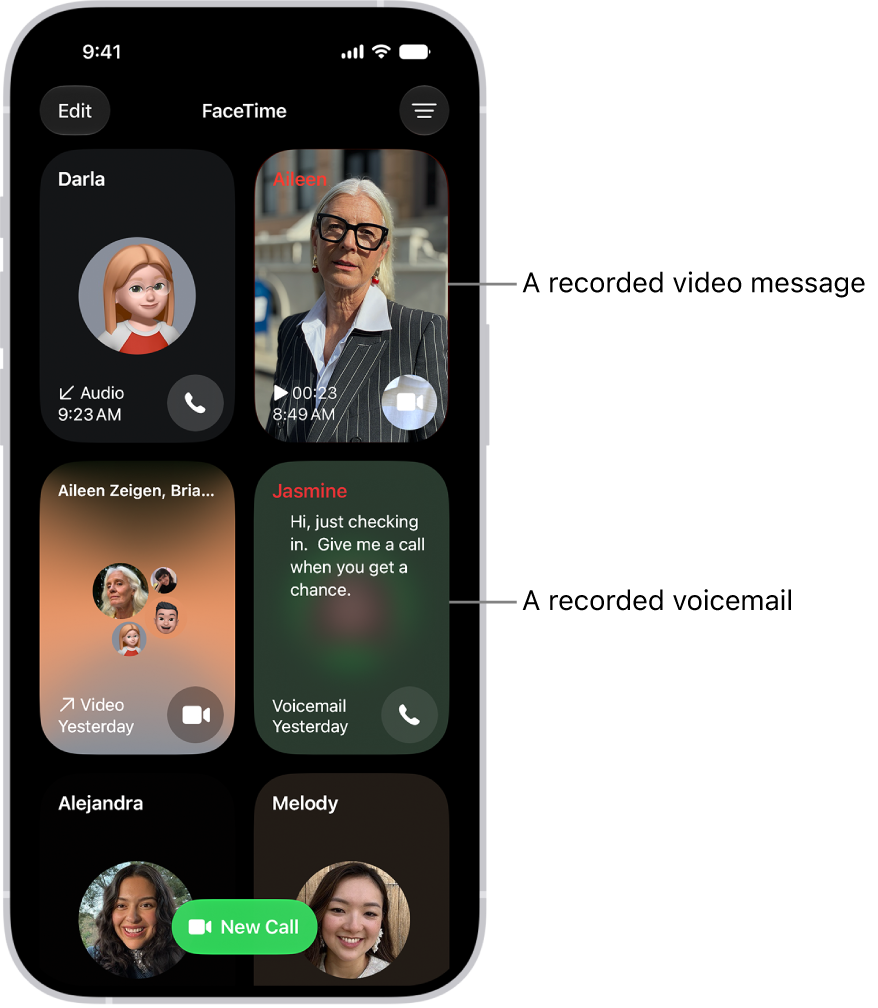
If you miss an incoming video call and the caller leaves a video message, you receive a notification about the video message. A thumbnail image from the video also appears in your FaceTime call history. You can tap the notification or image to view the video message.

Note: You’ll only get video messages from saved contacts, people you’ve called, and people Siri suggests.

If you miss an incoming audio call, the caller can leave a voicemail if you have Live Voicemail turned on in Settings > Apps > Phone. You can see a real-time transcript of the voicemail and pick up the call as the caller is leaving the message. To stop the incoming voicemail without answering or blocking the call, tap Stop.

Quick tip: Tap a contact’s name in the call history and tap the Voicemails button or the Videos button to see all their voicemails or video messages at once.

The FaceTime call history, showing a suggested contact, a recorded video message, a voicemail, and a Group FaceTime video call.

Delete a call from your call history

  1. Start the FaceTime app on your iPhone.
  2. Touch and hold the call in your call history. Tap Delete.

*Apple Intelligence is available with Siri and device language set to Chinese (Simplified), Chinese (Traditional), Danish, Dutch, English, French, German, Italian, Japanese, Korean, Norwegian, Portuguese, Spanish, Swedish, Turkish, or Vietnamese. Some features may not be available in all regions or languages. Some devices may not be available in all regions.

Siri AI is available in beta in iOS 27, iPadOS 27, macOS 27, watchOS 27, and visionOS 27 and requires an Apple Intelligence–enabled device set to a supported language. Available in English to start. Siri AI will not be initially available in the EU on iOS, iPadOS, and watchOS. Certain Apple Intelligence features that rely on server-side models are subject to daily usage limits, including but not limited to Siri AI, Intelligent Photo Editing Tools, Image Playground, and AFM 3 Cloud models in Shortcuts.

Daily limits may vary by feature, request complexity, system demand, system policies, and other factors. Expanded access to such features will be available for a fee in the future. Use of these features is subject to the Apple Intelligence Terms and Conditions.