Got a tip for us?

FaceTime

You can choose a default calling option for audio calls on your iPhone. You can also choose whether to use your phone number or your Apple Account to make and receive FaceTime calls.

With your Apple Account, you choose whether people can reach you by email address, phone number, or both. Or you can skip signing in and use FaceTime with just your phone number.

Here’s how to set up FaceTime on iPhone.

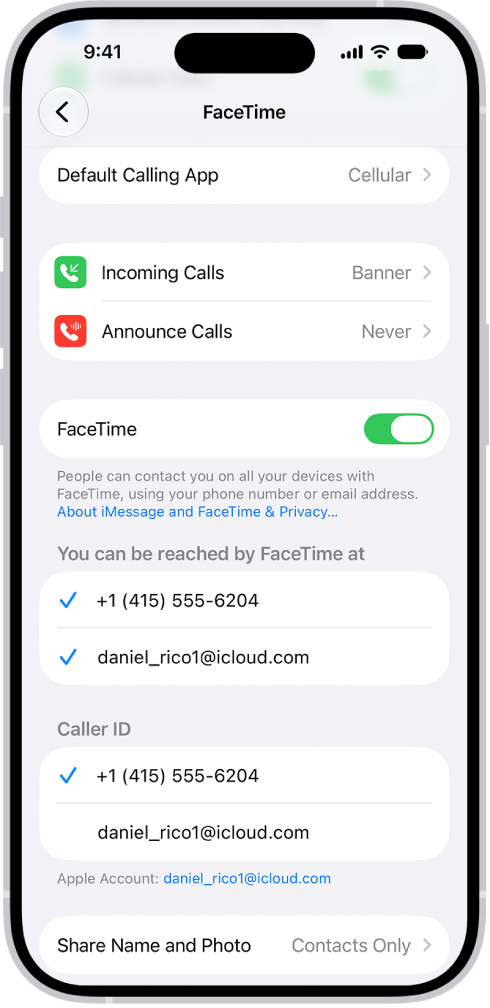
The FaceTime Settings screen, showing the Default Calling App option, the control to turn FaceTime on or off, and the phone number and email address where you can be reached.

Set up FaceTime

  1. Open the Settings app on your iPhone.
  2. Tap Apps, then tap FaceTime.
  3. If FaceTime is turned off, turn it on.
  4. Choose how you want to use FaceTime:

    • With your Apple Account: If you see a sign-in screen, sign in to your Apple Account and enter your password.

      Below “You can be reached by FaceTime at,” choose whether people can reach you through your email address, your phone number, or both. Below Caller ID, choose whether your email address or phone number appears on Caller ID for outgoing calls.

    • With just your phone number: You can skip signing in and use FaceTime with only your phone number as your contact method.
  5. Optionally, tap Default Calling App and then choose a default calling option for audio calls.

To stop using FaceTime, go to the Settings app , tap Apps, then tap FaceTime. Turn off FaceTime (or if you’re signed in to your Apple Account, tap your Apple Account, then tap Sign Out).

In the FaceTime app, you can talk with up to 32 participants in a Group FaceTime call.

You can start one in the FaceTime app or from a group Messages conversation, and add another person to a call. Each participant appears in a tile on the screen, and when a participant speaks, verbally or by using sign language, that tile becomes highlighted or more prominent. You can also join a Group FaceTime call, or leave one at any time.

Note: Group FaceTime calls aren’t available in all countries or regions.

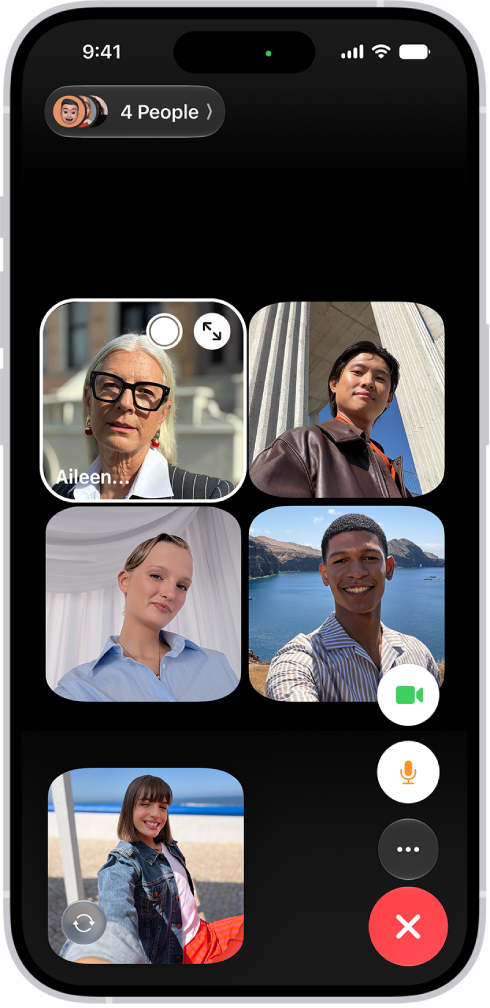
A Group FaceTime call showing five participants in separate tiles.

Start a Group FaceTime call

  1. Open the FaceTime app on your iPhone.
  2. Tap New Call.
  3. In the field near the top of the screen, enter the names, numbers, or emails of the people you want to call.

    You can also tap the Add Contact button to open Contacts and add people from there, or tap suggested contacts.

  4. Tap FaceTime to make a video call or tap the Call button to make a FaceTime audio call.

Each participant appears in a tile on the screen. When a participant speaks (verbally or by using sign language) or you tap the tile, that tile becomes highlighted or more prominent. Tiles that can’t fit on the screen appear in a row at the bottom. To find a participant you don’t see, swipe through the row. The participant’s initials may appear in the tile if an image isn’t available.

To prevent the tile of the person speaking or signing from becoming more prominent during a Group FaceTime call, go to the Settings app , tap Apps, tap FaceTime, then turn off Speaking below Automatic Prominence.

Note: For sign language detection, the presenter needs a supported model, and everyone on the call, presenter included, needs iOS 14, iPadOS 14, macOS 11, or later.

Start a Group FaceTime call from a group Messages conversation

Start a Group FaceTime call from a group iMessage conversation to include all the people you’re chatting with in Messages.

  1. Tap the FaceTime button at the top right of the iMessage conversation.
  2. Tap FaceTime Audio or FaceTime Video.

Add another person to a call

At any time during a FaceTime call, any participant can add another person.

  1. Do one of the following:
    • During a one-on-one FaceTime call: Tap the screen to show the FaceTime controls (if they aren’t visible) and tap the More button. Then tap Add People.
    • During a Group FaceTime call: Tap the people count at the top of the screen and tap Add People.
  2. Enter the name, number, or email of the person you want to add, or tap the Add Contact button to add someone from Contacts. You can add multiple people.
  3. Tap Add People.

Join a Group FaceTime call

If someone invites you to join a Group FaceTime call, you get a notification of the incoming call, and you can join or decline.

Leave a Group FaceTime call

To leave a group call at any time, tap the End button in the FaceTime controls, or tap Leave while viewing the list of participants.

The call stays active while one or more participants remain.

You can start a FaceTime call on your iPhone and move the call to another device where you’re signed in to the same Apple Account. With Continuity Camera and Mic, you can also use iPhone as a webcam and microphone for FaceTime calls on your Mac or Apple TV 4K.

During a FaceTime call, the call can move from your iPhone to your iPad, your Mac, or Apple TV 4K. Your selected contact information for the call must match on both devices, though.

Note: The device you want to hand off to needs the same selected contact information in its FaceTime settings as your call uses, which is shown in Settings > Apps > FaceTime.

Hand off a FaceTime call from iPhone to iPad or Mac

You can hand off a FaceTime call on your iPhone to your iPad or Mac while you’re on it. This requires iOS 16, iPadOS 16, macOS 13, or later, and you also need to be signed in to the same Apple Account on both devices.

  1. During a call in the FaceTime app on your iPhone, do one of the following on the other device:
    • Tap the notification with the suggestion “Move call to this [device].”
    • Tap the FaceTime video call button or the Call button at the top of the screen.
  2. Tap Switch or Join and tap Switch or Join to confirm.

The call moves to the new device. On the original device, a banner appears confirming that the call was continued elsewhere, along with a Switch button, which you can tap if you want to bring the call back.

Hand off a FaceTime call from your iPhone to Apple TV 4K

If both devices are signed in to the same Apple Account, you can start or receive a FaceTime call on your iPhone, then hand off the call to Apple TV 4K (2nd generation or later) and its larger screen. After you hand off the call, Apple TV 4K takes it over, and your iPhone serves as a webcam and microphone for Apple TV 4K until the call ends. To use Continuity Camera with Apple TV 4K, you need iPhone XR, iPhone XS, or later, and Apple TV 4K (2nd generation or later).

In FaceTime, you can create a link to a FaceTime call and send the link to a friend or a group (using Mail or Messages). They can use the link to join or start a call, and you can even put a FaceTime link in a Calendar event to schedule a video meeting.

You can even invite people who don’t have an Apple device, as long as they’re using the latest version of Chrome or Edge, and they don’t need to log in.

  1. Open the FaceTime app on your iPhone.
  2. Tap New Call and then tap the Create Link button.
  3. Choose an option for sending the link (for example, Messages or Mail).

To schedule a remote video meeting in Calendar, insert a FaceTime link as the location of the meeting.

Note: People without an Apple device can join you in a FaceTime call, too, as long as their browser supports WebRTC, like the latest version of Google Chrome or Microsoft Edge. They don’t need to log in, and they can join one-to-one and Group FaceTime calls right from their browser. To send video, the browser needs H.264 video encoding support.

In the FaceTime app, on a device that meets the minimum system requirements, you can share your screen to bring apps, webpages, and more into the conversation.

You can also ask someone to share their screen with you.

Here’s how to share your screen in a FaceTime call on iPhone.

Note: FaceTime, FaceTime audio, Group FaceTime, some FaceTime features, and other Apple features or services may not be available in all countries or regions.

Share your screen

  1. During a call in the FaceTime app on your iPhone, tap the screen to show the FaceTime controls (if they aren’t visible). Tap the More button.
  2. Tap Screen Sharing, then tap Share My Screen.

Screen sharing begins after a countdown from 3 to 1 at the bottom of the screen.

Quick tip: On a one-to-one FaceTime call, the other participant can tap, draw, or write on your screen from an iPhone or iPad to call your attention to a specific area, and whatever they add disappears after a few seconds. For more help, allow the other participant to control your screen.

To stop sharing your screen, tap the More button, then tap Stop next to Screen Sharing. Ending a FaceTime call also ends screen sharing.

Ask someone to share their screen

  1. During a call in the FaceTime app on your iPhone, tap the screen to show the FaceTime controls (if they aren’t visible). Tap the More button.
  2. Tap Screen Sharing and then tap Ask to Share Screen.

During a one-to-one FaceTime video or audio call, you can remotely control someone else’s screen or allow a trusted person to remotely control yours. The person controlling the screen can help with an issue or demonstrate how to use an app.

You stay in charge, too. You can accept or decline a remote control request, and stop remote control at any time.

Here’s how to request or give remote control in a FaceTime call on iPhone.

Note: Remote control isn’t currently available in the European Union.

Request remote control

You can ask to control an iPhone screen that’s being shared with you.

Note: You and the other participant both need iOS 18 or later.

  1. Start the FaceTime app on your iPhone.
  2. Tap the window showing the shared screen, then tap the Remote Control button.

If the other participant accepts your request, you can tap or swipe to interact with the shared screen. You can also use the onscreen keyboard within apps.

Accept a remote control request

To remotely control your screen, a participant needs to be in your contacts and on an iPhone or iPad with iOS 18, iPadOS 18, or later. Additional restrictions may apply to remote control requests to help protect your data and privacy.

When you receive a remote control request notification in the FaceTime app on your iPhone, tap Allow.

WARNING: The person remotely controlling the screen can perform tasks on your iPhone such as opening and closing apps, changing settings, deleting items, or sending messages. Only approve remote control requests from people you trust.

Tasks like erasing your device, making payments, or changing your Apple Account or Face ID settings may be off-limits to the person remotely controlling the screen. Face ID and Touch ID don’t work during a remote control session.

You can still tap, swipe, or type while your screen is remotely controlled—your actions take priority over remote actions.

Decline a remote control request

When you receive a remote control request notification in the FaceTime app on your iPhone, tap Don’t Allow. Screen sharing continues, and the other participant can still tap, draw, or write on your screen to highlight important areas.

Stop remote control

At any time, you can end remote control in one of these ways:

  • If you’re allowing someone to control your screen: Tap Stop at the bottom of the screen sharing window.
  • If you’re controlling someone’s screen: Tap the Remote Control button at the bottom of the screen sharing window.

Ending a FaceTime call ends remote control and screen sharing, too.

  • If FaceTime is not working after iOS 26 update, a software bug or incorrect settings could be the culprit.
  • Before troubleshooting iOS 26 FaceTime issue, you should check for certain factors, such as whether or not there’s a FaceTime outage.
  • Otherwise, there are several ways you can troubleshoot to get the app back up and running.

In iOS 26, FaceTime supports Live Translation, displaying captions if you’re talking to someone who speaks another language. In addition, FaceTime has new screening features for unknown numbers.

If FaceTime is not working on your iPhone after iOS 26 update, don’t worry, there are a lot of things you can do to try and fix it. You just have to know where to start.

Here’s a breakdown of why your FaceTime is not working on iOS 26, and troubleshooting tips to try.

How to fix FaceTime on iOS 26

Make sure you have a working internet connection

The first thing you should do if FaceTime is not working after iOS 26 update is to make sure that your iPhone is connected to Wi-Fi or your wireless carrier’s cellular data network, and that you can access the internet.

If you are trying to use FaceTime over Wi-Fi, go into your settings and turn Wi-Fi off and then back on again. Learn how to fix Wi-Fi problem on iOS 26.

If you’re trying to use FaceTime over cellular, make sure that cellular data is on. Go to Settings and tap Cellular or tap Mobile Data, then turn on Cellular Data. Then scroll down to the Cellular Data section, and make sure FaceTime is enabled for cellular use in the list of apps. Learn how to fix cellular data problems on iOS 26.

You should also make sure that you are using a fast internet connection to avoid sound quality issues with FaceTime. If your cellular connection or Wi-Fi network runs slowly, or other people stream audio or video on the same Wi-Fi network, you might have these issues:

  • Connection alerts or unable to connect
  • Choppy video calls
  • Black screen
  • Dropped calls

Make sure that both you and the person that you FaceTime with use a fast Wi-Fi or cellular connection.

Update your iPhone’s software

If you are experiencing issues with receiving FaceTime calls, make sure that your iPhone is running the latest version of iOS 26. Go to Settings > General > Software Update, then install any pending updates.

Check that FaceTime is turned on

It’s possible FaceTime got turned off during iOS 26 update. Go into your iPhone’s Settings app, tap Apps, tap FaceTime, and make sure that the toggle next to FaceTime is enabled.

If FaceTime says ”Waiting for activation,” turn FaceTime off, restart your phone, then turn FaceTime back on. It might take up to 24 hours for your carrier to verify your phone number with Apple. Contact your carrier to make sure that you can send and receive SMS messages and wait up to 24 hours after you try the troubleshooting steps above.

If you aren’t seeing FaceTime at all, go from the Settings app to Screen Time, and then Content & Privacy Restrictions, followed by Allowed Apps. Then make sure both the camera and FaceTime are allowed by that device.

Make sure you’re signed in

To use FaceTime on your iPhone, you need to be signed in with your Apple Account email address or phone number. You can check this by going to Settings > Apps > FaceTime and making sure that below You Can Be Reached By FaceTime At, your phone number or Apple account email address are selected.

Make sure your date and time settings are correct

We recommend checking your iPhone’s Date & Time Settings. FaceTime won’t work on your iPhone if the date and time are incorrect, especially if your device thinks it is in the future.

Go to Settings > General > Date & Time. Then, turn on the switch next to Set Automatically if it’s not on already.

Check if FaceTime is down

There’s a chance that FaceTime is down on Apple’s end. Check Apple’s System Status page to learn whether FaceTime is experiencing a service outage.

Figure out whether the problem is on your end or someone else’s

Keep in mind that FaceTime problems can be caused by a problem with your iPhone — or with the person you’re trying to call.

Does FaceTime not work with anyone or just one person? If necessary, call several people and see whether the problem is limited to one person or to everyone.

Here’s a helpful rule of thumb: If FaceTime is not working with anyone, it’s probably a problem with your iPhone. If it doesn’t work with just one person, it’s probably a problem on the other person’s iPhone, iPad, or Mac.

Check whether a FaceTime feature is available

Even if both you and the person you’re trying to contact have a FaceTime account, that may not be all of the story. FaceTime and FaceTime audio calling are not available for all countries, regions, or carriers.

You can checkApple’s website to learn which countries and carriers do and do not support FaceTime. Unfortunately, If you’re trying to use FaceTime in an unsupported area, there’s nothing you can do to make it work.

Most of us use FaceTime on our iPhones every day, but are you getting the most out of it? Here are 14 FaceTime tips and tricks to help turbocharge video and audio calls on your iPhone.

FaceTime is Apple’s video and audio chatting platform that lets iPhone users communicate with one another through the standard FaceTime video protocol or using the FaceTime audio feature. Most of us probably use FaceTime on our iPhones daily. But are you getting the most out of the Apple’s video and audio chatting application?

To make sure you are, here are 14 tips and tricks to help you use FaceTime on your iPhone more effectively.

14 Tips and Tricks to Use FaceTime on Your iPhone More Effectively

1. Watch movies and TV shows together in FaceTime on your iPhone

You can easily watch movies with your friends on FaceTime using SharePlay. Apple introduced this FaceTime feature alongside iOS 15 and macOS Monterey.

The other people in the FaceTime call must also be Apple device users for you to use this FaceTime trick on your iPhone. And because of Digital Rights Management (DRM) restrictions, they must also be subscribed to the streaming service you use while sharing your screen.

  1. Open the FaceTime app on your iPhone and start a FaceTime call.
  2. Swipe up from the bottom edge of the FaceTime call, then open a video streaming app that supports SharePlay.
  3. Choose a movie or TV show, and press play. If prompted, tap SharePlay.

Playback controls are shared by everyone watching, so anyone can play, pause, rewind, or fast forward. Changing settings like closed captioning and volume will affect your device only.

You can also start a SharePlay session from supported streaming apps.

  1. Open your streaming app.
  2. Find a movie or TV show that you want to share. Tap the Menu button or the Share button .
  3. Tap SharePlay, then enter the contacts that you want to call.
  4. Tap FaceTime to start FaceTime video. Or tap the Audio button to start FaceTime audio.
  5. Start the video.

Playback controls are shared by everyone watching, so anyone can play, pause, rewind, or fast forward. Changing settings like closed captioning and volume will affect your device only.

2. Blur Your Messy Background With Portrait Mode in FaceTime

In the middle of an important meeting and don’t want your coworkers to see how messy your room is? Don’t worry because you can blur your background with a FaceTime trick on your iPhone.

Portrait mode is a video effect available on devices with the A12 Bionic chip and later. So it will onlywork on:

  • iPhone 14 series
  • iPhone 13 series
  • iPhone 12 series
  • iPhone 11 series
  • iPhone SE 2020
  • iPhone XS series
  • iPhone XR

This means, if you have iPhone X, iPhone 8, or earlier, you won’t be able to use blurred background on video calls.

Here’s how to blur the background in FaceTime video calls on iPhone

  1. Launch the FaceTime app on your iPhone and start a video call with any of your contacts.
  2. Tap your video view at the bottom right corner to expand it and reveal options.
  3. Select the Portrait Mode icon located at the top left corner to blur the background in your FaceTime video call.

3. Add filters, text and more to your FaceTime calls

Apart from Portrait Mode, you can apply other filters and features to a video in FaceTime calls on your iPhone. Here’s how.

  1. Start a FaceTime call on your iPhone.
  2. Tap the box where your video appears. This will enlarge and center your video box.
  3. Tap the star icon located at the bottom left corner of your screen, and a new menu will show up along the bottom of your screen.
  4. In the new menu you will see options to add your Memoji, filters, text and more to your FaceTime call. Tap into each option to explore and get your video to look the way you want.
  5. Tap the video around your video box to close the menu. Your filters and effects will be applied.

To get rid of the filters and effects, follow the first three steps above. Once you hit the star icon, the filters and effects will be removed.

4. Create FaceTime Link on iPhone

This FaceTime trick allows iPhone users to create meeting links and share them with Apple, Android, and Windows users. The only requirement for Android or Windows users is that they must be using the latest version of Google Chrome or Microsoft Edge.

When you create a new FaceTime link, you’ll have to allow people to join your meeting, but any Apple device user who’s been in the meeting for 30 seconds will also be able to let people in.

To create a FaceTime meeting link on your iPhone, follow the steps below:

  1. Open the FaceTime app on your iPhone.
  2. Tap Create Link near the top of the screen.
  3. Choose an option for sending the link (Mail, Messages, and so on.

5. Switch Between The Front and The Rear camera in FaceTime Call

During a call in the FaceTime app , you can use a quick FaceTime trick to switch between cameras. Instead of turning your wrist around to try and show another angle to the person on the video chat, try flipping the video right from within your phone.

Most users might already know about this FaceTime trick; however, if you haven’t yet figured out how to do this, then we’ve got you covered. Here’s how:

  1. When you’re on a FaceTime call, tap your tile, then tap the Flip to Back Camera button.
  2. To switch back to the front camera, tap the Flip to Back Camera button again.

6. Turn off your camera in FaceTime Call

If you FaceTime a lot, chances are you’ve ended up in situations where you’re not quite ready for a video call. In that case, you may want to use this cool FaceTime trick to turn off your camera during the call until you’re ready to show your face. Or maybe you just need some temporary privacy while on a call.

Here’s how to turn your camera on or off during FaceTime call on your iPhone:

  1. When you’re on a FaceTime call, tap the screen to make the controls appear.
  2. Tap the Camera On button. (Tap it again to turn the camera back on.)

7. Remove Background Noise During a FaceTime Call on iPhone

Trying to make a FaceTime call in a noisy environment? Whether it’s a loud cafe or busy traffic, you can use a FaceTime trick to filter background noise on your iPhone.

Most FaceTime calls we make using an iPhone are from home, the office, or an outside environment with several kinds of background noise. You might be surrounded by the sound of a fan, air conditioning, cars, kids, appliances, pets, and so on. Thankfully, this hidden FaceTime trick will let you filter out or reduce ambient noise, thus emphasizing your voice.

Please note: only iPhones with an A12 Bionic processor and later, running iOS 15 or later, support Voice Isolation and Wide Spectrum modes. This includes:

  • iPhone 14, 14 Plus, 14 Pro, and 14 Pro Max
  • iPhone 13, 13 mini, 13 Pro, and 13 Pro Max.
  • iPhone 12, 12 mini, 12 Pro, and 12 Pro Max
  • iPhone SE (2020)
  • iPhone 11, 11 Pro, and 11 Pro Max
  • iPhone XS and XS Max
  • iPhone XR

Here’s how to use Voice Isolation on FaceTime calls to get cleaner audio with unnecessary sounds filtered:

  1. During a FaceTime call, open Control Center. . To do this, on iPhone with Face ID, swipe down from the top-right of the screen. And on an iPhone with a Home button, swipe up from the bottom of the screen.
  2. Tap Mic Mode.
  3. Select Voice Isolation to minimize or block out the ambient noise. Tap anywhere in an empty area to return to the FaceTime screen.

8. Include The Sounds Around You in FaceTime Call

When you want your voice and all the sounds around you to be heard in a FaceTime call, you can turn on Wide Spectrum mode (available on the above mentioned iPhone models.

  1. During a FaceTime call, launch Control Center. On iPhone with Face ID, swipe down from the upper-right of the screen. And on an iPhone with a Home button, swipe up from the bottom of the screen.
  2. Tap Mic Mode.
  3. Select Wide Spectrum to keep or enhance the ambient noise. Tap anywhere in an empty area to return to the FaceTime screen.

9. Turn Off The Sound During FaceTime Call

There are a bunch of reasons why you might want to mute the mic during a FaceTime video call or FaceTime Audio call. Maybe you need to speak to another person you’re with and don’t want the person you’re calling to hear. Or you might need to briefly turn off the sound for the call, so it doesn’t disturb people around you.

When your sound is turned off, your mic detects whether you’re speaking, and you’re notified that your mic is muted and that you can tap the Mute On button to unmute it.

  1. When you’re on a FaceTime call, tap the screen to show the FaceTime controls (if they aren’t visible).
  2. Tap the Mute Off button to turn the sound off.
  3. To unmute yourself, tap the button again.

There is no direct way to mute the person you’re calling through the FaceTime app. However, there are some workarounds that can achieve the same effect.

  1. If you’re making a FaceTime call on your iPhone, you can stop the other person’s sound by plugging your headphones into your iPhone.
  2. You may still be able to hear the call coming faintly from your headphones, but the volume will be very low.
  3. When you want the call to continue as normal, simply unplug the headphones from your iPhone.

10. Share Your Screen in FaceTime Call on iPhone

You can share your screen with others in a FaceTime call to look at photos, browse the web, or help each other out.

Please Note: In order to share a screen, everyone on the call needs to be running iOS or iPadOS 15.1 or later or a Mac running MacOS Monterey 12.1 or later. Please also note, you can’t share any content that requires a subscription or purchase.

  1. Launch the FaceTime app on your iPhone and start a FaceTime call.
  2. When you are ready to share your screen, tap the Share Content button at the top of the screen.
  3. In the pop-up, tap Share My Screen. . You’ll see a short countdown and then your screen will be shared.
  4. You can now display any app or content you like. Everyone will now be able to see what you see on your iPhone.

11. Hand off a FaceTime Call to Another Device

You know those times when you answer a FaceTime call outdoors and then reach home and feel like switching to your Mac or iPad? With this FaceTime trick, you don’t need to hang up and start a new call from the other device. You can simply hand off the call to your other device without interrupting the call.

When you hand off a call, your connected Bluetooth headset transitions to the new device simultaneously.

  • Make sure your iPhone/iPad/Mac devices are paired to the same Apple ID account and running iOS 16, iPadOS 16, macOS Ventura, or later.
  • Ensure that Handoff is enabled in the General Settings of your devices (it’s on by default).
  • Check your Bluetooth and Wi-Fi toggles and confirm that they’re enabled on all of your devices.

Now, follow the steps below:

  1. Make sure your other device is turned on, then tap the screen that’s showing the call.
  2. A notification of the call appears on the Lock Screen (or in Notification Center) of the other device, along with the suggestion “Move call to this [device].”
  3. Tap the notification to switch the call, or tap the Video Handoff button at the top left of the screen, then tap the Switch button.
  4. A preview of the call appears, showing your camera, microphone, and audio settings.
  5. Make sure the camera, microphone, and audio settings are the ones you want, then tap the Switch button.
  6. The call moves to the new device. On the original device, a banner appears confirming that the call was continued elsewhere, along with the Switch button, which you can tap if you want to bring the call back.

12. Use Spatial Audio in FaceTime

Spatial Audio in FaceTime makes it sound like your friends and family are in the room with you. Their voices are spread out and sound like they’re coming from the direction in which each person is positioned on the screen, helping conversations flow more naturally.

Please note, Spatial Audio is supported on iPhone XR, iPhone XS models and later, AirPods Gen 3, AirPods Pro, AirPods Pro Gen 2, and AirPods Max, plus the Apple-owned Beats Fit Pro.

If you own any of these products and you’ve enabled spatial audio within Settings > [Product Name] in iOS, you should get spatial audio within FaceTime automatically.

13. Turn on Live Captions in a FaceTime Call

While you’re on a video call in the FaceTime app, you can turn on Live Captions to see the conversation transcribed on the screen. With speaker attribution, it’s easier to follow along with the conversation. displayed in real time on your iPhone. The feature is handy during FaceTime calls, where it may be challenging to hear.

All you need is an iPhone 11 or newer, when the primary language is set to English (U.S.) or English (Canada).

  1. During a FaceTime video call, tap the screen to show the FaceTime controls (if they aren’t visible).
  2. Tap the Info button at the top of the controls.
  3. Turn on Live Captions.
  4. Tap Done and the spoken conversations will be displayed in written text at the bottom of the screen.

To stop showing the conversation on the screen, follow the steps below:

  1. Tap the screen.
  2. Tap the Info button at the top of the FaceTime controls.
  3. Turn off Live Captions.

14. Start a Group FaceTime Call With Up To 32 People

Still chatting with just one person on FaceTime? That’s old-school. Since 2018, Apple’s video call tool has supported chatting with up to 32 people. Using the FaceTime or Messages app, you can call multiple people at once or add all your friends to an existing call.

  1. In FaceTime, tap New FaceTime near the top of the screen.
  2. Type the names or numbers of the people you want to call in the entry field at the top.
  3. You can also tap the Add Contact button to open Contacts and add people from there. Or tap suggested contacts in your call history.
  4. Tap the FaceTime button to make a video call or tap the Call button to make a FaceTime audio call.

Your Favorite FaceTime Tips and Tricks?

We hope the above tips and tricks will enhance your user experience with FaceTime on your iPhone. What are your favorite FaceTime tips and tricks? Drop a comment and let us know.


How to fix FaceTime problems on iPhone 13 and iPhone 13 Pro

Is FaceTime not Working on your iPhone 13 or iPhone 13 Pro? You are not alone! This article explains what you can do to troubleshoot FaceTime issues on iPhone 13 or iPhone 13 Pro.

Let’s get started.

Several users have reported that they are unable to start or join FaceTime video and audio calls on their iPhone 13 or iPhone 13 Pro. Further, they have said that they are being disconnected while they’re in the middle of a FaceTime call. If you’re facing these problems, don’t fret. In this article, we’ll walk you through the necessary steps to troubleshoot and hopefully fix FaceTime issues on iPhone 13 and iPhone 13 Pro for good.

If you’ve purchased a brand new iPhone 13 or iPhone 13 Pro, then you’ll be eager to test the best iPhone 13 and iPhone 13 pro tips and tricks as well as the best iOS 15 FaceTime tips and tricks that include the ability to blur your background using portrait mode on your iPhone while you’re on a call, better isolation of your voice when you’re talking, and, most importantly, the ability to FaceTime with Android and Windows users. But what if FaceTime is not working on your iPhone 13 or iPhone 13 Pro? This can be frustrating especially if you’re unable to figure out the reason why you’re experiencing FaceTime issues on your new phone.

If FaceTime is not working on iPhone 13 or iPhone 13 Pro, there may be many reasons why, some of which are out of your control.

Why is FaceTime not working on iPhone 13 or iPhone 13 Pro?

There could be several reasons why FaceTime isn’t working an your iPhone 13 or iPhone 13 Pro.

Here’s a list of reasons why FaceTime app is not working on your iPhone 13 or iPhone 13 Pro, and troubleshooting tips to try:

  • There is a FaceTime outage .
  • FaceTime and FaceTime audio calling are not available in your country, region, or by your carrier.
  • You are trying to use call forwarding with FaceTime.
  • You are trying to switch from a FaceTime call to a phone call (or a FaceTime audio call).
  • You are exceeding the group FaceTime limit of 32 participants.

If those aren’t the problem, you can start troubleshooting.

How to troubleshoot when FaceTime isn’t working on iPhone 13 or iPhone 13 Pro

Check your Wi-Fi connection

You need an internet connection (either via Wi-Fi or a cellular-data connection) to use FaceTime – if you’re not seeing a Wi-Fi signal where it usually appears, you may need to go into your settings and turn Wi-Fi off and then back on again. It’s also a good idea to restart your router and modem. To restart your router and modem, unplug them from the power outlet. Let them sit like that for 30 seconds before plugging them back in.

See also: How to Fix WiFi Issues on iPhone 13, Pro, Max, and mini

Make sure your cellular data is on

If you’re trying to connect via cellular data, make sure that’s switched on in your settings. Head over to Settings and tap Cellular . Make sure that Cellular Data is enabled at the top of the page. Then scroll down to the Cellular Data section, and make sure FaceTime is enabled for cellular use in the list of apps.

See also: iOS 15: Cellular Data Not Working On iPhone? Fix!

Check that FaceTime is turned on

Head over to Settings, tap FaceTime , and make sure that the toggle next to FaceTime is enabled. If you see a ” Waiting for activation ” notification, toggle FaceTime off and then on again.

If you aren’t seeing FaceTime at all, go from the Settings app to Screen Time, and then Content & Privacy Restrictions , followed by Allowed Apps . Then make sure both the camera and FaceTime are allowed by that device.

Make sure you’re signed in

To use FaceTime, you need to be signed in with your Apple ID or phone number. You can check this by going to your Settings on an iPhone and making sure that below the FaceTime toggle, your phone number or Apple ID is listed.

Check Apple Servers

Sometimes even Apple servers go down. So it’s a good idea to check in with Apple’s System Status to see if there are any on-going service issues with FaceTime and associated services like iMessage and iCloud.

Check date And Time

If the time and date on your iPhone are wrong, it may cause problems with FaceTime. We recommend that you set the date and time automatically if FaceTime keeps failing on your iPhone 13 or iPhone 13 Pro. Most of us do this anyway, but you should make sure it’s enabled in the settings on your iPhone. To check and set it, go to Settings > General > Date and Time. Then, choose Set Automatically.

Restart IPhone

Sometimes a quick restart can fix issues like apps not working. This advice is the same for when FaceTime isn’t working on iPhone 13 or iPhone 13 Pro. It’s best to close all your apps first to make sure you don’t lose any unsaved progress and to ensure they start fresh after restarting. You can restart your iPhone by going to settings > General > shut down. Wait until the phone turns off completely. Leave it off for at least 30 seconds before you turn it back on.

Check for iOS update

Certain firmware versions of iOS may have wireless connectivity issues that could prevent you from using FaceTime properly. This is more likely to happen if you’re on a public or developer beta version of iOS, but Apple usually issues a hotfix with another update. So, make sure your iPhone is running the latest iOS version by going to Settings > General > Software Update. If you do have a pending update, you’ll be notified here and you can tap on “Install Now” to begin the update process.

Check The Blocked List

If have a problem when using FaceTime on iPhone 13 or iPhone 13 Pro, make sure you’ve not blocked particular phone number. Head to Settings > FaceTime > Blocked contacts. See if the contacts you are trying to FaceTime with are listed here or not.

Reset Network Settings

If you find FaceTime not working on iPhone 13 or iPhone 13 Pro, the issue may be related to network settings. However, this can be easily resolved by resetting your network settings. Be mindful that you’ll lose your saved Bluetooth connections, Wi-Fi networks and passwords once you reset these settings. To do this, head over to Settings > General > Transfer or Reset iPhone > Reset > Reset Network Settings.

If you’re still having issues, it could be that the person you’re trying to call is experiencing issues, like a weak Wi-Fi connection. Double-check this by trying to FaceTime someone else. Or if your network is behind a firewall, you might have to ask your administrator to enable the necessary ports to let FaceTime work.

It’s also likely that you’re trying to contact someone who lives in a country where FaceTime is unavailable or their devices aren’t updated yet. There’s also a slim chance that the person you’re attempting to start a FaceTime call with has switched to a non-Apple device.

You might also want to contact Apple Support or figure out how to talk to a live person at Apple for further assistance and try to resolve the problem at the earliest.

You might also want to check out:

FaceTime not Working on iPhone 13 or iPhone 13 Pro: Fixed

We hope you managed to fix any issues you were facing with FaceTime on iPhone 13 or iPhone 13 Pro. Have you experienced FaceTime problems on your iPhone 13 or iPhone 13 Pro? If yes, which of the troubleshooting methods we discussed in this article worked for you? Did you find another solution? Share your experience in the comments section down below.

Making FaceTime calls on your
Apple Watch
might not seem like something you would do, especially taking into account there’s no camera built into it (yet anyway). But
FaceTime
can do more than video calls. Your Apple Watch can make crystal clear audio calls over the internet, too. And the Cupertino based company has bundled a high quality speaker and a microphone inside the Apple Watch.

Or, even better, why not make calls using AirPods and Apple Watch? However you decide to do it, making a FaceTime audio call on your Apple Watch is quick and easy. In this article, I’ll walk you step-by-step’s on how to make FaceTime audio call on Apple Watch.

Just like
making FaceTime audio calls from a Mac, iPhone or iPad,
you can start a FaceTime call on an Apple Watch in a number of ways. The easiest is to use Siri, but you can also tap your way through the built-in Phone app as well. And, of course, we’ll discuss both methods. Without any father Ado, here are the instructions for how to make a FaceTime call on Apple Watch.

How to Make a FaceTime Audio Call on Apple Watch Using Siri

Siri
isn’t always smart in everything, but it is very good at making calls for you. Here’s how it works with Apple Watch:

  1. Say “Hey Siri” or if you’re using Raise To Speak, raise your watch to your mouth. You can also press and hold the Digital Crown, too.
  2. Say “FaceTime” and then the name of the person you’re trying to call.
  3. The full command could be something like “Hey Siri, FaceTime Dad”.
  4. Siri will then initiate the call using either the built-in speaker or any
    Bluetooth
    audio devices that are paired at the time. Like
    AirPods,
    AirPods Pro,
    or any other headphones.

How to Make a FaceTime Audio Call from Apple Watch Using the Phone app

You can use the Phone app to make FaceTime calls on your Apple Watch if you prefer to use this method. The call will be the same, it’s only the method to place a call which is different.

  1. Press the Digital Crown to bring up all of the apps installed on your Apple Watch.
  2. Now, tap the Phone app’s icon.
  3. Next, tap “Contacts”.
  4. Next on, tap on the contact that you want to call.
  5. Finally, tap the phone icon followed by “FaceTime Audio”.
    A FaceTime Audio call will then be started, and you can talk and chat away as much as you like.

Again, any headphones that are connected via Bluetooth at the time will be used to make the call.

The Apple Watch’s microphone and speaker will be used if no audio device is connected, so if you don’t use AirPods or another wireless audio solution than you can simply talk through the Watch.

It’s worth noting that Apple Watch will need an internet connection to be able to make a FaceTime call. That means if the Apple Watch is a cellular model, or if Apple Watch is paired to an iPhone that has cellular service it will work perfectly, and if Apple Watch is on a wi-fi network it will also make the call too. But if the Apple Watch is not near a paired device, on wi-fi, or doesn’t have it’s own cellular capability, you won’t be able to initiate a call from watchOS of course.

Do you make FaceTime calls from Apple Watch? What do you think of this feature? Do you have any nifty tips or tricks for making FaceTime calls on Apple Watch? Let us know your tips, experiences, and thoughts with using FaceTime chat from Apple Watch in the comments section below.