






Got a tip for us?

iOS 27

Anyone who has an Apple device probably uses iCloud as well. Apple’s cloud storage service makes it easy to sync photos, calendars, documents, emails, and more across all your Apple products. But if iCloud isn’t working, you might lose access to all that data!

We’ve put together a list of the most common iCloud problems from across the web and how to troubleshoot them. So whether you’ve got issues with iCloud not loading or you can’t sign in to iCloud from your iPhone 18 Pro Max, you can find out how to fix your problem below.

1. Cannot Connect to iCloud

The first step to take when your device cannot connect to iCloud is to check that Apple’s systems are all online. Go to Apple’s System Status website and make sure every iCloud-related service has a green circle next to it.

Different shapes in yellow or red mean Apple is experiencing problems with that service. If iCloud is currently unavailable, there’s nothing you can do but wait for Apple to fix the issue.

If iCloud is up and running, there may be new terms and conditions for you to agree to before you can connect to it again. See iCloud Settings Grayed Out on iPhone 18 Pro Max. Open the Settings app on your iPhone and tap your name at the top. A popup will prompt you to agree to new terms and conditions if there are any.

Failing that, you should sign out of iCloud on your iPhone, then sign in again. To do this:

  1. Go to Settings > [Your Name].

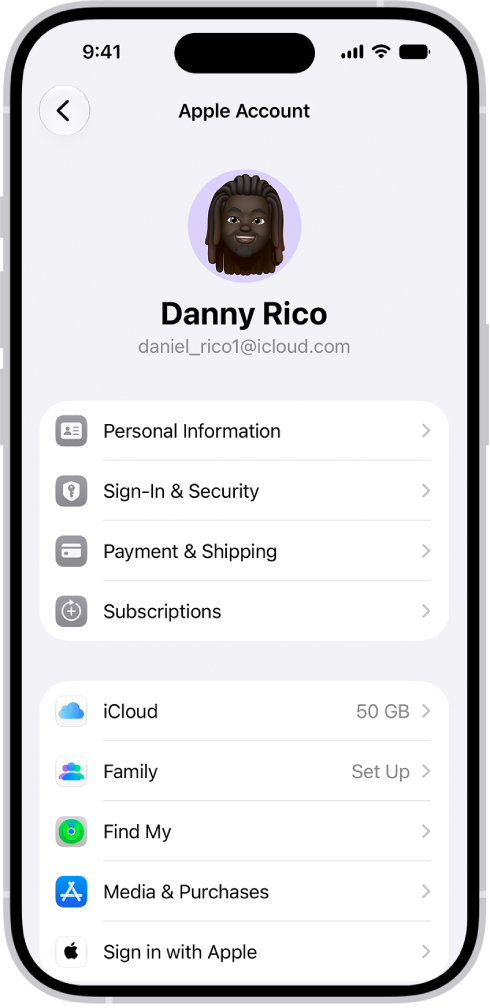
    The Apple Account Settings shown with a list of options including personal information, subscriptions, Find My, and more.

  2. Scroll down and tap Sign Out.
  3. If prompted, enter your Apple Account password to Turn Off Find My.
  4. Choose what data to keep on your device—anything you don’t keep is still saved to iCloud—then tap Sign Out.
  5. Return to Settings to sign in again using your Apple Account details.

2. iCloud Doesn’t Sync Data Across Devices

When it’s working, iCloud syncs everything without any effort from you. That means you can, for example, take a photo on one device and it will seamlessly sync to your other devices.

Unfortunately, iCloud doesn’t always work seamlessly. When that’s the case, these iCloud troubleshooting tips can fix it. Try them one by one:

  1. Shut down your device and wait a minute or so before restarting it.
  2. Try streaming a video on YouTube or similar to test your internet connection. If it’s slow, restart your router to see if that fixes it.
  3. Go to Settings > [Your Name] on each device and make sure you’re using the exact same Apple Account. If not, sign in again with the correct details.
  4. Visit Settings > [Your Name] > iCloud and turn on each of the services you want to sync.
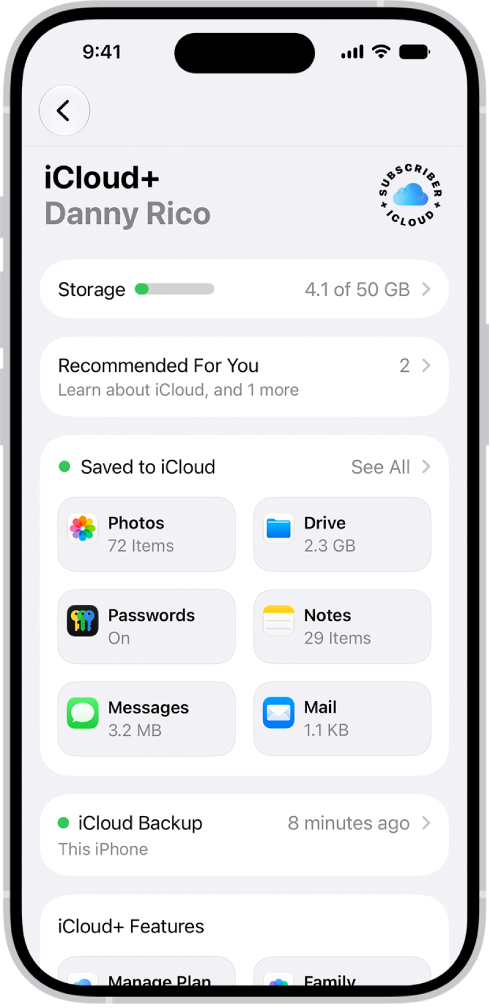
    The iCloud settings screen showing the iCloud storage meter and a list of features—including Photos, iCloud Drive, and iCloud Backup—that can be used with iCloud.

After following these steps, make a change in an iCloud app (like Notes) to test whether it syncs to your other devices. Allow 10 minutes or so for iCloud to sync your data.

3. Third-Party Apps Don’t Save to iCloud

Some third-party apps save data to iCloud, allowing them to sync across all your Apple devices. They usually do this automatically, but if apps aren’t syncing how you expect them to, you might need to tweak the settings yourself.

Check the iCloud sync settings on each of your Apple devices by following these steps:

  1. Go to Settings > [Your Name] > iCloud.
  2. Scroll through the list and turn on the apps you want to sync over iCloud.
  3. If an app is missing from the list, contact the developer for more support.

You don’t need to enable every app in this list—only the ones you actually want to use with iCloud.

4. Your iCloud Settings Never Stop Updating

This persistent loading screen usually appears if you can’t sign in to iCloud on your iPhone 18 Pro or iPhone 18 Pro Max, often during the setup of a new device.

You might also see a message saying iCloud Drive is loading if you’re trying to use the Files app. Or sometimes an alert says you’re Unable to sign in because of a problem communicating with iCloud. Wait at least five minutes before trying to fix it.

If you’re still stuck on the updating or loading iCloud screen after five minutes:

  1. Shut down your device and wait a minute or so before restarting it.
  2. If your device is unresponsive, follow the steps to force restart your iPhone. Press and quickly release the volume up button. Press and quickly release the volume down button. Press and hold the side button. When the Apple logo appears, release the side button.
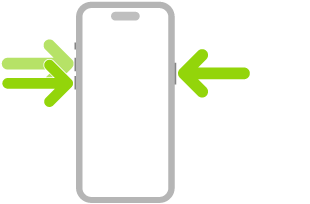
    An illustration of iPhone with arrows pointing to the side button on the upper right and the volume up and volume down buttons on the upper left.

  3. After restarting your device, open the Settings and try signing in to iCloud if you aren’t already signed in. Then try using your iCloud apps again.

5. An iCloud Authentication Error Appears When You Sign In

Most of the time, when you can’t sign in to iCloud, it’s because you entered the wrong username or password. But sometimes an Authentication Error appears even when you did use the right credentials.

If you get this message, or similar failed authentication messages, try these steps:

  1. Go to the Apple Account website.
  2. Use your Apple Account username and password to log in.
  3. If you still can’t sign in, reset your login details.

After signing in online, you may see an account alert appear or a notification to agree to new terms and conditions. After acknowledging these notices, you should be able to sign in on your other devices again.

6. iCloud Says You Have an Unsupported Device or Apple Account

You may have created an Apple Account under unusual circumstances, which can cause problems with iCloud. Typically, if an Apple Account works with Apple’s other services—like the App Store or iTunes—it shouldn’t have any issues with iCloud either.

Similarly, a problem with your device may cause iCloud to think it’s unsupported. Test your Apple Account on another device (signing in to the iCloud website from a browser if needed) to find out if the problem is with your account or your device.

If your Apple Account doesn’t work with any of Apple’s services, or if no Apple Account works with your device, contact Apple Support directly. You may need to create a new account to resolve it.

7. You Ran Out of iCloud Storage

Apple gives everyone 5GB of iCloud storage for free, but that’s usually not enough to last for long. When you run out of iCloud storage, there are two ways to fix it: clear some space in your iCloud account, or buy more iCloud storage.

If you want to create more free space, manage your iCloud storage and delete some of the content there.

Otherwise, follow these instructions to buy more iCloud storage:

  1. Go to Settings > [Your Name] > iCloud > Storage.
  2. Select Manage Plan.
  3. Select your storage upgrade option from the list and enter your Apple Account password to confirm the monthly subscription.
  4. Apple charges you immediately and the storage is available right away.

If you’re unable to upgrade or a message says your iCloud storage could not be upgraded at this time, check your Apple Account payment method by going to Settings > [Your Name] > Payment & Shipping.

8. Verification Fails When You Sign In or Out of iCloud

You might find you can’t sign in to iCloud on your iPhone 18 Pro Max because Verification Failed or because your account is unavailable. Sometimes, you can’t sign out of iCloud either for the same reason. This is often an issue with your internet connection or Apple Account login details.

There are a few ways to fix it:

  1. Shut down your device and wait a minute or so before restarting it.
  2. Try streaming a video on YouTube or another site to test your internet connection. If it’s slow, restart your router to see if that fixes it.
  3. Make sure your device’s date and time are correct by going to Settings > General > Date & Time. Turn on the option to Set Time Automatically if it’s not already.
  4. If you use two-factor authentication, enter the six-digit verification code that appears on your iPhone, another trusted device, a trusted phone number, or your Mac. If you can’t access any trusted devices, tap “Didn’t get a verification code?”, then choose one of your trusted phone numbers to receive the verification code.
  5. Try using Wi-Fi instead of cellular data to log in to iCloud, or vice versa. To do this, open the Control Center and toggle Wi-Fi on or off.
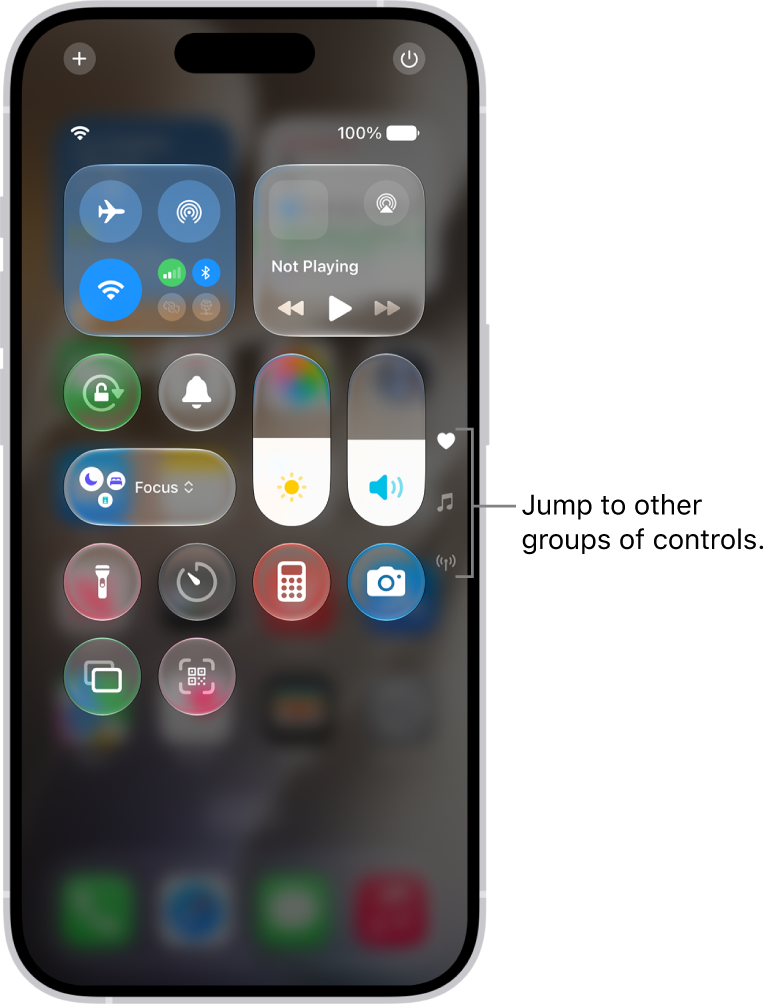
    Control Center open on the iPhone screen, with icons on the right for viewing other groups of controls.

9. Your iPhone 18 Pro Max Keeps Asking for an iCloud Password

You’re in the middle of using your iPhone when a prompt appears asking you to enter your iCloud credentials. You do that, but a few moments later it appears again, then again, then again, and so on.

This is an old iCloud problem that still crops up from time to time. Any of these iCloud troubleshooting tips can fix it:

  • Shut down your device and wait a minute or so before restarting it.
  • Go to Settings > [Your Name] > Sign Out, then choose not to keep any data on your device. After signing out, return to Settings and Sign In again.
  • Visit Apple’s System Status website to make sure iCloud is working properly.
  • Visit Apple’s iForgot website to reset your Apple Account password, then sign in to iCloud on your iPhone using the new password.
  • Finally, back up and restore your iPhone. This process can be time-consuming, so save it for the last resort after trying everything else.

Fix iCloud Problems So You Can Back Up Your Device

No matter the circumstances, it’s always annoying when iCloud issues result in the service not working properly. Now you know how to clear up the most frequent iCloud errors so you shouldn’t have any more problems.

Most iCloud issues present little more than an annoying inconvenience. But if your iPhone 18 Pro Max can’t back up to iCloud, you might find yourself at serious risk of data loss. That’s an issue you definitely want to remedy quickly.
When attempting to update your iCloud settings on your iPhone 18 Pro or iPhone 18 Pro Max, you may notice some of the options to do so are grayed out, possibly including iCloud itself. This means those options are disabled.

If that’s the case, there are a few fixes you could try to re-enable them and get back into your iCloud settings.

1. Agree to New iCloud Terms and Conditions

It’s possible the only task you have to complete is agreeing to any updates to the iCloud Terms and Conditions. If this is the reason you don’t have access to your iCloud settings, you should see a banner right at the top of Settings underneath your name that says New iCloud Terms and Conditions. Tap this, then tap Terms and Conditions in blue on the next screen.

Unless you have the patience of a supreme being to read everything through, just tap Agree at the bottom right. Now, you should see that the Settings menu has been updated to enable iCloud and other related services.

2. Check for Installed Configuration Profiles

Sometimes, configuration profiles that you may have installed on your iPhone 18 Pro or iPhone 18 Pro Max from work or school can restrict access to certain areas of your device. Open the Settings app, then go to General > VPN & Device Management.

If you notice your installed configuration profile here, you can try removing it by tapping Remove Profile or Remove Management. If your school or employer gave you the iPhone, it’s best to check with an IT contact there first before getting rid of anything they installed.

3. Check iCloud’s Server Status

On rare occasions, iCloud or parts of the service may be down, which could prevent access to certain features and settings. Fortunately, Apple has a handy webpage available for easily checking what services are up, down, or experiencing issues.

This is useful to help identify a possible cause for why you can’t access your iCloud settings.

If the service is marked by a green dot, it should be online and available, which means you should continue exploring other solutions. But if you see a yellow or red dot, an issue or outage may be the culprit. It’s best to wait these out until Apple fixes it.

The System Status website also serves as a terrific way to diagnose other problems that may pop up from time to time, like apps failing to sync through iCloud.

4. Update Your iPhone 18 Pro Max

If you’re still out of luck, it may be time to update your iPhone to the latest iOS version if you’re not on it already. Sometimes, your iPhone either needs a bug fix or a fresh start that comes with a new firmware release.

The most straightforward way to update your iPhone is by going to Settings > General > Software Update and checking to see if a new version is available.

When you’re ready, hit Update Now if you’re not on the latest release, or Install Now if the new version was already downloaded in the background. The installation process will take several minutes to complete, and you’ll be unable to use your iPhone until it’s finished.

Access Your iCloud Settings Without Issues

Usually, problems like this are easy to patch, so hopefully, one of our troubleshooting methods suffices. But if nothing does the trick, and you’ve been stuck with inaccessible, grayed-out iCloud settings, consider reaching out to Apple for support. A specialist should be able to offer guidance or even take a direct look at your iPhone 18 Pro Max if you have an Apple Store nearby.

Having problems getting iCloud to sync your data between devices? You’re not alone; many users have expressed their frustration with iCloud problems since its introduction.

Fortunately, there are many fixes you can try to get your macOS and iOS apps to sync with Apple’s servers. Don’t be afraid to try them all if the first few don’t work out.

1. Restart and Wait

iCloud can take some time to kick in when you make a change. According to some reports, this can be up to 10 minutes.

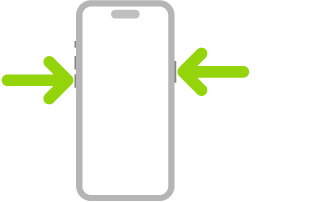
You might find that your problem resolves itself with a bit of patience, but while you’re at it, you can also try restarting all affected devices. Simultaneously press and hold the side button and either volume button until the sliders appear, then drag the Power Off slider. Press and hold the side button until the Apple logo appears. You may also want to plug your device in—sometimes, photos won’t sync to iCloud until your iPhone 18 Pro Max charges. You should also disable Low Power Mode if it’s on because it turns off some battery-draining features.

An illustration of iPhone with arrows pointing to the side button on the upper right and a volume button on the upper left.

On a Mac, iCloud not syncing might be because you have disabled Power Nap, which allows your device to check for iCloud updates while asleep. To enable it, open the Terminal app on your Mac and enter the following command:

sudo pmset powernap 1

2. Check You’re Using the Right Account

It might sound obvious, but if you’re not using the same iCloud account on both devices, then they’ll never sync correctly. This might be the reason why iCloud on your Mac isn’t syncing with your iPhone 18 Pro Max. Head to Settings > [Your Name] on iOS or Apple menu > System Settings > [Your Name] on macOS and check which account is currently associated with the device.

The Apple Account Settings shown with a list of options including personal information, subscriptions, Find My, and more.

You can only have one iCloud account signed in at a time, so make sure they match up. If they don’t, you will need to sign out of the incorrect account and log in with the correct details.

3. Make Sure iCloud Is Working Properly

Every service experiences downtime at some point. While most planned outages occur at night, when you’re asleep, catastrophic failure or human error can sometimes bring even the most reliable services down.

To check Apple’s current iCloud status, head to Apple’s System Status page and look for the green dots next to iCloud services. Any ongoing issues should appear at the bottom of the screen.

4. Ensure You’ve Enabled iCloud for Your App

There are some elements you can change in your Settings (iOS) or System Settings (macOS) in order to remedy apps that won’t sync.

On your iPhone, head to Settings > [Your Name] > iCloud and tap See All next to Saved to iCloud. Make sure the app you want to sync is listed and enabled. You can also try toggling this off and back on to force iCloud to sync.

The iCloud settings screen showing the iCloud storage meter and a list of features—including Photos, iCloud Drive, and iCloud Backup—that can be used with iCloud.

Apps that have access to iCloud on your Mac will appear under Apple Menu > System Settings > [Your Name] > iCloud next to Saved to iCloud. Click See All to see the full list.

5. Check That Apps Have Cellular Access

Do you have trouble syncing to iCloud on your iPhone 18 Pro or iPhone 18 Pro Max while on mobile data but not on Wi-Fi? You may have disabled cellular access for some apps.

Head to Settings > Cellular or Mobile Data and scroll down to find a list of apps on your phone. Any apps that have their slider turned off will only work on Wi-Fi. Try enabling data access for any apps you want to sync all the time, but note this may increase your data usage.

At the bottom of the screen, you may also want to enable iCloud Drive.

6. Rule Out Date and Time Discrepancies

You can run into a lot of problems when your iPhone’s date and time aren’t current. Many apps will simply refuse to connect to the internet at all. In order to avoid these problems, you can set the time to automatically update, which will keep your devices in sync and avoid these issues.

On your iPhone, head to Settings > General > Date & Time and toggle on Set Time Automatically. On a Mac, you can do this from System Settings > General > Date & Time and toggle on Set time and date automatically. After that, also check the box to Set time zone automatically using your current location.

7. Check That You’re Syncing the Right Folder

For apps that allow you to customize which folder you use to store data, ensure that the paths match up in both instances. You should make sure that your various iOS and macOS apps are looking for data in the same location, if applicable.

8. Reset and Restore Your Device

If none of the above has helped, and your device won’t access or sync iCloud data at all, you might want to take a stronger step and erase your iPhone 18 Pro Max to clear up any lingering issues. Before you proceed, make sure you back up your phone to avoid losing any data.

To reset and restore your iPhone, go to Settings > General > Transfer or Reset iPhone and select Erase All Content and Settings at the bottom.

You can restore your iPhone from a backup you made when you set up the phone afresh. Wait for the Transfer Your Apps & Data screen to load, tap Set Up Manually, tap Restore from iCloud Backup, then sign in with your Apple Account. Once you’re finished, your device will be near-identical to how you started, except you’ll need to add or authorize your various accounts again.

Hopefully, this will clear up whatever issue you had with iCloud Drive.

9. Look Into App-Specific Support

If you’ve got an app that uses data syncing to transfer between different platforms, there’s a good chance the developer offers help documentation to help you overcome your issues. Most of the time, developers can pinpoint the exact files and folders you should delete in order to solve your issue.

A few apps that include specific guides to solving iCloud issues include Day One, 1Password, and Ulysses. Search online for specific help if your issue lies with another app.

10. Use an iCloud Alternative

Many applications give you a choice of whether or not to use iCloud. If you can avoid using it, you’ll sidestep many of the issues that have plagued the service.

For example, apps like Day One and 1Password both allow you to use Dropbox. Plus, iCloud alternatives often provide you with more space and less hassle. And don’t worry; you can still use other iCloud features like Find My and iCloud email accounts.

Some of the best cloud storage alternatives include Dropbox, Google Drive, and OneDrive.

Sync Your iCloud Data Without Issues

Hopefully, these tips helped you clear up your iCloud Drive issues; most users have reported that one of these tips helped to get them back on track. While iCloud isn’t perfect, its integration with Apple platforms makes it the de facto choice for many users. Now, you can enjoy it as Apple intended.

Trying to find an app on your iPhone’s Home Screen, but all your app icons seem to have suddenly disappeared? See Apps Missing on iPhone 18 Pro Max. Whether it’s a matter of insufficient storage or software glitches, this can be quite an annoyance, especially when you’re in a rush. Fortunately, you have your options to resolve this issue quickly.

1. Free Up Your iPhone’s Storage Space

In most cases, app icons tend to disappear due to insufficient storage. If you’ve been getting the “iPhone Storage Full” message, we recommend heading to Settings > General > iPhone Storage and checking how much free storage your iPhone 18 Pro Max currently has. As a rule of thumb, it’s a good idea to have at least 5GB of free storage to ensure no hiccups.

Once you open the iPhone Storage page, you’ll be able to view how much storage each app consumes. Here, you can either delete an app entirely or offload it, which will remove it from your device without erasing its data.

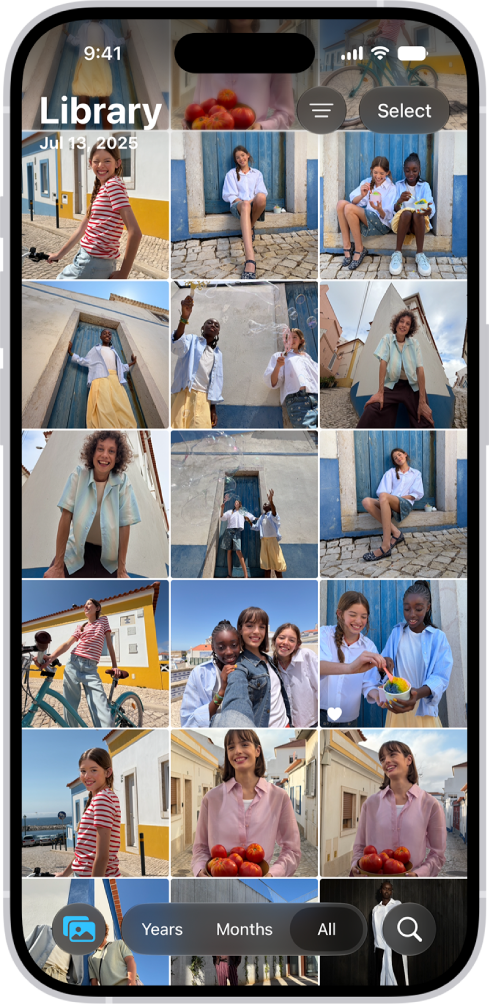
Similarly, we also recommend heading to the Photos app and deleting any unnecessary images or videos you may have. Alternatively, it’s a good idea to consider using cloud storage services like iCloud, Google Drive, or Dropbox to store your photos, videos, and documents to free up physical storage space and get your app icons back on your iPhone 18 Pro Max.

The Photos app is open to the photo library grid. At the bottom of the screen, from left to right, are buttons to view the library by Years, Months, and All buttons. In the bottom-right corner is the Search button.

2. Check Selected Home Screen Pages for Focus

If you use Focus profiles often to maximize your productivity, you may have configured it to allow certain Home Screen pages. While customizing your Home Screens and filtering out any apps that hinder your productivity can be a great way to focus on your tasks, it can also be the root cause of your apps disappearing.

If you’re currently using a Focus mode and are unable to find an app, follow the steps below:

  1. Go to Settings and tap Focus.

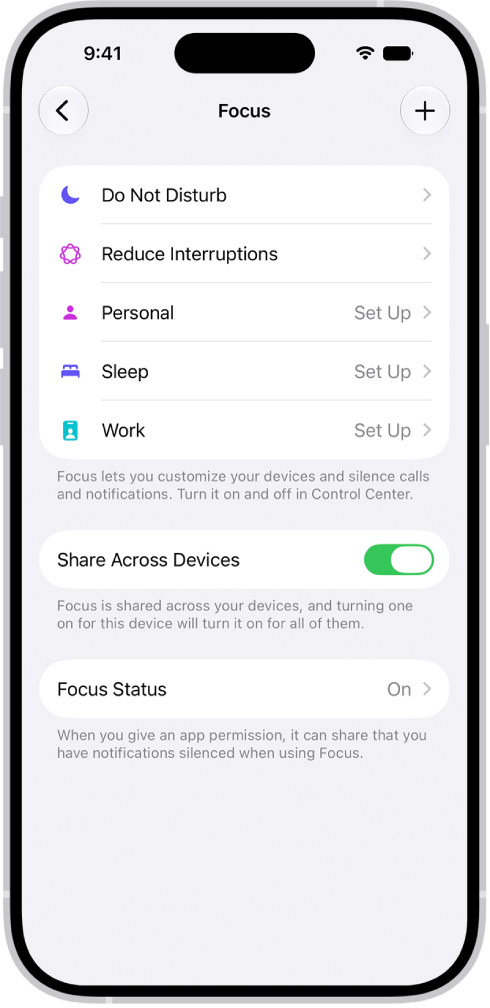
    A screen showing five provided Focus options—Do Not Disturb, No messages during calls, Sleep, Personal, and Work. The Share Across Devices option is on, which allows the same Focus settings to be used across your Apple devices.

  2. Now, choose the Focus profile you’re currently using, then tap Customize Focus.
  3. Under Customize Screens, tap Choose Home Screen, since the issue lies with your iPhone’s Home Screen.
  4. Now, check if you’ve accidentally deselected the Home Screen page that houses the missing apps. If that’s the case, simply select the page.

3. Reset Your Home Screen Layout

While this isn’t always ideal, reverting to your iPhone’s default settings is sometimes the best idea. Resetting your iPhone’s Home Screen layout removes any custom folders and widgets you may have added. Doing this will also rearrange all the apps you’ve installed alphabetically, as well as re-install any of the default Apple apps you may have deleted.

Here’s how to reset the Home Screen layout in iOS:

  1. Launch the Settings app and tap General.
  2. Now, scroll down to the bottom and tap Transfer or Reset iPhone.
  3. Tap Reset and select Reset Home Screen Layout from the pop-up menu that appears.
  4. To confirm, tap Reset Home Screen.

4. Restart Your iPhone 18 Pro Max

A system reboot ends all background processes and clears your device’s cache. Restarting your smartphone can fix most problems, especially OS-related glitches like this one.

You can easily restart your iPhone 18 Pro or iPhone 18 Pro Max even if its buttons are broken. However, unlike Android, iOS doesn’t offer a restart option. So, you’ll have to power it off and turn it back on manually. Simultaneously press and hold the side button and either volume button until the sliders appear, then drag the Power Off slider. Press and hold the side button until the Apple logo appears.

An illustration of iPhone with arrows pointing to the side button on the upper right and a volume button on the upper left.

Get Your iPhone App Icons Back

Hopefully, the troubleshooting fixes above helped bring your app icons back. If all fails, your best bet may be factory resetting your iPhone 18 Pro Max. While erasing your device is not ideal, it restores your iPhone to its default state and is a clear-cut way of solving most software glitches.

Are you trying to open an app on your iPhone 18 Pro Max but can’t find it anywhere? It can be worrying if it’s a vital app you use for finance, productivity, or work.

Sometimes, we may intentionally hide an app, forget about it, and then struggle to locate it when needed, whereas other times, the app seems to have disappeared from the Home Screen of your iPhone.

Whatever the case, if you can’t unhide apps or notice that some apps are missing from your iPhone’s Home Screen, here’s how to find them.

1. Find Your App in the App Library

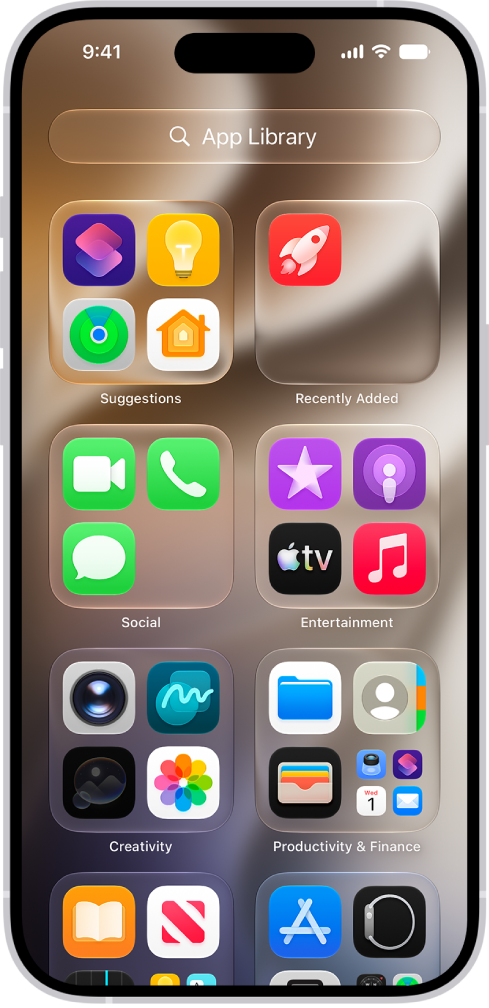
If an app is installed on your iPhone 18 Pro Max but not on your Home Screen, it’s probably in the App Library, which places all your apps in proper categories. Swipe left on the last Home Screen page to reach App Library. Then, use the Search box to find your missing app quickly.

App Library on iPhone showing the apps organized by category (Utilities, Social, Entertainment, and so on).

Once you find the app you’re looking for, long-press its app icon in the App Library, and if this app isn’t on the Home Screen, you will see an option to Add to Home Screen. Alternatively, you can drag it left from the App Library onto the Home Screen. A hidden app disappears from your Home Screen and moves to the Hidden folder at the bottom of App Library. Tap the Hidden folder at the bottom of App Library, then authenticate using Face ID.

In the future, if you want all the new apps you download to show on the iPhone Home Screen, open Settings > Home Screen & App Library and select Add to Home Screen. This will put an end to new apps not appearing on the Home Screen.

2. Use Spotlight to Find the Missing App

The second method is to use Spotlight search, which helps you find files and apps stored anywhere on your device.

Just tap the Search button above the Dock to access this feature, or swipe down on the center of your Home Screen to bring up Spotlight search.

Now, type the app name to find it. Once you do, you can also long-press the app icon and select the Add to Home Screen option or manually drag it onto the Home Screen.

3. Ask Siri to Open the Missing App

You can use Siri to open downloaded apps that have disappeared from the Home Screen. If you have already set up Siri on your iPhone, simply activate the voice assistant and ask it to “Open [app name].”

To activate Siri, you can say “Hey Siri” or press and hold the Side button. Besides opening apps, there are many other tasks you can ask Siri to carry out for you.

4. Look Inside Folders to Find Hidden Apps

Sometimes we put apps inside folders to hide them or keep them away from plain sight in case those apps aren’t used frequently. After a while, it’s possible to forget about them.

If this is your situation, open all the app folders on your iPhone 18 Pro Max Home Screen and look for the missing app inside. Once you find it, you may want to drag the app icon out of the folder onto the Home Screen.

5. Check Screen Time to Unhide Restricted Apps

You can use Screen Time to hide and restrict iPhone apps like Safari, Camera, FaceTime, Mail, and more. As a result, you won’t find the app icons for these restricted apps on the Home Screen or the App Library. They won’t even appear in Spotlight search results or be accessible via Siri.

To unhide these apps, open Settings > Screen Time > Content & Privacy Restrictions > Allowed Apps & Features and ensure all the apps are allowed. Next, tap Back, go to App Store, Media, Web & Games > Apps, which restricts apps by age ratings, and choose an age rating high enough for the missing app. Alternatively, you can also turn off Screen Time on your iPhone to remove all the restrictions at once.

After doing this, you should see the missing app icons on the Home Screen and App Library. If not, you’ll have to use the Spotlight search method explained above to re-add them to the Home Screen.

6. Unhide Home Screen Pages to See All Your Apps

iOS allows you to hide Home Screen pages for a cleaner look, but if you did that accidentally, you might get confused, wondering where your installed apps have gone.

Worry not! If you want to continue retaining a minimalist Home Screen, you can access the downloaded apps in the App Library or restore your Home Screen pages by unhiding them.

Go to the Home Screen, then touch and hold the Home Screen wallpaper until the app icons begin to jiggle. Tap the dots at the bottom of the screen. To show hidden pages, tap to add the checkmarks.

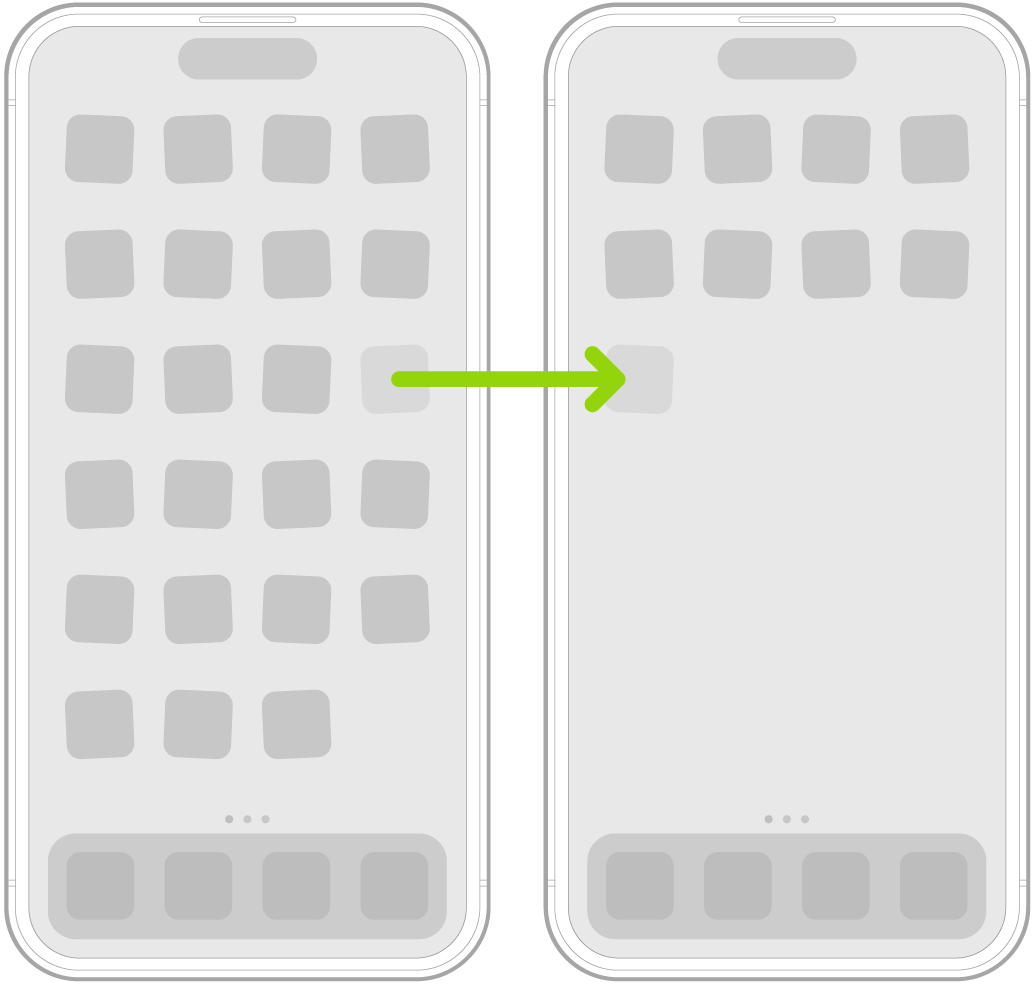
Jiggling apps on the Home Screen with an arrow showing one app being dragged to the next page.

7. Use App Store to Check If an App Is Installed or Not

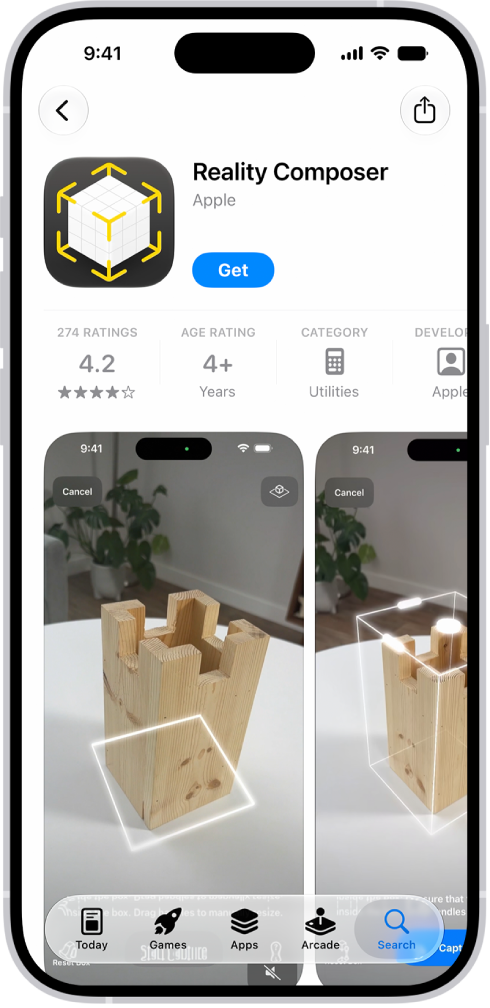
When an app is downloaded on your iPhone 18 Pro Max, the App Store page says Open (or Update). If the app is not downloaded, it says Get (or shows the Download cloud icon).

The information page for an app in the App Store. The page shows the Get button, ratings, age ratings, the developer, screenshots, and more. At the bottom, from left to right, are the following buttons: Today, Games, Apps, Arcade, and Search.

Using this information, here’s how to find a missing app on your iPhone:

  1. Long press the App Store icon and tap Search.
  2. Type the name of the missing app.
  3. In the search results, if the app says Open, tap it. If it says Get or shows a cloud icon, download it.

8. Reset the Home Screen Layout to View All Apps Alphabetically

If you want every app listed alphabetically to be sure not to miss anything, you can reset the Home Screen and Dock layout. After this, the Home Screen will show all the Apple apps (just like a new iPhone). And the apps you have downloaded will be placed alphabetically in order.

Here’s how to reset your iPhone’s Home Screen layout:

  1. Open Settings and tap General.
  2. Scroll to the bottom and tap Transfer or Reset iPhone > Reset > Reset Home Screen Layout.

9. Additional Fixes if You Still Can’t Find an App

Most of the methods above involve unhiding an app and getting it back on the Home Screen again. But if those don’t work, an app disappearing may be caused by a glitch.

In this case, you can use generic (but frequently effective) solutions such as restarting your iPhone. You should also update your iPhone to ensure your device receives bug fixes from the latest version of iOS. Go to Settings > General > Software Update to check if an iOS update is available.

Hopefully, You Found the Missing iPhone App!

These were the quick ways to find any missing or hidden apps on iPhone 18 Pro or iPhone 18 Pro Max. Sometimes if you can’t find an app, you likely deleted it. In this case, re-download it from the App Store.

Additionally, it’s possible that the app was removed from the App Store by the developer or Apple (as was the case with Flappy Bird and Fortnite, respectively). In such situations, you will have to use one of its alternatives.

If it’s often difficult to find apps or open them quickly, it might be worth allocating some time to organize your iPhone’s Home Screen layout to help with that.

You’re connected to mobile data and notice that new WhatsApp messages aren’t coming in. Trying to open X only leads to the loading symbol turning endlessly. Then when you try Googling something, the Safari webpage doesn’t load either. The only message you see is “Your iPhone is not connected to the internet.”

Why is your iPhone’s cellular data not working? Let’s look at these easy ways to fix your iPhone’s cellular data problem now.

1. Check Your Data Plan’s Status

Before jumping into device troubleshooting, remember that the cause may not be your iPhone at all. Did you forget to renew your data plan and it expired? Have you reached your plan’s mobile data quota for the month?

If these are the causes, you’ll need to reactivate your mobile plan or top up your quota, then you’re good to go! Your cellular data should immediately start working again. Contact your carrier’s support if you have issues doing so, and consider limiting your data usage in the future to avoid running out again.

2. Ensure Airplane Mode Is Turned Off

Airplane mode disables your iPhone’s cellular, Wi-Fi, and Bluetooth connections. This is important during flights to prevent signal interference, and can preserve your battery in areas with a weak signal.

Because airplane mode affects many features of your device, you should make sure it’s turned off when you have network issues.

To turn off Airplane mode:

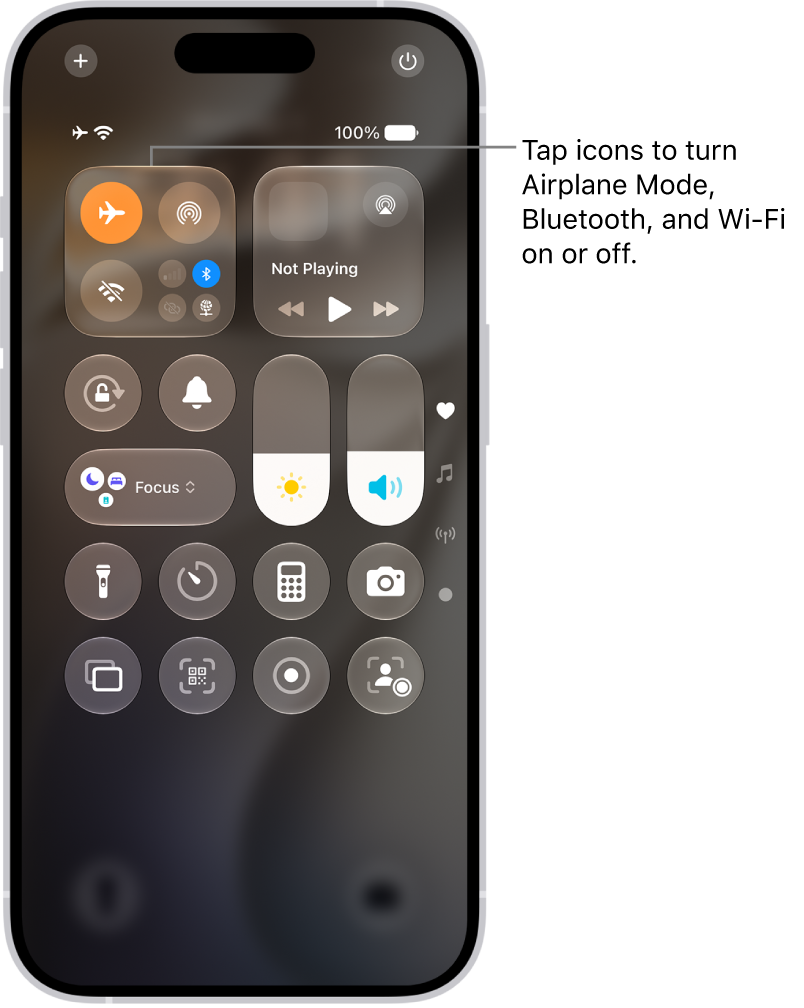
  1. Access your iPhone’s Control Center.

    1. Swipe down from the top-right of the screen.
  2. If Airplane mode is enabled, the round circle in the top-left section with an airplane icon shows as orange. Tap to turn it off.

    The Control Center screen showing that tapping the top-left button turns on Airplane Mode.

  3. Try to get online again using cellular data.

If you still can’t get online, now is a good time for a quick iPhone restart before proceeding further.

3. Toggle Your iPhone’s Mobile Data

After checking that you have an active data plan and have disabled Airplane mode, turning your iPhone’s mobile data function off and back on may help solve the issue. To do this:

  1. Access your iPhone’s Control Center, as mentioned above.

    Control Center open on the iPhone screen, with icons on the right for viewing other groups of controls.

  2. In the top-left block, check if the Mobile Data icon (an antenna) is already switched on and lit up as green. Tap to turn it off if so.
  3. Wait a few seconds.
  4. Tap the icon to turn on your iPhone’s cellular data again.

4. Enable 4G on Your iPhone

4G changed our internet lives by significantly increasing internet speed. If 4G is disabled on your iPhone for some reason, your device can fall back to using 3G. Most online tasks (for example, loading a video) will take an extremely long time to load using 3G networks.

In fact, 3G can be so slow that you’ll think your iPhone’s cellular data is not working. So to make sure 4G is enabled on your iPhone 18 Pro or iPhone 18 Pro Max:

  1. Go to the Settings app and tap Cellular (Mobile Data in some regions).
  2. Turn on Cellular Data (or Mobile Data) if it’s not already.
  3. Select Cellular (or Mobile) Data Options.
  4. What you see next will depend on your device, carrier, and region. You may need to tap Enable 4G, or choose Voice & Data to select your network preference. Choose to use the best network available on your device.

5. Check for a Carrier Settings Update

Your carrier may have provided updates that improve cellular network connectivity, which can help solve your mobile data problem on your iPhone 18 Pro Max.

Here’s how to check for these:

  1. Go to the Settings app and select General.
  2. Tap About.
  3. If there is an update available, you’ll immediately see a prompt that says Carrier Settings Update and asks whether you want to proceed with the update now. Install any updates that show up here.

6. Update iOS on Your Phone

An important fix for any issue is checking for the latest iOS updates. Ensuring that your device’s software is up-to-date may help fix connectivity problems.

To check for and install system updates:

  1. Go to the Settings app and select General.
  2. Tap Software Update.
  3. Tap Update Now to get the latest iOS, if available.

7. Remove and Reinsert Your SIM Card

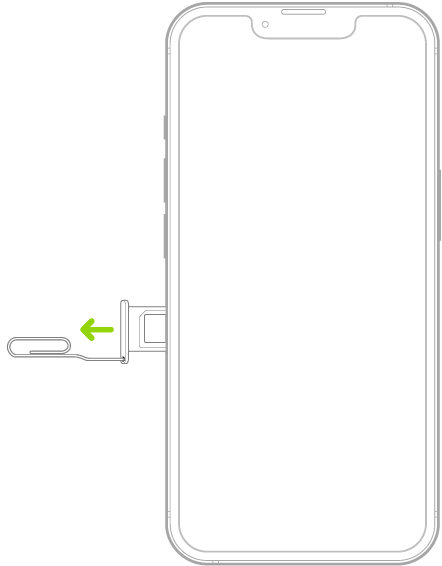
Insert a paper clip or SIM eject tool into the small hole of the SIM tray, then push in toward iPhone to eject the tray.

A paper clip or SIM eject tool is inserted into the small hole of the tray on the left side of iPhone to eject and remove the tray.

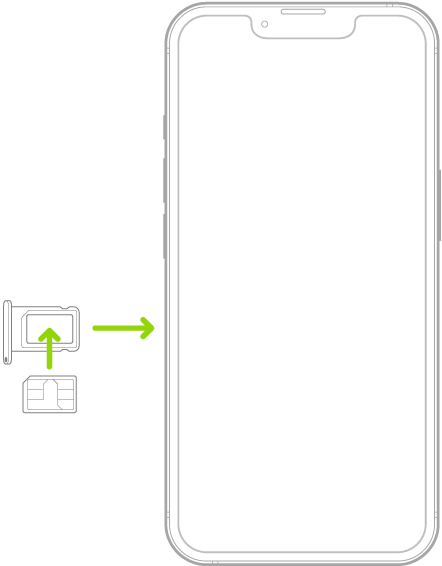
Once you’ve removed it successfully, simply place the same SIM card on the tray and slide it back into your iPhone.

A SIM being inserted into the tray on iPhone; the angled corner is in the upper left.

Note: iPhone 18 Pro Max models purchased in the United States can only be activated with an eSIM.

8. Force Restart Your iPhone

If nothing above has worked, you can do a force restart to fully refresh your iPhone. This should clear out any temporary hiccups blocking your mobile data.

Press and quickly release the volume up button. Press and quickly release the volume down button. Press and hold the side button. When the Apple logo appears, release the side button.

An illustration of iPhone with arrows pointing to the side button on the upper right and the volume up and volume down buttons on the upper left.

9. Reset Network Settings

This step reset will remove saved passwords for Wi-Fi connections, clear out Bluetooth and VPN configurations, and otherwise return all network settings to their default selections. It’s worth trying if nothing else has worked to fix this problem yet:

  1. Go to the Settings app and select General.
  2. Choose Transfer or Reset iPhone > Reset > Reset Network Settings.
  3. A prompt will appear. Tap Reset Network Settings to confirm.

10. Reset All Settings

If you’ve tried all the above suggestions and they don’t work, the next solution is to set all options on your iPhone back to default. You may want to screenshot or note down any important settings so you don’t forget how you had them.

You don’t need to worry about accidentally deleting any data on your device; this is a separate process from a full factory reset. Follow the steps below:

  1. Go to the Settings app and choose General.
  2. Choose Transfer or Reset iPhone > Reset > Reset All Settings.
  3. A prompt will appear. Tap Reset All Settings to confirm.

You won’t lose personal files like apps and photos, as long as you don’t choose the Erase All Content and Settings option. That performs a full iPhone reset, which you can do as a last-ditch step. Just make sure you back up your iPhone first!

Solved: iPhone 18 Pro Max Cellular Data Not Working

We’ve seen how to fix the issue of your iPhone’s mobile data not working. To rule out issues, first check whether you have an active mobile plan with sufficient data left. Also, ensure that your device’s airplane mode is turned off.

If your iPhone 18 Pro Max still can’t connect, Apple advises you to contact your carrier to see if there are other causes. For example, an outage in your area might cause all connections to fail. In case your carrier responds that there’s no problem with your account or network, you’ll have to reach out to Apple Support to resolve the issue. It may be a problem with your iPhone.

We repeat it so much you’re probably sick of hearing it: back up, back up, back up. It’s absolutely vital that you back up the data on your iPhone and Mac so it’s safe in case of malfunction, loss or theft.

But backing up a large-capacity iPhone 18 Pro Max creates a bulky file that has to be left somewhere, and those of us who rely on a MacBook or other Mac with a relatively small storage allocation may begrudge this.

You can get around the problem by backing up to iCloud, but iCloud storage is limited too, and you may not want to pay for the extra space. Which leaves us with the option of external storage.

In this tutorial we show how to copy a Finder backup of an iPhone to an external hard drive (which is straightforward) and then tell the Finder to back up to that same hard drive in the future (which requires a little more cunning).

Note, very importantly, that you’ll need to be able to have your iPhone 18 Pro or iPhone 18 Pro Max and the external hard drive plugged into the Mac at the same time, so owners of single-port MacBooks may need to buy a USB hub.

Copy the backup to the external hard drive

Let’s do the easy bit first.

Get hold of an external drive with plenty of space. Make sure it’s formatted correctly and create a folder on the drive with an easy-to-remember name. ‘iPhone backup’ would be fine.

Make sure no backup is running and open Finder. Press Cmd + Shift + G, which will open Go To Folder. Enter the following text:

~/Library/Application Support/MobileSync/

Highlight the folder ‘Backup’ and hit Cmd + C to copy it.

Now go back into the external folder, open the previously created folder (‘iPhone backup’) and hit Cmd + V to paste in the backup file. This process could take a while, because you’re copying across a large file.

Once the process is complete, you can go back and either rename the original file in Finder (which we recommend) or delete it (which is risky, at least until we’ve checked that the backup has worked).

Tell the Finder to back up to the hard drive in future

Our iPhone backup is now safely stored on the external hard drive; but it would be a pain to have to do this every time a backup is created. Our next step will instruct the Finder to back up to the same external location in future – provided the hard drive remains plugged into the Mac.

Open Terminal. Type the following, then hit Return. (Replace ‘ExternalHD’ with the name of your external hard drive. And the same applies to ‘iPhoneBackup’, if you’ve given a different name to the folder in your external hard drive.)

ln -s /Volumes/ExternalHD/iPhoneBackup/Backup/ ~/Library/Application\ Support/MobileSync/Backup

That should be all you need to do – from now on the Finder will know to save its iPhone backups to the external hard drive and the specified folder within. Note that triggering a backup when the hard drive isn’t plugged in will fail.

Before we rush back and delete the backup file on the Mac, we can check that this has worked properly. Quit Terminal and go back to Finder. Find the folder ~/Library/Application Support/MobileSync/ – and you should now see a shortcut icon in the backup folder with an arrow.

Finally, let’s test this out properly. Make sure the hard drive and iPhone are both plugged in, and trigger a backup in the Finder. If this works correctly, and the new backup is saved to the external hard drive, you can safely delete the old (renamed) backup file on your Mac and save some space.

Backing up is easy to do, and it’s also incredibly important: so many irreplaceable files and photos live on our devices that if we had to give iPhone owners three pieces of advice, they would be back up, back up and back up some more. So listen up, as we explain how to make a safe and secure backup of the data stored on an iPhone 18 Pro Max.

Why you should back up your iPhone

Our iPhones are among the most mission-critical possessions we have. Putting aside the financial worth of each device, these little slabs of silicon and glass have become the central repositories for once-in-a-lifetime photographic memories and important documents alike.

Making sure that all of this precious data is backed up somewhere is a crucial safeguard against theft, loss or accidental damage.

There are also a number of times in a year that Apple issues an update to the iOS software running on your iPhone, and our advice is to make sure you have a backup of your data before you update iOS, just in case something goes wrong. People have been known to lose iMessages and other data in the past.

Then of course there are the more joyous occasions of upgrading to a newer model and being able to transfer all of your data quickly and simply by using a backup.

Which backup method is best? iCloud vs Mac (or PC) vs other options

Thankfully there are many ways to back up your iPhone 18 Pro Max, whether to the cloud or to your PC or Mac.

We look at all the best options below, including what they cost, what is backed up, and how to use them.

As a safety precaution, we recommend using at least two of the available solutions. That way, if the worst happens and your backup is somehow corrupted, you’ll have another version to fall back on.

Back up to iCloud

iCloud is Apple’s cloud-based backup service that doubles up as a syncing service that keeps all your data in sync across all your devices.

If you have an iCloud backup and you want to recover your data to a new device, or wipe your device and restore it from the backup, it is probably the simplest option.

How much does iCloud cost?

One of the prohibiting factors of using iCloud to back up your iPhone is that there is a cost associated with doing so.

You get 5GB iCloud storage for free. The 5GB space might be enough to store your settings and things like the Home Screen layout and the way you have your apps organized, and you can change what is backed up in Settings > [your name] > iCloud, in order to reduce the amount of iCloud Storage required, but it is likely you will need more.

If you have an extensive photo library, lots of music on your device that you didn’t buy from Apple, treasured iMessages, Game saves, and more that you don’t want to lose, you will need to pay for more storage. If you set up Family Sharing you can at least share this iCloud space with others.

Storage U.S. U.K.
5GB Free Free
50GB $0.99 £0.99
200GB $2.99 £2.99
2TB $9.99 £8.99

What does iCloud backup?

iCloud keeps a record of all the settings on your device, such as your wallpaper and Home screen layout. All the music, video, and apps you have purchased from Apple can be downloaded again for free, but it’s iCloud that stores the app data and how you have your apps organized on your device. iCloud also stores contacts, data from your calendar and Mail, as well as a backup of your Messages and Photos, but all this will be limited by the storage space available in iCloud.

This way if you get a new iPhone, or need to wipe and restore your device, you can restore it from the backup exactly as it was the last time you backed up.

Apple’s iCloud service also syncs data from your iPhone and Mac so you can access it on all your devices. The syncing aspect isn’t automatic though, you need to sign up for the following services, and you need sufficient iCloud storage space.

iCloud Photos: This will keep your photos and videos in sync across all your devices. When Optimize iPhone Storage is turned on, all your full‑resolution photos and videos are stored in iCloud in their original formats, with storage-saving versions kept on your iPhone. Delete them from a device and they are deleted from iCloud though. You need to turn iCloud Photos on in Settings > [your name] > iCloud > Photos, then turn on Sync this iPhone. Also select Optimize iPhone Storage to save space on your device. It’s free, but you will need adequate iCloud space.

iTunes Match: If you have a lot of music that you didn’t purchase from Apple you might be interested in using iTunes Match. It keeps a record of all the music you own in the cloud so that you can play all your music on, or download it to, all your devices. If the track is available in Apple Music you’ll get access to that version, but if it isn’t Apple will store your copy in iCloud. If you subscribe to Apple Music it includes the same functionality.

Messages in iCloud: If you turn on Messages in iCloud all the messages you receive in the Messages app (previously known as iMessages) will be synced to all your devices. Even if you don’t turn on Messages in iCloud though your Messages will still be included in the daily iCloud backup. To turn on Messages in iCloud go to Settings, tap your name, tap iCloud, then tap Messages. If Messages doesn’t appear, tap See All in the Saved to iCloud section. Turn on “Use on this iPhone” (if it’s not already turned on).

What doesn’t back up to iCloud?

iCloud has two sides to it. It is a backup that you can use to retrieve your data to a new iPhone (or one that has been wiped) and it is a way to sync all your data across all your devices.

This does lead to some confusion, with some users assuming that iCloud Photos backs up their photos to iCloud so that they can delete them to save space on their device.

That’s not how iCloud Photos works. iCloud Photos can be used as a way to free up space on your iPhone or Mac, but it works by storing storage-saving versions on your device while the full-resolution versions reside in cloud. If you delete an image from your iPhone you will also delete the version in iCloud. Luckily if you do delete any photos and videos you have 30 days to recall them (unless you delete them from the deleted items folder too!)

iCloud also doesn’t back up data from other services, such as Gmail and Whatsapp, so you need to make sure they are backed up separately. Nor will it back up Mail data, Apple Pay, Face ID settings, or anything you can download again from Apple Music or the App Store.

Because iCloud only stores one backup for each device you also can’t just revert to an older version of your backup to recover something you’ve lost. The only way to do that would be to revert to a backup from an older device if you can find one in Settings > [your name] > iCloud > iCloud Backup. But beware that you will lose everything since that backup!

There is one way to manually back up information from your iPhone to iCloud. Create a backup folder in the Files app on your iPhone (aka iCloud Drive on a Mac) and save a copy of that data there.

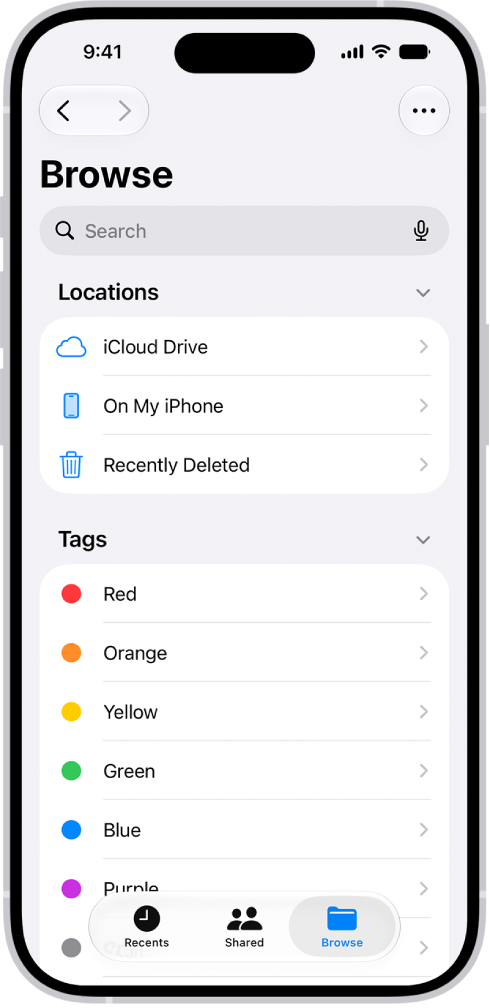
The Files app displaying multiple folders and locations named Downloads, Letters, Family, and so on. At the bottom of the screen are buttons for Recent files, Shared files, and the Browse tab.

How to back up iPhone with iCloud

To back up an iPhone all you need to do is plug your iPhone in at night and ensure it is connected to a Wi-Fi or cellular network. Before you do that though you need to make sure iCloud Backups are turned on and you will need an Apple Account.

  1. On your iPhone 18 Pro or iPhone 18 Pro Max open the Settings app. You’ll see your name and picture (if you’ve saved one) at the top – tap this.

    The Apple Account Settings shown with a list of options including personal information, subscriptions, Find My, and more.

  2. Now select iCloud.

    The iCloud settings screen showing the iCloud storage meter and a list of features—including Photos, iCloud Drive, and iCloud Backup—that can be used with iCloud.

  3. On the next screen scroll down and tap iCloud Backup.
  4. If it’s not already selected make sure that the slider beside Back Up This iPhone is on.
  5. You can also choose whether you want backups to happen over cellular as well as Wi-Fi here, don’t select this option if you don’t have a lot of data on your plan.
  6. Tap Back Up Now if you want to back the iPhone up. If you have been backing up your iPhone you will see the last time it was successfully backed up below this section.
  7. You can also see any other device backups.

Once you have toggled on iCloud Backup your phone will automatically backup every night without any need for you to get involved – you just need to make sure it is connected to Wi-Fi/Cellular and plugged in.

Back up to a Mac

Another option is to back your iPhone 18 Pro Max up to your Mac using the Finder (older macOS versions used iTunes for this). One benefit of an on Mac backup is that you won’t have to pay Apple for additional iCloud space that you are likely to require, although you will need a lot of storage space on your Mac.

If you have a PC rather than a Mac the backup happens via iTunes, but the steps are similar.

The disadvantages of this method are that it won’t keep the data on all your devices in sync, and you will need access to your Mac (or PC) to retrieve the backup.

However, having a local backup is a good idea, as it means you’ve got a copy you control, rather than trusting to the all-powerful cloud.

What does the Finder/iTunes backup?

If you backup your iPhone to your Mac (or PC) it will store most of your device’s data and settings, such as your wallpaper, Home screen layout and the way you’ve organised your apps. It will also store some app data. You can use this backup to set up a new iPhone or restore an iPhone you have wiped.

What is stored is determined by the space available on your Mac.

What doesn’t the Finder/iTunes backup?

There are some things a Finder/iTunes backup won’t store including content from the App Store, and music bought from Apple (because, once purchased, these things can just be downloaded for free), imported music, video, books and photos.

Anything you are already storing in iCloud will also be omitted, including iCloud Photos and iMessages.

Nor will it store your Face ID settings.

Mail, Activity, Health and Keychain data are also not included, unless you use an encrypted backup.

How to back up iPhone 18 Pro Max on a Mac

  1. Open the Finder.
  2. Plug the iPhone into your Mac.
  3. In the left-hand sidebar find your iPhone.
  4. In the Backups section choose: Back up all of the data on your iPhone to this Mac.
  5. Click on Back Up Now.
  6. You will have the option to encrypt the backup, if you don’t choose to encrypt then sensitive data will be left out of the backup.
  7. Enter a password to protect the backup and click Set Password. Note that you need to remember this password!
  8. Unlock your iPhone.
  9. Click Back Up Now again.

Your iPhone will now be backed up to your Mac.

Back up with a third-party service

There’s a sage piece of advice in security circles that states, “If something is only backed up once, it isn’t backed up at all.” Creating multiple copies of data is the only way to really guarantee that it won’t get lost if disaster strikes.

Signing up for free accounts with Dropbox, Flickr, Google Drive, OneDrive or one of the many other options around gives you an easy way to keep your photos and documents safe without too much effort. Pretty much all of them offer automatic syncing.

So download one or a few of the apps and follow the instructions, and you’ll have another safety net running in the background. One word of warning, though. Be sure to check the settings for each app, and slide the Use Cellular Data option to off; otherwise you might get a nasty surprise when your next bill arrives.

Back up with Google Drive

Google added a new feature to Google Drive for iOS, introducing the ability to back up your contacts, calendar and camera roll in Google Drive, meaning all of that information is kept safely in the cloud should you ever need it. The reason behind this feature is to encourage iPhone users to switch to Android. Backing up via Google Drive will mean lots of your iPhone’s information will reappear quickly and easily on your new Android phone.

Apple already has an Android app called Move to iOS that does the same thing for those looking to switch from Android to iOS, so it’s not surprising that Google has followed suit.

It’s important to note that Google Drive won’t back up everything, though. It can’t back up texts or your music library, for example.

WhatsApp, like most other instant messaging platforms, offers a great backup feature that lets you safeguard your personal chats and media to the cloud. You can then easily access and download this data when you need to use WhatsApp on a new phone.

But sometimes this backup feature stops working on iPhones because of issues like improper iCloud settings. Luckily, you can easily get your WhatsApp backups up and running. Here are some easy fixes to try when WhatsApp isn’t backing up to iCloud from your iPhone 18 Pro Max:

1. Check if WhatsApp Is Enabled for iCloud Backup

To ensure a seamless WhatsApp backup, make sure you have WhatsApp enabled on your iPhone as an app that can use iCloud. To do this, follow these steps:

  1. Launch iPhone Settings, tap on your name on the top, and go to iCloud.

    The iCloud settings screen showing the iCloud storage meter and a list of features—including Photos, iCloud Drive, and iCloud Backup—that can be used with iCloud.

  2. Tap See All next to Saved to iCloud.
  3. Scroll down and toggle on the switch right next to WhatsApp. If it is already on, consider switching it off and then on again.

2. Make Sure You Have Free Space Available

For iCloud backups to work correctly, your cloud must have at least twice the storage space as the actual size of the backup. So, if your WhatsApp isn’t backing up to iCloud, consider checking the size of the backup and comparing it to the space available on your cloud.

  1. Launch WhatsApp and go to Settings > Chats.
  2. Select Chat Backup from the options.
  3. You will be able to see the backup size below the details of your last WhatsApp backup.

To check your available iCloud storage space:

  1. Go to iCloud in your iPhone Settings.
  2. The information regarding the used and available iCloud space will be available at the top.
  3. If the backup size is larger than the space available on your iCloud, go to Storage. Here you can review any large files and delete them. You can even upgrade your iCloud storage if additional space is required.

3. Perform a Manual Backup on WhatsApp

Sometimes, the issue of failed WhatsApp backups can be resolved by manually backing up your chats through the app.

Here’s how you can do that:

  1. Go to Chat Backup on WhatsApp.
  2. To manually start the backup process, tap Back Up Now.

While not necessary, consider keeping WhatsApp open during this manual backup. This means not swiping the WhatsApp page up in the app switcher. You may use other apps or put your iPhone 18 Pro Max to sleep during this time though.

4. Check the iCloud Server Status

Sometimes, the issue may not be with your device or with WhatsApp, but rather with iCloud services. Visit the Apple System Status page to see whether iCloud servers are down or having server issues.

If the circle beside iCloud Backup isn’t green, consider backing up WhatsApp once it is working again.

5. Restart Your iPhone 18 Pro Max

Restarting your iPhone will fix a number of software-related issues, including those involving iCloud backups.

To restart your device:

  1. Simultaneously press and hold the side button and either volume button until the sliders appear, then drag the Power Off slider.

    An illustration of iPhone with arrows pointing to the side button on the upper right and a volume button on the upper left.

  2. Press and hold the side button until the Apple logo appears.
  3. Check to see if the WhatsApp backup succeeds now.

6. Update Your iPhone and WhatsApp

Outdated software can also cause backup issues.

To update your iPhone 18 Pro or iPhone 18 Pro Max, follow these steps:

  1. Launch Settings and go to General > Software Update.
  2. If an update is available, tap Update Now and enter your passcode.

WhatsApp also routinely updates its application to resolve bug fixes and system glitches. That’s why you should never disable automatic updates on your phone if you’re looking to use the best version of WhatsApp. To update the app, head on over to the App Store, search WhatsApp, and check if an update is available.

7. Remove Videos From Your iCloud Backup

Large videos in particular can end up using a lot of iCloud storage space. So, if your iCloud backup keeps failing, consider removing these videos from iCloud backup.

To do this, follow these steps:

  1. Go to Chat Backup and Toggle off the switch right beside Include Videos.
  2. Then, tap Back Up Now and see if the process succeeds.

You can always turn this switch back on to re-include WhatsApp videos in your iCloud backup.

8. Delete the Existing iCloud Backup

If none of the above fixes work, it’s likely your WhatsApp backup contains something broken. You can fix this by deleting your current iCloud backup:

  1. Go to iPhone Settings > [Your Name] > iCloud > Storage.
  2. Tap WhatsApp Messenger.
  3. Tap Delete Data from iCloud.
  4. Once the backup has been deleted, return to WhatsApp and start a fresh backup.

Seamless WhatsApp Backups Can Give You Peace of Mind

It might be frustrating when WhatsApp keeps failing at successfully backing up your chats to iCloud. But there are some easy fixes that you can try to remedy this. Start with the basics, like double-checking your settings and making sure you have enough iCloud storage.

If these simple things don’t work, go on to more complex remedies like upgrading your iOS and deleting old backups. But in the off-chance that none of these solutions work, you should contact Apple Support or WhatsApp Support for tailored help.

It’s easy to back up your iPhone 18 Pro Max. So easy, in fact, that your iPhone normally backs up automatically, so you don’t have to do anything. However, this doesn’t always go according to plan; sometimes your iPhone fails to back up.

Irrespective of the exact cause, you don’t have to do anything too complicated to get your iPhone backing up to iCloud again. You just need to work out what the problem is first, and we’re here to help.

1. Check Your iCloud Settings

In order to back up to iCloud, you first have to make sure you have the feature switched on. Because if you haven’t enabled it, automatic iCloud backups simply won’t happen. You’ll have to back up your iPhone using your computer instead.

To switch on iCloud backups, you should do the following:

  1. Open Settings.
  2. Tap your name at the top of the page to open your Apple Account settings.

    The Apple Account Settings shown with a list of options including personal information, subscriptions, Find My, and more.

  3. Select iCloud.

    The iCloud settings screen showing the iCloud storage meter and a list of features—including Photos, iCloud Drive, and iCloud Backup—that can be used with iCloud.

  4. Scroll down and tap iCloud Backup.
  5. Hit the Back Up This iPhone slider so that it moves into the green “on” position.
  6. Choose OK when prompted.

By doing this, you’ll switch automatic iCloud backups on. As such, you can now back up your iPhone simply by plugging it into a power source and connecting it to Wi-Fi. You also have to make sure that your iPhone is locked.

2. Check Your Wi-Fi Connection

As mentioned, you have to connect your iPhone to a Wi-Fi network to back up to iCloud. You can check whether your iPhone is connected to Wi-Fi by looking in the top-right corner of its screen. If you see the Wi-Fi symbol (which consists of four concentric lines radiating outward), you’re fine.

But if you don’t see the Wi-Fi symbol, don’t worry. You can connect your iPhone to Wi-Fi easily with these steps:

  1. Open Settings.
  2. Tap Wi-Fi.
  3. Press the Wi-Fi slider to move it into the green “on” position.
  4. If your iPhone doesn’t automatically join a known network, select your Wi-Fi network and enter its password.

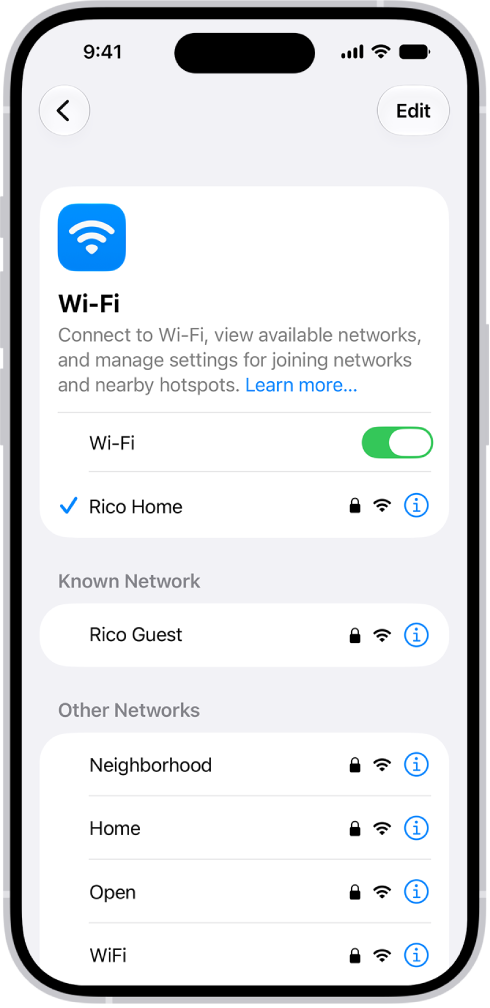
    The Wi-Fi options screen in Settings. Wi-Fi is turned on, and a network is selected.

You also need to make sure that your iPhone is close enough to your Wi-Fi router. If you’re too far away, the Wi-Fi signal might be too weak to complete the backup.

3. Connect to a Power Source

You also need to have your iPhone 18 Pro or iPhone 18 Pro Max charging to start a backup. In addition to a standard power outlet, you can connect it to a computer if you prefer.

When you plug in, you need to make sure that your cable works properly. You’ll see the battery icon in the top-right show a charging symbol and the screen confirms this. If your phone doesn’t charge, you should try using a different cable.

While you can use third-party cables to charge your iPhone, not all cables are created equal. Try using the official Apple cable and plug that came with your iPhone if you have trouble with others.

4. Make Sure You Have Enough iCloud Storage

Unsurprisingly, iPhone backups occupy your iCloud storage allotment. Therefore, if you don’t have enough iCloud storage space, backups will run into problems.

How much space you need varies depending on what’s on your iPhone; backups can take up anything from 1GB to 4GB of space. And given that Apple only provides owners 5GB of free iCloud storage space, you can run out of room pretty quickly. Luckily, it’s easy to manage your iCloud storage space.

Here’s how to check how much space you have left:

  1. Open Settings.
  2. Tap your name at the top of the page.
  3. Press iCloud.
  4. Select Storage.

Once on the iCloud Storage page, you might see that you’ve used up all 5GB of your allotted space. If so, you’ll need to take one of two actions.

Making More iCloud Space

First, you could delete old backed-up data. This could be for your iPhone itself, or from one of your apps. Deleting your iPhone backup will likely free up the most space. However, if you delete it and then make a new backup, you’ll probably run into the same storage problems again. As such, it’s better to delete the backups of app-related data.

This is what you should do:

  1. On the iCloud Storage page, tap the app you’d like to delete backed-up data for.
  2. Press Delete Data from iCloud.
  3. Select Delete to confirm.

Secondly, instead of deleting backups, you could upgrade your iCloud storage plan for a few dollars per month. In many cases, this small fee is worth it to avoid the hassle of juggling your space. To do this, you should tap Manage Plan on the iCloud Storage page.

5. Check iCloud Status

Believe it or not, Apple’s iCloud servers can sometimes go down. This means that no matter what you do you won’t be able to back up your iPhone 18 Pro Max to iCloud.

If you suspect a problem, you can quickly check the status of the iCloud servers by going to Apple’s System Status page.

Here, look for iCloud Backup. If you see a green light next to it, everything is working as it should. In other words, your backup issue is due to a problem on your end.

6. Sign Out of iCloud

You can sometimes solve iPhone backup issues by signing out of your iCloud account, then signing back in. This solves problems related to verification issues.

Here’s how to sign out and back in:

  1. Open Settings.
  2. Tap your name at the top to open your Apple Account settings.
  3. Scroll down and press Sign Out.
  4. If prompted, enter your Apple Account password and tap Turn Off to deactivate Find My iPhone.
  5. Select Sign Out.
  6. Tap Sign Out again when prompted.

To sign back in, you have to tap Sign in to your iPhone. From here, you should enter your Apple Account and password. If you have a Mac or other Apple device that’s connected to your Apple Account, you’ll get a verification code on it. You need to enter this on your iPhone, then input your iPhone’s passcode.

Once you’ve signed back in, you should try connecting your iPhone to Wi-Fi and a power source. Hopefully, it will begin backing up to iCloud once locked. You can also try leaving it connected overnight, so that the backup has enough time to finish.

7. Restart Your iPhone 18 Pro Max

Next, you can try restarting your iPhone. This is a simple action, but it resets your iPhone’s temporary memory. By doing this, you can sometimes get your iPhone to back up properly again.

You can restart by doing the following:

  1. Simultaneously press and hold the side button and either volume button until the sliders appear, then drag the Power Off slider.

    An illustration of iPhone with arrows pointing to the side button on the upper right and a volume button on the upper left.

  2. Press and hold the side button until the Apple logo appears.

8. Reset Settings

If a restart doesn’t fix your iPhone backup problems, you should try resetting all settings. This won’t erase your data, but it will erase preferences like your saved Wi-Fi passwords and all phone settings.

It’s a bit of a hassle to change all this back, but because something might interfere with the backup process, it’s worth trying at this point:

  1. Open Settings.
  2. Tap General.
  3. Scroll down and press Transfer or Reset iPhone, then tap Reset.
  4. Select Reset All Settings.

9. Update iOS

It’s possible that some kind of software bug is preventing your iPhone 18 Pro Max from backing up to iCloud. Accordingly, you should update your iPhone to the latest version of iOS, if a new one is available.

Here’s how you can update:

  1. Connect your iPhone to a Wi-Fi network and power source.
  2. Open Settings.
  3. Tap General.
  4. Select Software Update.
  5. If an update is available, tap Update Now.
  6. If prompted, enter your passcode.

General iPhone Maintenance Tips

At least one of the steps above should be enough to help you when your iPhone 18 Pro Max won’t back up to iCloud.

However, even if you solve your problem, it’s always a good idea to regularly perform basic iPhone maintenance. By keeping your iPhone in good working order, you’ll be less likely to encounter such problems as backup failure in the future.