






Got a tip for us?

iOS 27

Since you need a network connection to make the most of your iPhone 18 Pro or iPhone 18 Pro Max, it’s frustrating when your device won’t connect to Wi-Fi. You’ll instead have to use your data plan, which might be limited.

Let’s walk through the steps to fix the problem when your iPhone isn’t connecting to Wi-Fi.

1. Check the Wi-Fi Menu on Your iPhone 18 Pro Max

First, you should check to see if the Wi-Fi network you want to connect to is within range and already connected. Open the Settings app on your iPhone to begin.

There, take a look at the Airplane Mode slider. Having airplane mode enabled turns off all wireless communication, so your device won’t connect to Wi-Fi properly when it’s on.

Because of this, toggling airplane mode on and back off can be a useful troubleshooting step when your device won’t connect to Wi-Fi. Try this before proceeding, and make sure airplane mode is off going forward.

Next, tap the Wi-Fi entry in Settings. Make sure the Wi-Fi slider at the top is green, which means the feature is enabled. Below this, when everything is working, you’ll see the name of your network with a checkmark next to it, showing that you’re connected.
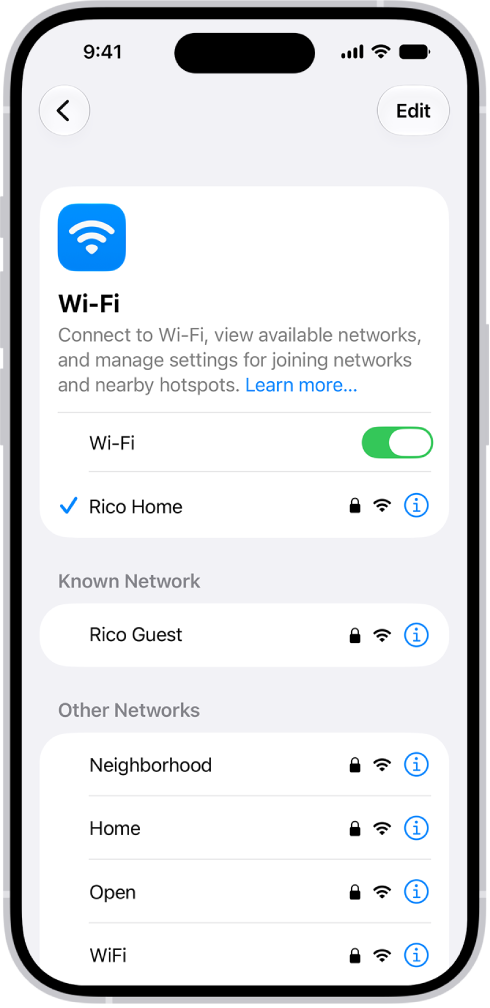
The Wi-Fi options screen in Settings. Wi-Fi is turned on, and a network is selected.

If this doesn’t appear, tap the name of the network you want to connect to in the Other Networks list below to connect to it. If you don’t see the network here, make sure that you are within range of the Wi-Fi network.

The exact distance that Wi-Fi covers will vary based on your equipment, but you should be as close to your router as possible to ensure a strong signal. If you know you’re close and still don’t see your Wi-Fi network, or it doesn’t connect when you tap it, you’ll need to continue to additional troubleshooting.

2. Reboot Your iPhone 18 Pro Max and Network Equipment

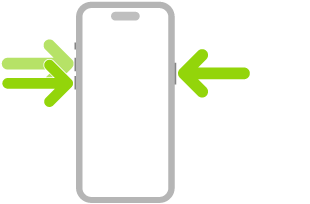
Before you continue, you should take a key troubleshooting step to weed out any simple issues. Restart your iPhone, as well as your router and modem. Simultaneously press and hold the side button and either volume button until the sliders appear, then drag the Power Off slider. Press and hold the side button until the Apple logo appears.
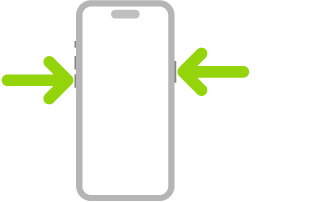
An illustration of iPhone with arrows pointing to the side button on the upper right and a volume button on the upper left.

If your networking devices have a physical power button, turn both of them off for at least a minute. If your equipment doesn’t have a power button, pull the power plug instead.

Once everything has rebooted, go back to Settings > Wi-Fi and tap your network name again. In case it doesn’t connect, we’ll walk you through the next steps.

If you still don’t see the name of your network on the menu, and it’s your home network, make sure that your network isn’t hidden. Also, confirm all your equipment is plugged in and the lights on your modem and router aren’t flashing red or similar. If you’re trying to connect to a public network that won’t appear, speak to its administrator.

3. Forget and Add the Network Again

If hitting the network name on the Wi-Fi menu doesn’t connect properly, tap the More Info button next to your network’s name. On the resulting menu, choose Forget This Network, which will clear the saved Wi-Fi password and require you to manually add it again.

Back on the Wi-Fi screen, select your network and type in its password. Your iPhone should connect to Wi-Fi with the correct password. But if the password doesn’t work, whoever administers the network might have recently changed it.

For networks where you’re in charge, you can log into your router to view the password and change it, if needed. For networks that aren’t your own, you’ll need to ask the owner to confirm the password. Make sure that you type the password carefully, and don’t confuse characters like “1” and “l”.

In case this step solved your issue, it’s a good idea to enable the Auto-Join slider on the network’s options page. With this on, your iPhone will automatically connect to your Wi-Fi network when within range.

4. Look for a Login Page (for Public Wi-Fi)

Many of these steps assume that your iPhone won’t connect to Wi-Fi at home. But when you’re trying to get online on a public network, like those at an airport or hotel, there’s often an extra step you have to complete before you can get online.

Once you’ve connected to a public network, open Safari or another browser and try to visit any website. You should be brought to a sign-in page, where you’ll be required to tap a button to confirm that you agree to the network’s terms of service.

After you do this, the Wi-Fi network should work properly, though keep in mind that some functions, like games and media streaming, may still be blocked on that network.

5. Check Your Wi-Fi Network for Issues

Even once your iPhone is connected to Wi-Fi, you might still have issues with the network not letting you get online. On the Wi-Fi menu, you’ll see a message like No Internet Connection underneath your network name when there’s an issue. Tap the network to see more details about the problem.

If an error appears here, it almost certainly affects your whole network, so other devices won’t be able to get online either. Try getting online with another device, like an Android phone or a laptop, to confirm this.

If restarting your equipment doesn’t fix the issue, the root cause could be a bad cable, incorrect router setting, or ISP outage.

If you have VPN or security software installed:

  1. Uninstall the software.
  2. Restart your device.
  3. Test the Wi-Fi connection.

If uninstalling the security or VPN software fixes the issue, but you must use the software, contact your VPN manager or security software provider.

6. Update All Devices

While a software update isn’t likely to fix Wi-Fi issues, it’s worth a try if you’ve reached this point. Update your iPhone by going to Settings > General > Software Update.

Then, update your router. The instructions for doing this vary by device, so try a Google search for your model, or consulting the manual, for help.

7. Try Connecting to Another Wi-Fi Network and Reset Network Settings

As a final troubleshooting step, connecting your iPhone to another Wi-Fi network will help you determine where the problem lies. If you’re able to connect to Wi-Fi successfully at a friend’s house or a coffee shop, then the problem is with your home network. But if your iPhone 18 Pro or iPhone 18 Pro Max won’t connect to Wi-Fi anywhere, then something on your device is the problem.

In this case, head to Settings > General > Transfer or Reset iPhone > Reset > Reset Network Settings. This will set everything network-related on your iPhone, including Wi-Fi, Bluetooth, and any VPNs, back to their default options. It’s a bit of a pain to set everything back up, but it’s the final troubleshooting step to weed out strange problems on your device.

If your iPhone still won’t connect to any Wi-Fi networks after resetting network settings, you should contact Apple Support. Your device likely has a hardware problem.

iPhone 18 Pro Max Won’t Connect to Wi-Fi? Now You Know the Fix

You don’t have to stress when your iPhone isn’t connecting to Wi-Fi. The problem usually lies with a simple mistake or is network-wide, so there’s probably nothing wrong with your iPhone. By following these simple steps, you can get your device back on Wi-Fi and online again.

There are ways to improve the Wi-Fi performance of your iPhone too, in case you find that it’s not suitable once your device connects.
A Wi-Fi connection is an essential function of any iPhone—but sometimes a poor signal interferes with surfing the web, using apps, or streaming. In these instances, you should look at ways to improve the Wi-Fi performance on your iPhone 18 Pro or iPhone 18 Pro Max.

Let’s look at fixes that can help you when your iPhone’s Wi-Fi isn’t working properly.

1. Restart Your Router

This is an often-overlooked step, but sometimes restarting the router is all it takes to fix Wi-Fi problems on your iPhone 18 Pro Max—especially if other devices are having trouble. Restarting your router brings it back to a fresh state, clearing any temporary problems.

To restart your router, simply locate its physical power button and toggle it off and back on. Alternately, you can disconnect the power plug. Wait for a minute or so before switching it back on.

If you reach the end of this guide and your iPhone’s Wi-Fi still hasn’t improved, the problem likely lies with your router. Performing a complete router reset may be necessary in extreme cases.

2. Experiment With Router Placement

The average Wi-Fi signal has a range of about 150 feet indoors. A longer distance between your iPhone and the router results in a weaker signal, so consider moving your router closer to where you use your phone the most.

Wi-Fi signals can also get blocked by barricades, such as walls and floors. Try positioning the router in a place that’s within eyesight, clear from barriers. Having your router up higher helps avoid interference from furniture and similar.

To check the strength of your connection on an iPhone 18 Pro Max, look at the cone-shaped stripes in the status bar, which indicates Wi-Fi strength. Three bars mean the signal is strong, two bars are moderate, and one bar means it’s weak.

If you live around a lot of people, network congestion could also be an issue.

Avoid using your wireless devices near common sources of interference, such as power cables, microwave ovens, fluorescent lights, wireless video cameras, and cordless phones.

3. Remove or Change Your iPhone Case

Most of the materials used in the production of phone cases don’t block or interfere with Wi-Fi signals. However, some can—these are usually metal cases. Metal disrupts the transmission from the antenna, which is located somewhere near the top of your iPhone, depending on the model.

If your phone case is metal-plated, swap it out for a silicone, plastic, or leather one instead. You should also avoid using metal rings or PopSockets that stick to the back of the phone.

4. Cut Down on Network-Heavy Activity

Downloads, streaming, and certain apps can hog your available bandwidth. You should check what’s using your bandwidth to pinpoint any clear culprits. If this doesn’t turn anything up, you’re going to have to run each app or function individually, one at a time, to see which ones are affecting the Wi-Fi.

Thankfully, there are also a few ways to cut down the amount of bandwidth your iPhone uses. First, you can check which apps tend to gobble up the most bandwidth by viewing their data usage on your iPhone. Depending on when you last reset the statistics, however, this might not be very accurate.

To check data usage on your iPhone:

  1. Go to Settings > Cellular.
  2. Scroll through the list of apps in the current period and view their data usage right below the names.

Next, you can turn off automatic app updates to reduce bandwidth usage in the background:

  1. Go to Settings > Apps > App Store.
  2. Turn off App Updates.

With this disabled, you’ll need to manually update apps instead:

  1. Open the App Store app.
  2. Select Apps at the bottom.
  3. Tap your avatar at the top-right.
  4. Tap App Updates, then tap Update next to apps you want to update, or tap Update All.

VPNs require additional bandwidth, so it might be worth turning that off at home if you use one.

Since streaming can put a lot of strain on your network, opt for downloading media (at non-peak times) over streaming wherever possible, especially media that you repeatedly consumed, such as music. This will require a bit of storage space, but reduces strain on your network in the long run.

5. Keep iOS Updated

A device with out-of-date software could impair your Wi-Fi connection. iOS updates fix bugs and improve the overall operability of an iPhone, including network performance.

To update iOS:

  1. Go to Settings > General.
  2. Select Software Update.
  3. If there’s an update pending, choose to install it.

Remember to back up your iPhone before updating to avoid losing any essential data.

6. Forget and Re-Add the Wi-Fi Network

Forgetting a network removes its password and all other network information from your iPhone. This can help clear up issues with connecting to specific networks. Keep in mind that you’ll need the password to reconnect after forgetting a network.

To forget a network on iOS:

  1. Go to Settings > Wi-Fi.
  2. Tap the More Info button next to the network you want to forget.

    The Wi-Fi options screen in Settings. Wi-Fi is turned on, and a network is selected.

  3. Hit Forget This Network.

For best results, try restarting your phone before rejoining the network.

7. Change DNS Options

Domain Name System, or DNS, is a protocol that translates website IP addresses into something readable, which is easier for humans to work with. DNS configuration runs in the background when your iPhone is connected to the internet. The default option depends on your service provider, but you can change it to something else like Google or Cloudflare.

Changing the DNS can help improve website loading times, circumvent some tracking from your ISP, and potentially increase your safety online.

To change the DNS server on your iPhone:

  1. Open Settings and select Wi-Fi.
  2. Tap the More Info button next to your network.
  3. Scroll down and tap Configure DNS.
  4. Change to Manual, then tap Add Server.
  5. Type in the DNS server address(es) you wish to use.
  6. Tap Save when done.

To revert back to the default DNS settings, follow the above step to return to this menu. Then, instead of Manual, select Automatic and hit Save to confirm.

8. Reset All Network Settings

If all of the above failed, try resetting the network settings on your iPhone. This will clear all saved Wi-Fi networks; you may also need to set up VPNs and cellular options again.

To reset network settings on iOS:

  1. Open Settings and select General.
  2. Scroll down to Transfer or Reset iPhone, then tap Reset.
  3. Choose Reset Network Settings.

This will ask for your iPhone passcode to confirm, then reboot the device.

Better Wi-Fi on Your iPhone

There are several factors that can affect the performance of Wi-Fi on your iPhone 18 Pro or iPhone 18 Pro Max. Thankfully, most of them are easy to fix.

If the tips above don’t work, you probably have a bigger problem with your phone or Wi-Fi network at large.

Since smartphones are the primary way most people connect to the internet, getting the fastest possible internet speeds on your mobile devices is more important than ever.

But that doesn’t always happen. There are lots of problems that can slow the Wi-Fi speed on your phone down. Let’s take a look at the main reasons why the internet connection is so slow on your iPhone 18 Pro or iPhone 18 Pro Max, and how you can increase your Wi-Fi speed.

1. Poor Router Position

One of the main reasons your phone’s Wi-Fi is slow is that you’ve got your router positioned in the wrong place.

Depending on the specs and design of your router, the signal can have a range of up to a few hundred feet. But the further it travels, the slower it gets. The Wi-Fi signal can be blocked by large physical objects, like walls, floors, and doors too.

So if you’re a long distance from the router—like in the furthest bedroom in your house, or even outside—the speeds you get might be a lot slower than you’d expect.

There’s a quick way to test this. The Wi-Fi icon on your phone’s status bar gives you a rough indication of the signal strength.

  • When the icon is full, you’ve got a strong signal. This suggests your slow internet has a different cause.
  • When it’s empty, or nearly empty, your signal is weak. Other Wi-Fi devices like your laptop should also be affected at these long distances. When you move closer to your router, your signal strength—and internet speed—should improve.

When the weak signal does improve as you get closer, it shows that your router’s position is the problem. Try experimenting with different router positions to see if you can get better Wi-Fi coverage throughout your home, or take steps to try and extend your router’s range.

If your speed doesn’t improve when you get closer to the router, or if the Wi-Fi is slow on your iPhone 18 Pro Max but not other devices, you may have other problems you need to fix.

2. Congested Wi-Fi

Another router issue that makes your phone’s internet slow is congestion. Routers broadcast their signal on a specified channel, but if your neighbors have their routers set to the same channel, it can become congested and degrade the performance for everyone.

This can be a problem in apartment blocks especially, where you have a lot of routers crammed into a relatively small area.

To fix this, you need to use software that can help you find the best channel for your router. It’s harder to do on an iPhone, but the old AirPort Utility for iOS still works.

3. Wi-Fi Noise

As well as interference from other nearby routers, Wi-Fi is also susceptible to noise from appliances in your home. Devices like microwaves, wireless doorbells, and cordless phones can interfere with the signal from a router running on the 2.4GHz band.

Most modern routers can work on both the 2.4GHz and 5GHz bands. The latter is a lot less prone to interference. If you’ve got a fairly recent router that supports this, you can delve into the router’s settings to enable 5GHz broadcasting.

Before you do this, though, you need to make sure all your connected devices—not just your phone—support 5GHz, or they’ll no longer be able to connect. Many modern routers are dual-band, meaning they can broadcast on both bands simultaneously. If you don’t have one of these, you’ll have to choose either one or the other.

If you’re sticking with 2.4GHz, make sure you don’t have any other devices near your router that could cause interference. And prepare for possible disruption if you’re streaming Netflix while standing in the kitchen making microwave popcorn.

4. You’re Connected to a Slow Network

One of the most obvious reasons why the Wi-Fi is slow on your iPhone 18 Pro or iPhone 18 Pro Max is that you’re connected to a slow network.

At home, your speeds will take a hit when other apps and devices are hogging your bandwidth. Streaming movies, downloading video games, or installing operating system updates will all cause a slowdown in your general internet use.

On public Wi-Fi, the speeds you’ll get can vary wildly, and you shouldn’t rely on getting a superfast service from something you aren’t paying for. However, even after checking your expectations, you might still end up getting far worse performance than you could.

There are so many public Wi-Fi hotspots, and your phone is liable to latch onto one of them at random. It’ll often even stay connected after you’ve moved into the range of a closer or better one. This means that while your favorite coffee shop might have fantastic Wi-Fi, there’s no guarantee you’ll connect to it every time.

iPhone connects in this order: the most recently used Wi-Fi network, then a Wi-Fi network you choose from the list, then your carrier’s cellular data network.

5. You’re Using a Slow VPN

If you’re wondering why your phone internet has become slow all of a sudden, it could be because of a change you made on your phone. One reason for this could be that you’ve started using a VPN, which gives you more security and privacy online.

But did you know that your choice of VPN can have a significant effect on your internet speed?

Free VPN apps are notorious for offering terrible performance. If you’re using one and getting slow internet speeds, try disabling it temporarily to see if that improves your experience.

6. Poor Mobile Coverage

Slow internet on your iPhone 18 Pro Max isn’t just about slow Wi-Fi. When you switch to mobile data, you’d expect your connection to be as fast or even faster than Wi-Fi. But this isn’t always true.

There are so many things that can affect your phone signal. You’ll see this manifest often in crowded places, like at a sporting event or concert. When tens of thousands of people are trying to connect to the same cell tower at the same time, performance suffers.

And there are other potential factors, too. Your distance from the nearest tower, whether you’re indoors or outdoors, and even the weather can have an effect.

So you might have a 5G phone, but 5G coverage could be patchy enough that you might not benefit from it. And some of these issues can even cause a 4G phone to fall back to a slower 3G connection; others might leave you with no internet connection at all.

In addition, smaller mobile carriers might have more limited bandwidth, meaning you may never get up to top speed on those. Speak to your carrier if you have ongoing problems. If there’s no solution, it may be time to change to a better provider.

7. Your Phone Is Slow

Finally, slow phone internet might just be a sign of a slow phone. Your Wi-Fi connection may be great, your mobile data coverage perfect, and you’re on a fast network. But maybe your phone just can’t keep up with what you’re asking it to do.

The resource requirements of apps and websites creep up all the time. So even when your actual internet speed is good, you might still perceive it to be slow. The phone’s hardware might be taking its time rendering a webpage, for example, or struggling to handle the graphics in an online game.

But even if you’ve got an up-to-date, high-end device, your choice of apps can still have an impact. Too many apps downloading and syncing in the background can hog too much of your available bandwidth.

Older or poorly written apps can make your phone slow generally. Make sure to keep your apps up to date, uninstall apps that you don’t use, and keep an eye on which are allowed to run in the background. And in extreme cases, it might even be time to consider whether it’s worth buying a new smartphone.

Why Is My Phone’s Internet So Slow? Now You Understand

As you can see, there are lots of reasons why the internet is slow on your iPhone 18 Pro Max. Fortunately, most of them are easy to fix. They’re often caused by issues with your hardware, so you may need to make tweaks on your router to resolve the problem for your other devices too.

Wondering why your cellular data is so slow? Working with a slow data connection on your iPhone 18 Pro or iPhone 18 Pro Max is extremely frustrating. When you’re trying to watch a video or look up information, it’s easy to get upset when service doesn’t meet the standard you expect.

In most cases, a slow data connection is temporary as it’s caused by your location or network congestion. But at other times, it can persist for hours or even days. Before you call your mobile carrier’s technical support, try these simple steps first and see if they fix your slow mobile data issues.

1. Restart Your iPhone 18 Pro Max

This seems like a cliché fix, but it often works. Restarting your phone should fix sluggish cellular data speeds, especially if you haven’t turned it off in a while. If you’re in a rush, you can try putting your phone in airplane mode first. But a full restart is always a good idea.

Restarting your phone is simple. Follow these steps for your device:

  • Simultaneously press and hold the side button and either volume button until the sliders appear, then drag the Power Off slider. Press and hold the side button until the Apple logo appears.

    An illustration of iPhone with arrows pointing to the side button on the upper right and a volume button on the upper left.

It’s a good idea to leave your phone turned off for a few minutes before turning it back on.

2. Move to a Different Location

Many physical factors can result in slow LTE or 5G. These include weather, network congestion, and even solar activity. But chief among these are geography and buildings.

If you’re in a remote area, or there are a lot of natural barriers around you (such as hills, mountains, and valleys), you’ll probably experience a poor signal. Try to move to a more even-leveled location if the landscape around you fits one of these extremes.

The same goes for being inside buildings. You might be in the middle of a heavily populated urban area with full bars on your device, then wonder why your data becomes so slow when you enter certain structures. Being underground, or surrounded by concrete in a structure like a basement, can negatively affect your data signal.

If you’re having data speed problems that only started in a certain location, try moving somewhere else. You may need to leave the building you’re in or drive a few miles away. While this may not be convenient, it’s a good way to troubleshoot your speed issue.

This step is likely something tech support will ask you to do anyway if you call for help. Unfortunately, current network technology doesn’t provide perfect coverage in all areas, so location is still a big factor. As 5G continues to become more popular, we’ll hopefully see fewer dead zones.

3. Update and Disable Network-Heavy Apps

Sometimes a troublesome app can cause issues by hogging your data connection, thus leaving less bandwidth for other apps and slowing everything down. In such a case, you’ll need to do a little investigating to see what, if anything, is eating into your bandwidth. If there is something amiss, you can disable the app’s access to your cellular data connection or uninstall it.

When your iPhone 18 Pro Max internet is slow, you can visit Settings > Cellular and use the list to disable any app’s access to your cellular data connection.

You should also check for app updates. App developers publish updates to address bugs all the time, which could include fixes for slow network performance or excessive bandwidth usage.

Go to the App Store app on your iPhone. Tap your picture. Tap App Updates, then tap Update next to apps you want to update, or tap Update All.

4. Disable Low Data Mode

iPhone contains modes designed to reduce your data usage. These are handy if you have a limited amount of data, but if you enabled them by accident, they can make it seem like your mobile connection is slower than it actually is. Try disabling these modes to see if everything feels faster.

You’ll find Low Data Mode under Settings > Cellular > Cellular Data Options > Data Mode.

If you’re worried about how much data you use, make sure you turn these back on after a bit. You should be able to tell if this setting is making your mobile data slower or not. It cuts a few corners, such as not loading images until you tap them, or pausing background sync until you open an app.

5. Remember Your Data Cap

Don’t forget that you probably have a mobile data cap ranging from a few to several dozen gigabytes. If you go over that cap, your mobile carrier will usually slow your connection (in lieu of expensive overages).

Even those on so-called “unlimited” plans will usually experience throttling or “deprioritization” during times of network congestion, especially after they hit a certain limit. This might be the cause when you experience slow mobile internet. If you’ve used up your allotment, you’ll either have to wait until your bill cycle resets or purchase additional high-speed data.

It’s a good idea to know how much data you can use before your carrier drops you down to a much slower connection speed. If you’re not sure, check your account through the company’s mobile app or website. That will show how much high-speed data you have per month, and how much you’ve used so far.

6. Disconnect From Your VPN

VPNs can provide additional privacy and let you get around geo-restrictions, but staying connected to a VPN can also slow down your mobile speeds due to increased overhead. Thus, if your iPhone 18 Pro or iPhone 18 Pro Max is connected to a VPN and you need to make your data faster, try disconnecting from the VPN first.

Chances are, you’ll notice an immediate improvement as soon as you disconnect.

7. Check for Network Outages

Though mobile carriers love to boast about their reliability, outages happen all the time. These outages often account for reduced speeds or even lost connections. If you’re still experiencing slow mobile data after checking all the above, it’s a good idea to check for outages with your carrier before calling in.

If you can connect to Wi-Fi, it’s possible to do some investigating. Try checking a website such as Downdetector. Often, if the issue is widespread, other people will have already reported it. You’ll see a large spike in recent reports about outages with your carrier, and can check the heatmap to see which areas of the country are experiencing problems.

You can also hop onto social media. X is a good place to research connection issues because people will often tweet about their connection problems. Plus, if you contact your mobile carrier’s support X account, you’re likely to get a response quickly.

This also lets you do something else while you wait, instead of wasting time on hold while calling your carrier’s support number.

8. Reset Your Phone’s Network Settings

Resetting your network settings often fixes a slow mobile data connection, but it’s a more drastic step. Doing this resets everything related to networking to its default. This includes removing your Wi-Fi access points, Bluetooth devices, and similar. Losing these isn’t the end of the world, but you will have to reconnect to saved Wi-Fi networks and re-pair your Bluetooth devices later.

To reset network settings on an iPhone 18 Pro or iPhone 18 Pro Max, open Settings > General > Transfer or Reset iPhone > Reset > Reset Network Settings. Your phone will prompt you for your passcode if you have one, then it will restart to perform the operation.

9. Remove and Reinsert Your SIM Card

Finally, you can try to pull out, then reinsert, your SIM card. This can clear up any underlying issues affecting your phone’s connection to your carrier.

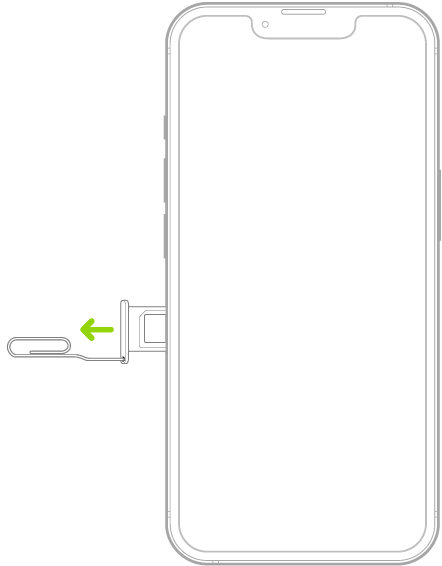
The SIM sits in a small tray that will pop out. Insert a paper clip or SIM eject tool into the small hole of the SIM tray, then push in toward iPhone to eject the tray.

A paper clip or SIM eject tool is inserted into the small hole of the tray on the left side of iPhone to eject and remove the tray.

Before pulling your SIM card, you should ideally turn off your phone. It’s not a huge deal, but will prevent any potential damage. Also, make sure you pull your SIM while sitting at a table or other flat surface, since it’s tiny and easy to lose. You don’t want to drop it into the grass.

Note: iPhone 18 Pro Max models purchased in the United States can only be activated with an eSIM.

If pulling the SIM card doesn’t work, you can try replacing it. This will require going into one of your carrier’s store locations, so you should call first if your issue still isn’t resolved at this point. Your carrier may send you a new SIM through the mail anyway.

10. Call Your Carrier’s Support

If none of these steps fix your slow data, then it’s time to call tech support. Contact your mobile carrier through its support number, which you can find through the mobile app or with a quick Google search.

Keep in mind that the technician on the phone may have you repeat some of these steps. You might want to refuse because you’ve already done them, but it’s the employee’s job to go through a list of troubleshooting steps to see what works and what doesn’t.

You can try explaining upfront what you’ve already done, but it’s worth sticking with their instructions to make sure you didn’t miss anything.

Why Is My Phone Internet Slow? Now You Know

Hopefully, you can make your mobile data faster without having to call your carrier. But if nothing above does the job, the issue could be something on your provider’s end that you can’t fix. That’s why it’s a good idea to call if you’re out of other options.

Remember that a slow data connection is only part of a potential problem. If your phone is still slow on Wi-Fi, you’ll need to investigate further to improve Wi-Fi performance too.

Are you having trouble loading images in Safari and finding a solution to fix this issue? Look no further.

Safari can fail to load images due to various reasons, but we’ll discuss why and walk you through some troubleshooting steps to fix this problem.

1. Make Sure Your Internet Connection Is Stable

Let’s start with a basic solution. Your unstable internet connection could be why Safari can’t load images on your iPhone 18 Pro Max. Safari requires a stable internet connection to work properly.

You can check the speed of your cellular data or Wi-Fi connection by visiting one of the many speed test websites available. If your cellular connectivity seems poor on your iPhone, enable Airplane Mode for a few seconds and then turn it off to refresh your network or switch to a Wi-Fi network.

2. Force Quit and Relaunch Safari

If your internet works fine, another simple fix for solving images not loading on Safari would be to force quit the app and relaunch it. With this method, you can easily fix any minor bug or glitch that might be preventing Safari from loading images on your iPhone.

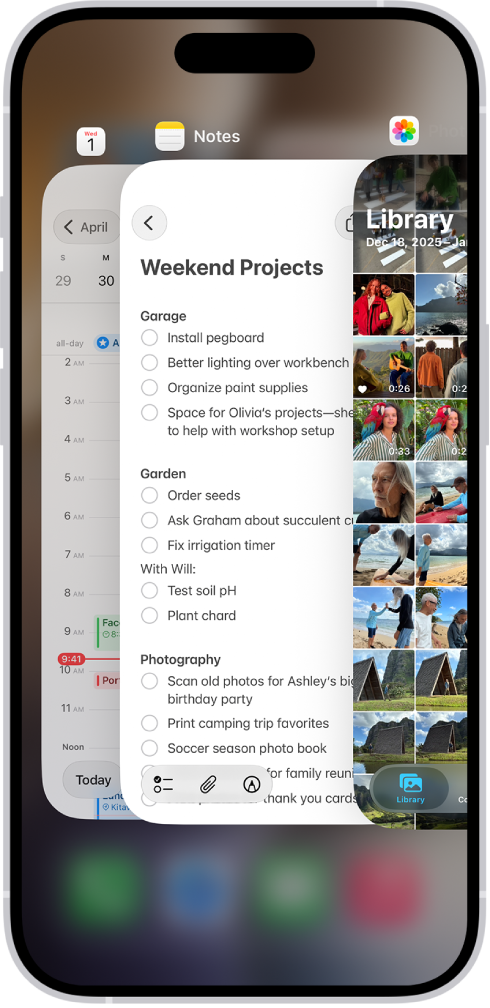
Swipe up and hold to reveal the background app on your iPhone’s Home Screen. Look for the Safari app and swipe up to force close the app.

The App Switcher. Icons for the open apps appear at the top, and the current screen for each open app appears below its icon.

You can also try a different browser to see if the website you’re trying to open loads correctly on it. It could be an issue with the website and not Safari, or maybe that website isn’t compatible with Safari.

3. Disable Low Data Mode

Using your iPhone in Low Data Mode may help reduce overall cellular data usage by limiting the data your iPhone can access for background tasks.

Still, it can also prevent images from loading on Safari. Turning off this feature can fix the images not loading in Safari issue.

Here’s what you need to do to disable Low Data Mode for a cellular connection:

  1. Launch the Settings app on your iPhone and select Cellular.
  2. Tap Cellular Data Options.
  3. Tap Data Mode, then choose Allow More Data on 5G instead of Low Data Mode.

Likewise, to disable Low Data Mode for a Wi-Fi connection, follow these steps:

  1. Open Settings and tap Wi-Fi.
  2. Tap the Info (i) button next to the Wi-Fi network you’re connected to.

    The Wi-Fi options screen in Settings. Wi-Fi is turned on, and a network is selected.

  3. Toggle off Low Data Mode.

Now, relaunch Safari and see if it loads images as intended.

4. Enable JavaScript

JavaScript is widely used on websites to display images and other dynamic elements. If you accidentally turned off the JavaScript option in Safari settings, this could be why images aren’t loading in Safari on your iPhone 18 Pro Max. To fix this, follow these steps:

  1. Open the Settings app on your iPhone, tap Apps, and select Safari.
  2. Tap the Advanced option at the bottom.
  3. Enable the JavaScript toggle.

Now, check if you’re able to load images while browsing Safari.

5. Disable Ad Blockers

There’s no denying that ad blockers are tremendously helpful in removing unwanted ads from a webpage and improving the overall browsing experience.

While these extensions can improve your Safari experience, they may result in photos not loading in Safari on your iPhone. To solve this, disable these ad blockers by following these instructions:

  1. Open the Settings app on your iPhone, tap Apps, and select Safari.
  2. Under the General section, tap the Extensions option.
  3. Select the Ad Blocker extension from the list.
  4. Disable the Allow Extension toggle.

6. Remove Content Restrictions

The Screen Time feature on your iPhone lets you set app content restrictions and time limits. If you’ve enabled this feature, it might interfere with Safari and prevent it from loading images.

To remove content restrictions for Safari on your iPhone, here’s what you need to do:

  1. Launch the Settings app and select Screen Time.
  2. Tap Content & Privacy Restrictions.
  3. Disable the Content & Privacy Restrictions toggle.

This method is also one of the best fixes when Safari isn’t working on your iPhone.

7. Clear Browsing Data

If you frequently use Safari, it will accumulate data over time. This data can become corrupted and prevent Safari from loading images on your iPhone 18 Pro Max. Clearing your browser’s cache is a common troubleshooting method and is well-known for resolving problems and removing temporary glitches.

Besides, if you haven’t cleaned your browsing history in a while, it may impact Safari’s speed and performance. To clear Safari’s data from your iPhone, follow these steps:

  1. Head to the Settings app, tap Apps, and select Safari.
  2. Scroll down and tap on Clear History and Website Data.
  3. Select All History and hit the red Clear History button.

This method will unclutter the browsing data and speed up Safari if it takes forever to load.

8. Disconnect Your VPN

VPNs are a fantastic way to hide your location and other private information from websites you visit. However, VPNs usually re-route your data through a succession of remote servers to keep it untraceable, producing network latency that can prevent pictures from loading in Safari.

Disconnecting the VPN might solve the issue if you’re using a VPN while browsing Safari. You can either do this directly from the VPN app installed on your iPhone or go to Settings and turn off the VPN switch.

9. Update Your iPhone

iOS updates can sometimes carry bugs that could affect certain apps, but Apple is always quick to address such issues. So, if you haven’t updated your iPhone 18 Pro or iPhone 18 Pro Max in a while, now would be the right time to do so.

Go to Settings > General > Software Update and wait until your device finishes checking for updates. If a new iOS version is available, tap Update Now.

Enjoy Safari Images on Your iPhone 18 Pro Max

It can be frustrating when pictures don’t load in Safari, as they’re essential to your web browsing experience. However, you can use the troubleshooting steps we discussed here to fix this issue quickly. If you’re still out of luck, you should contact Apple Support or make an Apple Store appointment at a Genius Bar for in-person assistance.

Safari is the native browser for iPhones. It comes pre-installed on almost every Apple device, and it’s designed to be fast and efficient for them. However, there are times when Safari doesn’t work.

When this happens, it usually means there’s a setting or software issue. There are even cases where you might not be able to access the internet at all on your iPhone 18 Pro or iPhone 18 Pro Max. Luckily, there are a variety of things you can try to get Safari working again.

1. Restart Your iPhone 18 Pro Max

You hear it all the time—turn your device off and on again. While this may sound too simple to work, restarting your iPhone has been known to clear your usable memory, which can speed up Safari. Simultaneously press and hold the side button and either volume button until the sliders appear, then drag the Power Off slider. Press and hold the side button until the Apple logo appears.

An illustration of iPhone with arrows pointing to the side button on the upper right and a volume button on the upper left.

If Safari is frozen or just a blank white screen, restarting your iPhone can also fix these problems. Before you try anything else, just make sure you cover the basics.

2. Turn Off Safari Suggestions

Turning off Safari Suggestions is one of the simplest and most common fixes for Safari not loading or crashing on an Apple device. While we aren’t sure why this works, many users have reported that turning this off fixes the problem.

To turn off suggestions, head to Settings > Apps > Safari > Safari Suggestions and turn this off. You can also turn off Search Engine Suggestions while you’re there too, as some users reported this also fixes the issue.

Some users have also said that blocking Safari popups on your iPhone can improve the memory usage of Safari. So, you may also want to give this a try.

If this fixes your issue, then you’re all set. If not, try the following steps.

3. Turn On Cellular Data for Safari

If you’re frequently connected to Wi-Fi, you may have cellular data off for Safari to save internet data. While helpful, if your Wi-Fi isn’t functioning right, connecting to cellular data could fix your issue.

To do this, head to Settings > Cellular > Safari and turn this on. If it was off, this was most likely the cause of your issue. Alternatively, you can turn off Wi-Fi if you’re connected and just connect with cellular data. If you can connect this way, that means there’s a network issue with your Wi-Fi network.

4. Edit Your Screen Time Settings

If you’ve ever changed your Screen Time settings or blocked certain websites through Screen Time, try turning these settings off. To block websites, you need to enable Content & Privacy Restrictions which can inadvertently block websites you still want to use. If you can’t load a link from an email or text message, this could also be a sign that content restrictions are on.

To fix this issue, head to Settings > Screen Time > Content & Privacy Restrictions and turn this option off. If it was on, then this was most likely your issue. If it was off already, proceed to the next fix.

5. Clear All Safari’s Data

If you frequently use Safari, you might have a lot of data stored within the app, making it fail to load correctly. This is especially true if you’re using an iPhone with a lower storage capacity. If you get low storage notifications, this fix could resolve your issue.

To clear Safari’s data, head to Settings > Apps > Safari > Clear History and Website Data. This will erase all extra data in the Safari app. Some users report this works, but you’ll need to do it often if you can’t eliminate storage space elsewhere on your iPhone.

6. Update iOS to the Latest Version

Some users have reported that updating iOS resolves issues with Safari. Whether Safari isn’t loading, is crashing, or just isn’t connecting to websites, try updating iOS on your iPhone 18 Pro or iPhone 18 Pro Max. Go to the Settings app on your iPhone. Tap General, then tap Software Update.

Apple does a great job of fixing widespread issues with iOS updates. So, if there is an issue that Apple is aware of, it could get fixed by a subsequent update.

7. Reset Your Network Settings

If you’ve had issues with your network before, like not getting service or pages timing out, resetting your Network Settings could help.

To reset the Network Settings on your iPhone, head to Settings > General > Transfer or Reset iPhone > Reset > Reset Network Settings. This will reset only your Network Settings and won’t erase any other data on your iPhone.

After you finish this, try opening Safari to see if it’s working again. If not, proceed to the next fix.

8. Reset to Factory Default Settings

If all else fails, you can try resetting your iPhone 18 Pro Max to the default settings. This will erase all the data on your iPhone, and you’ll have to set it up from scratch. However, this is also a very effective way to resolve all kinds of software problems. To do this, head to Settings > General > Transfer or Reset iPhone > Erase All Content and Settings.

After resetting to the default settings, test out the Safari app before you install your usual apps. If Safari is working then but stops working when a certain app is installed, that means the app installed is interfering with Safari.

If Safari isn’t working when you have a fresh install, make sure you didn’t restore a backup of your iPhone. If you restored a backup, there could be something interfering with Safari that transferred over. If you reset your device without a backup and Safari still doesn’t work, you can try one of the two last troubleshooting steps.

9. Turn On JavaScript

JavaScript is on by default. However, if you’re having issues with Safari, it’s likely that JavaScript is off. Sometimes, one might turn JavaScript off as some websites might not support it.

If you’ve turned JavaScript off or want to check if it’s off and turn it back on, head to Settings > Apps > Safari > Advanced.

10. Use an Alternative Browser

If the above fixes didn’t work, then unfortunately, there might be an iOS bug with Safari, and you’ll need to wait for the next update and hope it’s patched. Until then, you can try using an alternative browser to access the internet on your device. There are many great browsers available in the App Store that can cater to your needs.

Be sure to check back for iOS updates and see if Apple has addressed the bug. You can also start a new discussion in the Apple Discussions Community to see if anyone else is experiencing the same issue.

Safari Not Working on Your iPhone 18 Pro Max? It’s Most Likely a Software Issue

Cracked screens and broken buttons are easy to diagnose as we can instantly see what’s wrong. But when Safari or other apps on your iPhone stop working, that usually means a software issue is at play.

You can usually fix these issues by updating iOS, changing your settings, or resetting your device. However, if the issue still isn’t fixed after trying everything above, you might need to post in the Apple forum about your issue for more help.

Water and technology are not usually happy bedfellows, so suddenly seeing your precious iPhone 18 Pro Max plummet into the sink, bath, toilet, or any other body of water can be a heart-stopping moment. But, don’t panic, all may not be lost as modern phones are far more robust than those of yesteryear. In this article, we explain the best strategies for dealing with a wet or water-damaged iPhone.

You can jump straight to our advice for how to dry your iPhone, but before we do that we offer some reassurance that things might not be as bad as you imagine.

Is my iPhone waterproof?

While no iPhone is completely waterproof, there’s a very good chance that it will have some level of water resistance. Just how waterproof your iPhone is will be indicated by its IP Rating. This rating lets you know how water-resistant the product is. There are multiple types of IP ratings, but the two main ones that apply to iPhones are IP67 and IP68.

The iPhone 18 Pro and iPhone 18 Pro Max are rated IP68 (maximum depth of 6 meters up to 30 minutes) under IEC standard 60529.

Therefore, your iPhone should happily survive short dips and the odd spilled beverage or two. This doesn’t mean you can take your iPhone swimming, jet skiing, or use it in a steam room. It just means that if your iPhone slips out of your back pocket and drops into the toilet (it happens!) and you quickly fish it out it should be ok.

Of course, things can still go wrong even with an apparently waterproof iPhone. If there is any residual water on or in your device after the incident it may cause problems. Follow the advice below and learn how to dry out your iPhone.

Does Apple’s warranty cover water damage?

Thanks to the water resistance your iPhone should work well after its submersion, but should you have a problem with your iPhone in the future the incident may come back to haunt you. Apple’s one-year warranty does not cover accidental liquid damage.

Apple will be able to tell if your iPhone got wet in the past and that will void your warranty should anything go wrong later on. Since 2006 Apple has included Liquid Contact Indicators inside iPhones that activate when they come into contact with water.

However, Apple offers AppleCare+ for iPhone that does cover drops and damage caused by liquid contact.

What to do if an iPhone 18 Pro Max gets wet

  1. Get the iPhone out of the water right away.
  2. If the wet iPhone is in a case, take it out. Water can linger in nooks and crannies.
  3. With a soft towel or cloth, wipe the liquid off everything you can reach.
  4. Give the iPhone a gentle shake and, with the USB-C connector directed downwards, tap to clear any water from the USB-C connector and speakers.

What NOT to do if an iPhone gets wet

  1. Do not plug in the iPhone. If it’s plugged in already, unplug it (very carefully). Allow at least 5 hours before charging or connecting a USB-C accessory.
  2. If the iPhone is switched off do not turn it on. This can cause short circuits.
  3. Do not open the SIM tray until the iPhone is dry.
  4. Do not try to dry the iPhone using a hair dryer.
  5. Do not insert anything into the ports.

Note: iPhone 18 Pro Max models purchased in the United States can only be activated with an eSIM.

How to dry an iPhone

While Apple advises that you can simply wipe the iPhone dry and tap any excess water out of the ports, we recommend you go a little further than that to ensure your iPhone is as dry as possible.

So in addition to taking the iPhone out of any cases, wiping it with a cloth, and tapping it to help any water out of the ports, as above, we recommend the following:

Fan: Place the iPhone in front of a fan with the USB-C connector facing the fan. This is one of Apple’s suggestions. It should be a fan blowing cool air (not an electric heater).

Rice: The rice trick used to be the go-to method back when submerging an iPhone in water was likely to damage it considerably. The popularity of this method is likely down to the fact that rice is something most of us will have at home and the simplicity of the fix—just put your phone in a bag of uncooked rice and wait. However, Apple now warns against using this method as it could “allow small particles of rice to damage your iPhone.”

Silica gel: Silica gel sachets will dry a wet iPhone out more efficiently and with less opportunity for damage than rice. While we are less likely to have silica gel packets around the home these days, back at the height of the COVID pandemic we probably had lots thanks to their inclusion inside test kits. You can also find these inedible packets inside new handbags or packed with some electronic components. You may be able to buy silica gel from a craft shop.

Should you dismantle an iPhone to dry it out?

iPhone should only be serviced by a trained technician.

How to eject water from an iPhone speaker

There is one last thing you can try if you find that water may be in your device. While most iPhones are water-resistant, it doesn’t stop water from getting into the speaker grilles. Apple Watch comes with a built-in feature that can be toggled to ‘eject’ the water by playing a specific frequency, clearing out its speaker grilles in the process. Why iPhones don’t feature a similar option is something of a mystery, but there is a relatively easy way to get the same results via a free app called Sonic (the Tone Generator, not the hedgehog).

Simply download the app and tap the water droplet icon in the middle of the screen. This should cause the water to ‘jump’ from the speaker so you can absorb it with a tissue. If your music or podcasts sound a bit garbled after the iPhone takes a dip, this is well worth a go.

What to do next

Ok, so you’ve had your iPhone drying out for a day or so. What next? If you think the device has successfully dried out, you can try switching it on. Should this not work, you can give it more time. If that doesn’t do the job, then you’ll want to get the internals checked out. Book an appointment with an Apple Genius to see if they can help rescue the device, especially if you have AppleCare+.

One final warning: iPhones can be resurrected temporarily, but then succumb to liquid damage at a later date, so we would advise that you back up all important files on the device in case it packs up again in the future. As we said, its recovery may only be temporary – although we hope not.

Whenever you tell someone that you have a problem with your phone or any other technology, the first question they’ll likely ask is, “Have you tried turning it off and on again?” This can seem irritating, as it’s very general advice. But is there any truth within this alleged quick fix, or is it nothing more than tech lore?

What Happens When You Turn Your Phone Off?

Turning your iPhone 18 Pro Max off is no big deal, but a key thing happens in the process. Let’s talk RAM.

RAM (random access memory) stores data in the short term as and when the phone’s processor needs it. You’ll also see RAM in many other devices, including tablets, PCs, laptops, and game consoles. The data stored in your RAM is used to carry out all kinds of tasks in any app you’ve used since the last time you turned on your phone.

If you want to access a webpage or app, this can be done quickly using RAM, as it provides your device with the relevant data stored in anticipation of your next move. Today’s smartphones have RAM ranging between 6-12GB. However, while most people don’t need much more than 6-8GB, there are cases in which you may need additional space (and it doesn’t hurt to have more if the smartphone is within your budget!).

This doesn’t sound like much relative to your phone’s long-term storage capacity, but keep in mind that you won’t need your RAM data for very long.

Because of this, your RAM is cleared of all its data whenever your phone restarts. There are other ways to clear your RAM besides a restart, but restarting your smartphone is generally the easiest and most convenient method. Plus, restarting your phone has some great benefits.

Why Does Turning Off Your Phone Fix Many Issues?

When your RAM is backed up with unnecessary data, the overall performance of your phone can slow down significantly. Loading apps and files can become frustrating, and it may feel like your phone is getting on in years. Even if you manually close down your apps after use, leftover data may still remain in the RAM. Shutting the phone down entirely removes power to the RAM, which clears it completely.

The more space there is in your RAM, the faster your phone can react to commands. So, restarting your iPhone 18 Pro Max when you notice a decrease in performance quality can be a quick fix. However, this is not a guaranteed solution. Running out of RAM is a common cause of slow smartphone performance but not the sole culprit. Old operating systems, degraded batteries, or even malware can also slow down a phone’s performance.

So, if a restart isn’t helping, there may be an additional issue that you’ll need to identify.

Restarting your phone can also fix general in-app problems and connectivity issues. For example, say an app won’t start up. Turning your phone off and on again clears your RAM’s data, meaning fragmented and old app data stored within is also cleared. This can often help in fixing simple app issues.

You may have tried activating airplane mode to regain a Wi-Fi or cellular network connection, which sometimes works. The same goes for a total restart. When you restart your iPhone 18 Pro or iPhone 18 Pro Max, a re-connection with your cell service provider is forced. On top of this, you stand a chance of being automatically reconnected to your Wi-Fi network (if you’ve chosen to auto-connect in settings).

Again, restarting your phone is not a guaranteed solution to in-app or connection issues. There may be a problem with the network you’re trying to connect to (such as an inconsistent connection) or the app you’re using (such as outdated software). Alternatively, issues with your phone’s hardware may need to be addressed.

Restarting Your Phone Isn’t Just an Anecdotal Fix

It may seem like restarting your phone is a throwaway piece of advice for fixing issues. After all, everyone tends to assume that it’s a quick fix. But in reality, this can sometimes prove to be true. By restarting your iPhone 18 Pro Max, you can fix a number of issues (though it is not a universal solution). So if you’re experiencing problems with performance, connection, or similar, try a quick restart to see if it helps. Simultaneously press and hold the side button and either volume button until the sliders appear, then drag the Power Off slider. Press and hold the side button until the Apple logo appears.

An illustration of iPhone with arrows pointing to the side button on the upper right and a volume button on the upper left.

Picture this: you’re launching your favorite game on your iPhone only to find that it keeps crashing no matter how many times you try. Or perhaps you and some friends already have your selfie poses ready, but your favorite camera app keeps crashing on your iPhone 18 Pro or iPhone 18 Pro Max.

So, why do your iPhone apps keep crashing? Let’s look at the solutions you can apply when your apps keep closing on your iPhone.

1. Check Your Internet Connection

If your app requires an internet connection to function, poor Wi-Fi or hotspot connection may cause your iPhone app to crash repeatedly. You can test whether your internet is functional with a simple Google search on the Safari app and loading some web pages.

To solve internet connection problems, try to restart your router, connect to a different Wi-Fi network, or apply these solutions if your iPhone’s hotspot isn’t working.

2. Charge Your iPhone

If you’re playing a multiplayer game with high-quality graphics, yet there’s only a battery level of 10 percent left on your iPhone, your app might close abruptly because your device is struggling to provide enough power to support it.

If it’s an urgent case, quickly plugging in your iPhone to charge it may temporarily prevent the app from crashing again. However, it’s not advisable to frequently charge your iPhone this way.

Heavy usage of your iPhone while charging will likely result in overheating. This might cause your apps to crash all over again. It’s also bad practice if you want to maintain your iPhone’s battery health.

3. Close and Relaunch the App

Even if an app closes abruptly on your iPhone 18 Pro or iPhone 18 Pro Max, it may still be open in the background, albeit unresponsive. When you re-open the app from the App Switcher, it may only display a blank screen and crash once more.

In this case, try exiting the app completely before relaunching it. Access the App Switcher, swipe to the opened app, and swipe up to close it. Then, head to your Home Screen to relaunch the app.

The App Switcher. Icons for the open apps appear at the top, and the current screen for each open app appears below its icon.

4. Update the App

Developers often release app updates to fix bugs and patch other performance issues. When your apps keep crashing on your iPhone 18 Pro Max, updating them may just be the trick to solving it.

To quickly check whether a specific app has an update, go to the App Store’s Search tab to find the app. If an update is available, you’ll see an Update button instead of the usual Open button. Tap on it to update the app.

5. Update Your iPhone

Like individual app updates, Apple’s iOS updates also come with bug fixes and the like. When your iPhone apps keep crashing, you should also try to update iOS if the above solutions have not worked so far.

Go to Settings > General > Software Update to see if an update is available for your device.

6. Restart Your iPhone 18 Pro Max

Restarting your iPhone often solves most technical hiccups, including repeated app crashes. Simultaneously press and hold the side button and either volume button until the sliders appear, then drag the Power Off slider. Press and hold the side button until the Apple logo appears.

An illustration of iPhone with arrows pointing to the side button on the upper right and a volume button on the upper left.

7. Remove and Reinstall the App

If no app updates are available, another solution is to remove and reinstall the problematic app. Before you do so, remember that this erases all the app’s local data on your iPhone. For example, if it’s a game app and you did not link your account to other platforms such as Facebook or Google, you will lose all progress.

If you’re sure you want to proceed, go to the Home Screen, long-press the app, and then tap on Remove App to uninstall. Choose Delete App to confirm. To reinstall the app, go to the App Store and use the Search tab to find the app. Tap the Redownload button to reinstall.

However, if you’re facing problems with reinstalling the app, check that you’re signed in to the same Apple Account to restore deleted apps and in-app purchases on your iPhone properly.

8. Check Your iPhone’s Storage

Low storage space may affect your iPhone’s efficiency and cause your apps to keep crashing. If your iPhone storage is indeed nearly full, it’s best to start creating free space on iOS.

To check your current storage situation, go to Settings > General > iPhone Storage to get an overview of which apps are taking up the most space. And if you see any apps you don’t use, make sure to remove them.

9. Reset All Settings

One of the last solutions you can attempt is to reset all settings on your iPhone 18 Pro or iPhone 18 Pro Max. This procedure restores all your iPhone’s settings to their default or factory state. Go to Settings > General, scroll down to the bottom, and tap on Transfer or Reset iPhone. Select Reset and choose Reset All Settings.

Your iPhone won’t delete any data as long as you don’t accidentally choose to Erase All Content and Settings.

iPhone Apps Still Keep Crashing? Your Device May Not Be the Problem

The issue may be the app itself when it keeps closing. Although this is beyond your control, there are still some steps you can take.

Check if an App Update Is in Development

An iPhone app that keeps crashing for many users is no small issue. Visit the app’s official website or social media pages. Here, developers may announce that they are aware of the issue and are working on a hotfix or update to fix it.

This way, you will know whether or not the developers plan to fix the crashing issue in a future update. And if they are, all you need to do is wait for its release.

Provide Feedback to the App Developer

In case you didn’t spot any announcements, you can provide feedback to the developers via email or other designated channels. Sometimes, only users of a particular platform or device will experience frequent app crashes, and developers may be unaware of the extent of the issue, especially if it’s an indie app with a smaller customer base.

While it’s understandably frustrating that your iPhone app keeps crashing when you want to use it, be polite and constructive in your feedback. Remember that app developers are people, too!

Replace With a Similar App

If you notice that the latest version history of the app was a year or two ago, and its social media hasn’t been updated in ages, chances are that the developers are no longer active. So, it’s best to head to the App Store to install another app that serves the same purpose to replace your current one.

Get Your iPhone Apps Working Again

If you’ve had a headache over wondering why your apps keep crashing on your iPhone 18 Pro Max, we hope our list of fixes has helped you resolve the problem.

Focus on finding out if it’s an app-specific issue. It’s always worth keeping things up-to-date on your iPhone to enjoy the latest features and ensure app compatibility.

Whenever you face any issue with your iPhone 18 Pro or iPhone 18 Pro Max, tech support and help articles almost certainly ask you to restart your device, which involves turning off your iPhone and switching it back on. Restarting an iPhone clears the unnecessary cache and fixes temporary glitches, ensuring a smooth experience.

This guide shows you how you can restart iPhone. It even shows you how to restart an iPhone if the buttons are broken and not working.

How to Restart an iPhone 18 Pro Max With Face ID

Follow these steps to restart iPhone:

  1. Press and hold both the Side button on the right side of the iPhone and any of the volume buttons on the left side. Release the buttons when you see the power off screen.

    An illustration of iPhone with arrows pointing to the side button on the upper right and a volume button on the upper left.

  2. Drag the power off slider to the right. Doing this will turn off the iPhone.
  3. Wait for at least 30 seconds.
  4. Press the Side button and release it when you see the Apple logo on the startup screen. In a few seconds, your iPhone will turn on.

You have successfully restarted your iPhone with Face ID. Enter the device passcode to unlock it and get to the Home Screen.

How to Restart an iPhone if the Buttons Are Broken or Not Working

In the section above, we detailed the steps to restart an iPhone using its physical buttons. However, there are two more methods you can use to restart your iPhone, and they don’t involve using any buttons.

This comes in handy if your iPhone buttons are broken or not working for any reason. It can also be helpful if you’re unable to press and hold the buttons.

How to Restart an iPhone From the Settings App

The first method is to restart your iPhone through the Settings app. Follow these steps:

  1. Go to Settings > General and tap Shut Down.
  2. Drag the power off slider to the right to turn off your iPhone.
  3. Wait for at least 30 seconds.
  4. Finally, to turn on your iPhone, plug it in to charge.

How to Restart an iPhone Using Siri

The second button-free method involves using Siri, the virtual assistant on your iPhone. To use Siri to restart your device, follow these steps:

  1. First, set up Siri on your iPhone.
  2. Ensure that you have “Siri” or “Hey Siri” toggled on (Settings > Siri > Requests) and that your iPhone is connected to the internet.
  3. Say to your device clearly, “Hey Siri, restart my iPhone.”
  4. You’ll see a pop-up on your screen. Tap Restart to confirm. Your iPhone will now turn off and turn on again all by itself.

How Often Should You Restart Your iPhone?

The opinion on this varies from person to person. Some people don’t restart their devices for weeks, while others frequently restart them. Most users perform a restart when their iPhone feels slow, their iPhone apps keep crashing, and the overall performance feels sluggish.

For the best iPhone experience, you should restart your iPhone at least once every week. If you do it every three days, that’s even better. This gives the device a chance to shut down and cool off. Plus, temporary files are cleared, minor issues are fixed automatically, and you’ll probably face fewer situations where you need to force stop apps on your iPhone.

Force Restart When a Normal Restart Doesn’t Work

This is how you can restart any iPhone. As you saw, the process is quick and straightforward. However, if your device is frozen, the screen is black, stuck indefinitely on the Apple logo, or the touch screen isn’t working, a simple restart may not work.

In these situations, consider force restarting your iPhone. Press and quickly release the volume up button. Press and quickly release the volume down button. Press and hold the side button. When the Apple logo appears, release the side button. The steps to force restart are different but still easy. Doing this may help fix your iPhone and get out of any ongoing trouble.

An illustration of iPhone with arrows pointing to the side button on the upper right and the volume up and volume down buttons on the upper left.