




Got a tip for us?

iOS 27

Summary

  • You can use the built-in Shortcuts app to quickly get rid of water trapped in your iPhone’s speakers.
  • Other tools like the Sonic app and the Fix My Speakers site also perform a similar function.
  • Avoid using rice to dry your iPhone’s speakers. Take your iPhone 18 Pro or iPhone 18 Pro Max to Apple as soon as possible in case of severe water damage.

Although you’re not supposed to take your iPhone 18 Pro or iPhone 18 Pro Max into the shower or for a swim, many users do so anyway, causing water to get into the speaker. Fortunately, there are several free, simple ways to get water out of your iPhone’s speakers.

Use the Water Eject Shortcut on Your iPhone

First, make sure you have the Shortcuts app on your iPhone. Shortcuts is a native Apple app, so if you haven’t got it, simply download it for free from the App Store.

Download: Shortcuts (Free)

Next, get the handy iPhone shortcut called Water Eject. On the webpage, tap Add Shortcut to download it to the Shortcuts app.

After successfully adding the shortcut, here’s how to use it:

  1. Open the Shortcuts app and head to the Shortcuts tab.
  2. Tap the Water Eject shortcut to run it.
  3. Select Start.
  4. You will be asked to Select Intensity Level. Choose what you see fit according to how much water might have gotten into your iPhone speaker. The maximum intensity gives better results.
  5. You will now see the volume bar on the left side of the screen. The volume will be at 100% and your iPhone will begin emitting a specific sound to eject water from its speakers.

When the water ejection is complete, you will hear a “ding” sound. At this point, the shortcut will prompt you to connect to the Wikimedia site. Tap Don’t Allow.

You can opt to add the shortcut to your Home Screen if you want quick access in case of an emergency. Tap the three dots icon on the Water Eject shortcut, open Details, select Add to Home Screen, then tap Add.

Other Ways to Eject Water From Your iPhone’s Speakers

If you feel the Water Eject shortcut isn’t sufficient for removing water from your iPhone’s speaker, you can also try a couple of third-party tools.

Sonic

The Sonic app lets you adjust the frequency of the sound; you can choose from 0Hz all the way to 25kHz. After setting the frequency, tap the Start button in the Cleaner tab to begin ejecting water from your iPhone’s speakers.

Download: Sonic (Free, in-app purchases available)

Fix My Speakers

If you prefer not to download a shortcut or app on your device, you can head to the Fix My Speakers site to play the tone needed to eject water from your iPhone’s speakers. Just tap the button with the wind and water droplets emoji to activate the sound.

What to Avoid When Your iPhone 18 Pro Max Speaker Is Wet

Your iPhone’s speakers get wet when you accidentally drop the device in water. When you’re attempting to save a wet smartphone or tablet, you might instantly think of the method where people put their devices in rice to dry them.

However, that is merely a myth. In fact, the tiny particles may get into your iPhone and cause other damage. That’s just one of the reasons why you shouldn’t use rice to dry your iPhone. Also, don’t use your iPhone until it’s completely dry.

To dry iPhone, tap it gently against your hand with the USB-C connector facing down to remove excess liquid. Leave the device in a dry area with sufficient airflow.

If it’s not a severe case, the Water Eject shortcut, Sonic app, or Fix My Speakers site should easily help you get rid of water from your iPhone’s speakers. In the future, remember that your iPhone is only water-resistant, not waterproof, so you shouldn’t submerge it in the pool, drop it in the sink, or expose it to other water activities.

Unfortunately, if your iPhone is already showing multiple symptoms of water damage, it’s best to take it to a nearby Apple Store or Apple Authorized Service Provider for hardware repairs.
Apple has introduced a feature that puts your iPhone’s charging on hold when it gets too hot or cold to protect its battery from possible permanent damage.

However, if the “Charging on Hold” alert constantly keeps popping up even when your device’s temperature feels normal, there’s either something wrong with your iPhone or the charger you’re using.

Fortunately, there are several things you can do to get rid of this annoying notification. Below, we’ll explore some easy fixes to help you resolve the Charging on Hold issue on your iPhone 18 Pro or iPhone 18 Pro Max.

1. Close Apps Running in the Background

One of the reasons your iPhone 18 Pro or iPhone 18 Pro Max keeps showing the Charging On Hold alert could be the power-intensive apps running in the background. Even though most apps running in the background remain in a suspended state, some apps, such as music players or news apps, keep refreshing in the background and fetch new data.

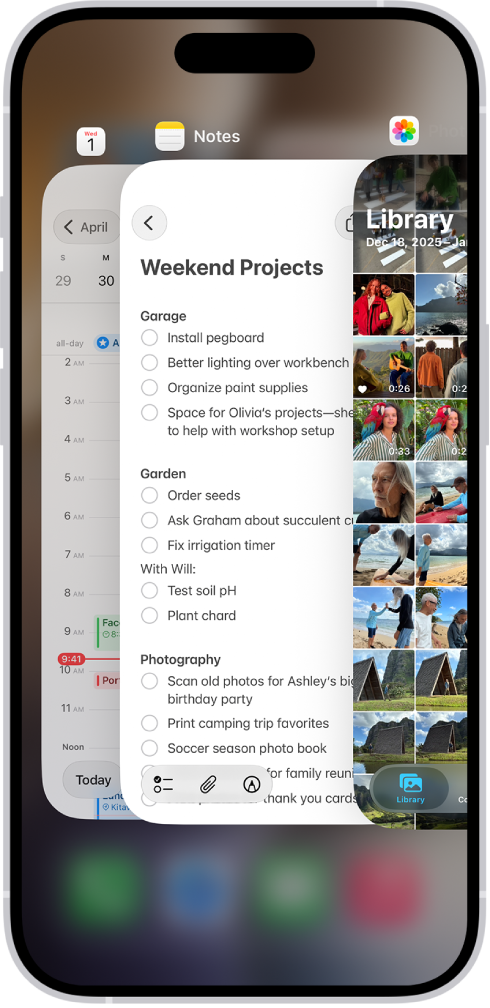
Force closing these apps may help cool down your iPhone and resume charging. To force quit an app, swipe up from the bottom edge, pause in the center of the screen, then swipe up on each app in the App Switcher to force close it.

The App Switcher. Icons for the open apps appear at the top, and the current screen for each open app appears below its icon.

Under normal circumstances, you shouldn’t constantly close apps on your iPhone since it does more damage to the battery life than good. However, force-quitting apps is an easy troubleshooting step in cases such as this one.

You can also turn off Background App Refresh to prevent apps from consuming system resources in the background, which can help cool down your device and stop it from giving the Charging On Hold notification.

2. Uninstall Suspicious Apps

It’s possible that an app that you recently downloaded carries a bug that’s triggering the Charging On Hold feature. There are a few signs that suggest that an app carries a bug, such as when the app keeps crashing or slows down your device significantly while you’re using it. Uninstalling the app from your iPhone will likely solve this issue.

To uninstall an app, long-press on its icon. Tap Remove App from the menu that appears. Then, choose Delete App to uninstall the app from your iPhone permanently.

3. Don’t Use Your iPhone While Charging

Although it’s generally safe to use your iPhone while charging, prolonged heavy use may overheat your phone’s battery, slowing down the charging rate and eventually putting it on hold.

Therefore, it’s best to keep your iPhone aside for a while and let it fully charge before using it again.

Remove your case if your iPhone tends to heat up while charging.

4. Turn Off Your iPhone for a While

Even if you think your iPhone isn’t abnormally hot to the touch, it’s likely the battery and internal components are overheating due to several reasons. Apple recommends turning off your device for a while and letting it cool down before turning it on again and putting it on charge.

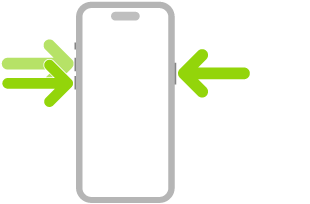
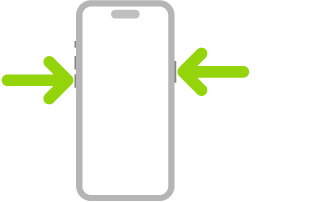
Simultaneously press and hold the side button and either volume button until the sliders appear, then drag the Power Off slider.

An illustration of iPhone with arrows pointing to the side button on the upper right and a volume button on the upper left.

5. Turn Off Optimized Battery Charging

The Optimized Battery Charging feature reduces the wear and tear on your iPhone’s battery by controlling how quickly it charges. In some cases, the Charging On Hold alert may appear once the battery has charged up to 80%, after which the battery stops charging no matter how long you leave the device connected to power.

This could be due to a bug in the Optimized Battery Charging feature. So, we recommend disabling it temporarily by going to Settings > Battery > Charging and toggling off Optimized Battery Charging.

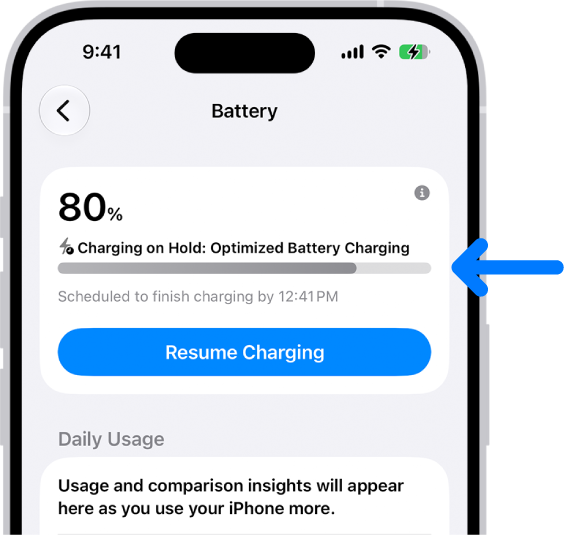
You can temporarily override Optimized Battery Charging if you need to charge your iPhone to full sooner than scheduled. Go to the Settings app on your iPhone. Tap Battery, then tap Resume Charging.

The charging information card in iPhone Battery settings. The card shows the battery at 80% with the message “Charging on Hold: Optimized Battery Charging.” It is scheduled to finish by 12:41 PM, with an option to “Resume Charging.”

With Clean Energy Charging, iPhone uses a forecast of the carbon emissions in your local energy grid to charge during times of cleaner energy production. This feature is available only in the U.S. and is turned on by default. Tap Battery, then tap Charging. Turn Clean Energy Charging on or off, then choose an option.

6. Turn On Airplane Mode

Airplane Mode disables cellular data and Wi-Fi on your iPhone, preventing it from receiving any calls or text notifications and from constantly searching for signals. Turning the Airplane Mode on might help reduce the load on the battery and prevent it from overheating, which might solve the Charging On Hold issue.

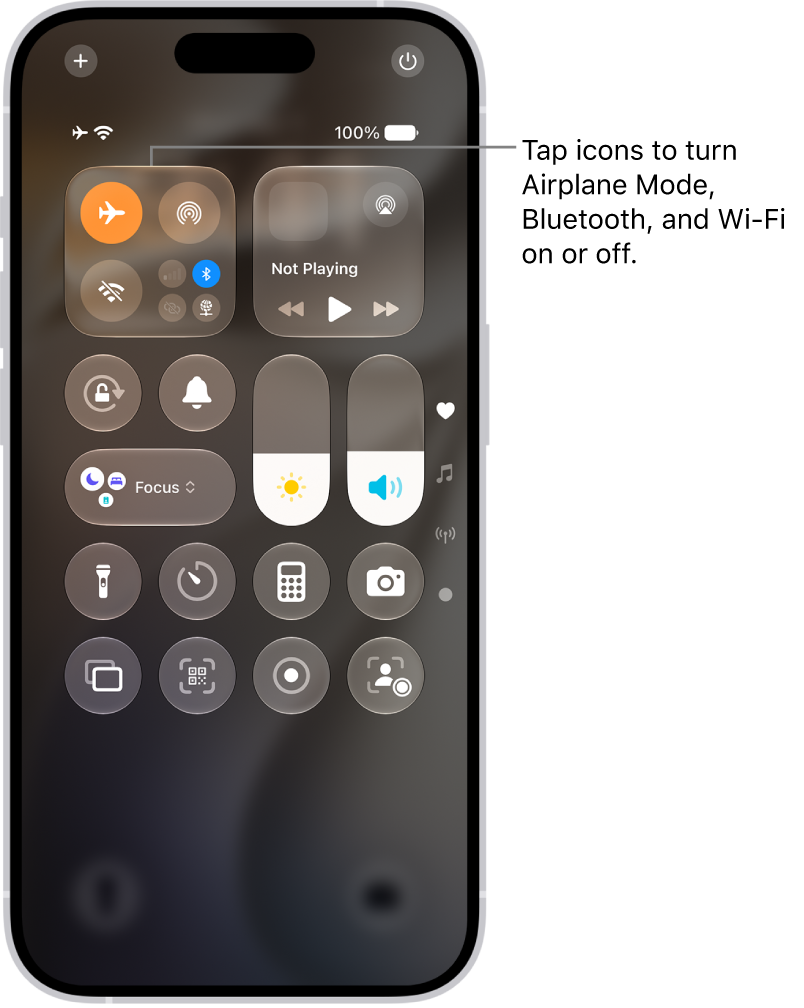
To turn on Airplane Mode, swipe down from the top-right corner of your screen to bring up the Control Center. Locate the Airplane toggle in Control Center and tap it. The icon should turn orange, indicating it has been enabled.

The Control Center screen showing that tapping the top-left button turns on Airplane Mode.

7. Update Your iPhone 18 Pro Max

Updating your iPhone to the latest iOS version is a potential fix to almost all software-related issues that occur in your device. Apple strongly urges all iPhone users to keep their devices updated with the latest software as it often introduces bug fixes and other enhancements with each new update.

It’s possible that a bug may have crept into your phone’s system that keeps giving you the Charging On Hold alert even though there’s no need for it. Installing the latest iOS software may fix this bug and solve the problem.

To update your iPhone, go to Settings > General > Software Update. Tap Update Now if a new update is available. Also, make sure Automatic Updates are enabled so you don’t have to manually check for updates every time.

8. Use a Different Charger or Cable

If none of the above methods work, the problem is likely with your iPhone’s charger or cable (or both). But before you toss it into the bin and head to the store for a replacement, there are a few things that you can do that might help.

Unplug your charger from the power source, wait for a few minutes, and then plug the charger back in. You can also try using a different USB port or power outlet to see if that makes any difference.

It’s also possible that the adapter and cable you’re using to charge your iPhone are of low quality. In that case, try charging your iPhone 18 Pro Max with a high-quality cable and adapter.

If the problem persists, opt for slow charging for a while. Fast charging generates more heat than slow charging, which may be why your iPhone 18 Pro Max is overheating and giving you the Charging On Hold notification. Connecting your iPhone to an adapter with a low rating might help solve the issue.

Get Rid of the Charging On Hold iPhone Alert

The Charging On Hold notification is useful only when it’s working properly. If you keep getting the notification every time you charge your iPhone 18 Pro Max, you’re either using a low-quality charger or your device is sending a false alert.

It’s also possible that your iPhone is actually getting hot due to heavy-duty apps working in the background or because you’re using it while charging. The troubleshooting methods we discussed should resolve the issue, but if none of them helped, it’s best to contact Apple Support.

Your iPhone 18 Pro Max is essentially a pocket-sized device. But unlike a Mac or other laptops, it doesn’t have a fan to regulate the temperature and keep everything cool. When you put it under stress, it will generate heat.

But there’s a difference between a device that’s warm to touch and one that’s overheating. We’ll find out the reasons and discuss why your iPhone gets hot, along with how to diagnose and fix the problem.

Why Your iPhone Gets Hot

When you use your devices for any length of time, it’ll get warm. That’s perfectly normal and shouldn’t concern you. However, there are some activities that, when carried out for an extended period, may cause your iPhone 18 Pro Max to overheat. They include:

  • Charging and using your device at the same time.
  • Streaming a high-quality video.
  • Using GPS and real-time navigation controls.
  • Setting up your device for the first time or restoring it from a backup.
  • Using graphically demanding or processor-intensive apps.
  • Leaving the device in a car on a hot day or exposing it to direct sunlight.

When your iPhone is overheating, you’ll also likely experience other issues such as:

  • Display dimming or going black intermittently.
  • Poor call quality.
  • Unusable camera flash.
  • Graphic-intensive apps stop working properly or, worse, crash on launch.
  • Temperature warning messages stating “iPhone needs to cool down before you can use it” or “Charging On Hold.”

Solutions When Your iPhone Is Overheating

First, it’s important to point out that no method can magically cool down an overheating iPhone immediately.

The suggested fixes below are mostly about adjusting how you use and care for your device, as well as tweaking some settings to prevent your device from overheating quickly during everyday use.

1. Pause Device Usage for the Heat to Dissipate

The first step is to temporarily stop using your iPhone so that your device can cool off properly. So, exit the app you’re using, press the Side button to put your iPhone to sleep, and leave it alone for 10 to 15 minutes to cool down completely.

To help speed up the process, you can also remove your iPhone case and turn off the device altogether.

To quickly reduce overheating, some people try putting their iPhones in the fridge or directly in front of an air conditioner. You should never do this because sudden changes in the temperature can cause condensation and damage your iPhone’s internal components.

2. Don’t Charge and Use Your Device at the Same Time

When the low battery notification pops up while you’re using your iPhone, you probably just proceed to charge your device to continue using it. However, charging your iPhone while using the device simultaneously will cause it to overheat quickly, especially if you’re playing a graphic-intensive game or using it for activities like video calls.

Unless it’s an emergency, leave your iPhone to cool down, as mentioned earlier, and plug in only to charge your device afterward. In the future, it’s best to maintain your iPhone’s battery by planning ahead a little and ensuring that your device is fully charged beforehand.

3. Keep Your iPhone Away From Heat

Nowadays, our iPhones accompany us almost everywhere we go. However, when you’re going somewhere without it, make sure you’re not accidentally leaving your device in a place that’s exposed to direct sunlight (like a desk next to the window) or in a car.

In the latter case, temperatures in parked cars can exceed the optimum temperature range and thus cause your iPhone to overheat. Remember to keep your iPhone 18 Pro or iPhone 18 Pro Max in a shaded area so that it does not get hot due to external environmental factors.

4. Use Official or MFi-Certified Chargers for Your iPhone

Cheap third-party chargers purchased from non-certified sources can also cause your iPhone to get abnormally hot during charging.

It’s best to use an official charger made by Apple or a high-quality third-party USB-C cable that comes with the Made for iPhone (MFi) certification. Uncertified and fraying chargers can damage your device and create other problems.

5. Turn Off Background App Refresh

Background App Refresh allows your apps to look for new information all the time. It happens automatically in the background, unknowingly consuming battery and CPU, which may result in your iPhone getting hot frequently.

If you’re not a fan of this feature, you can turn off Background App Refresh by going to Settings > General > Background App Refresh > Background App Refresh > Off.

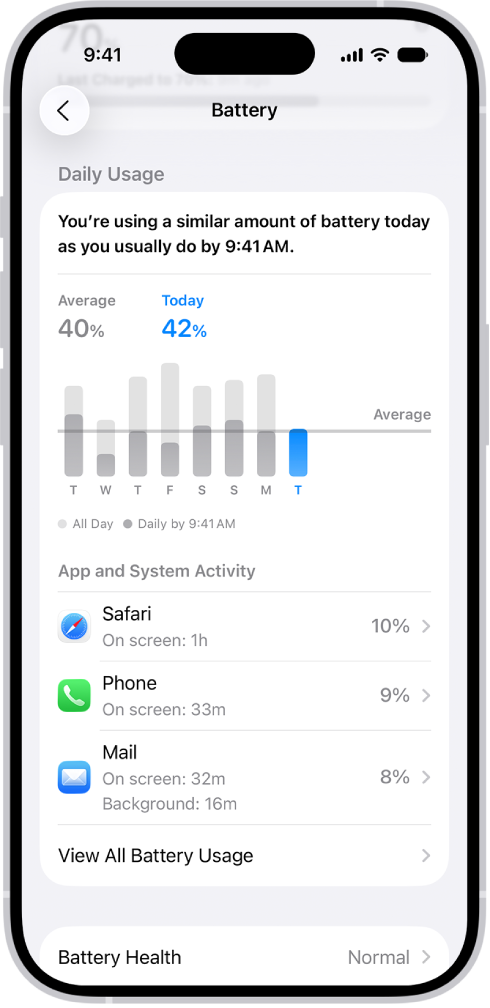
But if you think turning off this feature completely is overkill, you can try to catch the culprit app that’s using the most power. Go to Settings > Battery, tap View All Battery Usage, then tap a day. The App and System Activity section helps you understand what’s using your battery by listing the percentage of battery used by each app and system task.

The Battery Usage screen in Settings on iPhone displays graphs and information about battery consumption. At the top, a bar graph shows battery usage over the last eight days. Below it, a second graph details the battery level throughout the current day, indicating periods of charging.

Then, go back to Settings > General > Background App Refresh. Toggle off the feature for apps that consume significant resources in the background.

6. Reduce Screen Brightness

If your screen brightness is above 50% or more, your iPhone will tend to stay warm at all times and will be more prone to overheating. Therefore, decreasing the brightness can help prevent your iPhone from getting hot quickly.

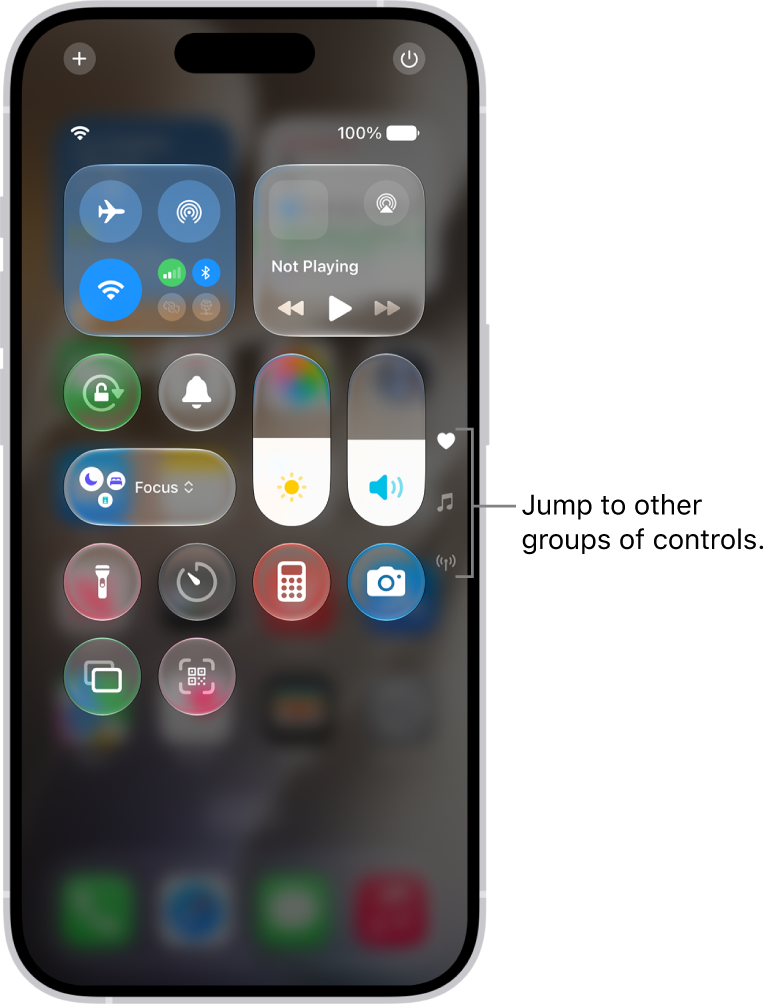
Swipe down from the top-right corner of the screen to bring up the Control Center. Then, drag the brightness slider downwards as you see fit.

Control Center open on the iPhone screen, with icons on the right for viewing other groups of controls.

7. Update Your Device and Its Apps

Updates often carry bug fixes and performance improvements that can help resolve the issue when your iPhone keeps getting hot. Go to Settings > General > Software Update to check if an iOS update is available. The same applies to third-party apps. It’s best to head to the App Store to update your iPhone apps.

8. Uninstall and Reinstall Problematic Apps

In some cases, updating an app isn’t sufficient to stop the overheating problem. You might need to uninstall and reinstall it again on your iPhone.

To uninstall an app, go to your Home Screen, long-tap it, and choose Remove App. Then, tap Delete App when you get a confirmation pop-up.

After uninstallation, you can reinstall the app on your iPhone. If this still doesn’t work, you may also want to send an email to the developer for further investigation.

9. Restart Your iPhone 18 Pro Max and Reset All Settings

The last two methods here are generic but effective fixes that may help resolve a tech issue when all else fails. You can first restart your iPhone, which is simply turning off your device and turning it on again. Simultaneously press and hold the side button and either volume button until the sliders appear, then drag the Power Off slider. Press and hold the side button until the Apple logo appears.

An illustration of iPhone with arrows pointing to the side button on the upper right and a volume button on the upper left.

The other method involves resetting all settings on your device. This returns all settings on your iPhone to its default state. No data will be deleted, so you don’t need to worry about losing your photos, videos, or messages.

To reset your device, go to Settings > General > Transfer or Reset iPhone > Reset > Reset All Settings. The resetting process can take a while, so it’s best to attempt this when you don’t need to use your iPhone urgently.

Prevent Your iPhone From Getting Hot

Your iPhone will feel warm to the touch after prolonged use, which is normal. If your iPhone 18 Pro Max is getting excessively hot, stop using it temporarily and give it time to cool down. At the same time, apply some of the tips discussed above to keep your iPhone at an acceptable temperature and ensure it doesn’t overheat so frequently.

If you’re an iPhone 18 Pro or iPhone 18 Pro Max user, chances are you have encountered an alert saying, “this accessory may not be supported” a few times. Usually, the alert pops up after you plug your iPhone in for charging. But it could also appear when you’re trying to use headphones or other accessories.

Sometimes, this error goes away on its own. Other times, you’re stuck with a device that won’t charge or play music through the headphones. This troubleshooting guide will look at why this alert pops up on your iPhone and what you can do to fix the problem quickly.

What Does “This Accessory May Not Be Supported” Mean?

There are a few reasons you might see a message saying, “accessory may not be supported,” “this accessory is not supported by this device,” or something similar. Here are some of the potential causes:

  • Your accessory is faulty, damaged, or not MFi-certified.
  • Your device’s operating system is outdated or malfunctioning.
  • The accessory is not compatible with your device.
  • Your iPhone has a dirty or damaged USB-C port.
  • Your accessory is outdated. If Apple has stopped the production of an accessory, it may become incompatible with the devices still on the market.

Now, let’s go through some ways to fix the “accessory not supported” error.

1. Unplug and Reconnect the Device

One of the first fixes to try when your accessory is not supported is to unplug and reconnect the accessory.

Tap the Dismiss button to clear the alert and pull the accessory out of your iPhone’s USB-C port. Then, plug it back in to see if the same alert appears.

If it continues to show up, disconnect any other accessories currently connected to your iPhone. For example, you may have AirPods connected via Bluetooth, and now you want to connect your iPhone to your PC with a cable.

Connecting your iPhone to multiple accessories may be the reason for this temporary error. So, remove your accessories and reconnect them one at a time.

2. Restart Your iPhone 18 Pro Max

Minor software glitches could also trigger the “accessory not supported” alert. Restarting your iPhone could fix these software issues.

Simultaneously press and hold the side button and either volume button until the sliders appear, then drag the Power Off slider. Press and hold the side button until the Apple logo appears.

An illustration of iPhone with arrows pointing to the side button on the upper right and a volume button on the upper left.

Wait for about 30 seconds after it turns off, and try connecting your accessory again.

3. Try Another Accessory

An “accessory may not be supported” alert could be caused by a faulty accessory. Check for frays or discoloration on the accessory; often, these are signs that something is wrong with it.

If your cable is acting up, you could borrow one from a neighbor or friend and try that with your device instead. If it works, you can be assured that the problem was simply the accessory itself, not your iPhone.

4. Check the Adapter

The “accessory may not be supported” alert could indicate an issue with your iPhone’s power adapter, not the USB-C cable. Look for signs of damage inside the USB port on your iPhone’s charger.

You can use an anti-static brush or a new toothbrush to remove dirt, lint, or other debris. Also, try using another adapter because the current one might be faulty.

5. Clean Your Charging Port

If the alert continues to appear, check the connector on your accessory and the port on your iPhone for any dirt or debris. A buildup of dirt inside the USB-C port often prevents accessories from making contact and triggers the error alert you’re getting.

Get a flashlight and take a close look inside your iPhone’s USB-C port. If you notice any particles or debris inside the USB-C port, gently remove the debris and clean the connectors on your device, and see if that resolves the issue.

6. Ensure the USB-C Connector Is Dry

If your iPhone has been exposed to liquid recently, this may also prompt the “accessory not supported” alert. Therefore, you might want to try drying the charging port on your iPhone.

Some iPhone users take water contact lightly because they assume their devices are waterproof, but they aren’t. iPhones are only water-resistant and could still be damaged if exposed to water.

7. Get MFi-Certified Accessories

You may get an “accessory not supported” alert if you’re using counterfeit accessories. You can also charge iPhone with “Made for iPhone” or other third-party cables and power adapters that are compliant with USB 2.0 or later and with applicable country regulations and international and regional safety standards.

Apple provides in-depth guides to help you identify fake iPhone accessories. But the easy method is that MFi-certified accessories have a discerning badge on the packaging.

Also, if the accessories are suspiciously cheap, they are probably fake and not Apple-approved. Apart from the minor inconvenience of not charging your iPhone, these cables can also cause severe damage to your iPhone and are part of the reason why your iPhone cables don’t last.

As much as possible, stick to charging your iPhone with the cable it came with, or get a durable third-party cable to charge your iPhone.

8. Make Sure Your Accessory Is Compatible

If the accessory you’re trying to use is new, confirm that it is designed to work with your device. Just because an accessory fits into the port doesn’t necessarily mean it’s the correct type. Some accessories only work with specific iPhone models. If you’re not sure, contact the manufacturer.

This is another reason to get accessories from certified outlets. They provide helpful details and guidance while choosing the accessory, and after-sale support is more likely to be available to you.

9. Update Your iPhone

Some accessories require the latest version of iOS to work. So, make sure that you update to the latest version of iOS.

Go to Settings > General > Software Update to check if a software update is available. If it is, you can begin the update process by tapping Update Now.

10. Reset Your iPhone’s Settings

One of the last solutions you can try is to reset all settings on your iPhone. This returns all settings to their default state without erasing data.

Go to Settings > General > Transfer or Reset iPhone > Reset > Reset All Settings. The process may take a while if you have a lot of files stored on your iPhone, so you may want to use the workaround below if you need your iPhone to connect in order to transfer files or charge.

11. Connect Your iPhone Wirelessly

When your wired accessory isn’t supported, a workaround is to use wireless methods in the meantime. This is important if you need to charge your iPhone or transfer some files urgently.

Try wireless charging. To transfer files, you can upload them to platforms like iCloud or Google Drive on your iPhone, then access them afterward on your computer.

If All Else Fails, Take Your iPhone for Repair

If your iPhone 18 Pro Max still says “this accessory may not be supported” after you’ve tried all the steps above, the suggested workarounds are, understandably, only temporary solutions.

Therefore, it’s best to contact an Apple Authorized Service Provider for further assistance. If you have an AppleCare plan, you can also contact Apple Support to make an appointment at an Apple Store near you and have a technician examine the iPhone.

Summary

  • If your iPhone 18 Pro Max got wet recently, drying its USB-C connector properly should help get rid of the alert.
  • If your iPhone’s connector is not wet at all, try using a different charging cable. Also, clean the charging port, restart your iPhone, and update iOS.
  • It’s best to avoid overriding the “Liquid Detected” alert. If you need to charge your iPhone urgently, use a wireless charger instead.

Attempting to charge your iPhone 18 Pro Max but see an alert telling you that liquid has been detected in the connector? Let’s look at the troubleshooting steps you can take to resolve the “Liquid Detected” alert and charge your iPhone normally again.

1. Dry the USB-C Port

Even if you’re holding a dry iPhone in your hands, it’s safer to assume that the “Liquid Detected” alert is accurate. Keep in mind that while iPhones are water-resistant, they are not waterproof.

Therefore, if you dropped your iPhone into the water or went swimming with it recently, it’s highly probable that water got into the charging port. The solution to this is to dry the charging port on your device. To dry iPhone, tap it gently against your hand with the USB-C connector facing down to remove excess liquid. Leave the device in a dry area with sufficient airflow.

In the future, if you do want to bring your iPhone to the pool or a water sports event, you can consider purchasing a waterproof iPhone case that encloses your device entirely. Otherwise, you shouldn’t shower or swim with your iPhone, as Apple warns.

On the other hand, if you’re sure that your iPhone 18 Pro Max has been nowhere near water for the past several weeks, the “Liquid Detected” alert might simply be a glitch. In that case, let’s move on to the other solutions.

2. Troubleshoot the Charging Cable

The next step is to remove and reinsert the USB-C cable into the charging port because the accessory may not have been recognized correctly.

If that doesn’t work, try a different USB-C cable. If the alert only pops up when you use a particular cable, you know the issue is with the cable, not your iPhone.

There are lots of cheap, counterfeit Apple cables out there. It’s always best to purchase official or MFi-certified accessories to prevent compatibility issues and damage they might cause to your iPhone.

3. Clean Your iPhone’s Charging Port

If debris is stuck in your iPhone’s USB-C port, it may also cause charging issues. If necessary, gently remove the debris and clean the connectors on your device.

Don’t use cleaning products or compressed air.

4. Restart Your iPhone 18 Pro Max

The next troubleshooting step is to soft reset your iPhone. Simultaneously press and hold the side button and either volume button until the sliders appear, then drag the Power Off slider. Press and hold the side button until the Apple logo appears. Restarting is an effective solution for nearly all minor technical problems for any device, so it’s definitely worth a try to get rid of the “Liquid Detected” alert.

An illustration of iPhone with arrows pointing to the side button on the upper right and a volume button on the upper left.

5. Update Your iPhone

Lastly, it’s best to update your iPhone 18 Pro or iPhone 18 Pro Max to the latest iOS version if you haven’t done that already. iOS updates carry bug fixes and performance improvements, which may help remove unnecessary warnings such as this one from popping up.

Go to Settings > General > Software Update on your iPhone to check if an iOS update is available.

Should You Use Emergency Override to Charge Your iPhone?

The “Liquid Detected” alert may provide an Emergency Override option to charge your iPhone, but is it safe to do so?

If you’re aware that your iPhone is still wet, you should not attempt to charge it with a wired charger, as it may permanently damage your device. A safer alternative is to charge your iPhone wirelessly but dry the back of your iPhone before doing so.

Remember that the “Liquid Detected in USB-C Connector” alert protects your device from permanent damage and ensures your safety. It’s certainly a hazard if an iPhone were to continue charging despite a wet USB-C port.

Still, the alert may sometimes pop up even if your iPhone 18 Pro Max isn’t wet. But by following the steps above, you should be able to resolve the error quickly and charge your iPhone again. If the problem persists, it’s best to contact Apple Support to see if there are other issues with your device.

Wireless charging is a hassle-free way to juice up your iPhone 18 Pro Max. But, it’s not uncommon for iPhone users to face issues when trying to wirelessly charge their devices. The phone may not charge even after showing the charging icon or not recognize the wireless pad at all.

Many users also report their phones continuously connecting and disconnecting, which can end up doing more harm than good. To help with that, here are some easy fixes to get your iPhone charging again:

1. Try a Different Position and Remove Your Phone’s Case

The charging coils of your iPhone 18 Pro or iPhone 18 Pro Max and your wireless pad must be perfectly aligned for wireless charging to work properly. This is particularly important if you’re pairing a modern iPhone model with an older wireless charger. To position your iPhone correctly, try either of these steps:

  • Keep moving your iPhone clockwise on the pad until you hear the charging sound.
  • Drop your iPhone onto the wireless charger from a height of no more than 1.5 inches.

Numerous phone covers, particularly thick ones, may also prevent your iPhone from wirelessly charging. So, consider removing the case before placing your device on the wireless charging pad.

2. Let Your iPhone Cool Down and Clean the Charging Pad

Wireless charging may also be hampered if your iPhone is overheated. So, let your device cool down if it feels warm to the touch before placing it on the pad once again.

Dust and dirt on the charging pad might also interrupt the connection. So, make sure the pad is clean and unobstructed. You can use a soft, lint-free, slightly moist cloth to clean the surface and brush off any visible dust. Once cleaned, try using the charger again to see if it works as intended.

3. Isolate the Culprit

You can easily identify if it’s your iPhone that’s at fault or the wireless charger by following these two steps:

  1. Use the wireless charging pad to charge another device and test whether the charger is working.
  2. Charge your iPhone with a different wireless charger. You can borrow one from a friend or family member to see if your iPhone charges properly.

If your iPhone 18 Pro Max is connected to a power source via a USB-C port or a USB adapter, wireless charging won’t work. Instead, your iPhone will use the wired connection to charge.

4. Restart Your iPhone 18 Pro Max

Your iPhone may not charge wirelessly sometimes if iOS is buggy. Many software-related glitches and problems can be solved with a simple restart. Unlike Android devices, iPhones don’t offer a restart option, so you’ll need to turn it off and back on manually. Simultaneously press and hold the side button and either volume button until the sliders appear, then drag the Power Off slider. Press and hold the side button until the Apple logo appears.

An illustration of iPhone with arrows pointing to the side button on the upper right and a volume button on the upper left.

5. Disable Optimized Battery Charging

Wireless charging may sometimes not charge your iPhone if the Optimized Battery Charging feature is enabled. This iOS feature adjusts to your device’s charging patterns and pauses or slows down the rate at which your iPhone charges after it hits 80%. Your iPhone does this to minimize battery degradation in the long run.

So, if your iPhone’s battery is stuck at 80% while being wirelessly charged, you can disable this feature temporarily to continue charging:

  1. Launch the Settings app on your iPhone.
  2. Go to Battery > Charging.
  3. Toggle off Optimized Battery Charging.

Now, if you wireless charge your iPhone, you’ll see that it goes beyond 80% if Optimized Battery Charging was the culprit.

6. Update Your iPhone

Apple continuously releases software updates to resolve any iOS-related bugs and system glitches. And wireless charging problems might be caused by your phone’s outdated software.

You can update your iPhone to the latest iOS version by heading to Settings > General > Software Update. If an update is available, tap Update Now. You may be prompted to enter your device passcode to initiate the update process.

7. Restore Your iPhone

As a last resort, you can conduct a factory reset on your iPhone. However, you should first back up your iPhone before you proceed with this troubleshooting step since a factory reset will wipe all the information and settings on your device.

To reset your iPhone to factory settings, go to Settings > General > Transfer or Reset iPhone and choose Erase All Content and Settings. Then, tap Continue to confirm and enter your device passcode when prompted.

Wirelessly Charge Your iPhone Again

It can be frustrating when you’re unable to charge your iPhone 18 Pro Max wirelessly. But as you can see, you can fix this problem by following some of the troubleshooting steps we discussed above.

However, if you’re still out of luck after trying all of them, it’s time to contact Apple Support for expert assistance and hardware repairs. Alternatively, you can take your iPhone to a nearby Apple Store or Apple Authorized Service Provider.

Even with all of its impressive features and capabilities, the iPhone 18 Pro Max is not without flaws. Most hardware issues people experience with their iPhones are display-related.

You may likely encounter display issues at least once throughout the life of your phone, and when you do, it’s important that you know what exactly the problem is and how to deal with it.

We’ll help you identify some of the most common iPhone 18 Pro Max display issues and teach you how to fix them.

1. Black Screen of Death

The black screen of death is the most common display issue reported by hundreds of iPhone users worldwide. This problem is characterized by a complete loss of display on the iPhone screen. This is different from when your phone dies and doesn’t turn on.

In case of a black screen of death, you can tell that your phone is turned on and functioning just fine since you can hear sounds and feel vibrations. However, you’d still see a black screen on your phone that won’t respond to your touch, identical to when your phone is powered off or in sleep mode.

There are several reasons why an iPhone 18 Pro Max may suffer from the black screen of death. More often than not, the problem is software-related, which includes system glitches, malware attacks, and compatibility issues with third-party apps.

You can try to fix it by force restarting your iPhone, but if that doesn’t work, you’ll need to boot into recovery mode and factory reset your iPhone with the Finder or the Apple Devices app.

However, faulty hardware can also cause a black screen of death. So, if your iPhone has been subject to a hard drop, been the victim of an accident, or suffered water damage that compromised its hardware components, it’s time to take it to a nearby Apple Store.

2. Frozen Display

A frozen display is another common display issue among iPhone users. Your phone’s display may freeze while you’re using an app or get stuck on the Apple logo when turning it on.

This can happen when your iPhone is overburdened with heavy-duty apps that tax the CPU and GPU. Or it’s possible an unoptimized app caused your iPhone to freeze.

Your iPhone’s display could also freeze if the device is running an outdated version of iOS. So, make sure you update your iPhone because Apple is quick to fix minor software bugs with subsequent updates. Go to the Settings app on your iPhone. Tap General, then tap Software Update.

Fortunately, you have multiple options to fix a frozen iPhone 18 Pro Max before you decide to contact Apple.

3. Black Dot on the Screen

If you see a black dot appear on your iPhone’s screen, chances are that your iPhone has suffered physical damage. A black dot usually appears when a specific part of your screen contains dead pixels.

In most cases, the black dot is due to dead pixels on the screen and hence is impossible to fix yourself manually. So, you’d have to seek professional help. Even then, the damage is sometimes irreversible and cannot be fixed. And you’d have to get the entire display panel replaced.

However, if you think the issue isn’t dead pixels, it’s worth removing your screen protector and cleaning the display with a microfiber cloth to see if that fixes it. Also, restart your phone and see if that makes a difference. There’s a very slight chance that these fixes will work for this issue, but it’s still worth trying them out just to be sure.

4. Touchscreen Not Responding Properly

Often, when your iPhone gets too hot, the storage is too full, or there’s water on the screen, your touchscreen may stop working properly. The first thing you should do is rid your fingers of any moisture and then wipe your phone’s screen with a dry cloth. Dirt and grime can also be a culprit here. Using a 70 percent isopropyl alcohol wipe, 75 percent ethyl alcohol wipe, or Clorox Disinfecting Wipes, you may gently wipe the exterior surfaces of your iPhone.

On the other hand, if your iPhone keeps hanging due to low storage, free up as much space as you can and restart your device. And lastly, if your iPhone’s too hot or cold, set it aside and wait till it returns to a normal temperature before you use it again.

5. Flickering Screen

If your iPhone 18 Pro Max screen keeps flickering, an outdated application or a buggy iOS update may be to blame. In some cases, the problem can also be due to the Auto-Brightness option on your phone, which has gone rogue and caused your screen to flicker. Turning it off might solve the issue.

If the problem only occurs when using certain apps, uninstall and reinstall them to see if the flickering stops. Other more tedious fixes include force restarting your iPhone or factory resetting it.

If none of these things solve the issue, then the problem is likely hardware-related.

6. Ghost Touch Bug

Ghost touch bug is a frustrating issue that can occur on any iPhone model. It refers to a situation where your phone’s screen behaves erratically without your input.

For example, you may observe random apps opening and closing or text messages being sent without your knowledge. The device starts operating by itself when you haven’t even touched it, as if a ghost is using it. That’s where the bug gets its name from.

This problem can be caused by various factors, such as hardware damage due to accidental drops or water exposure, software glitches resulting from updates or installed applications, faulty display components, etc.

Fortunately, you can follow some basic troubleshooting steps to fix ghost touch on your iPhone.

7. Screen Discoloration

Color distortion on any screen is almost always caused by a fault in the device’s OLED or physical damage to any of the hardware components of the screen. In rare cases, it can also be a glitch that goes away when you restart your iPhone or update it to the latest iOS version.

If your iPhone’s display does not have color distortion but has a yellow tint, you’re in luck, because there are several ways to fix the yellow tint on your iPhone.

Take Care of Your iPhone’s Display

Your iPhone’s screen can run into several problems due to hardware damage or software malfunctions. In case of hardware-related issues, there’s not much you can do besides taking your iPhone to a nearby Apple Store.

However, before doing that, it’s worth examining if the issue is caused by software glitches and can be fixed manually by force restarting, updating, or factory resetting your iPhone 18 Pro or iPhone 18 Pro Max.

The iPhone 18 Pro Max is rated IP68 (maximum depth of 6 meters up to 30 minutes) under IEC standard 60529. This implies iPhones are water resistant but not completely waterproof.

We’ve compiled a list of things you should watch out for if you suspect an iPhone is water damaged. Note that a symptom by itself may not be a sign of water damage, but the more signs a phone has, the more likely it is water damaged.

1. Foggy Cameras

One of the first things you should do when inspecting a phone for any kind of damage is to check its cameras. They are sensitive pieces of hardware and are easily affected by scratches, drops, and water.

When water finds its way into your camera, it can fog up the lens and affect the quality of your pictures. And the front camera is particularly prone to damage in this manner, especially if you have replaced the screen at some point in the phone’s history.

If you use your iPhone’s camera and your pictures look like they’re from a low-budget movie from the 50s, then it might be water-damaged. Turn off your phone and dry it thoroughly.

2. Face ID Malfunctioning

Apple’s biometric security features are one of the features you could lose when your iPhone 18 Pro Max takes an unfortunate bath in water.

Face ID works using the TrueDepth camera system embedded into the Dynamic Island. While your front camera might dry, and your picture quality may return to what it used to be, Face ID could still remain unavailable. You can try to fix Face ID on your iPhone, but your best bet is to get it to an expert as soon as possible.

3. Misbehaving Buttons

Dirty water often contains all sorts of particles that can get into small gaps and block them. If you notice that the buttons on an iPhone feel stuck, make a grainy sound, or simply do not respond, then you could be holding a water-damaged iPhone.

4. Patches on the Display

If you’re unlucky, water could also affect your display and develop permanent patches. You might see signs of water under the display first before it slowly forms dark patches—making the affected area dimmer.

Once you see signs of water under the display, dry the device and back up all your iPhone’s data. Whatever you do, do not put it in rice because that myth may accelerate your problem. If there’s still a dark spot after your phone is dry, you might need to change the screen assembly.

5. Faulty Touchscreen and Flickering Display

This is rare on iPhones, but if you see no cracks on your screen, yet the phone’s touch function seems partially or completely unresponsive, you can assume that water may have affected a part of the screen. You might also experience “ghost touches,” meaning the phone’s screen seems to work itself.

You might also notice that your phone’s screen is flickering. This could happen alongside an unresponsive touchscreen, or it could occur separately. Either way, these are signs of a water-damaged iPhone.

The phone’s display module may have been affected by water. You should return it to Apple or an Apple Authorized Service Provider to replace that part of the screen.

6. Muffled Speakers

Another clear sign that an iPhone is water-damaged is muffled speakers. If you want to purchase a used phone, after checking the cameras, you should play some sounds on the speakers to see what it sounds like.

If the sounds on the iPhone 18 Pro Max come out muffled, then you can assume that the phone likely had some water damage to its speaker hardware at some point. You can also test the front speaker by playing a voice note on iMessage and placing it against your ear.

You should dry out the speakers for iPhones that just fell into some water. If that still doesn’t help, try some DIY iPhone speaker fixes before you spend money on an expert.

7. Signs of Rust and Corrosion

iPhones are typically made of stainless steel or aluminum, a sturdy lightweight metal, but a metal nonetheless. This means that when iPhones are exposed to moisture or salty water for too long, the metals can corrode and cause rust or pitting.

If you take your time to observe the body of the iPhone 18 Pro or iPhone 18 Pro Max and you find tiny, flaky pits in the metal, that phone might have been in some water once in its life, and its owner didn’t dry it out properly.

Disassembling iPhone may damage it, result in loss of splash and water resistance, or cause injury to you.

8. Unstable Charging

In most scenarios where a phone falls into some water, it will likely be dirty water. And dirty water could contain all sorts of things like sand, mud, or other icky particles. These particles can get into your phone’s charging port and block the pins. When the pins are blocked in this manner, your charger might not be able to fully nest in your phone, stopping your phone from charging properly or charging at all.

If your phone falls in muddy water, try to remove mud from the charging port as quickly as possible. When your phone dries, give the charging port a thorough clean.

9. Strange Smells

Dirty or salty water could also give your iPhone an odd smell, especially if it makes its way inside the phone, where it’s harder to clean.

If you’re looking to buy a used iPhone that you suspect has been water-damaged, you can sniff the charging port area to find out if it has been in water recently. If you smell something grimy, salty, or a little like burning wire, it may be water-damaged.

Turning on your phone after water makes its way inside can cause the water inside to turn to vapor as the phone heats up. Not only can vapor cause more damage, but it could cause strange odors to ooze out of your phone.

Avoid a Water-Damaged iPhone at All Costs

Unless you’re absolutely sure you can fix the issue, do not buy a water-damaged iPhone—even if it’s considerably cheaper.

It’s better to save up and buy an undamaged phone or just get an older model. Damage like this usually spells the end of an iPhone, and it could only be a matter of time before the problem aggravates to the point you can’t use it anymore.

However, if your own iPhone 18 Pro Max gets water-damaged, you can still remedy it with some quick action. Turn it off, dry it out, and clean it. And lastly, do not put it in rice!

It’s frustrating when your iPhone’s display stops responding, but don’t fling it to the wall just yet. Often, the issue is minor and easily fixable. Figuring out why your iPhone 18 Pro Max touchscreen is not responding is the first step to fixing it.

An iPhone’s touchscreen can stop responding for several reasons. These range from simple cleaning problems to complex software glitches. Here’s a rundown of all the reasons your iPhone’s screen may have stopped responding, along with what you can do about it.

1. The Screen Is Dirty

If your iPhone’s screen is dirty, it might become unresponsive. Touchscreens work by having an electrostatic charge on the screen. When you touch the display, your finger disturbs this charge. This lets your iPhone determine where you are touching and respond.

Dirt, debris, and oil can make your screen dirty over time. This happens when you use your phone with greasy or dirty fingers or in a dusty environment. A dirty screen messes with your iPhone’s ability to detect changes in charge, leading to it misunderstanding gestures or not detecting your touch at all.

To fix this, clean your iPhone’s screen. Apple recommends doing so with a soft, slightly damp, lint-free cloth like a microfiber cloth. Unplug all cables and turn off your iPhone before cleaning its screen in gentle, circular motions.

Do not use compressed air or any cleaning products for the process. Also, be careful not to get moisture into any of the openings. Once done, turn on your iPhone and check the screen. If the problem persists, there may be other reasons your touchscreen is not responding.

2. There’s Water Damage

Was your iPhone recently exposed to water or any other liquid? If yes, then your screen may be unresponsive due to water damage. Your iPhone may be water-resistant, but that doesn’t mean it’s waterproof.

Additionally, the water resistance of the iPhone decreases with normal wear. This makes it more susceptible to water damage. Using your iPhone in extremely humid conditions or in a sauna can also lead to water damage.

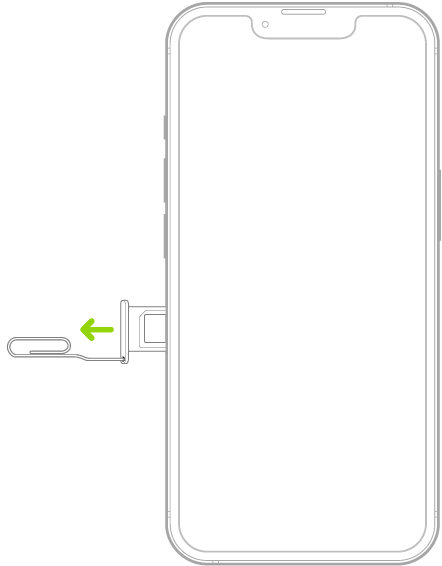
Luckily, there’s an easy way to check if your iPhone is water damaged. Most iPhones have built-in Liquid Contact Indicators (LCIs). You can check the LCI by removing the SIM card tray and shining a lighted magnifying glass inside. If you see white or silver, you’re safe. If the indicator’s red, there’s water damage.

A paper clip or SIM eject tool is inserted into the small hole of the tray on the left side of iPhone to eject and remove the tray.

Note: iPhone 18 Pro Max models purchased in the United States can only be activated with an eSIM.

If you spill water on your iPhone, immediately wipe it off with a soft, lint-free cloth like a lens cloth. For liquids other than water, Apple recommends rinsing the affected area with tap water before wiping it. You can also try to dry your iPhone by leaving it in a dry area with some airflow. Another way is to place it in front of a fan blowing cool air into the USB-C connector.

3. Low-Quality Screen Protector

Thick, low-quality screen protectors mess with your screen’s ability to detect touch input. So, remove your screen protector and see if your iPhone’s touchscreen starts working again; if it does, the protector is at fault.

To fix this, get a high-quality screen protector for your iPhone model. You can get one from Belkin installed at your nearby Apple Store.

4. There’s an Accessory Connected to the USB-C Port

In rare cases, connecting an accessory to your iPhone’s charging port can mess with the touchscreen. To fix this, disconnect all USB-C accessories, including your charger, headphones, and power bank. See if the screen starts working after that.

If it does, try using a different outlet, cable, and charger. But if your iPhone becomes unresponsive again, you may need to contact Apple Support and get your device serviced.

5. Your iPhone Is Too Hot or Cold

Your iPhone 18 Pro or iPhone 18 Pro Max has an operating temperature range of 32-95 degrees F. At higher temperatures, its display may dim or go black. This is the device’s built-in protection to regulate its temperature. In some cases, the iPhone’s touchscreen may also become unresponsive. Similarly, using your iPhone in conditions colder than 32 degrees F can also cause it to turn off or become unresponsive.

To fix this, you must wait for your iPhone to return to its normal temperature. If you’re impatient, you can move it to a warmer or cooler place, depending on what caused the issue. Never leave your iPhone under direct sunlight or in the car on a hot day. And if it’s cold, keep it in your bag or pocket, wrapped in a warm cloth, as much as possible.

6. The Phone’s Case Is Exerting Pressure on the Screen

Your iPhone case can also cause the screen to stop responding. This is especially likely if the case is tight or poorly designed. However, users have reported this happening with well-fitted cases as well.

Try removing your iPhone’s case to troubleshoot this. If that solves the problem, you can either invest in a better phone case or stop using one altogether. Corner protectors and sleeves are good ways to protect your iPhone without a case.

7. Temporary Software Glitches

Apple’s iOS software can sometimes glitch during regular use. This makes it look like the touchscreen is not responding. To troubleshoot this, restart your iPhone 18 Pro Max. Simultaneously press and hold the side button and either volume button until the sliders appear, then drag the Power Off slider. Press and hold the side button until the Apple logo appears.

An illustration of iPhone with arrows pointing to the side button on the upper right and a volume button on the upper left.

If the issue is with the firmware itself, do note that Apple is quick to fix minor software bugs with a subsequent iOS update, so make sure your iPhone is updated. Go to the Settings app on your iPhone. Tap General, then tap Software Update.

In case of a frozen screen, you’ll have to force restart your iPhone. Press and quickly release the volume up button. Press and quickly release the volume down button. Press and hold the side button. When the Apple logo appears, release the side button. If the problem still persists, you can enter Recovery mode and restore your iPhone.

An illustration of iPhone with arrows pointing to the side button on the upper right and the volume up and volume down buttons on the upper left.

Make sure you have a recent backup before you restore your iPhone, as this will delete all your data.

Troubleshooting Unresponsive iPhone Screens

As you can see, there are several reasons why your iPhone 18 Pro Max screen may be unresponsive, but if none of our tips helped, the issue you’re facing is likely hardware-related. In such cases, it’s best to take your iPhone to the nearest Apple Store as soon as possible and get it checked.

Summary

  • Features like auto-brightness and Night Shift can sometimes cause screen flickering, so it’s a good idea to turn them off.
  • You may have to factory reset your iPhone 18 Pro Max or take it to the repair shop if nothing else works.

Is your iPhone 18 Pro Max display glitching? If so, there’s no need to panic or lose hope just yet. Here are some tips you can try to stop your phone’s display from flickering.

Reboot Your Phone

Restarting your phone may sound simple, but it’s often effective in fixing any temporary issues. Doing so will halt any active third-party background services and processes causing the display problem.

Simultaneously press and hold the side button and either volume button until the sliders appear, then drag the Power Off slider.

An illustration of iPhone with arrows pointing to the side button on the upper right and a volume button on the upper left.

Press and hold the side button until the Apple logo appears.

Disable Auto-Brightness

The auto-brightness feature on your iPhone 18 Pro or iPhone 18 Pro Max automatically adjusts the screen’s brightness based on light sensor data. However, issues with this feature can sometimes cause unexpected problems, like screen flickering.

You can try disabling auto-brightness to see if that resolves the issue. This feature is under Settings > Accessibility > Display & Text Size.

Turn Off the Night Shift or Blue Light Filter

Have you enabled the Night Shift feature on your iPhone? If so, it could sometimes cause the iPhone 18 Pro Max display to flicker. You can temporarily turn this feature off to see if that helps.

Head to Settings > Display & Brightness > Night Shift and turn off the Scheduled toggle. Additionally, if you’re using any third-party Blue Light filter app on your phone, make sure to disable or uninstall it.

Check for Software Updates

Your display problem might have been caused by a messy or outdated software build. If that’s the case, updating your phone to the latest version will most likely help.

Go to Settings > General > Software Update. Download and install any pending updates and see if that fixes the problem.

Factory Reset Your Phone

If your phone’s display continues to flicker, you can perform a factory reset on your smartphone. This will erase all data and restore your phone to its factory settings, effectively making it as good as new. However, before proceeding, back up your iPhone.

You can use these steps to reset it:

  1. Head to Settings > General > Transfer or Reset iPhone.
  2. Tap Erase All Content and Settings and follow the on-screen prompts to finish resetting your iPhone.

Get Your Phone Checked by a Professional

A glitching phone screen may be caused by a hardware failure. So, if none of the previous solutions work, consider visiting your phone manufacturer’s service center to have your device checked. Depending on the issue, there may be significant costs involved for repair or replacement.

Your iPhone 18 Pro Max plays a crucial role in your daily life, so it’s important that it functions flawlessly. Hopefully, one of the tips above has helped you resolve the underlying issue and restore things to normal.