







Got a tip for us?

iOS 27

iPhones are hailed for their reliability and high levels of performance. But sometimes your phone will perform slower than expected. You might see a slow iPhone as a sign that your device will need an upgrade soon. But the chances are you can fix the issue pretty quickly once you know what’s causing it.

If you’ve found yourself asking why your iPhone 18 Pro or iPhone 18 Pro Max is so slow, fear not. In this article, you’ll discover the reasons it’s sluggish—and what you can do about it.

1. Outdated Software

If your iPhone is loading slow or running slow, the software could be outdated. Before determining if software is causing your phone to perform slower, you’ll need to check for updates. To do this, follow the steps below.

  1. Go to Settings > General.
  2. On the General tab, tap on Software Update.

If your iPhone software is up to date, the message on your screen will reflect this. But if it isn’t, you’ll need to tap on the button allowing you to download the latest iOS version. Downloading the newest version of iOS regularly may seem like a chore. However, it’s necessary for optimizing your phone’s performance and protecting against malware.

If you don’t want to download new updates manually, you can choose to make your phone do so automatically. In the Software Update tab, you’ll find an option called Automatic Updates; open this and turn on Automatically Install.

2. Low Storage

The longer we have our phones, the easier it is to use up our storage space. Apps we no longer use, irrelevant pictures and screenshots on the camera roll, and messages from conversations better left in the past can all add up.

If your iPhone 18 Pro Max is still acting slow on the latest version of iOS, insufficient storage space could be the culprit. Should you find that this is the case, decluttering your device is a good idea. Luckily, it’s easy to remove apps from your device.

To see which apps are taking up the most space, you’ll need to reopen the Settings app. Once you’re there, go to General > iPhone Storage.

When you scroll down, you’ll also see how much each app uses on your phone.

3. You Could Have Malware

The chances of your iPhone getting malware are low, but it is possible—especially if you jailbreak your device. If your iPhone is lagging, checking for malware is a good idea.

Malware will make your phone use up more energy, so it’s unsurprising that your device may perform slower. If you’ve got malware on your phone, try the following:

4. An App May Be Using Energy in the Background

Running apps in the background has some benefits: you can access them easier if you need them, and you also won’t need to tap through to find the page you were previously on. In general, iPhone apps don’t use any energy in the background and you don’t need to worry about closing them.

However, if an app has developed a bug or gotten stuck in a loop, it might still be using energy in the background and slowing down your iPhone 18 Pro Max. The only fix for this is to quit all the apps on your device. To quit the app, open the App Switcher, swipe right to find the app, then swipe up on the app.
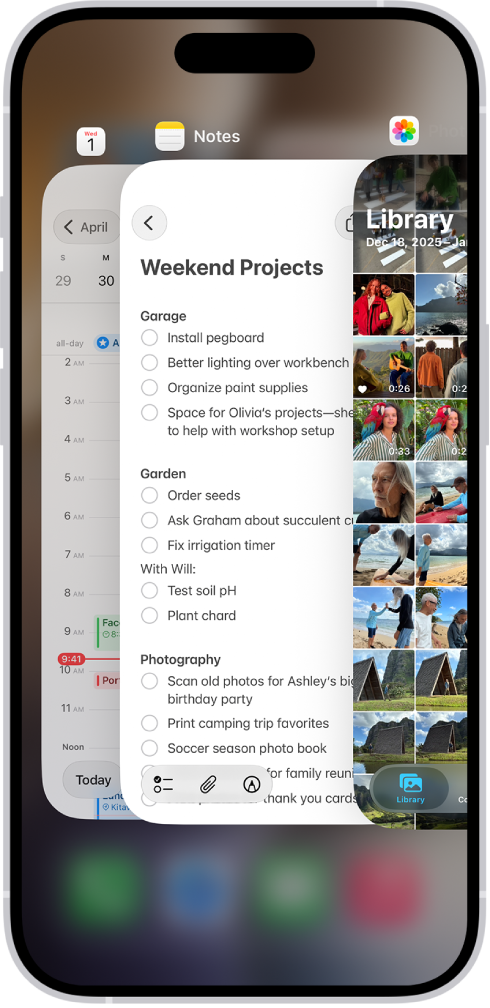
The App Switcher. Icons for the open apps appear at the top, and the current screen for each open app appears below its icon.

Another way you can stop apps you’re not using from damaging your iPhone’s performance is by only allowing them to use your location when in the app. You can toggle all of these in your phone settings.

5. Your Phone May Need Rebooting

It’s important to remember that sometimes, phones need a rest. When you use a device for hours each day and put it straight on charge at night, your iPhone works around the clock. Over time, this usage may impact your phone’s performance.

Though you may not attribute your phone’s poor performance to a lack of rest at first, it is something you should consider. If you’ve tried all the steps above and your device still isn’t performing quickly, reboot your iPhone 18 Pro Max. Simultaneously press and hold the side button and either volume button until the sliders appear, then drag the Power Off slider. Press and hold the side button until the Apple logo appears.
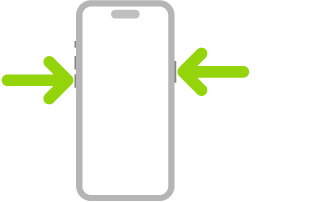
An illustration of iPhone with arrows pointing to the side button on the upper right and a volume button on the upper left.

In some cases, resetting your phone to factory settings might work. When you’ve navigated to Settings > General, scroll down to Transfer or Reset iPhone. Tap on Erase All Content and Settings. Before doing this, it’s a good idea to back all of your content up.

6. Cold Weather

Sometimes, your phone’s performance might have nothing to do with anything on your device. The weather outside can also affect how well your phone works.

In general, iPhones can work without issues between 32°F and 95°F (which is roughly 0°C and 35°C). When the temperature drops below freezing, the weather may begin to slow down your phone.

If you live somewhere with harsh winters (or extreme summers, for that matter), you can’t do too much about this. And if moving somewhere with consistent temperatures year-round isn’t yet possible, you can try some of the following:

  • Turn your phone off when you’re not using it in public. iPhones are a little sturdier in extreme temperatures when they’re not turned on.
  • Only use your phone when you’re out of the elements.
  • Buy a special case for extreme temperatures.

7. Turn Low Power Mode On or Off

iPhone might perform some tasks more slowly when in Low Power Mode.

  1. Open Settings.
  2. Tap Battery.
  3. Tap Power Mode.
  4. Tap to turn Low Power Mode on or off.

When enabled, Adaptive Power can lower screen brightness, limit background activity, and make performance adjustments to conserve power throughout the day. Go to the Settings app on your iPhone. Tap Battery, tap Power Mode, then turn Adaptive Power on or off.

Fix Your Slow iPhone 18 Pro Max With These Tips

Using an iPhone that doesn’t perform as well as it should is frustrating. But dropping hundreds of dollars on a new device will only temporarily fix the problem because the chances are you will eventually run into the same issues.

Before conceding that you need to get a new device, think about what might cause your iPhone to run slower. Give all of these tips a try; if they don’t work, it may be time to upgrade. At the very least, you’ll have figured out how to check for issues with your iPhone before jumping to a conclusion.
Summary

  • If you’re lucky, a force restart may be all you need to fix your iPhone’s black screen issue. Otherwise, you’ll need a computer.
  • If Find My is enabled, or you’re connecting your iPhone to a computer for the first time, you cannot restore it using Finder or the Apple Devices app.
  • If software fixes fail, physical damage might be the culprit. Take your iPhone 18 Pro Max to Apple or an authorized service provider to diagnose and resolve hardware issues.

The black screen of death occurs when an iPhone 18 Pro or iPhone 18 Pro Max is completely unresponsive. You’ll hear alerts and feel vibrations, but you won’t be able to interact with your phone. Although physical damage is often the culprit, you shouldn’t rule out system glitches. So, try these fixes first.

1. Force Restart Your iPhone

The first thing you should do when encountering the black screen of death issue is force restarting your iPhone. This is different from a regular reboot, and it’s useful when you can’t shut your iPhone down normally.

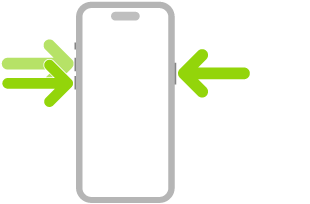
Force restarting requires a combination of button presses and can take a few tries since you’ll need to press each button quickly. Press and release the Volume Up button. Repeat the same with the Volume Down button. Then, press and hold your iPhone’s Side button until the Apple logo appears.

An illustration of iPhone with arrows pointing to the side button on the upper right and the volume up and volume down buttons on the upper left.

2. Restore Your iPhone With Apple Devices or Finder

If your iPhone doesn’t reboot even after you’ve tried force restarting it, you’ll need to factory reset it. You can do this using the Apple Devices app for Windows or Finder on macOS.

Restoring your iPhone with the Apple Devices app or Finder will erase all its data and bring it to factory settings. So, only try this if you have a recent backup so that you don’t lose all your data.

Note that this method will only work if you’ve connected your iPhone to Apple Devices or Finder before. That’s because when you connect your iPhone to a computer for the first time, you’ll get an alert on your iPhone (and your computer), prompting you to trust the device.

You can’t tap Trust on an iPhone showing a black screen, so you’ll have to hard reset your iPhone using the recovery or DFU mode, which we’ll discuss later.

Additionally, you can only proceed with these steps if you have Find My disabled on your iPhone. Otherwise, you’ll get an alert message prompting you to turn off Find My during the process. In this case, you’ll need to disable the Find My feature from iCloud and erase your iPhone remotely.

As long as you meet the above requirements, you’re all set. Simply connect your iPhone to your PC or Mac using a USB cable. Launch the Apple Devices app or Finder, and follow the steps mentioned below:

  1. Click [Your Name]’s iPhone under the Locations header on the sidebar. You can skip this step if you’re using Apple Devices.
  2. Head to the General tab and click Restore iPhone on the right.
  3. When prompted to back up your settings before restoring your iPhone, click Back Up.
  4. Next, click Restore when you get a confirmation pop-up.

The process may take several minutes to complete. So, be patient. Once it’s done, you can restore your iPhone from a backup.

3. Use Recovery Mode to Factory Reset Your iPhone

Recovery Assistant helps resolve startup issues by downloading a software package. If Recovery Assistant appears, click Continue to start the recovery process. The recovery process requires a Wi-Fi connection.

Recovery mode is Apple’s built-in recovery system that allows you to factory reset your device and reinstall the latest iOS version when your iPhone becomes completely unresponsive.

Entering recovery mode on your iPhone requires you to hold and release a combination of buttons on your device in a specified order once you connect it to your computer and launch Apple Devices or Finder.

Press and release the Volume Up button. Then, repeat the same with the Volume Down button. Finally, press and hold the Side button until you see the Recovery Mode screen.

The Apple Devices app or Finder will now show a pop-up message indicating that it has detected an iPhone in recovery mode, after which you can choose to Update or Restore your device.

4. Take Your iPhone to Apple

If everything fails, the black screen of death on your iPhone 18 Pro Max is likely due to physical damage or other hardware issues. In that case, you must contact Apple Support or take your iPhone to a nearby Apple Store or an Apple Authorized Service Provider. It’s easy to make an Apple Store appointment at a Genius Bar.

Remember that Apple’s standard one-year warranty doesn’t cover replacements or repairs for damaged screens. So, unless you’ve spent money on an AppleCare+ extended warranty plan, you’ll have to pay a fee to get your iPhone serviced.

Although the black screen of death on an iPhone can be an immediate cause for concern, it’s worth trying a few software fixes before seeking professional help, especially if you haven’t physically damaged your iPhone. However, in case of hardware issues, you have no choice but to contact Apple or a third-party service provider for expert assistance.

Various issues can result in an unresponsive iPhone 18 Pro or iPhone 18 Pro Max that won’t even turn on. The good news is that you can solve most of these problems without taking it to Apple. We’ll discuss the steps you can take below.

1. Let Your iPhone Cool Down

If you’ve ever left your iPhone in the sun on a hot day, you may have experienced this before. When your iPhone gets too hot, it’s designed to shut down and suspend everything but the emergency calling feature.

There may be cases where your iPhone won’t turn on at all and is completely unresponsive, with nothing on the screen. But sometimes, you might see a temperature warning message saying, “iPhone needs to cool down before you can use it.”

To let your iPhone turn on again, cool it down by placing it in a dry, cool place away from the sun. Never try to instantly cool down your iPhone by putting it in the freezer or next to an air conditioner. This can cause condensation to form, which will damage the device.

2. Charge Your iPhone

This might sound like the most obvious choice when your iPhone 18 Pro Max won’t turn on. But to be safe, it’s better to first eliminate excessive heat as the cause before trying to charge your iPhone.

So, in this case, the simple reason why your iPhone won’t turn on is that the battery is completely depleted.

You’ll likely see a cable icon pop up when you try to turn it on. When you plug in a charger, the icon will disappear. A red battery graphic remains while your iPhone charges.

In some cases, if you haven’t used your iPhone in a long while, the icon may not even appear because all battery power has been depleted during the storage period. Fortunately, it doesn’t necessarily mean your iPhone is damaged or unusable.

Simply connect your iPhone to a charger and wait for 15 to 30 minutes. If your device is still functional, you’ll eventually see a charging indicator appear on the screen. Once your device charges and gains sufficient power, your iPhone will automatically turn on.

Plug your phone in and charge it for at least one hour. If the battery is old or very low, it could take extra time before it decides to boot.

3. Check Your USB-C Cable

When your cable has issues, your iPhone can’t charge at all. So if the icon persists even after you plug in and try to charge it, your iPhone 18 Pro Max won’t turn on, no matter how long you wait.

You can try different cables of the same type if you’re encountering charging problems. Don’t overlook wall chargers either because they also have a tendency to fail.

Make sure you use a safe, high-quality charging cable without frays or damage, and check whether you have the right cable and power adapter type for your iPhone.

4. Force Restart Your iPhone 18 Pro Max

If your iPhone won’t turn on because it’s stuck in a boot loop, showing the Apple logo, or completing an iOS upgrade, one solution is to restart your iPhone. Press and quickly release the volume up button. Press and quickly release the volume down button. Press and hold the side button. When the Apple logo appears, release the side button. In the rare case you can’t turn off your iPhone, a force restart will come in handy.

An illustration of iPhone with arrows pointing to the side button on the upper right and the volume up and volume down buttons on the upper left.

Personally, there was one time when my iPhone didn’t shut down when I wanted to turn it off and on again. The on-screen power off button wouldn’t appear, and my iPhone screen was frozen. I could only shut down my device by force restarting it.

5. Restore Your iPhone Using Your Computer

Recovery Assistant helps resolve startup issues by downloading a software package. If Recovery Assistant appears, click Continue to start the recovery process. The recovery process requires a Wi-Fi connection.

If the above solutions don’t work, it’s time to give the Apple Devices app (on Windows) or Finder (on macOS) a shot. Plug your iPhone into your PC or Mac. If it recognizes the USB connection, now would be the best time to back up your iPhone.

Once the backup completes, see if an update is available for your iPhone by clicking Check for Update. If you’re already using the latest version of iOS, hit Restore iPhone to reinstall it. You’ll be able to restore the backup you made once the procedure is complete.

If your computer doesn’t recognize the connection, it’s time to put your iPhone into recovery mode. Press and release the Volume Up button. Press and release the Volume Down button. Press and hold the Side button. Keep holding the Side button until you see the recovery mode screen. Once you’ve done that, Finder or Apple Devices should recognize your iPhone and let you hit Restore iPhone to reinstall iOS, but you will lose anything you haven’t backed up.

6. Replace Your iPhone 18 Pro Max Battery

Sometimes, an iPhone can take hours to come back to life. It depends on how long your iPhone’s battery has been completely flat. However, if your iPhone is an old device you left in the drawer for a long time, the problem may be that the battery is completely dead.

This is likely if the above solutions don’t solve the issue of your iPhone not turning on. Therefore, you should replace your iPhone’s battery, which is a relatively easy fix in the grand scheme of iPhone issues.

You can pay Apple to do it, but if you have an AppleCare+ warranty, you can get a free replacement. You can also opt to get it done for cheaper at a service center of your choosing.

However, remember that it might not solely be a battery problem. If it’s something more serious, there’s a chance that your efforts will be for nothing, especially if you head to a third-party service center that replaces the battery as you request without examining your iPhone.

7. Repair Your iPhone

If your iPhone 18 Pro or iPhone 18 Pro Max won’t turn on and shows signs of damage, such as a flickering screen or cracked display, you may have killed it. Causes of damage include dropping it, getting it wet (or exceeding the water resistance), or leaving it in an environment with extreme temperatures for a long time.

The extent of the damage will determine the cost of repairing your iPhone. Unfortunately, an iPhone that won’t turn on generally indicates a problem beyond a broken display. For example, water and static electricity can cause severe damage that usually requires a new device. If this is the case, take your iPhone to Apple or a third-party service provider to know your repair options.

Good repair centers can often tell whether repairs are feasible when your iPhone won’t turn on. They may also estimate the cost before they carry out the work.

Before you shell out a lot of money, consider the price of a replacement device, and don’t forget to offset the money you can make from selling your old iPhone. If you can’t sell it due to damage, you can donate it to nonprofits so they can recycle your old iPhone to raise funds!

Your iPhone 18 Pro or iPhone 18 Pro Max isn’t impervious to problems. In fact, most of us experience at least a few issues with our iPhones throughout their lifespan. One of the strongest tools at your disposal for fixing these issues is iOS’s Device Firmware Update (DFU) mode.

DFU mode is a special iPhone state you can use to reinstall every line of software and firmware on your device. It’s the deepest possible restore for an iPhone, and is even more effective than putting it in recovery mode.

Here are some iPhone 18 Pro Max problems you can fix using DFU mode.

1. Unresponsive Devices

You might think you’ve got a bricked iPhone when actually it’s suffering from firmware problems. Among other tasks, the firmware is responsible for telling your iPhone how to respond to the different buttons on your device.

When you press the Side button, for example, the firmware starts booting up iOS. If your iPhone doesn’t power on, it could be because the firmware isn’t responding to that button correctly.

2. Boot Loops and Failed Startups

A boot loop is the term for when your iPhone can’t get past the Apple logo during startup. This happens if there’s a problem with the operating software on your device.

It’s difficult to try other troubleshooting suggestions if you can’t get past the boot screen, but you can still put your iPhone in DFU mode. This lets you reinstall the software, overwriting any errors that caused the boot loop.

3. Firmware Corruptions

A lot of people already know how to use the iPhone’s recovery mode to fix corrupt software, but corrupt firmware is another matter entirely. If a popup message says your iPhone firmware is corrupt, your only option is to fix it using DFU mode.

Firmware corruptions affect all manner of components in your iPhone. They can lead to anything from slow performance to bad Wi-Fi connectivity. When you reinstall the firmware via DFU mode, it fixes all kinds of problems like this.

4. Failed Software Updates

There’s a reason your iPhone doesn’t start software updates when the battery is low. If you lose power mid-update, your operating software will end up in limbo. That usually means your iPhone can’t finish updating and can’t use the previous software either.

When you use DFU mode to restore your device, it overwrites the incomplete software with fresh code, updating your iPhone to the latest version of iOS in the process.

5. Hardware-Related Issues

Your iPhone firmware tells the device how to work with different hardware components. As a result, problems that seem as though they need a physical repair can actually be the result of faulty firmware.

Some of these issues include:

  • Erratic battery life
  • Unresponsive buttons
  • A blank display that’s all white or black
  • Unpredictable touchscreen responses

Before You Put Your iPhone 18 Pro Max in DFU Mode

If you’re experiencing any major problems with your iPhone, there’s a good chance you can fix them using DFU mode. When you restore your iPhone with this mode, it reinstalls the software and firmware and also erases all your content. Your iPhone should be as good as new by the time it’s finished.

That said, there are a couple of risks associated with DFU mode.

Make a Backup of Your iPhone First

When you restore your iPhone using DFU mode, it erases all the content on your iPhone. You need to ensure you have a recent backup first so you don’t lose any photos, videos, messages, apps, or other personal data.

It’s not possible to back up your iPhone after you put it in DFU mode.

Don’t Use DFU Mode on Damaged iPhones

If your iPhone is physically damaged, restoring it with DFU mode can make it totally unusable. It doesn’t matter whether you dropped your iPhone in water, cracked the screen—if your device is damaged, we don’t recommend using DFU mode.

The reason for this is because DFU mode asks your iPhone to reconnect with various hardware components. If that isn’t possible due to damage, it can’t finish restoring the firmware and your iPhone is thus left unusable.

How to Put an iPhone 18 Pro Max in DFU Mode

You’ll know you got it right if your computer recognizes the device but nothing shows up on the iPhone screen.

To start, use an Apple-certified USB cable to connect your iPhone to a computer. Once you complete the last step, if your iPhone screen stays blank, it is in DFU mode. You can follow the prompts on your computer to restore your device.

However, if you see a computer icon on your iPhone screen, that means you put it in recovery mode instead. Reconnect your phone to your computer and repeat the instructions from step one again. It’s common to get the timing wrong when you first try it.

  1. Quickly press and release the Volume Up button, followed by the Volume Down button.
  2. Press and hold the Side button.
  3. When the screen goes black, also press and hold the Volume Down button.
  4. Keep holding both buttons for five seconds, then release the Side button but keep holding the Volume Down button.
  5. Walk through the prompts on your computer.

Get Your iPhone Repaired

After you restore your iPhone 18 Pro or iPhone 18 Pro Max using DFU mode, you shouldn’t have any more software or firmware problems. If it didn’t work, restore your device again but don’t recover any data from a backup. Should you do this and still have issues, your iPhone needs a physical repair.

Schedule an appointment with an Apple Authorized Service Provider to find out what part needs replacing. If your iPhone is covered under Apple’s warranty, you may be entitled to a free repair. iPhone should only be serviced by a trained technician.

Most of the faults your iPhone 18 Pro Max software will develop can be solved with a few tricks or by resetting it using Recovery mode. On rare occasions, however, those options may not work. Before you search for the nearest Apple repair center, you should try to restore your iPhone using DFU mode instead.

In this article, we’ll check out how to put your iPhone in DFU mode and also how to exit this mode.

What Is DFU Mode?

DFU stands for Device Firmware Update, and this is a special mode built into the Apple mobile operating system (iOS). It is an advanced recovery mode, as it fixes problems that are found in the firmware as well as the software.

In this mode, your iPhone is powered on, but your operating system isn’t booted up, so you can alter the operating system. Here, your device will interact with the Finder on a Mac or the Apple Devices app on a Windows computer without it automatically updating your iOS version.

Using DFU mode, you can update from a beta version and jailbreak your iPhone—or un-jailbreak your iPhone.

This is a useful last-resort fix to rule out software problems, and it’s an effective way to restore a device that is stuck on Apple’s logo, buggy, or unresponsive. Entering this mode is tricky, though, as it requires precise timing and multiple steps.

But don’t fret. If you follow the detailed instructions in the sections below, you’ll be able to use DFU mode successfully.

Does DFU Mode Delete iPhone Data?

Unfortunately, if you use this mode to install something or restore your device, all of your iPhone’s data will be erased.

It completely erases your iPhone, erasing all of your videos, photos, messages, apps, and even the previously configured settings. When you’re finished with this mode, you’ll have to reset your device to use it. We recommend backing up your files before entering DFU mode, then restoring them after the process.

How to Enter DFU Mode on Your iPhone

Before you begin:

  • Back up your iPhone if possible, as a DFU restore will erase your iPhone data.
  • Install the latest version of the Apple Devices app or macOS on your Windows or Mac.
  • Do not disconnect your iPhone when the Finder or the Apple Devices app is actively reinstalling the system software and firmware.
  • Do not try to use DFU mode to restore a device that is water damaged, as this simply won’t work.

It is necessary to note that using DFU mode to jailbreak your device can cause damage and void the warranty.

Entering DFU mode involves a combination of pressing, holding, and releasing different buttons on your iPhone. You will also need a compatible USB cable to connect the device to a Mac or a Windows PC running the latest version of macOS or the Apple Devices app.

How to Enter DFU Mode on an iPhone

Follow these steps to enter DFU mode on an iPhone 18 Pro or iPhone 18 Pro Max:

  1. Connect your iPhone to a Windows PC or Mac with the USB cable.
  2. Open the Finder or the Apple Devices app.
  3. Press and quickly release the Volume up button.
  4. Press and quickly release the Volume down button.
  5. Press and hold the Side button for about 10 seconds until the screen goes black.
  6. Keep holding the Side button and also press the Volume down button for about 5 seconds.
  7. Release the Side button, but continue holding the Volume down button.
  8. Release the Volume down button when you see Finder has detected an iPhone in recovery mode message.
  9. Click on Restore iPhone to install a new OS.

If your iPhone displays an image of a computer and a cable, then you have to repeat the process. It should show a blank, black screen.

How to Exit DFU Mode

If you are done with your update, or you mistakenly entered DFU mode on your iPhone, these are the steps to exit it.

How to Exit DFU Mode on an iPhone 18 Pro Max

Quickly press the Volume up button, and then quickly press the Volume down button, then hold the Side button until the Apple logo appears on your phone screen.

An illustration of iPhone with arrows pointing to the side button on the upper right and the volume up and volume down buttons on the upper left.

DFU Is Powerful, But Not Perfect

A DFU restore is not the ultimate fix for all iPhone problems. Some issues may be plain hardware faults and cannot be fixed with system software or firmware restore. If your iPhone stubbornly refuses to enter DFU mode, or the issues persist after performing a reset, consider seeking a professional repair instead.

Is your iPhone’s display reacting without your input, where apps are opening and taking actions on their own without you touching anything? Here are some quick fixes to resolve this “ghost touch” issue on your iPhone 18 Pro or iPhone 18 Pro Max.

Which iPhones Are Affected by Ghost Touch?

Ghost touch is something that can, on rare occasions, affect any iPhone.

Here’s how to fix ghost touch on your iPhone 18 Pro Max.

1. Clean the Touchscreen

It may sound simple, but cleaning your iPhone’s touchscreen can be an effective defense against ghost touch. Doing this will clear away any debris or dust causing your iPhone to think you’re touching the screen.

To clean your iPhone’s screen, first turn it off and unplug any cables. Next, you should find a soft and clean cloth, such as a lint-free cloth for cleaning glasses. You should lightly dampen this cloth with water. Finally, start cleaning the touchscreen by wiping gently but firmly from one end to the other.

While wiping the screen, make sure you don’t get moisture into any openings.

Apple recommends avoiding window or household cleaners, as well as cleaners containing abrasives or hydrogen peroxide, as these could erode the oil-resistant coating Apple puts on your iPhone’s screen.

2. Take Off Your Screen Protector

Screen protectors are thin layers of glass or plastic that you can attach to the iPhone’s touchscreen to protect it from scratching or cracking. While they’re often useful, they can disrupt how the touchscreen operates if they’re of poor quality.

You should, therefore, try removing your screen protector to see if it fixes ghost touch problems. Remove your iPhone’s screen protector very carefully and slowly. Start at one corner, then gradually peel the protector off the iPhone’s screen.

If the protector has been cracked or damaged at all, it might be safer to take your phone to a suitably qualified repair shop (or to Apple) to ensure you don’t cut yourself on the cracked glass.

You should also consider contacting the manufacturer of the screen protector. The manufacturer might be better placed to recommend the best method for removing the protector and may be able to refund you if the screen protector caused your iPhone’s ghost touch problems.

Don’t forget to clean the screen again after removing any screen protectors.

3. Remove Your iPhone’s Case

A slightly twisted screen is another possible cause of ghost touch issues on an iPhone 18 Pro Max. If your iPhone has such an issue with its screen, you might be able to solve the problem by removing any hard case you’re using. Sometimes, a hard case may twist the screen, and these cases can also get twisted after an accidental drop.

As such, it’s worth trying to remove the hard case if your iPhone has one.

4. Maintain Good Charging Habits

Do you often put off charging your iPhone until the battery percentage drops to single digits? Or perhaps you frequently let the battery die, and your iPhone has no choice but to shut itself down?

Poor charging habits can also cause ghost touch issues on the iPhone. Therefore, it’s best to plug in your iPhone to charge before the battery drops lower than 20 percent.

5. Keep Your iPhone Away From Cold Surfaces

Although Apple states that an iPhone works fine in ambient temperatures between 32° and 95° F, it’s still best to avoid leaving it on cold surfaces for extended periods.

For example, I used to place my iPhone on the tiled floor next to my bed when I went to sleep. As the air-conditioning filled up the room throughout the night, the tiled floor naturally got colder.

Unaware, I did this for almost a week, and my iPhone started to have ghost touch issues. Once I left my iPhone on my wooden desk instead, the ghost touch problem stopped, and my iPhone worked normally again.

6. Restart Your iPhone 18 Pro Max

It’s always a good idea to restart your iPhone whenever it has a problem. This also applies to ghost touch issues, since it’s possible that clearing your iPhone’s short-term memory by restarting it could fix any glitch causing the screen to play up. Simultaneously press and hold the side button and either volume button until the sliders appear, then drag the Power Off slider. Press and hold the side button until the Apple logo appears.

An illustration of iPhone with arrows pointing to the side button on the upper right and a volume button on the upper left.

Similar to restarting your iPhone but noticeably more drastic, you could force restart your iPhone. You can do this if your iPhone’s ghost touch problem is so severe that you can’t even turn it off properly. Press and quickly release the volume up button. Press and quickly release the volume down button. Press and hold the side button. When the Apple logo appears, release the side button.

An illustration of iPhone with arrows pointing to the side button on the upper right and the volume up and volume down buttons on the upper left.

7. Update iOS

If ghost touch is still a problem, you should update your iPhone 18 Pro Max. This is worth doing because ghost touch could be caused by a software bug that Apple has fixed in a recent update.

To update your iPhone, go to Settings > General > Software Update. Tap Update Now if a newer version is available.

If ghost touch only happens when you’re using a third-party app, you should update that particular iPhone app as well to get the latest bug fixes for it.

8. Perform a Factory Reset

If restarts and software updates don’t stop your iPhone’s ghost touch problem, you should perform a factory reset on your iPhone. This is a good way of removing any underlying software issues that might cause ghost touch.

You should back up your iPhone before performing a factory reset because it will wipe all your data.

To reset your iPhone, go to Settings > General > Transfer or Reset iPhone > Erase All Content and Settings. After you’ve performed the factory reset, you’ll have to go through the setup process again. This is where you can choose to restore your iPhone from a previous backup.

9. Reinstall iOS Using Recovery Mode

If a simple force restart doesn’t work, consider putting your iPhone in recovery mode and reinstalling iOS. Once in recovery mode, your computer will show a message that says “There is a problem with the iPhone that requires it to be updated or restored.” You should click Update (if available) or Restore.

Restoring your iPhone from recovery mode will wipe all your data. You should therefore back up your iPhone beforehand, if possible.

If recovery mode doesn’t help, try using DFU mode on your iPhone instead. This is an even deeper version of recovery mode that resolves problems with the firmware.

10. Take Your iPhone to Apple

If your iPhone 18 Pro Max still suffers from ghost touch issues, you should book an appointment at your nearest Apple Store for a repair. You’ve now exhausted the software fixes, so it must be a hardware issue that’s causing ghost touch on your iPhone. For example, some people have mentioned that improper display assembly or touchscreen seating can cause this problem.

iPhone should only be serviced by a trained technician. It’s much safer to turn to Apple Support, where you can book an appointment. Attempting a DIY repair will also void any warranty you have on your iPhone.

If your iPhone needs a hardware repair to fix ghost touch, make sure you contact Apple or an Apple Authorized Service Provider. Low-quality parts or dodgy repairs can cause other problems with your iPhone’s screen.

Overall, it’s a good idea to start by checking if the ghost touch problem lies with your screen protector or phone case. Then, consider whether your usage habits are accidentally causing the issue. You can also restart, update, and, as a last resort, reset your iPhone 18 Pro Max before taking it to an Apple Store or an Apple Authorized Service Provider for repairs.

A frozen iPhone 18 Pro or iPhone 18 Pro Max won’t respond to touch, with the display completely stuck or working intermittently. Touches may register in the wrong locations, and physical buttons may refuse to work.

The Home Screen or an app could become non-interactive. With a frozen iPhone—different from an iPhone stuck in a boot loop—standard troubleshooting steps will only take you so far.

But worry not; you’ve come to the right place to seek advice. Follow along with us as we show how to fix a frozen or unresponsive iPhone.

What to Do if My iPhone Freezes? Try Force Quitting Apps!

If a specific app is causing your iPhone 18 Pro Max to freeze, force quitting the app can resolve the issue most of the time.

  • Swipe up from the bottom edge and stop near the middle of the screen, then swipe up on the app to close it.

    The App Switcher. Icons for the open apps appear at the top, and the current screen for each open app appears below its icon.

Upon identifying the app causing the freezing, reinstall it. To do this, press and hold its app icon until a context menu appears, then tap on Remove App, tap Delete App, and choose Delete to confirm.

Doing so will also delete any app settings from the device that might be causing issues. You can now redownload a fresh copy of the app from the App Store. If the iPhone display remains frozen and generally unresponsive, the next troubleshooting step is a force restart.

Force Restarting May Unfreeze Your iPhone 18 Pro Max

  • Press and hold the Volume button and the Side button simultaneously until the power off slider appears, then drag it to turn the phone off.

    An illustration of iPhone with arrows pointing to the side button on the upper right and a volume button on the upper left.

Wait 30 seconds after dragging the slider for the phone to fully shut down before turning it back on. The problem is that a fully frozen iPhone may not even let you reach the shutdown screen. If you cannot restart your iPhone because it’s not responding to your touches, performing a force restart might help bring it back to normal.

Force Restart an iPhone:

Here’s how to force-restart the iPhone 18 Pro or iPhone 18 Pro Max:

  1. Press and quickly release the Volume Up button
  2. Press and quickly release the Volume Down button
  3. Press and hold the Side button and let go when the Apple logo appears

    An illustration of iPhone with arrows pointing to the side button on the upper right and the volume up and volume down buttons on the upper left.

Assuming this is a one-off problem, restarting should fix the frozen iPhone. But if it doesn’t, and your iPhone keeps freezing, draining the battery intentionally is next on your list of potential fixes.

iPhone Is Stuck? Wait for the Battery to Drain!

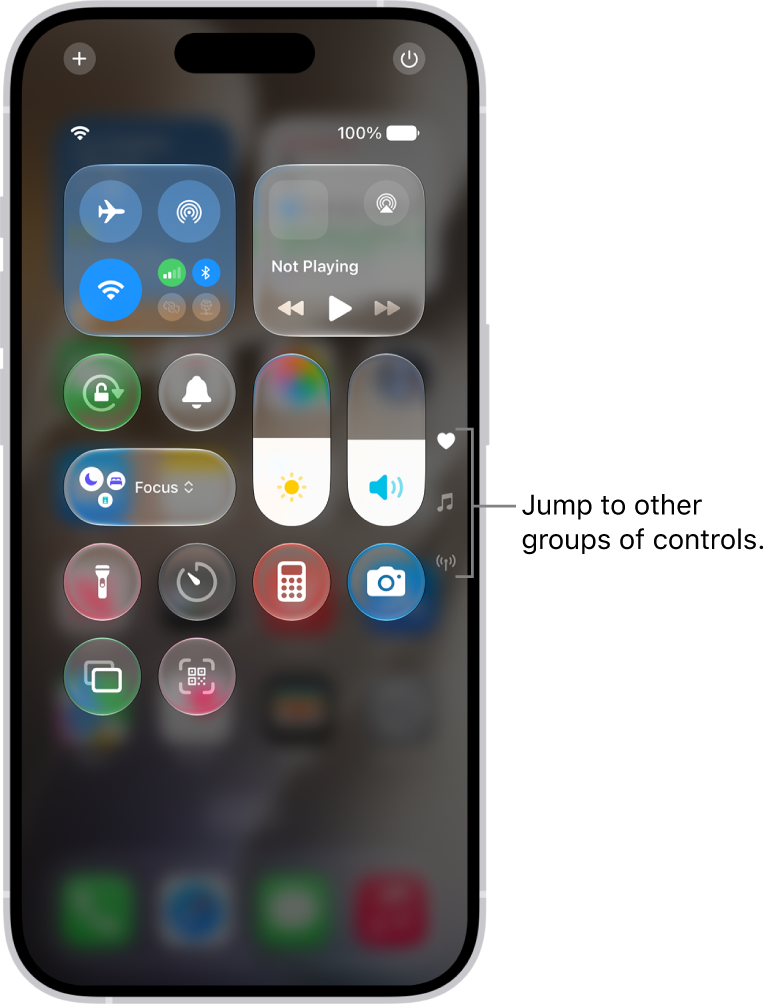
Leave your iPhone on until the battery charge is depleted and the device shuts down by itself. If your iPhone isn’t completely unresponsive, you can go to Settings > Display & Brightness > Auto-Lock and set it to Never to speed up the process. Plus, you can go to the Control Center and boost the brightness all the way up and make the battery drain faster.

Control Center open on the iPhone screen, with icons on the right for viewing other groups of controls.

With the battery depleted and your iPhone powered down, wait at least 30 seconds before plugging it back into power. The device will start up automatically after a few minutes, as soon as the battery has enough charge for booting. But if draining the battery makes no difference, try putting a frozen iPhone into Recovery Mode.

How to Fix a Frozen iPhone 18 Pro Max With Recovery Mode

Recovery Assistant helps resolve startup issues by downloading a software package. If Recovery Assistant appears, click Continue to start the recovery process. The recovery process requires a Wi-Fi connection.

Connect your phone to a computer and open the Finder (macOS) or the Apple Devices app (Windows), then do the following:

  1. Press and immediately release the Volume Up button
  2. Press and immediately release the Volume Down button
  3. Press and hold the Side button until you see the Recovery Mode screen

A common mistake here is letting go of the button as soon as you see the Apple logo. Be sure to keep holding the button past the Apple logo, and don’t let go until the device enters Recovery Mode and is recognized in the Finder or the Apple Devices app.

With the Recovery Mode active, a prompt should appear on the computer offering to restore or update your device. Click Update to have the computer download and install the latest version of iOS. Don’t worry; this won’t erase any data on the phone. Once the operating system has been reinstalled, your iPhone should be fully responsive again.

With the device restored and responsive again, now’s a good time to go to Settings > General > Software Update and install any pending iOS or security updates.

With that done, venture into Settings > General > iPhone Storage and delete anything that’s clogging storage space, like massive photo libraries, cached videos in streaming apps, games, and so on.

iOS needs at least one gigabyte of free storage space to function smoothly. Clearing storage space is the best way to avoid issues like slow-downs that could lead to sudden freezes.

Nothing Helps? Contact Apple Support

Is your iPhone 18 Pro Max still frozen even after trying out all the above tips? If so, we highly recommend talking to experts at Apple, as they’ll be able to assist you in more ways than we could in case the hardware is at fault.

Even better, you can make an Apple Store appointment at a Genius Bar, provided you have one nearby where you live.

An Unresponsive iPhone Is Virtually Useless

An iPhone that suddenly freezes is a brick in your hand. Whether iOS is outdated, some apps are incompatible with it, the battery is low, or the device is running low on storage space, following the instructions in this guide should help fix a frozen iPhone.

Hopefully, you won’t have to factory reset your iPhone and wipe all the saved data and settings just to solve the responsiveness and freezing problems.

It’s such a hassle when you see that your iPhone 18 Pro or iPhone 18 Pro Max is stuck on the Apple logo and won’t even load the Home Screen. Thankfully, your phone probably isn’t broken. There are several solutions when your iPhone is stuck showing the Apple logo.

Here, we’ll cover the reasons why your iPhone might be stuck on the Apple logo and then show you the different ways to fix this issue yourself.

Why Your iPhone 18 Pro Max Won’t Turn On and Gets Stuck on the Apple Logo

There are several reasons why your iPhone is stuck on the Apple logo and won’t get past this booting stage, such as:

  • Bugs or other data corruption issues in the iPhone’s iOS.
  • You restored or transferred corrupted files from an iCloud or iTunes backup.
  • The iPhone has been jailbroken, which may have caused some software issues like a boot loop.
  • You dropped your iPhone, and the impact has messed up some internal components.
  • Your iPhone suffered water damage. Remember that although the iPhone is water-resistant, it’s not waterproof.

Below are some repair tips that can help revive your beloved iPhone if it’s stuck on the Apple logo screen:

1. Force Restart Your iPhone 18 Pro Max

Forcing your iPhone to restart might help solve this problem.

Press and quickly release the volume up button. Press and quickly release the volume down button. Press and hold the side button. When the Apple logo appears, release the side button. Remember to do this in the correct order or your phone might text your SOS contacts.

An illustration of iPhone with arrows pointing to the side button on the upper right and the volume up and volume down buttons on the upper left.

During the rebooting phase, it’s normal for the screen to flash before powering down. It will reboot and won’t enter a boot loop. This process solves most issues, but there might be exceptions when it doesn’t work.

2. Reinstall iOS

If your device is still frozen on the Apple logo after a force restart, try reinstalling iOS instead. There’s a good chance that your phone was interrupted in the middle of an update, causing iOS to become corrupt.

Make sure that the progress bar on your iPhone screen hasn’t moved for at least one hour.

Recovery Assistant helps resolve startup issues by downloading a software package. If Recovery Assistant appears, click Continue to start the recovery process. The recovery process requires a Wi-Fi connection.

Connect your iPhone to a computer. On a Mac with macOS Catalina 10.15 or later, open the Finder. If you’re using a PC, use the latest version of the Apple Devices app or iTunes.

Locate your iPhone in the Finder or the Apple Devices app. Press and release the Volume Up button. Press and release the Volume Down button. Press and hold the Side button. Keep holding the Side button until you see the recovery mode screen.

When getting the update or restore options, choose Update. Your computer will download and reinstall iOS without erasing your data.

3. Do a Factory Restore

One of the solutions when your iPhone doesn’t turn on is to do a factory restore. This option will erase all the data on your phone. Recovering your data afterward will be much easier if you back up your iPhone’s data to your computer or iCloud.

If you don’t have a backup, you will lose all your data when you complete this step.

To complete a factory restore, enter Recovery Mode as described in the previous sections. But now, instead of choosing to update your iPhone, you should select the Restore option on your computer instead. We advise you to do this only after you’ve tried the other solutions or if it’s a newly bought iPhone with no data stored in it yet.

4. Try a DFU Restore

Device Firmware Update mode (DFU mode) is a restore option for your iPhone that overwrites any incomplete software and firmware with new code. Although it’s not recommended for physically damaged devices, you can give this method a try if your iPhone doesn’t fall into that category.

To apply this solution when your iPhone is stuck on the Apple logo, there are three main steps. First, use a USB cable to connect your iPhone to a computer. Second, perform the steps below.

  1. Press the Volume Up button and quickly release it, then do the same thing with the Volume Down button.
  2. Press and hold the Side button. Then, when you get a black screen, press and hold the Volume Down button.
  3. Keep holding these buttons for about five seconds. Then, release the Side button while still holding the Volume Down button.
  4. Follow the prompts displayed on your computer.

Lastly, ensure the screen stays black after reaching the final step. If it does, it’s now in DFU mode, and you need to follow the prompts on your computer.

However, if you see the recovery mode screen, it’s in Recovery Mode instead. Reconnect your iPhone to your computer and repeat the instructions above. This time make sure you get the timing right.

5. Get It Repaired at an Apple Store

If you’ve exhausted all the options above, then it’s time to get your iPhone repaired professionally. If your iPhone is still under warranty, Apple should cover the repair for free, provided it isn’t damaged in any other way, such as liquid damage.

Getting your phone repaired may reveal hidden hardware issues. For example, your iPhone’s logic board might be damaged and need a replacement, which is why it kept getting stuck on the Apple logo.

So, feel free to book an Apple Store appointment at a Genius Bar if you have one nearby.

Simple Solutions for When Your iPhone 18 Pro Max Is Stuck on the Apple Logo

When your iPhone is stuck on the Apple logo, the most important thing to do is find out what might have caused it. Next, you can try the solutions we listed above to help solve the problem. When all else fails, please leave it to the professional technicians to fix your iPhone.

Looking to put your iPhone in recovery mode? You’ll need to use this function if your iPhone runs into major problems. But it’s not always clear how to put an iPhone 18 Pro or iPhone 18 Pro Max in recovery mode.

We’ll show you how to put your iPhone in recovery mode.

Force Restarting and iPhone Recovery Mode Explained

You hopefully won’t need to force restart your iPhone often, and should rarely have to put it in recovery mode. But it’s important to know for those occasions when something goes wrong.

When your device becomes completely unresponsive and you can’t shut it down with the usual method, instead of waiting for the battery to deplete, you can initiate a force restart. A force restart is equivalent to pulling a desktop computer’s power plug, as it forces your iPhone to shut down and start up again.

Recovery mode takes this a step further, putting your device into a state where you can reinstall iOS by connecting your iPhone to a computer running the Apple Devices app (or using Finder on macOS Catalina and newer). If your iPhone refuses to boot, crashes on startup, or gets stuck on the Apple logo for a long time, you’ll need to put the device into recovery mode in order to rescue it. Recovery Assistant helps resolve startup issues by downloading a software package. If Recovery Assistant appears, click Continue to start the recovery process. The recovery process requires a Wi-Fi connection.

If you choose Restore, it will erase your iPhone. This isn’t a problem if you make regular iPhone backups, which you can do using iCloud or locally in the Finder or the Apple Devices app. Unfortunately, you can’t back up your device in recovery mode, since the process will only offer to restore the firmware.

How to Enter Recovery Mode on iPhone

Note that you’ll need to perform these button combinations fairly quickly. If they don’t work once, try them again but faster.

How to Force Restart an iPhone 18 Pro Max

  1. Press then release the Volume Up button.
  2. Immediately press then release the Volume Down button.
  3. Hold the Side button until you see an Apple logo. Let go of the button when you see this logo.

    An illustration of iPhone with arrows pointing to the side button on the upper right and the volume up and volume down buttons on the upper left.

How to Put an iPhone 18 Pro Max Into Recovery Mode

  1. Connect your iPhone to a computer.

    1. On a Mac with macOS Catalina 10.15 or later, open the Finder. If you’re using a PC, use the latest version of the Apple Devices app or iTunes.
  2. Press then release the Volume Up button.
  3. Immediately press then release the Volume Down button.
  4. Hold the Side button, and don’t let go when you see the Apple logo.
  5. Keep holding the Side button until you see the Recovery Mode screen.

How to Recover Your iPhone Using Recovery Mode

When you put your device into recovery mode using the above instructions, you’ll have 15 minutes to begin reinstalling iOS before your device automatically exits recovery mode. You’ll need to repeat the combination of button presses to put it back into recovery mode if this happens.

You might see the recovery prompt as soon as your device enters this mode. If not, try clicking on your device (on the left sidebar of Finder) to show the recovery prompt.

On the error message, try the Update option first, which will attempt to update your device without erasing anything. If this doesn’t work, you’ll have to choose Restore, which will reinstall iOS and remove everything that was on your iPhone.

Once your iPhone reboots following the restore process, you’ll need to walk through the setup again like it’s a new iPhone. Part of this is logging in with your Apple Account credentials to remove Apple’s Activation Lock. This is a security feature that prevents someone else from using your device if it’s reset without signing out of iCloud.

Because of this, you should never buy a secondhand iPhone if the seller refuses to unlock it in front of you. A reset phone with Activation Lock still enabled will ask for the owner’s Apple Account before you can begin the setup process, making it useless to you without this info.

iPhone Recovery Mode, Made Easy

We’ve seen how to force restart any iPhone and enter recovery mode. It’s a simple process once you know it, but the increasingly confusing button combinations are a bit obtuse. Hopefully, you won’t need to use these often, if ever.

When Apple first released the iPhone, the best way to reset or restore your device was to connect it to a computer running iTunes. But in 2019, Apple discontinued iTunes for the Mac, replacing it with the Music app instead, and iTunes isn’t installed on every Windows PC. So what’s the best way to reset or restore an iPhone 18 Pro or iPhone 18 Pro Max without using iTunes?

Resetting vs. Restoring an iPhone

People often use “reset” and “restore” interchangeably. However, it’s incorrect to do so; the two words relate to different processes.

Of the two, resetting your device is the lighter approach. It might wipe data off your phone, depending on the reset option you choose, but it doesn’t affect the firmware or the operating system version.

Resetting also offers a more granular list of options. In addition to changing all the settings on your device back to their default state, you can also choose to erase all your content and settings. If you prefer, you can choose to just reset the network settings, keyboard dictionary, Home Screen layout, or location and privacy options, keeping the rest of your data intact.

In contrast, restoring an iPhone is the process you need to undertake if your iPhone is having major problems. For example, perhaps you can’t get your device out of Recovery mode or Device Firmware Update (DFU) mode, or maybe you keep seeing error codes (the most common are 3194, 4013, 4014, 9, and 51).

When you restore an iPhone, it erases all your data and reinstalls the operating system from scratch. You can further subdivide the restore process into two categories: restoring your iPhone to a working state with no data, or recovering a backup of your iPhone data.

How to Reset an iPhone 18 Pro Max Without iTunes

It’s easy to reset an iPhone without iTunes. Assuming your device is working correctly, you can do it from within the phone’s Settings app. To reset your iPhone, follow these steps:

  1. Turn on your iPhone.
  2. Open the Settings app.
  3. Navigate to General > Transfer or Reset iPhone.
  4. If you want to erase all your data and reset your iPhone to its factory state, tap on the Erase All Content and Settings option. Otherwise, tap Reset and select the option that best fits your needs.
  5. Follow the prompts on the next screens to sign out of your Apple Account, create a backup, or enter your passcode, depending on the reset option you chose.

If you can’t follow these steps because your iPhone 18 Pro Max isn’t working, you’ll need to follow the instructions to restore your iPhone without using iTunes instead.

How to Restore an iPhone Without iTunes on a Mac

If you have a Mac and can’t use iTunes because Apple discontinued it, you can restore your iPhone using Finder instead. The process for this is exactly the same as it used to be for iTunes:

  1. Connect your iPhone to your Mac using a USB cable.
  2. Open Finder and select your iPhone from the sidebar.
  3. If prompted, enter your passcode and tap Trust on your iPhone screen.
  4. From the General tab in Finder, click Restore iPhone to completely erase your device and reinstall the software. Alternatively, click Restore Backup to restore data from a previous backup on your Mac.

Depending on the problem with your iPhone 18 Pro Max, you may need to restore the firmware as well. You need to put your iPhone into DFU mode to do this.

How to Restore an iPhone Without iTunes on a Windows PC

Open Apple Devices and select your iPhone in the sidebar. Select Trust [your device] if necessary, then select General. Select Restore and follow the onscreen instructions.