Got a tip for us?

Messages

You can send a poll, play a game, record audio messages, share songs, and more, all with iMessage apps, without leaving the Messages app.

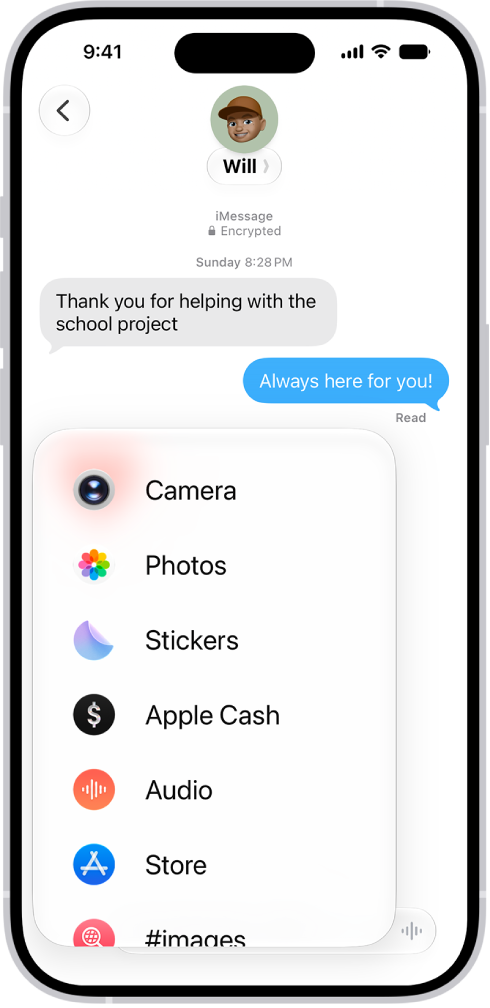
You can customize your list of available apps by rearranging them, or add iMessage apps you find in the App Store. The Messages app comes with iMessage apps for polls, photos, videos, audio messages, stickers, and more.

Here’s how to use iMessage apps in Messages on iPhone.

A list of features that appears after tapping the Add button in a Messages conversation.

Rearrange iMessage apps

  1. Start the Messages app on your iPhone.
  2. In a conversation, tap the Add button.
  3. Touch and hold any app icon in the list until it shrinks a little. Then drag it to the location where you want it.

To move the app icon to a different page, drag it to the top or bottom edge of the menu. You might need to wait a moment for the new page to appear.

Add iMessage apps

The Messages app includes iMessage apps you can use to send photos, videos, stickers, polls, audio messages, and more, and you can download additional iMessage apps for even more options.

  1. Start the Messages app on your iPhone.
  2. In a conversation, tap the Add button.
  3. Tap Store to open the App Store for iMessage.
  4. Tap an app to see more details and reviews and then do one of the following:
    • Purchase an app: Tap the price. Payments are made using the method associated with your Apple Account.
    • Download a free app: Tap Get.

Check In can automatically notify a friend that your iPhone has arrived. If you don’t complete your Check In, you choose what details they can see. It’s flexible, too: you can add time to your Check In, or cancel a Check In.

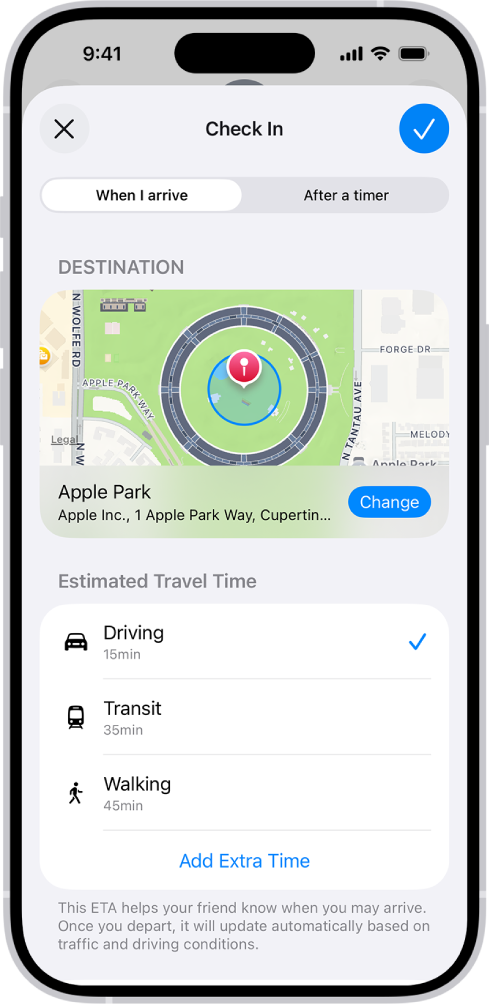
A Check In showing a map and estimated travel times for Driving, Transit, and Walking. At the bottom is a button to Add Extra Time.

Note: Both the sender and recipient need iOS 17 or later to use Check In.

How Check In works

Use Check In on iPhone, and it can automatically let a friend know your iPhone has arrived. If you don’t successfully complete your Check In, you decide what details they can see.

In the same way, if a friend sends you a Check In and their iPhone hasn’t arrived as expected, you can see their battery percentage, location, cellular signal, and more.

Send a Check In

  1. Open the Messages app on your iPhone.
  2. Tap the Compose button and add a recipient, or select an existing conversation.
  3. Tap the Apps button, tap More, tap Check In, and then tap Edit.
  4. Choose one of the following:
    • When I Arrive: Specify your destination, how you’re traveling (driving, transit, or walking), and add extra time if needed. Check In monitors your journey and notifies your friend if your iPhone isn’t progressing for an extended period of time or if it doesn’t reach your destination as expected. When you arrive at your destination successfully, the Check In automatically completes and notifies your friend that your iPhone has arrived.
    • After a timer: Specify a period of time—for example, if you’re meeting someone new. If you don’t end the Check In before the time you set, Check In notifies your friend.
  5. Tap the Send button.

Say your iPhone never reaches your destination, or you don’t cancel the Check In. If you also don’t respond to the Check In prompts, your friend receives the details of your iPhone’s journey.

Note: If you start a Check In and then lose service or your iPhone powers off, your Check In recipient may get a delayed or early notification and have the option to view the iPhone details you shared with them.

Add time to your Check In

If you need extra time, you can add time to your Check In.

  1. Open the Messages app on your iPhone.
  2. Open the conversation with the friend you sent a Check In to.
  3. On the Check In message, tap Details and tap Add Time. Select one of the options.

Cancel a Check In

Once you’ve completed your journey, or if you want to end your session for any reason, cancel your Check In to let your friend know.

  1. Open the Messages app on your iPhone.
  2. Open the conversation with the friend you sent a Check In to.
  3. On the Check In message, tap Details and tap Cancel Check In and confirm.

Choose what details you share

You can change the details you share with your friend during a Check In.

  1. Open Settings, tap Apps, and then tap Messages on your iPhone.
  2. Scroll down and tap Check In Data.
  3. Choose what details you want to share if you don’t complete your Check In as expected:
    • Limited: Share your current location, in addition to the network signal and battery details of your iPhone and Apple Watch.
    • Full: Share the data above (current location, network signal, and battery details), in addition to the route you’ve traveled and the last time you unlocked your iPhone or removed your Apple Watch.

You can add a background to an iMessage conversation. Other people in the conversation see the background on their devices too and can change the background for the group.

You can use a dynamic background, a photo, or an original background you create, and revert to a plain background anytime. With a photo, you can crop the image, remove the color, or apply a color filter.

Here’s how to add backgrounds in Messages on iPhone.

Note: Conversation backgrounds only work in iMessage, and to add, view, or change one, you need iOS 26, iPadOS 26, macOS 26, watchOS 26, or visionOS 26 or later.

Use a dynamic background

  1. Start the Messages app on your iPhone.
  2. Go to the conversation where you want to add a background.
  3. Tap the contact or group icon at the top of the conversation, then tap Backgrounds.
  4. Tap Color, Sky, Water, or Aurora.
  5. Swipe left to choose an option.

    Tip: For Color, tap the swatches in the bottom corners to adjust the colors.

  6. Tap the Done button to add the background to your conversation.

Use a photo as a background

  1. Start the Messages app on your iPhone.
  2. Go to the conversation where you want to add a photo to the background.
  3. Tap the contact or group icon at the top of the conversation, then tap Backgrounds.
  4. Tap Photo. Then tap to select a photo from your library.

    Tip: If someone shared a photo you want to use as a background, touch and hold the photo in the message, then tap Set as Background.

  5. Do any of the following:

    • Crop the image: Pinch in or out.
    • Remove the color: Swipe left to Black & White.
    • Apply a color filter: Swipe left to Duotone or Color Wash. Then tap the color swatch to change the palette.
  6. Tap the Done button to add the background to your conversation.

You can set conversations to showcase backgrounds when you return to them. Go to Settings > Apps > Messages, then turn on Start with Photos Visible.

Note: You can have your (or a family member’s) iPhone receive warnings before a background image containing sensitive content is sent or received.

Create an original background

Image Playground uses Apple Intelligence to create one-of-a-kind images you can use as backgrounds for your conversations.

Note: Apple Intelligence on iOS 27 or later is available on an Apple Intelligence-enabled iPhone 15 Pro, iPhone 15 Pro Max, or iPhone 16 model or later. Apple Intelligence is not available in all languages or regions. Usage limits may apply.*

  1. Start the Messages app on your iPhone.
  2. Go to the conversation where you want to add a photo to the background.
  3. Tap the contact or group icon at the top of the conversation, then tap Backgrounds.
  4. Tap Playground, follow the onscreen instructions to create an image, then tap the Done button.
  5. Tap the Done button to add the background to your conversation.

Revert to a plain background

Note: Removing a background affects all participants in a conversation.

  1. Start the Messages app on your iPhone.
  2. Go to the conversation with a background you want to remove.
  3. Tap the contact or group icon at the top of the conversation, then tap Backgrounds.
  4. Tap None.

Turn conversation backgrounds off

Others in a conversation still see any background chosen for it, even after you turn conversation backgrounds off.

  1. Start the Settings app on your iPhone.
  2. Tap Apps, then tap Messages.
  3. Turn Conversation Backgrounds off.

*Apple Intelligence is available with Siri and device language set to Chinese (Simplified), Chinese (Traditional), Danish, Dutch, English, French, German, Italian, Japanese, Korean, Norwegian, Portuguese, Spanish, Swedish, Turkish, or Vietnamese. Some features may not be available in all regions or languages. Some devices may not be available in all regions. Siri AI is available in beta in iOS 27, iPadOS 27, macOS 27, watchOS 27, and visionOS 27 and requires an Apple Intelligence–enabled device set to a supported language. Available in English to start. Siri AI will not be initially available in the EU on iOS, iPadOS, and watchOS. Certain Apple Intelligence features that rely on server-side models are subject to daily usage limits, including but not limited to Siri AI, Intelligent Photo Editing Tools, Image Playground, and AFM 3 Cloud models in Shortcuts. Daily limits may vary by feature, request complexity, system demand, system policies, and other factors. Expanded access to such features will be available for a fee in the future. Use of these features is subject to the Apple Intelligence Terms and Conditions.


You can use Contact Key Verification to receive automatic alerts that help verify you’re communicating only with the people you intend. You can also generate unique codes that you and your contacts can compare simultaneously in the Messages app to further verify each other’s identities.

And you can post your Public Verification Code to a social media account, so other people can confirm that it’s you when they send you a message. You can save other people’s codes in the Contacts app, too.

Note: Contact Key Verification is designed to prevent highly sophisticated cyberattacks; it isn’t designed to prevent fraud such as phishing or other text-based scams.

Before you begin

Contact Key Verification works only when all of the following are true:

  • Your devices are passcode or password protected.
  • You’re signed in to iCloud and iMessage with the same Apple Account and you have two-factor authentication turned on for your Apple Account.
  • The person you’re trying to verify is in your contacts.

Turn on Contact Key Verification

  1. Open Settings, tap [your name], and then tap Contact Key Verification.
  2. Turn on Verification in iMessage and tap Continue.

Note: When you turn on Contact Key Verification, you’ll be asked to update all of your Apple devices to compatible software. Any device that can’t be updated needs to be signed out of iMessage before you can turn on this feature.

Share a Public Verification Code

To let other people verify your identity, you can post your Public Verification Code on a social media account or share it in a message.

  1. Open Settings, tap [your name], and then tap Contact Key Verification.
  2. Tap Show Public Verification Code.
  3. To share your Public Verification Code, tap Copy Verification Code, tap OK, and then paste the code wherever you want to share it.

Someone else’s Public Verification Code can help you verify their identity, too. Say someone shares a Public Verification Code with you, but it doesn’t match the code on their social media profile. In that case, hold off on sending them messages until you can confirm their identity.

Generate verification codes in Messages

You and your contacts can get a higher level of security by generating a verification code in Messages, then saving each other’s Public Verification Codes in Contacts. It helps when you want to verify each other simultaneously, or when the code your contact shares with you doesn’t match the Public Verification Code you received.

  1. Open the Messages app on your iPhone.
  2. Tap the person’s name at the top of the conversation, scroll down, and tap Verify Contact.

    When the other person taps Verify Contact on their device, a contact verification code appears.

  3. Compare the verification codes on both devices. Do one of the following:

    • If the codes match: Tap Mark as Verified and then tap Update to add the verification code to the other person’s contact card.
    • If the codes don’t match: You might not be communicating with the person that you intend. Tap No Match. Stop sending messages to the person until you can verify their identity.

Once you verify a contact, Messages shows a checkmark next to their name. You can check their verification status in the Conversation Details, too, or find their Public Verification Code in Contacts.

On an iPhone, you can report spam messages to Apple, recover messages from the Spam folder that were incorrectly marked as spam, and block specific contacts to stop receiving their messages.

What happens to a report depends on how the message arrived. With SMS, MMS, or RCS, reporting spam can share that information with your carrier and its affiliates, depending on your carrier and country or region. You can also check who you blocked.

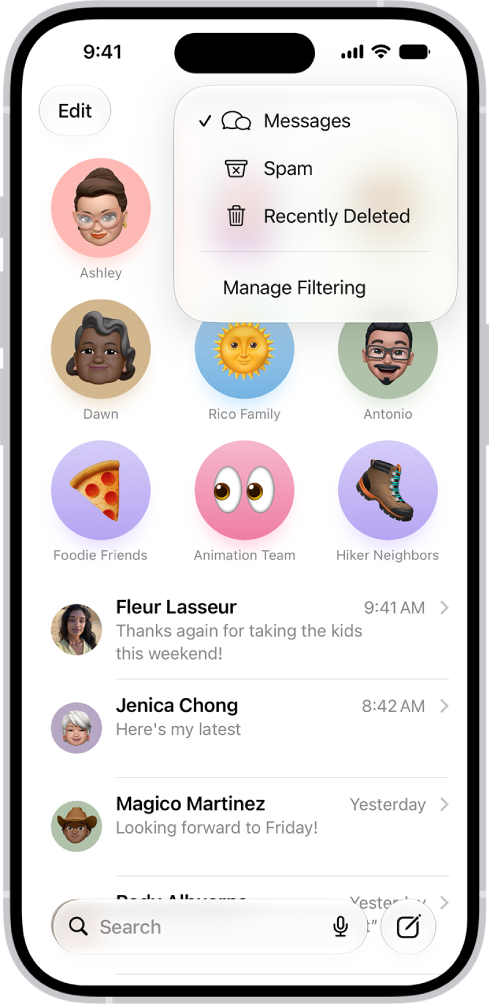
A conversation list in Messages. All messages are shown, because no filter is selected in the Filter menu.

Report spam messages

With iMessage, you can report spam messages to Apple. Spam that arrives with SMS, MMS, or RCS is different: Depending on your carrier and country or region, reporting it shares this information with your carrier and its affiliates.

  1. Open the Messages app on your iPhone.
  2. Do one of the following:

    • If you haven’t opened the message: Swipe left on the message, tap the Delete button, and tap Delete and Report Spam.
    • If you’ve already opened the message: A Report Spam link appears at the bottom of any message from any unknown sender. Tap Report Spam and tap Delete and Report Spam.
      Note: You can’t report a message after you’ve replied to it.
    • If you don’t see the option to report spam messages you receive with SMS, MMS, or RCS: Contact your carrier.

Report a message you received with iMessage, and it’s sent to Apple with the sender’s information, then permanently deleted from your iPhone. If you report and delete messages by accident, you can recover them. Since reporting spam doesn’t stop the sender from sending messages, block the contact if you want to avoid receiving their messages. And if you’d rather not get incoming messages from new numbers, you can filter them.

Recover messages in the Spam folder

Detected spam lands in the spam folder, so it doesn’t appear in your conversation list. You can check whether messages are inadvertently marked as spam.

  1. Open the Messages app on your iPhone.
  2. In the conversation list, tap the Filter button. Tap Spam.
  3. Tap a message that isn’t spam and tap Not Spam. Tap Move to Messages.

The conversation moves to your main conversation list, where you can send a reply. Tap the Filter button, then tap Messages.

Spam filtering is on by default. To turn it on or off, tap the Filter button, tap Manage Filtering, then turn on or off “Filter spam.”

Block messages from a specific person or phone number

Messages from a contact or phone number you block aren’t delivered, and the sender doesn’t know their messages are blocked.

Note: Blocking a contact in Messages blocks them in Mail, Phone, FaceTime, Calendar, and other apps, too.

  1. Open the Messages app on your iPhone.
  2. Go to the conversation with the person you want to block and tap the person’s icon at the top.
  3. Tap Info and scroll down. Tap Block Contact.

You can remove someone’s access to shared items.

Quick tip: Since you can’t block a group conversation, you can simply leave it or stop its notifications instead of blocking everyone in the group.

Check who you blocked

Not getting someone’s messages? Check whether they’re in your Blocked Contacts. Blocking a contact in Messages also blocks them in Mail, Phone, FaceTime, Calendar, and other apps.

  1. Open the Settings app on your iPhone.
  2. Tap Privacy & Security, tap Blocked Contacts, and do any of the following:
    • Unblock a number you’ve blocked: Tap [number] Unknown and swipe left on a number in the list. Then tap Unblock. Or tap Edit, then tap the Remove button.
    • Add additional contacts or numbers directly to the list: Tap Add Blocked Contact.

A sender can’t find out if they’re blocked.

Quick tip: Screen Time offers another way to prevent unwanted messages: When you block messages with it, allow your contacts only.

With SharePlay, you can instantly stream supported content, listen to music, play games, and more in sync with a friend by holding your iPhone close to your friend’s iPhone. It works in apps that support SharePlay, where you pick the content you want to share.

Start SharePlay

  1. On your iPhone, in an app that supports SharePlay, tap the content you want to share.
  2. Hold your iPhone next to the iPhone of the person you want to share with.

    If they’re not in your contacts (or vice versa), you first need to share your contact information with them.

  3. Tap SharePlay.

The person you’re sharing with can accept or decline your SharePlay invitation.

Note: iOS 17 or later is required on both iPhone devices. AirDrop must be turned on, and the sender and recipient must be included in each other’s contacts. Some apps that support SharePlay require a subscription. To watch a movie or TV show together, each participant must have access to the content on their own device, through either a subscription or purchase, on a device that meets the minimum system requirements.

SharePlay might not support sharing some TV shows or movies across different regions or countries.

You can reduce the number of unwanted text messages you receive when you screen and filter messages from unknown senders and turn off business alerts.

Messages from unknown senders are filtered into another folder, so they can’t text you directly, and you don’t get notified. You can also set up additional spam filtering for unknown SMS, MMS, and RCS messages, and review the messages that were filtered. Filters cover promotions and transactions, too.

A conversation list in Messages. All messages are shown, because no filter is selected in the Filter menu.

Screen and filter messages from unknown senders

You can stop unknown senders from texting you directly. Instead, their messages land in another folder, and you won’t get notified about them unless you want to be.

  1. Open the Messages app on your iPhone.
  2. In the conversation list, tap the Filter button and tap Manage Filtering.
  3. Turn on Screen Unknown Senders.
  4. To get notifications from some unknown senders—for example, for time-sensitive texts, like verification codes—tap Allow Notifications. Then turn on the categories you want to allow. (Options vary by country and region.)
  5. To detect and filter SMS, MMS, and RCS messages from unknown senders into folders for Transactions and Promotions, tap the Back button, tap Text Message Filter. Then turn on Text Message Filter and any third-party message filtering extensions you may have installed.

Note: Filters cover promotions and transactions, plus anything your third-party message filtering extension offers. Text message filtering stops applying once you’ve replied to a sender three times or more. Try blocking or reporting those senders instead.

Review messages from unknown senders and mark them as known

At any time, you can review messages filtered to the Unknown Senders folder. If a sender turns out to be legitimate, mark them as known or add them to Contacts. Their messages then move into your conversation list, and you can open links and view any blurred images they’ve sent.

  1. Open the Messages app on your iPhone.
  2. In the conversation list, tap the Filter button and tap Unknown Senders.
  3. Do any of the following:
    • Tap the message from the sender whose messages you want to see in your conversation list, then tap Mark as Known.
    • Tap the sender’s email address or phone number at the top of the conversation, then tap Create New Contact.

Any future messages from a sender are filtered to Unknown Senders until you mark them as known or add them as a contact.

Turn off business alerts

Some businesses send alerts and updates about your orders and other transactions, but you can turn them off.

  1. Open the Settings app on your iPhone.
  2. Tap Apps, then tap Messages.
  3. Turn off any of the following:
    • RCS Business Messages: Tap RCS Messaging, then turn RCS Business Messages off. (Availability varies by carrier and country.)
    • Apple Messages for Business: Tap Messages for Business and turn Business Updates off.

You can also report spam messages when you receive them.

Quick tip: To prevent unwanted messages, you can also allow messages only from your contacts with Screen Time.

Express yourself by adding stickers that match your personality and mood to your text messages. It all starts with the Add button in a conversation.

You can send Live Stickers you or a friend made, emoji, and Memoji, and even place stickers on a conversation, then move, resize, or delete them. You can also create Live Stickers and save other people’s Live Stickers.

Here’s how to send stickers in Messages on iPhone.

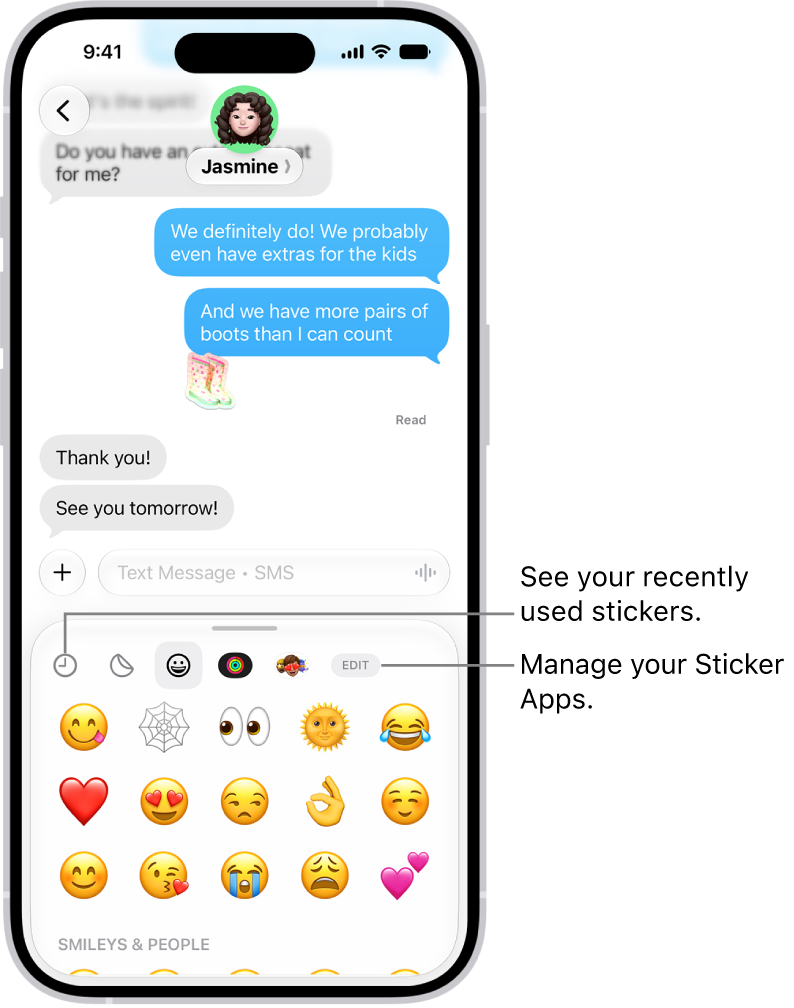
Stickers appear below a conversation. Each button across the top of the card opens a sticker pack.

Send a sticker in a message

  1. Open the Messages app on your iPhone.
  2. In a conversation, tap the Add button.
  3. Tap Stickers and then tap the icon for any of the following sticker packs:

    • Live Stickers you or a friend made: Tap the Live Stickers button.

      See Create Live Stickers and Save other people’s Live Stickers, below.

    • Emoji: Tap the Emoji button.
    • Memoji: Tap the Memoji Stickers button, tap a Memoji in the top row to view the stickers in the sticker pack, and then choose a pose or expression.
    • Stickers from other creators: Download a sticker app from the App Store.
  4. Add a message (optional), then tap the Send button.

From the emoji keyboard, you can send stickers, too.

Place stickers on a conversation

On message bubbles in conversations, you can add stickers, angle them, or make them different sizes. One sticker can even go on top of another.

  1. Open the Messages app on your iPhone.
  2. In a conversation, tap the Add button.
  3. Tap Stickers. Then tap an icon—such as the Live Stickers button, the Emoji button, or the Memoji Stickers button—in the top row to browse a sticker pack.
  4. Drag a sticker onto a bubble. Do any of the following:
    • Adjust the angle: Rotate a second finger around the finger dragging the sticker.
    • Adjust the size: Move a second finger closer to or away from the finger dragging the sticker.

As soon as you place a sticker on a message, your recipients see it.

To find out who sent a sticker in a conversation, touch and hold the sticker, then tap Sticker Details.

Quick tip: Adding stickers to messages is quick: Touch and hold a message, tap Attach Sticker, and then choose a sticker for a corner of that message bubble.

Move, resize, or delete stickers

Once a sticker is on top of message bubbles in conversations, you can still change it.

Do any of the following:

  • Move or resize a sticker: Touch and hold the sticker, then make any changes.
  • Delete a sticker: Touch and hold the message bubble, tap Sticker Details, swipe left on the sticker you want to delete (on your iPhone only), then tap the Delete button.
  • See any text covered by a sticker: Double-tap the message bubble.

Note: To see these updates to stickers, you and your recipients need iOS 17.2, iPadOS 17.2, macOS 14.1, visionOS 1, watchOS 10.2, or later.

Create Live Stickers

By lifting subjects from photos and adding effects that help bring them to life, you can create your own Live Stickers to use in messages.

  1. Open the Messages app on your iPhone.
  2. In a conversation, tap the Add button. Then tap Stickers.
  3. Tap the Live Stickers button and then tap the Add button.
  4. Tap a photo and then tap the Add button.

    Tip: To create a Live Sticker that moves, use a Live Photo.

  5. To add an effect, tap Add Effect and choose an option (such as Comic or Shiny). Then tap the Done button.

Save other people’s Live Stickers

Like a Live Sticker someone sent you? Save it to reuse later.

  1. Open the Messages app on your iPhone.
  2. Open a conversation with a sticker you want to save.
  3. Touch and hold the sticker. Do one of the following:
    • For a sticker sent in a message: Tap Save to Stickers.
    • For a sticker placed on a message bubble: Tap Sticker Details and then tap Save.

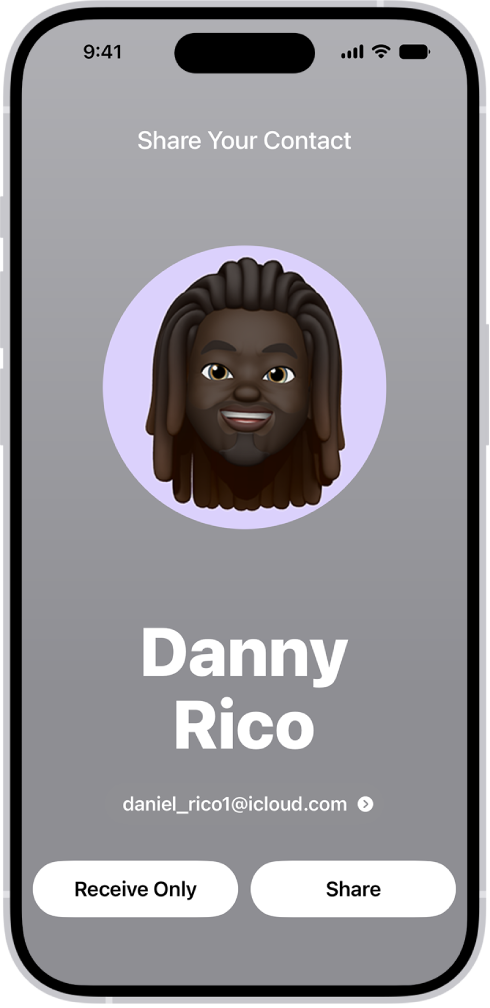
You can use NameDrop to quickly share new contact information with a nearby iPhone or Apple Watch (Apple Watch Ultra models, Apple Watch Series 7 and later, and Apple Watch SE 2nd generation or later). It’s meant for sending new contact information, not for updating a contact you already have, and you can turn off NameDrop, too.

A NameDrop screen showing the user’s name and number. Below it are buttons to Receive Only or Share.

Note: NameDrop only works for new contact information, not for updating an existing contact.

Use NameDrop on iPhone

  1. Hold the display of your iPhone a few centimeters from the top of the other person’s iPhone or Apple Watch.
  2. Continue holding your devices near each other until NameDrop appears on both screens.
  3. Choose to share your contact card and receive the other person’s, or to only receive the other person’s.

If you’re sharing your contact card, tap the Show Disclosure Triangle, select the fields you want to include, then tap Save. The same fields will be selected by default next the time you use NameDrop.

If you lock your iPhone or move the two devices away from each other before the NameDrop transfer completes, you cancel the transfer.

Turn off NameDrop on iPhone

NameDrop is on by default. To turn off NameDrop (and other Bring Devices Together features), go to Settings > General > AirDrop, then turn off Bring Devices Together.

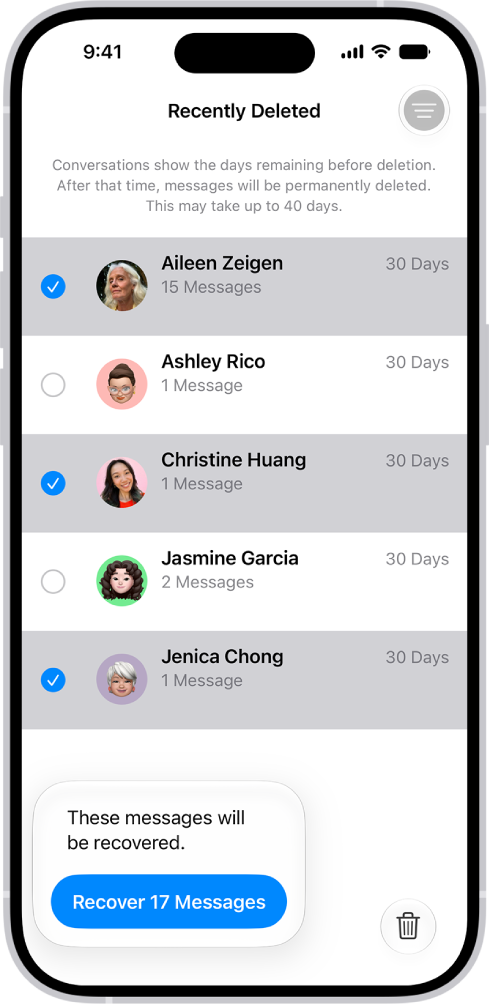
You can recover text messages you deleted on your iPhone for up to 30 days. They’re in Recently Deleted, in the conversation list. And if you use Messages in iCloud, a message you recover on your iPhone comes back on all your devices that use Messages in iCloud.

Recovering all messages deleted within two conversations.

  1. Start the Messages app on your iPhone.
  2. In the conversation list, tap the Filter button and tap Recently Deleted.
  3. Select the conversations whose messages you want to restore and tap Recover.
  4. Tap Recover Messages.

With Messages in iCloud, a message or conversation you recover on your iPhone comes back on all your devices where Messages in iCloud is on.

Note: Deleting and recovering messages affects only your iPhone and other Apple devices that use the same Apple Account. Messages, attachments, and conversations on anyone else’s device can’t be recovered.

Future messages from a blocked contact aren’t automatically deleted if you block them in a conversation with non-iMessage participants, then delete the conversation and recover it.

If you remove a message from a conversation using Undo Send, it’s permanently deleted. And audio messages that expire before being saved aren’t recoverable.