Got a tip for us?

Messages

While using Messages on an iPhone that meets minimum system requirements, you can share your screen or ask to see someone else’s screen. In supported apps, you can also use SharePlay to get together with friends while you watch the latest episode of your favorite show or listen to a new song in real time.

To share your screen, you jump from Messages to FaceTime, bringing apps, webpages, and more into the conversation.

Show someone else what’s on your screen

To share your screen and bring apps, webpages, and more into the conversation, you can jump from Messages to FaceTime.

  1. Start the Messages app on your iPhone.
  2. In a conversation with just one other person, tap the FaceTime button.
  3. Tap Share My Screen.

See another person’s screen

From Messages, you can also jump to FaceTime to see another person’s screen, or even remotely control it.

  1. Start the Messages app on your iPhone.
  2. In a conversation with just one other person, tap the FaceTime button.
  3. Tap Ask to Share Screen.

Use SharePlay to enjoy content together

Right from a supported app like Apple TV or Music, you can start a Messages conversation.

You and your recipients must all be using iMessage to use SharePlay in Messages, and shared playback controls keep everyone in sync.

  1. In a supported app, find a show, movie, song, album, or other content you want to share. Tap the item to see its details.
  2. Do one of the following:
    • Tap the Share button, then tap SharePlay.
    • Tap the More button, tap the Share button, then tap SharePlay.
    • Tap the More button next to the content, then tap SharePlay.
  3. In the To field, enter the contacts you want to share with and tap Messages.
  4. Tap Start or Play to begin using SharePlay.

To begin viewing or listening, recipients tap the content’s title at the top of the conversation, then tap Open. For everyone who has access to the content, the video starts playing at the same time.

Note: If the shared content requires a subscription, the service may ask those who don’t have access to subscribe, make a transaction, or sign up for a free trial, if available.

When you select content to share and tap the Play button, you can also select Play for Everyone (if it appears) to begin it for everyone in the conversation. (Others on the thread may have to tap Join SharePlay to see the video.) Each person in the conversation can use the playback controls to play, pause, rewind, or fast-forward for everyone, but settings like closed-captioning and volume are controlled separately by each person.

Use Messages when you want no interruptions to the sound of the movie, show, song, or podcast, or tap the FaceTime button to switch to FaceTime when you want to see and hear other people as you chat.

Quick tip: The video can also stream to Apple TV 4K after it starts playing.

iPhone makes it easy to reach the people important to you, so you can catch up with phone or video calls and quickly text your group of friends. It starts with a smarter address book, where phone numbers, email addresses, and birthdays are there when you need them, from Messages to FaceTime to Mail.

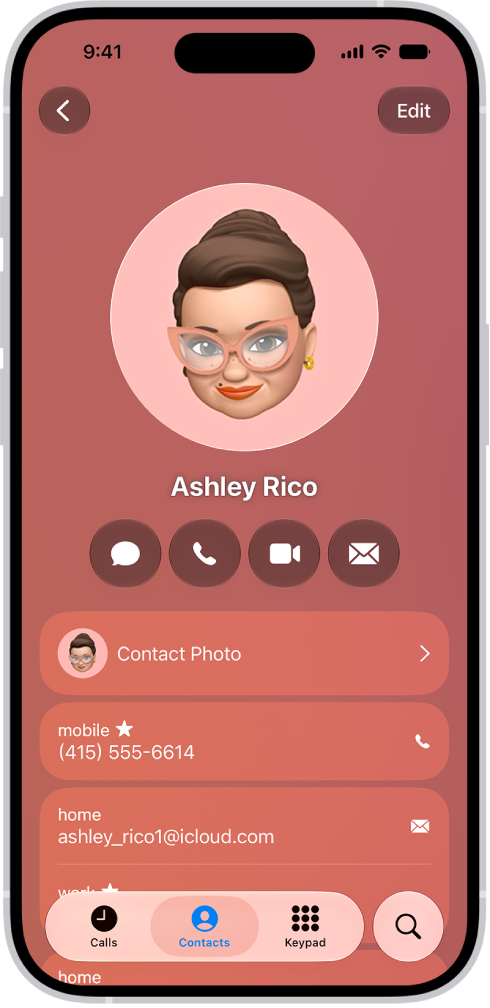
A contact card in the Contacts app.

A smarter address book

In the Contacts app, enter phone numbers, email addresses, birthdays, and more once, and you’ll have them anywhere you need them, from Messages to FaceTime to Mail.

You can also add contact information from another account (like Google or Yahoo). Go to the Settings app , tap Apps, tap Contacts, tap Contacts Accounts, then tap Add Account.

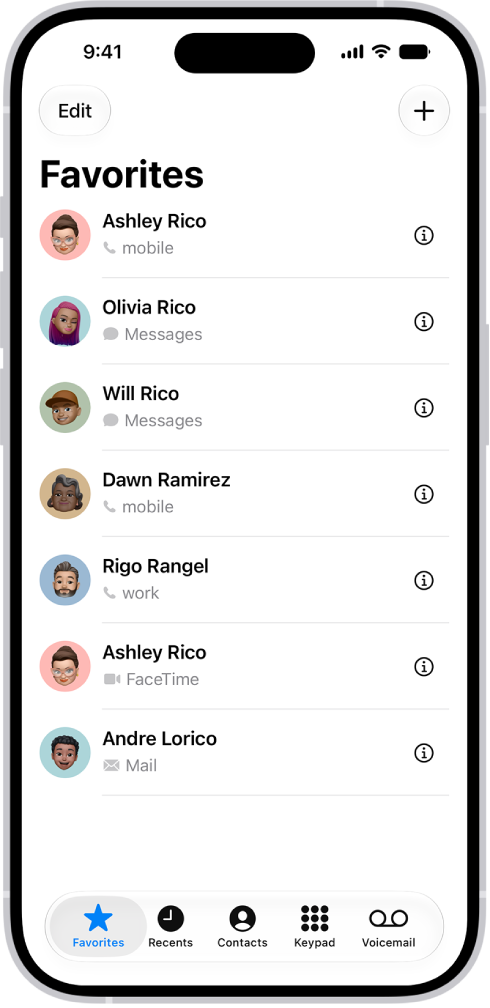
The Favorites screen in the Contacts app; six contacts are listed as favorites.

Find your favorites

Add the people you talk to frequently to your Favorites list in the Phone app to make them easier to reach. In Unified view, your favorites appear in a grid. In Classic view, tap Favorites to view your favorites in a list.

Note: To switch between Unified and Classic views, tap the Filter button.

In the Phone app, tap Contacts, select a contact, then tap Add to Favorites.

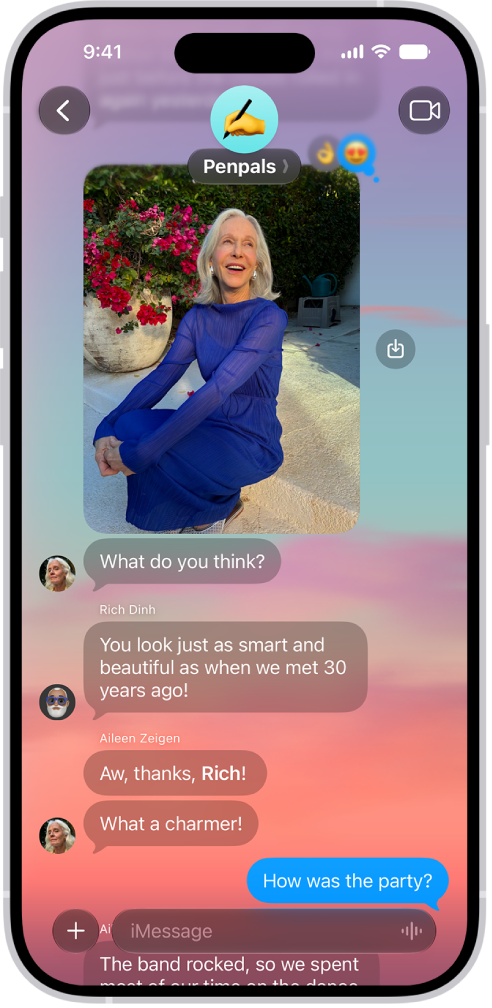
A Messages conversation with a dynamic background.

Start a group conversation

To talk to a group of people all at the same time, like members of your family, you can send them messages.

In the Messages app, tap the Compose button, enter the contacts you want to start a conversation with, then send the first message.

In group conversations, you can make payments with Apple Cash, send photos or videos, or create a poll to help make decisions like what to make for dinner or where to take your next family outing.

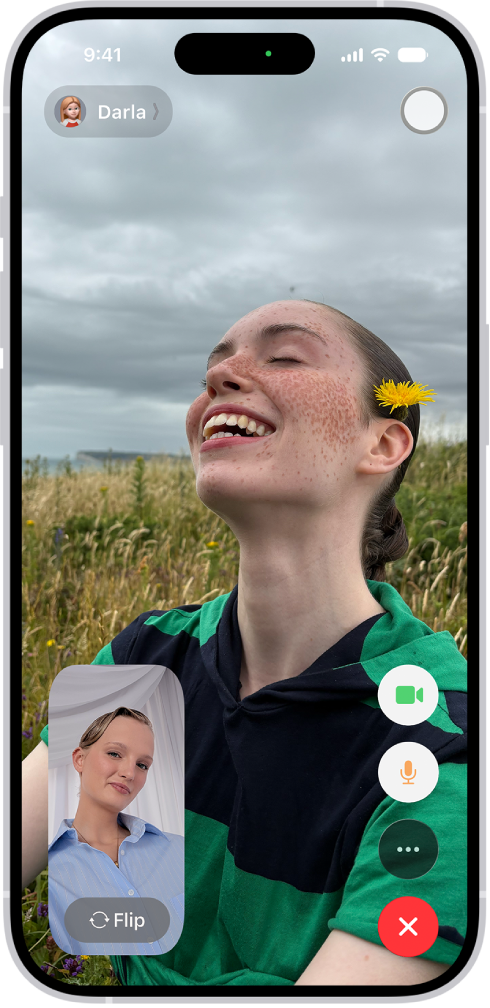
A FaceTime call on iPhone.

Make a video call

With FaceTime, you can make video calls to your friends and family.

In the FaceTime app , tap New Call, select the contact you want to call, then tap FaceTime.

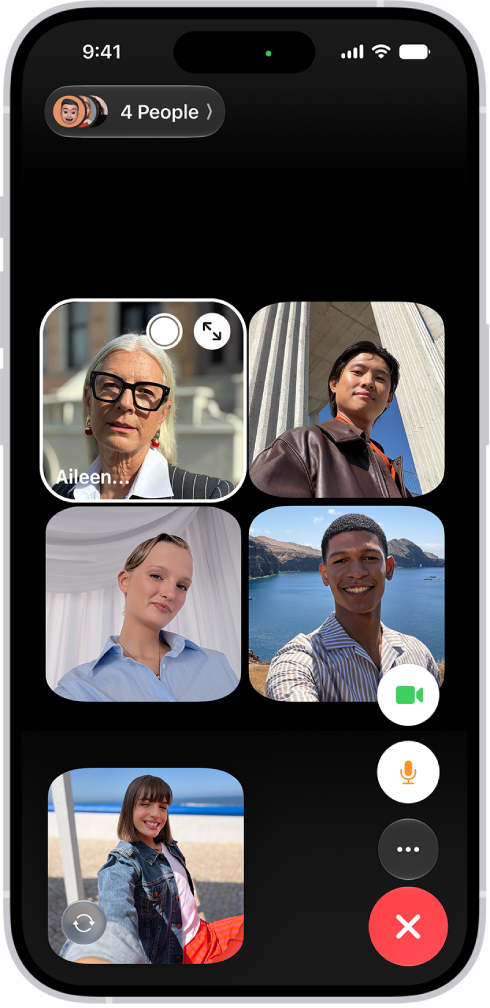
A Group FaceTime call with five participants. Each participant appears in a separate tile. The FaceTime controls are at the bottom-right side of the screen.

Add people to a FaceTime call

You can add more people to a FaceTime call—friends and family can join at any time. Tap the screen to show the controls, tap the More button, then tap Add People.

For more ways to keep in touch, check out these guides:

Not all features, Apple says, are available in all countries or regions.

You can unsend and edit recent text messages, giving you the opportunity to fix a typo or pull back a message that you accidentally sent to the wrong person. You can undo a message for up to 2 minutes after sending it, and edit it up to five times within 15 minutes.

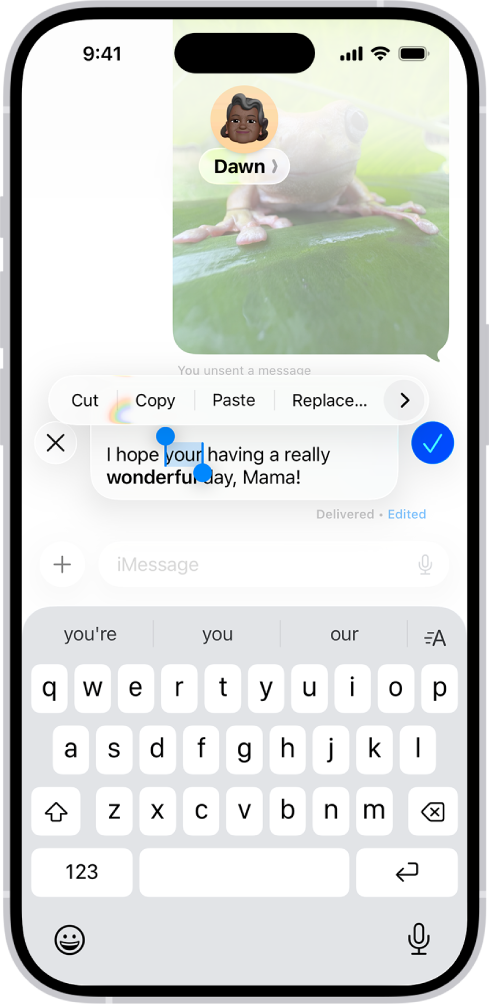
A conversation in Messages showing the last message being edited. The rest of the conversation is lighter, except for the specific text message that’s being edited. The conversation shows that a previous message was unsent, and this message was edited before this current edit.

Note: You need iMessage on iOS 16, iPadOS 16.1, macOS 13, visionOS 1, or later to unsend or edit text messages, and also to see when others unsend or edit messages you receive. If the person you unsend a message to is using an earlier operating system, the original message stays in the conversation, and you get a notice that the recipient may still see it.

Edit a message to someone using an earlier operating system, and they get follow-up messages showing your new message in quotation marks, prefaced with “Edited to”. Editing and unsending don’t work for SMS, MMS, or RCS text messages. And in a group conversation, only iMessage users see your edits to a text message.

Unsend a message

You can undo a recently sent message for up to 2 minutes after sending it.

  1. Open the Messages app on your iPhone.
  2. Touch and hold the message bubble and tap Undo Send.

Both conversation transcripts, yours and your recipient’s, show a note confirming that you unsent the message.

Unsending removes the message from your recipient’s device.

Edit a sent message

You can edit a recently sent message up to five times within 15 minutes of sending it.

  1. Open the Messages app on your iPhone.
  2. Select a conversation with the message you want to edit.
  3. Touch and hold the message bubble, then tap Edit.
  4. Make any changes. Tap the Send Edit button to resend with edits or the Cancel Edit button to revert.

Note: The message is marked as Edited in the conversation transcript.

The message bubble updates to reflect your edits on both your iPhone and your recipient’s device, and both of you can tap Edited to see previous versions of your message.

On supported models, you can text friends and family via satellite when you’re outside of cellular and Wi-Fi coverage. It’s available in the U.S., Canada, and Japan with iOS 18 or later, and in Mexico with iOS 18.4 or later.

There’s some setup to do before you leave coverage, and you can use either iMessage or SMS via satellite.

Here’s how to send a text message via satellite on iPhone.

Important: To connect with emergency services, use Emergency SOS via satellite.

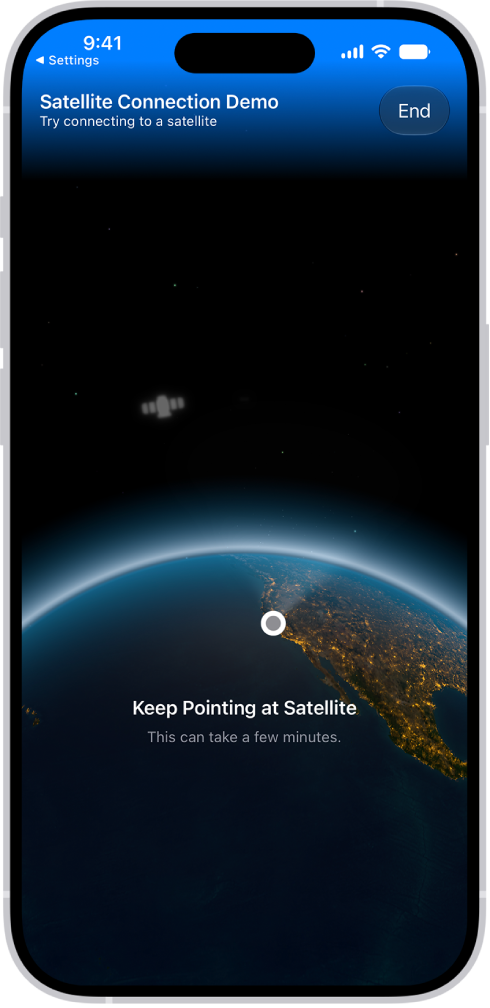
The satellite connection demo, available in the Settings app, provides a preview of what you see when you open the Messages app on an iPhone 14 or later and don’t have cellular or Wi-Fi coverage.

Before you begin

Before you head outside of cellular or Wi-Fi coverage, do the following so your iPhone can use either iMessage or SMS via satellite:

  • Turn on iMessage.
  • Check that your SIM is active.
  • If you want someone to be able to initiate an SMS conversation via satellite, add them to your Family Sharing group or emergency contacts. Anyone else must first get an SMS message from you (via satellite) before they can reply.

Send and receive messages via satellite

If you try to send a text message while you’re outside of cellular and Wi-Fi coverage, an alert prompts you to connect to your nearest satellite. From there, texts, Tapbacks, and emoji can go back and forth over iMessage and SMS.

  1. Open the Messages app on your iPhone.
  2. If you see an alert that you’re outside of cellular and Wi-Fi coverage, tap Use Messages via Satellite.
  3. Follow the instructions to connect to a satellite, while remaining aware of your surroundings. You don’t need to raise your phone—just hold it as you normally would, and make sure that you’re outside with a clear view of the sky and the horizon. Heavy foliage or other obstructions may block your connection to a satellite.

    Other satellite-enabled services also become available, including Emergency SOS via satellite, Roadside Assistance, and Find My.

  4. Enter your message and then tap the Send button. (The Send button is green instead of blue when sending with SMS.)

    Sending your message via satellite may take longer than other methods.

    When you connect, a green dot and a satellite icon appear on your screen. If your connection weakens, the green dot turns orange, and a left arrow and a right arrow tell you where to find the signal.

    If you have cellular or Wi-Fi coverage and use iMessage via satellite to communicate with someone who doesn’t have either, an alert tells you if your contact is accepting messages via satellite. Tap the Send button, then tap Send via Satellite (below the message bubble) to send your message.

How messages via satellite works

To people in your contact list, iPhone sends and receives texts via satellite using iMessage when possible.

If iMessage isn’t available, iPhone falls back on SMS messaging via satellite to reach any mobile phone number. That can happen when any of the following is true of the person you’re texting:

  • They don’t have iMessage.
  • They’re not in your contacts.
  • They haven’t updated their device to iOS 18, iPadOS 18, macOS 15, watchOS 11, visionOS 2, or later.
  • You haven’t been in contact with them over iMessage recently (in the last month or so).

When you use iMessage outside of cellular and Wi-Fi coverage, contacts with a cellular or Wi-Fi connection see a status saying you’re receiving messages via satellite, if they’ve recently updated their iOS.

Messages via satellite is free for 2 years after activation, Apple says.

To preview how the feature works, go to Settings > Apps > Messages, then tap Satellite Connection Demo.

Note: Not all carriers support SMS messaging via satellite, and some features may vary. Third parties and affiliates provide the network for satellite connection features.

iMessage is Apple’s end-to-end encrypted messaging service that you can use to send and receive text messages in the Messages app on your iPhone, iPad, Mac, Apple Watch, and Apple Vision Pro.

If someone sends a message to your email address or phone number using iMessage, you receive it on all your Apple devices that are set up to receive messages sent to that address or number. And when you view an iMessage conversation, you see all messages sent from any device, so you can keep in touch wherever you are.

You need an Apple Account to use some iMessage features. If you’ve made purchases from the iTunes Store or App Store, or you’ve signed in to iCloud, you already have one.

A conversation using iMessage.

Here’s what you should know about communicating with others in iMessage:

  • You can send texts over Wi-Fi or cellular service.
  • Texts you send and receive using iMessage don’t count against your SMS, MMS, or RCS allowances in your cellular messaging plan, but cellular data rates may apply.
  • When you communicate with others who also use iMessage on an Apple device, the texts appear in blue bubbles. (SMS, MMS, and RCS messages appear in green bubbles.)

    Messages are sent with iMessage when you see a blue send button. A green send button indicates the message is sent with SMS, MMS, or RCS.

  • In a conversation, you can see if someone’s writing a message. If someone has read receipts turned on, you can also see if they’ve opened your message.
  • You can use a wider range of apps and features, like text formatting, editing, unsending, scheduling, backgrounds, polls, Memoji, drawings, collaboration, group conversation management, and more.

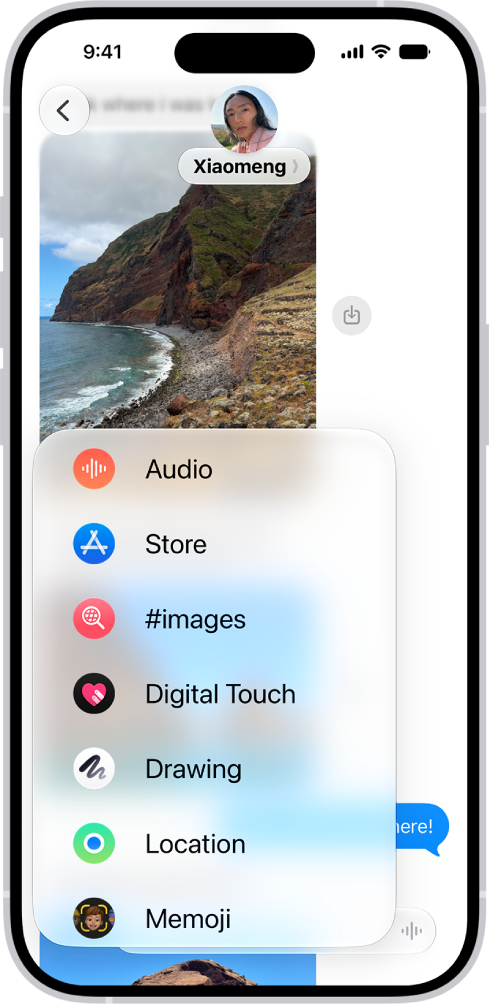
    The Add menu in Messages on iPhone, showing iMessage options like audio messaging, Check In, Digital Touch, location sharing, and Memoji.

  • When you use iMessage, you can report spam messages to Apple and screen unknown senders.
  • For security, messages sent using iMessage are end-to-end encrypted as they’re sent, and you can also use Contact Key Verification. When a conversation is end-to-end encrypted, you see Encrypted at the top of the conversation. If you don’t see this indicator—for example, in SMS or MMS conversations—messages in the conversation aren’t protected from being read by others as they’re sent.

About RCS

RCS is a carrier-provided messaging service. In the Messages app on your iPhone, you can use it to communicate with people on both Apple and non-Apple devices. If iMessage isn’t available, Messages can send your text as RCS instead, and those messages show up in green bubbles.

And here are a few things worth knowing about RCS messaging:

  • RCS is provided by your cellular carrier, not by Apple. To use RCS, you need a text-messaging plan from a carrier that supports it.
  • RCS supports read receipts, typing indicators, Tapbacks, inline replies, and high-resolution photos and videos.
  • RCS conversations can be end-to-end encrypted when both your carrier and your contact’s carrier support encrypted RCS.

In the Messages app, you can send a text message to invite people to collaborate on a project, and everyone in the conversation is added to the document, spreadsheet, or other shared file.

You can also start from another app, like Notes or Freeform, and then discuss your content in Messages. Files can come from Reminders, Safari, Keynote, Numbers, Pages, and more, but you first need to save the content somewhere others can access it, such as iCloud Drive.

Note: Before you can collaborate on a project with Messages, you and your recipients need to be using iMessage on iOS 16, iPadOS 16, macOS 13, watchOS 9, or visionOS 1 or later. You also need to save the content somewhere others can access it first, such as iCloud Drive. And for iPhone apps, you may need to turn on iCloud before you can use their collaboration features.

Invite people to collaborate

Starting from another app, you can invite people to collaborate on a project, then discuss your content in Messages. The files you share can come from Notes, Freeform, Reminders, Safari, Keynote, Pages, Numbers, and more, but first you’ll need to turn on their collaboration features in iCloud settings, then save the content in a place others can access, such as iCloud Drive.

The process for inviting someone to collaborate depends on the app. Here’s one way you might start a collaboration in a supported app:

  1. Select the file you want to share and tap the Share button, or tap Collaborate.
  2. Make sure Share a Link (rather than Send a Copy) is selected. Then tap the group or individual you want to collaborate with.

    If you don’t see the group or person listed, tap the Messages app icon.

    The suggested icons may correspond with groups or individuals with active FaceTime calls or recent Messages conversations. A Messages conversation opens with the invitation ready to send.

  3. Add a note (optional) and then tap the Send button.
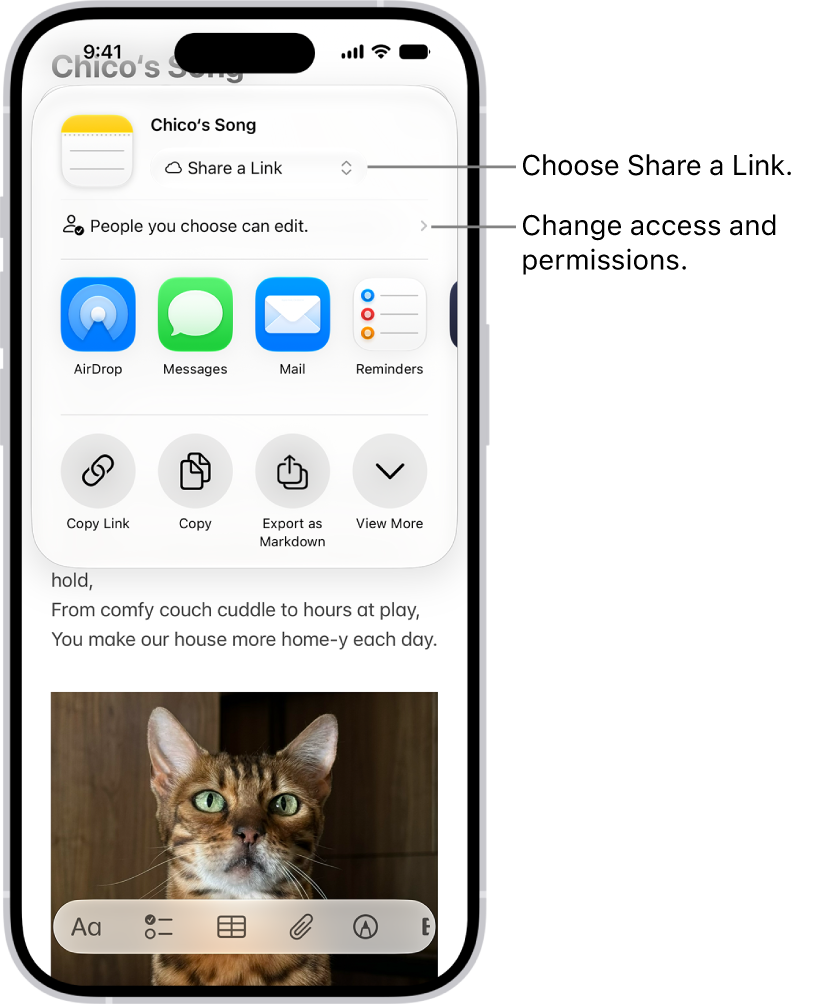
    A collaboration invitation to a recipe in Notes, showing Share a Link for the share option and “People you choose can edit” as the access and permission setting. Below that, four different ways to share the note are presented: AirDrop, Messages, Mail, and Reminders.

After you invite participants in Messages, you can work on the project in the other app and return to the Messages conversation by tapping the collaboration button in that app. When someone edits the file, you see updates at the top of the Messages thread. To return to the shared project and see changes, tap an update.

Note: Before they can interact with the shared item or see any updates, your participants may need to accept your invitation or join it.

Collaborate on a project in Messages

Whenever someone makes an edit to your shared project, activity updates appear at the top of the Messages conversation.

  1. Start the Messages app on your iPhone.
  2. Go to the conversation that contains the invitation to the project you’ve started collaborating on and then do any of the following to return to the project:
    • Tap the file in your conversation to open it.
    • If you see an update at the top of the conversation, tap Show.
    • Tap the icon of the participant or group at the top of the screen, scroll to Collaboration, then tap the shared project.

Your participants also get updates in the conversation when you make any changes or edits to the project.

Note: Adding a new person to a group conversation doesn’t give them access to the projects you’re collaborating on, so you have to grant it. For someone added recently, tap the notification at the top of the screen to add them, or you can invite them to collaborate.

Manage the collaboration and group

In a Messages conversation with two or more people, you can add or remove participants from a project you’ve shared.

  1. Start the Messages app on your iPhone.
  2. Go to the conversation you want to manage. Tap the group icon at the top of the conversation to open details about the group’s conversation.
  3. Do any of the following:

    • Add new participants: Tap Add Access, then add contacts. (You may need to scroll down to see Add.)

      If you started collaborating with just one other person, you must start a new conversation to add people to the collaboration.

      Note: You must add new participants to any files that were shared in the conversation before they joined. As you add participants, a notification appears at the top of the conversation. Tap Show in the notification to review the previously shared files you can add new participants to.

    • Remove a participant from the conversation: Touch and hold their icon. Then tap Remove from Group.

Important: The apps where the collaboration happens usually control access to the project. Check participant access in the app itself to remove viewing or editing privileges completely.

The group of people in the Messages collaboration may not match the group collaborating on the file. You might invite people to collaborate on the file outside of Messages, for example, or set up two separate groups in Messages, each with its own collaboration conversation. If you add someone to a document you’ve already shared with others, you can add them to an existing conversation or keep the conversations separate. But people added to a conversation can’t read messages sent before they joined.

Stop collaborating on a project in Messages

Usually, the app where the collaboration happens controls access to the project. If you’re collaborating on a document in the Pages app, for example, the Pages settings take precedence over the Messages settings. You can still unsend or delete the invitation from the conversation, though, just as you would any other message.

Important: When you delete an invitation from a thread, that conversation is no longer associated with the collaboration, but it doesn’t remove participants from the file. Check participant access in the app to remove viewing or editing privileges completely.


Tapbacks give you a quick and easy way to respond to a message, such as a heart, a thumbs-up or thumbs-down, laughter, exclamation points, a question mark, and any sticker, Memoji, or emoji.

A Tapback is attached to a specific message, and everyone in the conversation can see it. If a message has more than one, they appear in a stack, and you can see who added each one. You can edit or remove only the Tapbacks you added, too.

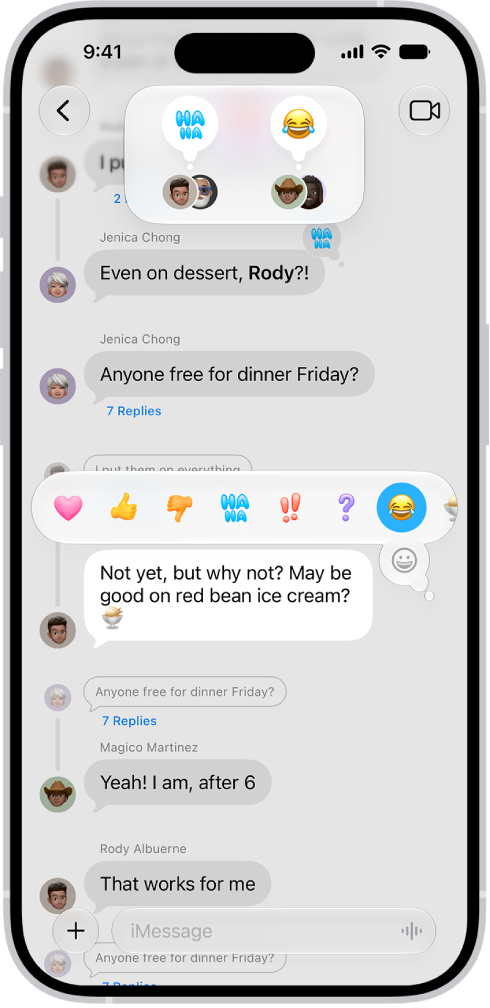
A Messages conversation with Tapbacks attributions visible near the top of the screen, and the Tapbacks menu visible above a message.

React with a Tapback

  1. Start the Messages app on your iPhone.
  2. Open a conversation.
  3. Double-tap (or touch and hold) a message.
  4. Swipe left to see suggested emoji and stickers, or tap the Emoji button. Then tap to choose any of the following kinds of Tapbacks:
    • Other emoji: Tap the Emoji button (jump to other emoji categories with icons to the right of the Emoji button).
    • Stickers: Tap the Live Stickers button.

Everyone who’s part of the conversation can see the Tapback, which is attached to a specific message in it.

Find out who sent a Tapback

When a message has more than one Tapback, they stack up, and you can find out who added each one.

  1. Start the Messages app on your iPhone.
  2. Open a conversation with Tapbacks.
  3. Tap a stack of Tapbacks.

Near the top of the screen, you’ll see senders and their tapbacks.

Edit or remove your Tapback

You can edit or remove only the Tapbacks you added, not ones other people added.

  1. Start the Messages app on your iPhone.
  2. Open a conversation.
  3. Tap your Tapback and then do one of the following:
    • Use a different Tapback: Tap a different emoji, Memoji, or sticker.
    • Remove the Tapback: Tap the same Tapback you used (so it’s not highlighted).

You can add only one Tapback per message.

You can let others know where you are, or find out where they are, by using location sharing.

Shared in a conversation, your location updates in real time, and you decide how long to share it. You can also send a pinned location, ask for someone else’s location, or meet up with a friend, and stop sharing your location at any time.

Here’s how to share your location in Messages on iPhone.

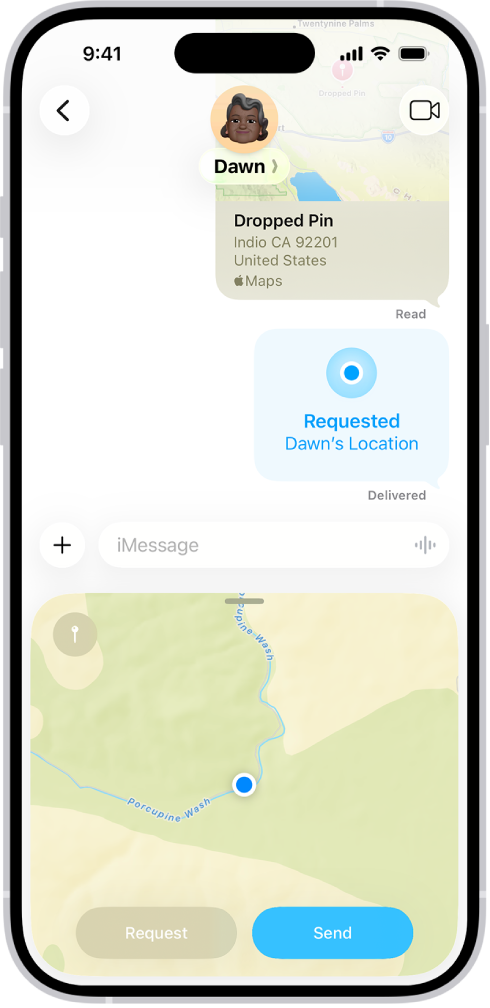
A Messages conversation with a dropped pin, a location request, and a location about to be sent.

Share and update your location automatically

Share your location in a Messages conversation, and it keeps updating in real time.

  1. Open the Messages app on your iPhone.
  2. In a conversation, tap the Add button.
  3. Tap Location and tap Share.
  4. Decide how long you want to share your location.

    Tap Indefinitely if you want to share your location until you manually stop sharing it.

  5. Tap the Send button to send your location. (Or tap the Remove App from Message button if you change your mind.)

Quick tip: If somebody asks where you are, you can share your location quickly by tapping Current Location (above the keyboard).

If you share your location to a group, then add other people to it, you can reshare your location so everyone can see where you are.

To share your location in an SMS conversation, use a pinned location instead.

Send a pinned location

  1. Open the Messages app on your iPhone.
  2. In a conversation, tap the Add button. Then tap Location.
  3. Tap the Map Pin button in the top left of the map and drag the map until the pin is in the right place.
  4. Tap Send Pin, then tap the Send button to send your pin.

Pinned locations don’t update as you move.

Ask for someone else’s location

  1. Open the Messages app on your iPhone.
  2. In a conversation with one other person, do one of the following:
    • Tap the Add button, tap Location, then tap Request.
    • Send a message that ends with the question, “Where are you?” then tap Request Location (above the keyboard).
  3. Tap the Send button to send your request.

After someone shares their location with you, their location appears below their name at the top of the conversation. Tap their name to see where they are on a map. Tap the map to enlarge it.

If you both use an iPhone 15 model or later and are near the person you’re looking for, you can use Find My to get precise directions to their location.

Meet up with a friend

Once you’re near one another, you and a friend can use Find My to get precise directions to their location, as long as you both have a supported model.

Stop sharing your location

  1. Open the Messages app on your iPhone.
  2. Open the conversation with someone you’re sharing your location with and then tap the contact icon at the top of the conversation.
  3. Tap Stop Sharing My Location.

A map no longer appears in the previous bubble in the conversation.

Note: Finding people with location sharing isn’t available in all countries or regions. If you set up location sharing and others still can’t see your location, make sure you’ve allowed access. Go to Settings > Privacy & Security > Location Services > Find My, then choose an option.

You can send a group text message, name it, and assign it an icon to find it more easily. In a group conversation, you can call people’s attention to specific messages and even collaborate on projects.

When you mention someone by name in a group conversation, they’ll get a notification. To start one, you send a message to multiple people, entering each recipient’s phone number, contact name, or Apple Account.

Here’s how to have a group conversation in Messages on iPhone.

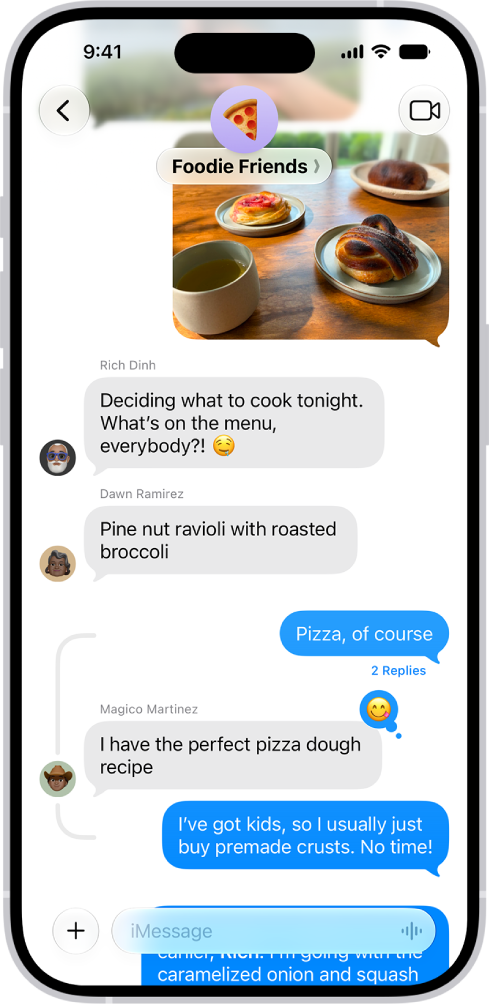
A group conversation including shared files.

Start a group conversation

To start a group conversation, send a message to multiple people.

  1. Open the Messages app on your iPhone.
  2. In the conversation list, tap the Compose button at the bottom of the screen.
  3. Tap the To field. Enter the phone number, contact name, or Apple Account of each recipient.

    To choose group members from your contacts, tap the Add Contact button in the To field.

    Note: If one or more of your recipients isn’t using iMessage, messages appear in green bubbles instead of blue ones.

  4. Tap the text field, enter a message or tap the Add button (to the left of the text field) to send a photo, video, poll, or another item with iMessage apps.
  5. Tap the Send button.

Add someone to an existing group conversation

Once a group conversation has at least two other people in it, you can add additional contacts.

  1. Open the Messages app on your iPhone.
  2. Tap the group conversation you want to add someone to.
  3. Tap the group icon at the top of the conversation. Then tap Add.

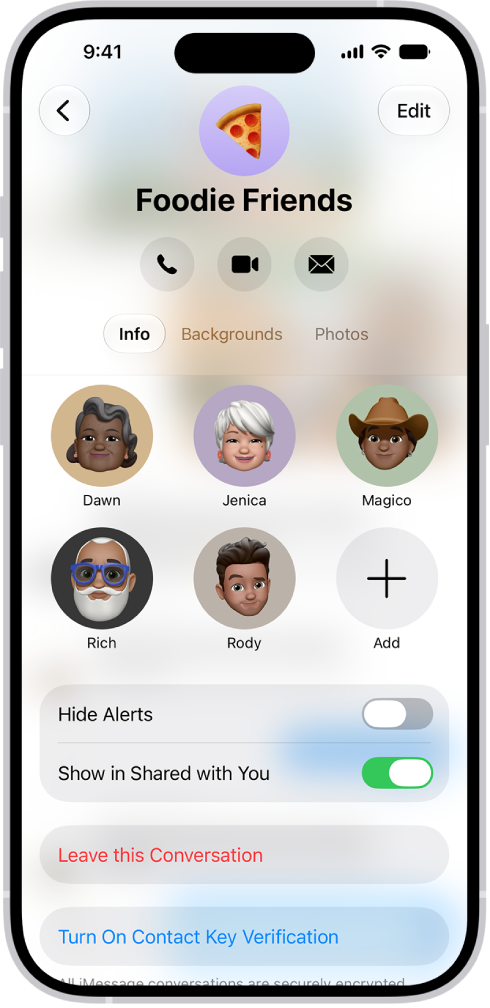
    The conversation details for a group.

  4. Enter the phone number, contact name, or Apple Account of each recipient.

    To add group members from your contacts, tap the Add Contact button in the To field.

  5. Tap the Done button to save your changes.

Note: If someone in the group hasn’t turned on iMessage, you’ll need to follow the onscreen instructions to start a new group.

With only one other person in the conversation, you’ll need to start a new group conversation to add someone else.

To remove someone from a group conversation in iMessage, touch and hold their icon, then tap Remove from Group.

Leave a group conversation

You can’t leave a group chat unless there are at least three other participants in the conversation.

  1. Open the Messages app on your iPhone.
  2. Tap the group conversation you want to leave.
  3. Tap the contact or group icon at the top of the conversation.
  4. Scroll down and tap Leave This Conversation or Delete and Block This Conversation. Blocked conversations are moved to the Recently Deleted folder, where you can recover them.

To stay in a group chat without receiving its notifications, you can mute the conversation instead.

Mention people in a group conversation

To call someone’s attention to a specific message in a group conversation, mention them by name. They’ll get a notification. Depending on their settings, they may be notified even if they’ve muted the conversation.

  1. Open the Messages app on your iPhone.
  2. In a conversation, begin typing a contact’s name in the text field.
  3. Tap the contact’s name when it appears.

You can also mention a contact in Messages by typing @ followed by the contact’s name. To change whether you get notifications when your name is mentioned in Messages, go to Settings > Apps > Messages, then turn on or off Notify Me.

Name a group conversation

You can name a group chat and choose an icon* to represent the conversation. Everyone who has turned on iMessage sees the new name and icon.

  1. Open the Messages app on your iPhone.
  2. Tap the group icon at the top of the conversation.
  3. Tap Edit, tap Edit Name & Photo, and then choose an option.

*Availability varies by region.

You can relay phone calls and text messages through your iPhone to your iPad or Mac, so it’s easy to stay in touch no matter which device you’re on. Cellular charges may apply, though, and Wi-Fi Calling isn’t available from all carriers.

Note: Cellular charges may apply. Wi-Fi Calling isn’t available from all carriers.

Before you begin

Here’s what needs to be true for this to work:

  • Both devices have Wi-Fi turned on and are connected to the same Wi-Fi network.
  • You’re signed in to the same Apple Account on both devices.
  • You’re signed in to FaceTime with the same Apple Account and have your phone number turned on in FaceTime settings on both devices.

When you’re using a VPN, its configuration shouldn’t prevent local networking, as that may interfere with some Continuity features.

Set up your iPhone to allow phone calls on your other devices

  1. On your iPhone, open the Settings app.
  2. Tap Apps, then tap Phone.
  3. Tap Calls on Other Devices, turn on Allow Calls on Other Devices, and choose the devices you want to allow to make and receive calls.

As long as they’re near your iPhone, signed in to the same Apple Account, and on the same Wi-Fi network, the devices you choose can make and receive calls.

Make or receive phone calls on your iPad or Mac

Your iPad and Mac can make and receive phone calls once you’ve set up your iPhone to allow calls on your other devices.

  • Make a call: On your iPad or Mac, tap or click a phone number in Contacts, Calendar, FaceTime, Messages, Spotlight, or Safari. Or open the Phone app, tap or click the Keypad button and type a number, or search for a contact. If you make a call from another device by relaying it through your iPhone with Dual SIM, the call is made using your default voice line.
  • Receive a call: On your iPad or Mac, swipe, tap, or click the notification to answer or ignore the call.

Note: No Phone app on your iPad? Just Download it from the App Store.

Send and receive messages on your iPad or Mac

You can send and receive messages on your iPad or Mac, too, whether they’re iMessage or SMS/RCS/MMS messages.

If phone calls and text messages on your iPad and Mac aren’t working

  • Make sure that you’re signed in to the same Apple Account on both devices.
  • Make sure that your iPhone and Mac have Wi-Fi turned on.
  • Your devices must be within 30 feet (10 meters) of one another.

You can also use Handoff to transfer a FaceTime call from one device to another, on top of making and receiving phone calls on your iPad or Mac.