Got a tip for us?

Messages

You can capture photos and videos directly in the Messages app. You can also modify the photos and videos before you send them by editing the image, marking it up, or adding effects.

You can take a photo, take a video, or add an existing photo or video, then crop it, add filters, and more. Markup lets you add stickers, labels, and shapes to your photo. Smaller-sized previews of images can go out first, too, so your recipients get them right away.

Note: Attachments may have size limits set by your carrier, and iPhone may compress photo and video attachments when necessary.

Send a photo or video

  1. Start the Messages app on your iPhone.
  2. In a conversation, tap the Add button.
  3. Do one of the following:

    • Take a photo: Tap Camera, then tap the Take Picture button to take a picture.

      To change the camera mode, tap Photo, then tap an option.

      To crop the photo, add filters, and more, tap Edit, then use the editing tools.

    • Take a video: Tap Camera, tap Video, tap the Record Video button to begin recording, and then tap the Stop Recording Video button to stop.

      To trim or crop the video, add filters, and more, tap Edit, then use the editing tools.

    • Add an existing photo or video: Tap Photos and swipe up to search, browse through all photos, or change albums. Then tap the images you want to send.

      To crop, add filters, or make other adjustments, tap the image in the message bubble, tap Edit, then use the editing tools.

  4. To add stickers, labels, and shapes to your photo, tap Markup, then use Markup. When you’re done, tap Save.
  5. Tap Done to add the photo or video to the message bubble, add a comment (optional) and then tap the Send button to send your message.

Note: On models with Dual SIM, you need to set up Dual SIM before you can send SMS, MMS, or RCS attachments.

You can also record a video message in the FaceTime app or send a photo or video with a Digital Touch effect.

Note: You can have your (or a family member’s) iPhone receive warnings about sensitive content and warn you before it’s sent or received.

With Apple Intelligence*, you can create original images using Image Playground, or create custom emoji—called Genmoji—in Messages.

Send photos faster

To get images to your recipients right away, you can send smaller-sized previews first, before the full-resolution images arrive.

  1. Start the Settings app on your iPhone.
  2. Tap Apps, then tap Messages.
  3. Turn on Send Low Quality Photo Previews.

When Low Data Mode is on, only the preview is sent.

To remove a photo or video from the message bubble before sending it, tap the Cancel button.

Note: Attachments you send over iMessage (such as photos or videos) may be uploaded to Apple and encrypted so that no one but the sender and receiver can access them. To improve performance, your iPhone may automatically upload attachments to Apple while you’re composing a message. If you decide not to send your message, the attachments are deleted from the server after several days.

*Apple Intelligence is available with Siri and device language set to Chinese (Simplified), Chinese (Traditional), Danish, Dutch, English, French, German, Italian, Japanese, Korean, Norwegian, Portuguese, Spanish, Swedish, Turkish, or Vietnamese. Some features may not be available in all regions or languages. Some devices may not be available in all regions. Siri AI is available in beta in iOS 27, iPadOS 27, macOS 27, watchOS 27, and visionOS 27 and requires an Apple Intelligence–enabled device set to a supported language. Available in English to start. Siri AI will not be initially available in the EU on iOS, iPadOS, and watchOS. Certain Apple Intelligence features that rely on server-side models are subject to daily usage limits, including but not limited to Siri AI, Intelligent Photo Editing Tools, Image Playground, and AFM 3 Cloud models in Shortcuts. Daily limits may vary by feature, request complexity, system demand, system policies, and other factors. Expanded access to such features will be available for a fee in the future. Use of these features is subject to the Apple Intelligence Terms and Conditions.
In the Messages app, you can exchange texts, photos, videos, and more, with individuals, businesses, and groups. With iMessage, you and a friend can send each other unlimited messages from anywhere in the world, and you can also express yourself with backgrounds and animations, share TV shows and music, and collaborate with others.

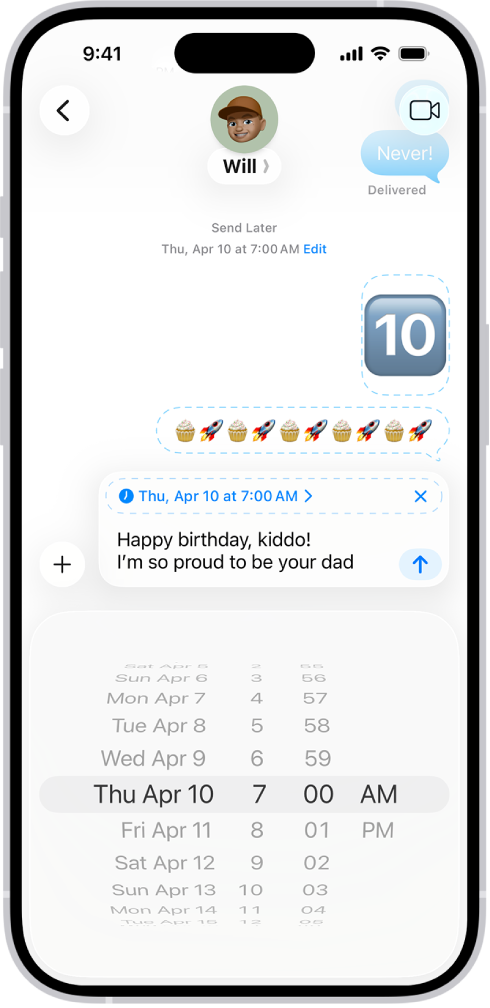
You can chat as a group with your family or a work group, add media, polls, and location sharing, and even schedule a message to deliver later. And you can sync your messages across your devices.

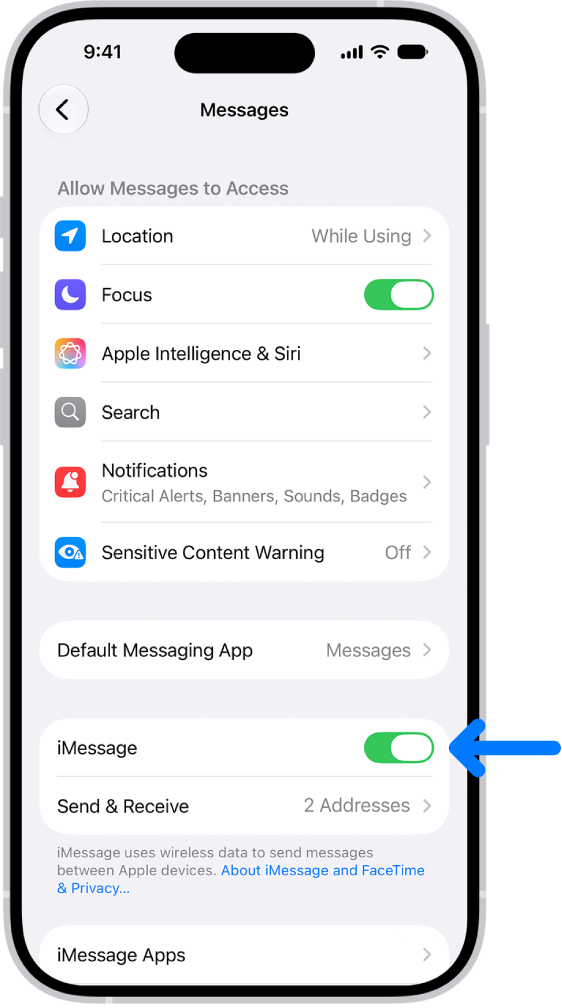
The Messages settings pane with iMessage turned on.

Set up iMessage and sync across devices

When you and a friend both sign in to iMessage, you can send each other unlimited messages, no matter where you are in the world. Go to Settings > Apps > Messages, then turn on iMessage. To see the same messages you get on your iPhone on your other Apple devices, tap Text Message Forwarding, then turn on your other devices in the list. Be sure to sign in to the same Apple Account on the other devices, too.

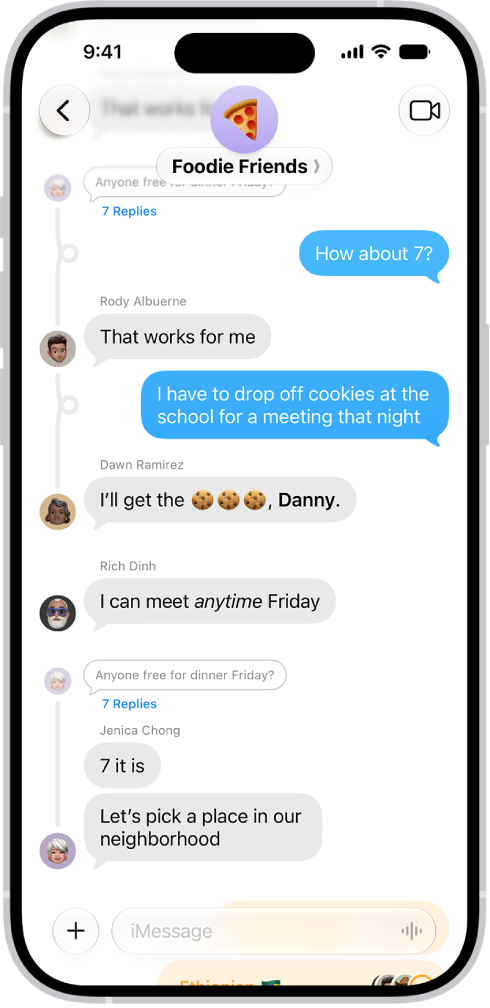
A group conversation in Messages.

Chat as a group

You can chat with several people at once—like your family or a work group. Tap the Compose button, enter the names of the people in the group, then enter your message, or tap the Dictate button to dictate it. To name the group, tap the group icons at the top of the conversation, tap Edit, then tap Edit Name & Photo.

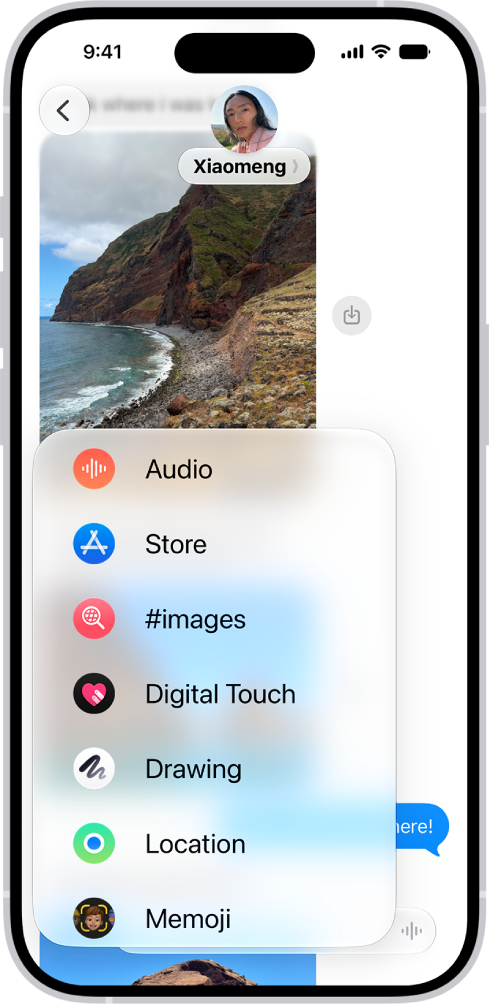
The Add menu in Messages on iPhone, listing several iMessage features: audio messaging, the App Store, GIF images, Check In, Digital Touch, location sharing, and Memoji.

Go beyond texting

You don’t have to limit your communication to text. To add emoji, tap the Emoji key or the Next Keyboard key on your keyboard. To add media, polls, location sharing, and more, tap the Add button next to the text field.

A Messages conversation with messages scheduled to be sent later.

Schedule a message to deliver later

If it’s too late at night or too important to forget, schedule your message for a future time, instead of sending it as soon as you finish it. Tap the Add button, tap Send Later, choose a time, then tap the Send button.

According to Apple, availability of Messages features may depend on your carrier, country, or region.

You can search for text messages and attachments, using different criteria to narrow your results. You can limit your search to one person or conversation, or to types of shared items, like Photo, Link, or Wallet, and combine search criteria.

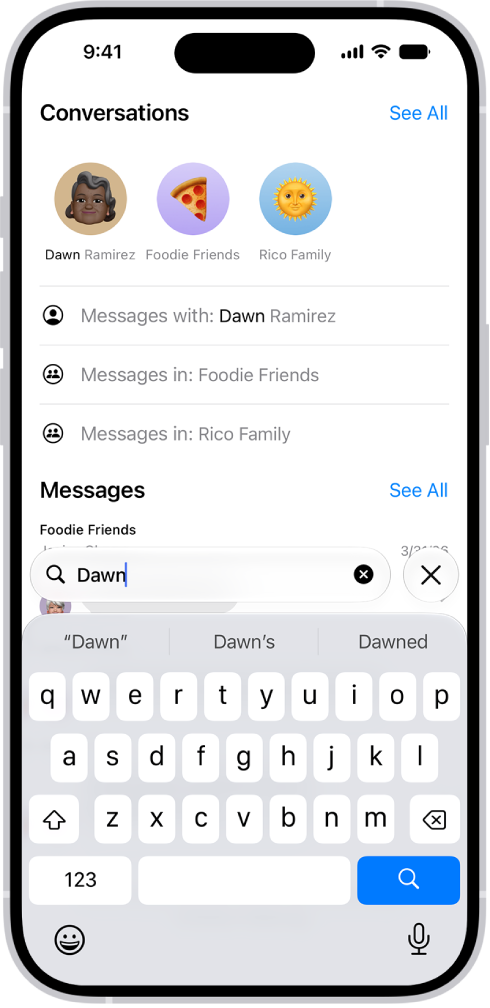
The search field in the Messages app appears at the bottom of the screen. The search field contains the name of a person, and several options matching the search appear above it.

  1. Open the Messages app on your iPhone.
  2. Tap the search field below the conversation list.
  3. Enter what you’re looking for (such as a word or phrase).
  4. To filter your search, do any of the following:
    • Limit your search to one person or conversation: Start by typing a person’s name, tap Messages with or Messages in and then tap other criteria that appear or add any text you want to find in your conversation.
    • Limit your search to types of shared items: Begin your search with a search term—such as Photo, Link, Wallet (for passes). When a filter appears near the top of the screen, tap it to add it to filter the search.
    • Combine search criteria: Add another search term or filter.
  5. Tap the Search button. Tap a message in the results list to read it.

The search field also opens suggestions—such as conversations, photos, locations, links, and more. Tap any suggestion to quickly jump to a conversation.

You can send text messages, images, and much more. You can reply within a conversation or to specific comments in a thread. You can even use Siri to listen and respond to your messages.

If you have more than one number, you can send a text message from your other number. And if you’ve ever wondered why some bubbles are blue and others green, there’s an answer for that, too.

Siri: Ask Siri something like, “Read my last message from Antonio.”

Make sure you set up Messages so you can fully use all the features in the Messages app.

Start a conversation

To start a new conversation, send a text message to one or more people.

  1. Open the Messages app on your iPhone.
  2. In the conversation list, tap the Compose button at the bottom of the screen.
  3. Tap the To field. Enter the phone number, contact name, or Apple Account of each recipient.

    To choose recipients from your contacts, tap the Add Contact button in the To field.

  4. Do any of the following:

    • Tap the text field above the keyboard, then type your message.
    • Tap the Emoji key or the Next Keyboard key to add emoji.
    • Tap the Dictate key to dictate text in the language of your keyboard.
    • Tap the Add button (to the left of the text field) to send photos, videos, stickers, polls, audio messages, your location, and more with iMessage apps.
  5. Tap the Send button to send.

If a message can’t be sent, an alert appears. Tap the Send Failure button to try sending the message again.

To return to the conversation list from a conversation, tap the Back button.

Reply to a message

In the conversation list, messages are grouped by conversation, and a dot means you haven’t read one or more messages in that conversation yet.

  1. Open the Messages app on your iPhone.
  2. Go to the conversation that you want to participate in.
  3. Tap the text field, create your message. Then tap the Send button to send your message.

Quick tip: Swipe left on the message bubble, and you’ll see timestamps for all messages in the conversation. That’s how you find out when a message was sent to you.

You can quickly craft a response with Apple Intelligence. Just tap a suggested reply above the keyboard.

Note: Apple Intelligence on iOS 27 or later is available on an Apple Intelligence-enabled iPhone 15 Pro, iPhone 15 Pro Max, or iPhone 16 model or later. Apple Intelligence is not available in all languages or regions. Usage limits may apply.*

Reply inline to a specific message

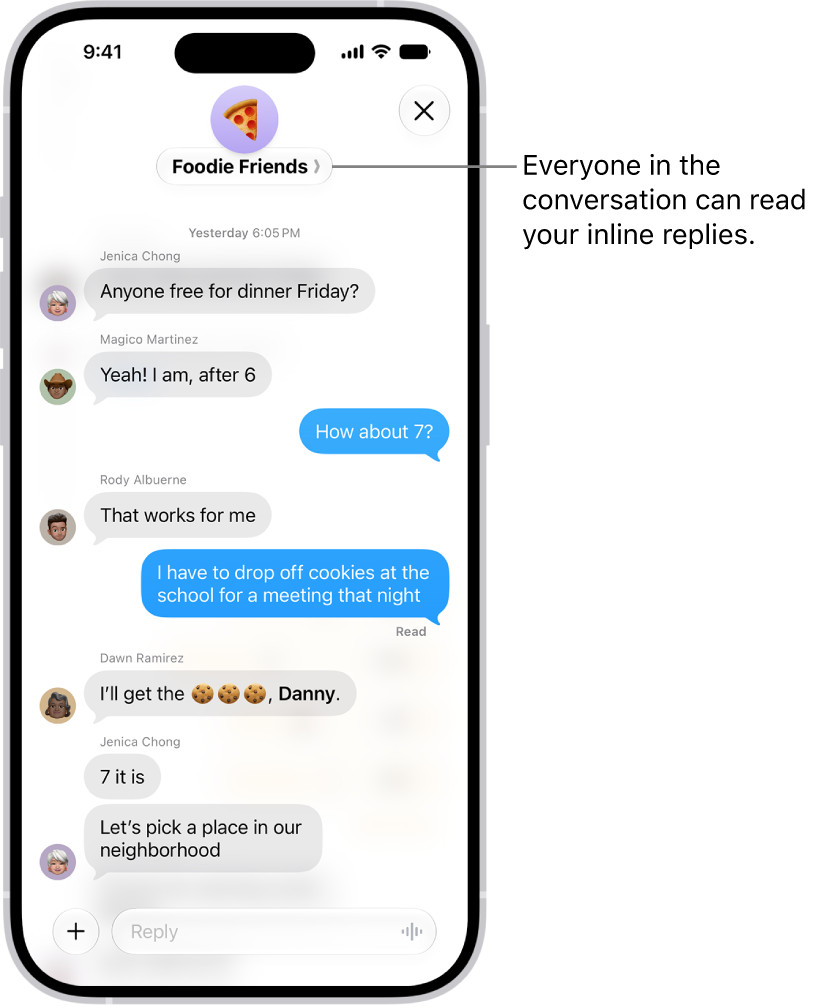
You can reply inline to a specific message, and the inline reply quotes the message you’re responding to, so it’s clear which response relates to which message in a busy conversation.

Composing an inline reply in a group conversation in Messages. Another person in the conversation is mentioned, so their name appears in bold.

  1. Open the Messages app on your iPhone.
  2. In the conversation list, tap the conversation that you want to participate in.
  3. Do one of the following:

    • Swipe right on the message bubble that you want to reply to.
    • Touch and hold the message bubble that you want to reply to, then tap Reply.
  4. Enter your message and then tap the Send button.

    Note: Everyone in a group conversation can see your inline reply. To reply privately, tap the group icon at the top of the conversation, touch and hold the icon of the person you want to message privately, then tap Message.

  5. To return to the main conversation, tap the blurred background.

Touch and hold a message to react with a Tapback, such as a thumbs-up or a heart.

Quick tip: To copy only part of a message, touch and hold it, tap Select, select the text you want, and then tap Copy.

Send a text message from your other number

With Dual SIM set up on your iPhone, you can switch which line a conversation uses.

  1. Open the Messages app on your iPhone.
  2. Open a conversation and then tap the contact or group icon at the top of the conversation.
  3. Tap Conversation Line and then tap a line or alias.

Why are some bubbles blue and others green?

A blue Send arrow means a message can be sent using iMessage, and it appears in a blue bubble.

If you can’t use iMessage, for example because a recipient isn’t using an Apple device, you can send with SMS, MMS, or RCS instead, and those messages appear in green bubbles.

Note: If your recipients are using non-Apple devices, content in your messages may not appear as expected.

*Apple Intelligence is available with Siri and device language set to Chinese (Simplified), Chinese (Traditional), Danish, Dutch, English, French, German, Italian, Japanese, Korean, Norwegian, Portuguese, Spanish, Swedish, Turkish, or Vietnamese. Some features may not be available in all regions or languages. Some devices may not be available in all regions.

Siri AI is available in beta in iOS 27, iPadOS 27, macOS 27, watchOS 27, and visionOS 27 and requires an Apple Intelligence–enabled device set to a supported language. Available in English to start. Siri AI will not be initially available in the EU on iOS, iPadOS, and watchOS. Certain Apple Intelligence features that rely on server-side models are subject to daily usage limits, including but not limited to Siri AI, Intelligent Photo Editing Tools, Image Playground, and AFM 3 Cloud models in Shortcuts.

Daily limits may vary by feature, request complexity, system demand, system policies, and other factors. Expanded access to such features will be available for a fee in the future. Use of these features is subject to the Apple Intelligence Terms and Conditions.
You can catch up on text messages you missed, mark messages as unread, and pin and unpin conversations to prioritize messages in the conversation list.

Away from your iPhone for a while? You can jump straight to the first message you haven’t seen in a conversation. And when you don’t have time to respond, marking a conversation as unread lets you return to it later.

Here’s how to keep track of messages on iPhone.

Catch up on messages you missed

Received messages while your notifications were paused or you were away from your iPhone? Jump to the first message you haven’t seen in the conversation.

  1. Start the Messages app on your iPhone.
  2. Open an unread conversation. Then tap the Catch Up button.

The conversation scrolls up to the first unread message.

Mark messages as unread

Mark conversations as unread when you don’t have time to respond, then return to them later.

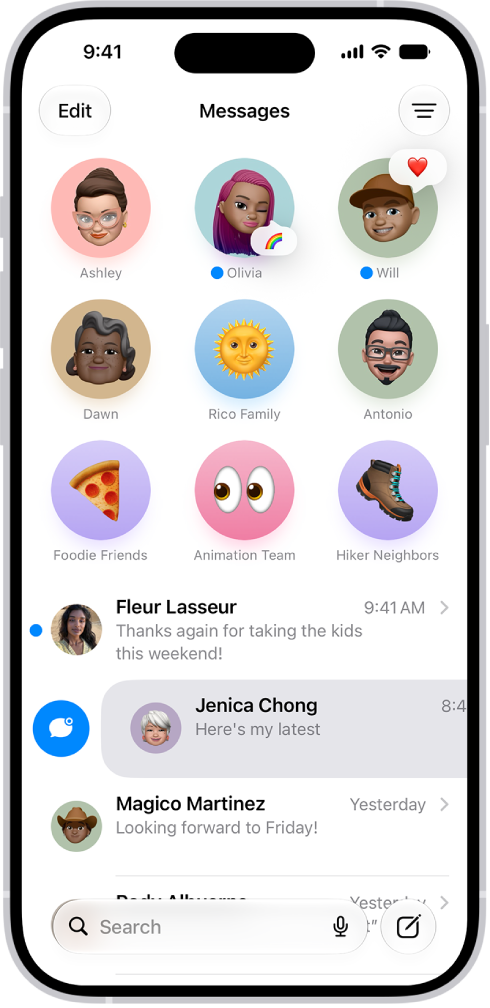
A Messages conversation list with two unread messages and one being marked as unread.

  1. Start the Messages app on your iPhone.
  2. In the conversation list, do one of the following:
    • Swipe right on a conversation to mark it as unread.
    • Drag right and tap the Mark as Unread button.

Quick tip: You can mark several messages as unread at once, too. In the conversation list, tap Edit and tap Select Messages. Select each conversation you want to mark as unread, and then tap Unread at the bottom left.

See a list of your unread messages

  1. Start the Messages app on your iPhone.
  2. In the conversation list, tap the Filter button and then tap Unread. A checkmark appears next to Unread, and the icon turns blue to indicate that filtering is on.
  3. To see both your read and unread messages again, tap the Filter button. Then tap to deselect Unread.

Quick tip: Tap Edit, tap Select Messages, then tap Read All to mark all your unread messages as read.

Pin a conversation

So the people you contact most always come first, you can pin specific conversations at the top of the conversation list, where they appear as larger icons.

  1. Start the Messages app on your iPhone.
  2. Touch and hold a conversation, then tap Pin.

Unpin a conversation

Pinned conversations can be unpinned so they no longer appear at the top of the conversation list.

  1. Start the Messages app on your iPhone.
  2. Touch and hold a pinned conversation and then do one of the following:
    • Drag the message to the bottom of the list, and let go.
    • Tap Unpin.

Pin shared items

Within a conversation, you can pin certain shared items, like links or collaboration invitations.

  1. Start the Messages app on your iPhone.
  2. Touch and hold a message and then tap Pin.
  3. To find pinned items, tap the contact or group icon at the top of the conversation and then tap a category (such as Links). Pinned items appear at the top.

To unpin a pinned item, touch and hold it in the message, then tap Unpin. If you’re in the Links or Documents tab, touch and hold the item, tap Show in Conversation, touch and hold it in the message, then tap Unpin.

Turn message summaries on or off

Apple Intelligence summarizes the key points of your conversations, and those summaries replace your message previews automatically. If you’d rather see the most recent message in each conversation, turn off summaries.

Note: Apple Intelligence on iOS 27 or later is available on an Apple Intelligence-enabled iPhone 15 Pro, iPhone 15 Pro Max, or iPhone 16 model or later. Apple Intelligence is not available in all languages or regions. Usage limits may apply.*

  1. Start the Settings app on your iPhone.
  2. Tap Apps, then tap Messages.
  3. Turn Summarize Messages on or off.
  4. To view message summaries, open the Messages app. Then look for the Summary icon below a name in the conversation list. The text following the symbol is a summary of unread messages in that conversation.

*Apple Intelligence is available with Siri and device language set to Chinese (Simplified), Chinese (Traditional), Danish, Dutch, English, French, German, Italian, Japanese, Korean, Norwegian, Portuguese, Spanish, Swedish, Turkish, or Vietnamese. Some features may not be available in all regions or languages. Some devices may not be available in all regions. Siri AI is available in beta in iOS 27, iPadOS 27, macOS 27, watchOS 27, and visionOS 27 and requires an Apple Intelligence–enabled device set to a supported language. Available in English to start. Siri AI will not be initially available in the EU on iOS, iPadOS, and watchOS. Certain Apple Intelligence features that rely on server-side models are subject to daily usage limits, including but not limited to Siri AI, Intelligent Photo Editing Tools, Image Playground, and AFM 3 Cloud models in Shortcuts. Daily limits may vary by feature, request complexity, system demand, system policies, and other factors. Expanded access to such features will be available for a fee in the future. Use of these features is subject to the Apple Intelligence Terms and Conditions.
You can delete text messages, attachments, and entire conversations from your iPhone anytime, without affecting what your recipients see. Deleted messages and attachments remain in your Recently Deleted folder for up to 30 days, and you can recover them.

It doesn’t have to be one at a time. You can select the messages or attachments you want to delete, delete multiple photos, videos, or other attachments, or delete a conversation entirely.

Quick tip: Sent a message accidentally? You have 2 minutes to retract it with Undo send, which deletes it from both your phone and your recipient’s phone.

Delete messages and attachments

  1. Open the Messages app on your iPhone.
  2. Open a conversation, touch and hold a message bubble or attachment, and then tap More.
  3. Select the messages or attachments you want to delete. Tap the Delete button.

You can also delete a conversation entirely.

Delete multiple photos, videos, or other attachments

  1. Open the Messages app on your iPhone.
  2. Tap the contact or group icon at the top of the conversation.
  3. Tap a category, such as Photos.

    Tip: To see only one kind of image, tap the Filter button, then tap Screenshots, Videos, or Photos.

  4. Tap Edit, then tap Select.
  5. Tap each attachment you want to delete, tap the Delete button, and tap the Delete button to confirm the number of attachments you want to delete.

Delete a conversation

  1. Open the Messages app on your iPhone.
  2. In the conversation list, do one of the following:
    • Swipe left on the conversation, then tap the Delete button.
    • Touch and hold the conversation, then tap Delete.

Delete multiple conversations

  1. Open the Messages app on your iPhone.
  2. At the top of the conversation list, tap Edit.
  3. Tap Select Messages and then select conversations you want to delete.
  4. Tap the Delete button and tap Delete.

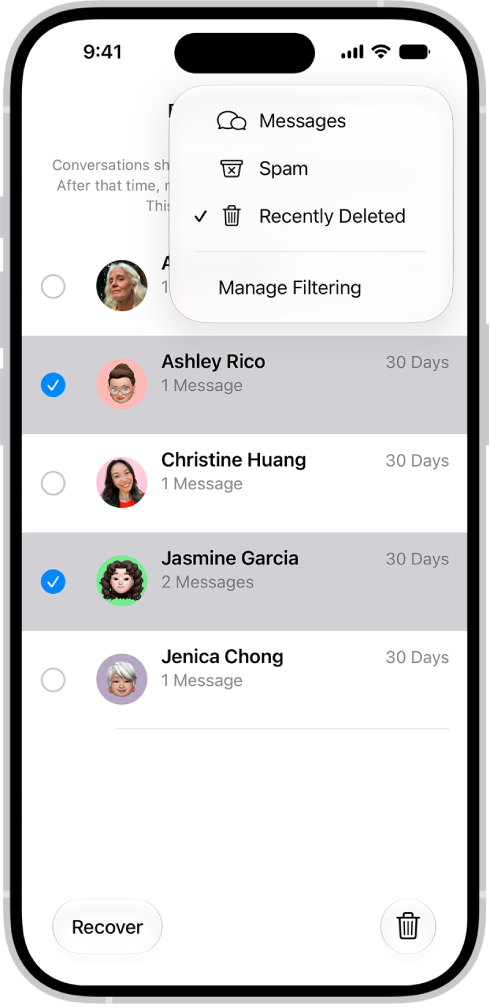
A list of recently deleted messages with two conversations selected, and two options available at the bottom of the screen: Recover and Permanently Delete.

Permanently remove recently deleted messages and attachments

You can permanently remove deleted messages and attachments before their 30 days in the Recently Deleted folder are up.

  1. Open the Messages app on your iPhone.
  2. In the conversation list, tap the Filter button and tap Recently Deleted.
  3. Select the conversations whose messages you want to delete permanently, tap the Delete button, and then tap Delete.

Important: This can’t be undone.

Automatically delete old messages

On an ongoing basis, you can delete messages and attachments once they’re older than 30 days or a year.

  1. Open the Settings app on your iPhone.
  2. Tap Apps, then tap Messages.
  3. Scroll down and tap Keep Messages (below Message History). Then choose an option.

Important: If you choose an option other than Forever, your conversations (including all attachments) are automatically removed after the specified time period elapses.

With Messages in iCloud, deleting a message or conversation on your iPhone also deletes it on all your devices that have Messages in iCloud turned on.

Note: Deleting messages only affects your iPhone and the other Apple devices that are signed in to the same Apple Account. There is no way to delete messages, attachments, and conversations for anyone else.

You can forward one or more text messages in a conversation to a different recipient, and you can choose exactly which messages to forward. To show the message bubbles and timestamps as they appear in a conversation, though, you can send a screenshot instead.

  1. Start the Messages app on your iPhone.
  2. Open a conversation. Touch and hold a message bubble you want to forward.
  3. Tap More, tap to select one or more messages to forward, and then tap the Share button.
  4. Enter recipients, then tap the Send button.

Quick tip: Instead of forwarding messages, you can send a screenshot as an attached image, which keeps the message bubbles and timestamps exactly as they appear in a conversation.

You can share images, links, and other content using the Messages app. When someone shares content with you, you can find it in a Shared with You section in the corresponding apps, including Photos, Music, News, and more.

You can also find all the content someone shared with you, review and save photos or videos, and pin or hide shared content.

Here’s how to share content in Messages on iPhone.

Share content with others

  1. Open the Messages app on your iPhone.
  2. In a conversation, do one of the following:

    • Copy and paste an image or a link into the text field.
    • Tap the Add button, tap Photos to browse recent photos and videos, then tap to add.
    • Tap a message attachment, tap the Share button, then tap a contact or the Messages app icon.

      Tip: When you tap the Share button, you can also copy, save, or print your attachment.

  3. Add a message (optional), then tap the Send button.

From another app (like Podcasts, News, or Music), select the content you want to share, tap the More button, tap Share, then choose Messages.

Find all the content someone shared with you

  1. Open the Messages app on your iPhone.
  2. Open the conversation whose content you want to see.
  3. Tap the contact or group icon at the top of the conversation.
  4. Swipe left, then tap Photos, Links, Documents, Locations, or Wallet.

If a category doesn’t appear, you didn’t receive anything of that type in this conversation.

Note: Content only shows up in Shared with You when the person who sent it is in your contacts.

You can find a Shared with You section in Photos, Safari, Music, Podcasts, and other supported apps. If you don’t want items someone sends to you to appear in those other apps, tap the contact or group icon at the top of the conversation, tap Info, then turn off Shared with You.

Review and save photos or videos

When multiple photos or videos come in at the same time, they’re grouped automatically. Two to three items make a collage. Four or more make a stack.

  1. Open the Messages app on your iPhone.
  2. Do one of the following:
    • Look inside a stack: Tap to open. Then swipe through a stack to view, reply, or interact with each photo or video individually.
    • Save a photo or video: Tap the Save Photo button next to the photo or stack.

Pin shared content

If someone shares content that’s especially interesting, you can quickly pin it in Messages. This elevates it in the Shared with You section of supported apps, in Messages search, and in the conversation details (the info you see when you tap the contact or group icon at the top of the conversation).

  1. Open the Messages app on your iPhone.
  2. Open the conversation with the content you want to pin.
  3. Touch and hold the message bubble containing the attachment. Tap Pin.

Note: Photos can be saved to your library, but not pinned.

Hide shared content

You can adjust your settings to hide an app’s Shared with You section.

  1. Open the Settings app on your iPhone.
  2. Tap Apps, then tap Messages.
  3. Tap Shared with You. Turn off Automatic Sharing, or turn off Shared with You for a specific app.

Note: You can have your (or a family member’s) iPhone receive warnings about sensitive content and warn you before it’s sent or received.

Your iMessage texts appear in blue bubbles, while SMS, MMS, or RCS messages appear in green bubbles. It’s an easy way to tell them apart. Before you start texting, you can turn on iMessage, sync messages on all your Apple devices, choose other devices for SMS, MMS, or RCS messaging, and share your name and photo.

The Messages app gives you several different ways to send text messages:

  • Over Wi-Fi or cellular service, using iMessage with others who also use iMessage. Your iMessage texts appear in blue bubbles.
  • Over cellular service with SMS, MMS, or RCS messages, which appear in green bubbles. (RCS messages aren’t supported by all carriers or in all countries or regions.)
  • Over satellite when you’re outside of cellular and Wi-Fi coverage, using iMessage or SMS on supported iPhone models and certain carriers (U.S., Canada, and Mexico only).

Turn on iMessage

  1. Open the Settings app on your iPhone.
  2. Tap Apps, then tap Messages.
  3. Turn on iMessage.

    The Messages settings pane with iMessage turned on.

  4. To select which of your phone numbers and email addresses you want to use with iMessage, tap Send & Receive and choose from the available options below You can receive iMessages to and reply from.

Sync messages on all your Apple devices

Turn on Messages in iCloud, and iCloud saves the messages you send and receive on your iPhone. Once another device is signed in to the same Apple Account with Messages in iCloud turned on, your conversations show up and sync there as well. Your entire message history stays current on those devices, even on a new device you set up, including messages sent or received with SMS, MMS, RCS, or iMessage.

  1. Make sure that your iPhone is turned on and connected to a Wi-Fi or cellular network, and that you sign in to the same Apple Account on each device.
  2. Open the Settings app on your iPhone.
  3. Tap your name and tap iCloud. Tap Messages.

    If Messages doesn’t appear, tap See All in the Saved to iCloud section.

  4. Turn on Use on this iPhone (if it’s not already turned on).
  5. To confirm which devices receive any SMS, MMS, or RCS text messages you get on your iPhone, go to Settings, tap Apps, and then tap Messages. Tap Text Message Forwarding and turn on your other devices.

Once Messages in iCloud is on, deleting messages or attachments from iPhone also deletes them from your other Apple devices where Messages in iCloud is turned on (visionOS 1, watchOS 1, macOS 10.13.5, iPadOS 13, iOS 11.4, or later).

Note: Messages in iCloud uses iCloud storage.

Choose other devices for SMS, MMS, or RCS messaging

With text message forwarding set up on your iPhone, your other Apple devices show messages you send or receive, without needing Messages in iCloud.

Note: Availability varies by region and carrier.

  1. Open the Settings app on your iPhone.
  2. Tap Apps, then tap Messages.
  3. Tap Text Message Forwarding, then turn on any devices you want to include.

    If your iPhone is set up with Dual SIM, turn on each line.

Note: If you’re not using two-factor authentication, you’ll have to enter the six-digit activation code shown on the other device.

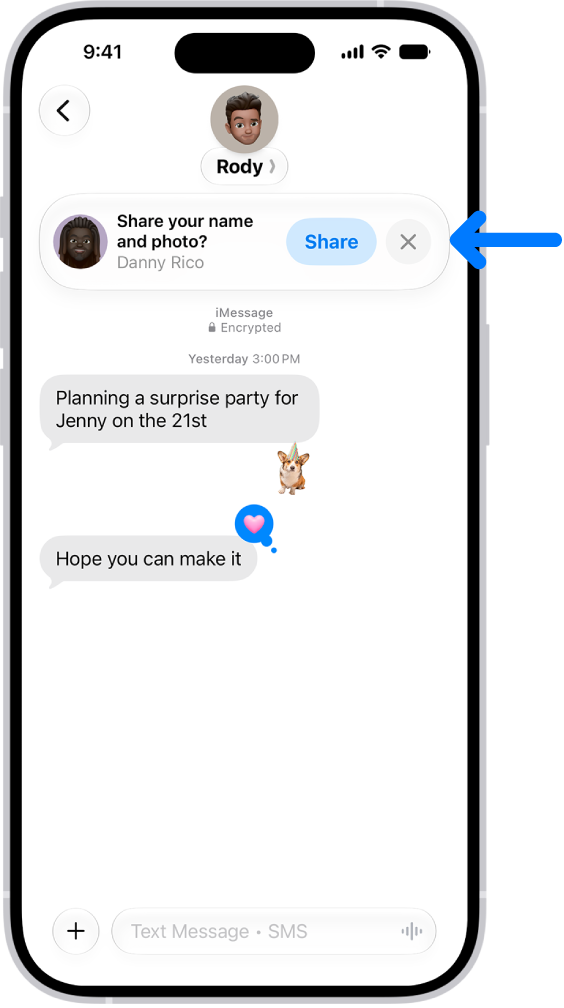
Share your name and photo

In Messages, you can share your name and photo** with others. You decide whether to share it whenever you send or receive a message from someone new.

A conversation in Messages. A notification appears at the top asking whether the user’s name and photo should be shared with the other person in the conversation.

  1. Open the Messages app on your iPhone.
  2. Do one of the following:
    • At the top of the conversation list, tap Edit, then tap Set Up Name & Photo.
    • Swipe up to the top of the conversation list, then tap Share Your Name & Photo.
  3. Choose how you want to be represented, scroll down, and then turn on Name and Photo Sharing.
  4. Tap Share Automatically and then choose one of the following:
    • Contacts Only: Anyone who is a saved contact receives the option of using the name and image you chose when they communicate with you.
    • Always Ask: You decide to share your name and photo as you communicate with each contact.
  5. Tap the Done button to save your changes.

To change these settings after you set them up, tap Edit, then tap Name & Photo.

Note: Recipients using non-Apple devices may not see your name and photo as expected.

**Availability varies by region.

If members of your home use HomePod for Intercom messages, iPhone can transcribe the messages for you. It’s two settings. One shows audio transcriptions, and the other, in the Home app, sets when you receive notifications for Intercom messages from HomePod.

  1. Open Settings, tap Accessibility, tap Subtitles & Captioning, and turn on Show Audio Transcriptions.
  2. In the Home app, tap the More button and tap Home Settings.
  3. Tap Intercom, then choose when you receive notifications.