Got a tip for us?

Messages

You can use read receipts to automatically let someone know when you’ve seen their text messages. When read receipts are on, the sender sees the word “Read” below messages they’ve sent to you, and if you haven’t read their message, they see “Delivered.”

You can turn on read receipts for everyone or for individual contacts, and turn them off if you don’t want others to know you’ve opened their messages. A setting you change for one contact stays with that contact, too.

Turn on read receipts

When read receipts are on, everyone knows when you’ve opened their messages.

  1. Start the Settings app on your iPad.
  2. Tap Apps, then tap Messages.
  3. Turn on Send Read Receipts.

Note: When you’ve turned off read receipts for a particular contact, you’ll need to turn the setting back on for that contact individually. (For the steps, see Turn on read receipts for one person, below.)

Turn off read receipts

Turn off read receipts if you’d rather others not know you’ve opened their messages.

  1. Start the Settings app on your iPad.
  2. Tap Apps, then tap Messages.
  3. Turn off Send Read Receipts.

Note: The only conversations this affects are those with contacts whose read receipts you never turned on individually. (To change it for one contact, see Turn off read receipts for one person, below.)

Turn on read receipts for one person

You can turn on read receipts in a single conversation, even if read receipts are turned off generally, and that one recipient will know when you’ve seen their incoming messages.

  1. Go to the Messages app on your iPad.
  2. Tap a conversation, then tap the contact icon at the top of the conversation.
  3. Turn on Send Read Receipts.

Turn off read receipts for one person

If an individual you turned on read receipts for should stop getting read receipts, turn the setting off for that one contact.

  1. Start the Messages app on your iPad.
  2. Tap a conversation, then tap the contact icon at the top of the conversation.
  3. Turn off Send Read Receipts.

Get read receipts when someone else sees your messages

You can turn on read receipts only for yourself. To get read receipts when someone opens your messages, ask the recipient to turn them on. For the steps, see Turn on read receipts for one person, above.

See also

You can relay phone calls and text messages through your iPhone to your iPad, so it’s easy to stay in touch no matter which device you’re on. Both devices need Wi-Fi on and the same Apple Account, and they need to be within 30 feet (10 meters) of each other. You can send and receive both iMessage and SMS messages.

Note: Cellular charges may apply. Wi-Fi Calling isn’t available from all carriers.

Before you begin

Before you begin, check that each of the following is true:

  • Both devices have Wi-Fi turned on and are connected to the same Wi-Fi network.
  • You’re signed in to the same Apple Account on both devices.

If you use a VPN, its configuration shouldn’t prevent local networking, since that may interfere with some Continuity features.

Set up your iPhone to allow phone calls on your iPad

  1. On your iPhone, open the Settings app.
  2. Tap Apps, then tap Phone.
  3. Tap Calls on Other Devices, turn on Allow Calls on Other Devices, and choose the devices you want to allow to make and receive calls.

    The devices you choose can make and receive calls when they’re near your iPhone, connected to the same Wi-Fi network, and signed in to the same Apple Account.

    Note: If you don’t have the Phone app on your iPad, you can download it from the App Store.

Make or receive phone calls on your iPad

Set up your iPhone to allow calls on your other devices, and your iPad can make and receive phone calls.

  • Make a call: Tap a phone number in Contacts, Calendar, FaceTime, Messages, or Safari. Or open the Phone app, then tap the Keypad button and type a number, or search for a contact.

    If you make a call from another device by relaying it through your iPad with Dual SIM, the call is made using your default voice line.

  • Receive a call: Swipe or tap the notification to answer or ignore the call.

Send and receive messages on your iPad

You can send and receive both iMessage and SMS/RCS/MMS messages on your iPad.

For sending and receiving iMessages on iPad, read our article, Get started with Messages on iPad.

If phone calls and text messages on your iPad aren’t working

  • Make sure that you’re signed in to the same Apple Account on both devices.
  • Make sure that your iPhone and iPad have Wi-Fi turned on.
  • Your devices must be within 30 feet (10 meters) of one another.

Besides making and receiving phone calls on your iPad, you can use Handoff to move a FaceTime call from one device to another. See our guide, Hand off a FaceTime call from your iPad to your other Apple devices.

See also

You can catch up on text messages you missed, mark messages as unread, and pin and unpin conversations to prioritize messages in the conversation list.

If messages arrive while notifications are paused or you’re away from your iPad, you can jump straight to the first one you haven’t read. And when you don’t have time to respond, marking a conversation as unread lets you come back to it later. You can also see a list of your unread messages.
A Messages conversation list with an unread message and another being marked as unread.

Catch up on messages you missed

If messages came in while notifications were paused or you were away from your iPad, you can jump to the first one you haven’t seen in a conversation.

  1. Go to the Messages app on your iPad.
  2. Open an unread conversation and then tap the Catch up button.

    Your view of the conversation moves up to the first unread message.

Mark messages as unread

When you don’t have time to respond, you can mark conversations as unread so you can return to them later.

  1. Start the Messages app on your iPad.
  2. In the conversation list, do one of the following:
    • Swipe right on a conversation to mark it as unread.
    • Drag right and tap the Mark as Unread button.

Quick tip: It’s possible to mark several messages as unread at the same time, too. From the conversation list, tap Edit, tap Select Messages, and select the conversations to mark as unread. When you’re done selecting, tap Unread in the bottom-left corner.

See a list of your unread messages

  1. Start the Messages app on your iPad.
  2. In the conversation list, tap the Filter button and then tap Unread.

    A checkmark appears next to Unread, and the icon turns blue to indicate that filtering is on.

  3. To see both your read and unread messages again, tap the Filter button. Then tap to deselect Unread.

Quick tip: You can mark all your unread messages as read at once: Tap Edit, tap Select Messages, then tap Read All.

Pin a conversation

Pinning specific conversations to the top of the conversation list keeps the people you contact most at the front. Pinned conversations show up as larger icons at the top of your conversation list.

  1. Start the Messages app on your iPad.
  2. Touch and hold a conversation, then tap Pin.

Unpin a conversation

You can unpin pinned conversations so that they no longer appear at the top of the conversation list.

  1. Start the Messages app on your iPad.
  2. Touch and hold a pinned conversation and then do one of the following:
    • Drag the message to the bottom of the list, and let go.
    • Tap Unpin.

Pin shared items

You can pin certain shared items—such as links or collaboration invitations—within a conversation.

  1. Start the Messages app on your iPad.
  2. Touch and hold a message and then tap Pin.
  3. To find pinned items, tap the contact or group icon at the top of the conversation and then tap a category (such as Links). Pinned items appear at the top.

To unpin a pinned item, touch and hold it in the message, then tap Unpin. If you’re in the Links or Documents tab, touch and hold it, tap Show in Conversation, touch and hold it in the message, then tap Unpin.

Turn message summaries on or off

Apple Intelligence can summarize the key points of your conversations, with those summaries automatically replacing your message previews. If you’d rather see the most recent message in each conversation, turn off summaries.

Note: Apple Intelligence on iPadOS 27 or later is available on an Apple Intelligence-enabled iPad mini (A17 Pro) and iPad models with M1 or later. Apple Intelligence is not available in all languages or regions. Usage limits may apply.*

  1. Start the Settings app on your iPad.
  2. Tap Apps, then tap Messages.
  3. Turn Summarize Messages on or off.
  4. To view message summaries, open the Messages app. Then look for the Summary icon below a name in the conversation list. The text following the symbol is a summary of unread messages in that conversation.

*Apple Intelligence is available with Siri and device language set to Chinese (Simplified), Chinese (Traditional), Danish, Dutch, English, French, German, Italian, Japanese, Korean, Norwegian, Portuguese, Spanish, Swedish, Turkish, or Vietnamese. Some features may not be available in all regions or languages. Some devices may not be available in all regions. Siri AI is available in beta in iOS 27, iPadOS 27, macOS 27, watchOS 27, and visionOS 27 and requires an Apple Intelligence–enabled device set to a supported language. Available in English to start. Siri AI will not be initially available in the EU on iOS, iPadOS, and watchOS. Certain Apple Intelligence features that rely on server-side models are subject to daily usage limits, including but not limited to Siri AI, Intelligent Photo Editing Tools, Image Playground, and AFM 3 Cloud models in Shortcuts. Daily limits may vary by feature, request complexity, system demand, system policies, and other factors. Expanded access to such features will be available for a fee in the future. Use of these features is subject to the Apple Intelligence Terms and Conditions.

See also

With Apple Intelligence, you can use Live Translation to see incoming texts in other languages automatically translated to your preferred language in the Messages app. Because Live Translation relies on Apple-built models that run entirely on device, your personal conversations stay private.

It works with the languages you download. You can choose a different language for a conversation, view the original text along with the translation, or turn off Live Translation for the conversation.

Note: Apple Intelligence on iPadOS 27 or later is available on an Apple Intelligence-enabled iPad mini (A17 Pro) and iPad models with M1 or later. Apple Intelligence is not available in all languages or regions. Usage limits may apply.*

For more information on Apple Intelligence and privacy, see Apple Intelligence and privacy.

  1. Download the languages you want to translate.
  2. Open the Messages app on your iPad.
  3. When you receive a message in a different language, do any of the following:
    • Choose a different language: Tap the contact or group icon at the top of the conversation, scroll down, and then tap Translate From or Translate To.
    • View the original text: At the bottom of the conversation, tap Translating [language] and then choose to see the original text in addition to the translated text.
    • Turn off Live Translation for the conversation: At the bottom of the conversation, tap Translating [language] and tap Stop Translation.

*Apple Intelligence is available with Siri and device language set to Chinese (Simplified), Chinese (Traditional), Danish, Dutch, English, French, German, Italian, Japanese, Korean, Norwegian, Portuguese, Spanish, Swedish, Turkish, or Vietnamese. Some features may not be available in all regions or languages. Some devices may not be available in all regions. Siri AI is available in beta in iOS 27, iPadOS 27, macOS 27, watchOS 27, and visionOS 27 and requires an Apple Intelligence–enabled device set to a supported language. Available in English to start. Siri AI will not be initially available in the EU on iOS, iPadOS, and watchOS. Certain Apple Intelligence features that rely on server-side models are subject to daily usage limits, including but not limited to Siri AI, Intelligent Photo Editing Tools, Image Playground, and AFM 3 Cloud models in Shortcuts. Daily limits may vary by feature, request complexity, system demand, system policies, and other factors. Expanded access to such features will be available for a fee in the future. Use of these features is subject to the Apple Intelligence Terms and Conditions.

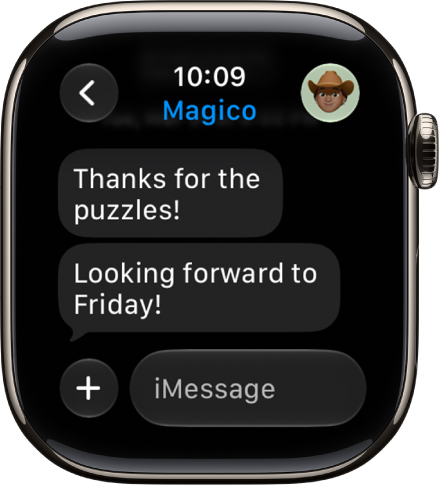
Apple Watch makes it easy to communicate with friends, family, and coworkers, even when your iPhone isn’t with you.

You can send a message right from your wrist with Siri, make a call, and share your live location with a friend you’re meeting. With Apple Intelligence, you can even communicate across languages in Messages.

Apple Watch showing a conversation in the Messages app.

Send a message, right from your wrist

Quickly respond to a message with Siri. When Apple Watch is connected to Wi-Fi or cellular, just raise your wrist and say, “Tell Julie I’ll be there in five minutes.” Or touch and hold the message to give your friend a thumbs up with a Tapback reply.

Read and respond to messages >

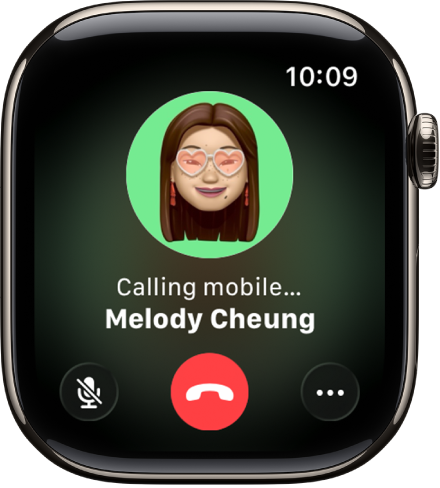
The Phone app showing a call in progress.

Make a call

Siri can help you make a quick call. If your Apple Watch has a cellular or Wi-Fi connection, raise your wrist and say “Call Mom.” With a Wi-Fi connection, a simple “FaceTime Mom” does the trick, and you can also join a Group FaceTime audio call.

Make phone calls

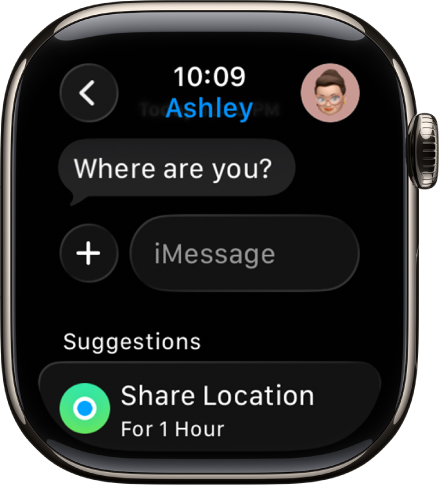
Apple Watch showing a conversation in the Messages app. A suggestion to share a location is at the bottom of the screen.

Share your live location

Meeting a friend? Apple Watch can let them know where you are and update your location automatically. Open the Messages app, start a new message or open a conversation, tap the Apps button, tap Location, then start sharing your location.

Send your location >

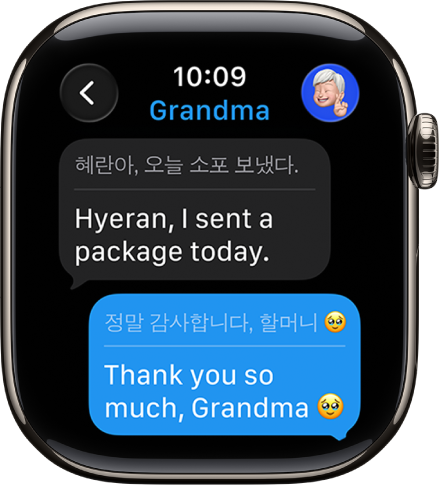
Apple Watch showing a conversation translated in the Messages app.

Communicate across languages

With Apple Intelligence,* you can automatically translate texts in Messages. Just open a conversation and send a message in a preferred language.

Use Live Translation in Messages

*Apple Intelligence is available with Siri and device language set to Chinese (Simplified), Chinese (Traditional), Danish, Dutch, English, French, German, Italian, Japanese, Korean, Norwegian, Portuguese, Spanish, Swedish, Turkish, or Vietnamese. Some features may not be available in all regions or languages. Some devices may not be available in all regions. Siri AI is available in beta in iOS 27, iPadOS 27, macOS 27, watchOS 27, and visionOS 27 and requires an Apple Intelligence–enabled device set to a supported language. Available in English to start. Siri AI will not be initially available in the EU on iOS, iPadOS, and watchOS. Certain Apple Intelligence features that rely on server-side models are subject to daily usage limits, including but not limited to Siri AI, Intelligent Photo Editing Tools, Image Playground, and AFM 3 Cloud models in Shortcuts. Daily limits may vary by feature, request complexity, system demand, system policies, and other factors. Expanded access to such features will be available for a fee in the future. Use of these features is subject to the Apple Intelligence Terms and Conditions.

You can compose, edit, and unsend messages, send stickers, GIFs, and other rich content, and share your location.

To start a conversation, you can choose a recent contact, speak the name of a contact or dictate a phone number, or choose from your full list of contacts. You can even send stickers, GIF images, audio clips, Digital Touch effects, and more in a conversation.

Here’s how to write messages on Apple Watch.

Start a conversation on Apple Watch

  1. Open the Messages app on your Apple Watch.
  2. Tap the New Message button at the top of the screen.
  3. Tap Add Contact and then do one of the following:
    • Choose a recent contact: Tap a contact from the list of recent conversations.
    • Speak the name of a contact or dictate a phone number: Tap the Microphone button.
    • Choose from your full list of contacts: Tap the Add Contact button.
    • Enter a phone number: Tap the Keypad button.
  4. Tap Create Message. Dictate, type, or scribble your message.
  5. Tap Done and tap Send.

Send stickers, GIF images, audio clips, Digital Touch effects, and more

  1. Open the Messages app on your Apple Watch.
  2. In a message conversation, tap the Apps button. Choose an option.

Send your location

Along with sending a pin to your current location, you can share your location as it updates automatically, for one hour, until the end of the day, or indefinitely.

  1. Open the Messages app on your Apple Watch.
  2. In a message conversation, tap the Apps button and tap Location.
  3. Tap Share, then choose an option.

For the steps, read our guide, Set up Find My on Apple Watch.

Edit a sent message

Within 15 minutes of sending a message, you can edit it up to five times.

  1. Open the Messages app on your Apple Watch.
  2. Select a conversation with the message you want to edit.
  3. Touch and hold the message bubble, then tap Edit.
  4. Make any changes. Then tap Done to resend with edits.

    Note: The message is marked as Edited in the conversation transcript.

The message bubble is updated to reflect your edits on your recipient’s device, and both of you can tap Edited to see previous versions of your message.

If you’re messaging someone on a device with watchOS 9, iOS 15.7, iPadOS 15.7, macOS 12.6, or earlier, they receive follow-up messages instead, each with your new message in quotation marks and the preface “Edited to”. And if a message was sent with SMS, it can’t be edited.

Unsend a message

You have up to 2 minutes after sending a message to undo it.

  1. Open the Messages app on your Apple Watch.
  2. Touch and hold the message bubble and tap Undo Send.

    A note confirming that you unsent the message appears in both conversation transcripts: yours and your recipient’s.

Unsending a message removes it from your recipient’s device.

If the person you’re messaging is on a device with macOS 12.6, iOS 15.7, iPadOS 15.7, watchOS 9, or earlier, the original message stays in the conversation. When you unsend one, a notification tells you the recipient may still see the original in the message transcript.

See also

With Apple Intelligence on your paired iPhone, you can use Live Translation for text messages on Apple Watch. Live Translation is integrated into the Messages app and uses Apple-built models that run entirely on device, so your personal conversations stay private.

First, you download the input and output languages. Then translations automatically appear inline when you receive a text in another language. If Live Translation isn’t on yet, you’re prompted to turn it on.

Apple Watch showing a conversation translated in the Messages app.

Note: Live Translation in Messages is available in Apple Intelligence-supported languages when your Apple Watch is paired with an Apple Intelligence-enabled iPhone. Apple Intelligence is not available on all iPhone models or in all languages or regions.*

Download languages

To use Live Translation features in the Messages app, you’ll first need to download the input and output languages.

Note: When using Apple Watch with cellular service, cellular data charges may apply.

Translate messages

When you’ve turned on Apple Intelligence on your paired iPhone and you receive a text in another language, translations appear inline automatically.

  1. Open the Messages app on your Apple Watch.
  2. In a Messages conversation, tap the contact icon at the top right.
  3. Turn on Auto-translate. Select the languages you want to translate.

    Note: When you receive a message in a different language, you receive a prompt to turn on Live Translation.

  4. To view the original text, tap the language at the bottom of the conversation. Then choose to see the original text in addition to the translated text.

Choose a different language

  1. Open the Messages app on your Apple Watch.
  2. Tap a conversation. Tap the contact icon at the top right.
  3. Scroll down, tap Translate From or Translate To, and then choose a language.

Turn off Live Translation for the conversation

  1. Open the Messages app on your Apple Watch.
  2. Tap a conversation. Then tap the language at the bottom of the conversation.
  3. Tap Stop Translating.

To start translating again, tap the contact icon at the top right, scroll down, then turn on Auto-translate.

*Apple Intelligence is available with Siri and device language set to Chinese (Simplified), Chinese (Traditional), Danish, Dutch, English, French, German, Italian, Japanese, Korean, Norwegian, Portuguese, Spanish, Swedish, Turkish, or Vietnamese. Some features may not be available in all regions or languages. Some devices may not be available in all regions. Siri AI is available in beta in iOS 27, iPadOS 27, macOS 27, watchOS 27, and visionOS 27 and requires an Apple Intelligence–enabled device set to a supported language. Available in English to start. Siri AI will not be initially available in the EU on iOS, iPadOS, and watchOS. Certain Apple Intelligence features that rely on server-side models are subject to daily usage limits, including but not limited to Siri AI, Intelligent Photo Editing Tools, Image Playground, and AFM 3 Cloud models in Shortcuts. Daily limits may vary by feature, request complexity, system demand, system policies, and other factors. Expanded access to such features will be available for a fee in the future. Use of these features is subject to the Apple Intelligence Terms and Conditions.

In the Messages app, you can read incoming text messages, then reply with a quick reaction or suggested response.

You can also send a reply by dictating, typing, or scribbling, mute or delete a conversation, and choose how to be notified of new messages. You can see when a message was sent, and use information in a message, like dates, flight numbers, and package tracking codes.

Here’s how to read and respond to messages on Apple Watch.

WARNING: For important information about avoiding distractions that could lead to dangerous situations, see Important safety information for Apple Watch.

Read a message on Apple Watch

  1. When you feel a tap or hear an alert sound telling you that a message has arrived, raise your Apple Watch to read it. If the message arrived a while ago, swipe down from the top of the screen to see the notification. Then tap it.
  2. Turn the Digital Crown to read more of the message. To return to the beginning, tap the top of the screen.

    Tip: Swipe left on a message to see when it was sent. You can also tap information within a message—like dates, flight numbers, package tracking codes, and currency amounts—to see relevant actions, such as creating a calendar event or tracking a package.

Send a reply

A message conversation. The Apps button and message field are at the bottom.

When you’re in a message conversation, do any of the following:

  • Send a reaction: Double-tap the message bubble, then choose a tapback—such as a thumbs up or heart.
  • Send a suggested reply: Scroll down to see the suggestions, then tap one to send it.
  • Compose a reply: Tap the text field, then dictate, type, or scribble your response.
  • Reply to a specific message: Double-tap the message bubble, scroll down, then tap Reply.

Mute or delete a conversation

  1. Start the Messages app on your Apple Watch.
  2. In the Messages conversation list, swipe left on a conversation. Do any of the following:
    • Mute the conversation: Tap the Notifications Off button.
    • Delete the conversation: Tap Trash button.

Choose how to be notified of new messages

  1. Start the Apple Watch app on your iPhone.
  2. Tap My Watch, tap Apps, and tap Messages.
  3. Tap Custom to set options for how you want to be notified when you receive a message.

If you’re using a Focus that doesn’t allow Messages notifications, you won’t receive a notification.

Detect sensitive content

If you choose, your Apple Watch can detect and blur sensitive photos and videos before you view them.

  1. Start the Settings app on your iPhone.
  2. Tap Privacy & Security, then tap Sensitive Content Warning.
  3. Turn on Sensitive Content Warning and then make sure AirDrop and Messages are turned on.
  4. To view the content after being warned, tap Show and tap I’m Sure.

    To learn how to deal with sensitive content, tap Ways to Get Help.

Turn on this setting, and it affects images and videos on your Apple Watch as well as on iPhone.

Note: Apple doesn’t have access to the photos or videos.

See also

Use Check In to automatically notify a friend when your Apple Watch has arrived at a destination, when a workout session is completed, or after a specific period of time has passed. You can choose what details they can see if you don’t complete your Check In as expected.

You can start a Check In from Messages or from Workout. And if you’re running late, you can add extra time, or cancel the Check In.

Note: Check In requires the following:

  • Apple Watch must be near its paired iPhone or connected to the internet using Wi-Fi or cellular.
  • Both the sender and recipient must have an Apple Watch with watchOS 11 or later or an iPhone with iOS 17 or later.

Start a Check In from Messages

  1. Start the Messages app on your Apple Watch.
  2. Start a new message or select an existing conversation, tap the Apps button, and then tap Check In.
  3. Tap Edit, tap Check In, and then choose one of the following:

    • When I arrive: Specify your destination, how you’re traveling (driving, transit, or walking), and add extra time if needed.

      Check In monitors your journey and notifies your friend if your Apple Watch isn’t progressing for an extended period of time or if it doesn’t reach your destination as expected. When your Apple Watch arrives at the destination successfully, Check In automatically completes and notifies your friend.

    • After a timer: Specify a period of time—for example, if you’re meeting someone new.

      If you don’t end the Check In before the time you set, Check In notifies your friend.

  4. Tap Send.

Start a Check In from Workout

  1. Go to the Workout app on your Apple Watch.
  2. Turn the Digital Crown to the workout you want to do.

    Tap Add Workout at the bottom of the screen for sessions like kickboxing or surfing.

  3. Tap the workout to begin.
  4. Swipe right and then tap Check In.

Check In notifies your friend if the workout completes.

Add extra time for the Check In

  1. Open the Smart Stack. (From the watch face, swipe up from the bottom of the screen or turn the Digital Crown.)
  2. Tap the Check In widget.
  3. Scroll down, then tap Add Time.

Cancel a Check In

To let your friend know you’ve completed your journey, or that you want to end your session for whatever reason, you can cancel your Check In.

  1. From the watch face, turn the Digital Crown to open the Smart Stack.
  2. Tap the Check In widget.
  3. Scroll down and then tap Cancel Check In.

Choose what details you share

Your iPhone is where you can adjust the details you share with your friend during a Check In.

See also

With Apple Intelligence, you can use Live Translation to see incoming texts in other languages, automatically translated to your preferred language in the Messages app. It’s private, too. Live Translation relies on Apple-built models that run entirely on device, so your personal conversations stay private. It works with the languages you download, and Apple Intelligence is available on iPhone 15 Pro, iPhone 15 Pro Max, and iPhone 16 models or later.

Note: Apple Intelligence on iOS 27 or later is available on an Apple Intelligence-enabled iPhone 15 Pro, iPhone 15 Pro Max, or iPhone 16 model or later. Apple Intelligence is not available in all languages or regions. Usage limits may apply.*

  1. Download the languages you want to translate.
  2. Start the Messages app on your iPhone.
  3. When you receive a message in a different language, do any of the following:
    • Choose a different language: Tap the contact or group icon at the top of the conversation, scroll down, and then tap Translate From or Translate To.
    • View the original text: At the bottom of the conversation, tap Translating [language] and then choose to see the original text in addition to the translated text.
    • Turn off Live Translation for the conversation: At the bottom of the conversation, tap Translating [language] and tap Stop Translation.

*Apple Intelligence is available with Siri and device language set to Chinese (Simplified), Chinese (Traditional), Danish, Dutch, English, French, German, Italian, Japanese, Korean, Norwegian, Portuguese, Spanish, Swedish, Turkish, or Vietnamese. Some features may not be available in all regions or languages. Some devices may not be available in all regions.

Siri AI is available in beta in iOS 27, iPadOS 27, macOS 27, watchOS 27, and visionOS 27 and requires an Apple Intelligence–enabled device set to a supported language. Available in English to start. Siri AI will not be initially available in the EU on iOS, iPadOS, and watchOS. Certain Apple Intelligence features that rely on server-side models are subject to daily usage limits, including but not limited to Siri AI, Intelligent Photo Editing Tools, Image Playground, and AFM 3 Cloud models in Shortcuts.

Daily limits may vary by feature, request complexity, system demand, system policies, and other factors. Expanded access to such features will be available for a fee in the future. Use of these features is subject to the Apple Intelligence Terms and Conditions.