Got a tip for us?

Messages

If it’s too late at night or too important to forget, you can schedule a text message to be sent at a later time.

Messages can be scheduled as far as 14 days ahead, and your recipient won’t know the message was scheduled. It shows a dashed line until it’s time to send, and it’s delivered even if all your devices are offline. You can also change the send time, edit the message, or delete it.

Note: You must be using iMessage to schedule a message like this. Your recipient can be on any device and won’t know the message was scheduled. To reschedule, edit, or delete a scheduled message, you need to be online.
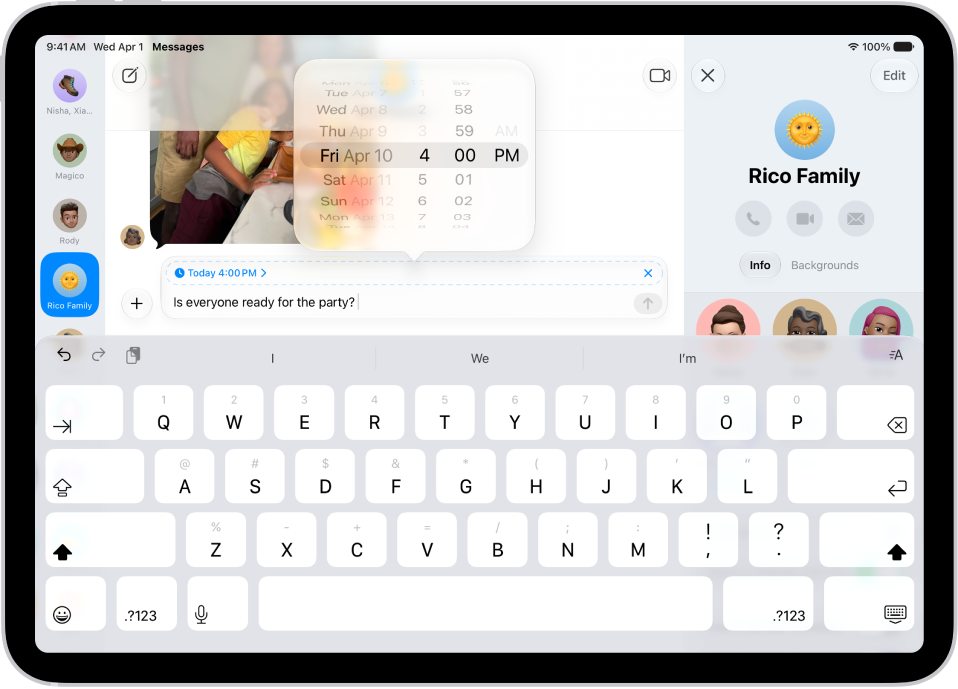
A Messages conversation with a scheduled message being entered into the text field.

Schedule a message

You can schedule a message up to 14 days into the future.

  1. Go to the Messages app on your iPad.
  2. Go to the conversation where you want to schedule a message or start a conversation.
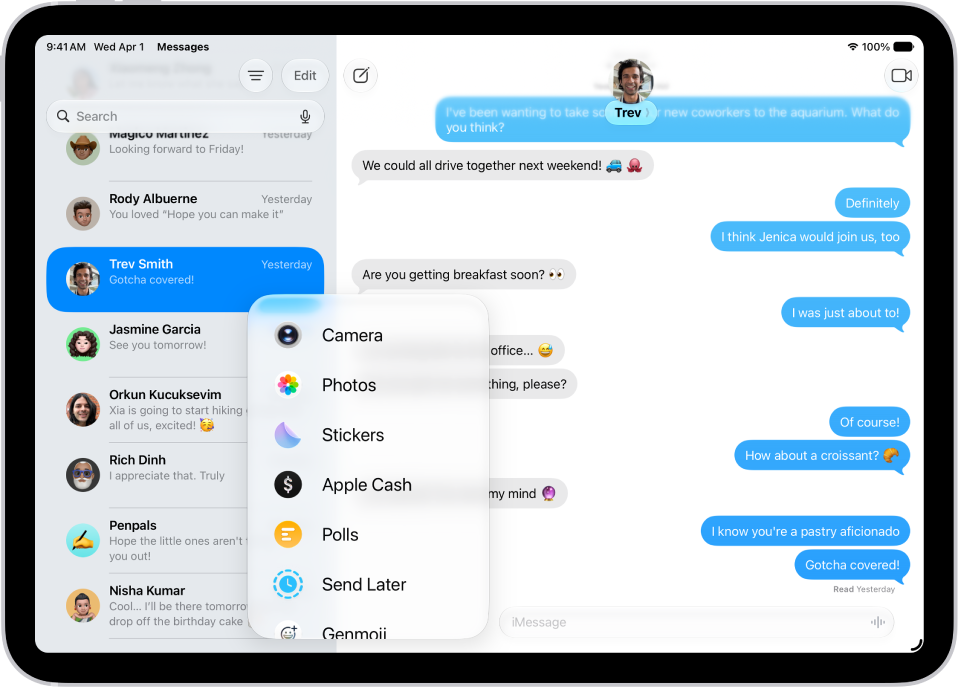
  3. Tap the Add button, then tap Send Later.
  4. Tap the time to open the scheduler and then choose when you want to send your message.

    The border of the text field turns into a dashed line, and the time your message will be sent appears at the top of the message.

  5. Enter a message, then tap the Send button.

Until it’s time to send it, the message appears with a dashed line, and it’s delivered even if all your devices are offline.

Note: Scheduled messages are encrypted and stored on Apple servers only until they’re sent. When a message is sent, it’s removed from Apple servers, the balloon becomes a solid color, and its dashed line disappears.

Change the time to send a message

Until its delivery time, you can still reschedule a message.

  1. Open the Messages app on your iPad.
  2. Go to the conversation with the message you want to reschedule.

    If you don’t see your message, scroll down to the bottom of the conversation. Scheduled messages may appear below sent messages.

  3. Tap Edit beside the date (above your scheduled message), then do any of the following:

    • Reschedule it: Tap Edit Time and choose a new time. Then tap away from the schedule to commit the new time.
    • Send it immediately: Tap Send Message.

Edit a scheduled message

You can also edit a scheduled message up until its delivery time.

  1. Open the Messages app on your iPad.
  2. Go to the conversation with the scheduled message you want to edit.

    If you don’t see your message, scroll down to the bottom of the conversation. Scheduled messages may appear below sent messages.

  3. Touch and hold the message bubble, then tap Edit.
  4. Make any changes. Tap the Send Edit button to resend with edits or the Cancel Edit button to revert.

Delete a scheduled message

Delete a message before its scheduled time, and it’s canceled and not delivered to the recipient.

  1. Open the Messages app on your iPad.
  2. Go to the conversation with the scheduled message you want to delete.

    If you don’t see your message, scroll down to the bottom of the conversation. Scheduled messages may appear below sent messages.

  3. Touch and hold the message you want to cancel and tap Delete.

See also

You can record and send audio messages, along with transcripts of what’s said in the message. Audio messages are automatically deleted to save space on your iPad, but if you want to save them, you can.

Instead of typing, you record a message that plays right in the Messages conversation. Before you send it, you can listen to review it or keep recording to add to the end. You can also choose to always keep audio messages.

Note: Audio message transcription is available in select languages.

Record and send an audio message

You can record an audio message instead of writing a text message, and it can be played right in the Messages conversation.

  1. Go to the Messages app on your iPad.
  2. In a conversation, tap the Add button.
  3. Tap Audio, then begin speaking.
  4. Tap the Stop button to pause or end your recording. Then do any of the following to your message:

    • Send it: Tap the Send button.
    • Listen to review it: Tap the Play button.
    • Add to the end of it: Tap the Continue Recording button (with the message duration).
    • Cancel it: Tap the Close button.
  5. Tap Keep to save an incoming or outgoing audio message on your iPad.

    Otherwise, the recording is deleted from the conversation—on your iPad only—2 minutes after you send or listen to it. Recipients can play your recording any time after they receive it. To save it, they need to tap Keep within 2 minutes after listening to it.

Quick tip: Touching and holding the Record Audio button in the text field lets you send follow-up audio messages more quickly.

Transcriptions of audio messages use the language chosen in the sender’s Settings. If you’d like your outgoing messages in another language, see our article, Change the language and region.

Always keep audio messages

  1. Start the Settings app on your iPad.
  2. Tap Apps, then tap Messages.
  3. Tap Expire (below Audio Messages) and tap Never.

Listen to or reply to a recorded audio message

  1. Start the Messages app on your iPad.
  2. Open a conversation with an audio message and tap the Play button to play it.
  3. Do any of the following:

    • Slide right and left on the audio message to fast-forward or rewind.
    • Touch and hold the Play button or the Pause button to adjust the playback speed.
  4. Tap Keep to save an audio message in the conversation.

    To save the message in the Voice Memos app, touch and hold the audio message, then tap Save to Voice Memos.

Switch to FaceTime from Messages

You can quickly make an audio or video call instead of sending a message by switching to FaceTime. In a Messages conversation, tap the FaceTime button.

See also

You can recover text messages you deleted on your iPad for up to 30 days. You just choose the conversations you want to restore from Recently Deleted in the Messages app, and if you use Messages in iCloud, they’re recovered on all your devices where it’s on.

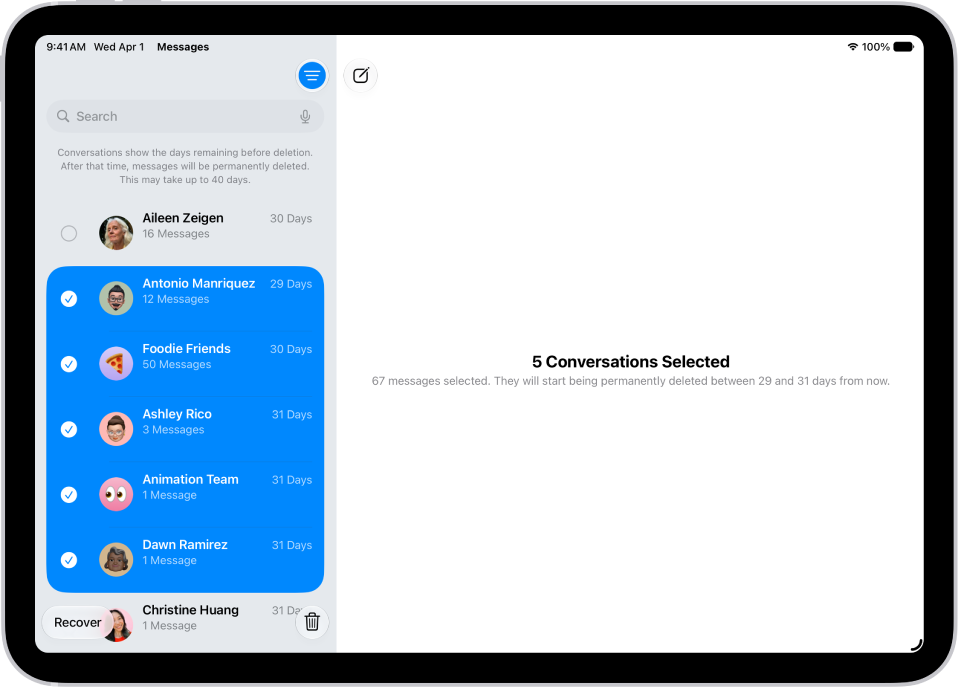
Recovering several recently deleted messages.

  1. Go to the Messages app on your iPad.
  2. Tap the Filter button at the top of the conversation list. Then tap Recently Deleted.
  3. Select the conversations whose messages you want to restore and tap Recover.
  4. Tap Recover Messages.

If you use Messages in iCloud, recovering a conversation or message on your iPad recovers it on every device where Messages in iCloud is on.

Note: Deleting and recovering messages only affects the iPad you’re using and other Apple devices signed in to the same Apple Account. And you can’t recover messages, attachments, and conversations for anyone else.

Future messages from a blocked contact aren’t automatically deleted if you’ve blocked someone in a conversation with non-iMessage, deleted the conversation, and then recovered it.

If you remove a message from a conversation using Undo Send, it’s permanently deleted. Audio messages that expire before being saved aren’t recoverable, either.

See also

You can delete text messages, attachments, and entire conversations from your iPad anytime, without affecting what your recipients see.

You can also delete a conversation entirely, or delete multiple photos, videos, or other attachments and multiple conversations at once. Recently deleted messages and attachments can be permanently removed before 30 days, too. And on an ongoing basis, messages and attachments older than 30 days or a year can be deleted automatically.

Quick tip: If you sent a message accidentally, you can use Undo send to retract it within 2 minutes, deleting it from both your phone and your recipient’s phone.

Deleted messages and attachments stay in your Recently Deleted folder for up to 30 days, and you’re able to recover them.

Delete messages and attachments

  1. Go to the Messages app on your iPad.
  2. Open a conversation, touch and hold a message bubble or attachment, and then tap More.
  3. Select the messages or attachments you want to delete. Tap the Delete button.

You can also delete a conversation entirely.

Delete multiple photos, videos, or other attachments

  1. Open the Messages app on your iPad.
  2. Tap the contact or group icon at the top of the conversation.
  3. Tap a category, such as Photos.

    Tip: To see only one kind of image, tap the Filter button at the bottom left, then tap Screenshots, Videos, or Photos.

  4. Tap Edit, then tap Select.
  5. Tap each attachment you want to delete and tap the Delete button. Then tap to confirm the number of attachments you want to delete.

Delete a conversation

  1. Open the Messages app on your iPad.
  2. In the conversation list, do one of the following:
    • Swipe left on the conversation, then tap the Delete button.
    • Touch and hold the conversation, then tap Delete.

Delete multiple conversations

  1. Open the Messages app on your iPad.
  2. In the conversation list, tap Edit.
  3. Tap Select Messages and then select conversations you want to delete.
  4. Tap the Delete button and tap Delete.

Permanently remove recently deleted messages and attachments

Deleted messages and attachments remain in the Recently Deleted folder for 30 days, but you can permanently remove them before that.

  1. Open the Messages app on your iPad.
  2. Tap the Filter button at the top of the conversation list. Then tap Recently Deleted.
  3. Select the conversations whose messages you want to delete permanently, tap the Delete button, and then tap Delete.

    Important: This can’t be undone.

Automatically delete old messages

You can delete messages and attachments that are older than 30 days or a year old, on an ongoing basis.

  1. Open the Settings app on your iPad.
  2. Tap Apps, then tap Messages.
  3. Scroll down and tap Keep Messages (below Message History). Then choose an option.

Important: If you choose an option other than Forever, your conversations (including all attachments) are automatically removed after the specified time period elapses.

If you use Messages in iCloud, deleting a message or conversation on your iPad also removes it from all your devices with Messages in iCloud on.

Note: When you delete messages, it only affects your iPad and other Apple devices signed in to the same Apple Account. You can’t remove messages, attachments, or conversations for anyone else.

Want to delete everything, not just your messages? Read our guide, Erase iPad.

See also

You can unsend and edit recent text messages, giving you the opportunity to fix a typo or pull back a message that you accidentally sent to the wrong person. You can undo a message for up to 2 minutes after sending it, and edit it up to five times within 15 minutes.

Note: Unsending or editing text messages, or seeing when others unsend or edit messages you receive, requires iMessage running iOS 16, iPadOS 16.1, macOS 13, visionOS 1, or later. When you unsend a message to someone using an earlier operating system, the original message stays in the conversation, and you get a notification that the recipient may still see it. When you edit a message to someone using an earlier operating system, they get follow-up messages that start with the preface “Edited to” and then your new message in quotation marks. Editing or unsending SMS, MMS, or RCS text messages isn’t possible. And when you edit a text message in a group conversation, your edits are visible only to iMessage users.

Unsend a message

You can undo a recently sent message for up to 2 minutes after sending it.

  1. Go to the Messages app on your iPad.
  2. Touch and hold the message bubble and tap Undo Send.

    A note confirming that you unsent the message appears in both conversation transcripts: yours and your recipient’s.

Unsending removes the message from your recipient’s device.

Edit a sent message

You can edit a recently sent message up to five times within 15 minutes of sending it.

  1. Start the Messages app on your iPad.
  2. Select a conversation with the message you want to edit.
  3. Touch and hold the message bubble, then tap Edit.
  4. Make any changes. Tap the Send Edit button to resend with edits or the Cancel Edit button to revert.

    Note: The message is marked as Edited in the conversation transcript.

The message bubble updates to reflect your edits on both your iPad and your recipient’s device, and both of you can tap Edited to see previous versions of your message.

See also

You can report spam messages to Apple, recover messages from the Spam folder that were incorrectly marked as spam, and block specific contacts to stop receiving their messages.

When you use iMessage, a Report Spam link appears at the bottom of messages from unknown senders. You can also block a specific person or phone number, and check who you’ve blocked.

Here’s how to report spam and block senders in Messages on iPad.

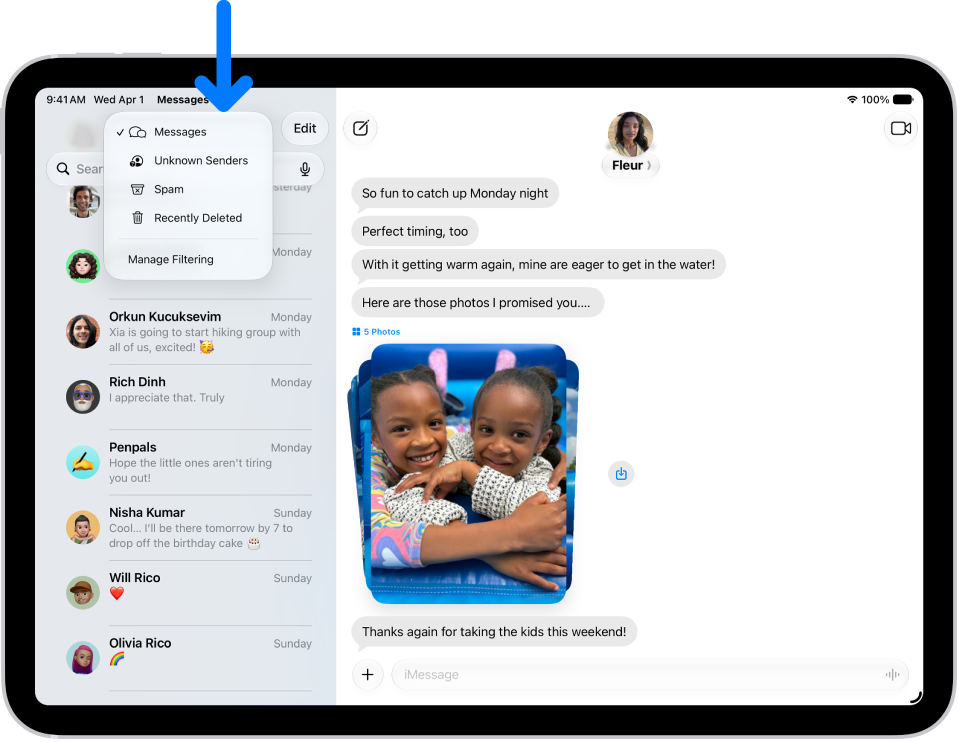
A conversation list in Messages. All messages are shown, because no filter is selected in the Filter menu.

Report spam messages

With iMessage, you can report spam messages to Apple.

  1. Go to the Messages app on your iPad.
  2. Do one of the following:

    • If you haven’t opened the message: Swipe left on the message, tap the Delete button, and tap Delete and Report Spam.
    • If you’ve already opened the message: A Report Spam link appears at the bottom of any message from any unknown sender. Tap Report Spam and tap Delete and Report Spam.

      Note: You can’t report a message after you’ve replied to it.

    • If you don’t see the option to report SMS, MMS, or RCS spam messages forwarded from your iPhone: Contact your carrier.

A message you received with iMessage goes to Apple along with the sender’s information, and it’s permanently deleted from your iPad.

You can recover messages you accidentally report and delete.

Reporting spam doesn’t stop the sender from sending messages, so block the contact to avoid receiving their messages.

You can filter incoming messages from new numbers to avoid getting them. See our article, Screen and filter messages from unknown senders.

Recover messages in the Spam folder

Spam that’s detected moves to the spam folder rather than appearing in your conversation list, and you can check to see if any messages are inadvertently marked as spam.

  1. Open the Messages app on your iPad.
  2. Tap the Filter button at the top of the conversation list and tap Spam.
  3. Tap a message that isn’t spam and tap Not Spam. Tap Move to Messages.

    The conversation moves to your main conversation list, where you can send a reply. Tap the Filter button, then tap Messages.

Recovered messages move back to your conversation list.

Block messages from a specific person or phone number

Blocking a specific contact or phone number means messages from that person or number aren’t delivered, and the person sending them doesn’t know that their messages are blocked.

Note: A contact you block in Messages is also blocked in Mail, Phone, FaceTime, Calendar, and other apps. Read our guide, Prevent contacts from communicating with you.

  1. Open the Messages app on your iPad.
  2. Go to the conversation with the person you want to block and tap the person’s icon at the top.
  3. Tap Info and scroll down. Tap Block Contact.

    You can remove someone’s access to shared items.

Quick tip: You can’t block a group conversation, but instead of blocking all the people in the group, you can leave it or stop its notifications.

Check who you blocked

Not getting someone’s messages? Check whether they’re in your Blocked Contacts.

When you block a contact in Messages, that contact is also blocked in Mail, Phone, FaceTime, Calendar, and other apps.

  1. Open the Settings app on your iPad.
  2. Tap Privacy & Security, tap Blocked Contacts, and do any of the following:
    • Unblock a number you’ve blocked: Tap [number] Unknown and swipe left on a number in the list. Then tap Unblock. Or tap Edit, then tap the Remove button.
    • Add additional contacts or numbers directly to the list: Tap Add Blocked Contact.

A sender can’t find out if they’re blocked.

Quick tip: To prevent unwanted messages another way, allow your contacts only when you block messages with Screen Time.

You can set your notification options to change how the notifications appear and more.

To pause notifications from Messages, turn on Do Not Disturb or another Focus.

See also

Before you start texting, turn on iMessage, and you can sync your messages across all your Apple devices with Messages in iCloud and share your name and photo. There are two different ways to send text messages in the Messages app:

  • Using iMessage with others who also use iMessage. Your iMessage texts appear in blue bubbles.
  • With SMS, MMS, and RCS messages forwarded from your iPhone. Your SMS, MMS, and RCS messages appear in green bubbles. (RCS messages aren’t supported by all carriers or in all countries or regions.)

Turn on iMessage

  1. Start the Settings app on your iPad.
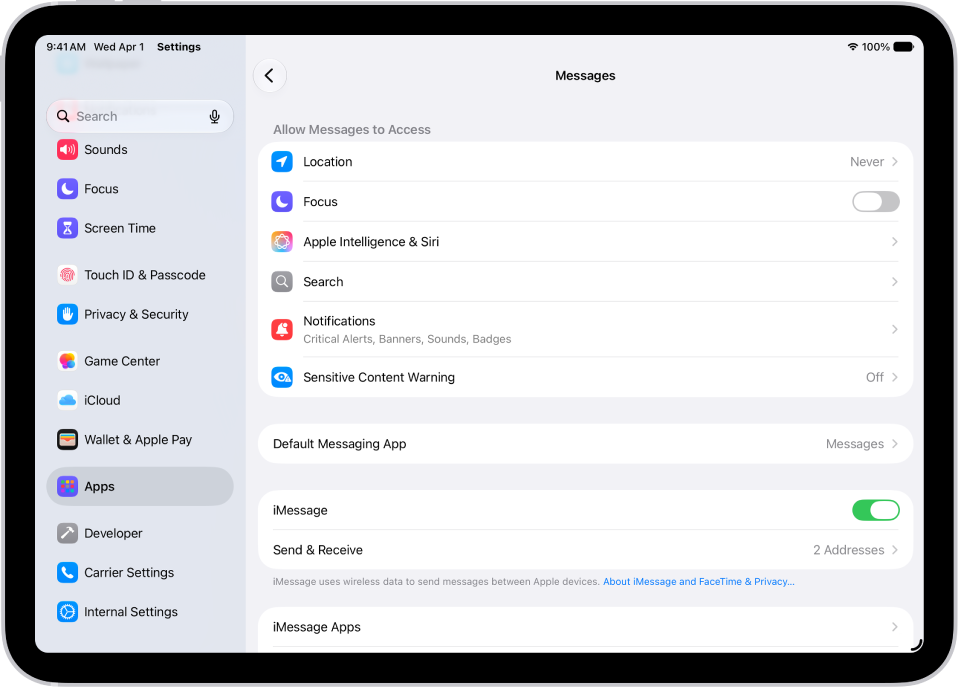
  2. Tap Apps, then tap Messages.
  3. Turn on iMessage.
  4. To select which of your phone numbers and email addresses you want to use with iMessage, tap Send & Receive and choose from the available options below You can receive iMessages to and reply from.

Learn more about iMessage.

The Messages settings pane with iMessage turned on.

Sync messages on all your Apple devices

Turning on Messages in iCloud saves the messages you send and receive on your iPad in iCloud. On another device signed in to the same Apple Account, turn on Messages in iCloud, and your conversations show up there too. Your entire messages history, including messages sent or received with SMS, MMS, RCS, or iMessage, stays current across those devices, even when you set up a new device.

  1. Make sure that your iPad is turned on and connected to a Wi-Fi network, and that you sign in to the same Apple Account on each device.
  2. Start the Settings app on your iPad.
  3. Tap your name and tap iCloud. Tap Messages.

    If Messages doesn’t appear, tap See All in the Saved to iCloud section.

  4. Turn on Use on this iPad (if it’s not already turned on).

If you have an iPhone, you can set it up so the SMS, MMS, or RCS messages you send or receive also appear on your iPad.

With Messages in iCloud on, messages or attachments you delete from iPad also disappear from your other Apple devices that have Messages in iCloud turned on and run iPadOS 13, iOS 11.4, watchOS 1, macOS 10.13.5, visionOS 1, or later.

Note: Messages in iCloud draws on your iCloud storage. See our guide, Sign in and manage your Apple Account.

Share your name and photo

In Messages, you can share your name and photo** with others. You decide whether to share it whenever you send or receive a message from someone new.

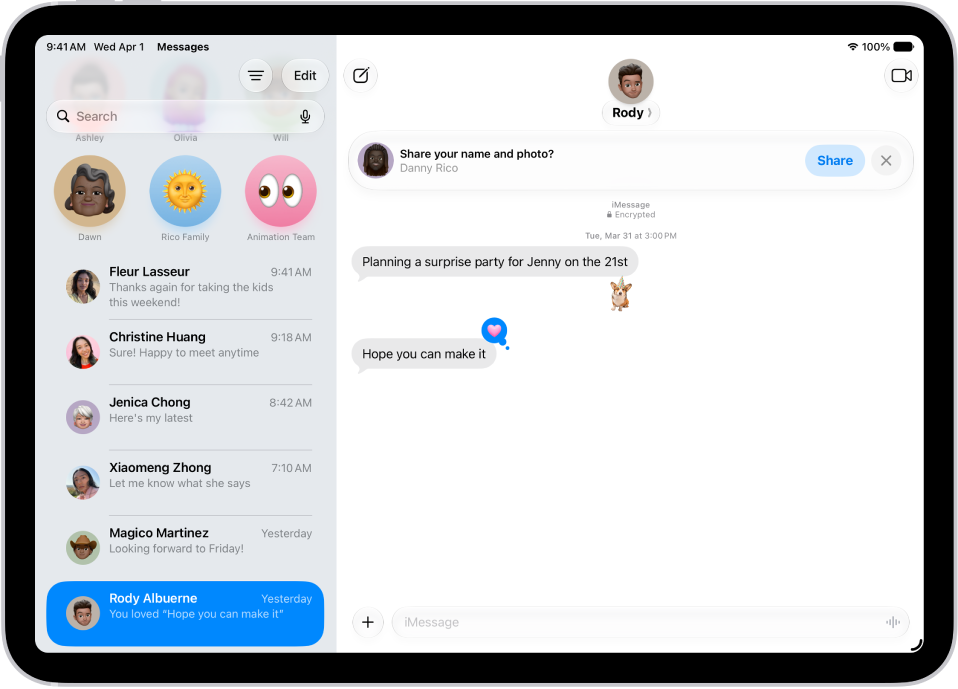
A conversation in Messages. A notification appears at the top asking whether the user’s name and photo should be shared with the other person in the conversation.

  1. Start the Messages app on your iPad.
  2. Do one of the following:
    • At the top of the conversation list, tap Edit, then tap Set Up Name & Photo.
    • Swipe up to the top of the conversation list, then tap Share Your Name & Photo.
  3. Choose how you want to be represented, scroll down, and then turn on Name and Photo Sharing.
  4. Tap Share Automatically and then choose one of the following:
    • Contacts Only: Anyone who is a saved contact receives the option of using the name and image you chose when they communicate with you.
    • Always Ask: You decide to share your name and photo as you communicate with each contact.
  5. Tap the Done button to save your changes.

To change these settings after you set them up, tap Edit, then tap Name & Photo.

Note: If you message recipients who use non-Apple devices, your name and photo may not appear as expected.

**Availability varies by region.

See also

You can change whether or not you’re notified about text messages you receive, and how the notifications appear or sound. For example, you can turn off message notifications so you aren’t distracted when you’re in a meeting, or assign a special sound for certain contacts so you know when you get a message from them.

With notifications off, you still receive messages, and senders see a note that you have notifications silenced. You can also stop sharing your Focus status with one person, and mute the sounds for sent and received messages.

Here’s how to stop, mute, and change message notifications on iPad.

Messages Notification settings in Settings.

Stop all notifications

Notifications about activity in the Messages app can stop without stopping the messages themselves. When you’re ready, open Messages to read the texts you missed while notifications were off and catch up on messages you missed.

  1. Open the Settings app on your iPad.
  2. Tap Notifications, then tap Messages.
  3. Turn off Allow Notifications.

Note: Senders receive a note indicating that you have notifications silenced.

You can turn on read receipts so people know you’ve read their messages.

Turn on Allow Notifications when you want to get notified again. To hear them too, the Ring/Silent switch can’t be in Silent mode, and your volume needs to be audible.

It’s also possible to stop notifications from other Apple apps and third-party apps. Read our guide, Change notification settings.

Stop sharing your Focus Status with one person

If a Focus pauses your notifications, the Messages app shows your status so people know you’re not receiving messages, though you can turn this off in one-to-one conversations.

  1. Open the Messages app on your iPad.
  2. Tap a conversation, then tap the contact icon at the top of the conversation.
  3. Turn off Share Focus Status.

Mute sounds for sent and received messages

By default, a swoosh sound plays when you send a message, and a tone plays when you receive one. If you don’t want to hear these sounds, set your text tone to None.

  1. Open the Settings app on your iPad.
  2. Tap Notifications, then tap Messages.
  3. Tap Sounds, then tap None (below Alert Tones).

Or put the Ring/Silent switch in Silent mode.

Note: The None setting and the Ring/Silent switch setting each affect incoming and outgoing sounds alike, so you can’t mute only one.

See also Flash the indicator light for notifications.

Change the sound for notifications

For alerts, you can set the sound volume and choose between a tone or sound.

  1. Open the Settings app on your iPad.
  2. Tap Sounds.
  3. Do any of the following:

    • Make notifications quieter or louder: Adjust the volume with the slider.
    • Choose a tone or sound: Tap Text Tone. Then tap a sound below Alert Tones (or tap Tone Store to download one).

    Tip: The tone you choose applies to both the Messages app and other apps that have notifications on, such as Mail, Phone, and other Apple or third-party apps. To change it just for the Messages app, go to Settings > Notifications > Messages, then tap Sounds.

You can set how many times to repeat a notification (from Never to 10 Times) in Settings > Notifications > Messages > Customize Notifications.

Change the notification sound for certain people

A message from one specific contact can play a specific sound you’ve chosen.

  1. Open the Messages app on your iPad.
  2. In a conversation with one person, tap the contact icon at the top of the conversation.
  3. Tap Info, tap Edit and tap Edit Contact Info. Then tap Text Tone.

    If you don’t see Edit, tap Create New Contact or Add to Existing Contact.

  4. Do any of the following:

    • Specify a tone or sound: Tap a sound below Alert Tones (or tap Tone Store to download one).
    • Mute the sound: Tap None below Alert Tones.
    • Mute notifications for this conversation: Tap None below both Haptics and Alert Tones.

Emergency Bypass lets this contact override a Focus so their important messages can get through. It’s something you might turn on for a family member, caretaker, or colleague.

Mute one conversation

You can stop a conversation’s notifications while you continue to receive its messages.

  1. Open the Messages app on your iPad.
  2. In the conversation list, do one of the following:
    • Swipe left on a conversation, then tap the Mute button.
    • Tap a conversation, tap the contact or icon at the top of the conversation, then turn on Hide Alerts.

Note: Senders receive a note indicating that you have notifications silenced.

If you want to completely stop getting messages for one conversation, block a specific person or number or leave a group conversation.

Announce messages

Siri can announce messages on your iPad speaker or supported headphones.

To hear incoming messages on MFi hearing devices, read our guide, Announce calls and notifications for specific apps.

See also

In the Messages app, you can exchange texts, photos, videos, and more, with individuals, businesses, and groups. With iMessage, you and a friend can send each other unlimited messages from anywhere in the world, and you can also express yourself with backgrounds and animations, share TV shows and music, and collaborate with others.

You can chat as a group with your family or a work group, add media, polls, and location sharing, and even schedule a message to deliver later. If you have an iPhone, you can see the same messages on your iPad, too.

The Messages settings pane with iMessage turned on.

Set up iMessage and sync across devices

When you and a friend both sign in to iMessage, you can send each other unlimited messages, no matter where you are in the world. Go to Settings > Apps > Messages, then turn on iMessage. And if you have an iPhone, you can see the same messages you get there on your iPad too. On your iPhone, go to Settings > Apps > Messages, turn on Text Message Forwarding, then choose your iPad in the list. (You must also be signed in to the same Apple Account on your iPhone.)

A group conversation in Messages.

Chat as a group

You can chat with several people at once—like your family or a work group. Tap the Compose button, enter the names of the people in the group, then type your message, or tap the Dictate key to dictate it. To add media and more, tap the Add button next to the text field. To add emoji, tap the Emoji key or the Next Keyboard key on your keyboard. To name the group, tap the group icons at the top of the conversation, then tap Change Name & Photo.

The Add menu in Messages on iPad, listing several iMessage features: scheduled send, audio messaging, the App Store, GIF images, Digital Touch, location sharing, and music.

Go beyond texting

You don’t have to limit your communication to text. To add emoji, tap the Emoji key or the Next Keyboard key on your keyboard. To add media, polls, location sharing, and more, tap the Add button next to the text field.

A Messages conversation with a message scheduled to be sent later.

Schedule a message to deliver later

If it’s too late at night or too important to forget, schedule your message for a future time, instead of sending it as soon as you finish it. Tap the Add button, tap Send Later, choose a time, then tap the Send button.

These guides cover more of what Messages can do for you:

Availability of Messages features may depend on your carrier, country, or region, Apple says.

You can reduce the number of unwanted text messages you receive when you screen and filter messages from unknown senders and turn off business alerts.

Messages from unknown senders are filtered into another folder, so they can’t text you directly, and you don’t get notified. You can also set up additional spam filtering for unknown SMS, MMS, and RCS messages, and review the messages that were filtered. Filters cover promotions and transactions, too.

A conversation list in Messages. All messages are shown, because no filter is selected in the Filter menu.

Screen and filter messages from unknown senders

To keep unknown senders from texting you directly, you can filter their messages into another folder, and you aren’t notified about them unless you want to be.

  1. Go to the Messages app on your iPad.
  2. Tap the Filter button at the top right of the conversation list. Tap Manage Filtering.
  3. Turn on Screen Unknown Senders.
  4. To get notifications from some unknown senders—for example, for time-sensitive texts, like verification codes—tap Allow Notifications. Then turn on the categories you want to allow. (Options vary by country and region.)

Unknown SMS, MMS, and RCS messages can get additional spam filtering and screening, too.

Note: Filters cover promotions and transactions, or anything your third-party message filtering extension on iPhone offers. Any sender you’ve replied to three times or more isn’t affected by text message filtering, so try blocking or reporting those senders instead.

Review messages from unknown senders and mark them as known

Messages filtered to the Unknown Senders folder are there to review at any time. When you decide a sender is legitimate, mark them as known or add them to Contacts, and their messages move into your conversation list, where you can open links and view any blurred images they’ve sent.

  1. Open the Messages app on your iPad.
  2. Tap the Filter button at the top right of the conversation list and then tap Unknown Senders.
  3. Do any of the following:
    • Tap the message from the sender whose messages you want to see in your conversation list, then tap Mark as Known.
    • Tap the sender’s email address or phone number at the top of the conversation, then tap Create New Contact.

Until you add a sender as a contact or mark them as known, any future messages from them keep going to Unknown Senders.

Turn off business alerts

You can turn off the alerts and updates some businesses send on your orders and other transactions.

  1. Open the Settings app on your iPad.
  2. Tap Apps, then tap Messages.
  3. To turn off Apple Messages for Business, tap Business Messages. Turn Business Updates off.

You can also report spam messages as you receive them.

Quick tip: To prevent unwanted messages, there’s another option: allow messages only from your contacts with Screen Time.

For control over how the notifications appear and more, set your notification options.

To pause notifications from Messages, turn on Do Not Disturb or another Focus.

See also