Got a tip for us?

Messages

You can send messages with drawings, doodles, or Digital Touch gestures and effects. You can also use Image Playground to create and send images.

Digital Touch even lets you draw on a black background. And with Apple Intelligence, you can use Image Playground to create images directly in the Messages app, so there’s no need to switch to another app to make one.

Here’s how to draw and create images in Messages on iPhone.

Send a drawing or doodle

  1. Open the Messages app on your iPhone.
  2. In a conversation, tap the Add button.
  3. Swipe up, then tap Drawing.
  4. Draw using the tools, tap the Done button and tap the Send button to send your image.
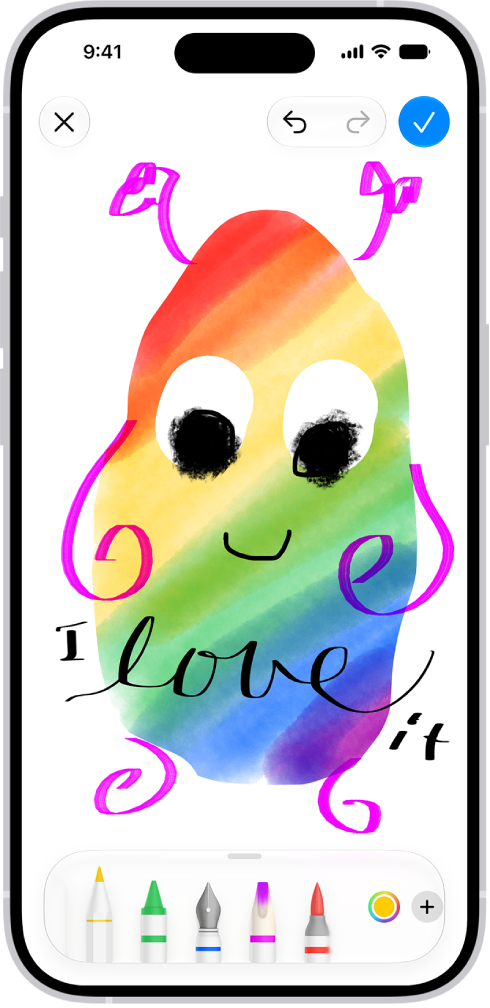
    The canvas for drawing in Messages.

To draw on a black background, you’ll use Digital Touch, described below.

Create and send original images

To create images directly in the Messages app, use Apple Intelligence with Image Playground.

Note: Apple Intelligence on iOS 27 or later is available on an Apple Intelligence-enabled iPhone 15 Pro, iPhone 15 Pro Max, or iPhone 16 model or later. Apple Intelligence is not available in all languages or regions. Usage limits may apply.*

  1. Open the Messages app on your iPhone.
  2. Start a new message or open a conversation.
  3. Tap the Add button, then tap Image Playground.
  4. Do one of the following:
    • Create a new image: Tap Create at the top, follow instructions to create an image. Tap the Done button.
    • Select an image you previously created: Tap Gallery at the top and select your image. Tap the Done button.
  5. Tap the Send button to send your image.

Screen Time settings include a way to block access to image creation features, like Image Playground.

Send a Digital Touch gesture, animation, or effect

With Digital Touch, you can send animated sketches, taps, kisses, heartbeats, and more, on their own or as an effect on a photo or video. You need iMessage to use Digital Touch.

  1. Open the Messages app on your iPhone.
  2. In a conversation, tap the Add button.
  3. Swipe up, tap Digital Touch, and then do one of the following:

    • Send an animated gesture: Tap or touch and hold with one or two fingers.

      Your gesture is sent automatically when you finish it. Touch and hold the color dot to choose a color for the one-finger taps.

      Note: If you have Apple Watch or another sensor that records heartbeat data, Messages may use the recorded data when you touch and hold with two fingers to send a heartbeat.

    • Send an animated drawing: Draw with one finger.

      You can change the color, then start drawing again.

    • Add an effect to a new image: Tap the Camera button. Then tap the Take Picture button to take a photo or the Record Video button to record a video.

      To take a new photo or video, or to erase anything you draw on your preview, tap the Back to Preview button.

  4. Tap the Send button to send your drawing or image, or tap the Close button to delete it.

*Apple Intelligence is available with Siri and device language set to Chinese (Simplified), Chinese (Traditional), Danish, Dutch, English, French, German, Italian, Japanese, Korean, Norwegian, Portuguese, Spanish, Swedish, Turkish, or Vietnamese. Some features may not be available in all regions or languages. Some devices may not be available in all regions. Siri AI is available in beta in iOS 27, iPadOS 27, macOS 27, watchOS 27, and visionOS 27 and requires an Apple Intelligence–enabled device set to a supported language. Available in English to start. Siri AI will not be initially available in the EU on iOS, iPadOS, and watchOS. Certain Apple Intelligence features that rely on server-side models are subject to daily usage limits, including but not limited to Siri AI, Intelligent Photo Editing Tools, Image Playground, and AFM 3 Cloud models in Shortcuts. Daily limits may vary by feature, request complexity, system demand, system policies, and other factors. Expanded access to such features will be available for a fee in the future. Use of these features is subject to the Apple Intelligence Terms and Conditions.
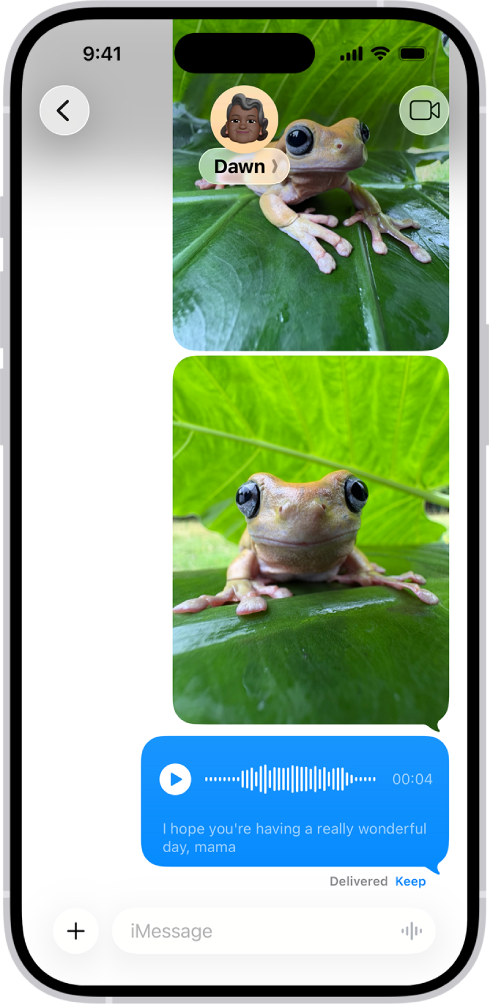
You can record and send audio messages, along with transcripts of what’s said in the message. Audio messages are automatically deleted to save space on your iPhone, but if you want to save them, you can.

With Raise to Listen, you can play and reply to an audio message just by moving your iPhone. It’s quick. You can also listen to or reply to a recorded audio message, and switch to FaceTime from Messages.

Note: Audio message transcription is available in select languages.

A Messages conversation with an audio message.

Record and send an audio message

Instead of writing a text message, record an audio message, which can be played right in the Messages conversation.

  1. Start the Messages app on your iPhone.
  2. In a conversation, tap the Add button.
  3. Tap Audio, then begin speaking.
  4. Tap the Stop button to pause or end your recording. Then do any of the following to your message:

    • Send it: Tap the Send button.
    • Listen to review it: Tap the Play button.
    • Add to the end of it: Tap the Continue Recording button (with the message duration).
    • Cancel it: Tap the Close button.
  5. Tap Keep to save an incoming or outgoing audio message on your iPhone.

    Otherwise, the recording is deleted from the conversation—on your iPhone only—2 minutes after you send or listen to it. Recipients can play your recording any time after they receive it. To save it, they need to tap Keep within 2 minutes after listening to it.

Quick tip: For quicker follow-up audio messages, touch and hold the Record Audio button in the text field.

Audio messages are transcribed automatically in the language set in the sender’s Settings.

Always keep audio messages

  1. Start the Settings app on your iPhone.
  2. Tap Apps, then tap Messages.
  3. Tap Expire (below Audio Messages) and tap Never.

Listen to or reply to a recorded audio message

  1. Start the Messages app on your iPhone.
  2. Open a conversation with an audio message and tap the Play button to play it.
  3. Do any of the following:
    • Slide right and left on the audio message to fast-forward or rewind.
    • Touch and hold the Play button or the Pause button to adjust the playback speed.
  4. Tap Keep to save an audio message in the conversation.

To save the message in the Voice Memos app , touch and hold the audio message, then tap Save to Voice Memos.

Use Raise to Listen

When you receive an audio message, moving your iPhone lets you play and reply to it. Do either of these:

  • Play an audio message: Raise your iPhone to your ear.
  • Reply to an audio message: Lower your iPhone and raise it to your ear again, then speak after you hear a tone. Tap the Send button to send your reply.

Turn off Raise to Listen

You can turn the feature off if you’d rather audio messages didn’t play when you raise your iPhone to your ear.

  1. Start the Settings app on your iPhone.
  2. Tap Apps, then tap Messages.
  3. Turn off Raise to Listen.

Switch to FaceTime from Messages

You can quickly make an audio or video call instead of sending a message by switching to FaceTime. In a Messages conversation, tap the FaceTime button.

You can design your own personalized Memoji: choose skin tone, glasses, body, and more. You can create multiple Memoji to use in different contexts, and each one automatically generates a range of poses and expressions.

On supported models, you can send animated Memoji messages that record your voice and mirror your facial expressions. And if you want a new Memoji that’s only slightly different from one you already have, you can duplicate it and edit the copy.

Create Memoji

  1. Start the Messages app on your iPhone.
  2. In a conversation, tap the Add button.
  3. Tap Memoji. (You may have to swipe up.)
  4. Tap the Add Memoji button.

    Tip: To make a new Memoji whose outfit or appearance differs slightly from one you already have, tap to select it, tap the Edit button, then tap Duplicate.

  5. Tap each feature (Skin, Hairstyle, and others to the right) and choose the options you want.
  6. Tap the Done button to save the Memoji to your collection.

Send animated Memoji or Memoji recordings

If you have a supported model, you can send Memoji messages that mirror your facial expressions and record your voice.

  1. Start the Messages app on your iPhone.
  2. In a conversation, tap the Add button.
  3. Tap Memoji, then swipe and tap to choose a Memoji.
  4. Tap the Record button to record your facial expressions and voice and tap the Stop button to stop.

    Tap Replay to review your message.

  5. Tap the Send Recording button to send your message or the Discard Recording button to cancel.

Memoji can also capture your movements, facial expressions, and voice when you use video effects in a video call.

You can express yourself in the messages you send by formatting and animating text, or by adding effects to message bubbles or the entire screen. You can also search #images to find trending GIFs to send, and save GIFs others send to you (not available in all countries or regions).

Bold, italics, and underlining can format your text, and playful effects like explode or shake can go on a single word, emoji, sentence, or your entire message. Bubble and screen effects play when your recipient gets your message.

Note: You and your recipients must use iMessage to send and receive messages with formatting or effects. To see text formatting and text effects, recipients also need a device with iOS 18, iPadOS 18, macOS 15, watchOS 11, or visionOS 2 or later. If they don’t have one, your messages appear in plain text.

Format and animate words

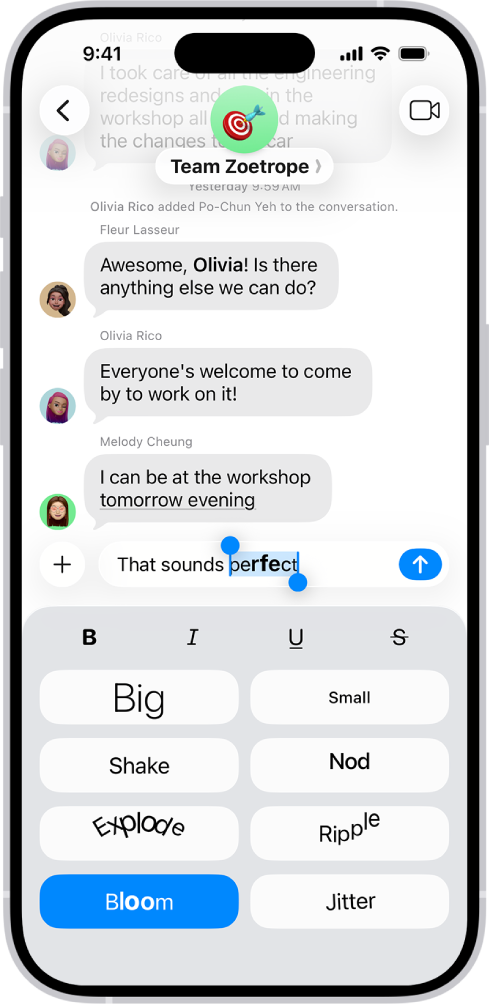
In texts you send using iMessage, you can format the text in your messages with bold, italics, and underlining. You can also add playful effects like explode or shake to any sentence, word, or letter, and even to emoji.

A Messages conversation with a new message selected in the text field, and formatting and effects options shown below it. The selected text appears with a preview of the effect.

  1. Open the Messages app on your iPhone.
  2. In a conversation, enter a message and then select the text you want to format or animate.
  3. Tap the Text Format button above the keyboard and then select your preferred formatting (bold, italic, underline, or strikethrough) or text effect (big, small, shake, nod, explode, ripple, bloom, or jitter).
  4. Tap the Send button.

You can format or apply effects to a single word, emoji, single word, sentence, or your entire message. Tap the Text Format button before entering the text you want to format or apply effects to.

Add effects to the message bubble or the full screen

Add special effects that play when your recipient gets your message, such as these:

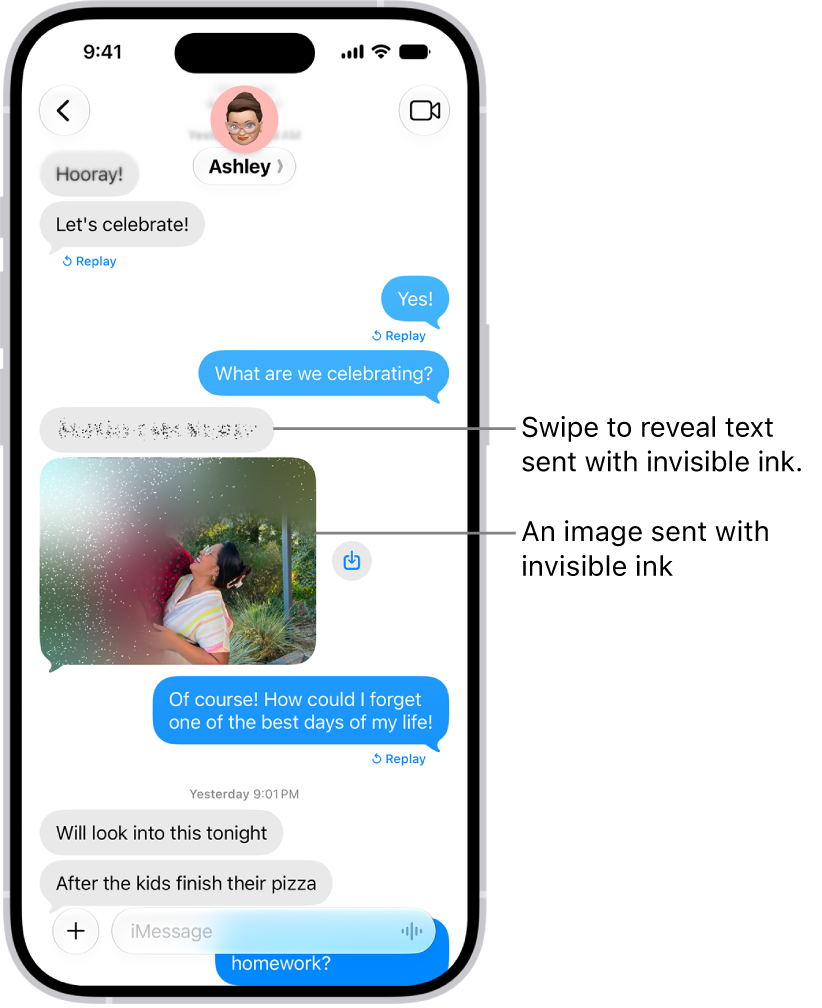
  • Bubble effects that change how the message appears—Slam or Loud make it pop out, Gentle makes it arrive softly, and Invisible Ink blurs the bubble until your recipient swipes to reveal it
  • Full-screen animations like fireworks, balloons, confetti, lively lasers, a moving spotlight, or the echo effect, which fills the conversation with copies of your message bubble

A conversation in Messages including a text message and a photo sent with the Invisible Ink effect.

  1. Open the Messages app on your iPhone.
  2. In a conversation, enter a message or insert an image or link.
  3. Touch and hold the Send button and then do one of the following:
    • Tap a gray dot to preview a bubble effect.
    • Tap Screen, then swipe left to preview different screen effects.
  4. Tap the Send button to send the message with the effect or the Close button to cancel the effect and return to your message.

Messages automatically uses the following screen effects for specific text strings:

  • Balloons for “Happy birthday”
  • Confetti for “Congratulations”
  • Fireworks for “Happy New Year”

Add an animated GIF

  1. Open the Messages app on your iPhone.
  2. In a conversation, tap the Add button and then tap #images. (You may have to swipe up.)
  3. To search for a specific GIF, tap “Find images,” enter a keyword (like “birthday”). Then tap a suggestion or tap the Search key on the keyboard.
  4. Tap a GIF to add it to your message. Then tap the Send button.

To save a GIF that you receive in a message to the Photos app so you can use it again later, touch and hold the GIF, then tap Save.

Note: Only the Messages app on Apple devices animates GIFs from #images.

If it’s too late at night or too important to forget, you can schedule a text message to be sent at a later time.

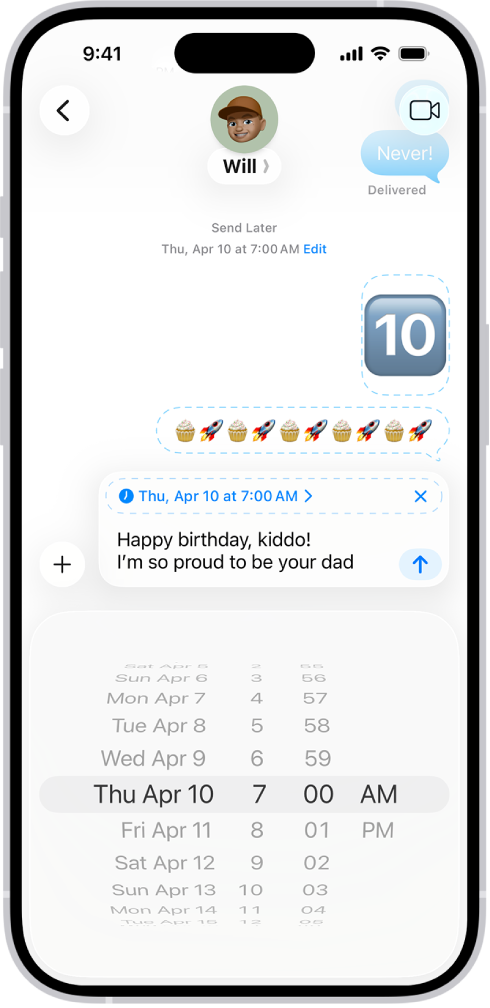
Messages can be scheduled as far as 14 days ahead, and your recipient won’t know the message was scheduled. It shows a dashed line until it’s time to send, and it’s delivered even if all your devices are offline. You can also change the send time, edit the message, or delete it.

Note: Scheduling requires iMessage, but your recipient can use any device, and they won’t know the message was scheduled. To reschedule, edit, or delete a scheduled message, you need to be online.

A Messages conversation with messages scheduled to be sent later.

Schedule a message

You can schedule a message up to 14 days into the future.

  1. Open the Messages app on your iPhone.
  2. Go to the conversation where you want to schedule a message or start a conversation.
  3. Tap the Add button, then tap Send Later.
  4. Tap the time to open the scheduler and then choose when you want to send your message.

    The border of the text field turns into a dashed line, and the time your message will be sent appears at the top of the message.

  5. Enter a message, then tap the Send button.

    The message appears with a dashed line until it’s time to send it, and it’s delivered even if all your devices are offline.

Note: Scheduled messages are encrypted and stored on Apple servers only until they’re sent. When a message is sent, it’s removed from Apple servers, the balloon becomes a solid color, and its dashed line disappears.

Edit, delete, or reschedule a scheduled message

Before its delivery time, you can edit, delete, or reschedule a message at any time, or send it immediately.

  1. Open the Messages app on your iPhone.
  2. Go to the conversation with the scheduled message you want to edit.

    If you don’t see your message, scroll down to the bottom of the conversation. Scheduled messages may appear below sent messages.

  3. Do any of the following:

    • Edit it: Touch and hold the message bubble, tap Edit, make any changes, and tap the Send Edit button to resend with edits or the Cancel Edit button to revert.
    • Delete it: Touch and hold the message bubble, then tap Delete. When you delete a message before its scheduled time, it’s canceled and not delivered to the recipient.
    • Reschedule it: Tap Edit beside the date (above your scheduled message), tap Edit Time, choose a new time, and then tap away from the schedule to commit the new time.
    • Send it immediately: Tap Edit beside the date (above your scheduled message). Tap Send Message.

You can use read receipts to automatically let someone know when you’ve seen their text messages. When read receipts are turned on, the sender sees the word “Read” below messages they’ve sent to you. If you haven’t read their message, the sender sees “Delivered.”

You can turn on read receipts for everyone or for individual contacts. You can also get read receipts when someone else sees your messages, and turn read receipts off again for one person or for everyone.

Turn on read receipts

Turning on read receipts lets everyone know when you’ve opened their messages.

  1. Start the Settings app on your iPhone.
  2. Tap Apps, then tap Messages.
  3. Turn on Send Read Receipts.

Note: Turned off read receipts for a particular contact? You’ll have to switch the setting back on for that one contact individually. (The steps are in Turn on read receipts for one person, below.)

Turn off read receipts

To keep others from knowing you’ve opened their messages, turn off read receipts.

  1. Start the Settings app on your iPhone.
  2. Tap Apps, then tap Messages.
  3. Turn off Send Read Receipts.

Note: This only changes conversations with contacts whose read receipts you never turned on individually. (For a single contact, see Turn off read receipts for one person, below.)

Turn on read receipts for one person

Even if you turned off read receipts generally, you can turn on read receipts in a conversation so that one recipient knows when you’ve seen their incoming messages.

  1. Start the Messages app on your iPhone.
  2. Tap a conversation, then tap the contact icon at the top of the conversation.
  3. Turn on Send Read Receipts.

Turn off read receipts for one person

Turned on read receipts for an individual and want them to stop getting read receipts? You can switch the setting off for only that contact.

  1. Start the Messages app on your iPhone.
  2. Tap a conversation, then tap the contact icon at the top of the conversation.
  3. Turn off Send Read Receipts.

Get read receipts when someone else sees your messages

You can only turn on read receipts for yourself. If you’d like read receipts when your messages are opened, the recipient needs to turn them on, as covered in Turn on read receipts for one person, above.

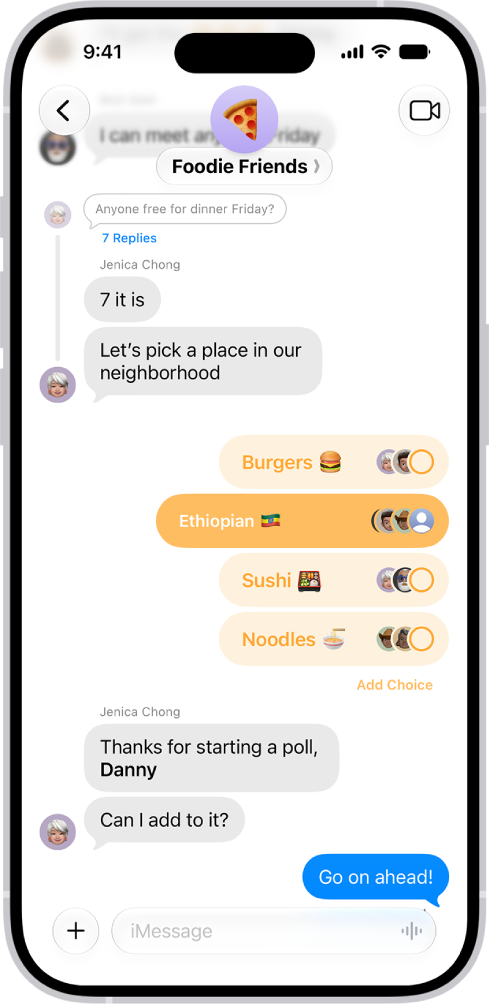
You can send a poll in any iMessage conversation to decide what to eat, which movie to see, where to travel, when to meet, and more. Everyone in the conversation can contribute options and watch as votes come in.

You start one from the Add button in a conversation, and with Apple Intelligence, you can even create a suggested poll quickly. You can also add an option to a poll, vote, and check on the results of a poll.

Note: Starting, seeing, or voting in a poll requires iMessage on iOS 26, iPadOS 26, macOS 26, watchOS 26, or visionOS 26 or later. Anyone who can’t see it gets a message saying a poll was sent to the group.

In a Messages conversation, a poll shows options and vote tallies in horizontal bars and.

Start a poll

  1. Start the Messages app on your iPhone.
  2. In a conversation, tap the Add button, then tap Polls.
  3. Tap each row to add options.

    A poll can have up to 12 options.

  4. Tap the Send button.

Quickly create a suggested poll with Apple Intelligence

  1. Start the Messages app on your iPhone.
  2. Open a conversation or start a new message.
  3. Mention several options in the conversation.
  4. When Apple Intelligence detects that a poll might come in handy, the Create a Poll button appears—tap it to create the suggested poll.

    Tap the Send button to send the poll to everyone in the conversation who can participate in the poll. Those who can’t participate receive a message that you sent a poll.

Note: Apple Intelligence on iOS 27 or later is available on an Apple Intelligence-enabled iPhone 15 Pro, iPhone 15 Pro Max, or iPhone 16 model or later. Apple Intelligence is not available in all languages or regions. Usage limits may apply.*

Vote in a poll

  1. Start the Messages app on your iPhone.
  2. Open a conversation with a poll in it.
  3. Tap an option to add your vote.

    Tap again to remove your vote. You can vote for none or all of the options.

Add an option to a poll

Regardless of who started the poll, anyone participating in it can add other options.

  1. Start the Messages app on your iPhone.
  2. Open a conversation with a poll in it.
  3. Tap Add Choice, then enter another option.
  4. Tap the Send button to add the option to the poll.

Note: Options are added without any votes, so tap to vote for any option you add.

Check on the results of a poll

You can see who hasn’t voted yet, or how people voted.

  1. Start the Messages app on your iPhone.
  2. Open a conversation with a poll in it.
  3. Touch and hold the poll and tap Poll Details.

*Apple Intelligence is available with Siri and device language set to Chinese (Simplified), Chinese (Traditional), Danish, Dutch, English, French, German, Italian, Japanese, Korean, Norwegian, Portuguese, Spanish, Swedish, Turkish, or Vietnamese. Some features may not be available in all regions or languages. Some devices may not be available in all regions. Siri AI is available in beta in iOS 27, iPadOS 27, macOS 27, watchOS 27, and visionOS 27 and requires an Apple Intelligence–enabled device set to a supported language. Available in English to start. Siri AI will not be initially available in the EU on iOS, iPadOS, and watchOS. Certain Apple Intelligence features that rely on server-side models are subject to daily usage limits, including but not limited to Siri AI, Intelligent Photo Editing Tools, Image Playground, and AFM 3 Cloud models in Shortcuts. Daily limits may vary by feature, request complexity, system demand, system policies, and other factors. Expanded access to such features will be available for a fee in the future. Use of these features is subject to the Apple Intelligence Terms and Conditions.
Is your iPhone not notifying you of text messages after updating to iOS 26? You might not get new text notifications due to misconfigured settings or software bugs. Usually, the issue is temporary, and you can solve it with some quick, straightforward fixes.

If text messages are not showing up on your iPhone after iOS 26 update, your device isn’t displaying notifications for an incoming SMS or iMessage, or your locked iPhone doesn’t make a sound when you get a text message, look at these handy solutions to fix such issues.

1. Check Notification Settings for Messages

If you are not getting message notifications on your iPhone in iOS 26, first make sure the Messages app is configured to show texts notifications on the Lock Screen, Notification Center, and elsewhere.

To do this, follow these simple steps:

  1. Go to Settings ⇒ Notifications ⇒ Messages.
  2. Make sure the switch next to Allow Notifications is turned on.
  3. Under Alerts, check the boxes for Allow on Lock Screen, Allow in Notification Center, and Allow as Banner. Next, tap Sounds and choose a loud message tone.
  4. If you don’t see the actual message content on your iPhone Lock Screen, tap Show Previews and choose Always.

After following the above steps, new text messages via SMS and iMessage should show up on your iPhone and make a sound when the device is locked.

2. Ensure the Person Isn’t Muted

If you’re scratching your head wondering why your iPhone is not alerting you when you receive text messages from one person, you might have muted that person. Once you mute a person or group, your iPhone won’t alert you when they send you a new text or iMessage. Below, you’ll find out how to fix this:

  1. Launch the Messages app on your iPhone and go through your conversations.
  2. Swipe left on the conversation that has a gray slashed bell icon.
  3. Now, tap the bell icon to unmute this message thread and get alerts.

3. Check Sound Settings

  1. Go to Settings ⇒ Sounds & Haptics, then do the following:
    • Make sure Silent Mode is turned off if your iPhone has an Action button.
    • Drag the slider below Ringtone and Alerts towards the right to increase the sound volume.
    • Tap Text Tone and make sure None is not selected.

See also: No sound on iPhone after iOS 26 Update? How to Fix The Issue

4. Turn Off Focus

When your iPhone is in Focus mode like Do Not Disturb, it does not vibrate or play a sound for new texts. You can fix this by opening the iOS Control Center and ensuring the Focus icon doesn’t say Do Not Disturb. If it does, tap on it to toggle the feature off.

5. Force Quit the Messages App

Restarting the messages app can fix minor glitches preventing your iPhone from receiving text notifications. On your iPhone, slowly swipe up from the bottom to the middle of the screen and hold until you see the App Switcher. Now, swipe up on the Messages app card to force quit. Hopefully, this should get rid of minor glitches preventing the Messages app from receiving notification.

6. Ensure iMessage Is Enabled

If you are not receiving iMessage notifications on your iPhone, you should check if iMessage is enabled on your device. To do that, go to Settings ⇒ Apps ⇒ Messages and make sure iMessage is enabled.

Next, tap Send & Receive and check you have the correct phone number and email address selected. When you do this, you should start receiving iMessage notifications on your iPhone again.

7. Restart Your iPhone

Your iPhone might not be receiving text message alerts due to temporary software glitches. Usually, a quick restart fixes these issues.

To restart your iPhone, go to Settings ⇒ General ⇒ Shut Down. Drag the Slide to Power off slider from left to right. After a minute, turn on your iPhone by pressing the Side button until you see the Apple Logo.

8. Turn Off Screen Unknown Senders

iPhone users can screen messages from unknown senders. While this is off by default, you may have accidentally turned it on. If that’s the case, you could be missing text message notifications from numbers you haven’t saved on your phone. Additionally, if someone who isn’t in your contact list messages you, the Messages app will sort their text into a separate list and not notify you of it.

To fix this, go to Settings ⇒ Apps ⇒ Messages and turn off Screen Unknown Senders. While you are here, make sure Text Message Filter is set to None and Filter Spam is set to off.

9. Disconnect Bluetooth Devices

If you forget and leave Bluetooth buds or devices connected to your iPhone, the new text message sound may output via that instead of the on-device speaker. To fix this, go to Settings ⇒ Bluetooth and turn off Bluetooth. Alternatively, you can disconnect these devices from the iOS Control Center by tapping the Bluetooth icon.

10. Make Sure the Person Isn’t Blocked

After you block a person, they can’t call or text you. If your iPhone isn’t getting texts from a specific person, make sure they aren’t added (accidentally or on purpose) to the block list.

  1. Go to Settings ⇒ Apps ⇒ Messages.
  2. Tap on Blocked Contacts.
  3. If the person is listed here, swipe left on their name or number and tap Unblock.

11. Ensure Custom Text Tone Isn’t Set to “None”

Did you ever set “None” as the alert tone for a particular contact and forget about it? If yes, that is the reason why you are not receiving text messages alert sound on your iPhone. Here is how to assign a proper tone for new texts from that person:

  1. Tap the person’s name in the Contacts or Phone app.
  2. Tap Text Tone and choose a different alert tone instead of “None.” Tap on Done to save this change.

If you don’t see Text Tone in step 2, you probably didn’t set a custom text tone for this person. So, please move on to the next fix.

12. Enable “Notify Me”

Were you receiving too many group iMessage notifications that you muted the conversation when you were in a bad mood? If yes, go to Settings ⇒ Apps ⇒ Messages and turn on Notify Me under Mentions. Now, you’ll receive notifications only when someone mentions you in a muted conversation. This way, you can limit unnecessary text notifications and still be aware of those where you’re mentioned specially.

13. Disable Text Message Forwarding

When you choose to receive texts on your Mac or iPad, at times, new text notifications may not show on your iPhone. To fix this, go to Settings ⇒ Apps ⇒ Messages ⇒ Text Message Forwarding and turn it off for your other Apple devices.

14. Are You Using an Apple Watch?

If you have enabled text notifications on your Apple Watch, it may not show them on your iPhone or play the tone. To fix this, make sure your iPhone and Apple Watch are running the latest versions of iOS and watchOS, respectively. Then, turn off text notifications on the Apple Watch from the Watch app on your iPhone.

15. Have You Opened the Messages App on Your Mac?

If you keep the Messages app open on your Mac, new messages may appear there, and your iPhone might not play the text notification sound for them. To fix this, quit the Messages app on your Mac. Or, you may use it there if you’re already working on your computer.

16. Other Solutions

If your iPhone is still not alerting you to text messages on iOS 26, don’t worry—hope isn’t lost yet.

The first thing you can do is make sure that your mobile plan allows you to receive text messages. Make sure your cellular plan is active and that you have no pending bills.

If you think that an iOS 26 bug is causing your iPhone not to receive text message notifications, you may need to update iOS. You can do that by going to Settings ⇒ General ⇒ Software Update. At times, bugs like failing text notifications are fixed by installing the newest iOS update.

Not Getting Message Notifications on iPhone in iOS 26? Let’s Fix That!

Not getting text messages notifications on your iPhone after updating to iOS 26 is annoying, but you should start receiving notifications again after trying the above solutions.

See also: How to fix notifications not showing up after iOS 26 update!

  • If your iPhone won’t send pictures to Android after iOS 26 update, ensure you’ve configured your phone’s settings correctly to avoid issues.
  • Double-check the recipient’s number for typos and make sure you’ve enabled SMS before texting an Android user.
  • Enable MMS Messaging in your iPhone’s settings to send messages over your carrier. Note that some carriers may not support MMS.

You’re trying to send pictures to an Android user from your iPhone, but they won’t go through. A simple typo in the recipient’s number or a disabled setting might be the culprit. If you started experiencing this problem after iOS 26 update, there are steps you can take to fix the issue. In this article, I’ll explain why your iPhone won’t send pictures to Android after iOS 26 update and how to diagnose and fix the problem for good.

Please note, this article focuses on sending pictures to android through the native Messages app for iPhone.

1. Make Sure You’r Texting The Correct Phone Number

If you’re trying to send a picture using your iPhone to an Android user, but they aren’t receiving it, the first thing you should do is make sure that you are texting the right number.

Often, many people tend to ignore small mistakes like this, and mistyping a digit or two of a phone number could be the reason your message isn’t getting delivered.

Confirm the recipient’s phone number to ensure you have the correct contact details. If the contact number is correct, the recipient might have blocked your phone number.

2. Restart the Messages App

A simpler solution would be to force quit and restart the Messages app if it has been operating in the background.

Here’s how to do it:

  1. Swipe up and hold to reveal the background app on your iPhone’s Home Screen.
  2. Look for the Messages app and swipe up to force close the app.

This solution will refresh the app and relaunch it.

3. Make Sure MMS Messaging Is Turned On

If MMS is turned off on your iPhone, regular text messages (SMS) will still go through, but pictures will not. To make sure MMS is turned on, go to Settings -> Apps -> Messages and make sure the switch next to MMS Messaging is turned on.

If you don’t see the MMS Messaging option in the Settings menu, it might be because your carrier doesn’t support it. However, if you’ve enabled the option, return to the Messages app and try resending the image. Next, ask the recipient to check if their carrier supports MMS messaging on their Android device.

4. Enable Send as SMS

Using the Messages app, you can send a text, photo, or video to another iPhone user via iMessage. However, if you want to send anything to an Android user, you need to enable the Send as SMS. To make sure Send as SMS is turned on, go to Settings -> Apps -> Messages and make sure the switch next to Send as SMS is turned on.

After this, return to the conversation and try sending the image again.

5. Check For A Carrier Settings Update

Apple and your wireless carrier routinely push carrier settings updates to help improve your iPhone’s connection to your carrier’s network. Your iPhone could experience cellular issues if the carrier settings aren’t up to date.

A pop-up typically appears on the screen when a carrier settings update is available. If you see the pop-up on your iPhone, tap Update.

You can manually check for a carrier settings update by opening Settings and tapping General -> About. A pop-up will appear here in about ten seconds if a carrier settings update is available. Tap Update. Please make sure that your iPhone is connected to the Internet before checking for carrier settings update.

If you don’t get an update pop-up, that means you’re using the latest carrier settings. After this, go back to the Messages app and check if you can send the message.

6. Update Your iPhone

Software updates are essential for your iPhone, as it brings new features and bug fixes to enhance your experience. Apple regularly rolls out software updates for iPhones to introduce new features, improve performance, and keep things in check. It’s possible Apple has already released a new iOS 26 update to fix the problem you are experiencing. Go to Settings -> General -> Software Update. If a new iOS 26 update is available, tap Update Now and follow the onscreen instructions.

7. Restart Your iPhone

Restarting your iPhone is the most effective and quickest way to fix most software issues you might be facing on your iPhone. Therefore, turn your iPhone off and back on, and then check if you can send the image in Messages. This is also one of the best fixes for when iMessage doesn’t deliver your texts.

8. Reset Network Settings

An inadvertent change in the Settings app can cause connection problems that can be tricky to diagnose, but there’s a good way to fix them all at once. Reset Network Settings is a great way to reset just those settings that affect the way your iPhone connects to wireless network, without affecting any of your personal information. You will have to reconnect to your Wi-Fi network again, so make sure you know the password before completing this step.

To reset the network settings on your iPhone, go to Settings -> General -> Transfer or Reset iPhone -> Reset -> Reset Network Settings, enter your passcode, and tap Reset Network Settings. Try sending another test message after your iPhone reboots to see if the problem was resolved.

All the potential solutions discussed here should help you send images from your iOS 26 device to an Android user using the Messages app. If you still cannot send it for some reason, contact Apple Support for further help. Also, don’t hesitate to reach out to your carrier and check if you’re on a plan that supports MMS.

See also: How to Fix iPhone Not Sending Texts to Android After iOS 26 Update

  • If your iPhone is not sending messages after iOS26 update, first make sure your phone has service, as the issue may be with the Wi-Fi or cellular network, not your device itself.
  • Check in your iPhone’s Settings app that various messaging options are turned on so that your phone can dispatch texts if iMessage fails.
  • Turning your iPhone off and back on again can usually refresh the software and restore better signal connections, enabling your messages to send once again.

There are few sadder phrases than those two little red words your iPhone displays when a message fails to send: “Not Delivered.” Those words, along with that exclamation point in a circle, mean your charming photo or witty comment didn’t go through.

Fortunately, as in life, with the iPhone: the simplest answer is usually the correct one. If your iPhone is not sending messages after iOS 26 update, first make sure you have a connection to either a Wi-Fi or cellular network, and make sure your phone is not set to Airplane Mode.

How to troubleshoot your iPhone if it isn’t sending messages after iOS 26 update

Try these fixes to get your iPhone messages sending smoothly again.

But, before you start troubleshooting your iOS 26 messages issue, try just tapping that exclamation point beside your failed message and then tap “Try Again.”

Check your network connection

SMS and MMS messages send in green iPhone text bubbles, while iMessages send in blue iPhone text bubbles. SMS and MMS require a cellphone network to send a text, and iMessage requires an internet connection through data or Wi-Fi. Be sure you are sending the right type of message.

Sometimes bad weather, internet hackers, or a rural location can affect your service connection. One simple way to check if your cell signal is bad is by looking at the number of network bars in the top-right of your iPhone’s status bar, next to the battery icon. Less filled bars mean poor connection. If you see “Searching,” “No Service,” or “SOS,”that means you don’t have a signal.

Try moving to an area with better reception if it’s weak or nonexistent. If you’re in an area that usually has a good signal, contact your mobile network operator.

Make sure you are not in Airplane Mode

Airplane Mode prevents your iPhone from sending and receiving cellular signals. Unless you’re connected to a Wi-Fi network, you won’t be able to send or receive text messages via iMessage when you enable Airplane mode.

And even then, you can’t send or receive SMS and MMS messages since they rely on cellular signals. Because of this, you should make sure that you’ve turned off Airplane Mode before trying to send text messages.

You can do this by opening your iPhone’s Control Center and tapping the Airplane toggle in the top left. This symbol is grayed out whenever Airplane Mode is off. As a bonus, sometimes toggling Airplane Mode on and off can clear up temporary signal hiccups, too.

Check your iPhone’s Messages settings

When you message another contact with an Apple device, your iPhone sends it via iMessage by default.

Because iMessage texts sometimes fail to send, your iPhone might instead try sending SMS (Short Message Service) messages, even to other iPhone users. However, you need to switch this feature on in Settings for it to work.

In the Settings app, scroll to and tap Apps. Scroll to and tap Messages, then make sure the switches next to iMessage and Send as SMS are toggled on (to green).

See also: How to Fix iMessage Not Working on iPhone After iOS 26 Update

If your iPhone won’t Send picture messages after iOS 26 update, make sure the switch next to MMS Messaging is turned on (to green).

Make sure your Mobile Plan is active

If your iPhone won’t send text messages on iOS 26, you should check whether you currently have an active mobile service plan. If you don’t have one, you won’t be able to send texts.

While the vast majority of phone plans offer standard unlimited texting, you might have exceeded your monthly limit of text messages if you have a limited plan.

In either case, you should contact your network provider to ensure there are no issues with your account services.

Make sure you are texting the correct phone number

Sending text messages to inactive or unused numbers is a recipe for failure and frustration. Confirm that you are texting the right number. If you entered the number wrong or the intended recipient now has a new number, you may be prevented from sending the text. So take your time when entering numbers.

If you continue to have trouble, contact your intended recipient by other means to confirm the number.

This last point is important. Sometimes, your contacts may change their numbers, or their mobile operator may disconnect them. The issue may be with someone else’s phone and not yours.

Restart the Messages app

If your iPhone still can’t send text messages on iOS 26, try closing the Messages app and opening it again. Sometimes applications get lost or stuck trying to perform a certain action—like sending a text. Often, refreshing the app can clear out the action, allowing the app to once again function properly.

Swipe up from the very bottom of the screen to the middle of the screen to open the app switcher. Once the app switcher is open, swipe the Messages app up and off the top of the screen. Now open the messages app and see if you can send messages successfully. If messages can’t send, move onto the next solution.

Restart your iPhone

If you’ve tried all of the above, you can restart your iPhone next. Restarts clear temporary memory, so they can be a good way of removing any iOS 26 issues affecting how your iPhone works.

To restart your iPhone, hold down the Side button on the right side and one of the volume buttons on the left side. When the power slider appears, drag it to power down. When you turn it back on, it may well be able to send messages again.

Update iOS

You should always keep your iPhone updated with the latest version of iOS. New iOS 26 update can iron out software issues and bugs. So if your iPhone still can’t send text messages, it’s a good idea to update your device to the latest iOS 26 update.

To update, you need to have your iPhone connected to a Wi-Fi network and a power source. You should then do the following:

  1. Head to Settings, tap “General,” then tap Software Update.
  2. You’ll see a Update Now button if a new iOS 26 update is available. Select it to download the latest version and install it on your iPhone.

If your iPhone says, “iOS is up to date,” you have the latest version installed and don’t need to do anything else.

Reset your network settings

Resetting your network settings is a last-ditch attempt before seeking help from your carrier or Apple, but it might be your last chance for getting those messages out.

  1. Head to Settings, tap “General,” then tap “Transfer or Reset iPhone.”
  2. Tap “Reset”, then select “Reset Network Settings.”

Contact your carrier or Apple

If your iOS 26 device still won’t send SMS messages after all this, your last option is to contact your carrier or Apple. First, try calling the customer service line. If they can’t help you, it’s likely a hardware issue, and you should contact Apple or an authorized service provider for expert assistance.

Depending on your location, you can book an Apple Store appointment at a Genius Bar. You may have to eventually replace the iPhone, but that should be the last case scenario.

Fix Your iPhone Messaging Issues

Unfortunately, it can take a little bit of time to figure out exactly what the source of your iOS 26 texting issues may be. However, if you’re patient and willing to try a couple of different techniques, you should have no problem getting your iPhone working again.

If you’ve tried everything we listed above but still can’t send text messages on iOS 26, it may be time to get another phone.

See also: How to Fix iPhone Not Receiving Texts After iOS 26 Update