Got a tip for us?

Messages

If your iPhone isn’t receiving text messages after updating to iOS 26, it can feel like a big problem. After all, you could be missing out on something important. With most people communicating by text nowadays, not getting a text can be a big deal. If you’ve missed out on a text before, you know exactly what this feels like.

There are many reasons why your iPhone might not be receiving text messages on iOS 26—from software bugs, to incorrect settings, to poor internet connection. So, try the troubleshooting steps below, and you’ll receive texts again in no time!

1. Make Sure Messaging Is Enabled

There’s a chance iMessage was disabled during iOS 26 update. If this is the case, you won’t receive texts from other iPhones. To turn this on, head to Settings > Apps > Messages and turn on the switch next to iMessage.

See also: How to Fix iMessage Not Working on iPhone After iOS 26 Update

Below iMessage, tap Send & Receive. There, you’ll see a list of numbers and email addresses under the heading “You can receive iMessages to and reply from.” You can then select which ones you want to use with iMessage. Tap to go back to main Messages settings. Make sure both MMS Messaging and Group Messaging are enabled. If you scroll down, you will see the options for these.

Sometimes, certain emojis will be sent as an MMS message. If you have this off, you won’t receive the text. There are also cases where someone might tag another person in the text and make it a group text. If this option was off, you wouldn’t have received that text either.

If you’re receiving messages from other iPhones but not Android phones, this could be the reason. If that still doesn’t help, but you are receiving iMessage texts, you can learn more about what to do if you’re not receiving texts from Android after iOS 26 update.

2. Edit Send & Receive Settings

If your iPhone isn’t receiving picture messages after iOS 26 update, or if you’re having an issue with iMessage, there is a simple solution. The solution is to edit your Send & Receive settings to include your email.

To do this, open Settings, scroll down and tap Apps. Scroll down again and tap Messages. Tap Send & Receive, and select your Apple account email address. This will allow you to send or receive messages over the internet using this email address.

Some people might be sending you messages to your email address unknowingly, so changing this particular setting will make it possible to receive these messages.

3. Make Sure You Have Cellular or Wi-Fi for iMessage

If you are waiting for an iMessage from another iPhone user and aren’t getting it on your iPhone, you could have a bad internet connection. iMessage requires Wi-Fi or cellular data to work.

If you have cellular data turned off or aren’t connected to Wi-Fi, you won’t receive iMessage texts on your iPhone. Also, if you are getting texts from some people and not others, you might be having issues with iMessage in general.

To solve this issue, reconnect to Wi-Fi or cellular data. And if you don’t have a good connection, you can try the next step.

4. Turn Off Screen Unknown senders

In iOS 26, you can screen messages from unknown senders. While this is off by default, you may have accidentally turned it on. If that’s the case, you could be missing text messages from numbers you don’t have saved on your iPhone.

To resolve this, turn off Screen Unknown Senders on your iPhone. You can do this by heading to Settings > Apps > Messages and disabling Screen Unknown Senders. You should start receiving text messages again if it was enabled all this time.

Once you turn it off, head to the Messages app to find any unread messages that the message screening feature hid. Messages from unknown senders are not deleted. Instead, they get stored in another folder. Once you turn off Screen Unknown Senders, you’ll see them in the Messages app.

5. Check for a Carrier Settings Update

Not many people know this, but your carrier settings sometimes need updating. This doesn’t happen often, but when it does, it means that updating it will fix many carrier problems. This includes not getting SMS on your iPhone.

Thankfully, updating your carrier settings is easy. Make sure your iPhone is connected to the Internet, then head to Settings > General > About to view your carrier settings. Wait for a few seconds; if your carrier requests an update, you’ll get a pop-up to install a carrier settings update.

It’s important to note that you should be careful with your carrier settings. This page contains information that should be kept private to avoid it getting into the wrong hands. Only share this information with your carrier or Apple.

6. Reset Your Network Settings

Sometimes, third-party apps, updates, and bugs can cause your network settings to malfunction. If this happens, you might not receive iMessages or text messages on your iOS 26 device.

Before proceeding to more time-consuming fixes, you should try resetting your network settings. Some users reported that this does fix many issues related to your iPhone not receiving texts.

To do this, head to Settings > General > Transfer or Reset iPhone > Reset > Reset Network Settings.

After resetting your network settings, get someone to send you another text message. If you still can’t receive it, you can always try resetting your iPhone entirely. However, that is time-consuming and might not work.

7. Make Sure Your iPhone Is Updated

While the previous solutions usually fix an iPhone when it’s not receiving messages, there are some instances where there might be a problem with the iOS 26. To fix this, you would just need to update your iPhone. Apple may have already fixed the problem you are experiencing with the latest iOS 26 update.

To check for an update or confirm that you’re on the latest iOS 26 version available, head to Settings > General > Software Update. If you have an available update, you can download and install it from here.

8. Contact Your Carrier

If you tried the above fixes and still aren’t receiving text messages on iOS 26, it’s time to reach out to your carrier. After all, there are many other ways your carrier can help you. For example, there could be a cell tower outage near you that they can inform you of, or you could have an issue with your account.

If you pay your carrier for service and aren’t receiving text messages on your iPhone, the carrier is responsible for restoring your text messaging. The carrier can verify your plan, check for outages, and try resetting your account if necessary. If you are using a physical SIM card, you may also want to consider trying a new SIM card and see if that helps.

When calling your carrier, just let them know you aren’t receiving text messages. If the carrier can’t help you, consider switching to a different network provider unless you have a carrier-locked phone.

iPhone Not Receiving Texts on iOS 26? There Are Things You Can Do

You could miss important events or updates if you’re not receiving text messages on your iPhone. This can be difficult for anybody. Because of this, you’ll want to get this fixed as soon as possible. After all, you might have already missed some important messages and don’t want to miss them anymore.

Luckily, there are several things you can try before contacting your carrier. Sometimes, a simple setting can change whether you receive messages. There are also cases when resetting your network settings fixes your carrier issues, so you don’t need to call and wait.

No matter what the issue with your iPhone is, you have several steps to try, and hopefully, you can get it fixed and start receiving messages on your iOS 26 device again.

See also: How to Fix iPhone Not Sending Messages After iOS 26 Update
  • If your iPhone is not sending texts to Android after iOS 26 update, there are a number of ways to troubleshoot the problem.
  • Make sure that your iPhone is configured to send SMS and check that the Android’s phone number isn’t registered with Apple as an iPhone.
  • Here are ten ways to troubleshoot if your iPhone isn’t sending texts to Android after updating to iOS 26.

In theory, you should be able to send a text message from any mobile phone to any other mobile phone. But you can occasionally run into glitches, especially when crossing from iOS to Android. Sometimes, your iPhone might not be able to send texts to Android phones. If you can not send text messages from your iPhone to Android users after updating to iOS 26, there several ways to fix the problem. Here’s what you can do if you are unable to text an android user from your iPhone after iOS 26 update

Configure your iPhone to send SMS messages

If your iPhone won’t send texts to Android on iOS 26 but it can receive them, make sure your device is configured to send text messages. Open the Settings app and then tap Apps. Scroll down and tap Messages. About halfway down the page, turn on Send as SMS by swiping the button to the right.

Check Airplane mode

You might be having trouble texting an Android phone from your iPhone because there is something wrong with your cellular connection. Glitches happen, and toggling your iPhone’s cellular radio off and back on again can often resolve a temporary problem. Swipe down from the top right of the screen to see the Control Center, then tap Airplane mode. Wait a few seconds, then tap it again to re-enable the wireless networks.

Check Your Mobile Plan

If your iPhone won’t send messages to Android on iOS 26 but can receive them, you might need to check your mobile plan. To send text messages to Android numbers, you need an active mobile plan with sufficient credit or text plan.

Some plans may state they include unlimited texts, but the catch is that this feature may not apply to all types of phone numbers.

Therefore, check with your network to see if your mobile plan has expired or has insufficient credit. If this is the case, simply reload your account, switch to a more suitable plan if needed, and you should be able to start sending texts to Android users again.

See also: How to Fix iPhone Not Sending Pictures to Android After iOS 26 Update

Check Your Phone Signal

If you’re at a remote outdoor location, or if it’s raining or snowing in your area, you may experience poor cell reception. Check the cell signal icon in your status bar to find out if this is why your iPhone is not sending text to Android on iOS 26.

If you see Searching, No Service or SOS, you can try moving to another location to get a cell signal in order to send text messages. For example, if you’re in your bedroom, simply going to other areas in your house, such as the kitchen or garden, may get you the signal you need.

If the signal bars don’t appear in the status bar at all, or if the Searching, No Service, or SOS error doesn’t disappear from the status bar, visit your network provider’s website and look for a coverage map to find out if you’re supposed to get any signal in your current location.

Restart the iPhone

A common but effective fix for most tech issues is to simply reboot your device. This will clear out any temporary glitches not just in the wireless network software, but also the Messages app and various background services. Simply turn your iPhone off and back on, then try again.

Ask the Android owner to deregister iMessage

This problem can catch a lot of people off-guard. If the Android user previously had an iPhone and transferred the SIM card to an Android without changing the phone number, that phone number may still be registered as an iPhone in Apple’s database, and so iPhones try to send that phone iMessages rather than SMS texts. Android can’t process iMessages, so nothing arrives. The solution? Ask the Android user to deregister his or her phone number from Apple’s iMessage system.

Check for a Carrier Settings Update

Another solution is to check if your carrier provider has network-related updates. First, connect your iPhone to Wi-Fi or enable cellular data. Then, go to the Settings app. Select General and tap About.

If an update is available, you’ll see a Carrier Settings Update prompt. Tap Update to begin the installation.

Check for iOS updates

it’s possible Apple has already released a new iOS 26 update to fix this problem, so see if there are any updates that need to be installed. Start Settings on the iPhone, then tap General. Tap Software Update and install any pending iOS 26 update.

Reset your network settings

If you’ve tried all the other troubleshooting options in this list and one or more Android users aren’t getting your texts, you might need to reset your iPhone’s network settings. It’s a good idea to save this as a last resort, because this will erase all your network settings, including saved Wi-Fi network passwords and paired Bluetooth devices. But if you’re ready to try this fix, it might get your phone up and running again.

  1. Start the Settings app and tap General.
  2. Tap Transfer or Reset iPhone.
  3. Tap Reset.
  4. In the popup menu, tap Reset Network Settings and confirm this is what you want to do.

Contact Your Wireless Carrier

Unfortunately, when it comes to problems with your iPhone’s connection to your wireless carrier, you may need to contact them for help. Customer account issues and technical outages can cause text messages not to be delivered, and the only way to know for sure is to call and ask.

See also: How to Fix iPhone Not Receiving Texts From Android After iOS 26 Update

  • To fix an iPhone that is not receiving texts from Android phones after iOS 26 update, try toggling Airplane mode on and off.
  • You can also try checking your block list, enabling group and MMS messages, and deleting old texts.
  • Restarting your iPhone, updating it, and resetting your network settings can also fix the problem.

Ordinary SMS texting — which is what Android phones rely on — is not nearly as sophisticated as iMessage, which iPhone users rely on.

Even so, you should generally be able to exchange texts between iPhone and Android seamlessly — iPhones can receive SMS messages just as easily as Android.

But what if your iPhone is not receiving texts from Android after iOS 26 update? If this is happening to you, you’re not alone. Many iPhone owners have reported having this issue after upgrading to iOS 26.

Luckily, there are a few fixes to try that will get you receiving messages from Android phones again in no time.

Here’s what to do if your iPhone is not receiving text messages from android users on iOS 26:

Verify that your cellular connection is active and has decent signal strength

Because Android and iOS can only exchange texts via SMS, MMS, or RCS, you need a working cellular link. Disable Airplane Mode if you’re using it, and make sure that cellular data is enabled on your iPhone.

Toggle Airplane mode

The next thing you should do if your iPhone is not receiving texts from android on iOS 26 is to toggle Airplane mode. Often, just turning it on and back off again can solve myriad problems with wireless networks on your iPhone. Head to Settings and tap the button next to Airplane Mode to disable wireless networks on your iPhone. Wait a few seconds. Tap Airplane mode again to re-enable the wireless networks.

Make sure you’re not blocking the Android number

If you accidentally or intentionally block a number, you won’t receive texts from that person at all—no matter what type of phone they have.

To make sure you didn’t accidentally block the Android number by accident, you can check which numbers you’ve blocked. Head to Settings -> Apps -> Messages and tap Blocked Contacts. Here, you’ll see a list of the phone numbers you’ve blocked on your iPhone. Scroll through the list of blocked numbers and look for the Android user’s phone number. If you see it, swipe the number to the left and tap Unblock.

Ensure group messaging is enabled

While the ability to send and receive group messages among iPhones using iMessage is turned on by default, you might find that group texts using SMS isn’t enabled for your iPhone. Not a problem, though — you can enable it with a few taps.

Head to Settings -> Apps -> Messages and turn on Group Messaging by swiping the toggle button to the right.

Note: Also, make sure that you have enabled cellular data or that your iPhone is connected to Wi-Fi in order to receive MMS messages.

Configure your iPhone to receive MMS messages

Likewise, if you have trouble receiving texts from Android users with embedded photos or videos, MMS might be turned off. You can enable MMS in the same place as group messaging:

Head to Settings -> Apps -> Messages and turn on MMS Messaging by swiping the toggle button to the right.

Turn off Screen Unknown Senders

If you’ve enabled Screen Unknown Senders feature on your iPhone, all messages sent from unknown numbers are automatically be placed in a new folder called “Unknown Senders. To make sure you receive messages from Android numbers not in your contacts list, head to Settings -> Apps -> Messages. Scroll down to Unknown Senders, then turn off Screen Unknown Senders.

Once you turn off Screen Unknown Senders, try to get someone with an Android phone to send you another text message. If you receive it, then this was the issue, and you’re good to go. If not, try the next fix.

Delete old text messages

If you have too many text messages on your iPhone, you might miss additional messages due to inadequate storage. If you haven’t deleted text messages in a while or get low-storage notifications on your iPhone, deleting old messages can help.

To delete messages, head to the Messages app and tap Edit in the top left corner of the screen. Tap Select Messages, then tap on any text message that you don’t need – it will have a checkmark on the left to indicate that you have selected it. After you’re done selecting the messages you want to remove, tap Delete in the bottom right corner. In the pop-up, confirm your decision by tapping Delete.

Once you delete these messages, try to get someone with an Android phone to send you another text message. If you receive it, then this was the issue, and you’re good to go. If not, try the next fix.

Restart the iPhone

If you’ve tried everything up to this point in the article and you’re still not able to get Android texts on your iOS 26 device, you might want to restart your phone, if you haven’t already. This will fix temporary glitches in software and memory on your iPhone. To restart your iPhone, simultaneously press and hold either volume button and the side button until slide to power off appears on the display. Then, swipe the power icon left to right to turn off your iPhone. To turn your iPhone back on, press and hold the side button until the Apple logo appears.

Check For A Carrier Settings Update

Sometimes, our phone carriers send network updates to our iPhones. Most of the time, these update automatically. However, some instances, like a bad connection, can delay the update process. The irony here is that we need the update to have a better connection.

To update your carrier settings on your iPhone, connect your device to the Internet, then head to Settings -> General -> About. A pop-up will usually appear within ten seconds if a new carrier settings update is available. If it does, tap Update to install it.

Check for iOS updates

After checking for a carrier settings update, head to Settings -> General, then tap Software Update to see if a new iOS 26 update is available. Apple regularly releases these updates to improve your iPhone’s performance, fix bugs, and roll out new features.

Tap Update Now if a new iOS 26 update is available.

Reset your network settings

Sometimes, issues beyond our control corrupt the settings on our iPhone. When this happens, you can perform a reset to restore your settings to factory default values and resolve various issues.

If your iPhone still isn’t receiving texts from Android on iOS 26, reset the Network Settings by heading to Settings -> General -> Transfer or Reset iPhone -> Reset and tap Reset Network Settings.

A word of warning: Before you do this, make sure you know your Wi-Fi passwords, because Reset Network Settings will erase all of the saved Wi-Fi networks on your iPhone. After your iPhone reboots, you’ll have to re-enter your Wi-Fi passwords at home and at work. Your iPhone’s APN and VPN settings will also be reset to factory defaults.

Contact your carrier

If the above fixes weren’t helpful in your case, you should contact your carrier to see if there’s an issue with your cellular service. After all, your mobile network provider might have some information about why your iPhone isn’t receiving text messages on iOS 26.

Even if your signal looks good, it’s possible that your cellular provider is having a problem with their network coverage – maybe their SMS service is down. Contact them and find out if this is the case, and if it is, ask them when normal service will be restored.

iPhone Not Getting Android Texts on iOS 26? Fix It as Soon as Possible

Your iPhone is receiving text messages from android again and you can continue chatting with the important people in your life. Next time your iPhone is not getting text from android after an iOS update, you’ll know how to fix the problem! Leave any other questions or comments you have about your iPhone down below.

See also: How to Fix iPhone Not Sending Texts to Android After iOS 26 Update

Messaging on my iPhone has been acting up in the strangest way recently. When chatting with Android users, their messages come through as RCS, complete with the familiar typing indicators. Yet, when I reply, my messages are inexplicably sent as SMS instead of RCS. Oddly, this issue seems to affect only one contact. When she messages me, it’s sent as RCS, but my responses always revert to SMS.

What’s even more baffling is that when I use a Pixel device, messages to the same contact go through as RCS, but her replies from an iPhone are received as Text. This inconsistency makes conversations frustratingly disjointed. To make matters worse, there are moments throughout the day when my messages get stuck in the "sending" phase, with notifications telling me they’ll be delivered when I "come back online." Despite this, I’m still able to send other RCS messages to the same contact without issue during those times. However, I’m usually stuck receiving her replies as plain Text messages.

What is RCS Messaging?

RCS (Rich Communication Services) is a modern upgrade to traditional SMS messaging, offering enhanced features for users who don’t use iMessage. RCS text messages can be sent to non-Apple devices as well as another iPhone or another Apple device with Text Message Forwarding turned on. With RCS, you can send texts, high resolution photos and videos, links, and more. RCS also supports delivery and read receipts and typing indicators. RCS messages appear in green text bubbles on your device.

Apple’s implementation of RCS is based on the industry’s standard. RCS messages aren’t end-to-end encrypted, which means they’re not protected from a third-party reading them while they’re sent between devices.

RCS is a carrier-provided service. When your device connects to your cellular network, it communicates with your carrier and their partners to set up RCS. User identifiers are exchanged for your carrier and their partners to authenticate your device and provide a connection. These identifiers could include but are not limited to your IMEI, IMSI, current IP address, and phone number. Your current IP address might also be shared with other RCS users.

To use RCS, you need iOS 18 and a text-messaging plan from a carrier that supports RCS on iPhone. To check or modify your RCS settings, go to Settings > Apps > Messages > RCS Messaging. For more information about compatibility and setup, contact your wireless carrier.

Note: There may be a delay of a few hours in activating RCS.

Potential Fixes for the iPhone RCS Messaging Issue

  1. Toggle RCS Messaging off and on
    • Go to Settings > Apps > Messages > RCS Messaging and toggle OFF RCS messaging.
    • Turn your phone off.
    • After it’s powered back on, go to Settings > Apps > Messages > RCS Messaging and toggle RCS back on.
  2. Update to the Latest iOS Version
    • Ensure your iPhone is running the latest iOS version. Since the Messages app is part of the iOS software, this update will also ensure the app is up to date and functioning properly. Go to Settings > General > Software Update. If an update is available, follow the onscreen instructions to update your iPhone.
  3. Reset Network Settings
    • Open the Settings app.
    • Select General.
    • Tap Transfer or Reset iPhone.
    • Choose Reset Network Settings.
    • Enter your passcode if prompted.
    • Confirm by selecting Reset Network Settings again.

Note: When you reset network settings, all your network-related configurations will be erased. This includes saved Wi-Fi passwords, paired Bluetooth devices, VPN settings, and cellular preferences. Make sure to have this information handy before proceeding.

This problem is a network issue. We also previously explained how you can fix cellular data issues. If this article does not help, check that article for more detailed solutions.

Tags: Messages, RCS
  • If your iPhone says “Sent as Text Message,” it does not necessarily mean you’re blocked. It means they’re being sent as SMS texts rather than iMessages.
  • You’ll always see green when texting Android users, or when you’re not connected to the internet.
  • If all of your iPhone messages are green, you should make sure iMessage is turned on in Settings.

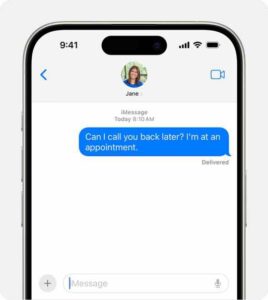
iMessages are texts and media sent between Apple devices over an internet connection. A successfully sent iMessage appears as a blue text bubble in your chat conversation.

An iPhone showing an iMessage message
Photo Credit: Apple

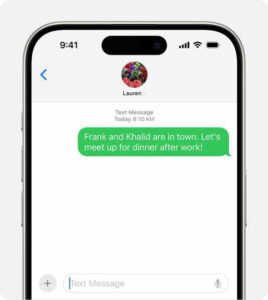
However, you’re probably here because you noticed your messages are sent as a green text bubble instead of blue or perhaps saw a "Sent as Text Message" note at the bottom of the bubble.

What does this mean? Have you been blocked? Below, we explain why you’re probably not blocked, why iMessage says sent as a text message, and how to fix it if you think it’s a mistake.

An iPhone showing an SMS/MMS message
Photo Credit: Apple

Does green Sent as text message mean you are blocked?

The answer to the question is maybe. You cannot send an iMessage to someone who blocked you. It will say “Sent as Text Message,” but still, the person will not get the message. However, your iMessages may send as SMS text messages in green bubbles instead of blue bubbles even when you are not blocked.

If you’re used to seeing blue iMessage text bubbles but they are suddenly green, it can be an indication you’ve been blocked – but that’s just one possibility, and isn’t necessarily the most likely.

6 Reasons Why Your iMessage Is Sent as a Text Message

When your iMessage is sent as a text message, it could be due to the following reasons:

1. There is a problem with iMessage on your iPhone

When your iMessage is sent as a text message, it’s worth checking whether the root cause of the issue lies with your iPhone first.

iMessage texts sending in green instead of blue is a common problem when the service stops functioning as it should.

You may experience iMessage issues after switching your SIM card or adding a new device to your Apple ID, so apply various troubleshooting methods to fix iMessage on your iPhone first.

2. The Recipient’s Device Is Not Connected to the Internet

For a text to be successfully sent as an iMessage, the recipient’s Apple device must also be connected to the internet. Otherwise, the iMessage will be sent as a text message to their device, or you might see an "iMessage Not Delivered" error on your iPhone if it’s not sent out.

3. The Recipient Wasn’t Using an Apple Device at the Time

Remember, iMessage only works between Apple devices. So, if your family or friend switches from an iPhone to an Android smartphone, for example, your iMessage will automatically be sent as a text message to them.

Your iPhone does not notify you that they have changed devices, even if your previous chat conversations were held using iMessage.

4. The Recipient’s Device Was Turned Off

Another simple reason is that your contact may have turned off their iPhone, or their device had shut down because it ran out of battery. When this happens, you can still continue to message them. However, your iMessage will be sent as a text message or simply remain pending until the other party turns on their device again.

5. The Recipient Disabled iMessage on Their iPhone

iMessage is a feature that can be enabled and disabled in the iPhone’s Settings app. For whatever reason, your contact may have chosen to turn off iMessage.

If this happens, you’ll be unable to send and receive iMessages from them. However, both of you can still reach each other with SMS text messages.

6. There’s a chance that iMessage is down on Apple’s end

When iMessage is not available for you or the recipient due to outages, the messages will be sent as SMS. Visit Apple’s System Status page and check if iMessage service is having known technical issues.

Turn on iMessages so your messages appear in blue bubbles when able

In order to send and receive the "blue text bubbles" when chatting with other iPhone, iPad, and Mac users, iMessage must be enabled on your iPhone.

If you have recently bought a new iPhone and set it up using your Apple ID already, iMessage will already be enabled and ready to use.

But if iMessage isn’t enabled, here’s how to do it:

  1. First, unlock your iPhone and launch the Settings app from the home screen.
  2. In Settings, scroll down until you find ”Messages” and tap on it.
  3. At the top of the screen, find iMessage.
  4. If the slider on the right is green, iMessage is already enabled. If not, tap the slider to enable iMessage
  5. If iMessage is already turned on, turn iMessage off by swiping the button to the left.
  6. Turn off your iPhone, then turn it on again.
  7. Go back to the Settings app, tap Messages, and turn iMessage back on by swiping the button to the right.

After activation, you will now be able to send and receive the "blue text bubbles" when chatting with other iPhone, iPad, and Mac users.

How to Test if Someone Blocked You From Contacting Them

There are a few ways you could try to check if you’re blocked. First, you could try calling the person. An iPhone user can’t choose to block you on iMessage without blocking you entirely. Therefore, if the call goes through, it confirms that you’re not blocked.

If the call doesn’t go through, you shouldn’t immediately start panicking either. There are a variety of reasons why you’re unable to make phone calls on your iPhone. Poor call signal in an area is one of the biggest culprits.

Therefore, you can also reach out to your recipient via social media platforms like Facebook, Twitter, Instagram, and Whatsapp. If you’re still connected on those platforms, it’s unlikely that the person has blocked you. If person is set to block you, they would have most likely block you in social media platforms as well. So, the issues of being unable to call them or send them an iMessage were likely minor technical hiccups.

Don’t Panic When Your iMessage Is Sent as a Text Message

Due to the reasons we’ve discussed in this article, it’s totally normal for iMessage to fail and be sent as a text message instead.

If you’ve been worried that you were blocked because your iMessage was sent as a text message, we trust our explanation has helped you understand why it’s probably not the case.

Therefore, don’t panic or jump to conclusions quickly. Contact the person using other channels if you need to communicate to them urgently.

  • To fix iPhone not receiving text from Android issue, check your cellular reception and make sure you’re not blocking the Android’s phone number.
  • You should also try restarting your iPhone, enabling MMS Messaging, and checking for iOS update.
  • If all else fails, contact your carrier for assistance.

One of the most commonly asked questions on GeeksModo is how to fix the iPhone not receiving texts from Android problem.

Many of our readers ask us why their iPhone is not getting text from Android phones.

In this article, we will show you how to fix the iPhone not receiving text from Android issue so your messages can start coming through again.

Why Your iPhone is Not Getting texts From Android

The most common reason for iPhone not receiving text messages from Android is due to a glitch with your cellular network. This means that when a text message is sent out from an Android phone it may not make it into your iPhone.

It is also possible you’ve blocked the Android phone number and that’s why you’re not getting those texts.

If you have trouble receiving texts from Android users with embedded photos or videos, MMS might be turned off on your iPhone.

Your cellular provider may also be having a problem with their network coverage – maybe their SMS service is down.

With that said, let’s take a look at how to fix the iPhone not receiving text from Android issue.

Fixing iPhone not receiving Texts From Android Issue

Try the suggestions below in this order until your issue is fixed:

1. Toggle Airplane mode

Not getting a text you’re expecting? Perhaps you’re not getting any messages because there’s a glitch with your cellular radio or the wireless software. Turning your phone’s cellular radio off and back on again may resolve the issue. Swipe down from the top right corner of the screen to reveal the control center, then tap Airplane mode to turn it on. Wait a few seconds, then tap it again to re-enable your wireless networks.

2. Make sure you have cellular connectivity

If you’re having trouble getting SMS messages from Android users, remember that these can only arrive via your cellular network — not WiFi. Be sure to check your wireless signal strength in the status bar at the top of the screen, and move outdoors if needed. Toggling Airplane mode can also help reestablish a solid cellular signal.

3. Doublecheck MMS options in Settings

If you have a problem receiving texts from Android users with embedded photos or videos, MMS might be turned off. Here’s how to check:

  1. On your iPhone, open the Settings app,
  2. Scroll down and select Messages.
  3. Make sure MMS Messaging is enabled.

4. Check your blocked contacts

It’s possible that the problem is relatively mundane — you might have blocked the Android contact and that’s why you’re not seeing text messages from that number. Here’s what to do:

  1. Open Settings.
  2. Tap Messages.
  3. Scroll down, and select Blocked Contacts.
  4. If you recognize any names or numbers in the list that you want to hear from again, tap Edit and then the red circle next to each entry.
  5. When you’re finished, tap Done.

5. Update iOS

It’s also possible that there’s a more pervasive problem with your phone, such as a software bug or incompatibility that’s preventing your iPhone from receiving Messages from Android. Check to make sure iOS is up to date and then install any available updates, if needed.

  1. Open Settings.
  2. Go into General.
  3. Tap Software Update.
  4. If an update is available, tap Update Now and follow onscreen instructions.

6. Restart your iPhone

If all else has failed so far, rebooting your iPhone might get your texting working again.

Follow these steps to restart iPhone XR, iPhone 11, iPhone 12, iPhone 13, iPhone 14, or iPhone 15:

  1. Press and hold both the Side button on the right side of the iPhone and any of the volume buttonson the left side. Release the buttons when you see the power off screen.
  2. Drag the power off slider to the right. Doing this will turn off the iPhone.
  3. Wait for at least 30 seconds.
  4. Press the Side button and release it when you see the Apple logo on the startup screen. In a few seconds, your iPhone will turn on.

Follow these steps to restart iPhone SE (2nd generation) and iPhone SE (3rd generation):

  1. Press and hold the Side button until you see the power off screen.
  2. Drag the power off slider to the right. Your iPhone is switched off now.
  3. Wait for at least 30 seconds.
  4. Press and hold the same Side button until you see the startup Apple logo.

7. Check for a carrier settings update

Carriers regularly push out network-specific settings updates meant to solve flaws or ensure compatibility. Normally you’ll be automatically prompted to install these, but if you think you missed one, you can install them manually.

  1. Open Settings.
  2. Tap General.
  3. Tap About. If an update is available, you should see a pop-up in a matter of seconds. It may be worth waiting a minute or two to be sure.

8. Turn Off Message Filtering

iPhones allow you to filter text messages from unknown senders. While this is off by default, you may have accidentally turned it on. If that’s the case, you could be missing text messages from Android numbers you don’t have saved on your phone.

To resolve this, turn off message filtering on your device. You can do this by following the steps below:

  1. Open Settings.
  2. Tap Messages
  3. disable Filter Unknown Senders. You should start receiving text messages again if it was enabled all this time.

Once you turn it off, head to the Messages app to find any unread messages that the filter hid. Filtered messages don’t get deleted. Instead, they get stored in another folder. Once you turn off Message Filtering, you’ll see them in the Messages app.

9. Delete old text messages

When the iPhone’s storage is full, it might not have the room to accommodate incoming messages. If you have a bunch of messages, it might be time to delete some of them to free up some space for new ones.

  1. Start the Messages app on your iPhone.
  2. Tap Edit in the top left corner of the screen.
  3. Tap Select Messages.
  4. Tap on any text message that you don’t need – it will have a checkmark on the left to indicate that you have selected it.
  5. After you’ve selected all the messages you want to remove, tap Delete in the bottom right corner.
  6. Tap Delete to confirm your action.

Quick tip: If you want to keep your old messages but still need to free up space on your iPhone, you can try other methods. For example, you can delete or offload apps you don’t need.

10. Reset your network settings

Sometimes, third-party apps, iOS updates, and bugs can cause your network settings to malfunction. If this happens, you might not receive text messages from Android phones.

Before contacting your carrier, you should try resetting your network settings. Some users reported that this does fix many issues related to your iPhone not receiving texts from Android.

  1. Open Settings.
  2. Go into General.
  3. Scroll down and tap Transfer or Reset iPhone.
  4. Tap Reset.
  5. Select Reset Network Settings and follow onscreen instructions.

11. Contact Your Carrier

If you tried the above fixes and your iPhone still isn’t receiving text messages from Android, it’s time to call your carrier. After all, there are many other ways your carrier can help you. For example, there could be a cell tower outage near you that they can inform you of, or you could have an issue with your account.

If you pay your carrier for service and aren’t receiving text messages from Android, the carrier is responsible for restoring your text messaging. The carrier can verify your plan, check for outages, and try resetting your account if necessary. You may also want to consider trying a new SIM card and see if that helps.

When calling your carrier, just let them know you aren’t receiving text messages from Android. If the carrier can’t help you, consider switching to a different network provider unless you have a carrier-locked phone.

iPhone Not Receiving Texts from Android? There Are Things You Can Do

You could miss important events or updates if your iPhone is not receiving text messages from Android phones. This can be difficult for anybody. Because of this, you’ll want to get this fixed as soon as possible. After all, you might have already missed some important messages and don’t want to miss them anymore.

Luckily, there are several things you can try before contacting your carrier. Sometimes, a simple setting can change whether you receive messages. There are also cases when resetting your network settings fixes your carrier issues, so you don’t need to call and wait.

No matter what the issue with your iPhone is, you have several steps to try, and hopefully, you can get it fixed and start receiving messages from Android again.

  • If your iPhone is not sending texts to Android phones, there are a number of ways to troubleshoot the problem.
  • Make sure that your iPhone is configured to send SMS and check that the Android’s phone number isn’t registered with Apple’s iMessage system.
An iPhone showing an SMS/MMS message
Photo Credit: Apple

Are you frustrated by your iPhone not sending text to Android?

As an iPhone user, you need to send text messages to your Android friends and family.

In this article, we’ll show you the easy way to fix iPhone not sending text to Android.

Why your iPhone is not sending texts to Android

  • You don’t have an active mobile service plan.
  • There is something wrong with your cellular connection.
  • Your iPhone is not configured to send SMS.
  • The Android’s phone number could be registered with Apple’s iMessage system.

Here are 11 ways to troubleshoot if your iPhone isn’t sending texts to Android phones.

Fixinh iPhone not sending texts to an Android phone

Please try the steps below. Please ensure to check the Messages app after each step to see if texts sending to Android contacts starts working.

1. Make sure Your Mobile Plan is Active

The first thing to check is whether you currently have an active mobile service plan. If you don’t have one, you won’t be able to send texts to Android users.

While the vast majority of phone plans offer standard unlimited texting, you might have exceeded your monthly limit of text messages if you have a limited plan.

In either case, you should contact your network provider to ensure there are no issues with your account services.

2. Check the Number You’re Texting

If you’re trying to send a text message from your iPhone to an Android user, but they aren’t receiving it, the next thing you should do is make sure you’re sending the message to the correct number.

Often, many people tend to ignore small mistakes like this, and mistyping a digit or two of a phone number could be the reason your message isn’t getting delivered.

This should be no problem when you message a contact stored on your iPhone, but it can require care when entering a new number. So take your time when entering numbers.

If you continue to have trouble, contact your intended recipient by other means to confirm the number.

3. Close and reopen the Messages app

Another solution for your iPhone not sending texts to Android phones is to restart the Messages app. Here’s how:

iPhones With Face ID

  1. Swipe up from the bottom of the screen to open the app switcher. You should see all of your apps represented as cards.
  2. Swipe side-to-side through your apps until you find the Messages app.
  3. Swipe Messages up and off the top of the screen to close it.
  4. Tap the app icon to reopen it.

iPhones Without Face ID

  1. Double-press the Home button. This starts the app switcher, where you should see all of your apps represented as cards.
  2. Swipe side-to-side through your apps until you find the Messages app.
  3. Swipe Messages up and off the top of the screen to close it.
  4. Tap the app icon to reopen it.

4. Configure your iPhone to send SMS messages

You won’t be able to send text to Android if you haven’t enabled the Send as SMS option on your iPhone. So, turn it on to send SMS to Android from your iPhone. Here’s how:

  1. Open the Settings app.
  2. Scroll down and then tap Messages.
  3. Turn on Send as SMS by swiping the button to the right.

5. Toggle Airplane mode

One of the most common reasons iPhone can’t send text to Android is because of a glitch with your cellular connection. You can generally fix this by toggling it off and then back on again. To do this, enable and disable Airplane Mode. You can toggle your iPhone’s Airplane Mode on and off from the Control Center.

  1. To reveal the Control Center on iPhone with Face ID, swipe down from the top right corner of the screen. If you’re on iPhone without Face ID, swipe up from the bottom of the screen.
  2. Tap on the Airplane Mode icon, which is represented by a plane inside a circle. When the icon is orange, Airplane Mode is enabled; when it’s grayed out, it’s disabled.

Quick tip: You can also turn Airplane Mode on or off by opening the Settings app and tapping the toggle for Airplane Mode.

6. Restart the iPhone

Sometimes, the problem is related to a software problem on your iPhone, but toggling Airplane mode didn’t do the trick.

In a situation like this, try turning your iPhone off, wait a minute, and then turn it back on again. Restarting the phone can flush out any misbehaving software or corrupted data and restore it to full operation.

iPhones with Face ID

  1. Press and hold down the side button and either the volume up button or volume down button.
  2. When the power slider appears, swipe the power button inside it to the right.
  3. After the iPhone has completely shut down, press and hold the side button again until the Apple logo appears.

iPhones without Face ID

  1. Press and hold down the side button.
  2. When the power slider appears, swipe the power button inside it to the right.
  3. After the iPhone has completely shut down, press and hold the side button again until the Apple logo appears.

7. Ask the Android owner to deregister iMessage

This problem can catch a lot of people off-guard. If the Android user previously had an iPhone and transferred the SIM card to an Android without changing the phone number, that phone number may still be registered as an iPhone in Apple’s database, and so when iPhone users text a number that’s still in the iMessage system, the text goes to iMessage and can’t be delivered to the Android phone. The solution? Ask the Android user to deregister his or her phone number from Apple’s iMessage system.

8. Check for iOS updates

You should always keep your iPhone updated with the latest version of iOS. New updates for iOS can iron out software issues and bugs. So if your iPhone still can’t send text messages to Android, it’s a good idea to update.

To update, you need to have your iPhone connected to a Wi-Fi network and a power source. You should then do the following:

  1. Open the Settings app on your iPhone.
  2. Tap General.
  3. Tap Software Update.
  4. At this point, your iPhone will check if an update is available. When one is found, tap Update Now.

9. Check for a carrier settings update

Carrier settings update may potentially fix this problem, so see if there is any pending update that need to be installed. Here’s how:

  1. Connect to a cell phone or Wi-Fi network of your choice.
  2. Open the Settings app on your iPhone.
  3. Tap General.
  4. Tap About. Should an update be available, you’ll be able to do so from this screen.

10. Reset your network settings

You shouldn’t take resetting your iPhone’s network settings too lightly. Network settings save data such as Wi-Fi networks and passwords, so it isn’t ideal to erase them.

That said, it’s worth doing if you’ve tried everything above and your iPhone still won’t send text messages to Android phones.

  1. Open the Settings app on your iPhone.
  2. Tap General.
  3. Select Transfer or Reset iPhone at the bottom.
  4. Tap Reset.
  5. In the menu that appears, tap Reset Network Settings.

11. Contact your carrier network or Apple Support

If your iPhone still won’t send SMS to Android after all this, your last option is to contact your carrier. Try calling the customer service line. If they can’t help you, it’s likely a hardware issue, and you should contact Apple or an authorized service provider for expert assistance.

Depending on your location, you can book an Apple Store appointment at a Genius Bar. You may have to eventually replace the iPhone, but that should be the last case scenario.

Fix Your iPhone Messaging Issues

Congratulations, you’ve fixed iPhone not sending texts to android issue.

If you’ve tried everything we listed above but your iPhone still can’t send text messages to Android, it might be time to get another device.

These are the tips and tricks you should be using to get the most out of Messages app on Your iPhone.

No matter what iPhone model you carry or how you usually use it, one thing is a near-universal constant:

You’re gonna spend a ton of time sending and reading messages.

The messages may be from clients, colleagues, or your cousin Crissy from Cleveland (damn it, Crissy!). But regardless of who sends ’em or what they’re about, they’re all popping up on your phone and cluttering your weary brainspace.

My fellow iPhone adorer, I’m here to tell you there’s a better way.

Apple’s iPhone Messages app has gotten surprisingly good over the years. That’s no big secret. If you’re only relying on what you see on the surface within iPhone Messages, though, you’re missing out on some of its most powerful and underappreciated efficiency-enhancing options.

In this article, we’ll explore the best iPhone Messages tips and tricks. They may not be able to cut down on the number of messages you send and receive on your iPhone (DAMN IT, CRISSY!), but they will help you spend less time fussing with ’em. And they might just help you have a more pleasant experience, too.

Without further ado, here are the best tips and tricks to help you use the Messages app on Your iPhone to its fullest potential.

15 Tips and Tricks for More Efficient iPhone Messaging

1. Reply messages from the Lock Screen

Sometimes all you need to do when you receive a message is give a quick reply. The ability to reply from the Lock Screen makes it possible to send off a reply without taking the time to unlock your iPhone, find the messaging app, select the message and then reply. Thankfully, there’s a cool Messages trick you can use to quickly reply to messages from the Lock Screen on your iPhone.

  1. From the Lock Screen, touch and hold the notification that you want to reply to. Or depending on your device, you might need to swipe left over the notification and tap View.
  2. Type your message.
  3. Tap the Send button.

If you have an iPhone X or later and can’t reply to a message from the Lock Screen, head over to Settings > Face ID & Passcode, and turn on the switch next to Reply with Message. If you have an iPhone SE (2nd and 3rd generation), or iPhone 8 or earlier, head over to Settings > Touch ID & Passcode > Allow Access When Locked, and turn on the switch next to Reply with Message.

2. Pin important conversations in Messages

One way you can make your favorite people and your favorite conversations easier to access is by pinning them to the top of the screen so they stay permanently at the top of your chats. This Messages trick can come in handy when you want to save a text to quickly find it later, instead of scrolling through long conversations looking for it.

  1. In Messages, tap Edit or the More button .
  2. Tap Edit Pins , then tap the Pin button .
  3. Tap Done.

You can also touch and hold a conversation to pin it.

3. Set an iMessage Photo and Name on Your iPhone

Do you ever wish you could share your profile photo and name on iMessage like you can do on some instant messaging (IM) apps? Wish no more! There’s a cool iMessage trick that lets you set a personal photo and name, in addition to tweaking their visibility through dedicated privacy settings. When you share this information with someone, iOS will prompt them to update your contact card on their side. This way, your photo stays up to date in their address book without them having to update your contact card manually. Follow the steps below to set an iMessage photo and name on your iPhone.

  1. Start the Settings app on your iPhone.
  2. Scroll down and select Messages.
  3. Tap on Share Name and Photo.
  4. Turn it on.
  5. Choose a photo in addition to your first and last names.
  6. Click on Contacts Only or Always Ask, depending on whether you want this information to be shared automatically with people you know or not.

Voilà! Now, whenever you chat with someone on iMessage, they’ll receive a prompt to update/add your contact card with the shared name and photo after you share it with them.

To change your name and photo, follow the steps below:

  1. In Messages, tap Edit or the More button .
  2. Tap on Edit Name and Photo.
  3. Edit your name. Or tap the image circle to choose an image, photo, emoji, or Memoji.
  4. Tap Done.

4. Turn on Hide Alerts

If there’s a contact in your Messages app you do not wish to get notifications for, a hidden Messages trick allows you to mute notifications for the contact on Your iPhone.

The best part? The contact won’t be notified that you muted them, and you can steer clear of a crowded Notification Center.

So, let’s take a look at the steps required to mute a text conversation on an iPhone.

  1. Open the Messages app on Your iPhone.
  2. Tap to open the contact you want to mute.
  3. Tap on the contact’s icon at the top of the screen.
  4. Turn on the toggle next to Hide Alerts. You will see a bell icon with a slash on it to show a contact has been muted.

Here’s another method to silence messages from a contact on your iPhone:

  1. Start the Messages app on Your iPhone.
  2. Find the contact in your list of recent conversations.
  3. Swipe left on the contact you want to mute.
  4. Tap on the bell icon. You will notice the same bell con appear next to the conversation to indicate that it has been muted.

5. Hide Messages on Your iPhone

We all hide messages for different reasons. It could be that you don’t want your partner to see them because it can ruin the perfectly good surprise you’ve planned for them, or that your workplace strongly frowns upon receiving texts during work hours.

No matter the reason, it only takes a little effort to hide text messages on your iPhone.

Here’s how to hide messages from a specific person on Your iPhone:

  1. Open the Phone app.

  2. Select Contacts on the bottom menu and then find and tap on the contact whose messages you want to hide.

  3. Tap Edit on the top right corner.

  4. Scroll down, and hit Delete Contact, then tap Delete Contact again on the pop-up window to confirm.

  5. Open the Settings app and scroll down to and tap Messages.

  6. Scroll down and turn on the toggle next to Filter Unknown Senders under the ”MESSAGE FILTERING” heading.

The message sent from the person you removed (or anyone not in your contacts) will now go into a list kept separate from the rest of your messages. To access it, tap Filters on the top-left corner of the Messages app, and then tap Unknown senders.

6. Search for Specific Messages on an iPhone in Messages App

You can search for text messages you’ve sent on your iPhone, meaning that you never have to scroll for hours through your conversations to find a specific message.

  1. Open the Messages app from your iPhone’s home screen.
  2. To access the search bar, swipe down. It’ll be above your most recent message.
  3. Type the phrase, word, or number you’re looking for in the search bar.
  4. As you type, messages containing what you’ve typed will appear on the screen.
  5. Next, tap on the message thread containing the phrase you’re looking for. It will then jump to that conversation, and highlight the exact message containing the phrase you typed.

7. Use Messages on Your iPhone to Share Your Location

This Messages trick lets you send your current location to someone from your iPhone, or share your location even while you’re on the move on an iPhone from the Messages app.

  1. Open a conversation with the person whom you want to send your location to.
  2. Select the name of the person or group at the top of the conversation.
  3. If you want to send your current location, tap ”Send My Current Location.”
  4. If you want to share your location for a period of time, tap "Share My Location," and then choose how long you want your location to be visible — Share for One Hour, Share Until End of Day, or Share Indefinitely.
  5. Tap Done.

8. Insert an Emoji into Text Message Using Siri

Starting with iOS 16, anywhere you can dictate text using Siri, you can verbally insert emojis. That includes in Messages, email, Notes, and elsewhere.

Inserting an emoji into a text message using Siri is very simple and straightforward. Just do this:

  1. Start the Messages app on Your iPhone.
  2. Navigate to the text field and tap the Microphone button at the bottom of the screen.
  3. Dictate your text message as you normally would. When you’re ready to insert the emoji, say the name of the emoji, such as ”smiley face emoji." Continue dictating as desired.
  4. Tap the Microphone button again to stop dictating, and proceed to send your text message.

9. Make a Group Chat on iPhone

Group chats can be a useful tool in both your professional and personal life. Whether you’re planning a happy hour, surprise baby shower, or you want to text hilarious memes to your besties, a group chat is a great way to relay information to multiple people at once.

Make sure you have both iMessage and MMS turned on in Settings > Messages.

  1. Open the Messages app on your iPhone. It looks like a white chat bubble inside a green box.
  2. Tap the Compose button located at the top-right corner of the screen.
  3. Begin entering the names of the people you want to include in the group chat in the To: section. You can also tap the plus button to select people from your contacts.
  4. Type out your message, then tap the Send icon. It looks like an arrow pointing up.

Quick tip: When you add recipients to a new group chat, if one member of the group does not have an iPhone, the header above your recipient list will read New Group MMS. If everyone in the group has an iPhone the header above your recipient list will say New iMessage.

10. Unsend an iMessage on Your iPhone

Have you ever sent a text message only to immediately wish that you hadn’t? Thankfully, there’s an iMessage trick to unsend text messages on iPhone. With this iMessage trick, you can remotely delete a text message you’ve sent, even if the recipient has already seen it.

After you send an iMessage, you’ll have 15 minutes to unsend it and delete it from everyone’s phone.

Unsending only works when you’re texting another person who has iOS 16 or newer.

  1. In the Messages app, open the chat thread containing the sent message that you want to unsend.
  2. Long press the sent message that you want to fix.
  3. Hit Unsend from the pop-over menu. Your text message will explode into blue dust. Once it’s gone, everyone in the conversation will only see a notice saying that a message was deleted.

(If you don’t see the Unsend option, at least fifteen minutes have elapsed and you can no longer unsend it.)

11. Edit a Sent iMessage on iPhone

Even with autocorrect turned on, it’s easy to make typos when texting. That’s why a cool iMessage trick lets you edit texts even after you send them, so no one has to see your fumble-fingered messages.

Before anything, please note the following:

  • You can only edit iMessages — in other words, texts sent to other Apple devices, which appear on your device in blue bubbles. It doesn’t work with SMS messages, the kind that non-Apple phones like Android use, which send inside green bubbles.
  • You can edit messages for up to 15 minutes after sending them. After that point, the Edit option will disappear.
  • Anyone that you’re texting will see the word Edited appear underneath your new message. If they tap it, they’ll be able to see the original text and all the edited versions you’ve made.

With that in mind, follow the steps below to edit sent iMessage on iPhone:

  1. In the Messages app, open the chat thread containing the sent message that you want to edit.
  2. Long press the sent message that you want to fix. (If you don’t see the option, the message was sent over 15 minutes ago and you cannot edit it.)
  3. Tap Edit from the pop-over menu.
  4. You’ll now be able to edit the text of the message however you want — you just can’t erase the entire thing. When you’re done with it, tap the checkmark icon to save and send it again. The new version of your message will replace the original on every device you’re texting.

12. Recover Deleted Messages on iPhone

If you’ve accidentally deleted some text messages that you meant to keep, don’t panic — you can use a hidden messages trick to recover lost text messages on your iPhone.

With iOS 16, you can recover all text messages within one month of deletion.

Here’s how to recover a deleted message on an iPhone running ‌iOS 16.

  1. In the Messages app, navigate to the main Messages screen where filters like Known Senders and Unknown Senders can be found.
  2. Tap Recently Deleted.
  3. Tap the messages that you want to recover so that a blue check mark appears next to each one. (Note that each message show the days remaining before automatic deletion.)
  4. Tap Recover in the bottom-right corner of the screen.
  5. Tap **Recover Message[**s] in the pop-over to confirm.

13. Report Junk SMS and MMS Messages

In ‌iOS 16 and higher‌, you can report SMS/MMS messages as junk in the Messages app which will alert Apple and your network provider and delete the message in question.

To report a message from an unknown sender as junk on an iPhone running ‌iOS 16‌ or higher, follow the steps below:

  1. Navigate to the message and tap the blue Report Junk option that appears below it.
  2. Tap Delete and Report Junk in the pop-over to confirm.

14. Mark a Message as Unread

In ‌iOS 16 or higher‌, you can mark an SMS message or iMessage as new, thereby returning the blue dot to the message to remind you to return to it.

Marking a message as unread is pretty useful because it means if you get a message and don’t have time to read it or address its contents, you can mark it as unread so that it appears as a new message again.

Here’s how you mark a Message as unread on an iPhone running ‌iOS 16‌ or higher.

  1. Open the Messages app, and find the message in the conversations list that you want to mark as unread.
  2. Long press on the message in the conversations list.
  3. Tap Mark as Unread from the pop-over menu.

15. Add Reactions to Texts or iMessages on an iPhone

Reacting to text messages on your iPhone stamps them with a small emoji so everyone can see how you feel. Here’s how to react to a text message in the iPhone Messages app.

The process of reacting to a text message is even simpler than typing out a text message:

  1. Tap and hold on the text message you want to react to.
  2. Start Messages app on your iPhone and go into the conversation you want to add reaction.
  3. Tap and hold on the text message you want to react to.
  4. A popup will appear with various different reactions, in the form of emojis. These include symbols for love, like, dislike, laugh, exclamation reactions, and more.
  5. Tap on the reaction you want to send.
  6. An icon will appear on the corner of the text you reacted to.

You can undo a reaction by repeating the same steps mentioned above. Just tap and hold, then tap on the same emoji you already added to remove your reaction. You can also open the same popup by tapping on the icon instead of tapping and holding on to the text.

Your Favorite iPhone Messaging Tips and Tricks?

These are our favorites iPhone messaging tips and tricks. We hope they will enhance your user experience with messaging on your iPhone. What are your favorite iPhone Messages tips and tricks? Drop a comment and let us know.

Is your iPhone 13 or iPhone 13 Pro suddenly not ringing or making any sound when you receive an inbound message? Have you recently missed an important text because your iPhone 13 or iPhone 13 Pro didn’t notify you? Wondering why you didn’t get an alert when someone recently texted you? No text or message notification coming in even from your favorites or in emergencies?

If so, you are not alone! Several users have reported their iPhone 13 has suddenly stop alerting them when new texts or messages arrive. Naturally, this issue causes a lot of trouble for folks, especially when missing those critical messages from family, friends, and workplaces.

See also: What To Do If iPhone 13 / 13 Pro Won’t Send Text Messages

It’s really frustrating when your iPhone 13 or iPhone 13 Pro is not alerting you of texts! How it’s supposed to work: you receive any new message, your iPhone alerts you with a sound, an on-screen alert, and a vibration.

This process should work for all new incoming messages, whether it’s an iMessage or an SMS text. But if you find it’s not working as it should, and your iPhone 13 Pro not alerting you to new texts, we’ve got some tips to fix it quickly!

There are many reasons why your iPhone 13 or iPhone 13 Pro may fail to receive text notifications, including problems with the cellular network or simple software oversights. Problems may only reveal themselves once they are fixed.

Follow these instructions to get your iPhone 13 or iPhone 13 Pro receiving text notifications again.

Check Your iPhone Text Message Sound Effect & Select a Text Tone

Yup, sometimes it’s the easy things that fall through the cracks. So let’s make sure that you selected a tone for your incoming text messages!

Go to Settings > Sounds & Haptics > and scroll down to the section Sounds and Vibration Patterns. In this section, look for Text Tone.

If this says None, tap it and change the alert to something you like.

Use Your Text Tone Default!

Here is another quick solution, just change your text sound to the default and simple Ding or Note. Readers noticed problems with texts not consistently sounding alerts when using longer alert tones. So stick with the defaults!

To update, go to Settings > Sounds & Haptics > Text Tone and change to the default, listed in parenthesis such as Note (Default.)

Alerts Not Sounding For Just A Few Contacts? Look at your custom settings for each contact

Pull up one of the contacts that’s not alerting you (open either the Phone or Contacts app)
Tap Edit in the top right corner
Scroll down to Text Tone and look at the selected sound
If none is listed, tap and select a new Alert Tone from the list and tap Done

Look at Date & Time

It’s always good to check that our date and time are correct and ideally toggle on “Set Automatically.” If your iPhone 13 or iPhone 13 Pro time is incorrect, this may explain why you aren’t getting notifications and alerts promptly.

A mismatch with your Date&Time can cause a whole host of problems. So let’s check it out. Go to Settings > General > Date & Time and toggle on Set Automatically. If this is already on, toggle it off, wait 20 seconds, and turn it back on again.

Check your Message app settings for Filtering Unknown Senders and Blocked Contacts

If you are not receiving texts from folks and businesses that aren’t in your Contacts app, you likely enabled the settings for Filter Unknown Senders. This feature automatically turns off notifications for messages from people and others who aren’t saved in your Contacts.

To change this setting, go to Settings > Messages > Unknown & Spam and turn off Filter Unknown Senders.

Take a look at your Blocked Contacts list

You may have inadvertently added someone to your blocked list.

If you blocked someone in FaceTime, iMessage, the Phone app, or in the Mail app, that block is active on all those apps. So when you block a phone number or contact, messages that are sent or received by that contact won’t be delivered. Blocked contacts can still leave a voicemail, but you won’t get a notification for that voicemail. And when you block an email address from Mail, it goes to the trash folder.

To look at your blocked contacts list, go to Settings > Messages. Under SMS/MMS, tap Blocked Contacts. Swipe to remove them from the blocked list.

You can also find this blocked contact list in the these apps:

  • The Phone App. Go to Settings > Phone. Tap Blocked Contacts to see the list
  • FaceTime. Go to Settings > FaceTime. Under Calls, tap Blocked Contacts
  • The Mail App. Go to Settings > Mail. Under Threading, tap Blocked.

Update Notification Banners

Often, your new text notifications appear but disappear so quickly that you may just miss seeing them. Fortunately, there’s a way to change your text banners from temporary to persistent.

Persistent banners require you to take action before they disappear, while temporary banners go away after a short time on-screen. Both types appear at the top of your screen.

So if you’re missing notifications, try changing to persistent banners and see if this makes a difference. Go to Settings > Notifications > Messages and just below Show as Banners, tap on the icon for Persistent.

Confirm your selection by checking that the word Persistent is circled.

No Text or Message Notification on iPhone 13 or iPhone 13 Pro? Check Do Not Disturb (DND)

First, check and see if you’ve accidentally (or purposefully) turned on Do Not Disturb. Go to Settings > Focus > Do Not Disturb and make sure it’s toggled OFF.

Check if you accidentally turned on Hide Alerts

Sometimes the crescent moon icon doesn’t even show up when DND is activated for a single contact, so it’s a good idea to check that contact, even if you don’t see the crescent moon.

Tap the Message thread and then tap on the name at the top. Edit the contact’s details by pressing the “i” and turn OFF Hide Alerts (or Do Not Disturb.)

Alternatively, if you already know which contacts’ texts are not alerting, tap on a message from the contact and press the “i” and toggle OFF Hide Alerts.

Look at Bluetooth

If you’ve recently connected to a Bluetooth device, sometimes that connection remains and iOS sends alerts to it rather than your iPhone.

To check, go to Settings > Bluetooth and check if any of your Bluetooth devices are connected and routing sound. If so, disconnect or unpair that Bluetooth device.

Alternatively, if you’re not currently using any Bluetooth device, disconnect devices by swiping up Control Center or turn Bluetooth off by going to Settings > Bluetooth > Off.

Paired with an Apple Watch?

If your iPhone pairs to an Apple Watch, by design your paired iPhone does not chime when a new text arrives. Instead, Apple routes your alerts to your Apple Watch, especially when the iPhone is locked.

As of now, there is no option to play a sound alert on BOTH your Apple Watch and your iPhone at the same time. It’s one or the other, based on the locked status of your phone.

The rule of thumb is if your phone is unlocked, notifications go to the iPhone. If your phone is locked, notifications go to your watch.

If you’re experiencing a problem with notifications not routing to your Apple Watch correctly, it’s best to unpair and then repair your Apple Watch to your iPhone.

Check Your Side or Ring/Volume (Mute) Switch

Take a look at your device’s silent switch button and toggle it OFF.

If your switch shows orange, it’s on. That means it’s in silent mode and vibrates for all alerts and incoming calls
When in silent mode, the alarms you set in the Clock app still sound and calls from Favorite contacts still ring.

Change What Sends & Receives

Go to Settings > Messages > Send & Receive. Look under the section: iMessage At Can reach you. If checked, deselect your email address. Select only your phone number and see if that solves the problem.

Turn Notifications ON

It’s common to turn notifications off inadvertently. So best to make sure they are indeed on. Check Settings > Notifications > Messages > Toggle ON Allow Notifications.

Next, make sure you choose an excellent alert sound. Go to Settings > Sounds & Haptics > Text Tones. And pick an alert sound that you like and that you’ll definitely hear.

No notifications or alerts when the phone is locked?

Not getting notified of messages coming in when iPhone 13 or iPhone 13 Pro is locked? If you don’t see or hear any alerts when your iPhone 13 locks, enable the Show on Lock Screen setting.

Go to Settings > Notifications > Messages and verify that Show on Lock Screen is toggled on.

For sound alerts, also check that Settings > Notifications > Messages > Sounds has an alert type selected and does not display None unless that’s the setting you want.

Go to Settings > Face ID. Enter your passcode to validate access
Scroll down to Allow Access hen Locked
Toggle On Notification Center
And toggle on anything else you want to appear on your device’s Lock Screen.

Update Your iPhone to the Latest Version of iOS

It’s common for iOS updates to introduce new problems to your iPhone. In fact, previous iOS updates have been known to cause problems with text notifications not working on iPhone 13.

When this happens, Apple usually releases a new update in the next couple of weeks to fix it. Make sure you’re running the latest version of iOS so you benefit from Apple’s repair patches.

To update your iPhone software:

Connect your iPhone to a working Wi-Fi network.
Go to Settings > General > Software Update.
Wait for your iPhone to check for new software updates.
Download and install any available iOS updates.

Restart your iPhone

If nothing helped thus far, restart your iDevice by going to settings > General > Shut Down and sliding it off. Then turn on as usual.

If that doesn’t help, try a forced restart

Press and quickly release the Volume Up button. Then press and quickly release the Volume Down button. Finally, press and hold the Side button until you see the Apple logo
A forced restart is a hardware level restart of your device. It immediately cuts power and interrupts all processes. That means it clears what’s in the RAM, which in turn often fixes minor issues. And don’t worry, there’s no data loss–all your apps, games, photos, documents and login settings remain as is!

After performing a forced restart, make sure you check your Notification Settings to ensure everything is set-up as you want. Sometimes a forced reboot changes specific settings back to defaults. So the best insurance is to double or even triple check!

Reset Network Settings

. The iPhone Network Settings are a group of preferences that control how the phone accesses cellular networks. Errors in those settings could interfere with sending texts. To solve these problems, reset your Network Settings. You can do this by going to Settings > General > Transfer or reset iPhone > Reset > Reset Network Settings.

Don’t worry; this action DOES NOT impact your data, including apps, photos, documents, files, and so forth. It does wipe out any WiFi passwords, so write those down before you reset your network settings.

Reset all Settings

If none of the tips work for you, let’s try and reset all your iPhone settings. Don’t worry; this action DOES NOT impact your data.

But it does return all your personalized settings to defaults, meaning you need to re-enter things like passwords, Touch ID fingerprints, WiFi passcodes and so forth. So, yup, it’s very time-consuming, but many of our readers report it works.

Go to Settings > General > Transfer or Reset iPhone > Reset > Reset All Settings

iPhone 13 not getting text notifications: Fixed

Hopefully, text notifications are working for new messages on your iPhone 13 or iPhone 13 Pro. If so, let us know what fixed it in the comments!

Is your iPhone 13 or iPhone 13 Pro not Sending text messages? Worry not, the problem seems fixable.

When your iPhone 13 or iPhone 13 Pro can’t send text messages, you may feel cut off from friends and family. There are many reasons why your iPhone 13 or iPhone 13 Pro may fail to send text messages, including problems with the cellular network insufficient airtime, wrong settings, or simple software oversights.

See also: iOS 15: Cellular Data Not Working On iPhone? Fix!

If your iPhone 13 or iPhone 13 Pro can’t send text messages, follow these simple tips to fix the issue.

  • If your iPhone 13 or iPhone 13 Pro is not sending text messages, first make sure your phone has service, as the issue may be with the cellular network, not your device itself.
  • Check in your iPhone’s Settings app that various messaging options are turned on so that your phone can dispatch texts if iMessage fails.
  • Turning your iPhone 13 off and back on again can usually refresh the software and restore better signal connections, enabling your text messages to send once again.

‘why is my iPhone 13 not sending text messages?’

There are a number of reasons why your iPhone 13 or iPhone 13 Pro is not sending text messages. Let’s review those possible reasons and then cover some troubleshooting steps.

Cell Service Issues Can Prevent iPhone 13 from Sending Text Messages

Before proceeding with troubleshooting, let’s cover the most obvious service related reasons why an iPhone 13 or iPhone 13 Pro won’t send a text message:

  • The iPhone has no cellular signal – no SMS text messages can be sent without a traditional cell signal
  • The iPhone has no service – if the iPhone does not have a cellular service plan active, it will not be able to send text messages
  • The cellular reception is so bad that iPhone 13 can’t send a text message – if service is awful (think 1 bar or 1 dot or cycling between “Searching…” and dots), the phone likely won’t be able to send or receive text messages
  • The cell number you are reaching is disconnected – this is often the problem if the recipient has recently changed a phone number or you have multiple contact numbers for the same person, so be sure you are addressing the proper phone number
  • AirPlane mode is enabled, thereby disabling the ability to send messages and text messages – toggling AirPlane mode off will fix this specific issue quickly

It’s pretty obvious when a text message doesn’t send (or iMessage too), you’ll see a little red (!) bang exclamation sign next to the message, usually with a ‘not delivered’ message.

If any of those service related issues are the problem, you’ll need to either regain a stronger cellular signal with the iPhone, or reactivate a cellular service plan if applicable, or insure the proper contact is being messaged. If the cellular connection or service is not the issue, continue on with troubleshooting techniques to fix SMS transmission from iPhones.

If you are not able to send texts on iPhone 13 or iPhone 13 Pro, these troubleshooting steps can help you fix the issue. Before getting started, it’s always a good idea to test your ability to send texts to a few different people, if possible. That could yield some clues as to what the problem might be.

Quit and restart the Messages app

Sometimes apps need to be quit and restarted to solve problems related to memory management. Force-quit the messaging app, then try again.

Check the phone number

Confirm that you are texting the right number. If you entered the number wrong or the intended recipient now has a new number, you may be prevented from sending the text.

Enable send as SMS

Most iPhone users have iMessage enabled, but some may have accidentally (or intentionally) turned off SMS support. So, make sure that your iPhone can send a message as a regular text message when iMessage isn’t available. You can do this by going to Settings app and tap on Messages. Scroll down and then turn on the toggle for Send as SMS.

Check the reception

Mobile networks are sometimes unpredictable. If you see a few or no bars, step outside or find a higher place indoors. If you’re in your home, you can use a signal booster to improve reception throughout the home.

Turn Off and On Airplane Mode

Open the Settings app and tap on the icon for Airplane Mode to enable it. After 30 seconds, tap on the same toggle to disable it. Now, Check if Your iPhone 13 is sending texts. It should work.

Restart Your iPhone

Even after following the above fix, if you have trouble sending texts on your iPhone 13 or iPhone 13 Pro, try restarting your device. Often times rebooting an iPhone is sufficient to remedy problems like this. You can do this by going to Settings > General > Shut Down. After a minute, turn on your iPhone and see if you can send messages. The issue will most likely be fixed.

Remove & Reinsert iPhone’s SIM Card

For this, you can use the ejector tool or a pin to remove the SIM card carefully. Next, slowly and with caution, rub it on a soft dry cloth and insert it back.

See also: iPhone 13 / 13 Pro Not Detecting SIM Card? Fix

Update iOS

Install any outstanding operating system updates, even if an update doesn’t seem relevant to the problem you experience. Some bug fixes and other repairs may address operations or features the texting app uses. Wait for any updates to finish before texting.

  1. Open the Settings app and tap on General.
  2. Next, tap on Software Update. If you see a pending update available, tap on Download and Install.

Once the process completes, there is a strong possibility that the iPhone 13 or iPhone 13 Pro not sending texts issue will be successfully addressed.

Update Carrier settings

Your iPhone 13 has hidden carrier settings that help your phone communicate with the cellular network to place calls, transmit data, and send texts. Wireless carriers periodically update these settings. Make sure you have the latest version by updating your carrier settings. You can do this by going to Settings > General > About.

If there is an update available, the option to update will appear here.

Check your cellular provider’s website

If nothing else works, look for any alerts or updates concerning network issues. Network problems may not be immediately obvious to end users, or may only affect certain functions.

Make Sure your iPhone’s Date and Time is correct

Not just text messages, but several applications and services won’t work properly if your iPhone is set to the wrong time zone. To check if your iPhone has the correct time and date, go to Settings app > General > Date & Time > turn on the toggle for Set Automatically.

Reset Network Settings on iPhone

If you think that network is the culprit behind the problem of iPhone 13 or iPhone 13 Pro not sending texts messages, you can Reset Network Settings. Resetting network settings can be a pain because you lose wi-fi passwords and custom DNS, but it can also be a cure-all solution for many common networking issues with iPhone, including the inability to send messages. You can do this by going to Settings > General > Transfer or reset iPhone > Reset > Reset Network Settings. Enter your iPhone passcode and confirm.

Reset All Settings

If the above less severe reset did not work, You can do this by going to Settings > General > Transfer or reset iPhone > Erase all content and settings. The consequences of this are more significant.

It will erase or return to default, all settings you have ever changed on your iPhone. This includes keyboard settings, Home Screen layout, Wi-Fi, Bluetooth, VPN, Location Settings, and more. But, it won’t delete any personal data like photos, videos, apps, music, etc.

Contact Your Carrier

Finally, if nothing helps, contact your mobile carrier. You can reach them via email, Twitter, or use their mobile app. Make sure there is no pending bill or unpaid charges that have resulted in the suspension of the service.

That’s all!

These are some of the ways to fix iPhone 13 or iPhone 13 Pro not sending texts Messages issue. I hope one of the solutions helped you out of this problem. Know of any other tricks to resolve an inability to send text messages on iPhone 13 or iPhone 13 Pro? Drop a comment and let us know!