








Got a tip for us?

iMessage

After updating to iOS 26, a lot of iPhone users have complained that iMessages sometimes won’t deliver. It’s an annoying problem, but one which does have some solutions.

So why is iPhone iMessage not being delivered after iOS 26 update? Your blue messages, i.e. the ones sent from one iOS device to another, should say Delivered when they arrive on a recipient’s device, but that’s not always the case. This can affect multiple contacts or one person specifically. It’s more infuriating when the message says Delivered, but the recipient didn’t actually receive it.

So why are your iPhone messages not being delivered to one person? Or to numerous people? Here are a few tricks to try when your iPhone iMessage is not being delivered after iOS 26 update.

What Does “Delivered” Mean on iMessage?

We need to first understand the difference between Delivered and Read. Delivered means the recipient received the message on their device. Read means the recipient has open the message. Of course, this doesn’t mean they’ve actually read it—it only means the message has been opened. Don’t panic if you don’t hear back immediately; they might have tapped on it but subsequently got distracted.

Not everyone has this feature activated either. You can toggle read receipts on your iPhone by going to Settings > Apps > Messages > Send Read Receipts, where you can turn this function on or off. In fact, this subsection of Settings is essential if iMessage is not working properly on your iPhone.

Why Does iMessage Say “Delivered” When It’s Not?

Sometimes, a message will say it’s Delivered, but the recipient will insist they never got it. Don’t automatically think they’re lying: there are many reasons you may experience this issue. It could be a glitch with iMessage, but it could also be that the message was delivered to another Apple device.

If the recipient has an iPhone, iPad, and Mac all signed in with the same Apple account, your message could’ve appeared on one of these other devices, not their smartphone. In theory, this shouldn’t cause a problem—your message should show across all devices. However, iMessage is far from perfect.

Why is iMessage showing not delivered on iPhone?

The recipient might have simply powered their phone off. Your message will arrive when they turn on their device again. Be patient. Not everyone keeps their phone turned on all the time, especially during the nighttime.

Even if you think the person is unlikely to turn off their phone, they might have activated Airplane Mode. This cuts off all connections, so they won’t receive iMessages, SMS, or calls.

If you normally receive read receipts from your contact, or it shows Delivered, but you don’t have a reply, there’s another possibility. Their device might be set to Do Not Disturb, which silences alerts. If it’s an emergency, call them instead. At first, you won’t get a response. But call again within three minutes and, if your contact hasn’t changed the default settings, your repeated call will bypass Do Not Disturb mode.

iPhone iMessages Won’t Deliver After iOS 26 Update: Troubleshooting

It’s tough to narrow down why your iPhone iMessages won’t deliver after iOS 26 update without some trial and error. One of the following solutions should work. You may have to try them all to get to the bottom of the problem.

Do You Both Have Internet Access?

The obvious reason your iPhone message won’t deliver is because the recipient has no service. iMessage relies on an internet connection, so if no Wi-Fi or cellular data is available, it won’t appear until their phone is connected. This is a particular concern in rural or underground areas without free online access, or if the recipient is on vacation.

If iOS 26 says Not Delivered when you try to send an iMessage, you’re probably the one without an internet connection. Check this by going to Settings > Wi-Fi, where you can see any networks you’ve joined. You can turn Wi-Fi off and on again (then rejoin networks) to clear potential issues. Next, tap the red exclamation point, then tap Try Again.

Review the options at Settings > Cellular (or Mobile Data) if you’re relying on roaming. If you do have service, you’ll simply have to wait until the recipient connects too.

Do You Have iMessage Turned On?

This could be a quick fix to your problem so give it a try. Go to Settings > Apps > Messages. iMessage should already be turned on; if not, turn it on. Even if iMessage is already on, it’s worth toggling off then back on again. Wait a few moments while it reactivates.

See also: How to Fix iMessage Not Working on iPhone After iOS 26 Update

Send as SMS Instead of iMessage

If the person you’re contacting doesn’t have an iPhone, iPad or Mac, iMessage won’t work. You need to rely on SMS to text Android devices, for example. In these instances, your messages will say Sent as Text Message, not Delivered, and appear in green bubbles.

But texts aren’t just useful when sending between different operating systems. You can revert iMessages to SMS if your internet connection is weak. Go to Settings > Apps > Messages > Send as SMS to enable this. Next, tap the red exclamation point, then tap Send as Text Message. Messaging rates may apply.

iPhones default to iMessage when chatting between Apple devices. Messages will only send as traditional texts if there’s no internet. You can’t disable iMessage on cellular data while keeping it enabled for Wi-Fi connections—it’s an all-or-nothing service. However, iMessage may fail to send if you’ve exceeded your cellular data limit.

You can resend a message via SMS if it reads Not Delivered by tapping on the exclamation point next to the message. Alternatively, switch to another popular messaging app. Major options like WhatsApp and Telegram work on all platforms and offer secure (and sometimes encrypted) messaging. Of course, the recipient has to have the same app installed…

Try a Force Restart

A forced restart reboots your iPhone, stopping any problematic processes. This might fix your problem if your iPhone messages are not being delivered after iOS 26 update. To force restart your iPhone, quickly press and release the volume up button. Quickly press and release the volume down button. Press and hold the side button until the Apple logo appears on the screen. Release the side button.

Is iOS Up to Date?

Apple regularly releases patches to known bugs through iOS updates. This could include problems with iMessage. Check whether your iPhone is running the latest version of iOS 26 by going to Settings > General > Software Update.

This will automatically check if your software is updated and, if not, suggest an installation. You won’t lose any photos or messages, although some apps may ask you to log in again after updating.

Apple account: Sign Out and Back In

This is one of the most common fixes for iOS 26 iMessage issues: you just need to sign out of your Apple account and back in again. Go to Settings > Apps > Messages > Send & Receive and tap Apple Account. You should then Sign Out, after which all your details, except the phone number, will disappear. Select Use your Apple account for iMessage and sign back in. This may take a few moments.

iphone cell number and email address

You can send an iMessage via both phone numbers and email addresses. If there’s only one person you’re having trouble sending to, check which email address you have listed for them. Do you have any details listed for their contact? Perhaps their Apple account uses a different address? Ask them in person or via another messaging service if possible.

To add an email address, go to Contacts, select a name, and choose Edit.

Should You Delete Previous Messages?

Have you ever tried sending an email that was too large? It stays in your outbox, attempting to send again and again. Eventually, you have to give up and delete it. That’s what you should try here too. This primarily applies when iPhone iMessages won’t deliver to only one or two contacts.

You can delete a whole conversation and start again by swiping left on it and choosing Delete. That’s the nuclear option, and one you likely won’t want to take. But you shouldn’t need to. Be careful because this will make you lose your whole chat history with that person. It’s a last resort only.
Go to the conversation with the person you’re struggling to keep in touch with. Hold your most recent message (Copy it into Notes or Pages if you don’t want to completely lose your text, or screenshot if you want to remember dates, etc.). Go on More and select all the messages you’ve sent since the problem occurred—anything since they stopped responding—then hit the Trash symbol at the bottom.

There could be just one message causing the issue, so this clears the backlog and lets you try again.

Swap Your SIM Card

Does your iPhone have a physical SIM card? It’s possible yours has decided it doesn’t like a particular number. Head to the store of your service provider if you’ve exhausted everything else.

You’ll likely have to assure the staff that you’ve performed the above troubleshooting steps. Talk to them about swapping to a new SIM card. If you’re on a contract, they should do this for free. You’ll still use the same device, and shouldn’t lose any data.

They’ll activate a new SIM and you’ll have to wait until your old one has no service before swapping to the new card. Transferring between SIMs can take up to 24 hours. From personal experience, it rarely takes longer than an hour before carrier settings are restored.

Reset All Settings

This should really be your last resort because you’ll need to sign into accounts and set up network settings like Wi-Fi and VPNs again. Most importantly, this does not delete your data.

Go to Settings > General > Transfer or Reset iPhone > Reset > Reset All Settings—careful you don’t select anything else, as there’s also the option to erase everything. You may need to sign back into your Apple account afterwards. This should patch any Settings-related glitches, so it’s worth remembering in case you have further issues with your iPhone.

iPhone iMessage Won’t Deliver on iOS 26: Is My Phone Number Blocked?

Don’t immediately think that someone’s blocked you. In most situations, your number won’t be blocked. However, it’s a possibility. If you have been blocked, iMessage could still say Delivered. Nonetheless, it won’t actually appear on the recipient’s device.

This thought will trouble you, but if you can contact that person elsewhere (on Facebook, Twitter, or Snapchat, for example), then they’re unlikely to have blocked your phone number.

Why Is My iPhone iMessage Still Not Delivering on iOS 26?

If you’ve tried everything above and iOS 26 iMessage still won’t deliver, there are further possibilities to entertain. The first is that there’s nothing wrong with your iPhone; the problem is with the recipient’s device. This is likely if messages to your other contacts are delivered correctly, although that’s not always the case.

You should advise your contacts to take the same steps you already have by sending them this troubleshooting guide. Another possibility is that they’ve switched numbers and haven’t alerted you yet.
After updating to iOS 26, you might run into an issue where iMessage activation is unsuccessful. While this issue is rare, it does happen, and Apple is aware of it.

You might see a message saying something like “iMessage activation unsuccessful.” You might also get a message that says “waiting for activation.” Unfortunately, you can’t use iMessage or FaceTime if either of these pop-up.

If you’re experiencing this issue, you might be frustrated as you probably want to use iMessage on your iPhone immediately. Fortunately, there are some things you can do.

1. Make sure that you’re connected to the internet

To activate iMessage, you’ll need to have a working internet connection of some kind. This is one of the most common issues, but remember that iMessage and FaceTime rely on Wi-Fi or cellular data to connect to the internet.

So, check your cellular or Wi-Fi connection to see if you can access the web. One way to check this would be to go to Safari and navigate to any webpage. If you don’t have an internet connection or the web page won’t load, this is a sign that you should connect to the internet. Check out our articles on how to troubleshoot Wi-Fi connectivity problems and cellular data problems in iOS 26. If you have a working internet connection but iMessage still won’t activate, move on to the next’s solution.

Note: You need SMS messaging to activate your phone number with iMessage and FaceTime. Depending on your carrier, you might be charged for this SMS. If a prompt appears stating “Your network provider may charge for SMS messages used to activate FaceTime and iMessage”, tap “Turn On” to allow possible SMS charges.

2. Set Your Apple Account Email Address to Send and Receive iMessages

If you keep getting activation is unsuccessful error on your iPhone, be sure to check your Send & Receive settings. If this isn’t properly enabled, your iMessage activation won’t be successful. This can also prevent you from getting texts and picture messages.

To enable this, head to Settings > Apps > Messages > Send & Receive and make sure both your phone number and email are selected. This is one of the most common solutions to this problem. However, if this doesn’t resolve your issue, you have many more options.

3. Restart iMessage and FaceTime

If you’re having iMessage activation issues on your iPhone, consider restarting both iMessage and FaceTime.

To restart iMessage and FaceTime, go to Settings > Apps > Message and turn off iMessage. Then, go to Settings > Apps > FaceTime and turn off FaceTime. Restart your iPhone. Then, go back into your Settings app to turn both iMessage and FaceTime back on.

Once both are back on, you might need to wait a little while before checking again to see if your activation is successful.

4. Check Your Time Zone Settings

Some users claim that if time zone settings are wrong, you’ll run into iOS 26 iMessage activation issues. While this issue isn’t widely reported, some users online claim that fixing their time zone helps.

To do this, head to Settings > General > Date & Time > Time Zoneand update your time zone to the one you’re currently in. You’ll need to toggle off Set Automatically to be able to do this.

If you’re on the border of two time zones, try switching to the other time zone. If you’re using a new carrier, your carrier might have a tower in the nearby time zone and not the one you’re in, causing activation issues.

5. Check Apple’s Server Status

If you’ve tried all the above fixes and still can’t activate iMessage on iOS 26, be sure to visit Apple’s System Status page and see if iMessage service is up and running.

While rare, there is a possibility that Apple’s servers might be down. If a server is down, particularly the iMessage server, then your iMessage won’t activate on your iPhone until Apple fixes this issue.

If you see that the iMessage server is down, you have no choice but to wait until Apple fixes its backend.

6. Reset Network Settings

Resetting your network settings will reset all of your settings related to your cellular network and Wi-Fi connections. This will resolve many issues related to your network connection, which could be preventing iMessage from being successfully activated on your iPhone.

Resetting your network settings is faster than a factory reset, and it targets all the settings you’d need to restore to factory defaults without reinstalling all of your apps or erasing all your data.

To reset your network settings, head to Settings > General > Transfer or Reset iPhone > Reset > Reset Network Settings. Once you do this, check again to see if iMessage can be successfully activated.

iMessage Won’t Activate After iOS 26 Update? Wait 24 Hours

iMessage can take up to 24 hours to activate on an iPhone. While many iPhone owners activate it right away, a poor internet connection or issues with your carrier can delay this process. However, it should never take more than 24 hours.

If you’ve waited more than 24 hours and iMessage still won’t activate on your iPhone, Apple recommends contacting its support team. When contacting Apple Support, tell them you restarted iMessage and FaceTime and that you’re connected to the internet. Apple will ask you to do these things first, so letting them know you did this can speed up the process.

Once you reach out to Apple after trying the above fixes, Apple will check for any issues you might not notice from your end.

Unsuccessful iMessage Activation? There’s a Fix

If your iMessage activation is unsuccessful after iOS 26 update, there is a fix. Apple wants you to be able to use iMessage, and this not working poses a problem for the company. This is why most issues with iMessage are fixable, and Apple is aware of the known issues.

iMessage still won’t activate after trying all these fixes? You have no choice but to wait for the next iOS 26 update.

  • iMessages are texts, photos, and videos sent between Apple devices using Wi-Fi or cellular data.
  • When iMessages are working properly, texts appear in a blue bubble.
  • You can troubleshoot iOS 26 iMessage issues by toggling your Wi-Fi, cellular, and iMessage on and off.

In iOS 26, Apple added several long-desired features to iMessage that make for a better experience such as customized backgrounds, an option to create polls, enhanced spam filtering and blocking features, and group typing indicators.

When you send a text using iMessage, it appears in a blue bubble. If you’ve been trying to send iMessages after iOS 26 update and all of your messages are suddenly appearing in green bubbles, then iMessage isn’t working correctly on your iPhone. In this article, I’ll explain how to fix iMessage if it’s not working after iOS 26 update.

What to do if iMessage is not working after iOS 26 update on your iPhone

If iMessage isn’t working on your iPhone, you’re losing out on a couple of key advantages that iMessage has over ordinary SMS text messaging.

iMessages are sent and received as ordinary internet data, so they don’t count against your cellular text plan. They’re also encrypted from end to end, synchronize across all your Apple devices, and let you see when the other person is typing.

All of these features only work with other iPhone users. But if all your text are being sent as Text or RCS, and for those group chats that are only iMessage, it’s not going through at all, it’s time to troubleshoot.

Make sure that you’re connected to the internet

Unlike SMS texting, iMessage require a internet connection, whether it’s from Wi-Fi or cellular data. So if your iMessage is not working on iOS 26, you could have an issue with your internet connection that leads to your iPhone falling back to SMS as afailsafe.

To check if your iPhone is connected to the internet, open up Safari app and try navigating to any website. If the website doesn’t load or Safari says you’re not connected to the internet, your iMessages won’t send either. If you are having problems with the internet connection, here’s what you can do:

  1. Start the Settings app and tap Wi-Fi.
  2. Turn Wi-Fi off by swiping the button to the left, wait a moment, and turn it back on with a swipe to the right. Learn what to do if Wi-Fi is not working after iOS 26 update.
  3. Go back to the main Settings page, then tap Cellular.
  4. Turn your cellular data off by swiping the button to the left, wait a moment, and turn it back on with a swipe to the right. Learn what to do if cellular data is not working after iOS 26 update.
  5. Make sure you see both Wi-Fi and cellular symbols at the top of your iPhone screen.

Make sure iMessage is turned on

If iMessage is not working after iOS 26 update, try making sure your iMessage service is turned on. Open the Settings app, then select Apps. Scroll down and tap Messages. On this page, make sure that iMessage is enabled.

Make sure iMessage is set up with your phone number and Apple account email address

iMessage works not just with your phone number but with your Apple account email address as well as any email addresses that you have associated with your Apple account. This way, you can send and receive iMessages across your Apple devices. If iMessage is not working on your iPhone running iOS 26, try making sure it’s set up with your current number and Apple account email address.

To do so, go to Settings, then Apps, then Messages. Tap to open the menu item called ‘Send & Receive’. Look under the section titled ‘Start New Conversations From’, and you’ll see a list of the phone numbers and email addresses that are configured to send and receive iMessages on your iPhone. Make sure there is a checkmark next to your phone number and email address you want to use with iMessage. If there’s no checkmark, tap on your phone number and email address to activate iMessage for your number and email address.

If your preferred email address or number isn’t listed, you’ll have to add them to your Apple account first. Here are the steps to do so: From Settings, select your Apple account name at the top, then select Sign-In & Security. Then you can select Add Email or Phone Number and follow the steps to add them to your Apple account.

Check if iMessage is down

We know iMessage stopped working after iOS 26 update. However, there’s a chance that iMessage is down on Apple’s end. Apple has a website that tracks all of its servers and notes if any go offline. Check that the iMessage tab has a green dot next to it — if the dot is yellow or red instead, the iMessage server is having issues.

If that’s the case, just wait for Apple to repair the server.

Figure out whether the problem is on your end or someone else’s

Keep in mind that an iMessage failure can be caused by a problem with your iPhone — or with the person you’re exchanging messages with.

Is iMessage failing with only one iPhone user or with every iPhone user you text with? If necessary, send a short text message to several people and see whether the problem is limited to one person or to everyone.

If iMessage is failing with only one person, perhaps the person you’re trying to reach has their iMessage turned off. In which case, you can try instructing them how to make sure their iMessage is enabled.

Make sure iOS is up to date

Whether it’s iMessages or your phone is acting up in some other way, it’s a good idea to ensure your iPhone is running the most up-to-date version of iOS 26.

To update your iPhone:

  1. Open the Settings app.
  2. Tap General.
  3. Tap Software Update.
  4. If your iPhone has an update waiting, the page will tell you what it is and what it includes. Tap Update Now and follow the online instructions.

Your iPhone will restart automatically to install the update. Once it turns back on, check if iMessage is working.

Turn iMessage Off, Reboot, And Then Back On

If you are still having your iOS 26 iMessage issue, toggling the entire iMessage service off and back on again might solve the problem.

  1. Go to the Settings app, select Apps, tap Messages, and toggle off the iMessage button.
  2. Restart your iPhone by turning it off then back on.
  3. Go back to the Settings app, select Apps, tap Messages, and turn iMessage back on by swiping the button to the right.

Reset your network settings

Issues with network connectivity can also cause problems with iMessage, and often times restoring your iPhone’s network settings back to factory defaults can resolve an issue with iMessage. Beware this will erase your saved Wi-Fi networks and passwords, so you’ll need to enter them again.

  1. Go to Settings, select General, then tap Transfer or Reset iPhone.
  2. Tap Reset.
  3. In the pop-up window, tap Reset Network Settings and confirm you want to do this.

Contact Apple Support

When all else fails, it’s time to check in with the geniuses. Check out our help article for more information on how to contact Apple Support.

Conclusion

I hope this article has helped you to resolve the issue you’ve been having with iMessage on iOS 26. I look forward to hearing from you about your experiences with iMessage in the comments section below.

  • If your iPhone says “Sent as Text Message,” it does not necessarily mean you’re blocked. It means they’re being sent as SMS texts rather than iMessages.
  • You’ll always see green when texting Android users, or when you’re not connected to the internet.
  • If all of your iPhone messages are green, you should make sure iMessage is turned on in Settings.

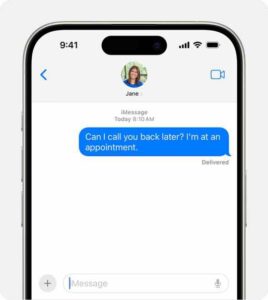
iMessages are texts and media sent between Apple devices over an internet connection. A successfully sent iMessage appears as a blue text bubble in your chat conversation.

An iPhone showing an iMessage message
Photo Credit: Apple

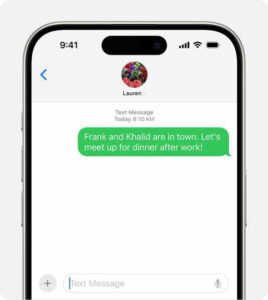
However, you’re probably here because you noticed your messages are sent as a green text bubble instead of blue or perhaps saw a "Sent as Text Message" note at the bottom of the bubble.

What does this mean? Have you been blocked? Below, we explain why you’re probably not blocked, why iMessage says sent as a text message, and how to fix it if you think it’s a mistake.

An iPhone showing an SMS/MMS message
Photo Credit: Apple

Does green Sent as text message mean you are blocked?

The answer to the question is maybe. You cannot send an iMessage to someone who blocked you. It will say “Sent as Text Message,” but still, the person will not get the message. However, your iMessages may send as SMS text messages in green bubbles instead of blue bubbles even when you are not blocked.

If you’re used to seeing blue iMessage text bubbles but they are suddenly green, it can be an indication you’ve been blocked – but that’s just one possibility, and isn’t necessarily the most likely.

6 Reasons Why Your iMessage Is Sent as a Text Message

When your iMessage is sent as a text message, it could be due to the following reasons:

1. There is a problem with iMessage on your iPhone

When your iMessage is sent as a text message, it’s worth checking whether the root cause of the issue lies with your iPhone first.

iMessage texts sending in green instead of blue is a common problem when the service stops functioning as it should.

You may experience iMessage issues after switching your SIM card or adding a new device to your Apple ID, so apply various troubleshooting methods to fix iMessage on your iPhone first.

2. The Recipient’s Device Is Not Connected to the Internet

For a text to be successfully sent as an iMessage, the recipient’s Apple device must also be connected to the internet. Otherwise, the iMessage will be sent as a text message to their device, or you might see an "iMessage Not Delivered" error on your iPhone if it’s not sent out.

3. The Recipient Wasn’t Using an Apple Device at the Time

Remember, iMessage only works between Apple devices. So, if your family or friend switches from an iPhone to an Android smartphone, for example, your iMessage will automatically be sent as a text message to them.

Your iPhone does not notify you that they have changed devices, even if your previous chat conversations were held using iMessage.

4. The Recipient’s Device Was Turned Off

Another simple reason is that your contact may have turned off their iPhone, or their device had shut down because it ran out of battery. When this happens, you can still continue to message them. However, your iMessage will be sent as a text message or simply remain pending until the other party turns on their device again.

5. The Recipient Disabled iMessage on Their iPhone

iMessage is a feature that can be enabled and disabled in the iPhone’s Settings app. For whatever reason, your contact may have chosen to turn off iMessage.

If this happens, you’ll be unable to send and receive iMessages from them. However, both of you can still reach each other with SMS text messages.

6. There’s a chance that iMessage is down on Apple’s end

When iMessage is not available for you or the recipient due to outages, the messages will be sent as SMS. Visit Apple’s System Status page and check if iMessage service is having known technical issues.

Turn on iMessages so your messages appear in blue bubbles when able

In order to send and receive the "blue text bubbles" when chatting with other iPhone, iPad, and Mac users, iMessage must be enabled on your iPhone.

If you have recently bought a new iPhone and set it up using your Apple ID already, iMessage will already be enabled and ready to use.

But if iMessage isn’t enabled, here’s how to do it:

  1. First, unlock your iPhone and launch the Settings app from the home screen.
  2. In Settings, scroll down until you find ”Messages” and tap on it.
  3. At the top of the screen, find iMessage.
  4. If the slider on the right is green, iMessage is already enabled. If not, tap the slider to enable iMessage
  5. If iMessage is already turned on, turn iMessage off by swiping the button to the left.
  6. Turn off your iPhone, then turn it on again.
  7. Go back to the Settings app, tap Messages, and turn iMessage back on by swiping the button to the right.

After activation, you will now be able to send and receive the "blue text bubbles" when chatting with other iPhone, iPad, and Mac users.

How to Test if Someone Blocked You From Contacting Them

There are a few ways you could try to check if you’re blocked. First, you could try calling the person. An iPhone user can’t choose to block you on iMessage without blocking you entirely. Therefore, if the call goes through, it confirms that you’re not blocked.

If the call doesn’t go through, you shouldn’t immediately start panicking either. There are a variety of reasons why you’re unable to make phone calls on your iPhone. Poor call signal in an area is one of the biggest culprits.

Therefore, you can also reach out to your recipient via social media platforms like Facebook, Twitter, Instagram, and Whatsapp. If you’re still connected on those platforms, it’s unlikely that the person has blocked you. If person is set to block you, they would have most likely block you in social media platforms as well. So, the issues of being unable to call them or send them an iMessage were likely minor technical hiccups.

Don’t Panic When Your iMessage Is Sent as a Text Message

Due to the reasons we’ve discussed in this article, it’s totally normal for iMessage to fail and be sent as a text message instead.

If you’ve been worried that you were blocked because your iMessage was sent as a text message, we trust our explanation has helped you understand why it’s probably not the case.

Therefore, don’t panic or jump to conclusions quickly. Contact the person using other channels if you need to communicate to them urgently.

If you are seeing an error message suggesting that iMessage on your iPhone is “Waiting for activation” or “Activation unsuccessful”, we have the solution here.

If you see any of the following error messages you may need to activate iMessage again. This may be the case if you have recently changed network supplier or got a new iPhone.

  • Waiting for activation
  • Activation unsuccessful
  • An error occurred during activation
  • Could not sign in, please check your network connection

If you are having this problem, you won’t be able to send or receive iMessages on your iPhone. This is because this error prevents iMessage activation and you need to activate iMessage before using it. In general, activation is usually a very simple process. However, if you are seeing an error message suggesting that iMessage on your iPhone is “Waiting for activation” or “Activation unsuccessful”, we have the solution here.

Here’s what to do if you aren’t able to send text messages because iMessages isn’t activated.

How to fix iMessage activation problems on iPhone

1. Make sure that you’re connected to the internet

You can’t activate iMessage if your iPhone can’t reach the activation servers. To check if your iPhone is connected to the internet, open Safari and visit GeeksModo.com. If our website doesn’t load, you’ve found the culprit. Here’s what to do:

  • Turn on Airplane Mode, wait 10 seconds, and then turn it off (Settings > Airplane Mode)
  • If you are using a VPN service, disable it and try again (Settings > VPN)
  • Restart your iPhone (Settings > General > Shut Down)
  • Restart your Wi-Fi modem/router by unplugging it from the power outlet and then plugging it in again.
  • And if your issue persists, you may want to reset your iPhone’s network settings. Please note that when you reset your network settings, your Wi-Fi, Bluetooth or cellular settings will be erased. For example, your Wi-Fi passwords will be deleted. Go to Settings > General > Transfer or Reset iPhone > Reset and then tap Reset Network Settings.

2. Check that your time and date are correct

If the time and date on your iPhone are incorrect, it can mess with your connection to Apple’s servers. Please ensure that the date and time settings on iPhone are set correctly for your time zone. Here’s how to check:

  1. Launch the Settings app and tap General.
  2. Tap Date & Time.
  3. If Date & Time are incorrect, change them.
  4. Also, make sure that the Set Automatically button is toggled on. If it’s not, swipe it to the right and restart your iPhone.

Once the iPhone restarts, check iMessage.

3. Update your iPhone

Make sure your iPhone is running the latest version of iOs. Here’s how to check:

  1. Launch the Settings app and tap General.
  2. Tap Software Update.
  3. If an update is available, tap Update Now unfollowed the on screen instructions.

4. Turn iMessage Off, Reboot, And Then Back On

If you are still having this problem, turn off iMessage, restart your iPhone and then turn iMessage on again. Here is how:

  1. Launchthe the Settings app and tap Messages.
  2. Tap the button next to iMessage to turn iMessage off.
  3. Once I message a standoff, restart your iPhone.
  4. Now go back to Settings > Messages and turn on iMessage.
  5. You may have to wait a while while iMessage is activated This can take up to 24 hours.

5. Sign out and back into your Apple ID

iMessage is connected to your Apple ID account; this account is used to access iCloud and other Apple services that require ID. Refreshing your iPhone’s Apple ID might fix the issue.

  1. Launch the Settings app and tap your name at the top of the page.
  2. Scroll to the bottom of the page and tap Sign Out. You might have to enter your password to fully log out.
  3. Once you’re signed out, restart your iPhone.
  4. When it starts back up, return to the Settings app and sign back into your Apple ID.
  5. Again, you may have to wait up to 24 hours for iMessage to activate.

6. Check Apple’s server status page

When iMessage "activate," what it’s really doing is contacting Apple’s servers to see if you’re using a legitimate Apple ID. So if Apple’s servers aren’t working, your apps can’t activate. You can find out if iMessage servers are down. Here is how:

  • Launch Safari and visit Apple’s System Status page.
  • Locate iMessage in the list of services.
  • If you see a green circle next to it, iMessage servers are up and running.
  • If the dot is yellow or red instead, the iMessage servers are having issues. If that’s the case, just wait for Apple to repair the servers.

7. Factory reset your iPhone

Now that you’ve ensured all the most basic settings are properly configured, if iMessage still isn’t turning on, try resetting your iPhone. This can flush out any corrupted data, crashed apps and other digital debris.

  1. Open Settings.
  2. Tap General.
  3. Tap Transfer or Reset iPhone.
  4. Tap Erase all Content and Settings.

8. Contact your carrier

If you have tried all the steps above and you’re still getting an error message saying “Activation unsuccessful. Turn on iMessage to try again”, it could be that iMessage is failing to send that important activation SMS. Contact your carrier and make sure you’re able to send and receive SMS messages.

Once you’re able to send and receive SMS messages, you might get a pop-up that says "Your carrier may charge for SMS messages used to activate FaceTime and iMessage."

If so, tap OK.

Now wait and see if the iMessage will activate on your iPhone.

9. Contact Apple Support

If none of those troubleshooting steps solved the problem, you should contact Apple support for assistance.

So, you have the iPhone 12, 12 mini, 12 Pro or 12 Pro Max and iMessage is not working. That hurts and makes you worried. After all, you did pay a high price for this coveted device!

Just like others, you too, are asking the same question – how to fix iMessage not working on iPhone 12 series?

We have a couple of troubleshooting tips for you that could help! Let’s find out what you can do!

Tips to fix iMessage not working on iPhone 12, 12 mini, 12 Pro and 12 Pro Max

iOS 14 added a couple of add-on features as well as system enhancements, making it more stable and fun to use. In case you’re having trouble using iMessage on your new iPhone, I’ve lined up a few handy tweaks you can use. Read on to find out what to do if all of a sudden, you can’t send or receive iMessages because iMessage just stopped working on your iphone 12, 12 mini, 12 Pro or 12 Pro Max.

Diagnosing the Issue with iMessage on Your iPhone 12

You might have noticed that when you send a message through iMessage on your iPhone, the color of the bubble could be green or blue. If it’s blue, that means that you sent the message using iMessage. If it was green, that means that you sent it through a cellular plan. That could be either using SMS or MMS. SMS is traditional text messaging, while MMS stands for multimedia messaging. iMessage can use data to send messages instead of the text messaging plan offered by your cell service provider.
If you are having a problem with the iMessage functionality on your iPhone 12, 12 mini, 12 Pro, or 12 Pro max, then it can be one of two things. The first possibility is that you’re having a problem sending and receiving texts from a single entity. The other is that you can’t send or receive texts from anybody.
If iMessage does not work with just one of the contacts on your list, then likely the issue is something happening on their end. If you cannot communicate through iMessage with anyone, then the problem is with your iPhone.
Do a Test with iMessage to Further Narrow Down What’s Happening
Find someone on your contact list who you know has an iPhone or iPad. Then, try sending them a message. If the bubble that you send out is blue, then you know your iMessage is working. That would mean that if you’ve been having trouble getting or sending messages with a single person, then the problem is definitely with their Apple device.
If, on the other hand, the bubble that you send out is green, then you will know that iMessage is not working on your iPhone 12. You can still send messages; it’s just that you are using your cellular plan rather than data, which is not ideal.

Turn iMessage Off for Your iPhone, then Back On

Let’s say that you have determined the problem to be with your iMessage rather than with someone else’s device. What can you do about it? The first thing that is worth trying if for you to turn off iMessage on your iPhone. Then you can reboot, and finally, you can turn iMessage back on.
Head over to Settings, then Messages. Toggle the switch next to iMessage to the off position. Now, hold down the side button together with any of the volume button until the Slide to Power Off slider appears on the display. Drag it to from left to right, turning off the iPhone. Turn the device back on by pressing the Power button again until The Apple logo appears on the screen. Once the iPhone reboots, head over to Settings, then Messages. Toggle the switch next to iMessage back to the on position.
This works to fix problems with your iMessage functionality most of the time.

iMessage on Your iPhone 12, 12 mini, 12 Pro or 12 pro max Still Not Working? Make Sure It Is Set Up Correctly

The next thing you can try is to go to Settings, then Messages. You should see an option to Send and Receive. Tap that to open the menu. There will be a list of phone numbers and email addresses for your contact list. There will be a section called Start New Conversations From. There should be a checkmark next to your phone number. If there isn’t one, that means that your number has not been set up for iMessage.
Tap your phone number. When you see the checkmark, that should solve the problem.

Your Internet Connection Could Be What’s Wrong

iMessage will only work for you if you have a steady Wi-Fi connection or you are using a cellular data connection. You need to make sure that you are connected to the internet. Launch Safari on your iPhone and check to see if you can access any website. If you get a message saying that you’re not connected, or the site will not load, then your iMessage will not work either.
Try turning off Wi-Fi and then sending your iMessage. If that works, then the problem was with your Wi-Fi, and not with iMessage.

Sign Out of iMessage on the iPhone, and then Back In

Head over to Settings, then Messages. Tap where it says Send and Receive. Tap where it says Apple ID, and then hit Sign Out. Sign back in with your Apple ID and password. Try sending an iMessage to a friend who has an Apple device.
If it works, then the problem is solved. If you’re still not having any luck, then proceed to the next solution.

An iOS Update for the iPhone Could Make a Difference

If there is an iOS update available, that might restore your iMessage capability if a software glitch is the problem. To check on this, head to Settings, then General. Go to Software Update. If there is one, tap it, so that it downloads. Once the new version has successfully installed, see if that makes any difference.

Reset the Network Settings for Your iPhone

Resetting the network settings for your iPhone would be another move for you to try. Restoring the network settings to their factory defaults can sometimes fix minor iMessage issues.
Head over to Settings, then General, and then Reset. Next, tap on Reset Network Settings. Make sure you have all your Wi-Fi passwords handy before you do this, though. When the iPhone reboots, you will need to type in the passwords both for your home and also your work, if you use your iPhone there. Remember that your Bluetooth and VPN settings will also be reset.

iMessage Still Not Working on the iPhone 12, 12 mini, 12 Pro or 12 Pro max? Time to Call in the Reinforcements

If the above troubleshooting steps didn’t fix iPhone 12 iMessage not working issue, now would be the time to contact Apple Support. You can talk with them over the phone or online via Live Chat. You could also take your iPhone to an Apple Store with a Genius Bar. There could be something more unusual happening with iMessage that is beyond your power to fix. Apple Genius bar should be able to try some troubleshooting methods that are more advanced than what we have explained here.

Conclusion

One of the above methods will surely fix iMessage not working issue on your iPhone 12, 12 mini, 12 Pro or 12 Pro Max. Try them and continue chatting with your friends through iMessage.

A couple of users have stated that they are unable to send and /or receive text messages and iMessages on Mac. In this article, I’ll explain exactly how you can troubleshoot this issue.

Users have reported that when they attempt to send a message, they see a little red exclamation mark symbol next to my message, and they cannot resent it.

Using the Messages app on the
Mac,
you can easily send and/or receive SMS text messages (normal text messages) and iMessages (Apple’s messaging service).

Cannot send or receive messages on Mac? Fix

If you cannot send or receive messages on your Mac, here is how you can fix it:

1. Restart your Mac

To restart your Mac, click the Apple menu and select Restart.

2. Sign out and then sign back in

Simply launch Messages, then select Messages and Preferences from the Menu bar. The click Sign out. Then open the Messages app and sign in with your Apple ID.

3. Re-enable the iMessage in the message preferences

Launch the Messages preferences window and select the Accounts tab (Messages > Preferences), select iMessage (left list), Ensure that the checkbox “Enable this account” is checked, if not checked, check the box.

4. Ensure that your Mac is connected to the Internet.

Try to load a page on Safari to check your Internet connection. If you do not have an Internet connection, Consider trying some basic Wi-Fi troubleshooting tips such as restarting your Mac, Router, Wi-Fi spot and much more.

5. Check the date and time settings

You may not be able to send or receive messages on Mac because of your date and time settings. Here is how to fix this. Click Apple menu > System Preferences > and then Date & Time; select the Time Zone tab and the “Set date and time automatically” checkbox, if it is already selected, unselect and wait about 20 seconds and then reselect again. You may need to type in the admin password if the checkbox is dimmed.

6. Check your messages setting

On your Mac, Messages > Preferences > Accounts > iMessages Account; and on your iOS or iPadOS device > Settings > Messages > Send and Receive the account should be same.

7. Lock and unlock the Keychain on your Mac

If you still cannot send or receive messages on Mac, there could be a Keychain problem. Here is how you can fix this problem:

  • Open Keychain Access (Launchpad > Keychain Access) then click File and Lock Keychain “Login” and then head over to File > Unlock Keychain “Login”, if asked, type in your admin password. This will rebuild your Keychain Access which may fix the problem when Mac cannot send messages.

8. Force quit Messages app and then reopen it

To force quit Messages app on your Mac, simply follow these steps: Choose Force Quit from the Apple menu () in the upper-left corner of your screen.And then select Messages and click Force Quit. The re-open the Messages app.

9. Contact Apple support

If you still cannot send or receive messages on your Mac, please
contact Apple support.

In this article, I’m going to tell you exactly what iMessage is, how it
works and what you can do when it’s not working.

What is an iMessage?

iMessage is a free, secure encrypted messaging service for Mac, iPhone, iPad, and Apple Watch.iMessage
is Apple’s own messaging service. The Cupertino based brand introduced iMessage in 2011.

iMessage can be called an “Over The Top” (OTT) service that does not require a cellular data connection. Your messages can either be sent over cellular data or Wi-Fi connection
. If your device is not connected to a Wi-Fi network, your message will be sent over cellular data. If you use Wi-Fi to send or receive iMessages, it’s free of charge. As
such, iMessage may use your
cellular data
 which will be deducted from your cellular data plan. And iMessage may consume huge amount of data particularly if you are sending photos, audio, or videos via iMessage.
Conversely, iMessages you send over cellular are not part of your monthly text message allowance if your cellular data plan sets a limit.

Regular text messages (SMS or MMS) require a cellular data plan with text-message abilities. Wireless carriers usually offers three types of text message plans as listed below:

  1. Unlimited text plan. As the title says, you can send unlimited text messages.
  2. Limited text plan. In this type of plan, you have a messaging allowance, usually monthly, that means, you can send a certain number of text messages.
  3. And pay per message. Meaning your carrier will charge you for every message you send or receive.

Irrespective of your data plan, you can send unlimited number of iMessages.

How to send an iMessage

To be able to send and receive iMessage, you need to have Apple’s Messages app on your device running iOS 5 or higher, watchOS 1 or higher or OS X Mountain Lion or higher.
You and your recipient need to have a compatible Mac, iPhone, iPad, iPod touch, or Apple Watch to use iMessage.

Everything is automatic. Both the sender and the recipient just need a device that supports iMessage. On your apple device, simply launch the Messages app and type and
then send your message. Then Messages will check with Apple servers if your recipient is set up for iMessage. If yes, your message will automatically be
delivered as an iMessage. Otherwise, your message will be sent as a regular text message (SMS/MMS). Please note, iMessages appears in blue bubbles while regular text messages appears in green bubbles.

To turn on or off iMessage on your device, please follow these steps:

  • On your iPhone, iPad or iPod touch, Start the Settings app and go to Messages and iMessage.
  • On your Mac, to
    turn off iMessage,
    start the Messages app and then click Messages > Preferences, then click Accounts and select your iMessage account.

iMessage features

iMessage has numerous awesome features. You can send and receive text, photos, audios, video , voice messages, location, money, heartbeats etc. The following are some iMessage
features:

  • You can participate in group iMessage chats.
  • iMessage shows
    read receipts.
  • You can
    send pictures, audio or videos via iMessage.
  • You can send or receive cash with Apple Pay.
  • You can
    send your location via iMessage.
  • You can apply
    message effects.
  • You can use iMessage apps.
  • You can send a sketch, tap, or heartbeat using Digital Touch.
  • You can send GIFs using
    #images.
  • You can use Messages in Cloud to sync your entire message history across all your apple devices.

How to troubleshoot iMessage problems

If iMessage is not working on your iPhone, iPad or Mac, please try the following fixes:

  • Make sure that your Apple device is running the latest version of iOS, iPadOS, macOS or watchOS.
    • To update your iPhone, iPad or iPod touch, go to Settings > General > Software Update.
    • To update macOS Mojave or higher, head over to System Preferences and then Software Update.
    • To update macOS High Sierra or older, launch the App Store on your Mac and then click the Updates tab.
  • Turn off iMessage (check the section above to turn on/off iMessage), then restart your device and then turn iMessage back on.
  • Sign out and sign in:
    • On your Mac: Launch Messages, select Messages > Preferences, then click Accounts and select your iMessage account. Click Sign Out. Then restart your Mac
      and sign back in.
    • On your iPad, iPhone or iPod touch: Go to Settings > Messages > Send & Receive. Tap your Apple ID, then tap Sign Out. Then restart your device and sign back in.
    • Ensure that your device is connected to the Internet (a cellular data or Wi-Fi network).
    • Make sure that your time zone is correct:
      • macOS: Click Apple menu > System Preferences, then click Date & Time. Also, you may need to tick the ”Set date and time automatically” box.
      • iOS or iPadOS: Head over to Settings > General > Date & Time. You may also want to enable the “Set Automatically” option.
    • Check the
      Apple System Status website.
      Maybe Apple is having iMessage outages.

So, today we are going to show you how you can get iMessage on PC.
iMessage is certainly the best messaging platform around the world. Unfortunately, the service is only available to Apple users.
Though there are numerous messaging apps such as instagram andFacebook Messenger, for Apple fans, iMessage is undoubtedly the best choice. Unfortunately, there is no iMessage app for windows.
For those who do not have apple devices and would like to use iMessage on PC, it’s quite a difficult task to achieve. Fortunately, in this step-by-step guide, we are going to show you simple tricks on how you can get iMessage for PC.
The most common question I get from windows users is: Is it possible to get iMessage on PC?
The answer is yes, and in this article, I’ll show you how. If you want to get iMessage on PC, there are a few simple steps which you need to follow.

Whether you are using Windows 10, windows 8 or windows 7, here is the step-by-step guide which will help you get iMessage on PC.

So, let’s dive into it!

Method #1: Get iMessage on Windows using Chrome Remote Desktop

In this first method, you need to have Mac in order to download and install Apple Messages for PC. Use of Chrome Remote Desktop extension makes it quick and easy to download and start using iMessage on PC.
This method is the quickest and easiest way to get iMessage on PC.

Chrome Remote Desktop allows users to remotely gain access to another computer through Chrome browser or Chromebook. You can gain full access to your files, documents, emails, apps ETC.
Note: In this method, you need Both Mac and windows computer to get iMessage on PC

How to Use iMessage on Windows PC

  1. Prepare your Mac with iMessage and your windows PC.
  2. , download and install Chrome and Chrome Remote Desktop on both Mac and Windows PC.
  3. Now, run the above apps on your two devices.
  4. Download Chrome Remote Desktop Host Installer on Your Mac
  5. Launch the installer and follow onscreen prompts to complete installation.
  6. Connect your Mac and Windows computer via the security code of Chrome Remote Desktop, and start using iMessage on
    Windows PC.

Get iMessage for windows using Chrome Remote DesktopYou are now a step away from becoming a master at using iMessage on windows PC!

Method #2: Get imessage on pc using ios emulators

Another way to get iMessage on PC is through the use of Emulators.

IOS emulators are third party software which creates a virtual iOS ecosystem on PC allowing users to install and enjoy iOS Apps on their Windows computer.

This method applies to folks who don’t have a Mac and would like to use iMessage on Windows computer.

Here is the idea. You simply need to download and install iPadian

This will allow you to easily download and use iMessage on Windows.

The following are some of iOS emulators available:

  • Mobione Studio
  • APP.IO
  • SmartFace
  • iPhone simulator
  • iPadian

Get iMessage for PC using iPadian emulatoriPadian 2 is an iPad simulator which lets users transform Windows computer and lets you send iMessage from PC.

. The emulator includes Standalone Adobe air application. It is a very useful tool for folks who want to enjoy iOS apps on their Windows computer.

Note: some of these emulators may introduce malware to your computer. Therefore , be extra cautious while using them on your device.

How to Install Apple’s Messages App on Windows PC Using iPadian 2

  1. On your PC, download the iPadian emulator.
  2. Next, run the emulator.
  3. Next on, Read and accept terms and conditions.
  4. After the installation process is complete, open the iPadian software on your computer.
  5. Now, search for “iMessage” in the search bar and download the iMessages app on your computer.
  6. Finally, open the iMessage app and start enjoying iMessage on your PC.

That’s pretty much it on how to get iMessage on PC.

You are now a master at using iMessage on Windows computer!
Now take a moment to check our article about 30 Plus Windows Keyboard Shortcuts To Boost Your ProductivityFinal thoughts:
If you are looking for how to use iMessage on PC, there you go! Now you can enjoy messaging on Windows PC. If you know any other method to get iMessage on a PC, tell us in the comments section below. we also have plenty of other articles that I suggest you check right now.

Wondering how to set up iMessage on your Mac? Here’s how!
The Messages app in macOS allows users to get in touch with friends, family, and colleagues across various Apple devices including iPhone, iPad, or, iPod touch. Fortunately. setting up iMessage on Mac is a quick and easy process.
With Messages for Mac, you can send infinite messages to any Mac, iPhone, iPad, or iPod touch that supports iMessage, Apple’s secure-messaging service.
iPhone users can send and receive SMS texts as well. If you have Windows PC
this guide explains how you can set up iMessage on

Windows PC.
In this guide, I’ll show you how to set up iMessage on Mac, as well as how to set up Messages iniCloud,
which keeps your messages in sync across all your Apple devices.
In case you’re new to the world of Mac or have just never set up Messages before, you may be wondering how to go about it. No worries, follow the steps below, and you’ll be chatting with your friends in no time.

Set up iMessage on Mac

How to Set up iMessage on Mac

  1. Open Messages App on your Mac. You can find it on the desktop, dock, Applications folder or by searching for it with Command+Space.
  2. Log in with your Apple ID and password. If you don’t have an Apple ID, you can click “Create new Apple ID” at the bottom to create one.
  3. Login iMessage on Mac

  4. Iftwo-step or two-factor authentication is enabled for your Apple ID, enter your verification
    Code sent to the other device.
  5. In the Menu bar, click on Messages and choose Preferences. Alternatively, you can press Command+Comma.
  6. Click the iMessage tab.
  7. Check the box next to Enable Messages in ‌iCloud‌ (this will sync your messages across all your apple devices)
  8. Next, select the phone number and email addresses that you prefer people to reach you at.
  9. Next on, select the phone number or email address you’d like people to see when you start a new conversation.
  10. Finally, click the red traffic light located at the top-left hand corner of the screen to close Messages preferences.

In case your phone number does not appear in the Messages preferences, you need to enable iMessage on your iOS device. To add a phone number to iMessage on mac:
On your iPhone, navigate to Settings > Messages and turn on iMessage. If it isn’t, you’ll see “Use your Apple ID for iMessage,” which you should click and sign in with the
account you’re using on your Mac.
After everything is set up, your phone number should appear in the Messages preferences on your Mac and you’ll be able to
Enjoy using iMessage.

Finally, if you enabled Messages in iCloud, you’ll also want to enable it on your iPhone or iPad‌ so that your messages can sync across all your Apple devices. Here’s how.

How to Set up Messages in iCloud in iOS

  1. Open Settings app on your iPhone or iPad‌.
  2. Tap your name.
  3. Tap iCloud‌.
  4. Toggle the switch next to Messages to ON position if it is not already

Thats pretty much it on how to set up messages on Mac.
Questions?

Let us know in the comments below!