Got a tip for us?

Reminders

You can customize your preferences for the Reminders app in Settings. Choose the default list for new items, adjust notifications, and more.

You can add or remove accounts, allow content from Reminders to appear in Search and widgets, and change the sound for reminder alerts. Siri can make suggestions based on how you use Reminders, and you can choose your preferred languages when you’ve added more than one.

Here’s how to change your Reminders settings on iPhone.

Customize your Reminders settings

  1. Start the Settings app on your iPhone.
  2. Tap Apps and tap Reminders.
  3. Adjust any of the following:
    • Accounts: Add or remove accounts in Reminders.
    • Location: Control the location information you share.
    • Siri: Allow Siri to make suggestions across apps based on the way you use Reminders.
    • Search: Allow suggestions and content from Reminders to appear in Search and widgets.
    • Notifications: Change notification settings.
    • Language: Choose your preferred languages (option appears when multiple languages are added).
    • Default List: Choose the list for new reminders you create outside of a specific list, such as reminders you create using Siri.
    • Today Notification: Set a time to see notifications for all-day reminders that have been assigned a date without a time.
    • Show as Overdue: The scheduled date turns red for overdue all-day reminders.
    • Time Zone: Set the time zone used to display and create reminders.
    • Include Due Today: The badge count includes overdue items and items due today.
    • Mute Notifications: Turn off notifications for assigned reminders.
    • Show Suggestions: If you type text that matches a previously completed reminder, that reminder appears as a suggestion.
    • Add Language: Set an additional language that Reminders uses to automatically place grocery items into categories.
    • Reset Categories: Clears the categorization that was learned as you manually moved items in grocery or auto-categorized lists. This applies to new items you add on any of your devices, including in lists you’ve shared. Existing items and lists shared with you won’t be affected.

Change the sound for reminder alerts

  1. Start the Settings app on your iPhone.
  2. Tap Sounds & Haptics, then tap Reminder Alerts.
  3. Choose a sound from the list.

If you’d rather not hear a sound when you receive a reminder alert, choose None.

You can print a grocery list, checklist, to-do items, project tasks, and more. It works right from the Reminders app on your iPhone, so any list you’ve made there, from a grocery list to your project tasks, can end up on paper.

  1. Start the Reminders app on your iPhone.
  2. View the list you want to print.
  3. Tap the More button and tap Print.

In a Reminders list, you can check off items to hide them, or you can permanently delete items. With the Reminders widget, you can complete items from the iPhone Home Screen or Lock Screen.

Completed items are hidden on your list, but you can unhide them or clear them to delete them. The widget lets you complete items without opening the Reminders app.

Here’s how to complete items in Reminders on iPhone.

Mark an item as completed

  1. Start the Reminders app on your iPhone.
  2. While viewing a list, tap the empty circle next to an item to mark the item as completed.

Completed items are hidden on your list. To unhide completed items, tap the More button, then tap Show Completed. To delete the completed items, tap Clear.

Use the Reminders widget

Without opening the Reminders app, you can complete items from the Home Screen using the Reminders widget.

  1. On the iPhone Home Screen, add the Reminders widget.
  2. To change the list shown in the widget, touch and hold the widget and tap Edit Widget. Then choose a list.
  3. To complete an item, tap the item in the widget.

It’s easy to create reminders on your iPhone. You can add them in the Reminders and Calendar apps, or create one instantly without leaving the app you’re currently in.

With Apple Intelligence, you can create a reminder from a description, or get suggested reminders like shopping lists and action items based on text from other apps. A reminder can include a title, date, time, and any other information you want.

Here’s how to create reminders on iPhone.

Siri: Ask Siri something like, “Add artichokes to my groceries list.” Learn how to use Siri.

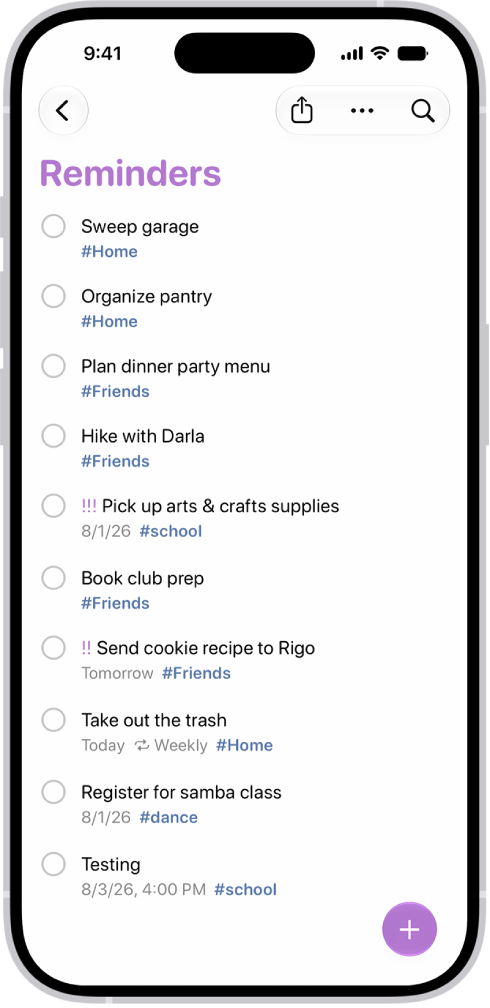
A new task is being added in the Reminders list.

When you use updated reminders in iCloud, all Reminders features described in this guide are available, though some features aren’t available with other accounts.

Create a reminder

  1. Start the Reminders app on your iPhone.
  2. Tap the New Reminder button. Enter the title, date, time, and any other information you want for the reminder.

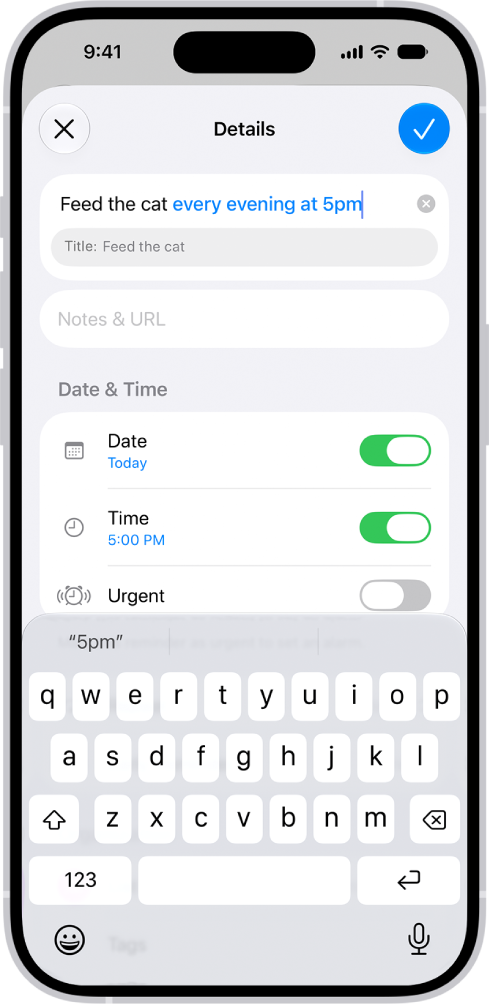
    A new "Feed the cat every evening at 5pm" reminder is being created, with Apple Intelligence automatically setting it to appear daily at 5pm.

    Tip: With Apple Intelligence, you can also type a description of the reminder—for example “Feed the cat every evening at 5pm”—and Reminders automatically fills in the details and timing based on what you typed.

  3. Tap the Done button.

    Note: Apple Intelligence on iOS 27 or later is available on an Apple Intelligence-enabled iPhone 15 Pro, iPhone 15 Pro Max, or iPhone 16 model or later. Apple Intelligence is not available in all languages or regions. Usage limits may apply.*

Create a reminder without switching apps

To create a reminder from any app or screen, do either of the following:

  • Add the Reminders button to Control Center, then tap the Reminders button in Control Center.
  • On supported models, assign Reminders to the Action button, then press and hold the Action button.

Create a reminder in Calendar

See Use Reminders in Calendar.

Get suggested reminders

Apple Intelligence can suggest reminders from text in other apps, such as action items from an email in Mail, or a list of grocery items from an online recipe in Safari.

Note: Apple Intelligence on iOS 27 or later is available on an Apple Intelligence-enabled iPhone 15 Pro, iPhone 15 Pro Max, or iPhone 16 model or later. Apple Intelligence is not available in all languages or regions. Usage limits may apply.*

  1. Open the information you want added to a list, like a recipe in Safari or meeting notes in Notes.
  2. Tap the Share button, then tap Reminders.

    Tip: You can also select specific text or bullets you want Apple Intelligence to review. Select text, tap Share, then tap Reminders.

    Suggested reminders may appear below the text you selected.

  3. To change which list the reminders are added to, tap the pop-up menu at the top of the screen and then choose a list.
  4. Tap the Add button next to a suggestion to add it to your list, or tap Include All to add all suggestions.
  5. Tap the Done button.

Your reminders are added to the list you chose. *Apple Intelligence is available with Siri and device language set to Chinese (Simplified), Chinese (Traditional), Danish, Dutch, English, French, German, Italian, Japanese, Korean, Norwegian, Portuguese, Spanish, Swedish, Turkish, or Vietnamese. Some features may not be available in all regions or languages. Some devices may not be available in all regions. Siri AI is available in beta in iOS 27, iPadOS 27, macOS 27, watchOS 27, and visionOS 27 and requires an Apple Intelligence–enabled device set to a supported language. Available in English to start. Siri AI will not be initially available in the EU on iOS, iPadOS, and watchOS. Certain Apple Intelligence features that rely on server-side models are subject to daily usage limits, including but not limited to Siri AI, Intelligent Photo Editing Tools, Image Playground, and AFM 3 Cloud models in Shortcuts. Daily limits may vary by feature, request complexity, system demand, system policies, and other factors. Expanded access to such features will be available for a fee in the future. Use of these features is subject to the Apple Intelligence Terms and Conditions.

You can add details to your reminders such as notes, links, due dates, and photos. You can also flag important items, set a priority, or scan a document right into a reminder.

Reminders can even be tied to a place or a person. You can be reminded when you arrive home, get into a car with a Bluetooth connection to your iPhone, or the next time you chat with someone in Messages.

Here’s how to add details in Reminders on iPhone.

Note: You get every Reminders feature described in this guide when you use updated reminders in iCloud. With other accounts, some features aren’t available.

Add a note, URL, and other details to a reminder

  1. Start the Reminders app on your iPhone.
  2. Tap an item.
  3. Tap Add Note and then add more information.
  4. Tap the Edit Details button to edit the item details. For example, you can set a date and time, set a location-based reminder, flag an important item, or attach a photo.

Set when and where to be reminded

Reminders can show up on a certain date, at a specific time or location, or while you’re texting someone in Messages.

  1. Start the Reminders app on your iPhone.
  2. Tap an item and then do any of the following:

    • Schedule a date and time: Tap the Date and Time button, then choose an option.

      Tip: Reminders with a due date appear as an all-day event in Calendar. See Use Reminders in Calendar.

    • Mark a reminder as urgent: Tap the Edit Details button. Then turn on Urgent to get an alarm when the reminder is due. If Date and Time aren’t already set, they default to the next hour. You can edit Date and Time to change when the alarm activates.
    • Set a recurring reminder: Tap the Edit Details button, turn on Date or Time, tap Repeat, and choose the frequency.
    • Get an early reminder before the scheduled date and time: Tap the Edit Details button, tap Early Reminder, and choose when you want to be reminded. For example, “5 minutes before,” “2 days before,” or another choice.
    • Add a location: Tap the Location button. Then choose where you want to be reminded—for example, when you arrive home or get into a car with a Bluetooth® connection to your iPhone.

      Note: To receive location-based reminders, you must allow Reminders to use your precise location. Go to Settings > Privacy & Security > Location Services. Turn on Location Services, tap Reminders, choose While Using the App, then turn on Precise Location.

    • Get a reminder in Messages: Tap the Edit Details button and turn on When Messaging. Then choose someone from your contacts list. The reminder appears the next time you chat with that person in Messages.
  3. Tap the Done button.

Set a flag and priority

  1. Start the Reminders app on your iPhone.
  2. Tap an item.
  3. Do any of the following:
    • Flag an important item: Tap the Flag button.
    • Set a priority: Tap the Edit Details button, tap Priority, and then choose Low, Medium, or High.

Add a photo or scan a document

  1. Start the Reminders app on your iPhone.
  2. Tap an item, then tap the Photos button.
  3. Do any of the following:
    • Take a new photo.
    • Choose a photo from your photo library.
    • Scan a document.
    • Scan and insert text.

In the Reminders app, you can save a list as a template to reuse it for routines, packing lists, and more. You can create a link to publish and share a template with others, or download templates that others have shared.

After you make a template from a list, changes to that list don’t affect the template, and changes to a template don’t affect lists you already created from it. You can make a new list from a template, and edit or delete a template, too.

Save a list as a template

  1. Open the Reminders app on your iPhone.
  2. When viewing a list, tap the More button and tap Save as Template.
  3. Enter a name for the template.
  4. Turn on or off Include Completed Reminders and tap the Done button.

Once a list becomes a template, changes you make to that list won’t affect the template.

Make a new list from a template

  1. Open the Reminders app on your iPhone.
  2. Tap the More button and tap Templates. Tap the name of a template.
  3. Enter a name for the list and then tap Create.

Edit or delete a template

Any changes you make to a template don’t affect lists previously created from the template.

  1. Open the Reminders app on your iPhone.
  2. Tap the More button, tap Templates, and tap the Edit button next to the template you want to manage.
  3. Choose one of the following:
    • Edit Template: Add, edit, or delete any items in the template. You can also change the name, color, and icon for the template.
    • Delete Template: Remove the template.

Share a template

Sharing a template gives Apple servers access, so anyone with the link can download a copy of it on a device running iOS 16, iPadOS 16, macOS 13, or later. You decide whether the shared template keeps any dates, tags, or locations, but images are removed.

  1. Open the Reminders app on your iPhone.
  2. Tap the More button, tap Templates, and tap the Edit button next to the template you want to share.
  3. Tap Share Template and choose a method for sharing.

To manage a shared template, tap the More button, tap Templates, tap the Edit button, then tap Manage Link. If you make changes to the template after sharing, you can update the shared version. Anyone who downloaded the previous version needs to download the template again to get the updates. If you stop sharing a template, this doesn’t affect anyone who has already downloaded the template.

In the Reminders app, you can easily search through all your lists for items that contain specific text. You enter what you’re looking for in the search field, and Reminders shows matching items from every list.

Here’s how to search through all your lists in Reminders on iPhone.

Search for items in all your lists

  1. Start the Reminders app on your iPhone.
  2. Tap the Search button
  3. In the search field, enter a word or phrase.

In the Reminders app, you can organize a list with sections and subtasks. You can also view the sections as columns and easily move items to different columns. With Apple Intelligence,* you can also automatically categorize related reminders into sections within a list.

You can change a list’s name, type, color, or icon, and edit several items at once.

Here’s how to edit and organize a list in Reminders on iPhone.

Note: Some Reminders features in this guide only work with updated reminders in iCloud, so they aren’t available when using other accounts.

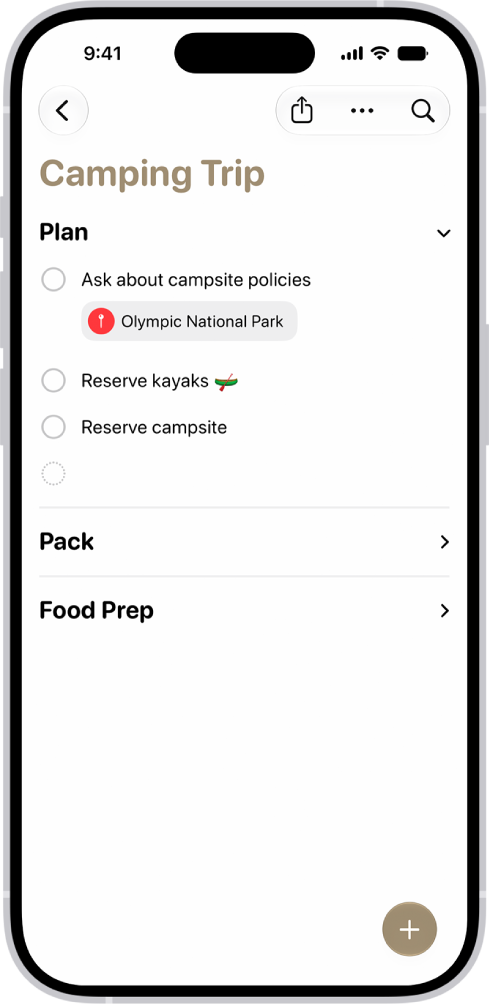
The Reminders app showing a list with one section expanded and the others collapsed.

Edit a list

  1. Start the Reminders app on your iPhone.
  2. While viewing a list, tap the More button and then do any of the following:

    • Change the list name, type, color, or icon: Tap Show List Info.
    • Edit multiple items: Tap Select Reminders or Select Items, then select the items you want to edit. You can also drag two fingers over the items. Use the buttons to add a date and time, move, delete, assign, complete, tag, or flag the selected items.
    • Sort items by due date, creation date, priority, or title: (not available in all Smart Lists) Tap Sort By. Choose an option.

      When you sort or reorder a list, the new order is applied to the list on your other devices where you’re using updated reminders. If you sort or reorder a shared list, other participants also see the new order (if they use updated reminders).

    • Remove the list: Tap Delete List.

Manually reorder or recategorize items in a list

  1. Start the Reminders app on your iPhone.
  2. While viewing a list, touch and hold an item you want to move and then drag it to a new location.

Organize with sections

  1. Start the Reminders app on your iPhone.
  2. While viewing a list, do any of the following:

    • Create a new section: Tap the More button, tap New Section, and enter a name.
    • Collapse a section: Tap the Collapse button.
    • Expand a section: Tap the Expand button.
    • Rename section: Tap the section name, then enter a new name.
    • Move a section: Touch and hold the section and drag it to a new position.

      Note: You can’t move the Others section.

    • Remove a section: Swipe left on the section and tap Delete.

      Note: Removing a section will also delete the section’s reminders.

Turn Auto-Categorize on or off

Apple Intelligence can automatically sort related reminders into sections within a list using Auto-Categorize.

  1. Start the Reminders app on your iPhone.
  2. Tap a list.
  3. Do one of the following:
    • Turn Auto-Categorize on: Tap the More button, then tap Auto-Categorize.
    • Turn Auto-Categorize off: Tap the Auto-Categorize button and tap Turn Off. Then choose whether to keep or remove the sections.

Note: Removing the sections doesn’t delete any reminders. If you don’t like how the sections are categorized, try turning off Auto-Categorize and removing the sections, then turning it back on. This resets your section titles and organization within a list. Note: Apple Intelligence on iOS 27 or later is available on an Apple Intelligence-enabled iPhone 15 Pro, iPhone 15 Pro Max, or iPhone 16 model or later. Apple Intelligence is not available in all languages or regions. Usage limits may apply.

View the sections as columns

Viewing the list in columns makes it easy to visualize and recategorize the items.

  1. Start the Reminders app on your iPhone.
  2. While viewing a list, tap the More button and then tap View as Columns.
  3. To recategorize an item, drag it into a different column.

Create subtasks

  1. Start the Reminders app on your iPhone.
  2. While viewing a list, swipe right on an item and then tap Indent. Or drag an item onto another item.

If you complete a main task, the subtasks are also completed. If you delete or move a main task, the subtasks are also deleted or moved. *Apple Intelligence is available with Siri and device language set to Chinese (Simplified), Chinese (Traditional), Danish, Dutch, English, French, German, Italian, Japanese, Korean, Norwegian, Portuguese, Spanish, Swedish, Turkish, or Vietnamese. Some features may not be available in all regions or languages. Some devices may not be available in all regions. Siri AI is available in beta in iOS 27, iPadOS 27, macOS 27, watchOS 27, and visionOS 27 and requires an Apple Intelligence–enabled device set to a supported language. Available in English to start. Siri AI will not be initially available in the EU on iOS, iPadOS, and watchOS. Certain Apple Intelligence features that rely on server-side models are subject to daily usage limits, including but not limited to Siri AI, Intelligent Photo Editing Tools, Image Playground, and AFM 3 Cloud models in Shortcuts. Daily limits may vary by feature, request complexity, system demand, system policies, and other factors. Expanded access to such features will be available for a fee in the future. Use of these features is subject to the Apple Intelligence Terms and Conditions.

In the Reminders app, you can use tags as a fast and flexible way to categorize and organize your reminders. You can add one or more tags to a reminder, such as #shopping and #work, and easily search and filter your reminders across lists using the Tag Browser or Smart Lists.

You can also rename or delete a tag whenever you want.

Here’s how to tag items in Reminders on iPhone.

Note: When you use updated reminders, every Reminders feature described in this guide is available, but some aren’t with other accounts.

Add tags

  1. Open the Reminders app on your iPhone.
  2. When you create or edit an item in a list, tap the Tag button and type a tag.

A tag can be only one word, but you can combine words using dashes and underscores. An item can have multiple tags.

View items with tags

  1. Open the Reminders app on your iPhone.
  2. Below Tags at the bottom of the screen, do any of the following:

    • View items with specific tags: Tap one or more tags. Then choose to view items matching any or all of the selected tags.

      Tip: To save this list as a Smart List, tap the More button, then tap Create Smart List.

    • View all items with tags: Tap All Tags.

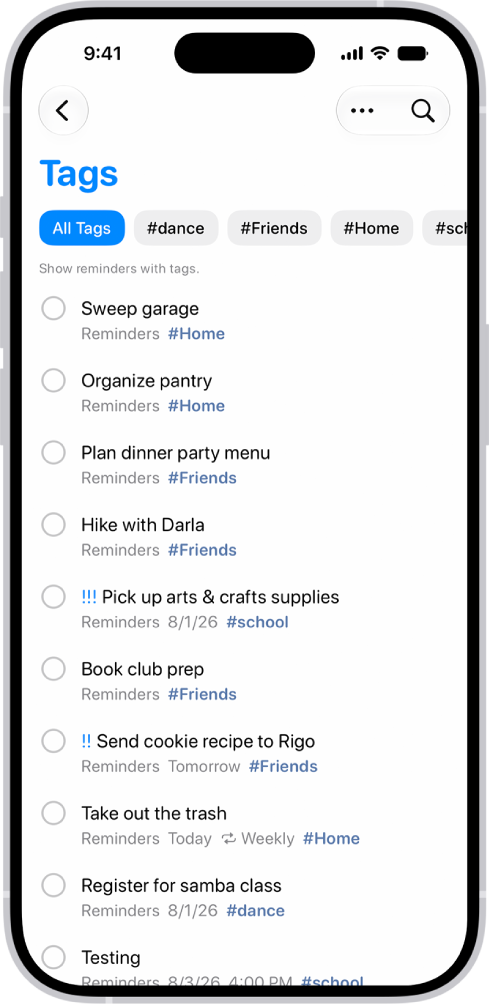
A list of tagged reminders in the Reminders app. Buttons along the top show additional tags that you can apply.

Rename or delete a tag

  1. Open the Reminders app on your iPhone.
  2. Below Tags at the bottom of the screen, touch and hold a tag. Then tap Rename Tag or Delete Tag.

When you delete a tag, it’s also removed from all Smart Lists that use it.

You can view, create, complete, and edit reminders from the Reminders app right in Calendar.

Your scheduled reminders appear alongside your events, at their time in the full-day schedule, or at the top of the calendar if they’re all day. You can create reminders, complete reminders, hide reminders, and edit or delete reminders. You can also add images, notes, or a priority level to a reminder, and choose a specific reminders list for new ones.

Show reminders

You can show scheduled reminders you added to the Reminders app in Calendar.

  1. Open the Calendar app on your iPhone.
  2. Tap the Calendars button.
  3. Select Scheduled Reminders.

All-day reminders show up in the all-day section at the top of the calendar, while reminders scheduled for a specific time sit at that time in the full-day schedule.

Create reminders

  1. Open the Calendar app on your iPhone.
  2. Tap the Add button.
  3. Tap Reminder, then enter a title.
  4. To choose a date for the reminder, tap Date.
  5. Optionally, turn on Time and choose a specific time for the reminder.

A reminder can also hold other information, like images, notes, or a priority level.

Note: You can select a specific reminders list for new scheduled reminders. If you don’t select one, they’re added to the default list you chose for Reminders.

Complete reminders

  1. Open the Calendar app on your iPhone.
  2. Tap the circle next to a reminder’s name.

Complete reminders are dimmed. Deselect the circle next to a reminder to mark it as incomplete.

Note: For a repeating scheduled reminder, future instances stay dimmed, and you can only mark them complete after the most current instance is marked complete.

Hide reminders

  1. Open the Calendar app on your iPhone.
  2. Tap the Calendars button.
  3. Deselect Scheduled Reminders.

Removing reminders from Calendar doesn’t delete the reminders from the Reminders app.

Edit or delete reminders

  1. Open the Calendar app on your iPhone.
  2. Tap a reminder and tap Edit to edit the details or Delete Reminder to delete.

Deleted reminders go to the Recently Deleted list in Reminders for 30 days before being permanently deleted.