Got a tip for us?

Voice Memos

You can mark audio recordings as favorites and organize your recordings into folders.

Recordings you mark as favorites automatically appear in the Favorites folder. Related recordings can go together into folders, so you can locate them easily, and you can delete or reorder folders later. You can also mark several recordings as favorites at once, and move recordings into a folder.

Here’s how to organize recordings in Voice Memos on iPad.

Note: Smart Folders hold your Apple Watch recordings, recently deleted recordings, and favorites, gathering files automatically by type and subject matter.

Mark recordings as favorites

  1. Go to the Voice Memos app on your iPad.
  2. In the list of recordings, do any of the following:
    • Tap the recording you want to mark as a favorite, then tap the Favorite button above the waveform.
    • Tap Edit above the list of recordings, select one or more recordings, tap Move to Folder, then tap Favorites. (If there isn’t a Favorites folder, create one by entering Favorites in the field.)

Recordings you mark as favorites automatically appear in the Favorites folder.

Organize recordings into folders

To locate related recordings easily, you can group them together into folders.

  1. Open the Voice Memos app on your iPad.
  2. Tap Edit above the list of recordings.
  3. Select one or more recordings, tap the Share button, tap Move to Folder, and choose a folder.

    To create a new folder, tap the New Folder button, type a name for the folder, then tap Save.

To view your folders, tap the Sidebar button; tap a folder to check its contents.

To return to the list of recordings, tap All Recordings above the folders.

Delete or reorder folders

  1. Open the Voice Memos app on your iPad.
  2. Tap the Sidebar button to go to the list of folders.
  3. Tap Edit above the folders and then do any of the following:
    • Delete a folder: Tap the Delete button next to the folder. Tap the Trash button.
    • Change the order of the folders: Drag the Reorder button next to any folder.
  4. Tap Done.

See also

Use the Voice Memos app on Apple Watch to record personal notes. It’s simple. Recordings on your Apple Watch automatically sync to your iPhone, iPad, and Mac where you’re signed in with your Apple Account.

That means your watch recordings play back on your paired iPhone and on other devices signed in to your Apple Account, through iCloud. You can play a voice memo right on your watch, too.

Here’s how to record and play voice memos on Apple Watch.

Record a voice memo

  1. Start the Voice Memos app on your Apple Watch.
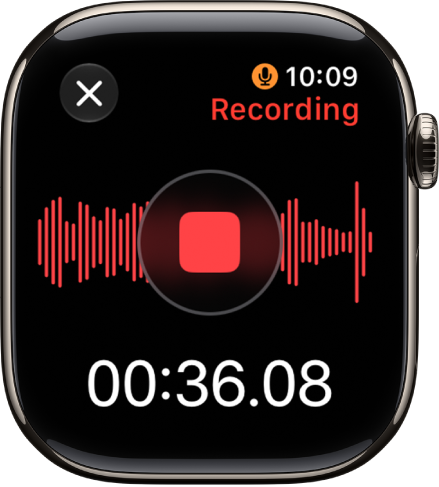
  2. Tap the Record button.
  3. Tap the Stop Recording button to end the recording.

    The Voice Memos app in the midst of recording a memo. A red Stop button is in the middle. Below is the recording’s elapsed time. The word Recording appears at the top right.

Play a voice memo

  1. Start the Voice Memos app on your Apple Watch.
  2. Tap a recording on the Voice Memos screen and tap the Play button to play it.
  3. Tap the Skip Ahead button or the Skip Back button to skip ahead or back, respectively.

Access your voice memos on other devices

With iCloud, your watch recordings can play on your paired iPhone, along with other devices where you’re signed in to your Apple Account.

  1. Go to the Voice Memos app on your iPhone, iPad, or Mac.
  2. Tap or click Watch Recordings.

See also

You can use iPhone as a portable recording device to record personal notes, classroom lectures, musical ideas, and more, using the built-in microphone, a supported headset, or an external microphone. You can fine-tune your recordings with editing tools like trim, replace, and resume.

When Voice Memos is turned on in iCloud settings, your recordings appear and update automatically on your iPhone, iPad, and Mac signed in to the same Apple Account. You can also filter out background sounds and record in stereo or mono.
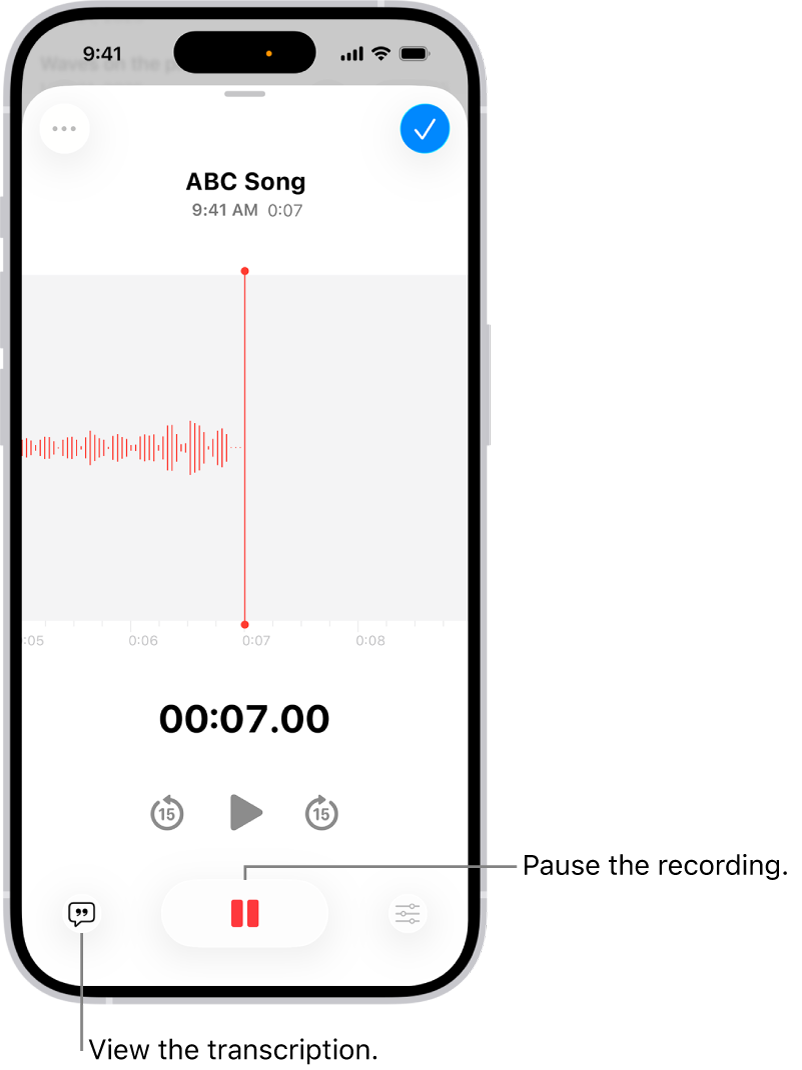
A Voice Memos recording, showing a waveform of the recording that’s in progress, along with a time indicator and a button to pause the recording.

Make a basic recording

  1. Start the Voice Memos app (in the Utilities folder) on your iPhone.

    Note: To make it easier to find and open the Voice Memos app, you can move it from the Utilities folder to the Home Screen.

  2. Tap the Record button to begin recording.

    To adjust the recording level, move the microphone closer to or farther from what you’re recording.

  3. Tap the Stop button to stop recording.

    Your recording is saved with the name New Recording or the name of your location, if Location Services is turned on in Settings > Privacy & Security. To change the name, tap the recording, then tap the name and type a new one.

Note: For your privacy, when you use Voice Memos to make recordings, an orange dot appears to indicate your microphone is in use.

Filter out background sounds

Your recording can include or exclude background sounds.

  1. Start the Voice Memos app (in the Utilities folder) on your iPhone.
  2. Open Control Center.
  3. Tap Voice Memos at the top of Control Center.
  4. To filter out background sounds in your recording, select Voice Isolation.
  5. To include the background sounds, select Wide Spectrum.

Note: Wide Spectrum isn’t available on all iPhone models.

Record stereo, mono, or Spatial Audio

How the recording sounds when it’s played depends on the recording mode you select.

  1. Start the Settings app on your iPhone.
  2. Tap Apps and tap Voice Memos.
  3. Tap Recording Mode, then choose one of the following:
    • Mono: Audio playback is the same in both ears.
    • Stereo: Separates audio playback between the left and right ears.
    • Spatial Audio: Audio playback is immersive—it seems to play from all directions.

Note: Spatial Audio isn’t available on all iPhone models.

With Stereo or Spatial Audio selected, Voice Memos uses multiple microphones on your iPhone and records with right and left audio channels. Listen through headphones, and you’ll hear different sounds from different microphones, though the waveform display still looks the same.

Use the advanced recording features

To make a recording in parts, pause and resume as you record.

  1. Start the Voice Memos app (in the Utilities folder) on your iPhone.
  2. Tap the Record button to begin a recording.

    To adjust the recording level, move the microphone closer to or farther away from what you’re recording.

    To see more details while you’re recording, swipe up from the top of the waveform.

  3. Tap the Pause button to stop recording; tap Resume to continue.
  4. To review your recording, tap the Play button.

    To change where playback begins, drag the waveform left or right across the playhead before you tap the Play button.

  5. To save the recording, tap Done.

    Your recording is saved with the name New Recording or the name of your location, if Location Services is turned on in Settings > Privacy & Security. To change the name, tap the recording, tap the name, then type a new name.

Mute the start and stop tones

To mute the start and stop tones, turn on Silent mode.

Open Control Center, then tap the Silent Mode Off button to turn on Silent mode.

Use another app while recording

During a recording, you can use another app if it doesn’t play audio on your iPhone.

  1. Start the Voice Memos app (in the Utilities folder) on your iPhone.
  2. Tap the Record button to begin recording.
  3. While you’re recording, go to the Home Screen. Then open another app.

Voice Memos stops recording if the other app starts playing audio.

On supported models, you can see your recording in progress in the Dynamic Island on the Home Screen and in other apps. Tap the Dynamic Island to expand it, or navigate back to Voice Memos.
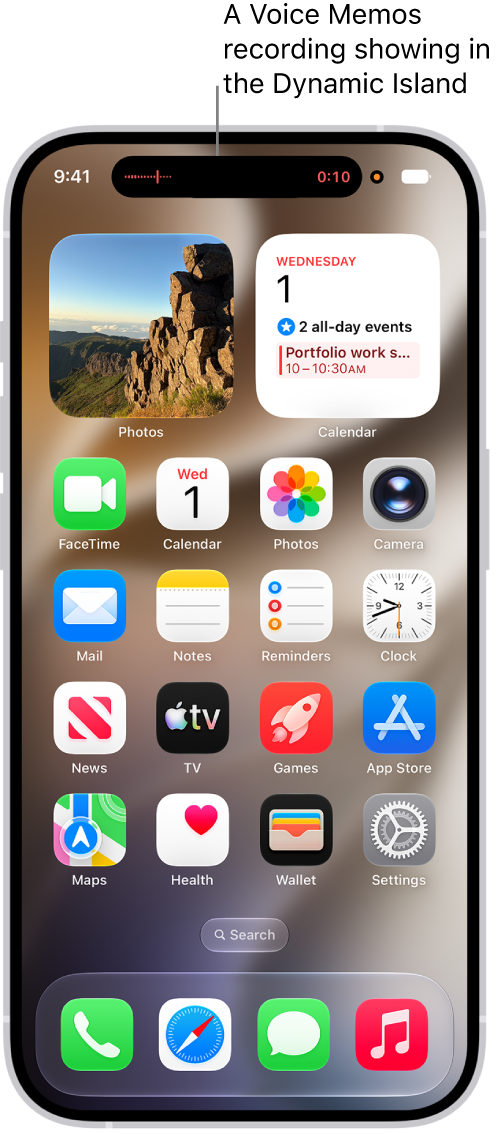
The iPhone Home Screen, showing a Voice Memos recording in the Dynamic Island.

When you turn on Voice Memos in iCloud settings or iCloud preferences, iCloud saves your recording. It then appears automatically on your Mac, iPad, and iPhone where you’re signed in to the same Apple Account.

Supported iPhones record in Spatial Audio automatically when you use the built-in microphone. Earlier iPhone models record in Mono instead, unless you turn on Stereo Recording in Settings, and you can also record in Stereo with an external stereo microphone or audio interface that works with iPhone. Accessories with the Apple “Made for iPhone” or “Works with iPhone” logo are the ones to look for.


On supported models, you can record a vocal layer on top of an instrumental recording without using headphones. This allows you to capture a musical inspiration: add vocals or a voiceover to an existing instrumental recording, try out lyrics, harmonize with instrumental music, and more.

After recording the second layer, you can mix the two layers or separate them to edit and play each one on its own. You can only create a layered recording on supported models, but you can play one on any device.

Here’s how to add a second layer to a Voice Memos recording on iPhone.

Add a second layer

  1. Start the Voice Memos app (in the Utilities folder) on your iPhone.
  2. In the list of recordings, tap the recording you want to add a vocal layer to and then tap the Edit Recording button to view the waveform.
  3. Tap the Add a Vocal Layer button.

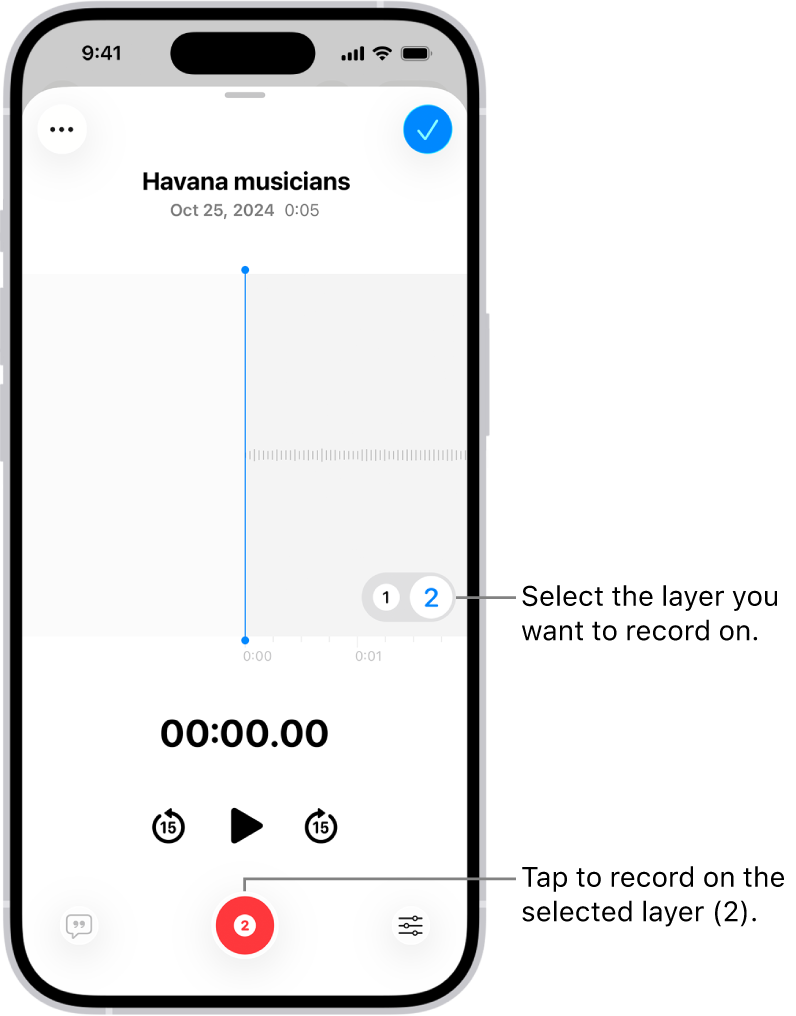
    The screen for recording a second layer in Voice Memos.

  4. Tap the Record button and then record your second layer.

Layered recordings show the Layers button in the list of recordings.

A layered recording can play on any device, although you can only create one on supported models.

Note: Layered recordings use QTA (QuickTime Audio) format, so they won’t appear on devices running iOS 18.1, iPadOS 18.1, macOS Sequoia 15.1, and earlier. Separate the layers, though, and you get each layer in .m4a format, which shows up on devices with iOS 18.1, iPadOS 18.1, or macOS Sequoia 15.1 and earlier.

Transcription and recording in stereo or Spatial Audio work only on the first layer. Unless you separate them, you edit both layers of a layered recording together.

Mix the layers

When you’ve recorded the second layer, you can mix the two layers.

  1. Start the Voice Memos app (in the Utilities folder) on your iPhone.
  2. Tap the layered recording you want to mix.
  3. Tap the Edit Recording button to view the waveform and then tap the playback options button.
  4. Drag the Layer Mix slider to mix the layers.

Separate the layers

With the second layer recorded, you can separate the two layers to edit them or play them separately.

  1. Start the Voice Memos app (in the Utilities folder) on your iPhone.
  2. While viewing the waveform, tap the More button, then tap Separate Layers.
  3. Tap Done to return to the list of recordings.

In the list, the two layers then appear as separate recordings that you can select, edit, and play separately.

Import layered recordings into Logic Pro

If Voice Memos is on in iCloud settings, an iPad that’s signed in to the same Apple Account can open a layered recording from your iPhone. Export the recording to Files there, and you can import it into Logic Pro for iPad for editing. In Logic Pro 11.1.1 or later, the two layers open automatically as two distinct tracks.

You can duplicate a recording in the Voice Memos app (in the Utilities folder) on your iPhone, which is useful when you need another copy of it. You can make changes to the copy, save it, and give it a new name.

The duplicate shows up right below the original version in the list of recordings, with “copy” added to its name. You can change that name to a new one, too.

  1. Start the Voice Memos app (in the Utilities folder) on your iPhone.
  2. In the list of recordings, tap a recording, tap the More Actions button, and then tap Duplicate.

The duplicate appears right below the original version in the list and has “copy” added to its name. To change the name, tap it, then type a new one.

You can mark audio recordings as favorites and organize your recordings into folders.

Recordings you mark as favorites automatically appear in the Favorites folder. Related recordings can go together into folders, so you can locate them easily, and you can delete or reorder folders later. You can also mark several recordings as favorites at once, and move recordings into a folder.

Here’s how to organize recordings in Voice Memos on iPhone.

Note: Smart Folders automatically gather files by type and subject matter, so Apple Watch recordings, recently deleted recordings, and favorites are grouped there.

Mark recordings as favorites

  1. Start the Voice Memos app (in the Utilities folder) on your iPhone.
  2. In the list of recordings, do any of the following:
    • Tap the recording you want to mark as a favorite, tap the More Actions button, then tap the Favorite button.
    • Tap Edit above the list of recordings, select one or more recordings, tap the Share button, tap Move to Folder, then tap Favorites. (If there isn’t a Favorites folder, create one by entering Favorites in the field.)

The Favorites folder automatically shows recordings marked as favorites.

Organize recordings into folders

To locate them easily, you can group related recordings together into folders.

  1. Start the Voice Memos app (in the Utilities folder) on your iPhone.
  2. Tap Edit above the list of recordings.
  3. Select one or more recordings, tap the Share button, tap Move to Folder, and choose a folder.

To create a new folder, tap the New Folder button, type a name for the folder, then tap Save.

To view your folders, tap the Back button; tap a folder to check its contents.

To return to the list of recordings, tap All Recordings.

Delete or reorder folders

  1. Start the Voice Memos app (in the Utilities folder) on your iPhone.
  2. Tap the Back button to go to the list of folders.
  3. Tap Edit above the folders and then do any of the following:
    • Delete a folder: Tap the Delete button next to the folder. Tap the Trash button.
    • Change the order of the folders: Drag the Reorder button next to any folder.
  4. Tap Done.

You can play audio you recorded on your iPhone using the playback controls. You can also adjust the playback options to change playback speed, reduce background noise, and fill in silences.

Those options go further, too. You can enhance a recording, skip over gaps when playing back a recording, turn on Studio Sound, or reset the playback options, and none of it changes the recording itself.

Here’s how to play a recording in Voice Memos on iPhone.

Note: These settings don’t change the recording itself. Whatever you choose stays with that specific recording, which means it’s applied each time you play it but doesn’t apply to other recordings.

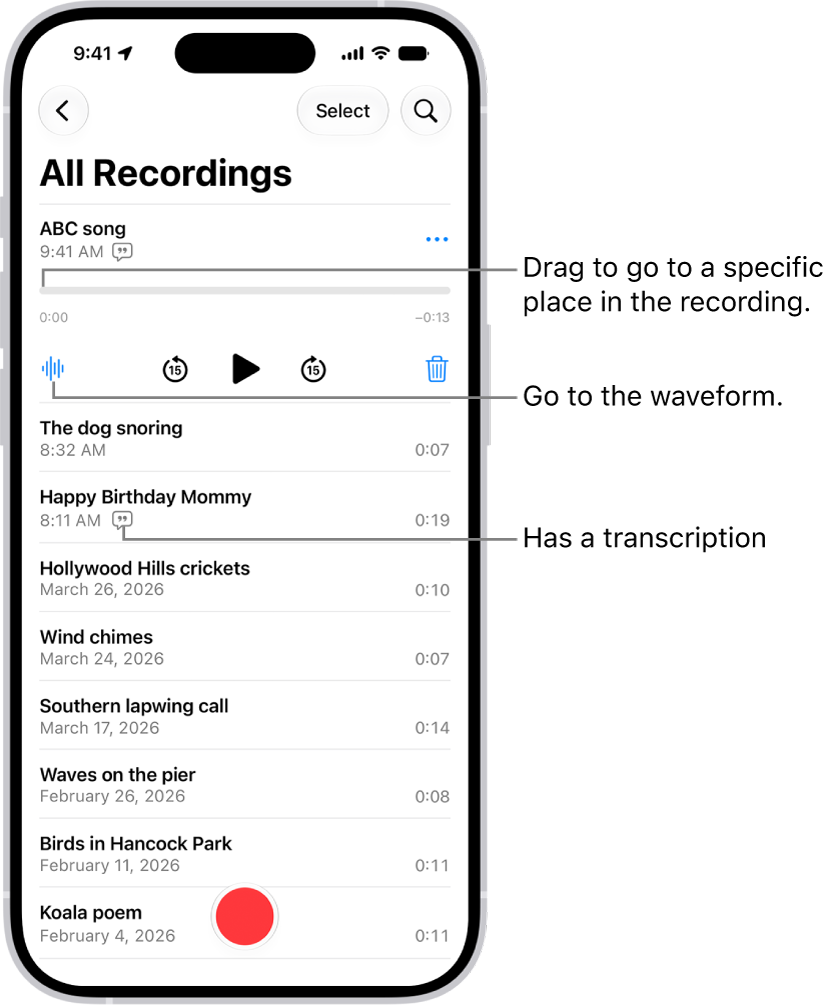
The Voice Memos list screen with a selected recording at the top. The recording timeline has a playhead, which you can drag to go to a specific place in the recording. The play controls are below the timeline.

Control Description
the Play button Play
the Pause button Pause
the Rewind Fifteen Seconds button Skip backward 15 seconds
Skip forward 15 seconds

Quick tip: You can tap its name to rename it any time the recording is open.

Change the playback speed

You can play a recording at a faster or slower speed.

  1. Open the Voice Memos app (in the Utilities folder) on your iPhone.
  2. In the list of recordings, tap the recording you want to play. Tap the More button.
  3. Tap the Options button and drag the slider toward the tortoise for a slower speed, or toward the rabbit for a faster speed.
  4. Tap the Done button and tap the Play button to play the recording.

Enhance a recording

When you play Mono and Stereo recordings, turning on Enhance Recording reduces background noise and echo.

  1. Open the Voice Memos app (in the Utilities folder) on your iPhone.
  2. In the list of recordings, tap the recording you want to enhance and tap the More button.
  3. Tap Options, then turn on Enhance Recording.
  4. Tap the Done button and tap the Play button to play the recording.

Skip over gaps when playing back a recording

For Mono and Stereo recordings, Voice Memos can analyze them and automatically skip over gaps during playback.

  1. Open the Voice Memos app (in the Utilities folder) on your iPhone.
  2. Tap the recording you want to play and tap the More button.
  3. Tap Options and turn on Skip Silence.
  4. Tap the Done button and tap the Play button to play the recording.

Turn on Studio Sound

In a Spatial Audio recording, Studio Sound adjusts the levels of background sound and reverb so the voice sounds more like it was recorded in a studio.

Only Spatial Audio recordings work with Studio Sound.

Studio Sound also recognizes music, rather than treating it as background sound. But music is properly isolated only if you’ve made the recording in Spatial Audio on iPhone 18 Pro models. Other iPhone models reduce music along with background sound.

  1. Open the Voice Memos app (in the Utilities folder) on your iPhone.
  2. Tap the recording you want to play and tap the More button.
  3. Tap Options and turn on Studio Sound.
  4. Drag the slider to increase or decrease the effect.
  5. Tap the Done button and tap the Play button to play the recording.

Reset the playback options

At once, you can return a recording’s playback options to their original settings.

  1. Open the Voice Memos app (in the Utilities folder) on your iPhone.
  2. Tap the recording you want to turn off playback options for. Then tap the More button.
  3. Tap Options, then tap Reset.

You can keep your audio recordings up to date automatically on your iPhone, iPad, and Mac. There are two conditions. You need to be signed in to the same Apple Account on each device, and Voice Memos must be turned on in iCloud settings, with macOS 15 or later on a Mac.

To turn on Voice Memos in iCloud on your devices, follow these steps:

  • iOS or iPadOS: Go to Settings > [your name] > iCloud > See All, then scroll down and turn on Voice Memos.
  • macOS 15 or later: Choose Apple menu > System Settings, then click your name in the sidebar. If you don’t see your name, click “Sign in” to sign in to your Apple Account or create one. Click iCloud, click See All, then scroll down and turn on Voice Memos.

You can share one or more audio recordings with others, or send them to your Mac or another device, using AirDrop, Mail, Messages, and more.

You can share a single recording from its More Actions menu, or select more than one recording and share them together.

Here’s how to share a recording in Voice Memos on iPhone.

Share a recording

  1. Start the Voice Memos app (in the Utilities folder) on your iPhone.
  2. In the list of recordings, tap the recording you want to share. Then tap the More Actions button.
  3. Tap Share. Tap Options and choose one of the following:
    • Rendered: Create a single .m4a file with all audio effects and layers mixed in.
    • Editable: Share a file that lets a recipient with a compatible device and software update configure effects and layers.
  4. Choose a sharing option, select or enter a recipient, and tap the Done button or the Send button.

Share more than one recording

  1. Start the Voice Memos app (in the Utilities folder) on your iPhone.
  2. Tap Select above the list of recordings and then select the recordings you want to share.
  3. Tap the Share button, tap Options, and then choose a file option (Rendered or Editable.)
  4. Choose a sharing option, select or enter a recipient, and tap the Done button or the Send button.

You can fine-tune your recordings using the editing tools. Remove parts, record over parts, or replace an entire recording.

You can trim a recording to keep or delete a section, and save the edited version as a new recording, so the original stays as it was. You can also delete a recording, and recover or erase a deleted one later.

Here’s how to edit or delete a recording in Voice Memos on iPhone.

Edit a voice recording

  1. Open the Voice Memos app (in the Utilities folder) on your iPhone.
  2. In the list of recordings, tap the recording you want to edit and tap the More button. Then tap the Trim button.
  3. Drag the yellow trim handles to enclose the section you want to keep or delete.

    You can pinch open to zoom in on the waveform for more precise editing.

    To check your selection, tap the Play button.

  4. To keep the selection (and delete the rest of the recording), tap Trim, or to delete the selection, tap Delete.
  5. Tap Apply and then tap Done.
  6. Tap Save Recording to overwrite the original recording, or tap Save as New Recording to save the edited version as a new recording (leaving the original as it was).

Replace a recording

  1. Open the Voice Memos app (in the Utilities folder) on your iPhone.
  2. In the list of recordings, tap the recording you want to replace and tap the More Actions button. Tap Edit Recording.
  3. Drag the waveform to position the playhead where you want to start recording new audio.

    You can pinch open to zoom in on the waveform for more precise placement.

  4. Tap Replace to begin recording (the waveform turns red as you record).

    Tap the Pause button to pause; tap Resume to continue.

  5. To check your recording, tap the Play button.
  6. Tap Done and tap Save Recording to replace the original recording, or tap Save as New Recording to save the changes as a new recording (leaving the original as it was).

Delete a recording

  1. Open the Voice Memos app (in the Utilities folder) on your iPhone.
  2. Do any of the following:
    • In the list of recordings, tap the recording you want to delete, then tap the Delete button.
    • Tap Edit above the list of recordings, select one or more recordings, then tap the Delete button.

Deleted recordings move to the Recently Deleted folder, where they’re kept for 30 days by default. To change how long deleted recordings are kept, go to Settings > Apps > Voice Memos > Clear Deleted, then select an option.

Recover or erase a deleted recording

  1. Open the Voice Memos app (in the Utilities folder) on your iPhone.
  2. Tap the Recently Deleted folder. Then tap the recording you want to recover or erase.

    If you don’t see the Recently Deleted folder, tap the Back button.

  3. Do any of the following:

    • Recover the selected recording: Tap Recover.
    • Delete the selected recording: Tap Delete.
    • Recover everything in the Recently Deleted folder: Tap Edit above the Recently Deleted list, then tap Recover All.
    • Delete everything in the Recently Deleted folder: Tap Edit above the Recently Deleted list. Tap Delete All.