









GeeksModo Story Archive - October 2026
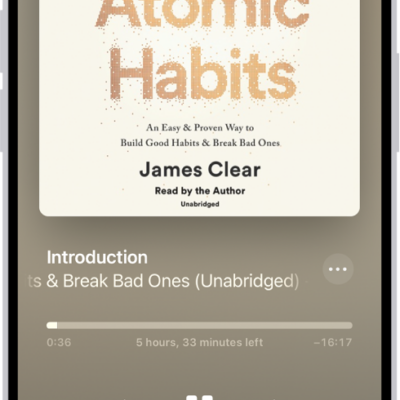
How to listen to audiobooks in the Books app on iPhone
You can listen to audiobooks in the Books app on iPhone, skip forward or back, jump to a specific time, and find supplemental PDFs.
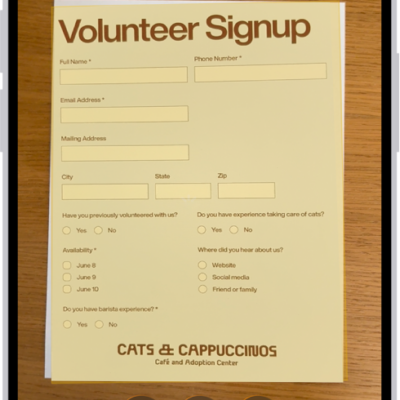
How to scan a QR code with your iPhone camera
You can scan QR codes for websites, apps, coupons, and tickets with the iPhone Camera or the Scan Code control in Control Center.
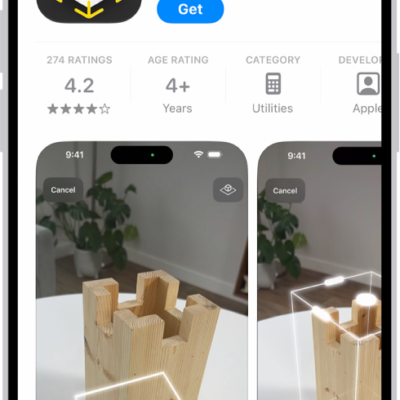
How to get apps in the App Store on iPhone
You can discover, buy, and download apps in the App Store on iPhone, browse featured stories and charts, and find Apple Arcade games.
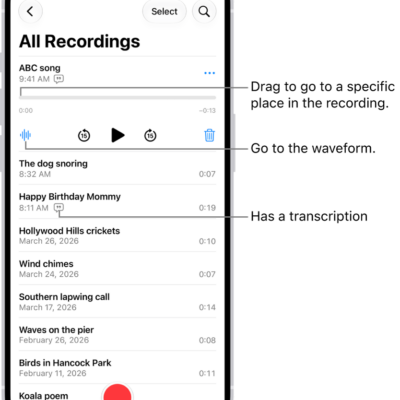
How to play a recording in Voice Memos on iPhone
You can play Voice Memos recordings on iPhone and change playback speed, skip silences, enhance the audio, or turn on Studio Sound.
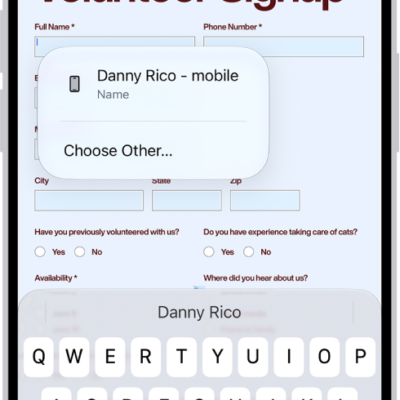
How to add, delete, rotate, move, or crop PDF pages in Preview on iPhone
You can add, delete, rotate, reorder, and crop pages in a PDF using the Preview app on iPhone, and insert scanned pages too.
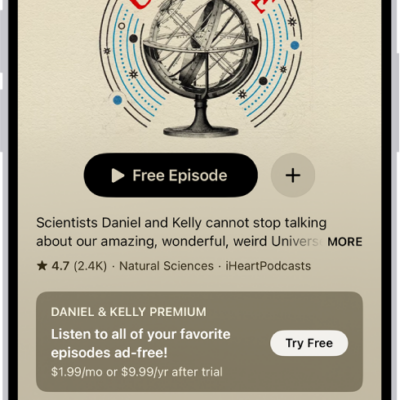
How to follow your favorite podcasts on iPhone
You can follow podcasts on iPhone to add them to your library, get notified about new episodes, and listen on your other devices.
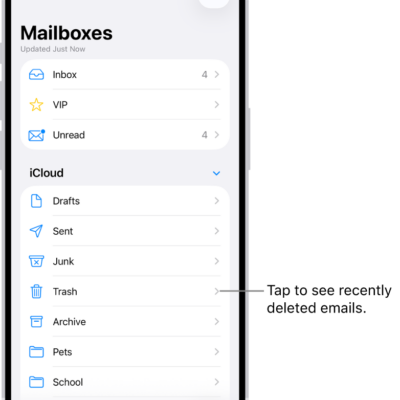
How to use iCloud Mail rules to automatically apply actions to emails in Mail on iPhone
You can create iCloud Mail rules on iPhone to automatically move, delete, forward, or mark emails as read, and edit or reorder them.
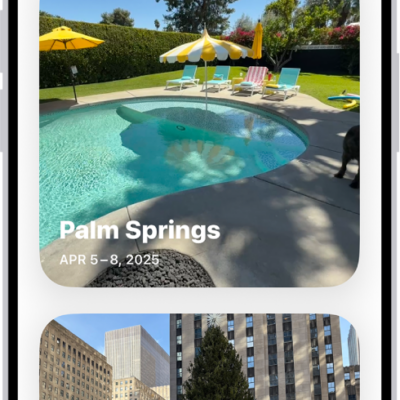
How to browse photos and videos by location on iPhone
You can browse your photos and videos by location on iPhone, see them on a map, and check where any photo was taken.
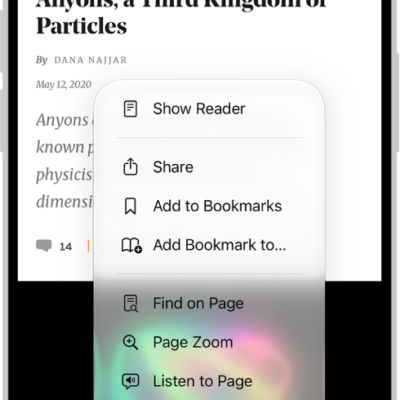
How to listen to a webpage in Safari on iPhone
You can have Safari on iPhone read supported webpages aloud with Listen to Page, and pause or resume whenever you like.
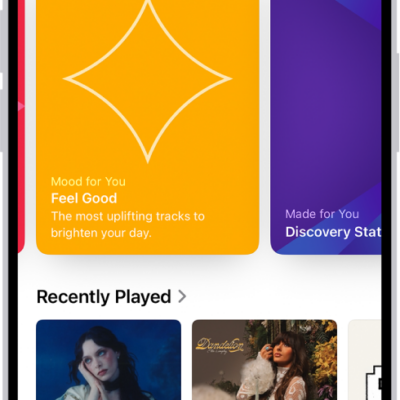
How to get personalized recommendations in Music on iPhone
You can tell Music which genres and artists you like on iPhone to get recommendations based on your taste if you subscribe to Apple Music.