








Got a tip for us?

GeeksModo Story Archive - October 2026
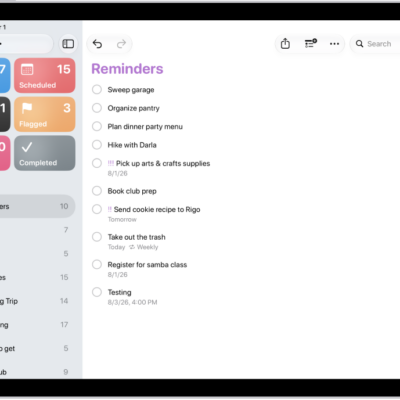
The Reminders app, showing a new task being added to the Reminders list.

How to work with templates in Reminders on iPad

You can work with templates in Reminders on iPad to reuse lists for routines and packing lists, and share templates with others.
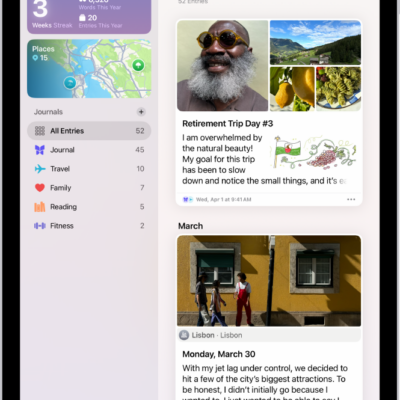
A screen in the Journal app showing journal entries with the Search button at the top right.

How to print and export entries in Journal on iPad

You can print and export entries in Journal on iPad, one entry or your entire journal, and save exports to Files.
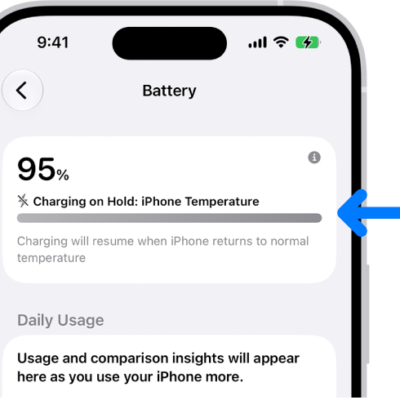
The charging information card in iPhone Battery settings. The card shows the battery at 95% with the message "Charging on Hold: iPhone Temperature." A note below indicates that charging will resume when the iPhone temperature returns to normal.

Why iPad slows or pauses charging when it’s too hot or cold

You can understand Thermally Limited Charging on iPad, which slows or pauses charging in hot or cold conditions to protect the battery.
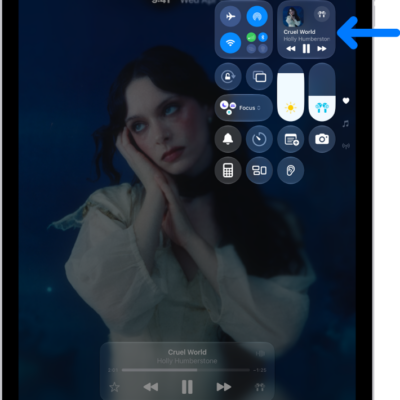
The iPad Control Center showing an arrow pointing to the audio card where you can control music from the Lock Screen or when using another app.

How to play audio from your iPad on a Bluetooth accessory from your iPad

You can play audio from your iPad on a Bluetooth accessory, change the playback destination, and improve audio accuracy.
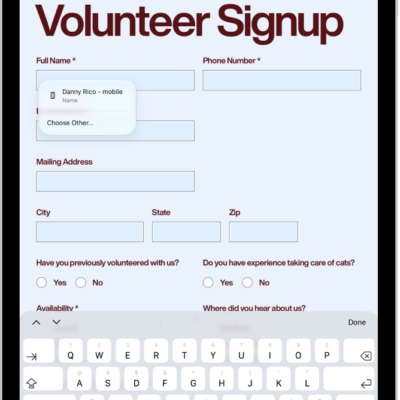
A screen showing a PDF form in the Preview app with fillable fields highlighted. At the bottom of the screen are the Add Annotation, Markup, AutoFill, Crop, Info, Share, and Search buttons. The AutoFill button is selected.

How to share PDFs or images in Preview on iPad

You can share PDFs or images in Preview on iPad, collaborate on a file, send a copy, or copy it to the Clipboard.

The Phone app, with Favorite contacts on the left side of the screen. Below the Favorites is a list of recent calls and voicemail. The contact information appears on the right side of the screen, with the Keypad button in the top right of the screen.

How to view and delete your call history on iPad

You can view and delete your call history on iPad, removing all your recent calls or just specific calls.
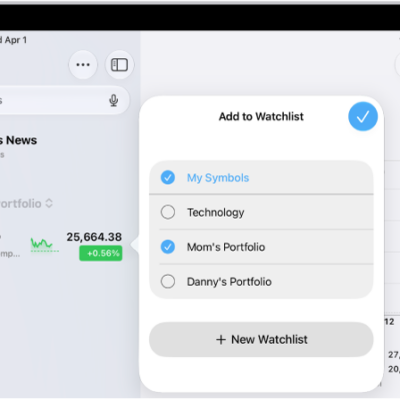
A list of customized watchlists in the Stocks app: My Symbols, Mom's Portfolio, Sustainability, and Entertainment.

How to manage watchlists in Stocks on iPad

You can manage watchlists in Stocks on iPad, create new watchlists, add or remove symbols, and switch between watchlists.
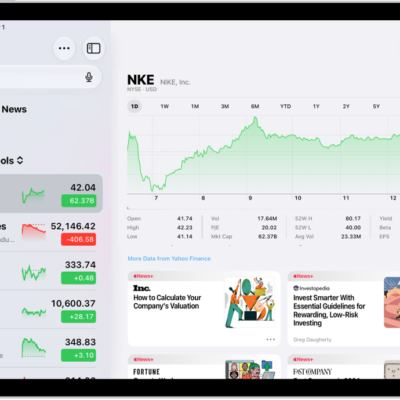
The Stocks screen on iPad includes a chart showing the performance for a stock over the course of a morning. On the left are a list of ticker symbols. Above the chart are buttons to display the stock performance over a week or larger increments of months and years, up to 10 years. Below the chart are stock details such as opening price, high, low, and market cap, and links to business-related news.

How to check stocks on iPad

You can check stocks on iPad in the Stocks app, manage your My Symbols watchlist, and view charts, details, and news.
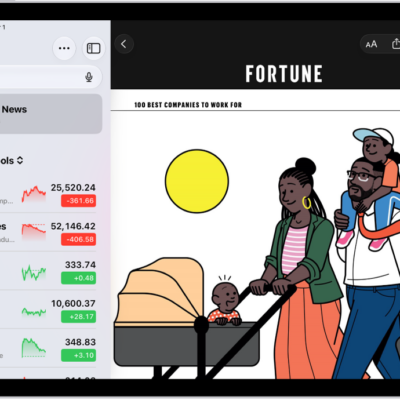
A business-related article from Apple News in the Stocks app. At the top-left corner of the article is the Back button to return to the other suggested stories. At the top-right corner are the Text Size, Share, Save, and More Actions buttons.

How to read business news in Stocks on iPad

You can read business news in Stocks on iPad, listen to stories, save them to Apple News, and clear recommendations.
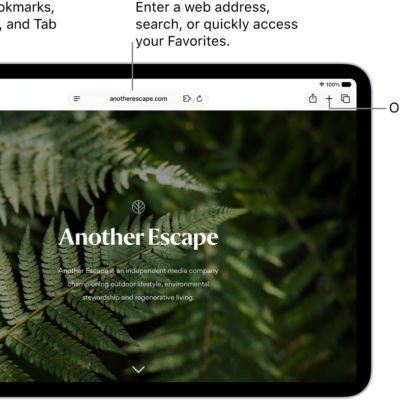
An open webpage. Along the top, from left to right, are the Sidebar button, the Previous button, the search field, the Share button, the New Tab button, and the Tab Overview button.

How to listen to a webpage in Safari on iPad

You can listen to a webpage in Safari on iPad, have supported webpages read aloud, and pause or resume listening.