Control Center gives you quick access to essential Apple Watch features and settings. In Control Center, you can check your connection status and battery level, toggle settings like Airplane Mode and Theater Mode, use the flashlight, ping your iPhone, and more.
You can organize Control Center by rearranging, adding, and removing controls, too, and reset it whenever you like. You can quickly access the default controls there, and close Control Center when you’re done.
Here’s how to use Control Center on Apple Watch.
Open Control Center
- Press the side button.
- Tap any of the controls. (Scroll down to see more controls.)
Use the default controls
In Control Center, you have quick access to any of the following default controls:
| Button | Description | For more information |
|---|---|---|
 |
Turn cellular on or off (available on Apple Watch models with cellular). | See Set up and use cellular service. |
 |
Connect or disconnect Wi-Fi. | See Disconnect from Wi-Fi. |
 |
Turn on Airplane Mode. | See Use Airplane Mode. |
 |
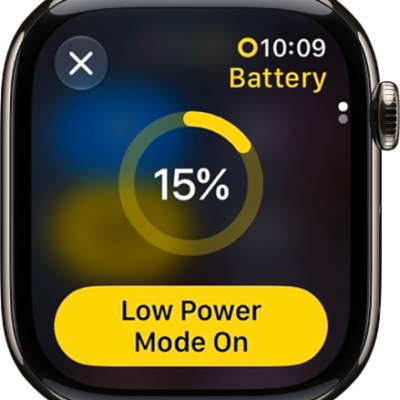
Check the battery percentage and turn on Low Power Mode. | See Turn on Low Power Mode. |
| Ping your iPhone. | See Ping your iPhone with Apple Watch. | |
 |
Turn on the flashlight. | See Use the flashlight. |
 |
Turn on Do Not Disturb or choose a Focus. | See Turn on Do Not Disturb or a Focus. |
 |
Silence Apple Watch. | See Turn on Silent Mode. |
 |
Turn on Water Lock. | See Go for a swim. |
 |
Turn on Theater Mode. | See Turn on Theater Mode. |
 |
Change the volume. | See Adjust the media volume. |
 |
Choose audio output. | See Choose an audio destination. |
 |
Change text size. | See Adjust the text size. |
Rearrange, add, and remove Control Center buttons
Rearranging, adding, and removing controls is how you organize Control Center. The controls you can add cover accessibility features, Backtrack, Settings, and many apps like Home, Notes, Reminders, Shortcuts, and supported third-party apps.
- Press the side button to open Control Center on Apple Watch.
- Scroll to the bottom of Control Center and then tap Edit.
- Do any of the following:
- Rearrange controls: Touch and hold a control and drag it to a new location.
- Add controls: Tap the Add button, tap the controls you want to add, and tap the Close button.
- Remove controls: Tap the Delete button in the corner of a control you want to remove.
- When you’re finished, scroll to the bottom and then tap Done.
Reset Control Center
You can revert Control Center to the original layout with default controls.
- Open the Settings app on your Apple Watch.
- Tap Control Center and tap Reset Control Center Layout.
You can also revert Control Center on your iPhone—go to the Apple Watch app, tap My Watch, tap Control Center, then tap Reset Control Center.
Close Control Center
Turn your wrist away from you or press the side button again.
See also