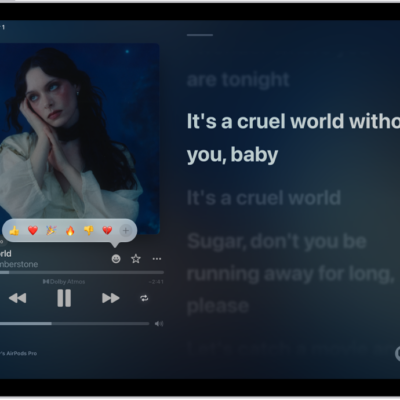
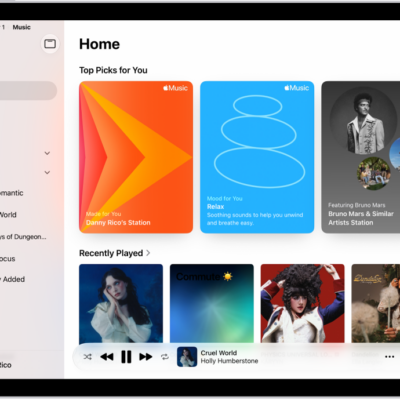
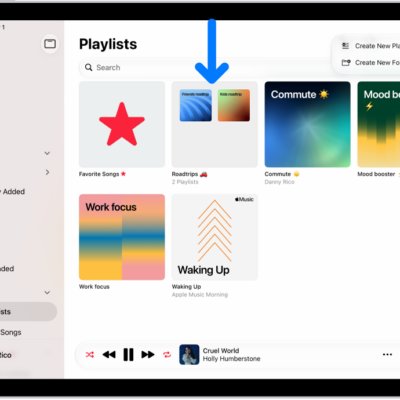
If you subscribe to Apple Music, you can share a playlist and collaborate on it with others. Everyone can add, remove, and reorder music and react with emoji to songs in the collaborative playlist.
As the owner, you can turn on Approve Collaborators to decide who joins, and you’ll see a notification when a new person requests to join. If you don’t, anyone with the link can join the collaborative playlist.
Here’s how to collaborate on a playlist in Music on iPad.
Note: Apple Music isn’t available in all countries or regions.
Invite others to collaborate on a playlist
- Open the Music app on your iPad.
- Tap a playlist, then tap the Collaboration button.
-
To approve people before they can join, turn on Approve Collaborators.
If you don’t turn on this option, anyone with the link can join the collaborative playlist.
-
Tap Start Collaborating and choose a sharing method, such as AirDrop, Messages, or Mail, to send a link to the playlist.
The person who receives the link must tap Join Playlist to start collaborating.
When Approve Collaborators is on and you’re the owner, notifications appear in the top-right corner as new people request to join the collaborative playlist.
Add more people to collaborate on a playlist
You can share the link to the playlist with more people if you own the collaborative playlist, or if the owner hasn’t turned on Approve Collaborators.
- Open the Music app on your iPad.
- Tap a collaborative playlist, tap the Manage Collaboration button, and then do one of the following:
- Add someone who is nearby: Tap QR Code. Others can join the playlist by using the camera on their iPad to scan the code displayed on your iPad.
- Add someone else: Tap generate a new link (if necessary) and tap Share Invite Link. Then follow the steps to invite others to collaborate on a playlist.
Manage shared settings for a collaborative playlist
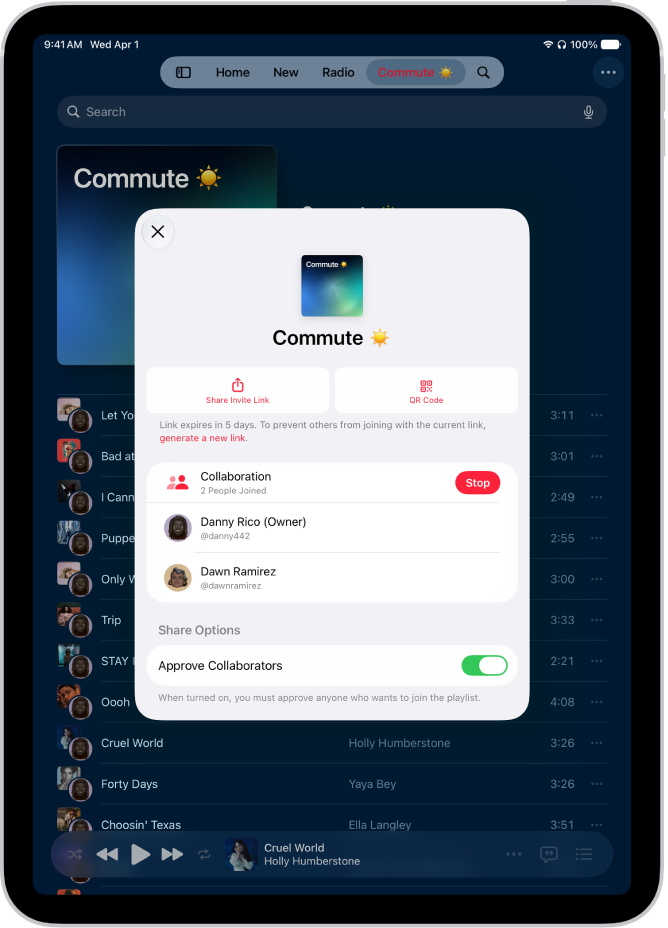
After collaboration on a playlist begins, the owner can change access and permissions, either for everyone or for individuals.
- Open the Music app on your iPad.
-
Tap a collaborative playlist, tap the Manage Collaboration button, and then do any of the following:
-
Invite others: See Add more people to collaborate on a playlist.
Note: If you didn’t turn on Approve Collaborators, anyone collaborating on the playlist can share the link to the collaborative playlist.
- Approve people before they can join: Turn on Approve Collaborators.
- Accept request: Tap the Accept Request button to allow the person to join the collaborative playlist.
- Decline request: Tap the Decline Request button if you don’t want the person to join the collaborative playlist.
-
Invite others: See Add more people to collaborate on a playlist.
Stop collaborating on a playlist with one or more people
If you’re the owner, you can remove people from the playlist or stop collaborating on it altogether.
- Open the Music app on your iPad.
- Tap a collaborative playlist, tap the Manage Collaboration button, and then do any of the following:
- Remove one person: Swipe left on the person’s name and tap Remove.
- Stop collaborating on a playlist: Tap Stop.
Remove yourself from a collaborative playlist
- Open the Music app on your iPad.
- Tap a collaborative playlist and tap the Manage Collaboration button. Tap Leave.
See also