








Got a tip for us?

Chris Smith

Chris Smith is a senior editor at GeeksModo based in Canada. He likes to think of himself as a jack of all trades (and a master of at least a few), though he mainly focuses on iPhones and Macs. Often covering both at the same time. When not surrounded by various Apple devices while putting them through their paces, Chris can be found streaming the latest movies or series, gaming on his PS5, or getting fresh air on a hike in the beautiful wilderness of British Columbia.

Chris Smith's Articles

The Accessibility screen in Settings showing the built-in features for Vision support.

How to customize onscreen motion on iPhone

You can reduce onscreen motion on iPhone, including motion effects, screen transitions, animated images, and Messages effects, and use Vehicle Motion Cues.
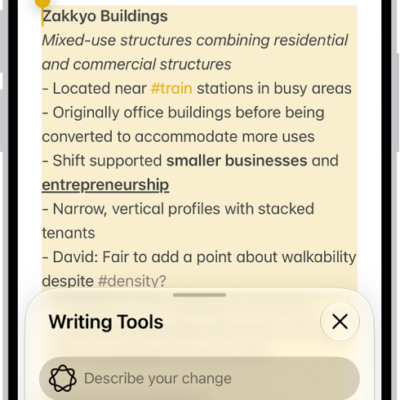
An iPhone showing a story being written in the Notes app. At the bottom of the screen is the Compose with Writing Tools dialog that includes options to refine with ChatGPT, rewrite, choose ChatGPT suggestions, and more.

How to use Writing Tools to write, improve, and summarize content on iPhone

You can use Writing Tools on iPhone to write, rewrite, proofread, and summarize text, almost anywhere you write with Apple Intelligence.
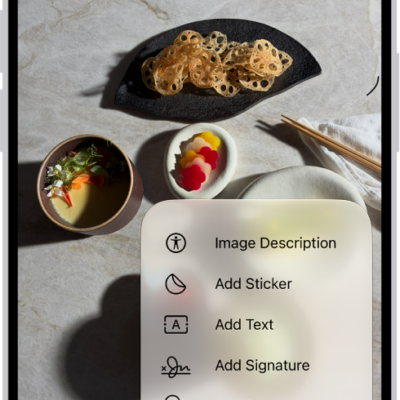
An image open in the Preview app. A menu shows options that can be added to it, such as stickers and text. The Markup, Info, and More buttons appear at the top of the screen, and annotation tools appear at the bottom of the screen.

How to add text, shapes, stickers, and more with Markup on iPhone

You can use Markup on iPhone to add text, shapes, stickers, and image descriptions to images and documents in apps like Notes and Photos.
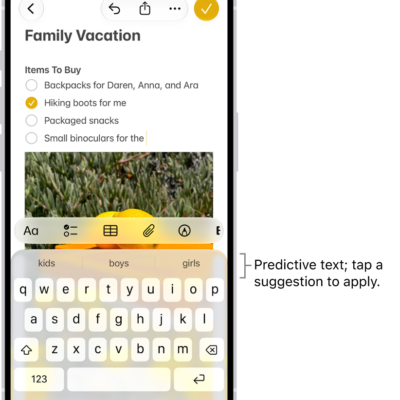
The onscreen keyboard is open in the Messages app. Text is entered in the text field and above the keyboard are predictive text suggestions for the next word.

How to type to speak using Live Speech on iPhone

You can type to speak using Live Speech on iPhone, so what you type is spoken out loud in conversations and FaceTime calls.

The Calls tab in the Phone app in Unified layout. Favorite contacts appear at the top. Below the Favorites is a list of recent calls and voicemail. Buttons to view the Calls, Contacts, and Keypad tabs appear at the bottom. The Search button is in the bottom-right corner.

How to make a call on iPhone

You can make a call on iPhone by dialing the keypad, tapping a favorite or recent call, or choosing a contact, and with Siri.

The Apple Account Settings shown with a list of options including personal information, subscriptions, Find My, and more.

How to use two-factor authentication for your Apple Account on iPhone

You can use two-factor authentication for your Apple Account on iPhone, so signing in takes your password and a six-digit code.
The Accessibility screen in Settings showing the built-in features for Vision support.

What Switch Control is and how it works on iPhone

You can use Switch Control on iPhone with one or more switches, from an adaptive button to a head movement or a sound.
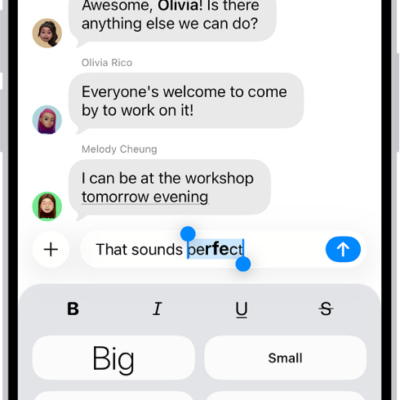
A Messages conversation with a new message selected in the text field, and formatting and effects options shown below it. The selected text appears with a preview of the effect.

How to format text and animate messages on iPhone

You can format text with bold, italics, and underlining in Messages on iPhone, animate words, add bubble and screen effects, and send GIFs.
The Apple Account sign-in screen.

How to use security keys to sign in to your Apple Account on iPhone

You can use security keys to sign in to your Apple Account on iPhone, replacing verification codes for extra protection from targeted attacks.
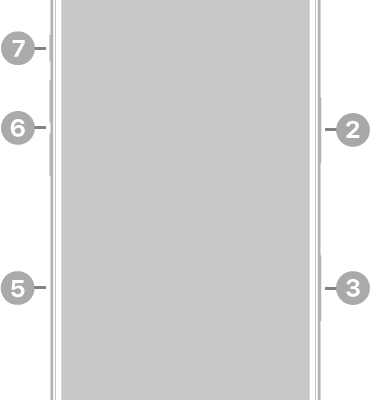
The front view of iPhone 17 Pro. The front camera is at the top center. The side button is on the right side. The USB-C connector is on the bottom. On the left side, from bottom to top, are the SIM tray, the volume buttons, and the Action button.

How to change the name of your iPhone

You can change your iPhone's name, which is used by iCloud, AirDrop, Bluetooth, your Personal Hotspot, and your computer.
