Got a tip for us?

Chris Smith

Chris Smith is a senior editor at GeeksModo based in Canada. He likes to think of himself as a jack of all trades (and a master of at least a few), though he mainly focuses on iPhones and Macs. Often covering both at the same time. When not surrounded by various Apple devices while putting them through their paces, Chris can be found streaming the latest movies or series, gaming on his PS5, or getting fresh air on a hike in the beautiful wilderness of British Columbia.

Chris Smith's Articles

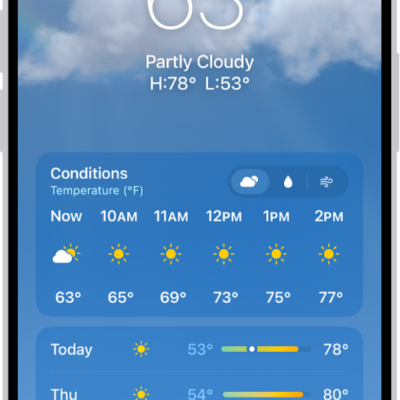
The Weather app showing, from top to bottom: the location, current temperature, the high and low temperatures for the day, hourly forecast, and the first few days of a 10-day forecast. A row of dots at the bottom center represent other locations in the location list. At the bottom-right corner is the Location List button and at the bottom-left corner is the Show Map button.

How to manage weather notifications on iPhone

You can get weather notifications on iPhone for precipitation and severe weather where you are and for locations in your list.
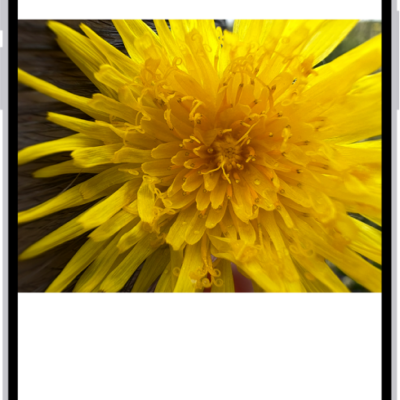
A photo is open in the Photos app library. At the bottom of the screen, the Info button displays an icon indicating that Visual Look Up information is available.

How to identify objects in your photos and videos on iPhone

You can identify landmarks, art, plants, pets, food, and more in your photos and videos with Visual Look Up on iPhone.
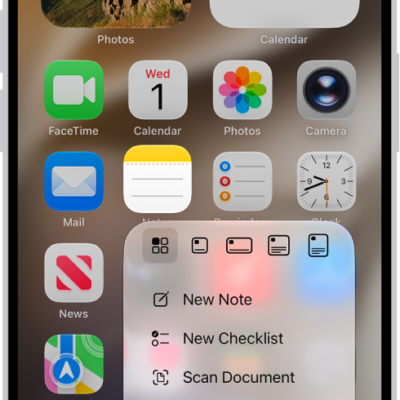
A blurred Home Screen, with the Camera Quick Actions menu showing below the Camera app icon.

How to perform quick actions on iPhone

You can touch and hold apps on the iPhone Home Screen, in App Library, and in Control Center to open Quick Actions menus and see previews.
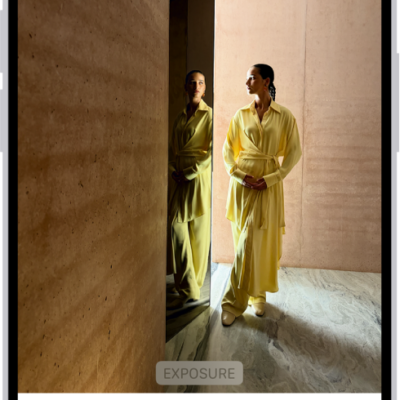
On iPhone, a phot is being edited in the Photos app. The Adjust button is selected, and a slider is available below the Exposure setting to adjust its level. The Cancel button is in the top-left corner of the screen and the Done button is in the top-right corner.

How to edit photos and videos on iPhone

You can edit photos and videos in the Photos app on iPhone: adjust light and color, add filters and stickers, and copy edits to other photos.
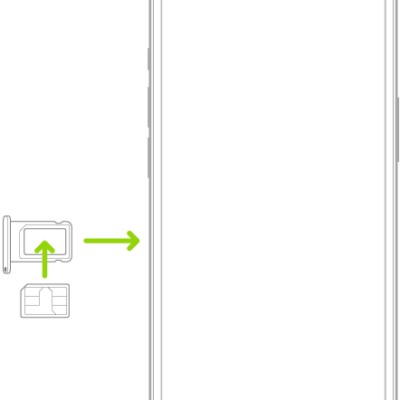
A SIM being inserted into the tray on iPhone; the angled corner is in the upper left.

How to use Dual SIM on iPhone

You can use two numbers or plans, like a business and a personal line, or a local data plan when you travel with Dual SIM on iPhone.
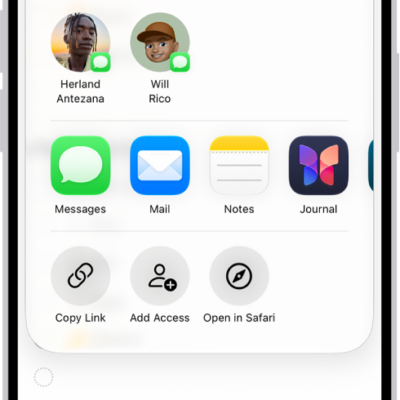
A Reminders screen showing a grocery list with options for sharing at the bottom.

How to share lists and collaborate in Reminders on iPhone

You can share Reminders lists on iPhone with people who use iCloud, assign tasks, and turn notifications for shared lists on or off.
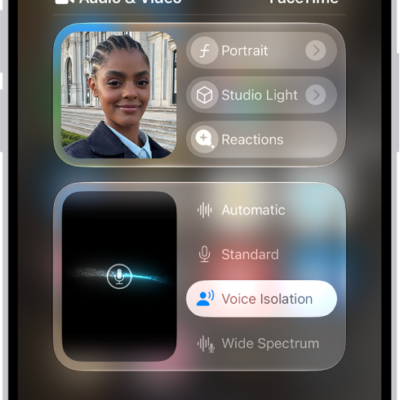
The Control Center, showing options for audio and video effects.

How to use camera controls during a FaceTime call on iPhone

You can use Portrait mode, switch cameras, share both cameras with Dual Capture, or turn your camera off during a FaceTime call on iPhone.
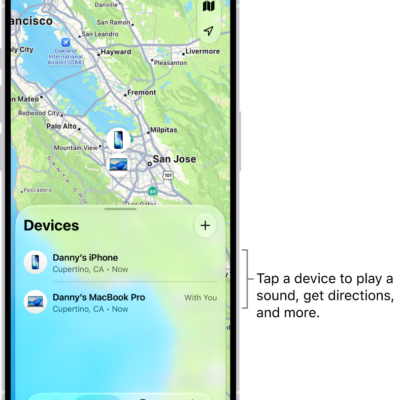
The Find My screen open to the Devices list. There are two devices in the Devices list: Danny's iPhone and Danny's iPad. Their locations are shown on a map.

How to add your iPhone Wallet with MagSafe to Find My on iPhone

You can add an iPhone Wallet with MagSafe to Find My on iPhone, see its last known location, and get notified if it detaches.
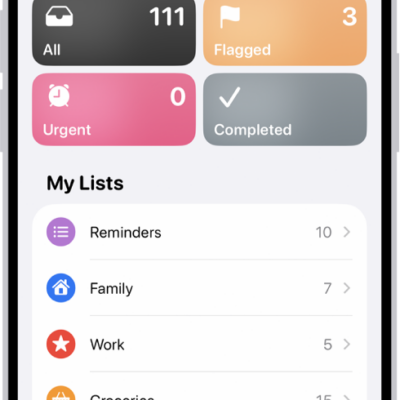
A Reminders screen showing a grid of Smart Lists, such as Today, Scheduled, and Flagged, each showing the number of items. Under the heading 'My Lists,' shows a list of custom reminder categories like Family, Work, and Camping Trip.

How to organize multiple lists in Reminders on iPhone

You can create lists in Reminders on iPhone, choose a list type, group lists, pin important ones, and rearrange or delete them.
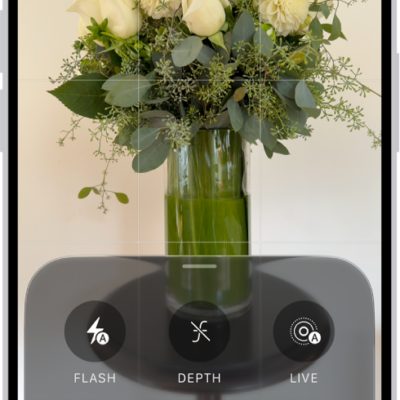
The Camera in Photo mode. At the bottom of the screen are buttons for the following camera controls: Flash, Live, Timer, Exposure, Styles, and Aspect.

How to save camera settings on iPhone

You can have the iPhone camera keep your last camera mode, style, and other settings instead of resetting them each time.