Got a tip for us?

Tyler Stephen

I'm Tyler Stephen, from the US state of Maine. I have a life-long passion for technology, and in addition to writing here, I am also on the editorial team of AppleVis.com. I've been totally blind from birth and thus rely on screenreading software like VoiceOver on Apple products and NVDA on Windows. I have been a Mac user since 2005 and an iOS user since 2010, in addition to also having used Windows, Linux, and Chrome OS. On this site and elsewhere, I hope to write pieces that educate and entertain people, as well as bring attention to the accessibility or inaccessibility of various technologies. You can find me on mastodon at mastodon.applevis.com/@tyler.

Tyler Stephen's Articles

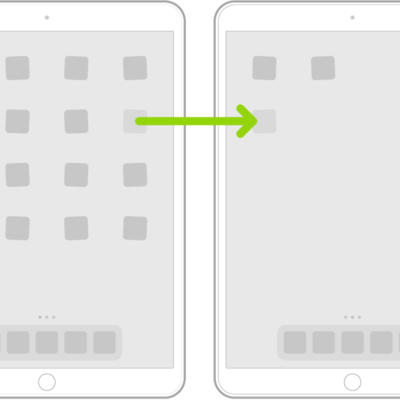
Jiggling apps on the Home Screen with an arrow showing one app being dragged to the next page.

How to organize your apps in folders on iPad

You can organize your apps in folders on iPad, create and delete folders, and move apps out of a folder to the Home Screen.
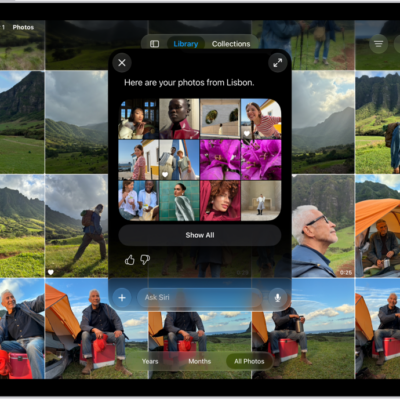
An iPad showing Siri finding content specified in the request.

How to get started with Siri AI on iPad

You can get started with Siri AI on iPad, turn it on, find what you need, get more done, and use Visual Intelligence.
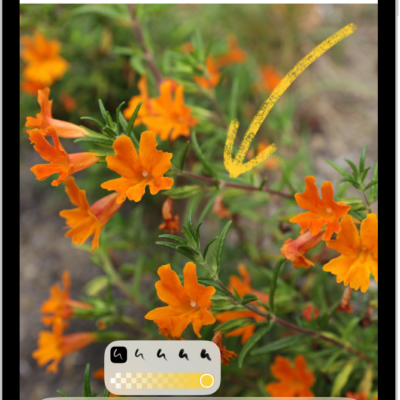
A note is open in the Notes app, and the Markup toolbar is open at the bottom of the screen. The Markup tools from left to right are: the Pen, Mono line, Marker, Eraser, Lasso, Ruler, and Pencil, followed by color buttons, the Add button, and the More button.

How to draw and handwrite with Markup on iPad

You can draw and handwrite with Markup on iPad in apps like Notes and Photos, draw straight lines, and edit or move a drawing.

The Edit screen of the Photos app showing a photo in the center. To the left of the photo are the Style, Adjust, Crop, and Clean Up buttons; Adjust is selected. To the right of the photo are buttons for editing effects and a slider to adjust each effect level.

How to edit photos and videos on iPad

You can edit photos and videos on iPad, adjust light and color, add filters, use Enhance, and change Photographic Styles.
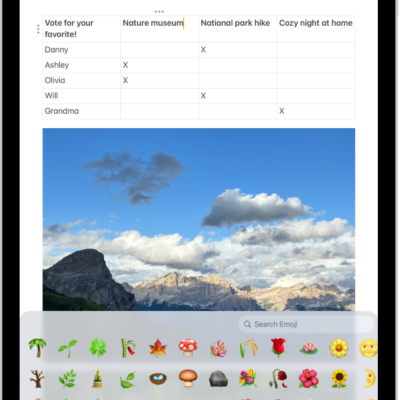
A note is open in the Notes app in the top of the screen, and the emoji keyboard is open in the bottom of the screen.

How to add emoji, Memoji, and stickers with the iPad keyboard

You can add emoji, Memoji, and stickers with the iPad keyboard, choose skin tones, and make your own stickers and Memoji.
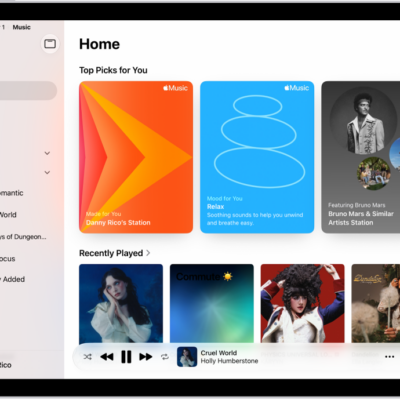
The Home tab in the Music app showing the sidebar on the left and the Home section at the right. The Home tab shows Top Picks at the top. Recently Played music appears below, showing four album covers. The MiniPlayer is at the bottom.

How to subscribe to Apple Music on iPad

You can subscribe to Apple Music on iPad, or to Apple One, to stream millions of songs ad-free and share music with family.
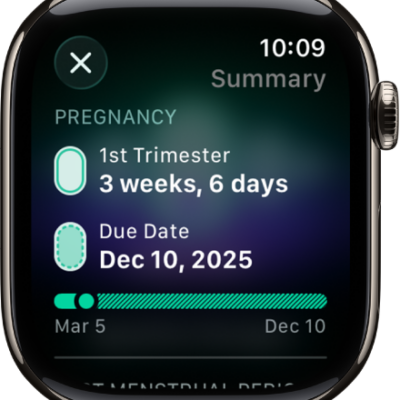
A screen in the Cycle Tracking app showing a pregnancy summary, with a gestational age and due date at the center of the screen.

How to track your pregnancy with Apple Watch

You can track your pregnancy with Apple Watch, view your gestational age and pregnancy summary, and log bleeding and other symptoms.
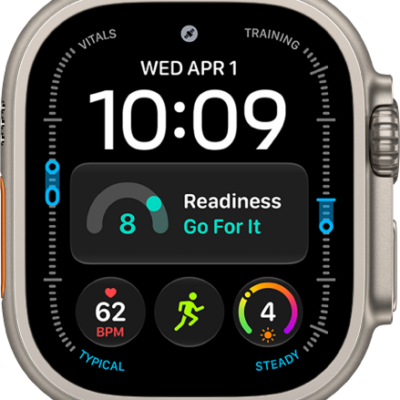
The Modular Ultra watch face showing elevation on the left and right (feet on the left and meters on the right), Music, Compass, and Compass Waypoints complications along the top, a digital clock below, a Compass Heading complication in the middle, and the Messages, Sunrise, and Workout complications near the bottom. At the very bottom is the current elevation.

Apple Watch Ultra features for the outdoors: Action button, siren, and satellite messaging

You can use Apple Watch Ultra outdoors with the Action button, night vision, the siren, satellite messaging, and Modular Ultra watch faces.
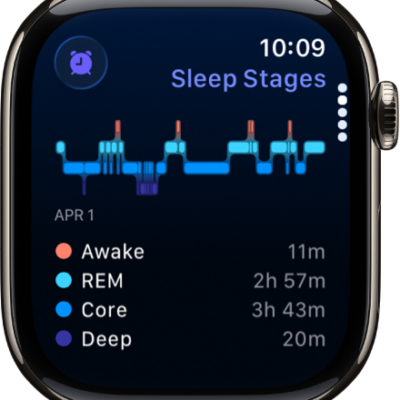
The Sleep app showing estimated time spent awake and in REM, Core, and Deep sleep.

How to receive sleep apnea notifications on Apple Watch

You can receive sleep apnea notifications on Apple Watch by tracking breathing disturbances while you sleep, and review your breathing data.

An iPhone with the Mail app open. An email is displayed with large, bold text.

How to make text easier to read on iPhone

You can make text easier to read on iPhone by making it bigger or bold, with one text size for all supported apps.