Got a tip for us?

How-To

If you own an iPhone 14 Pro, you may want to set up Focus modes to filter out distractions, keeping notifications at bay and homing in on the task at hand. The feature came to the iPhone with iOS 15 in 2021, but it’s new and improved for iOS 16, as Apple’s software update has made it easier to set up a Focus mode on your iPhone 14 Pro.

That’s a welcome change. If you’ve yet to embrace the notification-silencing wonders of Focus mode, it’s likely because you found setting up and turning on the feature to be a bit of a pain. iOS 16 Focus streamlines things somewhat — it’s now easier to manage the people and apps you still want to connect with when a particular Focus is enabled. You can now link lock screens that you’ve customized in iOS 16 to particular Focus modes, and you can turn off the focus mode straight from the lock screen if you want.

If that sounds appealing and you’re ready to finally give Focus a try — or another try, if you gave up when the feature first debuted with iOS 15 — here’s how to set up a Focus mode on your iPhone 14 Pro.

Note: information in this article apply to iPhone 14, iPhone 14 Plus, iPhone 14 Pro and iPhone 14 Pro Max.

How to set up a Focus mode on your iPhone 14 Pro

  1. Start the Settings app and tap on Focus.
  2. Pick the Focus setting you wish to set up by tapping either Do Not Disturb, Personal, Sleep or Work. You can set up a customized Focus mode by tapping the Plus ( ) button in the upper right corner. For the purposes of this how-to, let’s set up a Work Focus mode together.
  3. Next, tap Customize Focus.
  4. Next on, choose the people you want to manage the notifications of in your Focus mode by tapping Choose People. From there, you can pick whether to allow notifications from the people you select or silence notifications.
  5. Tap the Plus ( ) button to add people. You can then pick people in your Contacts list and tap done. When you’ve got a complete list, tap Next.
  6. You’ll be asked to choose whose calls to allow. By default, Focus mode will let through contacts you’ve designated as favorites, but you can also change that to the people you’ve allowed in Step No. 5 or everybody. You can also allow calls from anyone in your contacts or a specific contacts group. Tap Done when you’ve made your pick.
  7. Now choose the apps you wish to manage for your Focus mode by selecting Choose Apps. Once again, you can pick whether to allow or silence notifications from a given app.
  8. Tap the Plus ( ) button to add apps. Then pick the apps you want to allow/silence notifications from out of the supplied list and tap Done.
  9. You’re back on the Choose Apps to Allow page. Tap Done again.

At this point, you’ve got the Focus mode basics, with filters set up for people and apps. But iOS 16 lets you take things one step further by tying your Focus mode to a specific lock screen. (You could previously assign a home screen to your Focus mode, which you can still do in iOS 16.)

Here’s how you can set up a Focus mode with specific lock and home screens.

How to set up a Focus mode with specific lock and home screens

  1. Tap Choose under the screen you wish to customize. We’ll start with the lock screen, where you have the option of creating a new lock screen, or selecting one of your existing lock screens. Tap Done when you’ve made your selection.
  2. Tap Choose under the home screen to set a custom home screen for your Focus mode. Again, you can pick from your existing home screens or you can create a new home screen that the Focus mode will populate with relevant apps. For instance, a Focus-generated home page tied to a Work Focus mode, includes the Calendar, Notes, Reminders and Mail apps among others. You can tap Edit Apps to add and delete options, including third-party apps.
  3. When you’re satisfied with the apps on your home screen, tap Add in the upper right corner.

Again, you can stop customizing your Focus mode right now, or you can take advantage of scheduling features for your Focus mode. You have the option of turning on your Focus mode automatically at a set time or location; you can also tie it to a specific app.

How to schedule a Focus Mode

  1. Tap Smart Activation to turn on the feature automatically and then move the slider to the on position on the next screen. This will turn on your Focus mode when your phone decides that it’s a relevant time or location.
  2. If you prefer not to leave such things to chance, tap Add Schedule and then pick a specific time, location or app to activate your Focus mode. In this case, I’ve turned on my work focus between 9 a.m. and 5 p.m. on weekdays.

You can add other times, locations or apps by tapping Add Schedule again.

How to use Focus Filters to set up a Focus mode on your iPhone 14 Pro

Focus Filters is a new addition to iOS 16 that allows you to filter out irrelevant or distracting data when a Focus mode is enabled. Here’s how Focus Filters work with Focus mode.

  1. Tap Add Filter and on the next screen, pick the app you want to customize. We’ll pick Calendars in this example, but you can filter inboxes in Mail, Tab Groups in Safari, conversations in Messages and other apps, including third-party software that’s updated with Focus Filter support.
  2. You now choose which calendar shows up when. For instance, I want my GeeksModo Calendar to show up when my Work Focus is turned on. Tap Add when you’ve selected the right calendar.
  3. You can go back and add more filters if you want by tapping Add Filter.

When you’re satisfied with your Focus mode, tape, the Focus menu button in the upper left corner of the screen to return to the main menu. All your changes will be saved.

How to enable and disable a Focus mode in iPhone 14 Pro

Once you’ve set a Focus mode on your iPhone 14 Pro, it will automatically be turned on. You can turn if off from the Focus screen in Settings by going to the command center (swipe diagonally downward from the lefthand corner of the home screen) and tapping the Focus control. Tap the enabled Focus mode to turn it off.

As of iOS 16, you can also turn off Focus modes from the connected lock screen. Tap the Focus icon on the bottom of the screen and then tap the enabled Focus mode to turn it off from the menu that appears.

Believe me, it’s a lot easier to set up and customize a Focus mode on iPhone 14 Pro than it was before, even if that does sound like a lot of steps. And you should reap the benefits of Focus, as you’ll see fewer unwanted notifications and remove the temptation to fool around with games, text messages and other potential distractions when you really need to be working. (Conversely, Focus is also great for setting up a Personal mode that hides all your work related apps so you can actually spend time relaxing.)

See also: How to Use Siri to Hang Up a Call on iPhone 14
Apple includes an accessibility feature that allows you to unlock your iPhone 14 using just your voice. Keep reading to learn how it works and how to set it up on your ‌iPhone 14‌.

For several years now, Apple’s iOS mobile operating system has included a voice control feature that enables users to control a variety of system functions on their ‌iPhone‌ using only their voice as the trigger.

Until recently, one of the limitations of Voice Control was that it wouldn’t work if your ‌iPhone‌ was locked. Thankfully, Apple includes an enhanced version of the feature so that if your ‌iPhone‌ is on the lock screen, you can now use your voice to enter the passcode and unlock it.

How to Unlock Your iPhone 14 Using Voice Control

The following steps show you how to set up Voice Control to unlock your ‌iPhone‌ 14 using a simple speech command.

Note: information in this article apply to iPhone 14, iPhone 14 Plus, iPhone 14 Pro and iPhone 14 Pro Max.

  1. Start the Settings app on your ‌iPhone 14‌.
  2. Go to Accessibility.
  3. Under ”Physical and Motor,” tap Voice Control.
  4. Toggle on the switch next to Voice Control.
  5. Now lock your ‌iPhone‌ using the Side button.
  6. Tap your ‌iPhone‌ to wake the Lock Screen, then say ”Go Home” to unlock your ‌iPhone‌ with Face ID. If that doesn’t work and you’re presented with the passcode screen, say (for example) “Tap 1” to press the 1 key on the screen with your voice. Repeat this action for all six digits in your passcode to unlock your ‌iPhone‌.
  7. That’s all there is to it. Note that the same Voice Control accessibility feature also works with iPad.
  8. See also: How to set up a Focus mode on your iPhone 14 Pro

One of the upgrades with iOS 16 that’s a bit under the radar is the ability to use haptic feedback with the native keyboard. Here’s how to turn on the iPhone haptic keyboard and why it’s preferable to third-party keyboards.

While we’ve seen third-party keyboards like Google’s Gboard offer haptic feedback for a while, many people prefer to stick with the native iOS keyboard. One of the big reasons is privacy as third-party keyboards often ask for access to track all of your keyboard input.

Fortunately, Apple has made it possible for users to enable vibrations on the native stock iOS keyboard for each tap, providing a physical confirmation for users as they type.

Apple says these vibrations help serve as a “confirmation” as a user types. However, haptic keyboard feedback is turned off by default. Therefore, one has to explicitly turn on haptic keyboard feedback in iOS 16

Here’s how to turn keyboard vibration on or off on iPhone running iOS 16.

How to turn on keyboard vibration on iPhone in iOS 16

To enable the haptic keyboard on an iPhone, make sure that Vibration mode is turned on. Go to Settings, tap Accessibility and then select Touch. Turn on the switch for Vibration if it’s not already on.

To test it out, open an app that triggers the keyboard, such as Notes, Reminder, Messages or Mail. Start tapping the keys on the keyboard to experience it with just the clicking sound turned on (Figure B).

You can also set up your iPhone to use the haptics keyboard in Ring mode versus Silent mode. To do this, go to Settings, and select Sounds & Haptics. Tap the setting for Keyboard Feedback. Turn on the switch for Haptic. Go back to the Sounds & Haptics screen, and make sure the switches are enabled for Play Haptics in Ring Mode and Play Haptics in Silent mode

Return to the keyboard-based app you were using and continue tapping keys. Experience how tapping feels using the haptic keyboard to see if you prefer it enabled or disabled. You can switch back and forth with it on and off to get a better sense of it (Figure D).

You can also try typing with the Sound turned off. Return to the Keyboard Feedback screen under Sounds & Haptics and turn off the switch for Sound. Try different combinations of Sound and Haptic enabled and disabled to judge which setting works best for you.

Apple cautions that turning on keyboard haptics might affect the battery life of your iPhone. Without more details, it’s difficult to know if this is much of an issue. But, you may want to keep haptics turned off for a typical day and then turned on for another typical day to gauge any potential impact to your phone’s battery life.

Intro

If you’ve accidentally deleted important files, photos, and other documents from your Mac that you need to recover, Wondershare Recoverit might just be the lifesaver you’re looking for. This renowned data recovery tool, which has been around since 2003, promises to be one of the simplest, most effective methods of bringing erased data back to life.

Wondershare Recoverit is not limited to retrieve data from your Mac hard drive. It can also recover data from your SD card, digital camera, and much more. It supports any file type, and all of the most popular drive formats, including FAT, NTFS, HFS , APFS, and more.

What is Wondershare Recoverit? Why should you download it?

Recoverit is a well-known and highly regarded data recovery tool for macOS that prides itself on being fast, easy to use, and effective. It has the ability to find and bring back almost any file type that you’ve accidentally deleted from your computer, as well as data that’s disappeared from SD card, digital camera, and lots more. The software comes with a simple user interface that makes it easy for users to navigate through their data and find the particular file they are looking for.

Moreover, Wondershare Recoverit offers several features such as previewing before recovering a file, sorting recovered files by date added, size or type and exporting them in various formats like FAT12/16/32/64-bit disk image (.dmg), compressed folder (.zip) or text file. In addition, the software also allows users to share their recovered files with others directly from within its interface.

How does Wondershare Recoverit for Mac work?

How Wondershare Recoverit for Mac works is by scanning your hard drive for any deleted files and then restoring them to their original location. The user interface of this software is pretty easy to use, and anyone with just a basic knowledge of Mac operating can use it like a pro at the very first time. Once you have installed the software, it will automatically start scanning your hard drive for any deleted files. Once it has found any deleted files, it will offer to restore them to their original location.

How to recover deleted files on Mac using Wondershare Recoverit

With Recoverit for Mac, deleted files recovery has never been so easy. Here’s how to use Recoverit to recover deleted files on Mac:

How to recover lost files using Wondershare Recoverit for Mac

Step 1: Start the Wondershare Recoverit Software on your Mac.

Step 2: You’ll be presented with four different recovery options. Out of them, select the first one and that is, “Lost File Recovery“.

Step 3: Now, choose the drive from which you wish to scan and recovery files. So select the partition. Below that, you’ll see an option asking to choose the File type. If you are looking for a specific file, for example, video or image, then select that. Below that, “Enable Deep Scan” option will be checked. This option performs an extensive scan for files that have been deleted a very long time ago. It takes more time to scan, so if you have recently deleted the file, uncheck it.

Step 4: Next, hit the “Scan” button above the partition selection area.

Step 5. After the scanning is finished, you’ll get a list of files and folders that can be recovered. You can select an entire folder or individual files by checking the box near them. Once you are done with the selection process, hit the “Recover” button on the top and specify the path where you want the files/folders to be recovered.

Easy, right? Now you have got the basic idea of using the Software to recover deleted files on Mac; things will be much easier for using other options of the application. Simply go through the guide below to learn using other recovery options of Wondershare Recoverit.

How to use Partition Recovery feature of Wondershare Recoverit on Mac

Step 1: Start the Wondershare Recoverit software on your Mac.

Step 2: Now, select the Partition Recovery from the four options available.

Step 3: In case you have multiple hard drives, select the one from which you intend to recover deleted partition. You can select quick search or complete search. A comprehensive search will scan a lot deeper and takes much more time.

Step 4: Next, select the partition, so click on “Search Partition” button. You can enable “Raw File Recovery” if you wish to specify file types. This takes, even more, time to scan but works efficiently to recover deleted photos.

Step 5: Next on, hit the “Scan” button.

Step 6: Now select files folders that you wish to recover, just like we did earlier.

Step 7: Next, hit the “Recover” button and specify the location.

How to resume the recovery process of Wondershare on Mac

Step 1: After performing the scanning option, you have the option to decide whether to recover files instantly or later. For this, you’ll need to save the scan info of Wondershare data recovery on your Mac, to resume it later.

Step 2: Once you have reached the list of files and folders that can be recovered, you’ll see a button on top that says “Save Scan Info,” click on it.

Step 3: YouL be asked to specify a path where you wish to save the scanning information. So select the folder where you want to save it.

Step 4: Now anytime in future, if you need to recover the files, launch the software and on the main screen, choose “Resume Recovery” and specify the path where we saved the scan information. The recovery process will then initiated.

How to recover files from Memory card using Wondershare Recoverit on Mac

Step 1: Start the Wondershare Recoverit software on your Mac.

Step 2: Now, connect the memory card to your Mac using a card reader.

Step 3: Next on, click on “Lost File Recovery.”

Step 4: Now, select the memory card. You can also specify file types, deep scan options like we did in the first guide.

Step 5: Next, click on the “Scan” button and wait till the process is complete.

Step 6: Now, select files/folders that you wish to recover and then click on “Recover” button and specify the path.

How to recovery files from Digital Camera using Wondershare Recoverit on Mac

Step 1: Build a connection between the Digital camera and your Mac.

Step 2: Start the Wondershare Recoverit software and select “Lost File Recovery.”

Step 3: Now, instead of selecting the hard drive, select your Digital Camera. Similar to the memory card, here too, you can select file types and other scanning options.

Step 4: Click the “Scan” button and grab a cup of coffee until the process is finished.

Step 5: Now, select the files/folders you intend to recover and hit “Recover” button at the top.

There you go; on top of recovering data from Digital Camera and Memory Card, you can also recover lost data from an external hard drive. You’ll need to select “Lost File Recovery” and then select the external hard drive. Rest of the configuration remains the same.

What are the key features of Wondershare Recoverit for Mac?

Restore more than 1,000 file formats

Wondershare Recoverit data recovery software can restore more than 1,000 file formats. This includes different types of images, videos, audio, email, and document files.

Recoverit can recover DOC, DOCX, RTF, XLS, XLSX, PPR, JPEG, JPG, PNG, RAW, FLA, FLV, MP4, WMV, AAC, ALAC, FLAC, MP3, PCM, emails, archive files like WAT, ZIP, document files, such as EPUB, JIS, KEY, LOG, and many more.

Scanning Options

Recoverit offers users the ability to enable or disable Deep Scan option. The Deep Scan option performs an extensive scan for files that have been deleted a very long time ago. It takes more time to scan, so if you have recently deleted the file, uncheck it.

Simple user interface

We’re all susceptible to accidentally deleting data — especially if we’re novice Mac users — so Recoverit is designed to be incredibly user-friendly. Its interface is clean and streamlined, allowing you to quickly access and navigate your way through the tools you need as soon as you need them.

Preview before Recovery

This feature lets you preview your lost data and choose just the ones you need to retrieve in order to manage your storage space.

Improved Safety of Data

While retrieving lost data, Wondershare guarantees safety of the files and that of other files in the gadget or storage media.

Improved Compatibility

Wondershare Recoverit is compatible with the latest Windows and Mac Operating Systems.

Recovers From Various Situations

Wondershare Recoverit lets you get your lost data back whether it was lost by accidental deletion, damaged storage device, system crash, or any other situation.

Free trial

Wondershare Data Recovery for Mac offers a trial version, to make you acquainted with the interface. The trial version allows you to use all the features of the software. The only limitation is that you’ll not be able to recover files more than 100MB. It will scan every lost file on your Mac and display them on the screen, but won’t let you recover more than 100MB. If you are impressed with the software, you can purchase the full version at $79.95 for one year on one Mac. If you are impressed too much, you can go for the lifetime membership for one Mac for $89.95.

Pros and cons of Wondershare Recoverit for Mac

Pros:

  • Streamlined and simple user interface
  • Can recover any file type
  • Supports external drives, SD Cards, and more
  • It offers a variety of features to help you recover deleted files.
  • The software is affordable.

Cons:

It may take a long time to recover deleted files.

Conclusion

The fact that Recoverit for Mac has been around since 2003 is a testament to its performance and reliability. It’s one of the best data recovery tools for macOS, and with support for so many drives, devices, and file types, it’s likely the only data recovery tool you’ll ever need. Overall, Wondershare Recoverit is a great tool for recovering lost or deleted files on Mac. It’s easy to use and has a lot of features that make it a great choice for anyone who needs to recover lost files on Mac.

Forgot your iPhone password? Here’s how you can regain access to unlock your device.

Apple offers many options for securing your iPhone including four-digit passcode, six-digit passcode, and other options like face ID and Touch ID. However, they might not work in some situations. You could also forget your passcode, which is even more problematic.

If you’re in a similar situation, then this guide is for you. We’ll show you how to unlock iPhone without passcode.

You can unlock your iPhone without passcode using two methods. Let’s find out how to do it in different ways.

1. How to unlock iPhone without passcode using Find My iPhone

You can use the official Find My app on your iPhone or visit the iCloud page to proceed with the process.

Step 1: Launch Find My iPhone page from any browser on any other device.

Step 2: Enter Apple ID and Password when prompted. You’ll see the location of your iPhone.

Step 3: Click on the iPhone you want to unlock.

Step 4: Select the Erase iPhone option.

Step 5: You’ll see a warning prompting that your iPhone data will be erased. If you are okay with this, click on the Erase option.

It’s worth noting that all of this comes at a cost. If your iPhone doesn’t have an active internet connection, you will not be able to unlock it without a passcode. Find My iPhone should also be enabled to unlock your phone. Lastly, the locked iPhone needs an Apple account logged in and its password.

To overcome these issues that you face when using Apple’s Find My iPhone, you can use the Dr.Fone – Screen Unlock software.

2. How to unlock iPhone without passcode using Dr.Fone – Screen Unlock

Wondershare’s Dr.Fone is the perfect solution when it comes to unlocking an iPhone without a passcode. It supports a wide variety of iPhone screen locks, including:

  • four-digit passcode
  • six-digit passcode
  • Face ID
  • Touch ID
  • Screen Time Passcode

Moreover, Dr.Fone has a higher success rate when it comes to unlocking locked iPhones, given that they run iOS 9 and later versions.

Dr.Fone – Screen Unlock has no restrictions like Find My iPhone. So, you won’t have trouble unlocking your iPhone without passcode.

Furthermore, it is super simple to use. You don’t need superior technical knowledge. Here’s how you can use Dr.Fone – Screen Unlock to unlock your iPhone without a passcode

Step 1: Download Dr.Fone – Screen Unlock on your Mac or Windows operating system, and connect your iPhone to your computer.

use Dr.Fone to unlock iphone without passcode

Step 2: You’ll see the unlock window. Simply click the Unlock iOS Screen to get started.

Step 3: Follow the on-screen instructions to put your device into DFU mode.

Enter iPhone in DFU mode

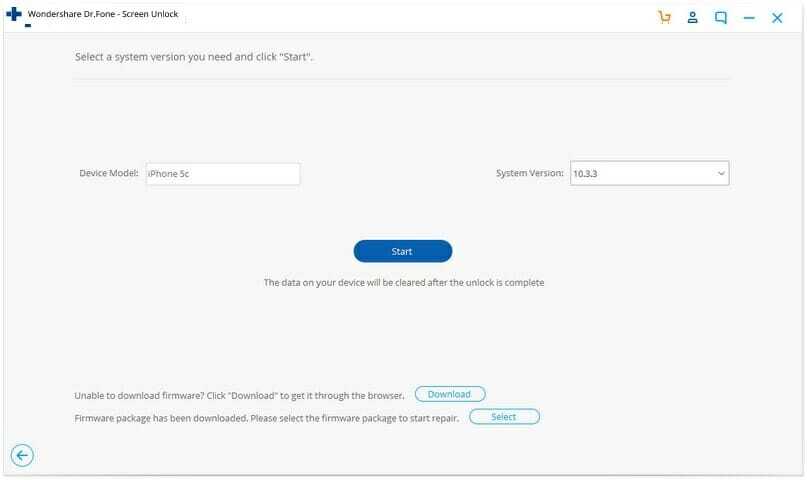
Step 4: Dr.Fone will detect the connected device. Simply click on the Start button, and it’ll download a configuration file to unlock your iPhone. It might take some time depending on your internet speed.

Check information to start unlocking iPhone

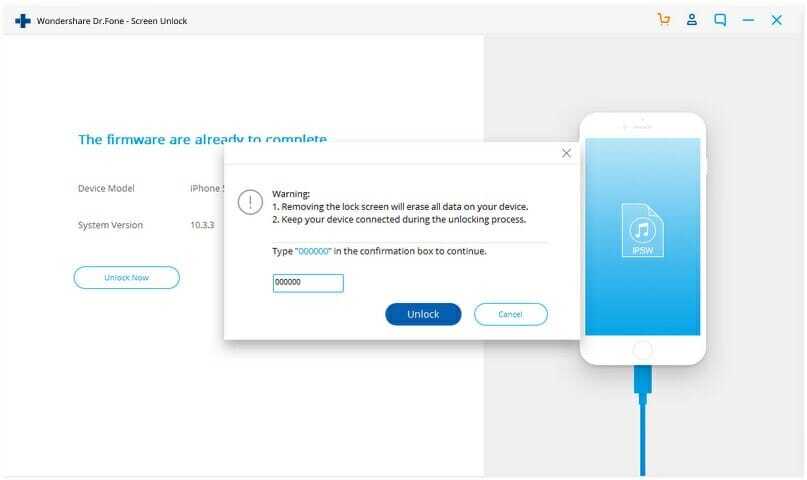
Step 5: Once the download is done, click on the Unlock Now button to continue with the process.

Confirm to unlock

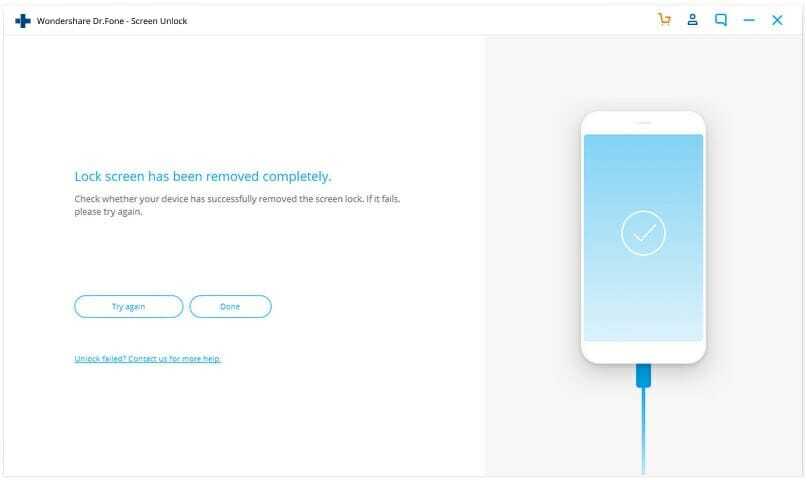
Step 6: Once you follow the procedure, your iPhone will unlock without a passcode, and Dr.Fone will remove the previous passcode.

Unlock iPhone without passcode with ease

NOTE: The above steps might delete the data on your device. To protect your files, it’s best to take a backup of your data to a computer first.

Why should you pick Dr.Fone – Screen Unlock over iTunes?

First and foremost, because it’s a Wondershare software! I have tested and used various software by the developers and gladly found them adapt, easy to use, and secure, just like this one.

Then, Dr.Fone – Screen Unlock performs really well and does what it promises. What I love is that it makes unlocking iPhone without passcode so easy. You don’t need special technical skills or wait for hours; the process is quick and efficient.

Additionally, when it comes to unlocking software, there’s always an issue of compatibility, usability, trustability, and success rate. Thankfully, Dr.Fone – Screen Unlock is

  • Compatible with the latest iOS update.
  • Compatible with the latest iPhone models.
  • Compatible with both Mac and Windows.
  • Super-easy to use; unlike iTunes, there are no technical steps involved.

Unlock Your iPhone With Ease

There are several reasons why you might be locked out of your iPhone. However, iPhones are built with security in mind. So, you can use these two methods to unlock your iPhone if you forget your passcode.

Dr.Fone – Screen Unlock is a much better tool than iTunes for unlocking iPhone without passcode since it’s easy to use and has a higher success rate.

iOS 16 brings lots of new features to your iPhone that let you do things like customizing your lock screen, and editing Messages you already sent. However, one new feature received less attention than the headline grabbers, but is great news for some users.

iOS 16 now lets users end calls using the company’s virtual assistant Siri without having to press anything. Here’s how to use the new Siri Call Hangup feature.

How to turn on Siri call hang-up

The ability for Siri to hang up a call is part of Apple’s set of improvements to Accessibility across its platforms. Even though it was designed to help people with motor or motion issues who may find it challenging to touch the red call button, anyone can use it. It’s turned off by default, but you can toggle it on in Settings.

  1. Open Settings app
  2. Tap Siri & Search
  3. Tap Siri Call Hangup
  4. Set the toggle to on

How to hang up a call with Siri in iOS 16

To hang up a FaceTime or phone call with Siri, simply say something along the lines of “Hey Siri, hang up” and your trusted digital assistant will do just that. There’s just one caveat: Those on the call will hear you speaking the phrase out aloud.

System requirements for the Siri call hang-up

This particular command is part of Siri’s expanded offline support in iOS 16 and iPadOS 16. On the iOS side, it requires Apple’s A12 Bionic chip or later so you’ll need at least an iPhone XS/XR or newer. Your iPad must also run at least an A12 Bionic chip, found in the fifth-generation iPad mini, third-generation iPad Air and eighth-generation iPad. According to Apple’s iOS 16 Preview page, Siri call hang-up is initially launching in the following seven languages: German (Germany), English (Australia, Canada, India, UK, US), Spanish (Spain, Mexico, US), French (France), Japanese (Japan), Mandarin Chinese (China mainland) and Cantonese (Hong Kong).

Need to record a conversation, speech, interview, or note? Here’s how to use the Voice Memos app for iPhone.

You can record audio on your iPhone using the Voice Memos app, which is easy to use and can record hours of audio with surprisingly good quality, even without an external microphone.

Creating a voice memo seems simple enough; just tap the record button, right? There’s more to it than that. You can name and save your recordings, edit an audio file, organize your Voice Memos into folders and more.

With that in mind, here’s a complete guide on how to use Voice Memos on iPhone.

Note: information in this article apply to iPhone 13, iPhone 12, iPhone 11, iPhone X, iPhone 8, iPhone 7, and iPhone 6S.

How to Record a Voice Memo on Your iPhone

The first step is recording a voice memo. The steps are pretty straightforward:

  1. Open the Voice Memos app and tap the red Record button.
  2. While a recording is taking place, you’ll see a moving waveform.
  3. Tap the red Stop button to stop recording.
  4. Your recording will save into the list of All Recordings. See this article if microphone is not working on your iPhone.

How to Play a Recording in the Voice Memos App

Once you recorded a voice memo on your iPhone, it’s time to play it back to hear what it sounds like. Here’s how:

  1. Open the Voice Memos app to see a list of recordings.
  2. Tap on your saved recording in the All Recordings list.
  3. Tap the Play button.
  4. To move to a specific point, you can drag the slider. Alternatively, you can use the Fast-Forward or Rewind buttons to jump 15 seconds forward or backwards.
  5. By tapping the Options button (which looks like three sliders), you’ll find other features you can use with playback:
  6. Playback Speed: Dragging towards the turtle makes the playback slower. Dragging towards the rabbit speeds up the playback.
  7. Skip Silence: This feature jumps over gaps of silence in your recording.

How to Edit Voice Memos on Your iPhone

Now, let’s look at the different edits you can make to a voice recording. These can include everything from changing the file name to re-recording sections of the audio.

How to Change the File Name of a Voice Memo

If you only have a couple of voice memos, it’s easy to remember which is which by just looking at the date. But as the list grows, it’s better to label each voice memo with a descriptive name. Here’s how to change your voice memo’s file name:

  1. Open the Voice Memos app to view all your recordings.
  2. Tap on the recording you want to edit.
  3. Hit the More button (which looks like three dots).
  4. Choose Edit Recording.
  5. Tap the file name to change it to your preferred title.

How to Duplicate a Voice Memo on Your iPhone

Before you move on to trimming or making other edits to your voice memos, it’s a good idea to duplicate them first. For example, if you made a voice recording of an interview, it would be disastrous to lose any parts of the audio due to editing. While the Photos app lets you easily revert edited photos to their original state, the Voice Memos app doesn’t offer this for audio.

Therefore, you should duplicate a voice memo before you start editing it:

  1. Tap on your recording and hit the More button.
  2. Choose Duplicate.
  3. An identical duplicate will appear, with the word copy at the end of its name.

How to Trim a Voice Memo on Your iPhone

To create a cleaner and more cohesive recording, you can remove sections of unnecessary audio that pad it out. Here’s how to trim your voice memos:

  1. Tap on your recording and hit the More button
  2. Choose Edit Recording.
  3. Tap the Trim icon (which looks like a square with two extended sides).
  4. Drag the vertical slider on either side of the recording to highlight the section you want to keep or remove.
  5. To keep the highlighted section, choose Trim. To remove the highlighted section, choose Delete.

Right now, there is no way to undo individual edits in the iPhone’s Voice Memos app. You can only tap Cancel while still within the editing window, to undo all the edits you’ve made in that editing session.

How to Replace Parts in a Voice Memo

You can overwrite parts of a voice memo by recording new audio during playback. Here’s how to do that:

  1. Tap on your recording and hit the More button.
  2. Choose Edit Recording.
  3. In the Edit Recording window, drag the time slider to the part where you want to start overwriting with new audio.
  4. Tap Replace to start recording new audio, which will show up in red.
  5. Tap Done to save.

You cannot undo replaced audio. Unlike trimming, there is no Cancel button.

Even if you exit the Voice Memos app without tapping Done, the new audio will already be saved to the file. Therefore, be absolutely sure of what you want to replace before proceeding with such changes.

If you feel the Voice Memos app is too limited when it comes to editing, you should check out third-party audio editing apps for iPhone, all of which offer greater flexibility and better options.

How to Organize Your iPhone Voice Memos Into Folders

Over time, you’ll probably accumulate a long list of voice memos in the app. If you love keeping your iPhone’s apps organized, you should do the same for your voice recordings!

Here’s how to move your voice memo recordings into different folders:

  1. From the All Recordings page in the Voice Memos app, tap the Back arrow to access the Voice Memos page.
  2. Tap the New Folder icon. Name your folder and select Save
  3. Return to the All Recordings page.
  4. Tap on a recording you want to moce and hit the More button.
  5. Choose Move to Folder.
  6. Select the destination folder.

How to Delete and Restore Voice Memos

To delete a voice memo you longer need, simply tap the Trash icon to remove it.

If you accidentally deleted a recording you want back, follow these steps to recover it:

  1. From the All Recordings page, tap the Back arrow.
  2. Select Recently Deleted.
  3. Tap on the recording you want to restore. Select Recover.
  4. Tap Recover Recording to confirm.

Deleted recordings are only available to record for 30 days.

How to share voice memos

All of your voice memos can be shared with others by email, Messages, social networks, and more.

  1. Launch Voice Memos on your iPhone.
  2. Tap the voice memo that you want to share.
  3. Tap the More button. It looks like three horizontal dots.
  4. Tap Share.
  5. Select the method that you want to share your voice recording with.

How to Transcribe a Voice Memo on Your iPhone

To transcribe a voice recording—so you can read it instead of listening to it—you’ll need to use a third-party app, such as Transcribe. These apps aren’t 100 percent accurate, but they usually get the majority right. You may just need to edit it a little bit.

Follow these steps to convert your voice memo to text using the Transcribe app:

  1. In the Voice Memos app, tap on your recording and hit the More button.
  2. Tap Share.
  3. Scroll along the horizontal list of apps and select Transcribe.
  4. Choose your Language and Punctuation Mode. Tap Transcribe.
  5. Once the upload is completed, go to the Transcribe app to see your transcribed voice memo.

Start Recording Audio With the Voice Memos App

As you can see, it’s super easy to quickly record audio with the Voice Memos app whenever you need to. Do you have questions about how to use the Voice Memos app on your iPhone? Let us know in the comments, and we’ll try to help you out.

In an ideal world, there will be someone who is trusted, knowledgeable, and helpful to make setting up your device easier. Entering information correctly is important during the process, and this can be nerve-wracking for inexperienced users. Be assured that it is quite possible to complete the entire setup process while totally blind. There is an increasingly likely possibility that you will have to set up your iPhone from scratch by yourself. Provided that you remain calm and exercise patience, it is absolutely possible to set up your iPhone right out of the box all by yourself without the need for eyesight. While writing this section, I did this with my iPad to make certain I would walk you through the process correctly.

Make yourself comfortable. It is very helpful if you can be within range of a Wi-Fi network you are allowed to make use of. Presuming you have cellular data capability, a cellular network is another option, but Wi-Fi is strongly recommended in case you need to install operating system updates or any such thing. Sit somewhere close enough to a power outlet so that you can use your iPhone while it is charging. Before we begin, plug the iPhone into the power brick. For some devices, you will find the power brick has its prongs folded into itself. The prongs need to pivot into their open position, which you can accomplish easily with a finger. Next, attach the cable to the power brick. You’ll find a small port on the power brick opposite to where the extended prongs are. Plug the larger end of the cable that came with your device into this port. Next, plug the other end into the small port on your iPhone. It’s a small slot, typically located on the bottom edge at the very centre of its length. You’re now ready to plug the power brick into your electrical outlet as you would any other appliance.

You may have initial trouble distinguishing the two ends of more modern charging cables. Thanks to their increased charging speed, you’re likely to have a Lightning to USB C cable rather than the older USB A style. The USB C end of these newer cables is nearly as small as the Lightning end. However, it’s still possible to tell the difference by touch. Also, it’s impossible to put the wrong end into your device or the charging brick. The USB C end is noticeably thicker and you can feel a small gap between the long edges of the tip by running your finger over it. This plugs into the small slot in the charging brick. Meanwhile, the Lightning end, which goes into the port on your iPhone, has a smooth feel when you run your finger over the tip.

Once you’ve plugged it in, be patient, as it should now be turning on and booting up. Assuming you’re in a quiet place, you’ll hear a short “bing” sound. If your iPhone supports haptic feedback, you’ll also feel a small pulse of vibration at the same time you hear the sound. This means the device is on and knows that it’s charging. You may need to wait a short while longer, perhaps half a minute, before the device is ready. It may start saying “hello” in different languages. Either way, after this wait, it should be ready for you to begin the setup process.

Now that you’re physically ready, let’s prepare you mentally. You should be ready to spend at least half an hour, possibly as much as an hour, but certainly no more than that. Don’t do this when you’re in any kind of a hurry. Also, it’s important that you don’t panic if you make a mistake. You can always use the Back button at the top left of the screen to go back to the prior step. Additionally, there is a Delete key on the onscreen keyboard. Feel around the bottom right of the screen until you find it. Keep your finger on it, and then tap anywhere on the screen with another finger to remove a character you didn’t intend to enter. There are around fifteen steps, but some of them are just to read and then continue past screens containing essential information. You are allowed to skip steps, including those related to security measures. However, barring special circumstances, I strongly recommend that people go through all steps. You will then end up in the most secure and best possible starting position. There may be additional steps specific to the features and capabilities of your particular device that I haven’t covered. These will be explained by your device during the process. Are you ready? Then let’s get started.

  1. Turn on VoiceOver. To achieve this, find the Action button located on its own along the edge opposite or above the two volume buttons. Quickly click this small sliver-like button three times. You should then hear something spoken, most likely the Back button or the currently active language.
  2. You should now be at the point where you need to select the language, country, and region you wish to operate in. It will likely default to the most common language wherever you are. In my case, this is thankfully English, as I know only halting French. To select an option, tap it twice quickly, or hold a finger on the option while tapping once elsewhere on the screen with another finger. Do this for any further options as we proceed. Once the language is set, flick right, and you should either come to a place to select your country, or else find a Continue button that will take you to where that is. Once you’ve told your device where you are, proceed to the next step.
  3. The next order of business is to join a Wi-Fi network. Flick right through the list of detectable networks and tap twice quickly on the one you want. You will then be asked for the password to join that network, presuming one is needed. Type this in.
  4. You should then come to an information screen all about Apple’s stance on privacy. It explains what Apple uses your information for and allows you to access further information about this if you desire. Read this by flicking right to proceed through sections. When finished, find the Continue button.
  5. Next, you will be asked to set up whatever biometric security option your device has. In the case of my iPad, this was Touch ID. Meanwhile, on my iPhone XR, it was Face ID. Go through the process and keep in mind that you can always do it again later once you’re finished setting up your device. If you feel nervous, you can always skip this step. Flick right, and you’ll find an option to do this.
  6. You will now be asked to create a passcode to keep your device secure. This is typically a six-digit number. However, you can find options to change the requirements for this passcode by flicking right. You will need to enter in your chosen number twice, which makes certain that it is what you intend. Pick a number that you will remember, since you’ll need it to unlock your device, among other things. Think of it like the key to your house.
  7. Next, it’s time to create your Apple ID. Simply fill in the form, providing all the information requested here. If you prefer, you need not use an email address specially created for you by Apple. You can use an email address you already have. Any information from Apple will be sent there. I use my Gmail address. When you select a password, pick one that you will remember, rather than one that’s impossible to guess. You need to be able to remember this and enter it whenever you’re asked. Keep it written down in a handy location if you need to.
  8. Now that you’ve created your Apple ID, it’s time to select some preferred settings. These involve such things as using Siri. Don’t forget that you can always change your mind about any decision you make. After setup is complete, go into Settings, and you’ll be able to make different choices if you wish.
  9. It will now be time to set up Apple Pay. If you wish, you can skip this step. However, setting up Apple Pay by adding a credit or bank card will then allow you to obtain apps from the app store, among many other things.
  10. At this point, you’ll be asked whether to allow sharing of audio recording to improve Siri. This lets Apple employees hear your commands and teach Siri how to respond better.
  11. The next step explains about screen time. You need not worry about this for the time being, so find the Continue button and proceed.
  12. You will now be asked if you want to share information with app developers and Apple. This is not personal information, but is information gathered about how an app is used to improve its functionality.
  13. You must now choose whether you want a light or dark appearance. Choosing “dark” may extend battery life, but will make no difference to a totally blind user beyond that.
  14. At this point, you will go through a series of screens that each explain gestures required on devices without Home buttons. These gestures are vital, and you should pay close attention to the information here. Proceed through these screens until you reach the final step.
  15. You may be asked to install a more recent version of the operating system than the one your device was shipped with. If this is the case, you should take the time to do this. Your initial experience of your device will be as current and secure as possible.
  16. You have now reached a screen that welcomes you to your device. Double tap the Get Started button. You will be taken to the home screen. Congratulations! You have completed the setup process.

One of the most common questions regarding using iPhone is how to spoof your location on iPhone. This is a deceptively simple question, and we’re going to push aside any of the complexities of changing GPS location on iPhone, and instead we’ll show you the single most direct method to fake GPS location on iPhone in 2022, since that is usually what most people are looking to do.

Why Would You Fake Your GPS Location?

While it might smell like some fishy business, there are some valid reasons why you might need to fake GPS location on iphone.

  • Location-based games – If you are into games like Pokemon Go, the idea of picking up a different pokemon type without leaving the house seems a boon, right!
  • Work assignments – No, not to fool your boss. GPS spoofing software such as Dr. Fone- Virtual location are useful for app developers, researchers, SEO managers, and more who perform geo-specific testing.
  • Security & Privacy – Software like Dr. Fone- Virtual location can come in handy whether you want to hide or fake your location to various social media apps or a stalking-ex.

Unfortunately, doing so isn’t very straightforward. There isn’t a “fake GPS location” setting built in to either iOS or Android, and neither do most apps let you spoof your location through a simple option.

So, which software should you use? Well, that’s where things get tricky.

There are a couple of iOS location changer on the market and most of them are quite good. However, there is a software that is preferred out there that always snag the most recommendations.

We took a look at some of those Location changer software for iPhone and came up with the best.

The best software to spoof location on iPhone right now is dr fone virtual location.

Of all the GPS location changer apps we’ve tried, Wondershare Dr. Fone is the best.

The app doesn’t need your phone to be jailbroken and it’s really easy to use it to change GPS location on iPhone.

But what I particularly like about this iOS location changer are its friendly interface and excellent features. Dr. Fone offers various options for GPS spoofing; you can:

  • Teleport iPhone GPS to any part of the world
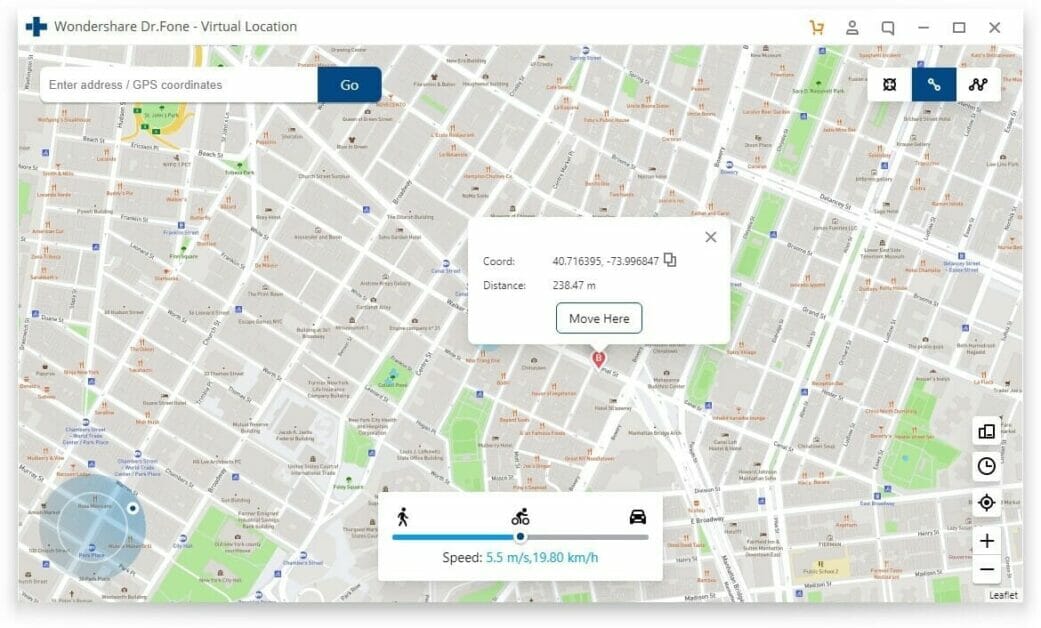
  • Simulate GPS movement along a route with various stops and speed that you want
  • Make the GPS movement more flexible via a handy Joystick
  • Manage location on up to 5 devices
  • Change your iPhone’s location with no expert skills.

Let’s understand how to spoof your location on iPhone using Dr. Fone.

How to Fake iPhone GPS Location with Dr. Fone – Virtual Location (iOS)

The operation of Dr.Fone – Virtual Location is effortless, it just take a few clicks. Here are the step-by-step instructions on how to set up Dr.Fone – Virtual Location and change GPS location on iPhone:

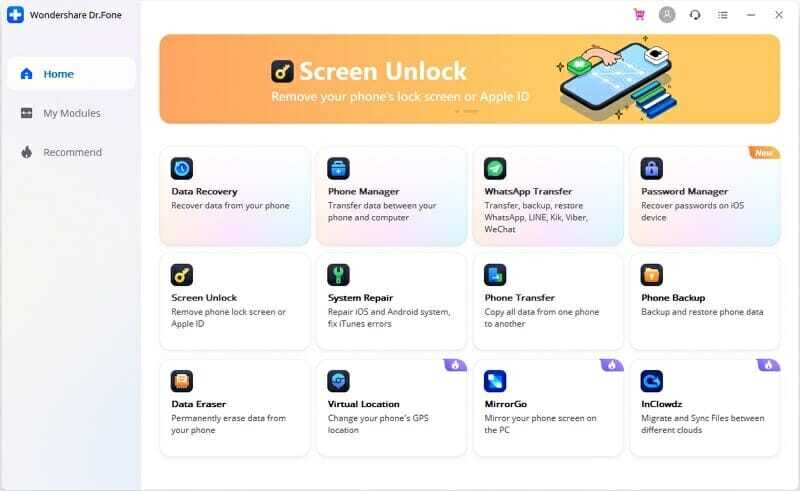
Step 1: Download, install and launch Wondershare Dr. Fone on your Mac or Windows computer. Then, click on Virtual Location.

start the virtual location feature

Step 2: Build a connection between your iPhone and computer using a Lightning to USB cable. Then, click on the Teleport Mode icon located on upper right corner of the screen.

teleport mode

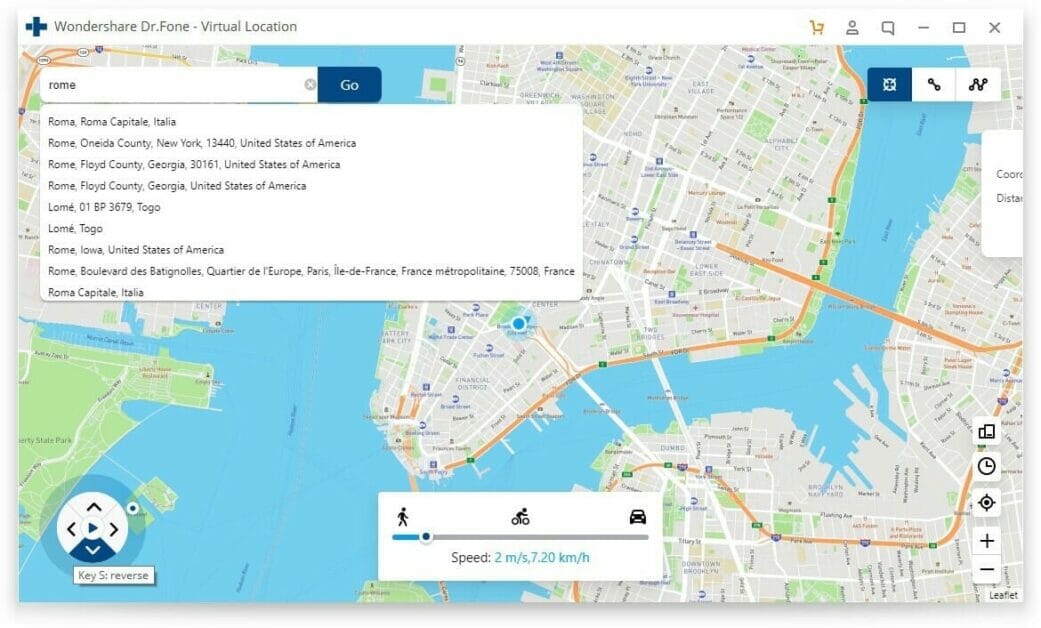
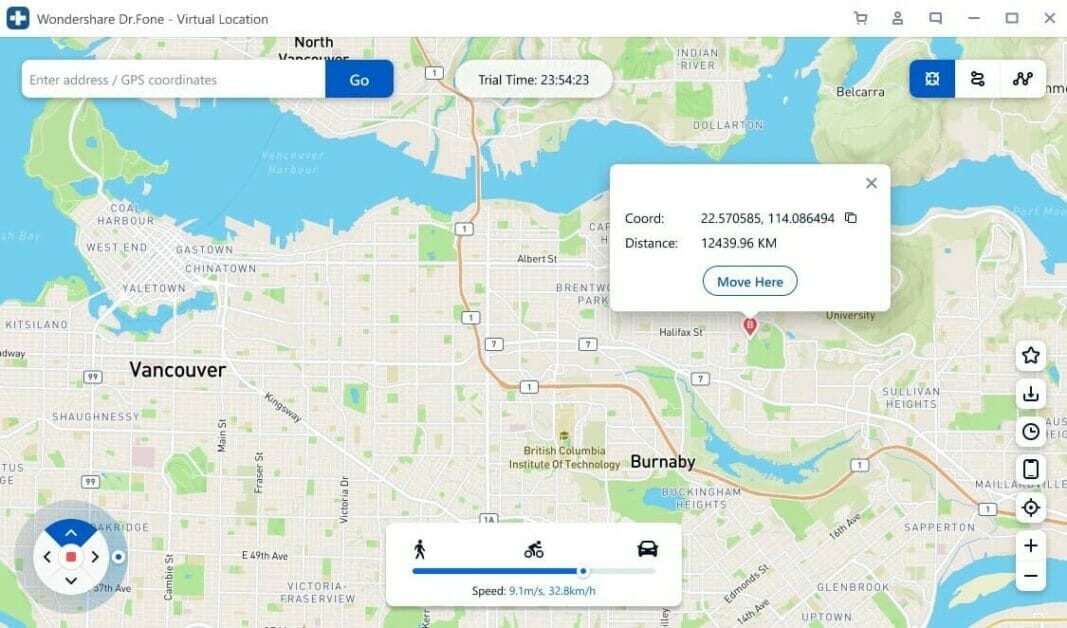
Step 3: You’ll be presented with a map interface on the screen. At the top left, you’ll see a search field. Enter the location you want to teleport to, and then click Go. A pin will drop on the desired place; click Move Here to confirm the location.

teleport to desired location

Step 4: The GPS location of your iPhone will immediately be changed to the selected location even without jailbreaking it.

current location in program

If you want to turn off the spoofing and pull real GPS data again, simply restart your phone.

Dr Fone – Virtual Location offers a free plan for people who want to test the application. But to take advantage of all the features without any restrictions, you can purchase a monthly license. All licenses are valid for a single PC, but it is possible to use up to 5 different mobile devices.

Dr Fone – Virtual Location has the best interface which is easy to navigate and is very appealing to the eye. You immediately get started on this tool after downloading it on your computer. Dr Fone – Virtual Location is very easy to use so you don’t have to have any expert skills to get started with it.

Dr Fone – Virtual Location has been used by many users to fake GPS location in AR games or location-based applications. Most of these users have been surprised by the amazing features bundled on this tool. Dr Fone – Virtual Location works beautifully and accomplishes its intended goal in a very short amount of time. It can fake GPS location on an iPhone or Android very efficiently without any hassle. If you are looking for a reliable software to change GPS location on your iPhone or Android, then look no further. Just go ahead and download Dr Fone – Virtual Location without any second thought.

Other ways to change GPS location on an iPhone or Android

Another method to change your GPS location on an iPhone or Android is to use a VPN.

Please note: Some websites falsely claim that using a VPN will change your GPS location. This is not true for most VPN apps because the primary purpose for a VPN is to change your public IP address.

Having said that, there are a number of VPN apps that come with a fake GPS system built in on top of the usual IP address masking. You can install an app, such as Surfshark, NordVPN or ExpressVPN.

Another simple yet risky way to change location of iphone is jailbreak, and surely you don’t want that.

Safely change your iPhone GPS location!

We hope this guide has made it easier for you to fake your iPhone’s location, whether for gaming, dating sites, or other purposes. In our opinion, Dr. Fone Virtual Location is the best GPS location changeer on the market. It’s easy to use, and doesn’t include any malware. Unlike other location changer software that work only on a single operating system, Dr. Fone- Virtual Location supports Windows and macOS, and this gives it an edge over other software. Dr. Fone Virtual Location is used by beginners as well as experts in Apple products. And therefore, we recommend this to our readers. Let us know in the comments below if you have any questions.

Wish you could use your Mac without constantly worrying about its waning storage space? It’s time to declutter your Mac.

Removing apps is not always a viable solution. For one thing, it always stings to delete your cherished collection of carefully curated apps. For another, storage space savings might turn out to be negligible. Therefore, if you are looking for better ways to free up disk space on your Mac, look no further than this article.

Use storage management tools

No matter how well-organized you are, useless files always linger in the nooks and crannies of your Mac. But worry not, there’s no need to dig around your files to find the ones you should part with. Apple has done all the work for you by introducing storage management tools: Store in iCloud, Optimize Storage, Empty Trash Automatically, and Reduce Clutter.

The storage management tools can be accessed from the Apple menu. Simply click About This Mac, Storage, and then Manage. There, you will see the following tools.

Store in iCloud

As much as it’s tempting to keep all of your digital belongings on a Mac, filling it to the brim is frowned upon by its hard drive. To get rid of the stern “startup disk almost full” warning, transfer your desktop files, photos, and messages to iCloud. This can be done by simply checking the boxes next to the types of files you want to transfer and clicking Store in iCloud.

Optimize Storage

When decluttering your hard drive, movies and TV shows shouldn’t be overlooked. Those are sizable files that can considerably weigh down your Mac. But worry not, you can automatically get rid of media content that you’ve already watched by simply clicking Optimize.

Empty Trash Automatically

Arguably the easiest way to clear up space on a Mac is to empty its Trash. But since it’s too much of an ask to do it on a regular basis, Cupertino wizards came up with a way to automate the task. All you have to do is to click Turn On and voila — now your Mac’s Trash empties itself every 30 days.

Reduce Clutter

For the finishing touch, delete the data you no longer need or never needed in the first place. Click Review Files to comb through large files, downloads, unsupported apps, containers, and folders.

Remove duplicate filesFrom incidentally downloaded identical email attachments to image copies, your Mac is a cornucopia of duplicates. Weeding them out manually is a tough challenge. If you cannot set aside a few hours, download a third-party tool to get rid of duplicates in one fell swoop.

Mac cleaners with duplicate finder functionality can scan either individual folders or the entirety of your Mac’s storage in mere minutes. What’s more, a good Mac cleaner can find both full and partial duplicates, which is of great benefit for people taking loads of photos.

Delete browser cache

Your browsers are a graveyard for useless cache files. You know, temporary data that is supposed to help your browser run faster but can also slow it down if left unchecked. Granted, by removing browser caches, you can claim back mere hundreds of megabytes of free space, but the browsing speed improvement is well worth the effort. Follow these steps to clear Safari’s cache:

  1. In the Safari menu, click Preferences
  2. Select Advanced and check the box titled Show Develop menu in menu bar
  3. Click Develop and click Empty caches

Remove extra language files

Your Mac has over 180 language packs. Chances are you need only 2 or 3 of them. By dumping unused language files, you can reclaim as much as 1.5 GB of space. Not too shabby.

Here’s how to delete language files on your Mac:

  1. In the Applications folder, right-click any app
  2. In the drop-down menu, select Show Package Contents
  3. In the Contents folder, open the Resources folder
  4. Delete the folders whose name ends with .lproj
  5. Empty the Trash

Delete old backups

If you regularly back up your iPhone or iPad, your Mac has dozens of gigabytes of files that occupy valuable storage space. While having backups is an essential part of data security, it doesn’t mean you need to keep old backups.

Here’s how to free up storage space on Mac by deleting old iOS backups:

  1. In the Apple menu, click About this Mac
  2. In the Storage tab, click Manage and proceed to iOS Files
  3. Select all iOS backups except the latest ones
  4. Click Delete

Conclusion

Hopefully, the above-mentioned advice has helped you clear up disk space on your Mac. Now you don’t have to think twice before installing another app or downloading vacation photos.