Got a tip for us?

App Store

Apple Watch includes apps for a variety of communication, health, fitness, and timekeeping tasks. You can install apps you have on your iPhone and get new apps from the App Store.

In the App Store, you can get details about an app including screenshots, ratings, reviews, accessibility support, privacy information, file size, age ratings, and more. You pay with the payment method associated with your Apple Account, and you can get automatic downloads and updates.

Note: When you use Apple Watch with cellular service, cellular data charges may apply.

Discover and find apps

  1. Start the App Store app on your Apple Watch.
  2. Do any of the following:
    • Browse apps and collections: Scroll down or turn the Digital Crown.
    • Search: Tap the Search button, enter what you’re looking for and tap Search. You can search by app name, category, developer, and more.
  3. Tap an app to see the details.

Buy and download an app

  1. Start the App Store app on your Apple Watch.
  2. Go to the app you want and tap Get (if the app is free) or the price.
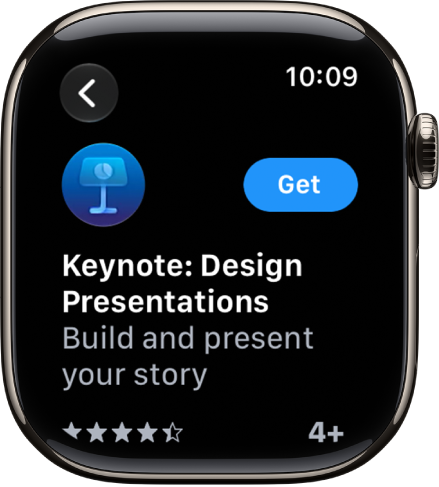
    An App Store screen showing the product page of an app with a short description of the app, its ratings, and the Get button on the right.

    If you see the Download button, you’ve already purchased the app. You can download it again without a charge.

  3. Double-click the side button to complete your purchase.

    Purchases are made with the payment method associated with your Apple Account.

Get automatic downloads and updates

  1. Start the Settings app on your Apple Watch.
  2. Tap App Store. Adjust any of the following settings:
    • Automatic Downloads: Automatically install the watchOS version of free and paid apps purchased on other devices.
    • Automatic Updates: Automatically download new versions of your apps when they’re available.

You can also go to the Apple Watch app on your iPhone, tap My Watch, then go to App Store.

Install apps you already have on iPhone

When they’re available, the watch-compatible versions of your iPhone apps install on Apple Watch automatically by default. You can also pick specific apps to install.

  1. Start the Apple Watch app on your iPhone.
  2. Tap My Watch and tap Apps. Then scroll down to Available Apps.
  3. Tap Install next to the apps you want to install.

See your purchase history

  1. Start the App Store app on your Apple Watch.
  2. Scroll to the bottom and tap Account. Tap Purchased.

See also
Apps installed by default on your iPhone are updated whenever you update iOS. Apps that you download from the App Store app are automatically updated by default, but you can manually update an app, or turn off automatic app updates. After an app is updated, it shows up below Updated Recently.

Turn off automatic app updates

  1. Start the Settings app on your iPhone.
  2. Tap Apps and then tap App Store.
  3. Turn off App Updates.

Manually update apps

  1. Start the App Store app on your iPhone.
  2. Tap the My Account button or your picture.
  3. Tap App Updates and then tap Update next to apps you want to update, or tap Update All.

After an app is updated, it appears in the list of apps below Updated Recently.

To add an app to your iPhone, you can download it from the App Store. When you download an app, you can choose to add it to both your Home Screen and App Library, or to App Library only.

An app that lands in App Library isn’t stuck there, either. You can easily move it to the Home Screen. App Library is the page that comes after all your Home Screen pages.

Choose where apps get downloaded

  1. Start the Settings app on your iPhone.
  2. Tap Home Screen & App Library.
  3. Choose Add to Home Screen or App Library Only.

Move an app from App Library to the Home Screen

If you downloaded an app to App Library, it’s easy to move it to the Home Screen.

  1. Swipe left past all your Home Screen pages to get to App Library.
  2. Touch and hold the background until the apps begin to jiggle.
  3. Touch and hold the app you want to move and drag it to the left.

In the App Store app, you can review and download purchases made by you or other family members. You can also set restrictions and customize your preferences for the App Store in the Settings app.

You can allow the App Store to use your location, let Siri make suggestions based on how you use it, and set content restrictions to prevent in-app purchases.

Here’s how to change settings and restrictions in the App Store on iPhone.

Change your App Store settings

  1. Start the Settings app on your iPhone.
  2. Tap Apps, tap App Store, and then adjust any of the following settings:
    • Location: Allow App Store to use your location and show apps and ads relevant to you.
    • Siri: Allow Siri to make suggestions across apps based on the way you use the App Store.
    • Search: Allow content from the App Store to appear in Search.
    • Cellular Data: To allow App Store to use cellular, turn on Cellular Data. Adjust other settings for cellular data such as automatic downloads.
    • App Downloads: Automatically install apps you purchased on your other devices.
    • App Updates: Automatically download and install app updates.
    • In-App Content: Automatically download in-app content in the background before the first time you open the app.
    • Video Autoplay: Automatically play app preview videos.
    • In-App Ratings & Reviews: Let apps ask for your feedback.
    • Offload Unused Apps: Automatically remove unused apps. You can reinstall an app at any time if it’s still available in the App Store.

Set content restrictions and prevent in-app purchases

After you turn on content and privacy restrictions, do the following:

  1. Start the Settings app on your iPhone.
  2. Tap Screen Time and then tap Content & Privacy Restrictions.
  3. Turn on Content & Privacy Restrictions.
  4. Tap iTunes & App Store Purchases and choose restrictions for installing or deleting apps and in-app purchases.
  5. Tap App Store, Media, Web & Games and choose age-appropriate restrictions such as the following:
    • Apps: Restrict apps by age ratings.
    • App Clips: Prevent App Clips from opening.

Set Screen Time limits and App Store restrictions for kids

With Family Sharing, the organizer—or another adult designated as parent/guardian—can set up the following parental controls for children or other members in the Family Sharing group:

  • Set restrictions for installing and deleting apps and in-app purchases.
  • Allow your child to access only age-appropriate apps.
  • Review your child’s requests to purchase and download apps.

In the App Store app, you can discover new apps, featured stories, tips and tricks, in-app events, and offers.

Today shows featured stories, apps, and in-app events, while Games and Apps let you explore new releases and top charts. You can also get information about an app, buy and download it, and share it. You need an internet connection and an Apple Account to use it.

Here’s how to get apps in the App Store on iPhone.

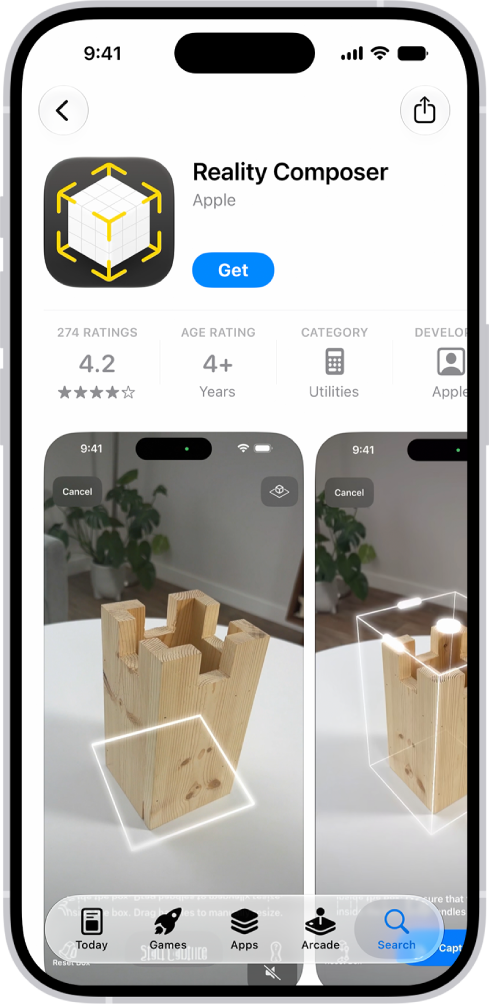
The information page for an app in the App Store. The page shows the Get button, ratings, age ratings, the developer, screenshots, and more. At the bottom, from left to right, are the following buttons: Today, Games, Apps, Arcade, and Search.

Note: You need an internet connection and an Apple Account to use the App Store. The availability of the App Store and Apple Arcade varies by country or region.

Discover and find apps

  1. Open the App Store app on your iPhone.
  2. Tap any of the following:
    • Today: Browse featured stories, apps, and in-app events.
    • Games: Find your next game across dozens of categories including action, adventure, racing, puzzles, and more.
    • Apps: Explore new releases, see the top charts, or browse by category.
    • Arcade: Enjoy the curated collection of premium games from Apple Arcade (subscription required) without ads or in-app purchases.
    • Search: Tap the Search button, then enter what you’re looking for. You can search by app name, category, developer, and more. You can also explore different categories or browse the suggested apps.

Get information about an app

  1. Open the App Store app on your iPhone.
  2. Tap an app’s name or icon to see the following details:
    • Screenshots or previews
    • Ratings and reviews
    • In-app events and offers
    • Developer
    • File size
    • Compatibility with other Apple devices
    • Supported languages
    • Age rating
    • Game Center and Family Sharing support
    • Supported accessibility features
    • Privacy information

Buy and download an app

  1. Open the App Store app on your iPhone.
  2. Go to the app you want and tap Get (if the app is free) or the price.

    If you see the Redownload button instead of Get or the price, you’ve already purchased this app before. Tap the Redownload button to download it again for free.

  3. If required, authenticate with Face ID, Touch ID, or your passcode to complete your purchase.

Purchases are made with the payment method associated with your Apple Account.

Look for the app in the Recently Added category in App Library. A progress indicator appears on the app icon while it downloads.

Share and approve purchases with Family Sharing

In a Family Sharing group, you can view and download eligible apps that other family members purchased.

Note: Family members’ purchases are only visible to you if they choose to share their purchases. And once a family member leaves the family group, purchases made with Family Sharing may not be accessible anymore.

When family members under a certain age make eligible purchases, the family organizer can review and approve them.

You can view, change, and cancel your subscriptions from Apple as well as subscriptions you purchased in apps from the App Store.

Your purchase history covers a lot. It includes free and paid apps from the App Store, in-app purchases, subscriptions, music, videos, books, AppleCare+, and more. You can also view and redownload apps. It’s all under Apps & Purchase History, in your App Store account.

Here’s how to see your purchases and subscriptions in the App Store on iPhone.

See your purchase history

Your purchase history covers AppleCare+, books, videos, music, subscriptions, and in-app purchases, along with free and paid apps from the App Store, and more.

  1. Open the App Store app on your iPhone.
  2. Tap the My Account button or your picture and tap Apps & Purchase History. Then tap Purchase History.

    You may be asked to authenticate with Face ID, Touch ID, or your passcode.

  3. To narrow the results, enter the name, price, or order ID in the search field.
  4. To change the search criteria, tap Last 90 Days, Paid and then set any of the following:

    • Date range
    • Cost (free or paid)
    • Type
    • Family member (available if you’re the organizer of a Family Sharing group)

View and redownload apps

  1. Open the App Store app on your iPhone.
  2. Tap the My Account button or your picture and tap Apps & Purchase History. Tap Your Apps.
  3. If you’re part of a Family Sharing group, tap My Apps or choose a family member.
  4. Find the app you want to download (if it’s still available in the App Store) and tap the Redownload button.

Change or cancel a subscription

  1. Open the Settings app on your iPhone.
  2. Tap your name and then tap Subscriptions.
  3. Do any of the following:
    • Cancel a subscription: Tap an active subscription and tap Cancel Subscription or Cancel All Services.
    • Change a subscription: Tap an active subscription and choose a different option.
    • Renew a subscription: Tap an expired subscription, then tap Renew.
    • Share a subscription: Turn on Share with Family to automatically share eligible subscriptions with other members in your Family Sharing group.
    • Get Renewal Receipts: Turn on Renewal Receipt Emails to receive a receipt each time one of your subscriptions renews.

When you find something special in the App Store, you can share a link to it or send it as a gift. Both start on the app’s details page, where the Share button lets you pick a sharing option or Gift App.

Note: Not all apps are available to send as gifts.

  1. Start the App Store app on your iPhone.
  2. Tap the app you want to share or give to see its details.
  3. Tap the Share button and choose a sharing option or tap Gift App.

When you’re in a Family Sharing group, you can share Apple subscriptions and eligible App Store subscriptions with other family members. If your Family Sharing group has purchase sharing turned on, any subscriptions shared with the group are billed directly to the organizer’s default payment method.

The family organizer can also require that children in the family group request approval for eligible purchases or free downloads.

Here’s how to share Apple and App Store subscriptions with family members on iPhone.

Note: Not all services are available in all countries or regions, and some selections are subject to content restrictions set in Screen Time. Age restrictions for Ask to Buy vary by country or region. In the United States, the family organizer can turn on Ask to Buy for any family member under age 18; for children under age 13, it’s on by default.

Share Apple subscriptions

  1. Open Settings and then tap Family.
  2. Tap Subscriptions and then do one of the following:
    • Tap a subscription you want to share, then follow the onscreen instructions.
    • Tap Manage Subscriptions, then tap a subscription.
  • Apple Arcade: All members of your family can download and play Apple Arcade games from the App Store. Each player gets a personalized account—your progress is carried over between devices.
  • Apple Fitness+: All members of your family can access workouts in the Fitness app on their iPhone or iPad.
  • Apple Music: With a family subscription, each family member gets their own music library and personal recommendations.
  • Apple News+: All members of your family can read Apple News+ publications for no additional charge.
  • Apple TV: Each family member can watch on their iPhone, iPad, iPod touch, Mac, Apple TV 4K, and supported smart TVs and streaming devices, using their own Apple Account and password.
  • iCloud+: When you share iCloud+, all family members have access to iCloud+ features and storage. For storage, you only share the space—your photos and documents stay private and everyone keeps using their own accounts.

Share App Store subscriptions

Which eligible App Store subscriptions you share with family members is your call.

  1. Open the Settings app on your iPhone.
  2. Tap Family and tap Subscriptions. Then tap Manage Subscriptions.
  3. Do either of the following:
    • Share all new subscriptions: Turn on Share with Family. When you purchase a new subscription that’s eligible for sharing, it’s shared with your Family Sharing members by default.
    • Change the settings of a specific subscription: Tap a subscription and turn Share with Family on or off.

If you don’t see Share with Family, the subscription isn’t eligible for sharing.

You can remove apps from your Home Screen or delete them from your iPhone entirely. If you remove an app from your Home Screen, it moves to App Library, and it isn’t deleted.

That’s the key difference. A removed app can still be used from App Library, while a deleted app is gone from your iPhone, though you can recover a deleted app later.

Here’s how to remove or delete apps from iPhone.

To block an app to prevent its use, you can use Screen Time settings.

Remove an app from the Home Screen

  1. Go to the Home Screen.
  2. Touch and hold an app and tap Remove App. Then tap Remove from Home Screen.

The app moves to App Library, where it can still be used.

Delete an app from iPhone

Deleting an app removes both it and its data from your iPhone.

  1. Touch and hold the app on the Home Screen or in App Library.
  2. Tap Remove App, then tap Delete App.
  3. Tap Delete to confirm.

Data stored in iCloud, like photos or documents you saved through the app, isn’t deleted when you delete the app. And after you delete an app, it may take a moment for the available storage on your iPhone to update.

Note: Some Apple apps can be removed from the Home Screen but can’t be deleted from iPhone. In the European Union, there may be other built-in apps you can delete.

Recover a deleted app

If it’s still available in the App Store, you can reinstall any app you previously downloaded.

  1. Open the App Store app on your iPhone.
  2. Tap the My Account button or your picture and tap Apps & Purchase History. Tap Your Apps.
  3. If you’re part of a Family Sharing group, tap My Apps or choose a family member.
  4. Find the app you want to download (if it’s still available in the App Store) and tap the Redownload button.

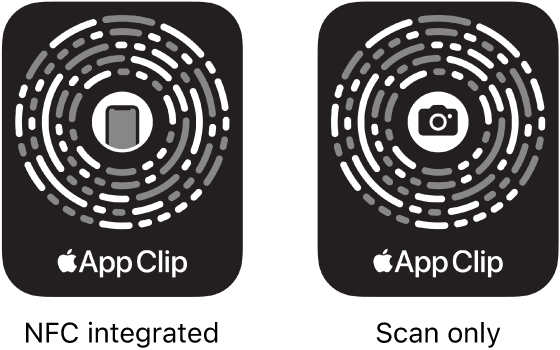
You can do a task quickly with an app clip, a small part of an app, like rent a bike, pay for parking, or order food. Discover App Clips in Safari, Maps, and Messages, or in the real world through NFC tags, QR codes, and App Clip Codes, unique markers that take you to specific App Clips.

You can also find App Clips you used on iPhone, and remove them.

On the left, an NFC-integrated App Clip Code with an iPhone icon in the center. On the right, a scan-only App Clip Code with a camera icon in the center.

Get and use App Clips

  1. Get App Clips from any of the following:
    • App Clip Code or QR code: Scan the code using the iPhone camera or Code Scanner in Control Center.
    • NFC-integrated App Clip Code or NFC tag: Hold your iPhone near the NFC tag.
    • Maps: Tap the app clip link on the information card (for supported locations).
    • Safari or Messages: Tap the app clip link.
  2. When the app clip appears on the screen, tap Open or Play.

Some App Clips support Sign in with Apple, and you can then use Apple Pay for purchases online and in apps.

With some App Clips, you can tap the banner at the top of the screen to see the full app.

Find App Clips you used on iPhone

Go to App Library, tap the search field at the top of the screen, then scroll down to the end of the alphabetical list.

Remove App Clips

  1. Go to App Library and tap the search field at the top of the screen.
  2. Enter the name of the app clip, or scroll down to the App Clips at the bottom.
  3. Touch and hold the app clip you want to delete, then tap Remove App Clip.