Got a tip for us?

Freeform

When you want the text in your sticky notes, shapes, or text boxes to have a consistent look in Freeform, like the font, size, and color, you can copy the style from one item and paste it in another.

Depending on the item you paste into, fonts, line weight, or color are matched. If you like an item’s style, you can also save it, and every new item like that on your board uses the saved style.

  1. Go to the Freeform app on your iPad.
  2. Tap an item on a board and make any adjustments to the formatting—so it has the style you want to copy.
  3. When you have an item that’s formatted in a style you like, tap it to show its formatting tools.
  4. Tap the More button and tap Style. Tap Copy Style.
  5. Tap to select and show the formatting tools for an item whose style you want to change.
  6. Tap the More button, tap Style, and then tap Paste Style.

    Depending on the item you’re pasting a style into, fonts, line weight, or color are matched.

    For linked or placed files, pasted styles update corners and shadows.

Quick tip: When you like an item’s style, you can save it, and every similar item you add to your board afterward uses the saved style. To save it, tap to select the text box, tap the More button, and tap Style, then choose Save as Insert Style.

See also

You can use the Freeform app to create boards for brainstorming and collaborating. For example, propose a trip with friends and let everyone take part in the planning.

You can add text, sticky notes, photos, videos, and other types of files, and the canvas expands as you add content, so you’re never constrained by space limits or page formatting. You can also start a board from another app, like Notes or Safari.

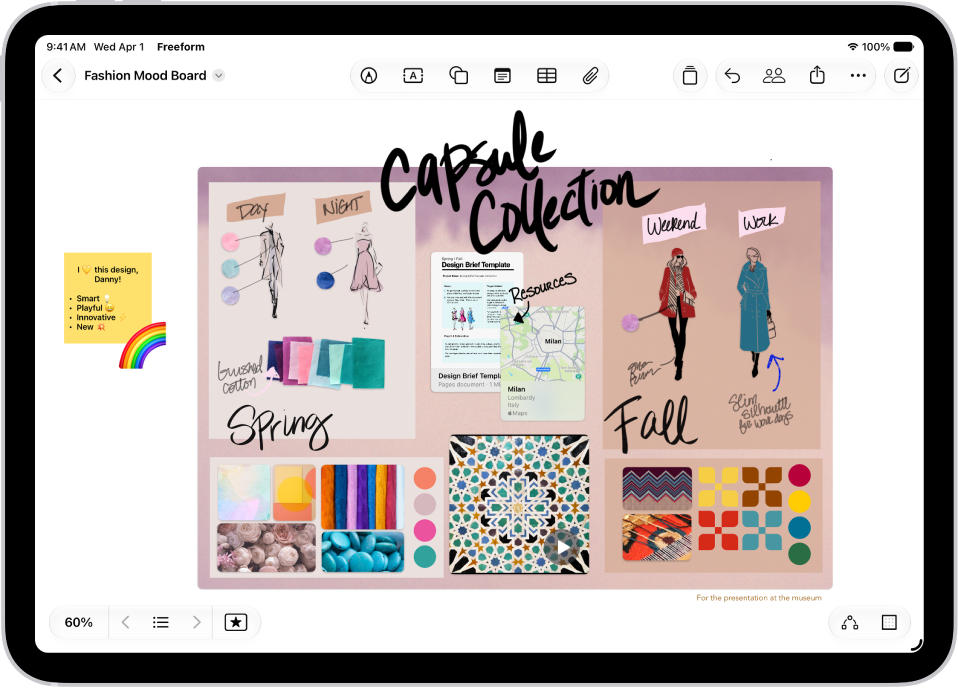
An iPad with the Freeform app open. The board includes handwriting, text, drawings, shapes, sticky notes, links, and other files.

Create a new board

  1. Start the Freeform app on your iPad.
  2. Tap the New Board button.
  3. Tap one of the options at the top of the screen, such as the Add Text Box button or the Insert button, to start building your board.
  4. Move around your board by dragging your finger, and zoom in or out by pinching open or closed.

    Tip: To magnify more precisely, tap the current percentage in the bottom-left corner, then tap a percent.

  5. Your board is saved automatically as you work. To name it, tap Untitled in the top left. Tap Rename.

    If you’re working in a window that isn’t full-screen, you may have to tap the More button, then tap Rename.

Create a board from another app

You can start a new Freeform board using content from another supported app, such as Notes, Maps, Safari, Files, Photos, and more.

  1. On your iPad, go to the app whose content you want to use on a new Freeform board.
  2. Open the item you want to place on the Freeform board (for example, a note, map, webpage, PDF, or screenshot).

    To share just one part of a file to a board (rather than the entire webpage or note), select what you want to share. If your selection includes text, only the text is shared.

  3. Tap Share or the Share button and then tap the Freeform app icon.
  4. Tap New Board or the name of an existing board.

    Either a link or the item appears in the board.

Open a board

  1. Start the Freeform app on your iPad.
  2. Tap a category in the sidebar, or do one of the following:

    • If you don’t see the sidebar: Tap the Show Sidebar button.
    • If you’re in a board: Tap the Back button in the top-left corner.

      Note: Any collaborations you get invited to in the Messages app appear in an Invitations section on the Shared Boards screen until you accept them.

  3. Tap the board you want to open.

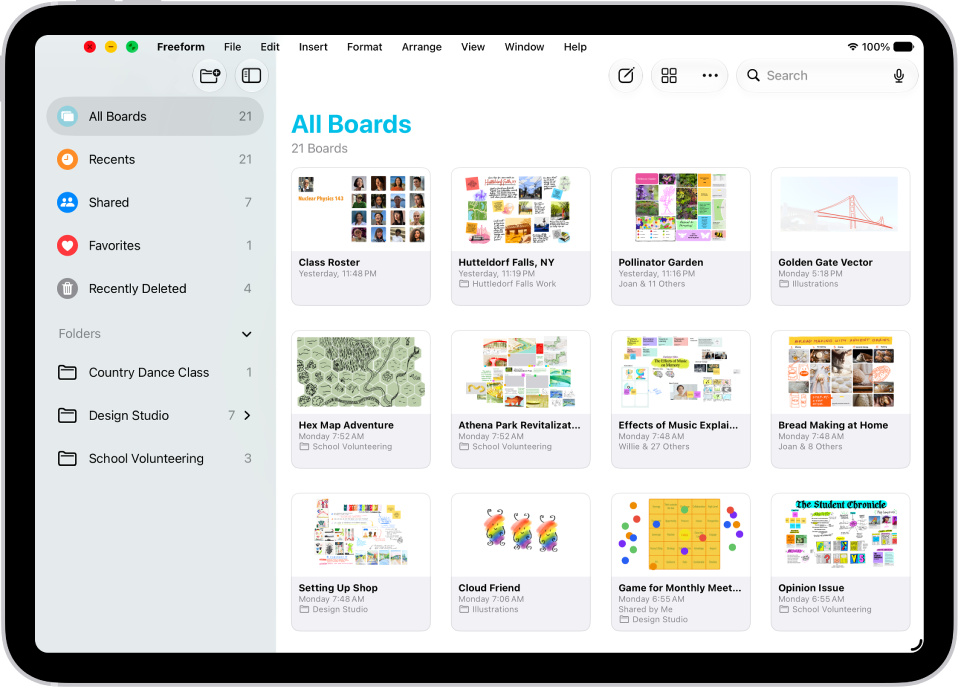
Freeform is open on iPad. All Boards is selected in the sidebar, and board thumbnails appear on the right.

Duplicate a board

  1. Start the Freeform app on your iPad.
  2. While browsing All Boards, tap the More button at the top and then tap Select.

    If you’re in a board, tap the Back button to browse All Boards.

  3. Tap the boards you want to copy. Then tap Duplicate.

Or touch and hold the thumbnail or name of the board, then tap Duplicate.

Note: A duplicate of a shared board isn’t shared, so to send someone a snapshot of the board, see our guide, Send a copy of a board, or to reshare the board, see our article, Invite others to collaborate on a board.

Add a board to Favorites

  1. Start the Freeform app on your iPad.
  2. Do one of the following:
    • While browsing All Boards: Touch and hold the thumbnail or name of the board, then tap Favorite.
    • If you’re in a board: Tap the Actions Menu button and tap Favorite.

See also

You can invite people to collaborate in Freeform boards and folders in iCloud, and everyone sees the latest changes when they’re online and signed in to their Apple Account. To make sure the board is accessible to all, you can add descriptions for visual items.

Boards are stored only in the owner’s iCloud, so the iCloud storage of the other participants isn’t affected. And as you work, you can see edits as others make them.

Here’s how to collaborate in Freeform boards and folders on iPhone.
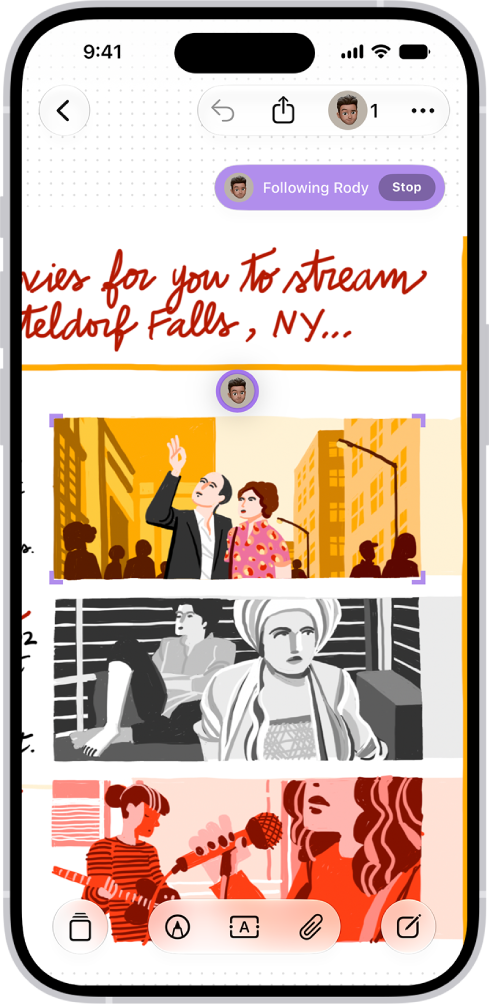
Someone is following another person’s Freeform board.

Invite others to collaborate on a board

As you collaborate with others on a shared Freeform board, their edits show up as they make them. Since changes are saved in iCloud, the latest version is there for everyone with access to the board whenever they open it.

Note: A board is stored only in the owner’s iCloud, so items in it don’t affect the iCloud storage of participants.

  1. Open the Freeform app on your iPhone.
  2. Do one of the following:
    • While browsing All Boards: Touch and hold the board you want to share and tap Share.
    • From inside a board: Open the board you want to share (or tap the New Board button to start a new one). Tap the Share Board button.
  3. The current sharing setting is described below the name of the board, such as People you choose can edit. Tap the setting to change it.
  4. Choose how you want to share the board—such as in Messages or Mail—or tap the icon of anyone you communicated with recently to share with them.

You can add people after you start sharing a board. Tap the Collaborate button, tap Manage Shared Board, then tap Share With More People. When you share with others in Messages, the Collaborate button may change to reflect who shares the board with you.

Note: To view or edit the board, the people you share it with need iOS 16.2, iPadOS 16.2, macOS 13.1, or later, and they must be signed in to their Apple Account. If you’re collaborating in Messages, you and anyone you invite must also turn on iMessage.

Share a folder

To work with others on a folder of Freeform boards, share it.

Note: You can only share a top-level folder.

  1. Open the Freeform app on your iPhone.
  2. Create a folder.
  3. Touch and hold the folder, then tap Share.
  4. In the share sheet, choose how to send the invitation, set permissions and then send. Anyone you invite gets access to all the boards and subfolders in the folder, including ones added later.
  5. To set permissions, do any of the following:
    • Let others add and edit boards in the folder: Choose Can Make Changes.
    • Let others open boards without editing or adding new ones: Choose View Only.
  6. To add participants, touch and hold the shared folder, tap Manage Shared Folder, and then tap Add People.

You won’t see Manage Shared Folder unless you’re the owner of the folder.

View others in a board

In real time, you can see where others are working on your board, or follow along as another participant moves in a board. Say someone is presenting their design proposal on a Freeform board: if you’re following them, you can see where they are on the board and what’s in their view.
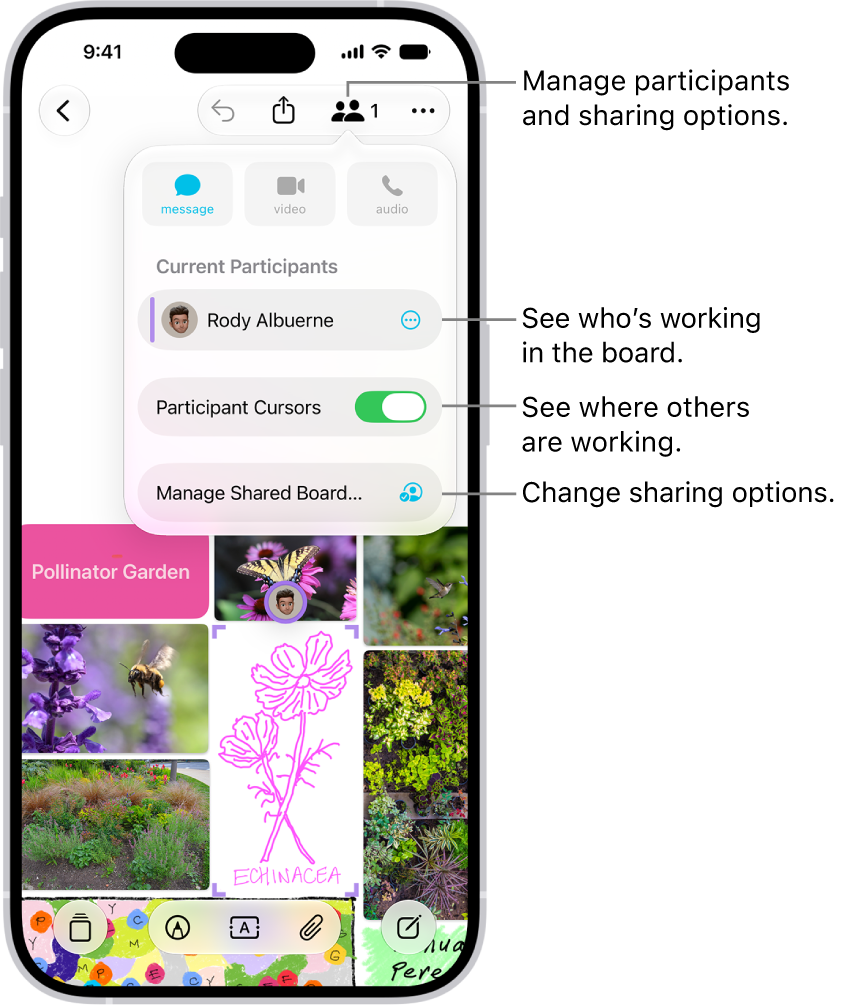
A shared Freeform board on iPhone with the collaboration menu open.

  1. Open the Freeform app on your iPhone.
  2. Open the shared board where you want to see others at work. Tap the Collaborate button.
  3. Turn on Participant Cursors if the setting is off.
  4. Do any of the following:

    • Jump to where they’re working: Tap the name of a participant.

      The color next to the participant’s name matches the color marking their place on the board.

    • Follow their board view as they work or present: Tap the More button next to the name of a participant. Tap Follow Along. Or you can just tap the person’s avatar wherever they are on the board. Tap Follow.

Entering the mode deselects anything you’d selected before, and a border frames what they see on the board, in a color matching the cursor of the person you’re following.

You and the presenter you’re following both need to be online.

While following along, you can’t select anything on the board, and your zoom level matches the other person’s view.

To stop following along, tap Stop in the top-right corner—or just scroll, zoom, or edit.

Note: People working with you on a board can undo and redo only their own changes, and only while the board is open. On your iPhone, the Undo button steps back through the changes you made. To redo, touch and hold Undo, then tap Redo.

Add accessibility descriptions

You can add a description of your visual content to any item on your board. That way, people who use assistive technology such as VoiceOver can hear the visual content described aloud. (Descriptions aren’t visible on the board itself.)

  1. Open the Freeform app on your iPhone.
  2. Open the board where you want to add accessibility descriptions.
  3. Tap to select the item you want to describe and tap the More button in the formatting tools at the bottom. Then tap Description.
  4. Enter a description of the visual content, then tap the Close button.
  5. To hear the description, turn on VoiceOver and then tap the item.

Stop sharing or collaborating

  1. Open the Freeform app on your iPhone.
  2. Touch and hold the shared board or folder. Then tap Manage Shared Folder.

    If you’re already in a board, tap the Collaborate button, then tap Manage Shared Board.

  3. Do any of the following:

    • Remove individuals: Tap the name of the participant you want to remove. Then tap Remove Access.
    • Remove yourself from someone else’s board or folder: Tap your name, then tap Remove Me.
    • Stop sharing with everyone: Tap Stop Sharing and then tap Stop Sharing.

      When you choose this option, the board no longer appears on the devices of the other participants, even though you still have access to it.

      When you stop sharing a folder, the people you shared with lose access to all the boards and subfolders inside it.

After you start sharing a board, you can change access and permissions for individuals or for everyone.

For the collaboration features to work fully, all participants must be online and signed in to their Apple Account. They also need Freeform turned on in iCloud and must have set up two-factor authentication.


You can remove Freeform boards and folders you no longer need. You can also recover deleted items within 30 days if you change your mind.

If you delete a board that was shared with you directly, though, you lose access, while the owner and other participants still see it. A deleted board you own moves to Recently Deleted for everyone you share it with, where it stays for 30 days. You can also permanently remove an item.

Here’s how to delete and recover your Freeform boards and folders on iPhone.

Delete a board

  1. Start the Freeform app on your iPhone.
  2. While browsing All Boards, tap the More button, tap Select, and tap the boards you want to delete.

    (If you’re in a board, tap the Back button to browse All Boards.)

  3. Tap Delete, then tap Delete again to confirm.

You can also touch and hold the thumbnail or name of the board, then tap Delete.

You’ll lose access to a board that was shared with you directly if you delete it, though the owner and other participants still see the board.

A board you own, or one inside a folder someone shared with you, goes to Recently Deleted for you and everyone you share it with when you delete it, and it’ll stay there for 30 days.

Delete a folder

Important: To remove a folder but keep the boards inside it, move the boards before you delete the folder.

  1. Start the Freeform app on your iPhone.
  2. Tap the Back button until you see the folder list.
  3. Swipe left on the folder and tap the Delete Folder button.

Deleting a folder that contains boards deletes the boards, too. And with a shared folder, what other participants see depends on whether it’s yours or you were invited to it.

  • If you delete a folder you own: The folder moves to Recently Deleted, where you can recover it or permanently delete it within 30 days.

    Participants can’t recover a folder you shared with them, but they can recover subfolders you shared with them that weren’t the top-level shared folder.

    To make sure the folder is gone and no longer shared with anyone, permanently delete it from Recently Deleted.

  • If you delete a folder someone else shared with you: You no longer see the folder, and the folder is removed from your devices. Others keep the folder, but no longer see your name listed as a participant. The owner still sees your name, marked as Invited, and you can rejoin later with the link you originally received.
  • If you delete a subfolder within a folder shared with you: The subfolder moves to Recently Deleted for you and everyone it’s shared with.

Recover a recently deleted board or folder

Changed your mind about deleting a board or folder? You can still recover it.

  1. Start the Freeform app on your iPhone.
  2. While browsing All Boards, tap the Back button and then tap Recently Deleted.
  3. Do one of the following:

    • Recover a board or folder: Touch and hold the thumbnail or name of the recently deleted item and then tap Recover.

      Note: You can’t open a board from Recently Deleted, but you can review a deleted folder before you recover it—just tap it to see what’s inside.

    • Recover several boards or folders: Tap the More button, tap Select, and then tap the boards or folders you want to recover. Tap Recover at the bottom of the screen.

Boards and folders you delete stay in Recently Deleted for 30 days.

  • If you were the owner of a shared board or folder that you deleted: Recovering a board or folder from Recently Deleted restores everyone’s access. If you want to make sure a shared folder is permanently deleted, delete it from Recently Deleted.
  • If you delete a board or subfolder you don’t own: You can recover the board or folder from Recently Deleted.
  • If the owner deleted the top-level folder that was shared with you: The folder appears in your Recently Deleted. You can’t recover it, but you can make a copy.

Permanently remove a deleted board or folder

After deleting a board or folder, you can remove it permanently. Owners can do this with any shared board or folder they own, but participants can’t permanently remove a top-level folder someone shared with them, only a shared subfolder or board.

  1. Start the Freeform app on your iPhone.
  2. While browsing Recently Deleted, touch and hold the board or folder, tap Delete, and then tap Delete.

Permanently removing a shared folder that contains boards permanently removes the boards, too. And if the shared folder is yours, everyone you shared it with loses access.

You can send a link to a copy of a Freeform board, so others can download the copy and add it to their boards, if you are signed in to your Apple Account. You can also export your Freeform board as a PDF to send a copy of it to others.

Anyone with the link can take the copy and make it their own. To send one, you must be online and signed in to iCloud.

Send a copy of a board

All it takes to send a copy of your board to anyone is a link, and they can then make the copy their own. To send a copy of the board, you need to be online and signed in to iCloud.

  1. Start the Freeform app on your iPhone.
  2. Do one of the following:
    • While browsing All Boards: Touch and hold the board you want to share and tap Share.
    • From inside a board: Tap the Share Board button.
  3. Tap the pop-up menu under the board name and choose Send a Copy. Tap one of the following:
    • Copy iCloud Link: The link is copied to your clipboard. You can then paste it anywhere you like.
    • Any contact or app icon: Follow the onscreen instructions.

You can send this link to as many recipients as you like. Anyone with the link can download the copy within 30 days. When browsing for the board, recipients can find it in All Boards, not the Shared section. (Shared is only for boards you’re collaborating on.)

Each new link sends a copy of the board as it was when you created it. When you send someone a copy, it opens as a new board. Changes on your board don’t appear on theirs, and anything they change doesn’t affect yours.

Note: Sending a copy leaves access to the original board unchanged.

Send a PDF of a board

  1. Start the Freeform app on your iPhone.
  2. Open a board, or tap the New Board button to start a new one.
  3. In the board you want to send, tap the More button and then tap Export as PDF. (You may have to scroll down.)

    If you saved scenes in your board, choose to export one of the following:

    • The entire board as a single page: Tap Board.
    • One scene per page: Tap Scenes.
  4. Choose how you want to send the PDF, such as in Messages or Mail and then follow the onscreen instructions.

People and groups you recently communicated with appear as icons. Tap one to send the board to them.

You can also export a board as a PDF while browsing All Boards. Touch and hold the thumbnail or name of the board, tap Share, then tap Export as PDF.

Quick tip: For a PNG of your board, take a screenshot and share it from the Photos app. Or select and copy the items you want to share, then paste them into other apps, like Mail or Files, as a PNG.

You can add text to a Freeform board using a sticky note or text box, or you can add text within a shape. With a keyboard connected, typing starts as soon as the item appears. You can also change the font, alignment, and more.

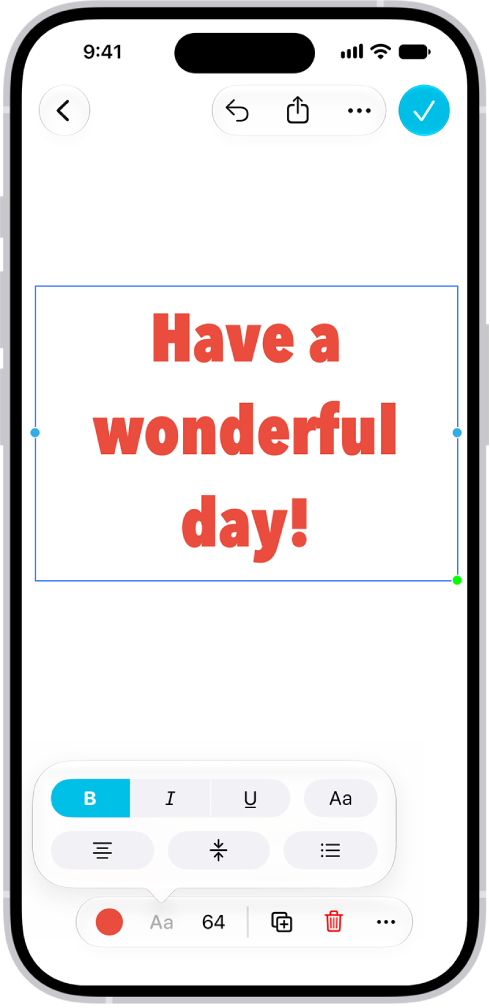
A Freeform board showing a text box selected and the text formatting tools below it.

  1. Open the Freeform app on your iPhone.
  2. Open a board, or tap the New Board button to start a new one and then do one of the following:
    • Add a text box: Tap the Add Text Box button.
    • Add text inside a shape: Tap the Content Hub button. Then tap the Add Shape button.
    • Add a sticky note: Tap the Media button, then tap Add Sticky Note.
  3. Double-tap the text box, shape, or sticky note. Enter text. (If you have a keyboard connected, you can start typing as soon as the item appears.)
  4. To change the font, alignment, and more, select the object and then tap the Text Formatting button in the formatting tools.
  5. Tap the Done button when you’re finished.

You can print a Freeform board from the Freeform app on your iPhone. If you saved scenes in your board, you can choose to print the entire board as a single page, or to print one scene per page instead.

  1. Open the Freeform app on your iPhone.
  2. Open the board you want to print, tap the More button, and tap Print.

    If you saved scenes in your board, choose to print one of the following:

    • The entire board as a single page: Tap Board.
    • One scene per page: Tap Scenes.

Freeform contains hundreds of shapes in a variety of categories, like animals, food, symbols, and ornaments. After you add shapes to a board, you can customize them in a number of ways, including combining them, splitting them, or changing their size or the way they look.

Lines are in the same place as shapes: the Add Shape button in the Content Hub. Here’s how to add shapes, lines, and arrows to a Freeform board on iPhone.

Add and format shapes, lines, and arrows

  1. Open the Freeform app on your iPhone.
  2. Open a board, or tap the New Board button to start a new one.
  3. Tap the Content Hub button, tap the Add Shape button, and then select a shape or line.
  4. To change your object’s properties, tap to select the object. Then do any of the following:
    • Change the size or proportions: Drag a blue dot.
    • Adjust the form, curve, number of points, and other aspects particular to your object: Drag any green dot. If it’s part of a diagram, you can also change its connection points.
    • Change the type of shape: Tap the More button and tap Change Shape. Then choose another shape.
Tool Description
the Set Fill button Change the color of a shape. Note: The button changes to the shape’s current color.
the Set Stroke button Change the type of border, border thickness, and border color of a shape or line. Note: The appearance of the button changes to reflect its current state.
Change the formatting for all text in a shape including font, color, size, alignment, and list style.
the Set Line Ends button Add an arrowhead or other endpoint to a line.
Change the type of connection line: straight, angled, or curved. (Available when you add a connection line between two items.)
  1. Tap the Done button when you’re finished.

You can also add shapes and lines by drawing them on your board, then smoothing or straightening the strokes.

Combine or split shapes

Removing the overlapping area between two shapes, combining one shape with another, and more can create a new shape. Multipart shapes work the other way: once they’re on a Freeform board, you can divide them into their parts and edit each part individually. Divide the map of the United States in the Places category, for example, and you can change the color of each state.

When you’ve added shapes to your Freeform board, you can do one of the following:

  • Combine shapes: Select multiple items, tap the Arrange button, then below Combine Shapes, tap an option to unite, intersect, subtract, or exclude.
  • Split a multipart shape apart: Tap the More button in the formatting tools, then tap Break Apart.

You can easily create a connected diagram, such as a flowchart, by using connectors and the shape picker in Freeform. Depending on the type of item, you can attach lines to an item or near it.

You can connect two items with a line and change connection points. You can quickly add equally spaced, aligned shapes with connectors, too.

Here’s how to add diagrams to a Freeform board on iPhone.

Create a diagram

  1. Open the Freeform app on your iPhone.
  2. Open a board, or tap the New Board button to start a new one.
  3. Tap the More button, tap View Options, and then tap Show Connectors.

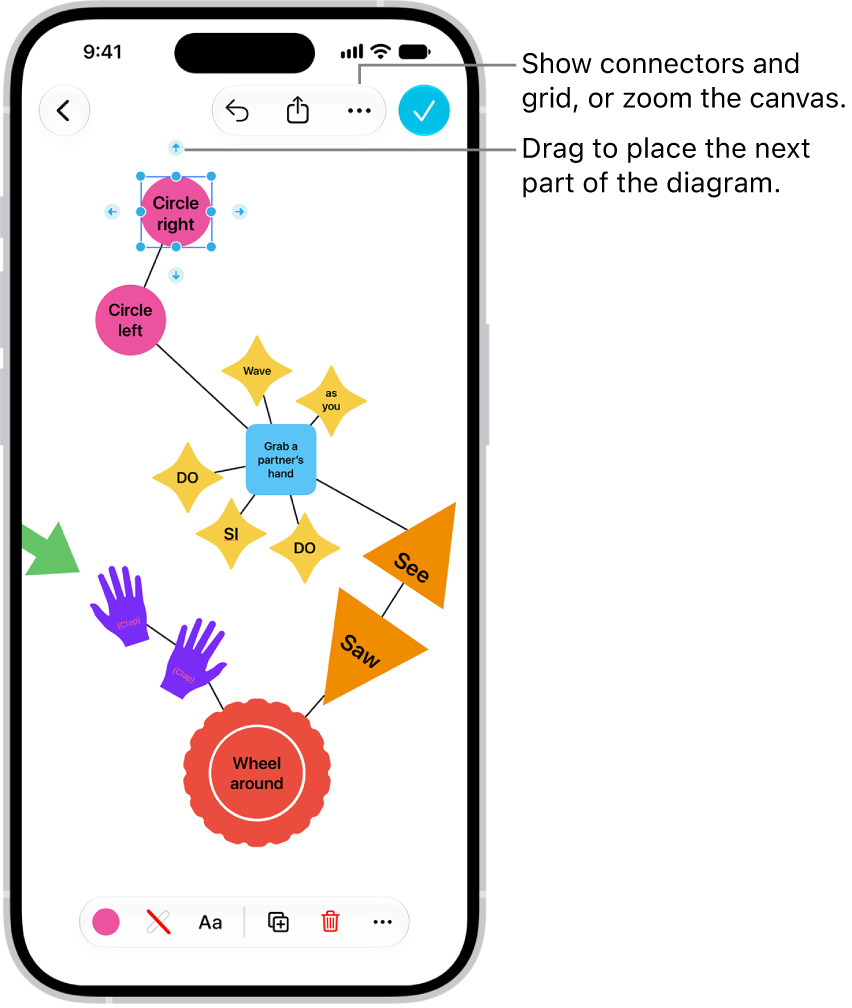
    A diagram on a Freeform board, with connectors showing on a selected shape, and the shape formatting tools visible at the bottom of the screen.

  4. To begin your diagram, add an item by tapping the Content Hub button, the Add Text Box button, or the Media button.
  5. Drag a connector arrow to where you want the next part of your diagram. When you let go, a small menu of shapes opens. Tap to select the next shape you want to add.

    To browse other shapes, tap the Other button.

  6. Tap the Done button when you’re finished diagramming.

Connector arrows don’t appear when you select a line or multiple items.

Quick tip: There’s a quick way to add equally spaced, aligned shapes with connectors. First, tap to select a shape, and then touch and hold a connector arrow. You’ll see a preview of the shape and line as you hold, and when you let go, they’re added to the board.

Connect two items with a line

  1. Open the Freeform app on your iPhone.
  2. Open a board with items on it.
  3. Touch and hold an item on your board, then, with another finger, tap another item to select it too.
  4. Tap the More button in the formatting tools at the bottom. Tap Add Connection Line.

Change connection points

You can change how a connection line connects, even after you add it to a diagram on a Freeform board.

  1. Tap to select a connection line, then drag one of its endpoints (the blue dots).
  2. Attach the endpoint to another item on the board at a new connection point.

Your item has connection points at its center, top, bottom, and sides. When a connection is possible elsewhere, in the item or near it, a filled circle appears.

You can move, rotate, or resize items on your Freeform board. You can align, distribute, or group them, and move them to the background or foreground. You can also lock items when you want to prevent any further changes.

And it’s not one item at a time. You can select, align, and group multiple items on a board at once, and lock them in place when you want to prevent any further changes.

Here’s how to position items on a Freeform board on iPhone.

Move, rotate, or resize an item

  1. Open the Freeform app on your iPhone.
  2. Open a board, select an item you want to position by tapping it, and then do any of the following:

    • Reposition it: Drag from the center of the item.
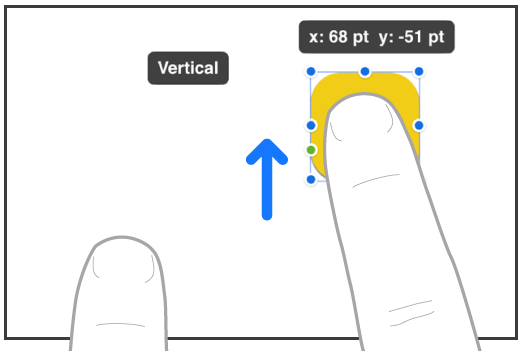
    • Move it in a straight line: To constrain an item’s movement horizontally, vertically, or diagonally, drag the item with one finger while you use another finger to touch and hold anywhere on the board.

    Two fingers of a hand moving an item in a straight line in Freeform.

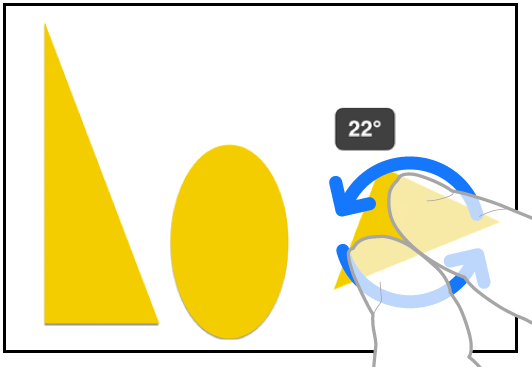
    • Rotate it: Place two fingers on the item and turn your hand in the direction you want to rotate it.

    Two fingers of a hand selecting and rotating an item in Freeform.

    • Put it in the background or foreground: Tap the More button in the formatting tools and tap Back or Front.
    • Resize it: Drag a blue dot.

      In text boxes, drag a green dot to resize both the box and the text within it.

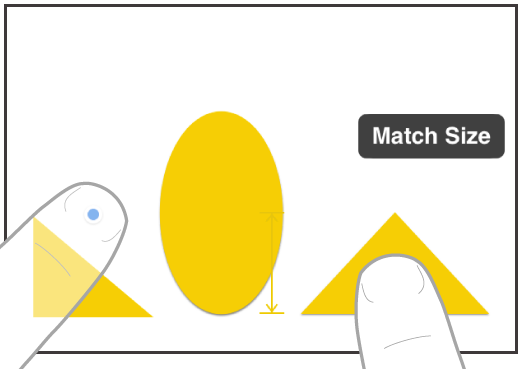
    • Match its size to another item: Start resizing and then use a second finger to touch and hold the item whose size you want to match. When the words Match Size appear, lift both your fingers at the same time.

    Two fingers on two hands selecting and matching the sizes of two items in Freeform.

Select, align, and group multiple items on a board

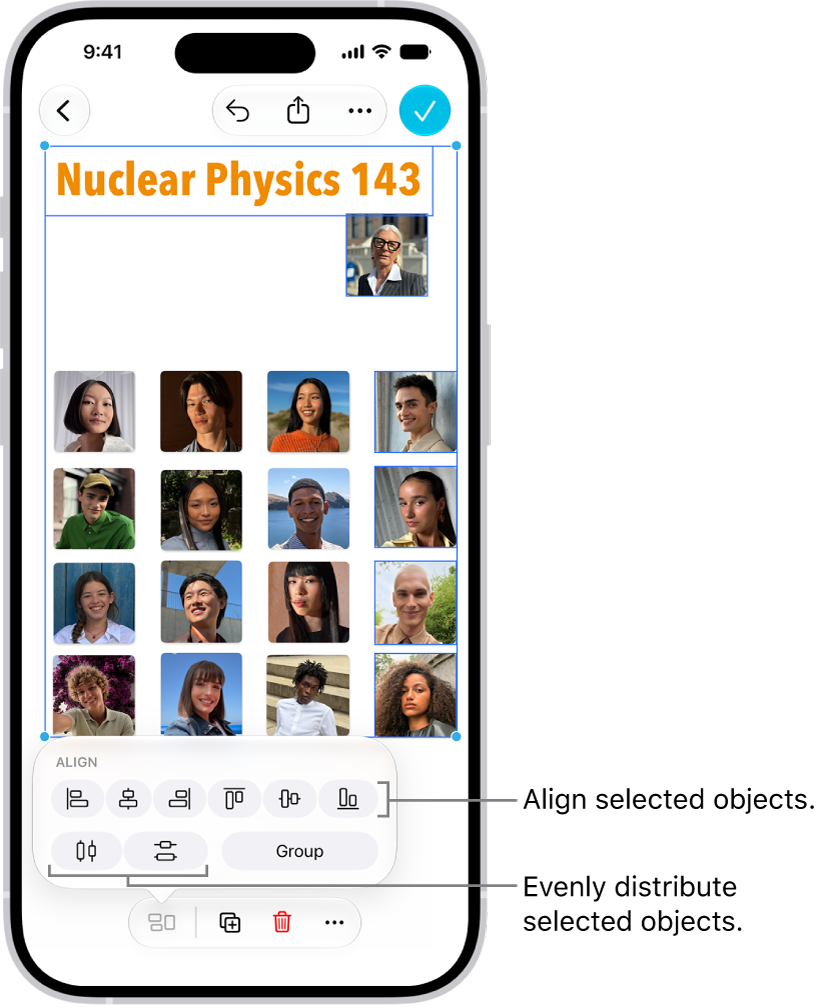
Once you’ve added items to a Freeform board, you can select multiple items and align them relative to one another. Grouping several items also makes it easier to move, rotate, or resize them as a single unit.

A Freeform board filled with a grid of photos. Several photos are selected, and the alignment and grouping tools appear above them.

  1. Open the Freeform app on your iPhone.
  2. Open a board and then select multiple items by doing one of the following:

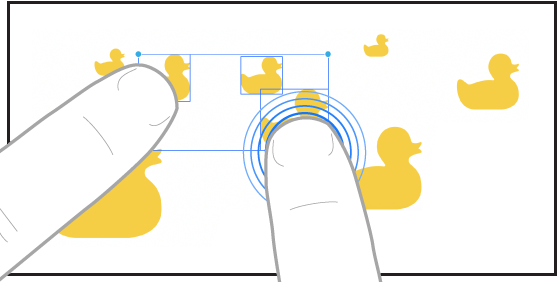
    • Touch and hold an item on your board, then, with another finger, tap other items.

    Two fingers selecting items in Freeform.

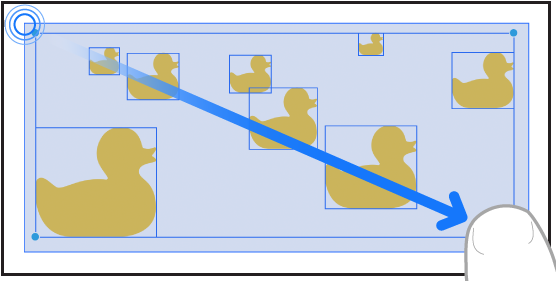
    • Touch and hold the canvas, then drag the box that appears around the items you want to select.

    A finger dragging to select items in Freeform.

    • Tap an empty space on the canvas, then tap Select Objects. Tap each item you want to select. To deselect an item, tap it again.
  3. Move, rotate, or resize the selected items, or tap the Arrange button. Tap an alignment option or Group.

Some items—such as 3D objects—can’t be grouped.

To align items more easily, you can also use a dot grid background and guides.

Lock an item on a board

To avoid inadvertently moving, modifying, or deleting an item on a Freeform board, you can lock it after you add it. Locking one or more text boxes to serve as headings, for example, could set off areas on a board where participants can share items.

  1. Open the Freeform app on your iPhone.
  2. Open a board. Then tap a drawing, shape, text box, or other item on your board to select it.
  3. Tap the More button in the formatting tools and tap Lock.

Quick tip: A large rectangle shape makes a handy workspace for your participants, so they aren’t facing a wide open canvas. Select the shape, tap the More button in the formatting tools, and tap Back, then lock it.