Got a tip for us?

Freeform

In the Freeform app, you can organize your boards into folders. You can create a subfolder, move a folder inside another folder, and rename a folder. You can also move boards into or out of a folder, several at the same time if you like.

Create a folder

  1. Open the Freeform app on your iPad.
  2. In the sidebar, tap the New Folder button, name your folder. Tap OK.

    If you don’t see the sidebar, tap the Show Sidebar button.

  3. Do any of the following:

    • Create a subfolder: Touch and hold a folder, then tap New Folder. You can also move a folder inside another folder.
    • Rename a folder: Touch and hold a folder, tap Rename, enter a new name, and then tap OK.

Move boards into or out of a folder

  1. Open the Freeform app on your iPad.
  2. With the sidebar open, do one of the following:
    • Move several boards at the same time: Tap the Folder Actions button, tap Select, and tap each board you want to move. Tap Move and then choose a folder to move them to.
    • Move a board or subfolder to another folder: Touch and hold a board or subfolder. Then drag it into a folder.
    • Remove a board or subfolder from a folder: Touch and hold a board or subfolder and tap Move. Then tap Move to Top Level. A removed board goes to All Boards, and a removed subfolder goes to the top level of the folder list.

See also

You can sketch or jot a handwritten note with Apple Pencil (see compatibility) or your finger. You can edit and work with handwritten text just as you do with typed text, and you can solve handwritten math problems.

Your strokes are grouped when you draw in Freeform, and you can separate or merge them. Holding your finger or Apple Pencil still for a moment at the end can smooth or straighten a drawing’s shape.

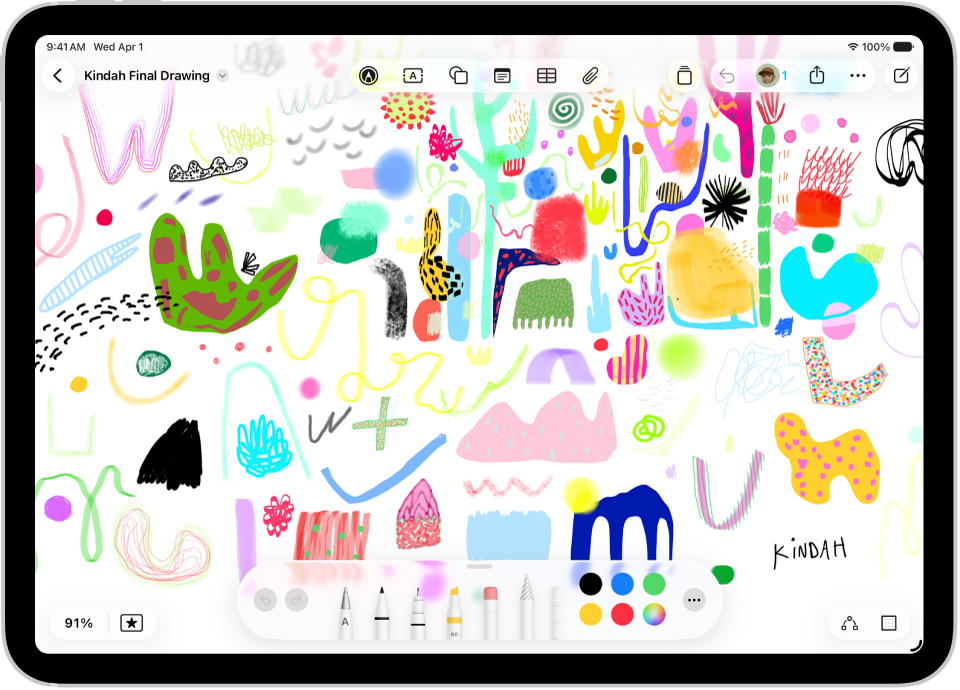
A drawing on a Freeform board with drawing tools visible.

Draw or handwrite

Drawing in the Freeform app groups your strokes. You can separate or merge your strokes to break a drawing apart, and delete, resize, or straighten parts of it.

  1. Open the Freeform app on your iPad.
  2. Open a board, or tap the New Board button to start a new one.
  3. Tap the Drawing and Handwriting Tools button and then draw with your finger or Apple Pencil.

    If you’re using Apple Pencil and want to be able to switch to draw with your finger, tap the More button in the drawing tools, then turn on Draw with Finger.

    Tip: Hold your finger or Apple Pencil still for a moment when you finish the drawing to smooth or straighten its shape.

  4. Do any of the following:

    • Switch tools: Tap a tool. Swipe to see other tools, such as Fill, Crayon, Fountain Pen, Reed Pen, or Watercolor Brush.
    • Change a tool’s qualities (such as angle, thickness, opacity): Tap any tool a second time.
    • Fill a shape with color: Tap the Fill tool (the paint tube) and tap within a closed shape.
    • Draw a straight line: Tap the Ruler tool. Rotate the ruler by placing two fingers on it and turning your hand.
    • Transform your handwriting to typed text as you write with Apple Pencil: Use Scribble (next to the pen). See Enter text with Scribble.
    • Select, edit, and straighten parts of your drawing: Tap the Lasso tool (between the Eraser and Ruler) in the drawing tools and tap or circle the part of the drawing you want to select. Tap an option or tap the More button to see other options.

      Tip: Choose Snap to Shapes to smooth or straighten hand-drawn lines.

      To clean up your handwriting without transforming it into type, see Work with handwritten text, below.

  5. Tap the Done button when you’re finished drawing.

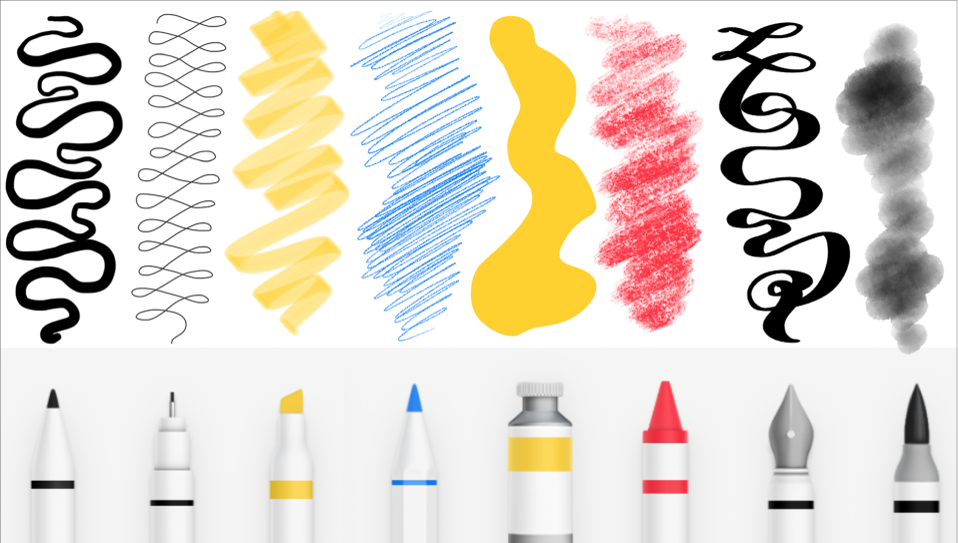
Some Freeform drawing tools and their strokes: Marker, Pen, Highlighter, Pencil, Crayon, Fountain Pen, and Watercolor Brush.

Note: In Freeform, Apple Pencil acts as a drawing and writing tool by default. If you’d also like to use it to select and scroll, you can change this setting.

Work with handwritten text

Handwriting in the Freeform app is recognized as words, so you can search it just like typed text. You can also select it, straighten it, translate it, or copy and paste it as text.

  1. After you write on your Freeform board with the drawing tools, tap the Lasso tool (between the Eraser and Ruler) in the drawing tools.
  2. To select text, tap, double-tap, or circle the words, tap the More button, and then do any of the following:

    • Make text more legible, smooth, and straight: Tap Refine.

      Tip: To automatically smooth and straighten text as you write, tap the More button in the tools, then turn on Auto-refine Handwriting.

    • Make your writing more level: Tap Straighten.
    • Correct spelling: Tap an underlined word and choose how you want to correct it. The fix appears in your own writing style.
    • Move handwritten text: Touch and hold the selected text and then drag it to a new position.
    • Drag and drop: Touch and hold the text.
    • Erase text: Strike through the writing and then hold down your finger on iPad. (Supported when using a markup tool such as Pen, Mono line, or Marker.)

When you tap a handwritten link, address, phone number, or date, it may open a menu or another related app.

Solve handwritten math problems

  1. Open the Freeform app on your iPad.
  2. Open a board, or tap the New Board button to start a new one.
  3. Tap the Actions Menu button, tap Math Results, and then choose how you want your iPad to respond to the math problems you enter:
    • If you want it to solve them: Choose Insert Results. (The answer appears in writing that matches your own.)
    • If you want suggestions to appear: Choose Suggest Results. (A Solve button appears that, when tapped, adds the answer in writing that matches your own.)
  4. Tap the Drawing and Handwriting Tools button. Then start writing a math equation.
  5. Write an equal sign or draw a horizontal line below a stack of numbers and then do one of the following:
    • In Insert Results mode: Tap the answer to open the equation. You can tap the Close button to delete the answer. Tap the expression to show the hint again, or draw the equal sign again.
    • In Suggest Results mode: Tap Solve to add the answer in writing that matches your own.

Decide which mode you’d like to use, or turn off math hints. For more, see our guide, Get math hints.

Just as in the Calculator app, you can use variables, edit equations, and update results. For more, read our article, Solve math with Math Notes.

You can also enter equations to be solved in any text in sticky notes, shapes, and text boxes.

See also

You can add any photo or video to a Freeform board, generate an image, or take a new photo with your iPad camera. You can also add different types of files to your board by scanning, linking, or inserting them.

You can create original images with Image Playground and paste items from your Clipboard, too. Anyone can use premium Content Hub images. With a subscription to Apple Creator Studio, though, you’ll be able to remove their watermarks.

Available with subscription: Some features require a subscription to Apple Creator Studio.

Add a photo, video, sticker, link, or other file

  1. Go to the Freeform app on your iPad.
  2. Open a board, or tap the New Board button to start a new one.
  3. Do one of the following:

    • Tap the Media button, tap an option, then tap the Done button when you’re finished.
    • Copy the item to your Clipboard, tap an empty space, then, when a menu appears, tap Paste.
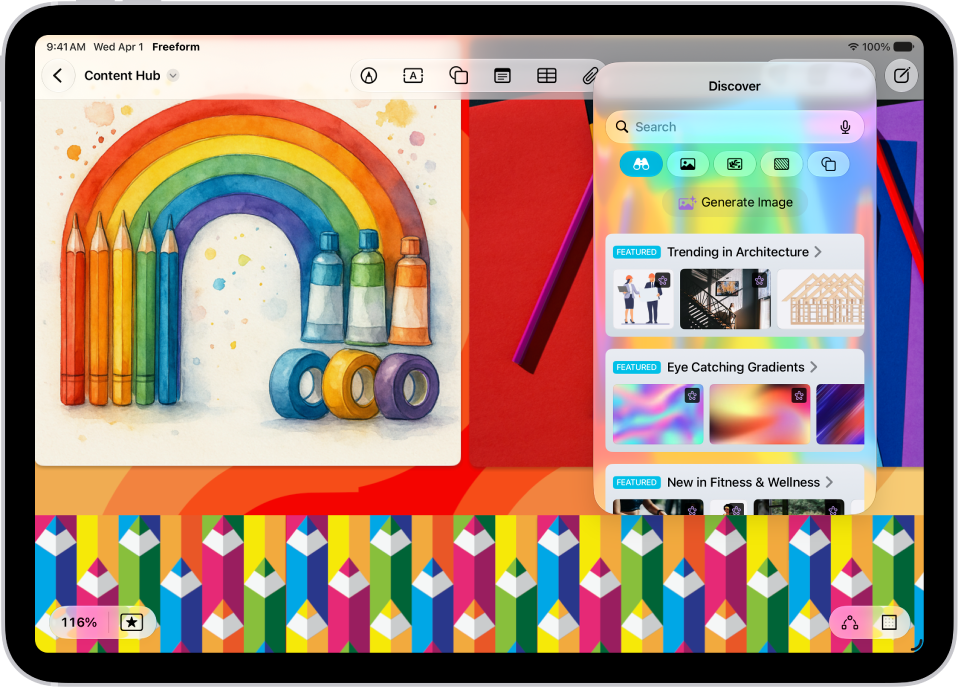
    • To add premium images from the Content Hub to your board, tap the Content Hub button in the toolbar, tap an object category at the top of the dialog, then tap a premium image to add it to the board. Anyone can use premium Content Hub images, but you need to subscribe to Apple Creator Studio to remove their watermarks.

      Important: Premium images from Content Hub are subject to usage restrictions.

Double-tap any media item—photo, video, or other file—to preview it.

Note: You can insert files saved on your iPad or in iCloud Drive, and for most file types, Freeform inserts a copy. Links to a collaborative Keynote presentation, Numbers spreadsheet, or Pages document behave differently: Participants in your Freeform board can tap the card to open the shared file in iCloud. (For others to collaborate on the file, it has to be saved in iCloud.)

Create original images with Image Playground

Using Apple Intelligence, you can mix text descriptions, photos of people from your photo library, and more into one-of-a-kind illustrations.

Note: Apple Intelligence on iPadOS 27 or later is available on an Apple Intelligence-enabled iPad mini (A17 Pro) and iPad models with M1 or later. Apple Intelligence is not available in all languages or regions. Usage limits may apply.*

  1. Start the Freeform app on your iPad.
  2. Open a board, or tap the New Board button to start a new one.
  3. Do one of the following:
    • Create a new image: Tap the Insert Media button in the toolbar, tap Image Playground, and then follow instructions to create an image.
    • Replace an existing image with an image created in Image Playground: Select an image and tap the Modify Image button. Tap Replace, tap Image Playground, and then follow instructions to create an image.
    • Use elements from your board: Select up to six images, drawings, text boxes, sticky notes, or shapes that you want to use, tap the More button in the formatting tools and tap Add to Playground. Follow the onscreen instructions to create an image.
  4. Tap the Done button or Insert to add the image to your board.

Generate new images with Apple Creator Studio

With an Apple Creator Studio subscription, advanced tools let you create and edit high-quality images, or transform existing ones with generative models.

Note: This feature is not available in all countries and regions.

  1. Start the Freeform app on your iPad.
  2. Open a board, or tap the New Board button to start a new one.
  3. Tap the Content Hub button in the toolbar.

    Note: If this is your first time using Image Generation in Freeform, follow the onscreen instructions to share your age range with the app. Image Generation is not available for all ages, so a parent or guardian must enable this feature for children and teens in their family group. See Set up Family Sharing.

  4. Tap Generate Image, then follow the onscreen instructions.

    If you’re asked to send an image, select Allow Once or Always Allow. To reset this option, tap the More button, tap Intelligence Features, then tap Reset Permissions.

  5. Tap Insert to add the image to your board.

Important: Image Generation is subject to usage limitations. To check your usage status, tap the More button, tap Intelligence Features, then tap Show Usage Status.

Scan and add a document

Scan a paper document, and you can add it to your board as a PDF right from Freeform.

  1. Start the Freeform app on your iPad.
  2. Open a board, or tap the New Board button to start a new one.
  3. Tap the Insert button, then tap Scan Documents.
  4. Position the iPad camera so the document appears on the screen.

    iPad automatically captures the page. To capture the scan manually, tap Auto (the label changes to Manual), tap the Take Picture button or press a volume button, drag the corners to select the area you want in the scanned document, then tap Keep.

  5. Scan additional pages, then tap the Done button when you’re done.

Your board gets a card showing an image of the first page of your scan.

Quick tip: You can keep your scan in iCloud Drive or on your iPad. To do that, select the card, tap the Preview button, and tap the Share button, then tap Save to Files.

Format a photo or video

  1. Start the Freeform app on your iPad.
  2. Open a board with a photo or video in it.
  3. Tap a photo or video to open its formatting tools and then do any of the following:

    • Crop or mask the photo: Tap the Crop Mask button.
    • Remove the photo’s background: Tap the Modify Image button and then tap Remove Background. If the background of the photo can’t be made transparent, Remove Background isn’t available.

      Tip: You can also paste an image without a background. See Lift a subject from the photo background.

    • Add a shadow, round the corners, add a description, and more: Tap the More button and then choose an option.
    • Replace the photo or video: Select the photo or video, tap the Modify Image button or the Modify Movie button, tap Replace, and then select a replacement.
    • Preview the photo or video: Tap the Preview button, or double-tap the photo or video.

      To preview a movie in full screen, double-tap it.

Auto Crop a photo

Auto Crop, available with an Apple Creator Studio subscription, can intelligently generate suggestions that improve image composition.

  1. Start the Freeform app on your iPad.
  2. Open a board with an image, double-tap the image to view the mask controls. Tap Auto Crop to preview cropping suggestions.
  3. Tap a suggestion to update your image and tap Done.

Increase resolution with Super Resolution

If you’re an Apple Creator Studio subscriber, you can increase the resolution of photos with Super Resolution, making them clearer.

  1. Start the Freeform app on your iPad.
  2. Open a board with an image, tap the image, and tap the Image Inspector button.
  3. Tap Super Resolution.

Put an image inside a shape

Want your photo inside a circle? Use a shape as a mask or frame for an image.

  1. Start the Freeform app on your iPad.
  2. Open a board, or tap the New Board button to start a new one.
  3. Add a photo or other image to the board.
  4. Tap the Add Shape button, then choose a shape.
  5. Position the shape over the image, then select both it and the image.
  6. Tap the More button in the formatting tools and tap Mask with Shape.

Or drag an image onto a shape to use it as a frame.

To remove it from the shape, select the masked image, tap the More button, then tap Reset Mask.

Quick tip: From supported apps like Notes, Photos, and Safari, you can send a photo, video, file, or link to a Freeform board. Select it and tap the Share button in the other app, then tap the Freeform app icon, and finally tap New Board or the name of an existing board. (Others can add items to your board only if you save it in iCloud.)

*Apple Intelligence is available with Siri and device language set to Chinese (Simplified), Chinese (Traditional), Danish, Dutch, English, French, German, Italian, Japanese, Korean, Norwegian, Portuguese, Spanish, Swedish, Turkish, or Vietnamese. Some features may not be available in all regions or languages. Some devices may not be available in all regions. Siri AI is available in beta in iOS 27, iPadOS 27, macOS 27, watchOS 27, and visionOS 27 and requires an Apple Intelligence–enabled device set to a supported language. Available in English to start. Siri AI will not be initially available in the EU on iOS, iPadOS, and watchOS. Certain Apple Intelligence features that rely on server-side models are subject to daily usage limits, including but not limited to Siri AI, Intelligent Photo Editing Tools, Image Playground, and AFM 3 Cloud models in Shortcuts. Daily limits may vary by feature, request complexity, system demand, system policies, and other factors. Expanded access to such features will be available for a fee in the future. Use of these features is subject to the Apple Intelligence Terms and Conditions.

See also

Freeform contains hundreds of shapes in a variety of categories, like animals, food, symbols, and ornaments. After you add shapes to a board, you can customize them in a number of ways, including combining them, splitting them, or changing their size or the way they look.

To change the size or proportions, you drag a blue dot, and green dots adjust the form or curve. You can even change the type of shape after you add it.

Add and format shapes, lines, and arrows

  1. Go to the Freeform app on your iPad.
  2. Open a board, or tap the New Board button to start a new one.
  3. Tap the Add Shape button. Select a shape from the suggestions, or tap Browse Content Hub to see more shapes.

    Tip: To clear your recently inserted shapes from the suggestions, tap Browse Content Hub, then tap Reset Suggestions.

  4. To change your object’s properties, tap to select the object. Then do any of the following:

    • Change the size or proportions: Drag a blue dot.
    • Adjust the form, curve, number of points, and other aspects particular to your object: Drag any green dot. If it’s part of a diagram, you can also change its connection points.
    • Change the type of shape: Tap the More button in the formatting tools, tap Change Shape, and then choose another shape.
Tool Description
the Set Fill button Change the color of a shape.

Note: The button changes to the shape’s current color.

the Set Stroke button Change the type of border, border thickness, and border color of a shape or line.

Note: The appearance of the button changes to reflect its current state.

Change the formatting for all text in a shape including font, color, size, alignment, and list style. See Add text.
the Set Line Ends button Add an arrowhead or other endpoint to a line.
Change the type of connection line: straight, cornered, or curved. (Available when you add a connection line between two items.)

You can also add shapes and lines by drawing them on your board, then smoothing or straightening the strokes. See our article, Draw or handwrite on a Freeform board.

Combine or split shapes

Combine one shape with another, remove the overlapping area between two shapes, and more to make a new shape. Multipart shapes on a Freeform board can also be split into their parts, so you can edit each part individually. You could split the map of the United States (in the Places category), for instance, and give each state its own color.

With shapes on your Freeform board, do one of the following:

  • Combine shapes: Select multiple items, tap the Arrange button, then below Combine Shapes, tap an option to unite, intersect, subtract, or exclude.
  • Split a multipart shape apart: Tap the More button in the formatting tools, then tap Break Apart.

See also

You can easily create a connected diagram, such as a flowchart, by using connectors and the shape picker in Freeform. Depending on the type of item, you can attach lines to an item or near it.

You can connect two items with a line and change connection points. You can quickly add equally spaced, aligned shapes with connectors, too.

Here’s how to add diagrams to a Freeform board on iPad.

Create a diagram

  1. Go to the Freeform app on your iPad.
  2. Open a board, or tap the New Board button to start a new one.
  3. Do one of the following:

    • In full-screen view: Tap the Show Connectors button in the lower-right corner.
    • In smaller windows: Tap the More button and tap View Options. Tap Show Connectors. See Work with multiple windows at once.
  4. To begin your diagram, add an item by tapping the Add Text Box button, the Add Shape button, the Add Sticky Note button, or the Insert button.
  5. Drag a connector arrow to where you want the next part of your diagram. When you let go, a small menu of shapes opens. Tap to select the next shape you want to add.

    (Tap the Other button to browse other shapes.)

  6. Tap the Done button when you’re finished diagramming.

You don’t see connector arrows when you select a line or multiple items.

Quick tip: Equally spaced, aligned shapes with connectors are quick to add. Tap a shape to select it, then touch and hold a connector arrow. A preview of the shape and line shows up while you hold, and letting go adds them to the board.

Connect two items with a line

  1. Start the Freeform app on your iPad.
  2. Open a board with items on it.
  3. Touch and hold an item on your board, then, with another finger, tap another item to select it too. See Select, align, and group multiple items on a board.
  4. Tap the More button in the formatting tools, then tap Add Connection Line.

Change connection points

Once a connection line is on a diagram on a Freeform board, you can still change how it connects.

  1. Tap to select a connection line, then drag one of its endpoints (the blue dots).
  2. Attach the endpoint to another item on the board at a new connection point.

    Connection points appear at the center, top, bottom, and sides of your item. A filled circle appears when a connection is possible elsewhere—either in or near the item.

See also

You can add text to a Freeform board using a sticky note or text box, or you can add text within a shape. With a keyboard connected, typing starts as soon as the item appears. You can also change the font, alignment, and more.

  1. Go to the Freeform app on your iPad.
  2. Open a board, or tap the New Board button to start a new one and then do one of the following:
    • Add a text box: Tap the Add Text Box button.
    • Add text inside a shape: Tap the Content Hub button. Then tap the Add Shape button.
    • Add a sticky note: Tap the Add Sticky Note button.
  3. Double-tap the text box, shape, or sticky note. Enter text. (If you have a keyboard connected, you can start typing as soon as the item appears.)
  4. To change the font, alignment, and more, select the object and then tap the Modify Text button in the formatting tools.

See also

You can invite people to collaborate in Freeform boards and folders in iCloud, and everyone sees the latest changes when they’re online and signed in to their Apple Account. To make sure the board is accessible to all, you can add descriptions for visual items.

Boards are stored only in the owner’s iCloud, so participants’ iCloud storage isn’t affected. You can also see others in a board as they edit.

A Freeform board with two other participants whose selections are marked with color tick marks.

Invite others to collaborate on a board

When you’re working on a shared Freeform board, you see edits as others make them. Because changes are saved in iCloud, anyone with access to the board sees the latest version each time they open it.

Note: Items in a board don’t affect participants’ iCloud storage, since boards are stored only in the owner’s iCloud.

  1. Go to the Freeform app on your iPad.
  2. Do one of the following:
    • While browsing All Boards: Touch and hold the board you want to share and tap Share.
    • From inside a board: Open the board you want to share (or tap the New Board button to start a new one). Tap the Share Board button.
  3. The current sharing setting is described below the name of the board, such as People you choose can edit. Tap the setting to change it. See Change access and permissions for boards and folders.
  4. Choose how you want to share the board—such as in Messages or Mail—or tap the icon of anyone you communicated with recently to share with them.

You can add people after you start sharing a board. Tap the Collaborate button, tap Manage Shared Board, then tap Share With More People. When you share with others in Messages, the Collaborate button tap may change to reflect who shares the board with you.

Note: Everyone you share the board with has to be signed in to their Apple Account on iOS 16.2, iPadOS 16.2, macOS 13.1, or later before they can edit or view it. For collaborating in Messages, you and anyone you invite must also turn on iMessage.

Share a folder

Share a folder of Freeform boards so you can work with others on them.

Note: You can only share a top-level folder.

  1. Open the Freeform app on your iPad.
  2. Create a folder.
  3. Touch and hold the folder, then tap Share.
  4. In the share sheet, choose how to send the invitation, set permissions and then send. Anyone you invite gets access to all the boards and subfolders in the folder, including ones added later.
  5. To set permissions, do any of the following:
    • Let others add and edit boards in the folder: Choose Can Make Changes.
    • Let others open boards without editing or adding new ones: Choose View Only.
  6. To add participants, touch and hold the shared folder, tap Manage Shared Folder, and then tap Add People.

If you’re not the owner of the folder, you won’t see Manage Shared Folder.

View others in a board

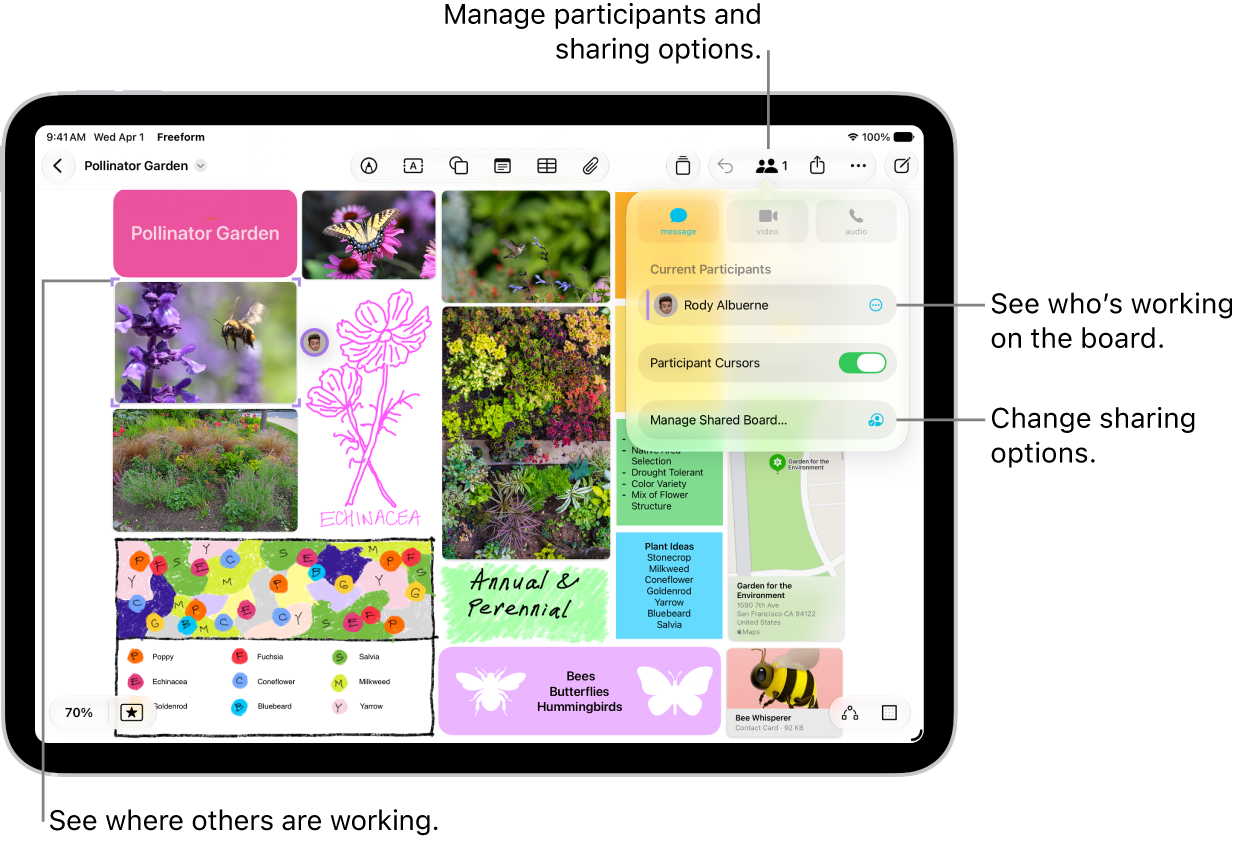
You can see in real time where others are working on your board, or follow a participant as they move around it. If someone is presenting a design proposal on a Freeform board, for example, following them shows you where they are on the board and what they see.

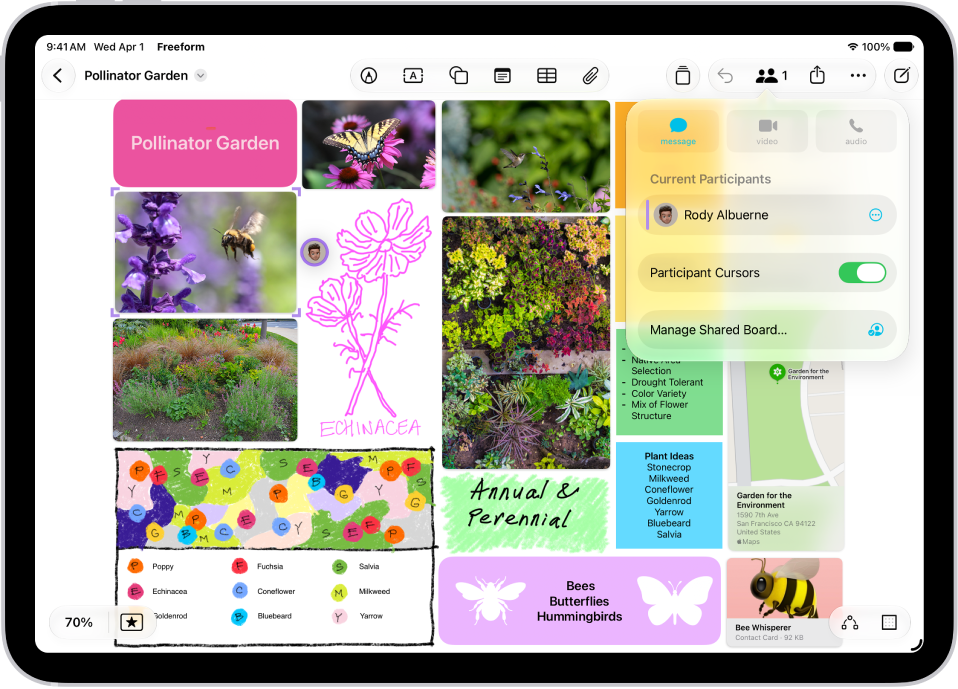
A shared Freeform board on iPad with the collaboration menu open and the location other participants on the board marked with color tick marks.

  1. Open the Freeform app on your iPad.
  2. Open the shared board where you want to see others at work. Tap the Collaborate button.
  3. Turn on Participant Cursors if the setting is off.
  4. Do any of the following:

    • Jump to where they’re working: Tap the name of a participant.

      The color next to the participant’s name matches the color marking their place on the board.

    • Follow their board view as they work or present: Tap the More button next to the name of a participant. Tap Follow Along. Or you can just tap the person’s avatar wherever they are on the board. Tap Follow.

      Anything you’d selected before entering the mode is deselected. A border (with a color matching the cursor of the person you’re following) frames what they see on the board.

      Both you and the presenter you’re following need to be online.

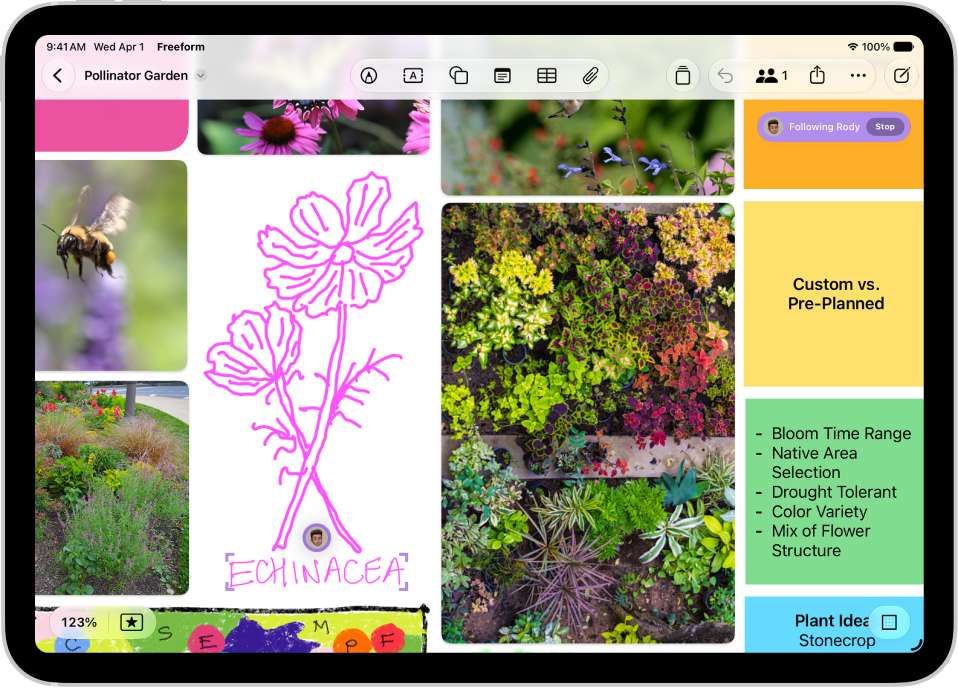
Someone is following another person’s Freeform board. The other person’s selection is marked with and avatar and color tick marks.

As you follow along, the zoom level is based on the other person’s view, and you can’t select anything on the board.

To stop following along, tap Stop in the top-right corner—or just scroll, zoom, or edit.

Note: While the board is open, others working with you on it can only undo and redo their own changes. The Undo button moves through the changes you made on your own iPad, and to redo a change you’ve undone, touch and hold the Undo button and tap Redo.

Add accessibility descriptions

You can add a description of your visual content to any item on your board. That way, people who use assistive technology such as VoiceOver can hear the visual content described aloud. (Descriptions aren’t visible on the board itself.)

  1. Open the Freeform app on your iPad.
  2. Open the board where you want to add accessibility descriptions.
  3. Tap to select the item you want to describe and tap the More button in the formatting tools. Then tap Description.
  4. Enter a description of the visual content. Tap the Done button.
  5. To hear the description, turn on VoiceOver and then tap the item.

Stop sharing or collaborating

  1. Open the Freeform app on your iPad.
  2. Touch and hold the shared board or folder. Then tap Manage Shared Folder.

    If you’re already in a board, tap the Collaborate button, then tap Manage Shared Board.

  3. Do any of the following:

    • Remove individuals: Tap the name of the participant you want to remove. Then tap Remove Access.
    • Remove yourself from someone else’s board or folder: Tap your name, then tap Remove Me.
    • Stop sharing with everyone: Tap Stop Sharing and then tap Stop Sharing.

      When you choose this option, the board no longer appears on the devices of the other participants, even though you still have access to it.

      When you stop sharing a folder, the people you shared with lose access to all the boards and subfolders inside it.

You can change access and permissions for individuals or for everyone after you start sharing a board.

To use the collaboration features fully, all participants must be online, signed in to their Apple Account, have Freeform turned on in iCloud, and have set up two-factor authentication.

See also

You can customize the settings for the Freeform app.

You can change access and permissions for boards and folders you share, change a board’s background, and align items more easily. A list of participants shows who has access to a board or folder, and you can grant individuals access, permissions, or even co-ownership. You can also use a dark canvas for a board.

Here’s how to change your Freeform settings on iPad.

Change access and permissions for boards and folders

You can change access and permissions for individuals or for everyone after you start sharing or collaborating on boards and folders.

  1. Open the Freeform app on your iPad.
  2. While viewing All Boards or the folder list, touch and hold the shared board or folder and then tap Manage Shared Board (or Folder).

    A list of participants appears, showing who has access to the board or folder.

  3. Do any of the following:

    • Grant individuals access, permissions, or co-ownership: Tap a participant’s name and then adjust their settings.
    • If you own the board, change access or permissions for all: Tap Sharing Options and then adjust settings for everyone.
    • Invite others with a link: Tap Sharing Options and tap Anyone with the Link, tap the Back button. Then tap Copy Link.
      • Note: Anyone can copy the link to send to others, but if you select People You Choose, then only those invited to open the board can use the link. If you don’t want to review individual requests to view or edit the board or folder, turn off Access Requests.

Quick tip: You can manage any board while you’re working on it: Tap the Collaborate button, then tap Manage Shared Board.

Change a board’s background

If Dark Mode is on, a board can have a dark canvas with controls to match. And to see more easily whether items line up, you can show a grid of gray dots on your board.

  1. Open the Freeform app on your iPad.
  2. Open a board, or tap the New Board button to start a new one.
  3. Tap the More button and then do any of the following:
    • Use a dark canvas: Tap Show with Dark Background. If you don’t see it, make sure you turned on Dark Mode.
    • Use another color in the background: Freeform boards have a black or white background. To define a workspace within your board that has a different background color, add a large rectangle of any color and then send it to the back and lock it. See Position items on a Freeform board.
    • Add or remove the dot grid background in full-screen view: Tap the View Options button in the lower-right corner.
    • Add or remove the dot grid background in smaller windows: Tap the More button and tap View Options. Then tap Hide Grid or Show Grid. See Work with multiple windows at once.

Align items more easily

You can make edges and points align to the nearest dot on the grid as you resize or move an item. You can also use alignment guides to help you place items more precisely. When guides are on, they appear as you drag an item on a board and it aligns with another item.

  1. Open the Settings app on your iPad.
  2. Tap Apps, then tap Freeform.
  3. Turn on Snap to Grid, or turn on or off any of the following:
    • Center Guides: These appear when the midpoints of items align.
    • Edge Guides: These appear when the edges of items align.
    • Spacing Guides: These appear when three or more items are equally spaced in a line.

You can also access these settings when you’re working in a board. Tap the More button, tap Alignment Settings, then tap Snap to Grid or turn on the guides you want to use. Or turn them off if you don’t want them appearing as you move items near one another on the board.

Get math hints

You can choose how you want your iPad to respond to the math problems you enter.

  1. Open the Settings app on your iPad.
  2. Tap Apps, then tap Freeform.
  3. Tap Math Results, then select one of the following:
    • If you want problems to be solved automatically: Choose Insert Results. (The answer appears in writing that matches your own.)
    • If you want suggestions to appear: Choose Suggest Results. (A Solve button appears that, when tapped, adds the answer in writing that matches your own.)
    • If you don’t want to see math results: Choose Off.

You can also access these settings when you’re working in a board. Tap the More button, then tap Math Results.

Store your Freeform boards in iCloud

  1. Open the Settings app on your iPad.
  2. Tap your name, then tap iCloud.
  3. Tap See All, then turn on Freeform.

Sort your boards or folders

  1. Open the Freeform app on your iPad.
  2. Tap the Grid View button or the List View button to switch between grid and list view.
  3. Tap the More button and then do any of the following:
    • List boards alphabetically (instead of by most recently updated): Tap Sort by Name.
    • Change how boards and subfolders are listed: Choose Sort by Date, Name, Kind, or Shared By. To switch to descending order, tap the Sort Order button next to the sort name.
    • Categorize boards by how long ago they were last opened: Tap Sort by Date, then tap Use Groups.
    • Categorize boards by board owner: While viewing Shared, tap Use Groups.

Change Freeform privacy and analytics settings

Apple collects a variety of data, some of which is associated with your Apple Account. You can limit the use of certain analytics data or reset your identifier specifically used by apps in Apple Creator Studio.

  1. Open the Settings app on your iPad.
  2. Tap Apps, then tap Freeform.
  3. Turn on or off either of the following:
    • Share Analytics Data
    • Reset Identifier

If you use iCloud Passwords & Keychain, turning off analytics or resetting your identifier affects your devices with iCloud Passwords & Keychain turned on.

See also

You can move, rotate, or resize items on your Freeform board. You can align, distribute, or group them, and move them to the background or foreground. You can also lock items when you want to prevent any further changes.

You can move an item in a straight line, resize it, and even match its size to another item on your board.

Here’s how to position items on a Freeform board on iPad.

Move, rotate, or resize an item

  1. Go to the Freeform app on your iPad.
  2. Open a board, select an item you want to position by tapping it, and then do any of the following:

    • Reposition it: Drag from the center of the item.
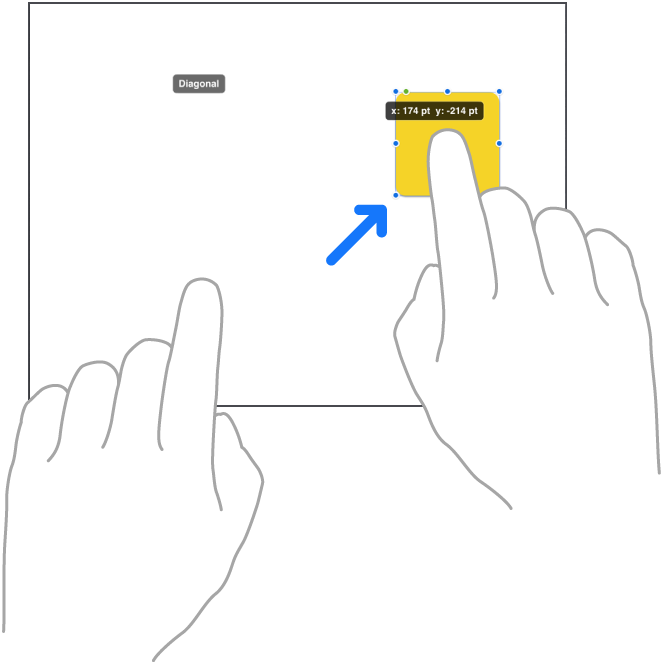
    • Move it in a straight line: To constrain an item’s movement horizontally, vertically, or diagonally, drag the item with one finger while you use another finger to touch and hold anywhere on the board.

      Two fingers of a hand moving an item in a straight line in Freeform.

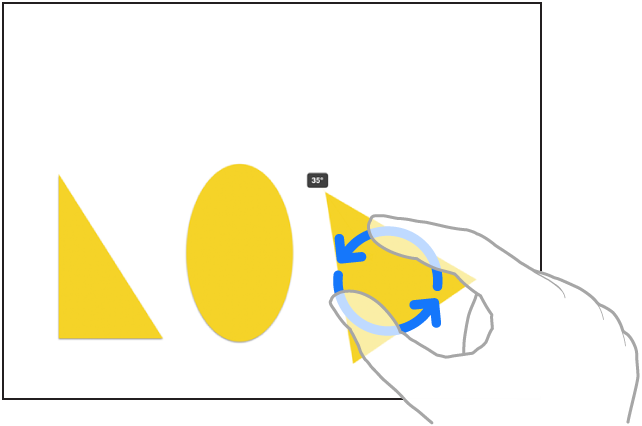
    • Rotate it: Place two fingers on the item and turn your hand in the direction you want to rotate it.

      Two fingers of a hand selecting and rotating an item in Freeform.

    • Put it in the background or foreground: Tap the More button in the formatting tools and tap Back or Front.
    • Resize it: Drag a blue dot.

      In text boxes, drag a green dot to resize both the box and the text within it.

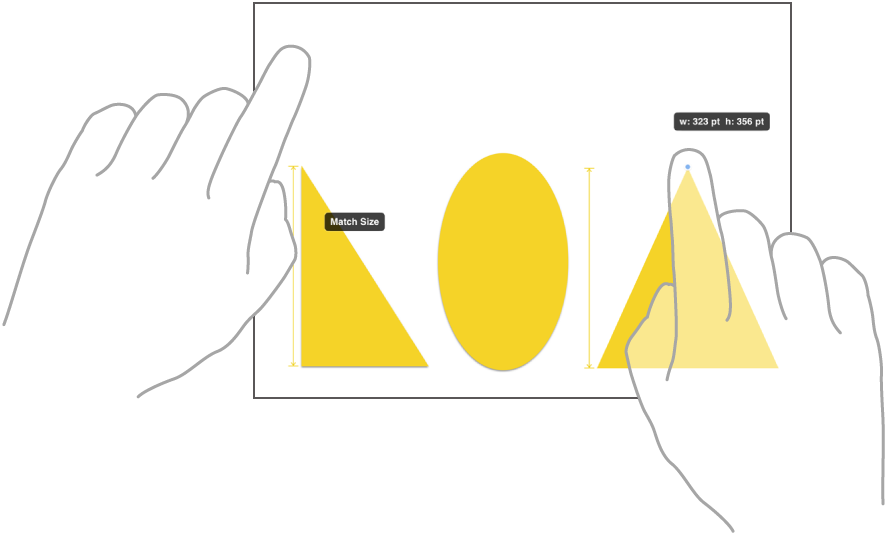
    • Match its size to another item: Start resizing and then use a second finger to touch and hold the item whose size you want to match. When the words Match Size appear, lift both your fingers at the same time.

      Two fingers on two hands selecting and matching the sizes of two items in Freeform.

Select, align, and group multiple items on a board

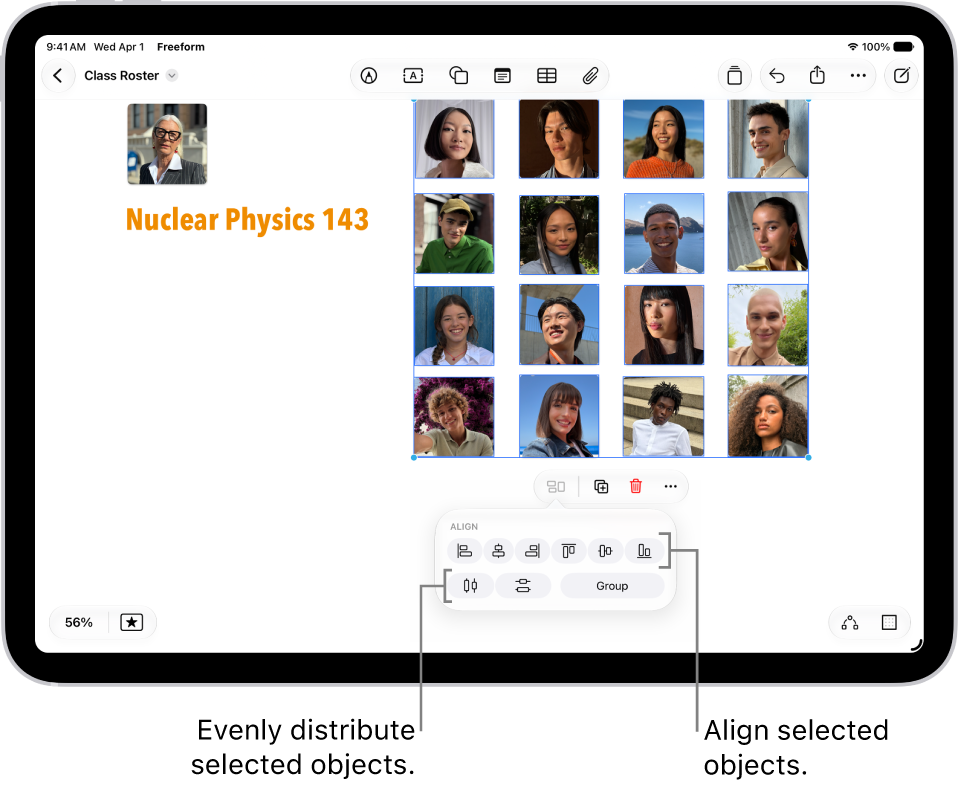
With items on a Freeform board, you can select multiple items and line them up relative to one another. Group several items, and you can move, rotate, or resize them together as a single unit.

A Freeform board filled with a grid of photos. Several photos are selected, and the alignment and grouping tools appear below them.

  1. Open the Freeform app on your iPad.
  2. Open a board. Select multiple items by doing one of the following:

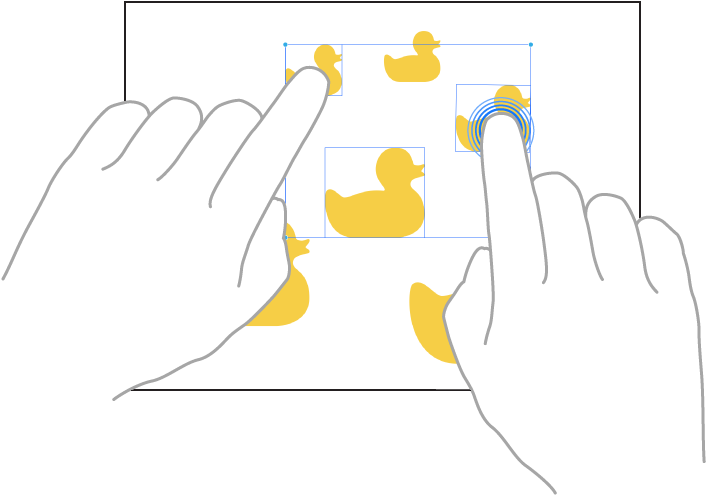
    • Touch and hold an item on your board, then, with another finger, tap other items.

      Two fingers selecting items in Freeform.

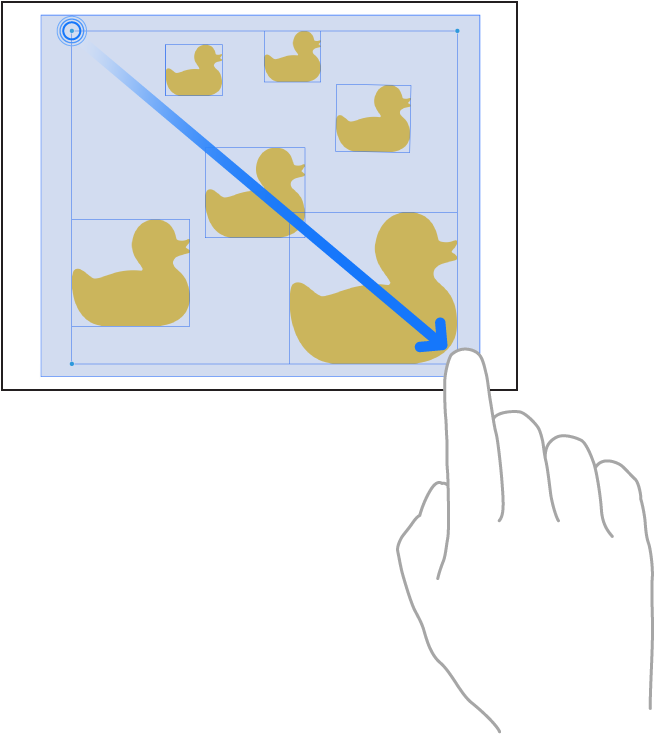
    • Touch and hold the canvas, then drag the box that appears around the items you want to select.

      A finger dragging to select items in Freeform.

    • Tap an empty space on the canvas, then tap Select Objects. Tap each item you want to select. To deselect an item, tap it again.
  3. Move, rotate, or resize the selected items, or tap the Arrange button. Tap an alignment option or Group.

    Some items—such as 3D objects—can’t be grouped.

Arranging items gets easier when you turn on the background dot grid and automatically align items to it.

Select items and scroll with Apple Pencil

In Freeform, Apple Pencil works as a drawing and writing tool by default. If you’d also like to use Apple Pencil to select items and scroll, you can change this setting.

  1. Open the Settings app on your iPad.
  2. Tap Apps, then tap Freeform.
  3. Below Apple Pencil, turn on Select and Scroll (green is on).

After you change this setting, tap the Drawing and Handwriting Tools button in the toolbar to draw. Tap the button again to use Pencil to select and scroll.

Lock an item on a board

After you add an item to a Freeform board, you can lock it so you don’t inadvertently move, modify, or delete it. For example, you might lock one or more text boxes to serve as headings. (This could help set off areas on a board where participants can share items.)

  1. Open the Freeform app on your iPad.
  2. Open a board. Tap a drawing, shape, text box, or other item on your board to select it.
  3. Tap the More button in the formatting tools and tap Lock.

Quick tip: To define a workspace for your participants instead of a wide open canvas, try adding a large rectangle shape. Then select the shape and tap the More button in the formatting tools before you tap Back and lock it.

See also

The Freeform app gives you a boundless canvas for creativity. You can bring photos, drawings, links, and files together on an online whiteboard, invite others to work with you in real time, and brainstorm, sketch ideas, or take notes by yourself or with a group.

You can put just about any kind of file in a board without worrying about layouts or page sizes, and add sticky notes to brainstorm or provide feedback. Boards you store in iCloud are on your iPhone or Mac, too, so you can keep working there.

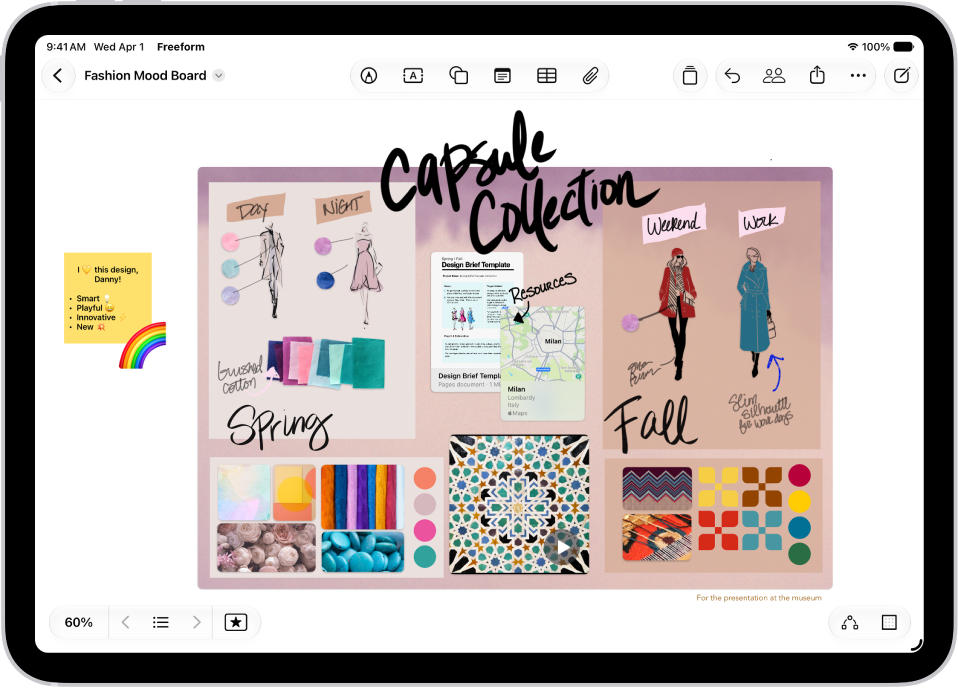
An iPad with the Freeform app open. The board includes handwriting, text, drawings, shapes, photos, videos, sticky notes, links, and other files.

Gather ideas freely

You can put just about any kind of file in a Freeform board without worrying about layouts or page sizes. To create a board, tap the New Board button, then tap the Insert button or another option at the top of the screen to start adding your ideas.

A Freeform board with two other participants whose selections are marked with color tick marks.

Collaborate with others

Tap the Share Board button to invite people to start working together in real time on a board. To conduct a brainstorming session or provide feedback, add a sticky note—tap the Add Sticky Note button.

An iPad with a Freeform board that includes handwriting and drawings.

Get creative with the drawing tools

Tap the Drawing and Handwriting Tools button (or just use your Apple Pencil) to start drawing. Tap a tool to adjust the line’s thickness, transparency, color, and more. Pinch to zoom in and out as you work.

An iPad with the Freeform app open to the Content Hub in Apple Creator Studio. Premium and generated images are placed on the board.

Everything you need in one place

An Apple Creator Studio subscription unlocks a rich library of premium content, along with AI-powered features like automatic cropping and photorealistic image generation.

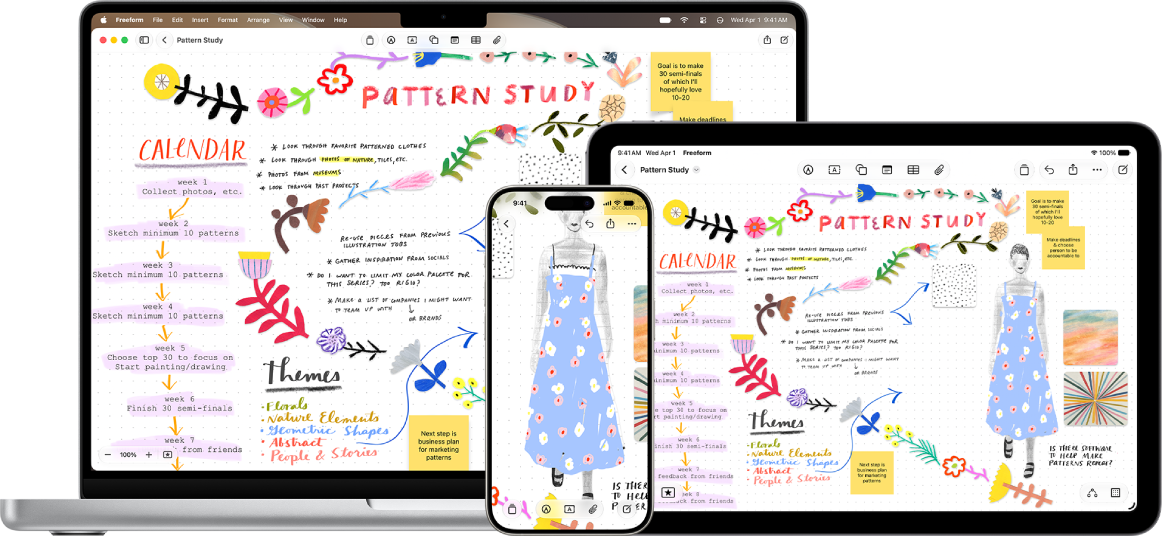
A Mac, iPad, and iPhone with the same Freeform board open.

Start on your iPad, keep working on your iPhone or Mac

The Freeform boards you store in iCloud—and any changes you make to them—stay up to date on all your Apple devices when you’re signed in to the same Apple Account. To use iCloud with Freeform, go to the Settings app, then tap your name. Tap iCloud, tap See All (in the Saved to iCloud section), then turn on Freeform.

There’s plenty more you can do with Freeform, and these guides are a good place to start: