Got a tip for us?

Health

You can register to be an organ, eye, or tissue donor with Donate Life America. If you later change your decision, you can remove your registration. Your decision to donate is accessible to others in your Medical ID.

Not sure yet? The Health app has an overview of organ donation and Donate Life America, and you can change your donor information or remove your registration later. You’ll find it all in Organ Donation.

Learn about organ donation

  1. Open the Health app on your iPhone.
  2. Tap Summary, then tap your picture or initials.
  3. Tap Organ Donation and tap Learn More for an overview of organ donation and Donate Life America.

Register with Donate Life America

  1. Open the Health app on your iPhone.
  2. Tap Summary, then tap your picture or initials.
  3. Tap Organ Donation and tap Sign Up with Donate Life.

To later change your donor information or remove your registration, tap your picture or initials, tap Organ Donation, then tap Edit Donor Registration.

Tag: Health

You can schedule regular times for going to bed and waking up to help meet your sleep goals. You can create multiple schedules, for example, one for weekdays and another for weekends.

To help you wake up on time, you can select an alarm sound, a vibration, and a snooze option, or choose to have no alarm at all.

For the sleep schedules you set, a Sleep Focus helps reduce distractions before and during bedtime. It can filter out notifications and phone calls, and signal to others that you’re not available. You can also schedule a wind down period to begin from 15 minutes to 3 hours before your bedtime, and your Sleep Focus begins at the start of your wind down time.

Set up your first recurring sleep schedule

When you set up a Sleep Focus, you can set your next bedtime and wake up time. This schedule repeats only once. To set up a recurring sleep schedule, do the following:

  1. Start the Health app on your iPhone.
  2. Tap Browse and tap Sleep. Tap Sleep again.
  3. Tap Get Started, then tap Continue.
  4. To set your sleep goal, tap Sleep Goal and then make a selection.
  5. To set your sleep schedule, tap Edit below Schedule and then do the following:
    • Set the days for your schedule: Tap a day to add or remove it from your schedule. The schedule applies only to days shown with solid-color circles.
    • Adjust your bedtime and wake up schedule: Drag the Bedtime button to change your bedtime, the Ringing Alarm button to change your wake up time, or the semicircle between the icons to shift both times simultaneously.
    • Set the alarm options: Turn Alarm on or off.

When Alarm is turned on, you can choose a sound, its volume, a vibration, the snooze option, and a snooze duration.

  1. When you’re finished, tap the Done button, tap Next, and tap Done.

Add, modify, or delete sleep schedules

After setting up your first sleep schedule, you can do the following:

  1. Start the Health app on your iPhone.
  2. Tap Browse and tap Sleep. Tap Sleep again.
  3. After setting up your first sleep schedule, you can do the following:
    • Set up additional schedules: For example, if you have a weekday schedule, you can add a weekend schedule.
    • Change schedules: You can adjust the bedtimes, wake up times, and alarm options for an entire sleep schedule or for only your next schedule.
    • Turn off alarms: You can turn off alarms for all sleep schedules, for a particular schedule, or for only your next scheduled wake up time.

Set up a Sleep Focus

When you’ve set up your sleep schedule, there’s also a Sleep Focus you can set up to help cut distractions before and during bedtime.

  1. Start the Settings app on your iPhone.
  2. Tap Focus and tap Sleep.
  3. Customize your focus.

You might allow interruptions from people important to you, for example, customize the Lock Screen and Home Screen, and choose how apps and your iPhone behave while a Sleep Focus is on.

Note: If you want alarms that don’t turn on a Sleep Focus, use the Clock app to set one-time and repeating alarms.

Tag: Health

You can reflect on how you’re feeling and log your momentary emotions and daily moods to keep track of your mental wellbeing. You can also learn how your state of mind may correlate with lifestyle factors like exercise, sleep, time in daylight, and mindful minutes.

You can also view your state of mind history and set state of mind reminders.

Here’s how to log your state of mind in Health on iPhone.

Log your state of mind

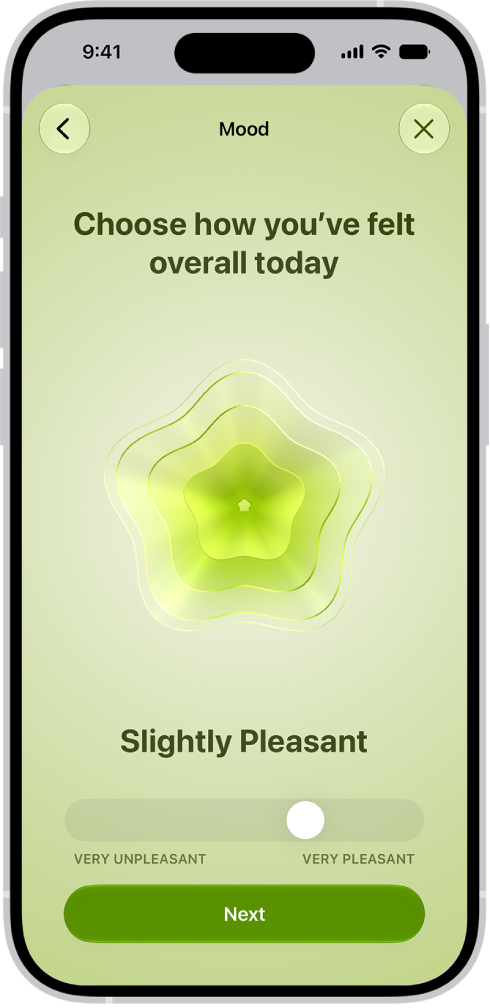
A screen in the Health app identifying the current mood as Slightly Pleasant. At the bottom of the screen is a slider to adjust the level of the emotion.

  1. Open the Health app on your iPhone.
  2. Tap Browse, tap Mental Wellbeing, and then tap State of Mind.
  3. If this is your first time logging, tap Get Started. Otherwise, tap Log.

Quick tip: To log your state of mind for a previous day, tap the Calendar Button, tap a day, then tap Log.

  1. Choose one of the following:
    • Log an emotion: Tap How you feel right now and then tap Next.
    • Log a mood: Tap How you’ve felt overall today and then tap Next.
  2. Drag the slider to indicate how you’re feeling. Then tap Next.
  3. Tap any words that describe how you’re feeling (optional) and tap Next.
  4. Tap any words that describe what’s having the biggest impact on you (optional) and tap Done.

If you’ve described what’s having the biggest impact on you, you can tap Additional Context to enter more information.

View your state of mind history

  1. Open the Health app on your iPhone.
  2. Tap Browse, tap Mental Wellbeing, and then tap State of Mind.
  3. Tap Show in Charts, then do any of the following:
    • View your state of mind over time: Tap an option from the time range selections at the top of the chart.
    • View the types of entries you’ve logged: Tap States and then tap Daily Moods or Momentary Emotions to see those entries on the graph.
    • View factors associated with your entries: Tap Associations. Then scroll through the different factors you logged in your state of mind entries.
    • View lifestyle factors associated with your entries: Tap Life Factors and tap a lifestyle factor to see it alongside your state of mind entries.

You can also tap the Show Information button next to each lifestyle factor to learn more about how it can impact your mental wellbeing.

Set state of mind reminders

You can get reminders to log your state of mind.

  1. Open the Health app on your iPhone.
  2. Tap Browse, tap Mental Wellbeing, and then tap State of Mind.
  3. Scroll down to the bottom of the screen and then tap Options.
  4. Turn During Your Day and End of Day on or off.

You can also tap Add Reminder to create additional reminders.

Tag: Health

You can view your health and fitness information in one place. For example, you can check whether your metrics change over time, and see how well you’re meeting goals for activity, sleep, mindfulness, and more.

Your most important health categories, like Medications, Heart Rate, and Steps, can be pinned to the Summary screen, and you can view your highlights and health trends. You can also view trends, highlights, and details for a specific health category.

Customize your pinned health categories on the Summary screen

You can pin the health categories that matter most to you, like Steps, Heart Rate, Medications, and more, and arrange them however you like.

  1. Start the Health app on your iPhone.
  2. Tap Summary, then tap Edit next to Pinned.
  3. Do any of the following:
    • Pin a health category: Tap the Pin button next to a category.
    • Unpin a health category: Tap the Delete button next to a category.
    • Reorder the health categories in your Pinned list: Drag the Reorder button next to an category up or down.
  4. When you’re finished, tap the Done button.

View your highlights

  1. Start the Health app on your iPhone.
  2. Tap Summary and scroll down to Highlights to see highlights of your recent health and fitness data.
  3. Do the following:
    • View more data about a highlight: Tap its graph.
    • View all highlights: Tap Show All Highlights.

View your health trends

Health can alert you to significant changes in data like your resting heart rate, number of steps, and amount of sleep, which helps you keep track of your health data over time. Trend lines show how much these metrics have changed, and for how long.

  1. Start the Health app on your iPhone.
  2. Tap Summary. Scroll down to Trends to view any recent trends.
  3. If Health has detected trends, you can do the following:
    • View more data about a trend: Tap its graph.
    • View all trends: Tap Show All Health Trends.

To receive notifications about your health trends, tap Summary, tap your picture or initials, tap Notifications, then turn on Trends.

View trends, highlights, and details for a specific health category

  1. Start the Health app on your iPhone.
  2. Tap Browse to display the Health Categories screen, then do one of the following:
    • Tap a category. (To see all categories, scroll up and down.)
    • Tap the search field, then type the name of a category (such as Mobility) or a specific type of data (such as Walking Speed).
  3. Depending on the data type, you may be able to do the following:
    • View details about any of the data: Tap the Details button.
    • See weekly, monthly, and yearly views of the data: Tap the tabs at the top of the screen.
    • Manually enter data: Tap Add Data.
    • Pin to the Summary screen: Tap Pin to Summary. (You may need to scroll down.)
    • View which apps and devices are allowed to share the data: Below Options, tap Data Sources & Access. (You may need to scroll down.)
    • Delete data: Tap Show All Data below Options, swipe left on a data record, and then tap Delete. To delete all data, tap Edit and tap Delete All.
    • Change the measurement unit: Tap Unit below Options, then select a unit.

Learn more about health and fitness

  1. Start the Health app on your iPhone.
  2. Tap Summary, then scroll down to Get More From Health or Articles.
  3. Tap an item to learn more.

In many health categories, the details include recommended apps alongside your data.

Tag: Health

To personalize your experience, add your name, date of birth, sex, blood type, and other basic information to Health Details. To help first responders and others in case you have a medical emergency, create a Medical ID that contains information about medical conditions, medications, allergies, blood type, emergency contacts, and more.

To better manage your health with the help of the Health app, periodically review the Health Checklist. And if you skipped any details when you first opened Health, you can add them later.

Fill out the Health Details screen

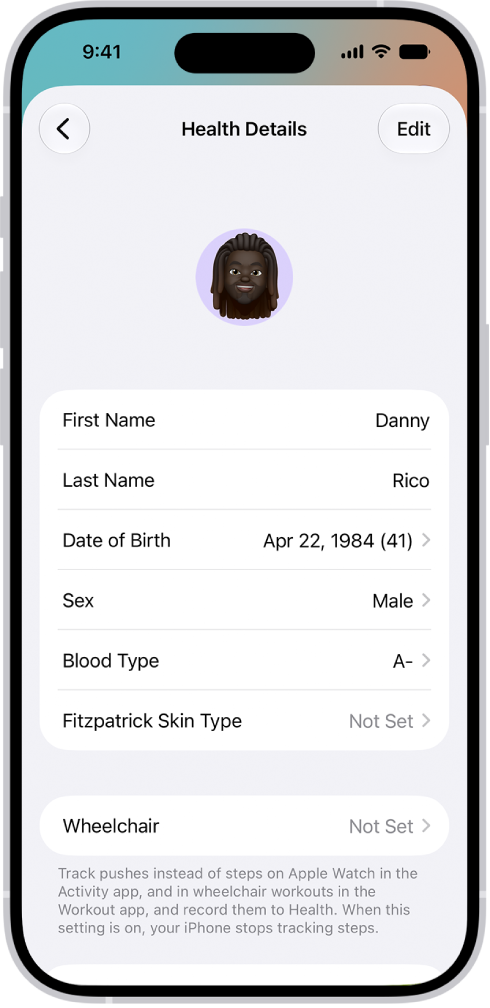
The first time you open Health, it asks you to provide basic health information about yourself. Anything you don’t supply then, you can add later on the Health Details screen.

  1. Start the Health app on your iPhone.
  2. Tap Summary, then tap your picture or initials.
  3. Tap Health Details and tap Edit.

    The Health Details screen, which includes fields for name, birth date, blood type, and other information.

  4. To make a change, tap a field.
  5. When you’re finished, tap the Done button. Then swipe down to exit.

Create a Medical ID

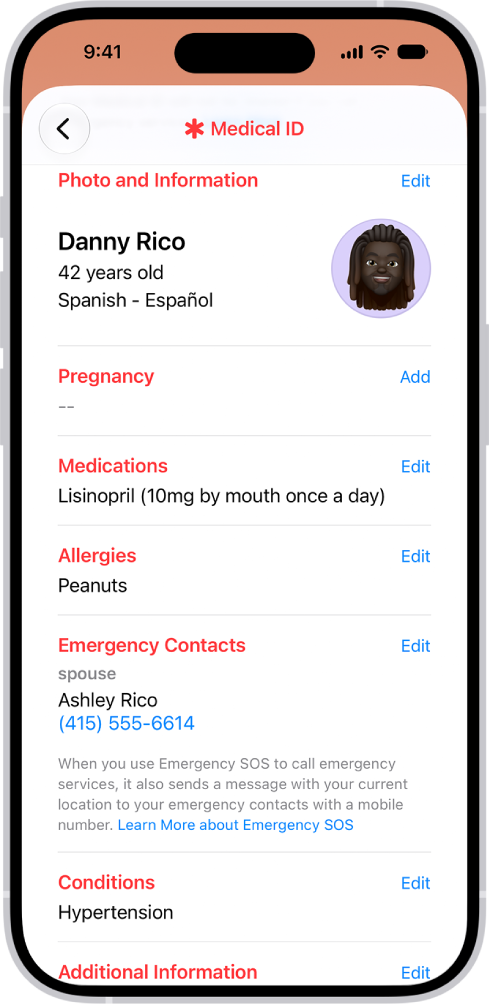
Your Medical ID lets first responders and others view critical medical information about you, even while your iPhone is locked.

A Medical ID screen containing information including birth date, medications, allergies, emergency contacts, and medical conditions.

Review your Health Checklist

  1. Start the Health app on your iPhone.
  2. Tap Summary, then tap your picture or initials.
  3. Tap Health Checklist.
  4. To turn on or learn more about an item in the list, tap it.
  5. When you’re finished, tap the Done button.
Tag: Health

You can take a Hearing Test with your AirPods Pro 2 to provide insight into your hearing. Hearing Test results, or audiograms, depict the results of a pure-tone audiometry test, showing how loud sounds need to be for you to hear them.

The difference between the decibel level you need and a normal level indicates your level of hearing loss. If there’s no difference, your hearing is normal, and if there’s some or a lot of difference, your hearing is impaired.

Note: The Hearing Test is available for ages 18 and older. Not available in all countries or regions.

Take a Hearing Test

  1. Start the Health app on your iPhone.
  2. Tap Browse and then tap Hearing.
  3. Scroll down to Get More From Health. Tap Take Hearing Test.
  4. Tap Get Started, then follow the onscreen instructions.

Your Hearing Test results are in the Health app for you to review. To share them with your hearing healthcare professional, you can export a PDF version of your audiogram.

Tag: Health

iPhone offers useful insights into your battery life to help you identify ways to improve your experience, as well as important information about your battery’s overall health.

You can see how your battery usage today compares to previous days, view App and System Activity information, and see when your iPhone was last charged. You can also review your iPhone battery health.

Here’s how to understand your iPhone battery usage and health.

View Daily Usage information

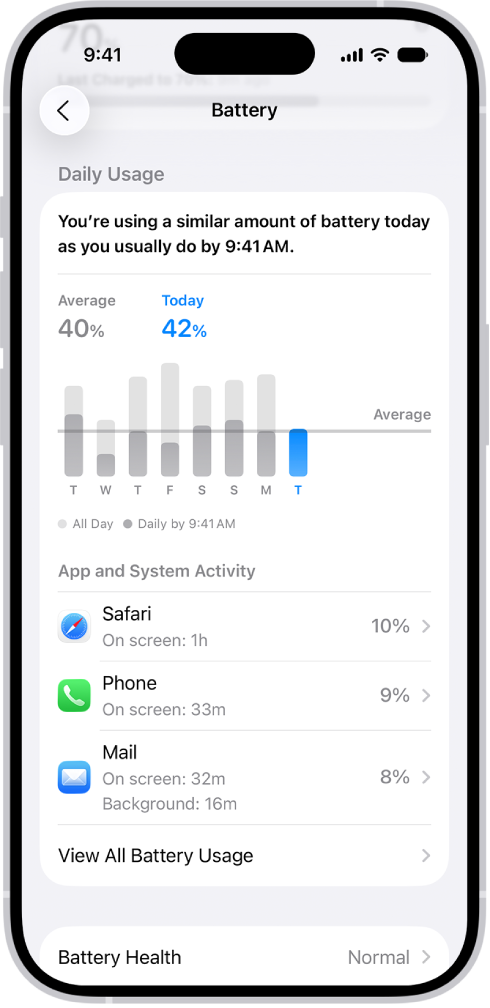
The Daily Usage section compares your battery usage today with previous days, and iPhone displays the following battery usage information:

  • Similar or lower usage: Shows when your battery use is about the same as usual or less than usual by this time of day (in blue). When usage is similar, iPhone highlights the top three apps or system activities contributing to today’s usage.
  • Higher usage: Appears when you’ve used more battery than usual by this time of day (in orange). iPhone highlights the top three apps or system activities that may explain the increase.

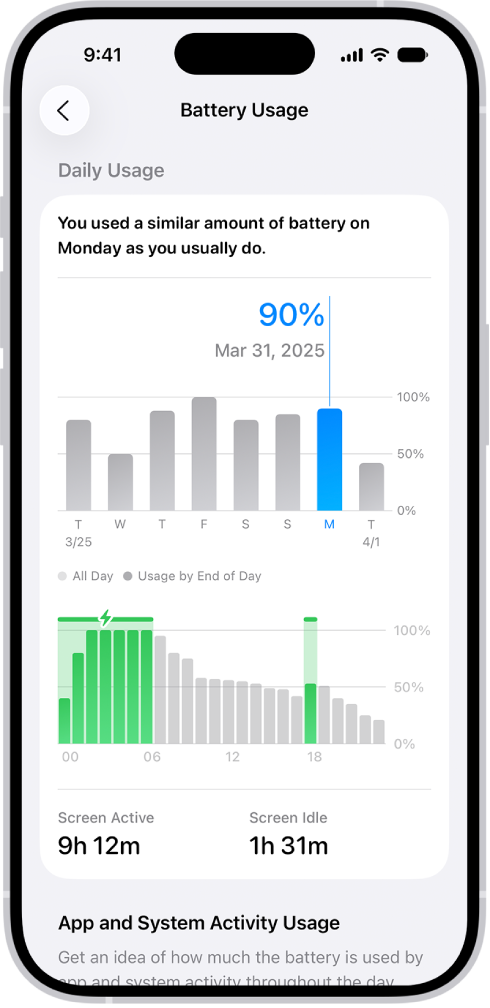
The Battery Usage screen in Settings on iPhone displays graphs and information about battery consumption. At the top, a bar graph shows battery usage over the last eight days. Below it, a second graph details the battery level throughout the current day, indicating periods of charging.

To view daily usage information:

  1. Open the Settings app on your iPhone.
  2. Tap Battery.

View additional Battery Usage information

For today and the previous week, you can dig into more information about app and system activity usage.

  1. Open the Settings app on your iPhone.
  2. Tap Battery, tap View All Battery Usage, and tap a day.

    The Battery Usage screen in Settings on iPhone. It shows two graphs: the top graph displays daily battery usage for the last week, and the bottom graph details the battery level throughout the selected day, including periods of charging. Below the graphs, it summarizes total screen active and screen idle time.

View App and System Activity information

To help you understand what’s using your battery, the App and System Activity section lists the percentage of battery each app and system task used.

You might see the following information under an app or system activity, or when you tap an app to view more details. Here’s what they mean:

  • On screen: The app or system activity was open and visible on your screen. A long duration of onscreen time can explain higher battery usage compared to previous days.
  • Background: A long duration of background time can explain higher battery usage compared to previous days. Background activities include directions, playing music, syncing photos, fetching mail, and more.
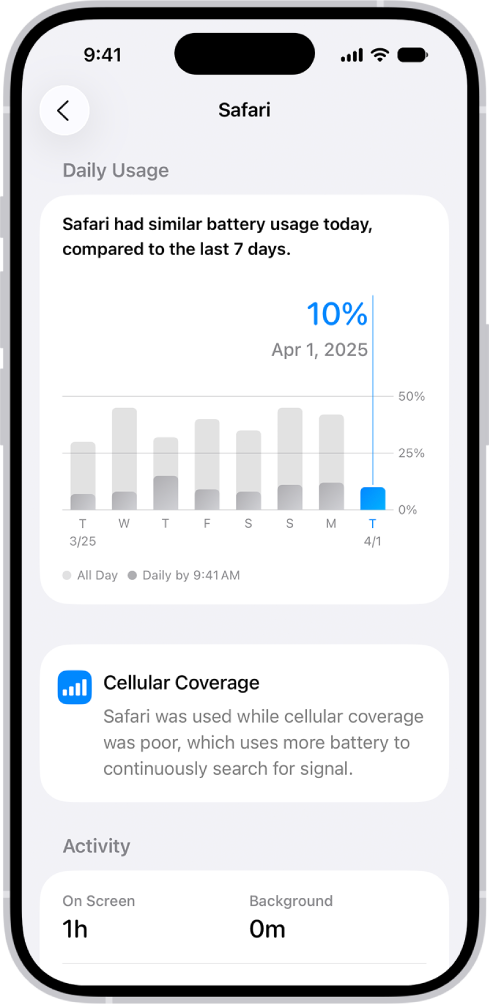
  • Cellular coverage: The app was used in a low signal environment, which used more battery.
  • Notifications: The app or system activity woke your device and used battery to check for new information. You can manage an app’s notification settings to reduce how often this happens.

The Battery Usage screen in Settings on iPhone displays the “App and System Activity Usage” list, breaking down battery consumption by app. Each app is listed with its corresponding percentage of battery usage and its on-screen or background activity time.

To view app and system activity information:

  1. Open the Settings app on your iPhone.
  2. Do any of the following:
    • View today: Tap Battery, then scroll down.
    • View additional battery information for today and previous days: Tap Battery, tap View All Battery Usage and tap a day. Then scroll down.
  3. Tap an app to view more details, including its battery usage and activity for each day.

See when your iPhone was last charged

iPhone shows when it was disconnected from the charger and when the battery was last fully charged. And while it’s charging, iPhone displays estimated times to reach 80% and 100%.

  1. Open the Settings app on your iPhone.
  2. Tap Battery.

Review your iPhone battery health

You’ll find information about your battery’s capacity on iPhone. And on iPhone 15 models or later, details like battery health, first use date, cycle count, and manufacture date show up, too.

  1. Open the Settings app on your iPhone.
  2. Tap Battery, then do one of the following:
    • On iPhone 14 or earlier: Tap Battery Health & Charging.
    • On iPhone 15 or later: Tap Battery Health.

Battery life and charge cycles vary with use and settings.

The iPhone battery should be serviced or recycled by Apple or an Apple Authorized Service Provider.

Tag: Health

When you log a pregnancy in the Health app, you can view your gestational age and log the symptoms frequently experienced during pregnancy. The Health app on iPhone and the Cycle Tracking app on Apple Watch can help you to better understand your data during pregnancy, and both apps make adjustments and recommendations to reflect changes in your physical and mental health.

You can also view the pregnancy cycle timeline and edit your pregnancy details.

Here’s how to log a pregnancy in Health on iPhone.
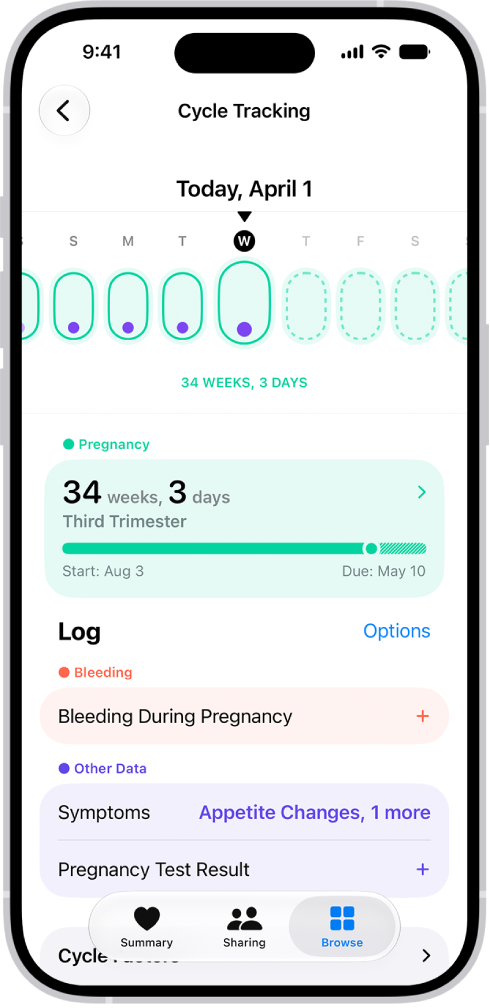
The Cycle Tracking screen with a pregnancy timeline for a week at the top of the screen. Light green ovals and purple dots mark 5 days on the timeline. Dashed light green ovals mark the other days on the timeline. Below the timeline is the pregnancy summary showing the gestational age, start date, and estimated due date. Below the pregnancy summary are options to add information about bleeding during pregnancy, symptoms, and more.

Log a pregnancy

  1. Start the Health app on your iPhone.
  2. Tap Browse, then tap Cycle Tracking.
  3. Scroll down and tap Factors. Then tap the Add button.
  4. Tap Pregnancy, then tap Begin.
  5. Do one of the following:
    • Log the first day of your last period: Tap Last Menstrual Period.
    • Log an estimated due date: Tap Estimated Due Date.
    • Log how far along the pregnancy is in weeks: Tap Estimated Gestational Age.
    • Log when the embryo was transferred during IVF: Tap Embryo Transfer Date.

Note: To log a previous pregnancy, tap Log a Past Pregnancy.

  1. Tap Next, follow the onscreen instructions and tap Next.
  2. Tap Next and then do the following:
    • Turn on mental health questionnaire reminders (optional): Tap Turn On Notifications.
    • Add your pregnancy to your Medical ID (optional): Tap Turn On Notifications.
    • Review your medication information: Tap Learn More below a medication to learn about any potential impact on your pregnancy and tap Next.
  3. Review the Cycle Timeline and tap Done.

Note: You can also log a pregnancy in your Health Details. Tap Summary, tap your picture or initials, tap Health Details, then tap Set Up Pregnancy in Cycle Tracking.

While logging a pregnancy, you get a variety of recommendations of notifications that should be turned on or off during and after pregnancy:

  • Walking Steadiness: Recommended to be turned on. Walking Steadiness can alert you more quickly during your third trimester, when the risk of falling can increase.
  • High Heart Rate (Apple Watch only): If your high heart rate notification threshold is set below 120 beats per minute (bpm), you’re asked to review and adjust it.
  • Cardio Fitness (Apple Watch only): Cardio Fitness notifications are recommended to be turned off during and until 12 weeks after the end of your pregnancy.

Log bleeding and other symptoms

  1. Start the Health app on your iPhone.
  2. Tap Browse, then tap Cycle Tracking.
  3. Swipe to select a day. Do any of the following:

    • Log bleeding: Tap Bleeding During Pregnancy, tap Had Bleeding, select a bleeding level, and then tap Done.

      Note: When you log bleeding during your pregnancy, you receive a notification recommending that you contact your doctor or care team.

    • Log symptoms or other information: Swipe the timeline to select a day, tap a category (below Other Data), supply the information, and then tap Done.

To add categories to the data logging screen, tap Options next to Log, then choose from the categories below Log.

View the pregnancy cycle timeline

Tap Browse, then tap Cycle Tracking.

A timeline at the top of the screen shows these icons.

Icon Description
A light green oval A day you logged a pregnancy.
A dashed light green oval A future day where you may still be pregnant.
A dark green oval The day of your estimated due date.

To select different days, swipe the timeline.

Edit your pregnancy details

  1. Start the Health app on your iPhone.
  2. Tap Browse, then tap Cycle Tracking.
  3. Tap the Pregnancy area, then do any of the following:
    • Change the estimation method: Tap Change and tap an estimation method.
    • Edit your estimation method: Tap a field to make a change.
    • Delete your pregnancy information: Tap Delete Factor from Health.
  4. When you’re finished, tap the Done button.

About your health data and privacy

Apple says the information you add about yourself in Health is yours to use and share. You can decide what information is stored in Health as well as who can access your data.

If you choose to add a pregnancy to Medical ID, your pregnancy status will be accessible on the Lock Screen if Show When Locked is turned on. Your pregnancy status will also be shared with first responders during an emergency call if Share During Emergency Call is turned on. You can change your Medical ID settings at any time by going to your Health app Profile. You can remove or update your pregnancy status in Medical ID if your status changes.

When your iPhone is locked with Face ID, Touch ID, or a passcode, all of your health and fitness data in Health, other than your Medical ID, is encrypted. Any health data synced to iCloud is encrypted both in transit and on Apple servers. And if you have a version of iOS, iPadOS, and watchOS (if you’re using iPad and Apple Watch for cycle tracking) with default two-factor authentication and a passcode, your health and activity data is stored in a way that Apple can’t read it.

This means that when you use the Cycle Tracking feature and two-factor authentication, your health data synced to iCloud is encrypted end to end, and Apple doesn’t have the key to decrypt the data and therefore cannot read it.


Tag: Health

You can turn off your scheduled alarms and turn off or delete your sleep schedules.

You can turn off only your next scheduled alarm, and after your next wake up time, your normal alarm comes back. Or you can turn off all sleep schedules and alarms, permanently turn off the alarm for a sleep schedule, or delete a sleep schedule and its alarm.

Here’s how to turn off alarms and delete sleep schedules in Health on iPhone.

Turn off only your next scheduled alarm

  1. Open the Health app on your iPhone.
  2. Tap Browse and tap Sleep. Tap Sleep again.
  3. Scroll down to Your Schedule and tap Edit (below Next).
  4. Turn off Alarm.

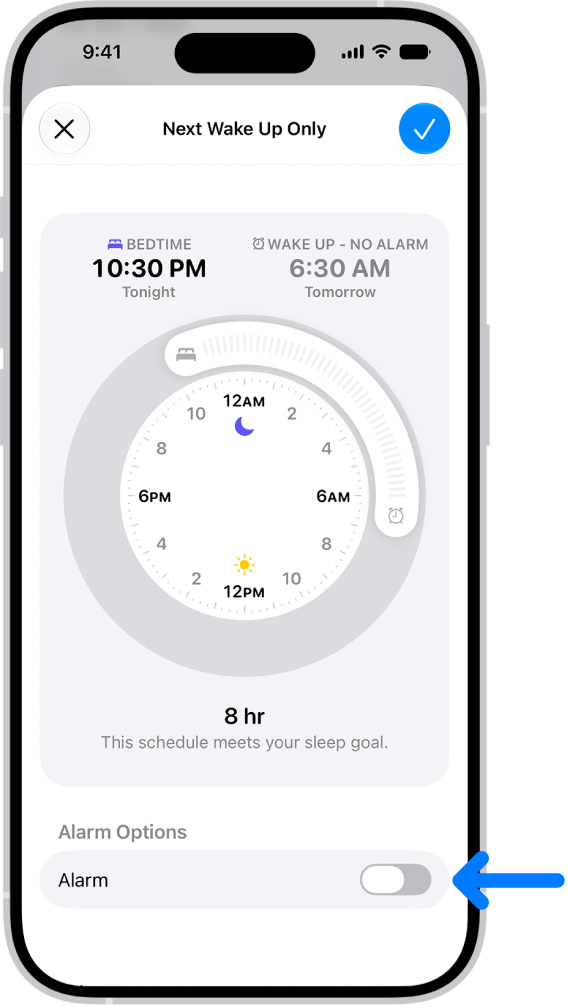
    The Next Wake Up Only screen in Health with Alarm turned off at the bottom.

  5. When you’re finished, tap the Done button.

After your next wake up time, your normal alarm resumes.

Note: The Clock app is another place to change your next sleep schedule alarm.

Turn off all sleep schedules and alarms

You can turn all your sleep schedules off at once after you’ve created one or more. When all sleep schedules are off, scheduled alarms are turned off, too.

  1. Open the Health app on your iPhone.
  2. Tap Browse and tap Sleep. Tap Sleep again.
  3. Scroll down to Your Schedule.
  4. Tap Full Schedule & Options. Then turn off Sleep Schedule (at the top of the screen).

You can turn them all on again later.

Permanently turn off the alarm for a sleep schedule

With multiple sleep schedules, you can turn off the alarm for each one separately. So if you have sleep schedules for weekdays and weekends, for example, you could turn off the weekend schedule’s alarm.

  1. Open the Health app on your iPhone.
  2. Tap Browse and tap Sleep. Tap Sleep again.
  3. Scroll down to Your Schedule, then tap Full Schedule & Options.
  4. Tap Edit for the sleep schedule you want to change.
  5. Turn off Alarm.

You can turn it back on again later.

  1. Tap the Done button.

The rest of your sleep schedule remains in effect.

Delete a sleep schedule and its alarm

  1. Open the Health app on your iPhone.
  2. Tap Browse and tap Sleep. Tap Sleep again.
  3. Scroll down to Your Schedule, then tap Full Schedule & Options.
  4. Tap Edit for the schedule you want to remove.
  5. Tap Delete Schedule (at the bottom of the screen).
Tag: Health

A Medical ID provides information about you that may be important in an emergency, like allergies, medical conditions, and your emergency contacts. Your iPhone and Apple Watch can automatically share your Medical ID during an emergency call (U.S. and Canada only) and in person to first responders.

You set it up in the Health app, and you choose whether emergency services and first responders can access it.

Here’s how to set up and view your Medical ID.

Create your Medical ID

Set up a Medical ID in the Health app.

  1. Start the Health app on your iPhone.
  2. Tap your picture, then tap Medical ID.
  3. Tap Get Started or Edit, then enter your information.
  4. Below Emergency Contacts, tap Add Emergency Contact, then add your contacts. After an emergency call ends, your iPhone alerts your emergency contacts with a text message, unless you choose to cancel. Your iPhone sends your current location (if available) and—for a period of time after you enter SOS mode—your emergency contacts receive updates when your location changes.
  5. Tap Done.

Quick tip: To view your Medical ID from the Home Screen, touch and hold the Health app icon, then choose Medical ID.

Allow emergency services and first responders to access your Medical ID

The information in your Medical ID can be shared automatically during an emergency call (U.S. and Canada only), and also appears on the Lock Screen of your iPhone and Apple Watch.

  1. Start the Health app on your iPhone.
  2. Tap your picture, then tap Medical ID.
  3. Tap Edit, scroll to the bottom, and turn on Show When Locked and Emergency Call.

Note: A first responder views your Medical ID from the Lock Screen by swiping up or pressing the Home button (depending on your iPhone model), tapping Emergency on the passcode screen, then tapping Medical ID.

Tag: Health