Got a tip for us?

Health

With the Sleep app on Apple Watch, you can create sleep schedules to help you meet your sleep goals. You can also create multiple sleep schedules—for example, one for weekdays and another for weekends.

If your Apple Watch is charged less than 30 percent before you go to bed, you’re prompted to charge it. In the morning, just glance at the greeting to see how much charge remains. After setting up a schedule, you can also change or turn off your next wake-up alarm.
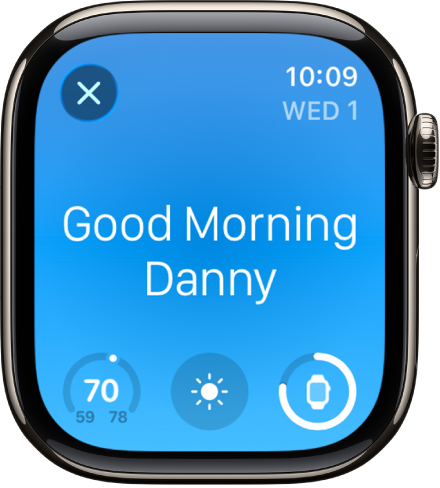
Apple Watch showing the wake up screen. The words Good Morning appear at the top. The temperature, weather condition, and battery level are below.

Set up your first recurring sleep schedule on Apple Watch

The first time you open the Sleep app, you can set a sleep goal along with your first recurring sleep schedule.

  1. Start the Sleep app on your Apple Watch.
  2. Tap Continue.
  3. To set your first recurring sleep schedule, tap the sleep schedule and then do any of the following:
    • Set the days for your schedule: Tap below Active On and then tap a day to add or remove it from your sleep schedule. Tap the Back button to save your changes.
    • Set your wake time and bedtime: Tap Wake Up or Bedtime, turn the Digital Crown to set a new time, and tap the Check button.
    • Set the alarm options: Turn Alarm off or on and tap Sounds & Haptics to choose an alarm sound, choose whether you always want the alarm to play on your iPhone, and choose snooze options.
    • Add another sleep schedule: Tap the Back button and tap Add a Schedule For Other Days.
    • Remove or cancel a sleep schedule: If you don’t want to set up a sleep schedule, tap Delete Schedule (at the bottom of the screen).
  4. Tap Next, then choose to turn on overnight vitals.
  5. Tap Done to finish setting up Sleep.

At any time, you can add, change, or delete your sleep schedule.

You can also go to the Health app on iPhone, tap Browse, tap Sleep, tap Sleep again, then tap Get Started (below Set Up Sleep).

Change or turn off your next wake-up alarm

With a sleep schedule set up, you can edit or turn off your next wake-up alarm, and your normal alarm resumes after your next wake-up time.
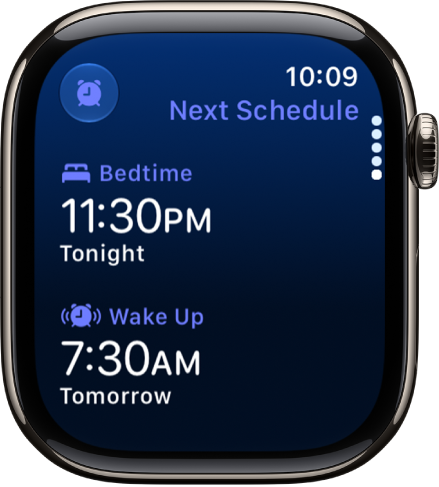
The Sleep app on Apple Watch showing the evening’s sleep schedule. Bedtime appears at the top, and Wake Up time is below it.

  1. Start the Sleep app on your Apple Watch.
  2. Tap the Wake Up Alarm button.
  3. To set a new wake-up time, tap the wake-up time, turn the Digital Crown to set a new time, and then tap the Check button.

    If you don’t want your Apple Watch to wake you in the morning, turn off Alarm.

  4. To change the vibration or ringtone, tap Sounds & Haptics and then choose a ringtone.

    Tip: If you want your alarm to play out loud while you have Silent Mode turned on, tap Break Through Silent Mode.

You can also open the Health app on your iPhone, tap Browse, tap Sleep, tap Sleep again, then tap Edit below Your Schedule to change your schedule.

Note: It’s also possible to turn off the next wake-up alarm in the Alarms app: Tap the alarm that appears below the Sleep button, and then tap Skip for Tonight.

Add or change a sleep schedule

You can change the sleep goal, alarm options, the wake up and bedtime, and more after you set up a sleep schedule. Additional sleep schedules are an option too, such as one for weekdays and another for weekends.

To skip your sleep schedules, like while you’re on vacation, you can delete them altogether or turn them off.

  1. Start the Sleep app on your Apple Watch.
  2. Tap the Wake Up Alarm button.
  3. Turn the Digital Crown to scroll down to Full Schedule and then do any of the following:

    • Change a sleep schedule: Tap a sleep schedule, then make any changes.
    • Add a sleep schedule: Tap Add a Schedule For Other Days.
    • Turn off your sleep schedule: Turn off Sleep Schedule.
    • Delete a sleep schedule: Tap a sleep schedule, scroll down, and tap Delete Schedule.
    • Change your sleep goal: Tap Sleep Goal. Then set the amount of time you want to sleep.
    • Change the wind-down time: Tap Wind Down and then set the amount of time you want the Sleep Focus to be active before bedtime.

      The Sleep Focus turns off the watch display and limits distractions before your scheduled bedtime.

See also
Tag: Health

Your heart rate is an important way to monitor how your body is doing. You can check your heart rate during a workout; see your resting, walking, workout, and post-workout heart rates, and your heart rate during a Breathe session; or take a new reading at any time.

Heart rate data is on by default, and it feeds the Heart Rate app, workouts, and Breathe and Reflect sessions. You can see graphs of your data, too.

Here’s how to check your heart rate on Apple Watch.

Note: Make sure that your wrist and your Apple Watch are clean and dry. Water and sweat can cause a poor recording.

Turn on heart rate data

Your Apple Watch monitors your heart rate by default for workouts, the Heart Rate app, and Breathe and Reflect sessions. Turning heart rate data back on is always an option if you’ve switched it off.

  1. Open the Settings app on your Apple Watch.
  2. Tap Privacy & Security and tap Health.
  3. Tap Heart Rate, then turn on Heart Rate.

You can also open the Apple Watch app on your iPhone, tap My Watch, tap Privacy, then turn on Heart Rate.

See your heart rate

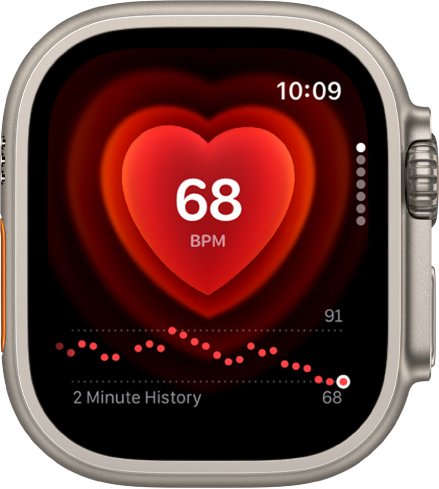
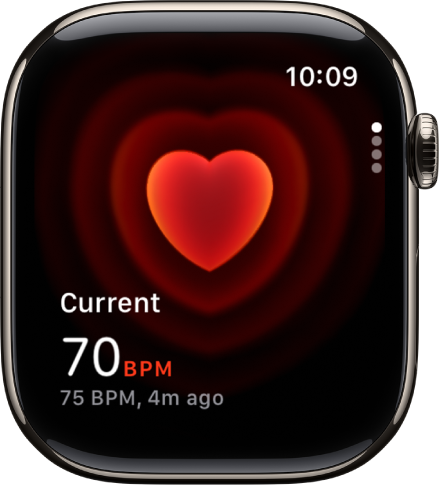
Go to the Heart Rate app on your Apple Watch to view your current heart rate.

A Heart Rate screen, with your current heart rate showing in the bottom left, and your last reading in smaller type below that.

As long as you’re wearing it, your Apple Watch keeps measuring your heart rate.

On Apple Watch Series 12 and Apple Watch Ultra 4, you can view a chart of your heart rate measurements as it updates in real time. To turn off these measurements, go to the Apple Watch app on your iPhone, tap Apps, tap Heart, then turn off Continuous Measurements.

The Heart Rate app showing a heart rate reading. A graph of heart rate data appears at the bottom of the screen.

See a graph of your heart rate data

  1. Open the Heart Rate app on your Apple Watch.
  2. Turn the Digital Crown to Range, Resting Rate, or Walking Average to show your heart rate throughout the day.
  3. To learn more about your heart rate data, tap the Info button.

To see your heart rate data over a longer period of time, go to the Health app on your iPhone, tap Browse, tap Heart, then tap an entry. You can show heart data for the last hour, day, week, month, or year.

View your recovery heart rate variability

Apple Watch Series 12 and Apple Watch Ultra 4 can show your recovery heart rate variability, or HRV, which measures the overall variation in time between heart beats.

  1. Open the Heart Rate app on your Apple Watch.
  2. Turn the Digital Crown to Heart Rate Variability to view your data.
  3. To learn more, tap the Info button.

Note: The back of your Apple Watch needs skin contact for features like wrist detection, haptic notifications, blood oxygen level measurements, and the heart rate sensor. Wearing your Apple Watch with the right fit—not too tight, not too loose, and with room for your skin to breathe—keeps you comfortable and lets the sensors do their job.

See also

Tag: Health

Apple Watch has an electrical heart rate sensor that, along with the ECG app, allows you to take an electrocardiogram (or ECG). It’s quick.

To use the ECG app, update your iPhone 11 or later or iPhone SE (2nd generation or later) to the latest version of iOS and Apple Watch to the latest version of watchOS. Then you set it up in the Health app and record from your wrist, and at the end of the recording, you receive a classification.

Note: The ECG app isn’t available on Apple Watch SE 3 or in all countries or regions.

  1. Open the Health app on your iPhone and then follow the onscreen steps to set up ECG.

    If you don’t see a prompt to set up, tap Browse at the bottom-right, tap Heart, then tap Electrocardiogram (ECG).

  2. Open the ECG app on your Apple Watch.
  3. Rest your arm on a table or in your lap.
  4. With the hand opposite your watch, hold your finger on the Digital Crown. Wait while Apple Watch records the ECG.

    You don’t need to press the Digital Crown during the session.

At the end of the recording, you receive a classification. You can then tap Add Symptoms and choose your symptoms. Tap Save to note any symptoms, then tap Done. To view your results on iPhone, go to the Health app on iPhone, tap Browse at the bottom-right, tap Heart, then tap Electrocardiograms (ECG).

Important: To ensure the best reading after swimming, showering, heavy perspiration, or washing your hands, clean and dry your Apple Watch. It may take 1 hour or more for Apple Watch to completely dry. ECG is designed to function between 32 and 95 °F (0 and 35 °C).

See also

Tag: Health

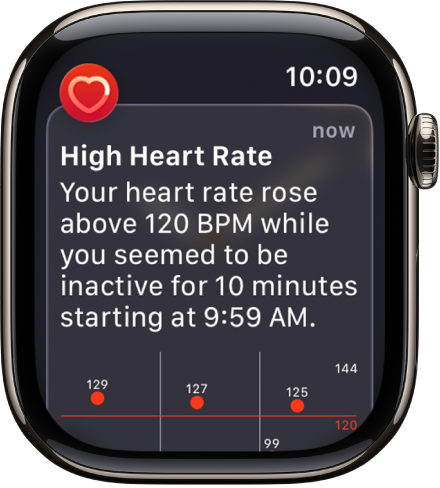
Your Apple Watch can tune in to your heart and send notifications when something out of the ordinary occurs. For example, it can notify you if your heart rate remains above or below a chosen threshold after you’ve been inactive for at least 10 minutes. You can turn on heart rate notifications when you first open the Heart Rate app, or at any time later.

Your watch can also notify you of an irregular heart rhythm that appears to be atrial fibrillation (AFib). If you have already been diagnosed with AFib, your Apple Watch can help you understand how frequently your heart is in this arrhythmia, and you can track lifestyle factors that may influence your condition.

Receive high or low heart rate notifications

A Heart Rate alert, indicating a high heart rate.

  1. Open the Settings app on your Apple Watch and then tap Heart.
  2. Tap High Heart Rate Notifications or Low Heart Rate Notifications. Set a heart rate threshold.

You can also open the Apple Watch app on your iPhone, tap My Watch, then tap Heart. Tap High Heart Rate or Low Heart Rate, then set a threshold.

Set up irregular heart rhythm notifications (not available in all countries or regions)

You can receive a notification if Apple Watch has identified an irregular heart rhythm that appears to be atrial fibrillation (AFib).

  1. Open the Apple Watch app on your iPhone.
  2. Tap My Watch, tap Apps, tap Heart, and then tap Set Up Irregular Rhythm Notifications in Health.
  3. In the Health app, tap Set Up and then follow the onscreen instructions.

Show AFib history (not available in all countries or regions)

If you’ve been diagnosed with AFib, do the following:

  1. Open the Health app on your iPhone.
  2. Tap Browse, tap Heart, tap AFib History, tap Set Up, and follow the onscreen instructions.
  3. To show your AFib history, open the Health app, tap Browse and tap Heart. Then tap AFib History.

Every Monday, if you’ve worn your watch for at least 5 of 7 days (12 hours a day), you may receive a notification with an estimate of the time you spent in AFib during the previous calendar week.

Set up low cardio fitness notifications

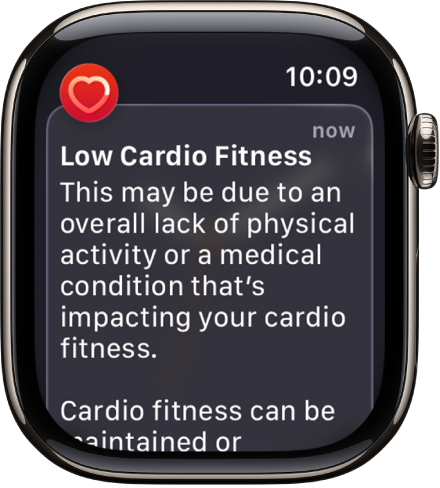
During an outdoor walk, run, or hike, Apple Watch can measure how hard your heart and lungs are working to provide cardio fitness estimates, and it can notify you when your cardio fitness level is low. Your cardio fitness falls into one of four ranges based on your age and sex: Low, Below Average, Above Average, or High. A cardio fitness level in the Low range brings a notification on your Apple Watch, and if it stays low, you’ll get another notification every 4 months.

A Heart Rate alert, indicating low cardio fitness.

  1. Open the Apple Watch app on your iPhone.
  2. Tap My Watch, tap Apps and tap Heart. Then turn on Cardio Fitness Notifications.

Look in the Cardio Fitness section of the Health app to see your cardio fitness measurements and the range they fall into. Tap Show All Cardio Fitness Levels for more information.

See also

Tag: Health

You can wear Apple Watch to analyze your heart data, which can be used to detect signs of possible hypertension (available on supported models; not available in all countries or regions).

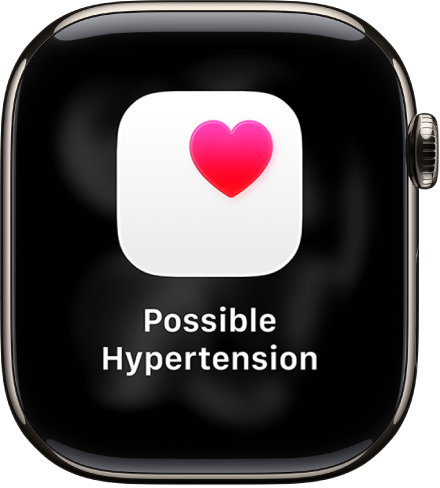
If your Apple Watch detects patterns of hypertension, you receive a notification to discuss with your healthcare provider. You’re also prompted to use a third-party blood pressure cuff to take measurements over a 7-day period, and you can set up reminders for the morning and evening. Then you can log your blood pressure in the Health app.

A Heart Rate notification, indicating possible hypertension.

Important: Your Apple Watch is not a medical device and is not intended to replace talking with your doctor for diagnosis, treatment, or monitoring of hypertension. Apple Watch cannot detect a heart attack or identify every instance of hypertension. Hypertension notifications are not intended for use if you have diagnosed hypertension, or are under 22 years old. Hypertension notifications should also not be used during pregnancy.

Set up hypertension notifications

  1. Open the Health app on your iPhone.
  2. Tap your picture or initials at the top right.
  3. Tap Health Checklist, tap Set Up below Hypertension Notifications, and follow the onscreen instructions.

Set up a Blood Pressure Log

When you receive a hypertension notification, you’re prompted to get a blood pressure cuff and log your blood pressure twice a day for 7 days.

  1. Open the Health app on your iPhone.
  2. Tap Browse, tap Heart, and then tap Blood Pressure.
  3. Tap Blood Pressure, tap Get Started below Blood Pressure Log, and follow the onscreen instructions.

    You’re asked to schedule reminders to log your blood pressure after you wake up and right before bedtime.

Log your blood pressure

To measure your blood pressure, put the cuff on your arm, then follow the instructions. After you measure your blood pressure, you can log it in the Health app on your iPhone.

  1. Open the Health app on your iPhone.
  2. Tap Browse, tap Heart, and then tap Blood Pressure.
  3. Tap Blood Pressure and tap Add a Measurement below Blood Pressure Log.
  4. Do the following:
    • Change the date and time: Tap the date and time and then make a change.
    • Enter systolic and diastolic values: Tap the text field next to Systolic and Diastolic and then enter a value.
  5. When you’re finished, tap the Done button.

Turn off hypertension notifications

  1. Open the Health app on your iPhone.
  2. Tap your picture or initials at the top right.
  3. Tap Health Checklist, tap Hypertension Notifications, and turn Hypertension Notifications off.

See also

Tag: Health

You can log menstrual cycle information to get period and fertile window predictions.

When you set up cycle tracking, entering the requested information helps improve those predictions. You can log the days of a period and track symptoms, spotting, basal body temperature, and more, and you can edit your log and manage cycle factors. You can also log multiple period days at once, and log the flow level for a day.

Here’s how to log menstrual cycle information in Health on iPhone.

Siri: On supported models, ask Siri something like, “Log that my period started today” (not available in all languages or regions). Learn how to use Siri.

Set up cycle tracking

  1. Start the Health app on your iPhone.
  2. Tap Browse, then tap Cycle Tracking.
  3. Tap Get Started, then follow the onscreen instructions.

Entering the requested information helps improve predictions for your period and fertile windows.

Log your cycle information

Besides logging the days of a period, you can track information like basal body temperature, spotting, symptoms, and more.

  1. Start the Health app on your iPhone.
  2. Tap Browse, then tap Cycle Tracking.
  3. Do any of the following:

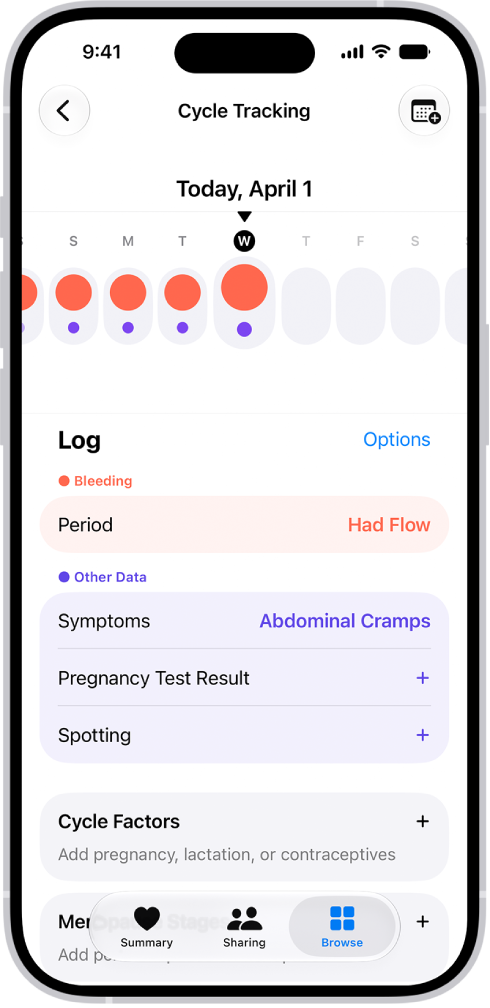
    The Cycle Tracking screen showing the timeline for a week at the top of the screen. Solid red circles and purple dots mark the first 5 days on the timeline. Below the timeline are options to add information about periods, symptoms, and more.

    • Log a period day: Tap a day in the timeline.
    • Log multiple period days: Tap the Add Period button, select days from the monthly calendar, and then tap the Done button.
    • Log the flow level for a day: Swipe the timeline to select a day, tap Period (below Bleeding), choose an option, and tap Done.
    • Log symptoms, spotting, or other information: Swipe the timeline to select a day, tap a category (below Other Data), supply the information, and then tap Done.

To add categories to the data logging screen, tap Options next to Log, then choose from the categories below Log.

Note: Apple Watch can help log your cycle information, too.

Edit your log

Your logged information appears in the timeline, where a solid red circle represents a day you logged a period and a purple dot represents a day you logged with additional information. Data for the day selected in the timeline appears in the Cycle Log (below the timeline). To change your logged information, do the following:

  1. Start the Health app on your iPhone.
  2. Tap Browse, then tap Cycle Tracking.
  3. Swipe the timeline to select a day.
  4. Tap a category of data (such as Menstruation or Symptoms), make your changes. Then tap Done.

To unmark a period day, tap its solid red circle in the timeline.

Manage cycle factors

Information you enter about pregnancy, lactation, and contraceptive use helps manage your cycle predictions.

  1. Start the Health app on your iPhone.
  2. Tap Browse, then tap Cycle Tracking.
  3. Tap Factors, then do any of the following:
    • Add a factor: Tap the Add button, select a factor, tap Started if you need to change the start date, and then tap the Done button.
    • Change the end date for a current factor: Tap the factor, tap Ended, select a date, and tap the Done button.
    • Delete a current factor: Tap the factor, then tap Delete Factor From Health.

About your health data and privacy

The information you add about yourself in Health is yours to use and share. You can decide what information is stored in Health as well as who can access your data.

When your iPhone is locked with Face ID, Touch ID, or a passcode, all of your health and fitness data in Health, other than your Medical ID, is encrypted, according to Apple. Any health data synced to iCloud is encrypted both in transit and on Apple servers. And if you have a version of iOS, iPadOS, and watchOS (if you’re using iPad and Apple Watch for cycle tracking) with default two-factor authentication and a passcode, your health and activity data is stored in a way that Apple can’t read it.

This means that when you use the Cycle Tracking feature and two-factor authentication, your health data synced to iCloud is encrypted end-to-end, and Apple doesn’t have the key to decrypt the data and therefore cannot read it.

Tag: Health

Sleep data provides insight into your sleep habits. To obtain sleep data, you can use a sleep tracker or monitor, or manually add the data on your iPhone.

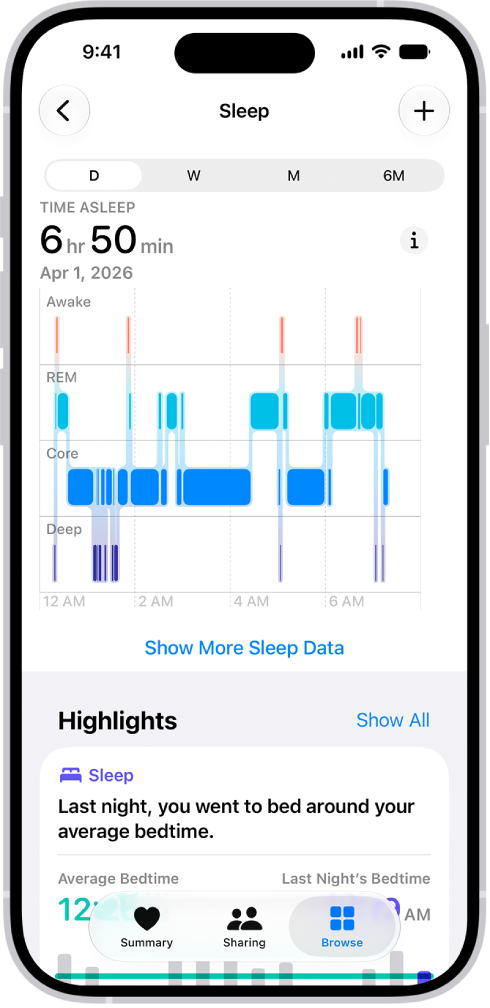
In the Health app, you can view sleep data by week or month, change the time span displayed in the graph, and view the details for a day. The Sleep screen shows the estimated time you spent awake and in REM, Core, and Deep sleep, and you can also get cumulative sleep data.

The Sleep screen in Health showing the estimated time spent awake and in REM, Core, and Deep sleep.

  1. Start the Health app on your iPhone.
  2. Tap Browse and tap Sleep. Tap Sleep again.
  3. Do any of the following:
    • View sleep data by week or month: Tap a tab at the top of the screen.
    • Change the time span displayed in the graph: Swipe the graph left or right.
    • View the details for a day: Tap the column for the day.
    • Manually add sleep data: Tap the Add button in the top-right corner of the screen.
    • Get cumulative sleep data: Tap Show More Sleep Data.
Tag: Health

You can take age-appropriate standardized mental health assessments to answer questions about how you’re feeling, and see your current risk for depression or anxiety. These questionnaires will help you understand if you should talk to your doctor, and you’ll have a PDF of the results that you can share.

The results and resources are provided for informational purposes only, and they’re not a substitute for advice provided by a doctor or other qualified health care professional. You can also manage mental health assessment settings.

Note: The Anxiety Risk assessment and the Depression Risk assessment are available for ages 13 and older.

Take a mental health assessment

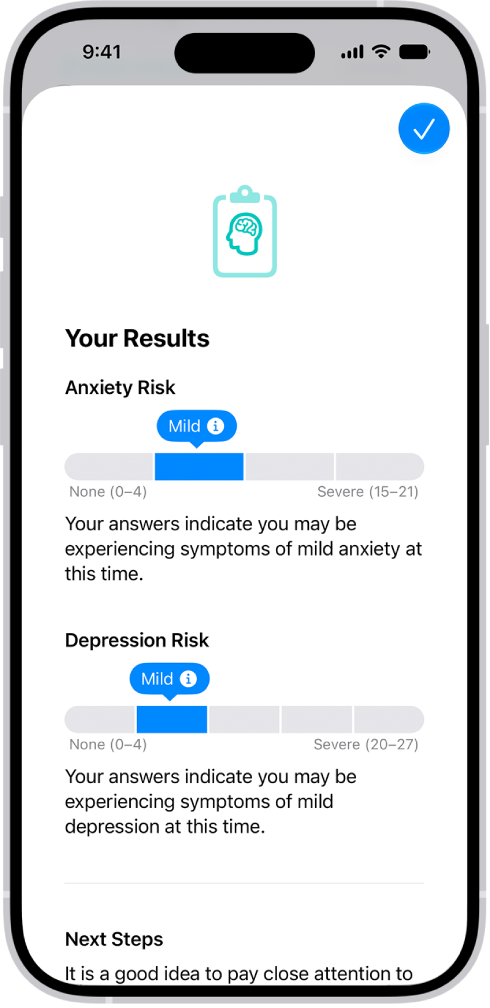
A screen in the Health app showing results of a mental health questionnaire.

  1. Start the Health app on your iPhone.
  2. Tap Browse and then tap Mental Wellbeing.
  3. Do one of the following:
    • Take an assessment for anxiety or depression: Tap Anxiety Risk or Depression Risk and tap Take Questionnaire.
    • Take an assessment for both anxiety and depression: Scroll down to Get More From Health. Tap Take Questionnaire.
  4. Tap Begin and then answer the prompts.
  5. When you’re finished, tap Done. Then you can do any of the following:
    • Learn more about your results: Tap the More Info button next to your results.
    • Export your results as a PDF: Tap Export PDF.
    • Get access to articles and crisis resources: Scroll down to Learn More and tap an option.
  6. When you’re finished viewing your results, tap Done.

Note: The Patient Health Questionnaire-9 (PHQ-9) and Generalized Anxiety Disorder-7 (GAD-7), developed by Drs. Robert L. Spitzer, Janet B. W. Williams, Kurt Kroenke and colleagues, with an educational grant from Pfizer Inc., can be useful tools to help identify if you are at risk for depression and/or anxiety. They are provided in Health for informational purposes only, and the results are not a medical diagnosis. The assessments are clinically validated only in certain countries and languages. If you have concerns about your mental health, you should consult a clinician.

Manage mental health assessment settings

  1. Start the Health app on your iPhone.
  2. Tap Browse and then tap Mental Wellbeing.
  3. Tap Anxiety Risk or Depression Risk, scroll down to the bottom of the screen, and then tap Options below Export PDF.
  4. Do any of the following:
    • Change how often you want to take mental health questionnaires: Tap Frequency, then choose an option.
    • Choose whether to be notified to take a questionnaire: Turn Notifications on or off.
    • Receive prompts to take a questionnaire after a pattern of unpleasant moods: Turn Unpleasant Logging on or off.

Turn on Periodic Questionnaires and Unpleasant Logging, and you’ll get a prompt to fill out a questionnaire a couple of times a year or when a pattern of unpleasant moods shows up.

Tag: Health

When you carry your iPhone in a pocket or holster near your waist, the Health app uses custom algorithms that assess your balance, strength, and gait. You can receive a notification if your steadiness becomes low or stays low, and you can automatically share the notification with someone close to you.

It can also help you do something about it. Health can show you exercises to help improve your walking steadiness, and you can view your walking steadiness data any time. It works on iPhone 8 or later.

Receive notifications when your steadiness is low or very low

  1. Start the Health app on your iPhone.
  2. Tap Summary, then tap your picture or initials.
  3. Tap Health Checklist.
  4. Tap Set Up for Walking Steadiness Notifications and then follow the onscreen instructions.

To review your notifications, tap Browse, tap Mobility, scroll down, then tap Walking Steadiness Notifications.

View your walking steadiness data

  1. Start the Health app on your iPhone.
  2. Tap Browse and tap Mobility.
  3. Tap Walking Steadiness (you may need to scroll down).
  4. Tap Show More Walking Steadiness Data.
  5. To learn about the three steadiness levels (OK, Low, and Very Low), tap the Show Information button.

Learn how to improve your walking steadiness

  1. Start the Health app on your iPhone.
  2. Tap Browse and tap Mobility.
  3. Scroll down. Then tap Exercises That May Improve Walking Steadiness.
Tag: Health

After you set up health record downloads from a healthcare provider, your records are securely and automatically downloaded to iPhone, where they’re available for viewing in the Health app.

You’ll find them under Browse, on the Health Categories screen, where you can search for a category like clinical vitals or a type of data like blood pressure. You can pin important lab results, share your health records with other apps, and delete an organization and its records from iPhone.

View your health records

  1. Open the Health app on your iPhone.
  2. Tap Browse to display the Health Categories screen, then do one of the following:
    • Tap the search field, then enter the name of a health record category (such as clinical vitals) or a type of data (such as blood pressure).
    • Scroll down, then tap a category (such as Allergies or Clinical Vitals) below Health Records.
    • Scroll down, then tap the name of a specific organization.

To see more details, tap any section where you see the Details button.

Note: If you don’t see health records that you expect from a healthcare provider, make sure that you’re signed in to your account with the provider. Tap Browse, scroll to your list of accounts, tap the name of your provider, then sign in if asked.

Pin important lab results

Pin results, and they stay at the top of the Lab Results screen for quick access.

  1. Open the Health app on your iPhone.
  2. Tap Browse, scroll down, and tap Lab Results.
  3. Do any of the following:
    • Swipe left on a result, then tap the Pin button.
    • Touch and hold a result, then tap Pin this Lab.

Share your health records with other apps

Third-party apps can ask for access to your health records, so make sure you trust an app with your records before you grant access.

  1. To grant access, choose which categories to share—such as allergies, medications, or immunizations—when asked.
  2. Choose whether to grant access to your current and future health records or to only your current records.

Share only your current records, and you’ll be asked to grant access each time new records are downloaded to your iPhone.

To stop sharing health records with the app, turn off its permission to read data from Health.

Delete an organization and its records from iPhone

  1. Open the Health app on your iPhone.
  2. Tap Summary, then tap your picture or initials.
  3. Tap Health Records, tap the name of an organization, and then tap Remove Account.
Tag: Health