Got a tip for us?

Health

Apple Watch health features can help you meet your sleep goals, track important information related to your heart, keep a log of your emotions and mood, log your medications, track your menstrual cycle, and encourage you to wash your hands. Here’s a quick tour.

With the Sleep app, for example, you can create a sleep schedule.
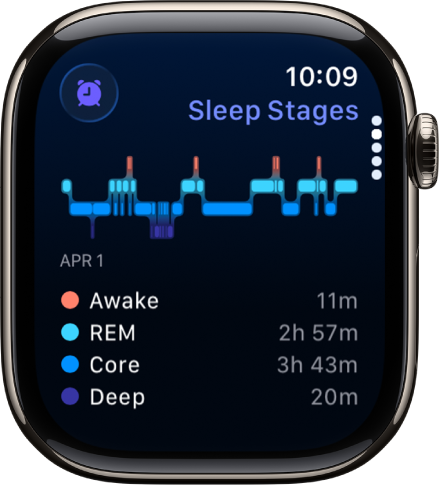
The Sleep app showing estimated time spent awake and in REM, Core, and Deep sleep.

Prioritize your sleep

You can create a sleep schedule, review your recent sleep history, and set a sleep duration goal in the Sleep app on Apple Watch. To get started, follow the onscreen instructions after you open the Sleep app on your Apple Watch. Then wear your watch to bed. Apple Watch does the rest.

Set up sleep schedules on Apple Watch
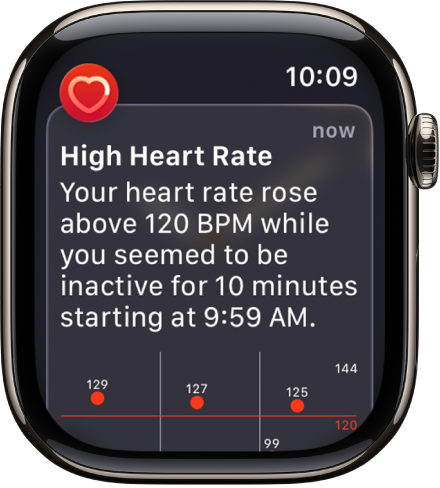
A Heart Rate Alert screen indicating that a high heart rate has been detected.

Get heart health notifications

You can enable notifications from the Heart Rate app on your Apple Watch to alert you to high or low heart rates, as well as irregular heart rhythms that may be suggestive of atrial fibrillation (AFib). If you have already been diagnosed with AFib, you can turn on AFib History to see an estimate of how frequently your heart is in this arrhythmia. You can also turn on alerts for low cardio fitness.

Monitor your heart health on Apple Watch
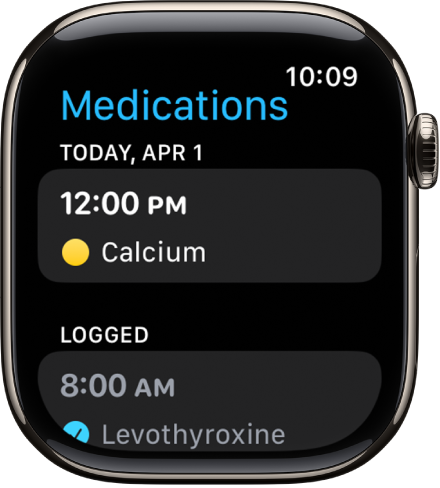
The Medications app showing scheduled and logged medications.

Stay on top of your medications

To keep track of your medications, vitamins, and supplements, use the Medications app. Add your medications to the Health app on your iPhone, then log them on your Apple Watch.

Track your medications on Apple Watch
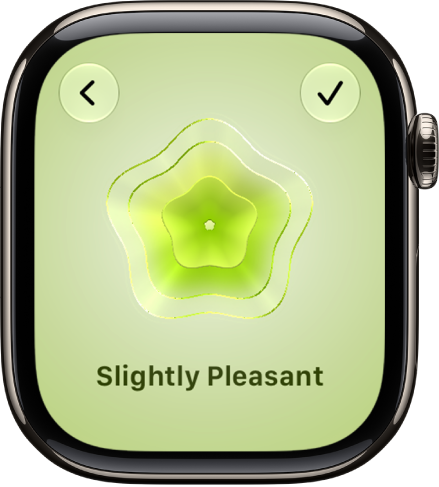
The Mindfulness app showing a state of mind status.

Log your state of mind

In addition to offering opportunities to breathe mindfully and promote moments of reflection, the Mindfulness app can help you build emotional awareness and resilience by identifying your feelings. Just open the Mindfulness app, tap State of Mind, then log your momentary emotions and daily moods.

Log your state of mind on Apple Watch
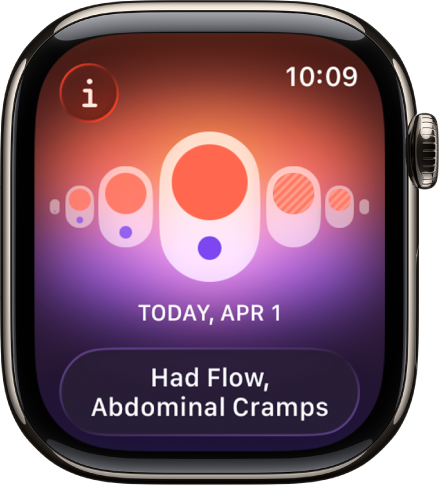
A screen in the Cycle Tracking app showing a logged period with logged symptoms at the bottom of the screen.

Track your menstrual cycle

The Cycle Tracking app is where you log daily information about your menstrual cycle, which your Apple Watch uses to provide period and fertile window predictions. Cycle Tracking can also use heart rate data, in addition to data you’ve logged, to improve predictions. Wear Apple Watch to sleep each night, and the app can also use wrist temperature to improve period predictions and provide retrospective ovulation estimates.

Use Cycle Tracking on Apple Watch

Note: The retrospective ovulation estimates feature isn’t available in all countries or regions.
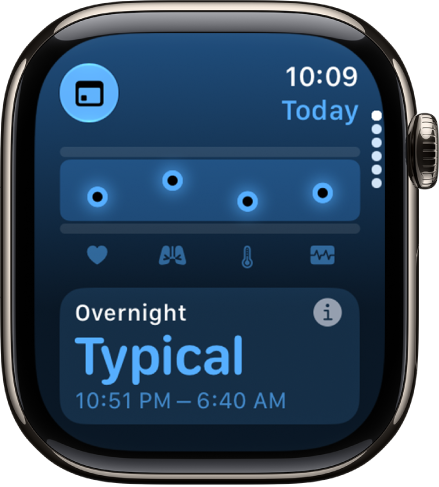
A screen in the Vitals app showing overnight health metrics.

Better understand your daily health status

With the Vitals app, you can quickly see your overnight health metrics right on your watch: heart rate, respiratory rate, wrist temperature, blood oxygen*, and sleep duration. When you wear your Apple Watch to sleep, the Vitals app establishes a typical range for each of your health metrics. If multiple metrics are outside your typical range, you receive a notification along with context for factors that may be involved—like medications or illness, for example.

Track your vitals on Apple Watch

Note: For models of Apple Watch purchased in the United States on or after January 18, 2024 with part numbers ending in LW/A or LS/A, Blood Oxygen is not available in the Vitals app.

*Not all features are available in all areas and on all models.

See also

Tag: Health

The ambient light sensor in your Apple Watch automatically estimates how much time you spend outdoors in daylight each day.

Time in daylight data needs Motion Calibration & Distance turned on. You can see your time in daylight in the Health app on your iPhone, and turn it off whenever you like. You can also get started with health features on Apple Watch.

Here’s how to see time spent in daylight on Apple Watch.

See your time in daylight

  1. Open the Health app on your iPhone.
  2. Tap Browse and tap Other Data.
  3. Tap Time in Daylight.

Turn off time in daylight

  1. Open the Settings app on your Apple Watch.
  2. Go to Privacy & Security and tap Health.
  3. Tap Time in Daylight and turn off Time in Daylight.

You can also open the Apple Watch app on your iPhone, tap My Watch, tap Privacy, then turn off Time in Daylight.

See also

Tag: Health

To personalize your experience, you can update your date of birth, sex, height, weight, and wheelchair status in Health Details. It matters. Your Apple Watch uses the information you provide about your height, weight, sex, age, and wheelchair status to calculate how many calories you burn, how far you travel, and other health and fitness data. You can make the changes in the Apple Watch app on your iPhone, in Health Details.

  1. Start the Apple Watch app on your iPhone.
  2. Tap My Watch and tap Apps. Tap Health.
  3. Tap Health Details and tap Edit.
  4. To make a change, tap a field.

See also

Tag: Health

You can reflect on how you’re feeling and log your momentary emotions and daily moods to keep track of your mental wellbeing.

You can log a momentary emotion or a daily mood, and pick words that describe how you’re feeling and what’s having the biggest impact on you. Over time, your state of mind history shows how your feelings may correlate with lifestyle factors, like sleep, exercise, time spent in daylight, and mindful minutes.

Here’s how to log your state of mind on Apple Watch.

Log your state of mind

  1. Go to the Mindfulness app on your Apple Watch.
  2. Tap State of Mind.

    If this is your first time using State of Mind, tap Get Started.

  3. Choose one of the following:

    • Log a momentary emotion: Tap Log how you’re feeling right now.
    • Log a daily mood: Tap Log how you’ve felt overall today.
  4. Turn the Digital Crown to indicate how you’re feeling, then tap the Done button.
  5. Tap any words that describe how you’re feeling (optional) and then tap the Done button.
  6. Tap any words that describe what’s having the biggest impact on you (optional). Tap the Done button.

The Mindfulness app screen showing the State of Mind screen with a visual in the center. An emotion is listed below.

View your state of mind history

With your state of mind logged, you can see how it may correlate with lifestyle factors such as time spent in daylight, sleep, exercise, and mindful minutes.

  1. Open the Health app on your iPhone.
  2. Tap Browse, tap Mental Wellbeing, and then tap State of Mind.
  3. Tap Show in Charts, then do any of the following:

    • View your state of mind over time: Tap an option from the time range selections at the top of the chart.
    • View the types of entries you’ve logged: Tap States. Then tap Daily Moods or Momentary Emotions to view those entries on the graph.
    • View factors associated with your entries: Tap Associations. Then scroll through the different factors you logged in your state of mind entries.
    • View lifestyle factors associated with your entries: Tap Life Factors and tap a lifestyle factor to see it alongside your state of mind entries.

      You can also tap the Info button next to each lifestyle factor to learn more about how it can impact your mental wellbeing.

See also

Tag: Health

Use the Cycle Tracking app to log details about your menstrual cycle. You can add flow information and record symptoms such as headaches or cramps, and the app can alert you when it estimates that your next period or fertile window is about to start.

In addition to using data you’ve logged, Cycle Tracking can also use heart rate data to improve predictions. And if you wear Apple Watch to sleep each night, the app can use wrist temperature to improve period predictions and provide retrospective ovulation estimates. You set it up in the Health app on your iPhone or iPad.

Note: The Health app is designed to protect your information and enable you to choose what to share.

Set up Cycle Tracking on iPhone or iPad

  1. Go to the Health app on your iPhone or iPad.
  2. Do one of the following:
    • On iPhone: Tap Browse, then tap Cycle Tracking.
    • On iPad: Tap the sidebar, then tap Cycle Tracking.
  3. Tap Get Started, then follow the onscreen instructions to set notifications and other options.

To add or remove options after setting up Cycle Tracking, go to the Health app on your iPhone, tap Browse, tap Cycle Tracking, then tap Options next to Cycle Log.

Log your cycle on Apple Watch

  1. Start the Cycle Tracking app on your Apple Watch.
  2. Do any of the following:
    • Log a period on a specific day: With the day showing in the timeline, tap Log. Tap Period and tap a flow level. Tap the Done button.
    • Log symptoms, spotting, or other information: With the day showing in the timeline, tap Log. Tap a category and choose an option. Then tap the Done button.

Observations you provide show up in the Cycle log on iPhone. With Period Notifications and Fertility Notifications turned on in the Health app on iPhone, Apple Watch notifies you about upcoming periods, fertile window predictions, and retrospective ovulation estimates.

A screen in the Cycle Tracking app showing a logged period with logged symptoms at the bottom of the screen.

Manage cycle factors on iPhone or iPad

Factors that could impact your cycle, like pregnancy, lactation, and contraceptive use, can also be logged in the Health app on iPhone.

  1. Go to the Health app on your iPhone or iPad.
  2. Do one of the following:
    • On iPhone: Tap Browse, then tap Cycle Tracking.
    • On iPad: Tap the sidebar, then tap Cycle Tracking.
  3. Scroll down and tap Factors. Do any of the following:
    • Add a factor: Tap Add Factor, select a factor, tap Started if you need to change the start date, and then tap Add.
    • Change the end date for a current factor: Tap the factor, tap Ended and select a date. Then tap Done.
    • Delete a current factor: Tap the factor and tap Delete Factor.

The factors you select may turn off your period predictions, fertile window predictions, and retrospective ovulation estimates on iPhone and Apple Watch.

Important: The Cycle Tracking app should not be used as a form of birth control. Data from the Cycle Tracking app should not be used to diagnose a health condition.

See also

Tag: Health

When worn to sleep each night, your Apple Watch can help track temperature changes and use this data to help improve period predictions and provide retrospective ovulation estimates (not available in all countries or regions).

You’ll start to see wrist temperature data after about five nights, but retrospective ovulation estimates take about two menstrual cycles.

Important: The Cycle Tracking app should not be used as a form of birth control. Data from the Cycle Tracking app should not be used to diagnose a health condition.

Set up wrist temperature tracking

  1. Set up Cycle Tracking and Sleep.
  2. To establish a temperature baseline, ensure the Sleep Focus is on and then wear your Apple Watch while sleeping.

    Wrist temperature data becomes available after about five nights.

  3. To view wrist temperature data, open the Health app on your iPhone, tap Browse and tap Body Measurements. Tap Wrist Temperature.

Wear your Apple Watch to sleep each night for about two menstrual cycles, and retrospective ovulation estimates should be available.

Note: Your body temperature naturally fluctuates, and can vary from night to night due to a number of variables. Wrist temperature can also be impacted by external factors like your sleep environment.

Turn off wrist temperature for Cycle Tracking

  1. Go to the Health app on your iPhone or iPad.
  2. Do one of the following:
    • On iPhone: Tap Browse, then tap Cycle Tracking.
    • On iPad: Tap the sidebar, then tap Cycle Tracking.
  3. Scroll down, tap Options, and turn off Use Wrist Temperature.

Turning off wrist temperature tracking means you no longer receive retrospective ovulation estimates, and period predictions stop using wrist temperature data.

See also

Tag: Health

You can wear Apple Watch to bed and track nightly changes in your wrist temperature, which can provide insight into your wellbeing. In the Vitals app, you view wrist temperature and easily see if it’s out of your typical range.

Cycle Tracking can also use wrist temperature data to improve period predictions and receive ovulation estimates. To establish your temperature baseline, you wear your Apple Watch to bed with Sleep Tracking turned on, and data is available after about 5 nights.

Important: The temperature sensing feature is not a medical device, and is not intended for use in medical diagnosis, treatment, or for any other medical purpose.

Set up wrist temperature tracking

  1. Set up Sleep with Sleep Tracking turned on in the Settings app.
  2. To establish a temperature baseline, ensure the Sleep Focus is on and then wear your Apple Watch while sleeping.

    To gather wrist temperature data from Apple Watch, it must track your sleep for at least 4 hours each night. Wrist temperature data will be available after about 5 nights.

Note: Your body temperature naturally fluctuates, and can vary from night to night due to a number of variables. Wrist temperature can also be impacted by external factors like your sleep environment.

Review your wrist temperature

  1. Start the Health app on your iPhone.
  2. Tap Browse, tap Body Measurements, and tap Wrist Temperature.
  3. To show sample details, tap a point on the chart.

Turn off wrist temperature tracking

  1. Start the Settings app on your Apple Watch.
  2. Tap Privacy & Security and tap Health.
  3. Tap Wrist Temperature, then turn off Wrist Temperature.

You can also open the Apple Watch app on your iPhone, tap My Watch, tap Privacy, then turn off Wrist Temperature.

See also

Tag: Health

In the Vitals app on your Apple Watch, you can view overnight health metrics—heart rate, respiratory rate, wrist temperature, blood oxygen*, and sleep duration—to get a better understanding of your daily health status. On Apple Watch Series 12 and Apple Watch Ultra 4, you see heart rate variability instead of sleep duration, plus metrics collected during the day, like heart rate and heart rate variability.

The Vitals app establishes a typical range for each of your health metrics collected as you sleep and during the day. When multiple metrics are outside your typical range, you receive a notification along with context for factors that may be involved, like medications, elevation changes, or illness, for example.

Note: Your Apple Watch is not a medical device. For important information about using the Vitals app safely, see Important safety information for Apple Watch. For models of Apple Watch purchased in the United States on or after January 18, 2024 with part numbers ending in LW/A or LS/A, Blood Oxygen is not available in the Vitals app.

A screen in the Vitals app showing overnight health metrics.

View your overnight vitals

  1. Start the Vitals app on your Apple Watch.
  2. Do any of the following:

    • Learn more about your overnight vitals: Tap Overnight Vitals. Then tap More Info to learn more about the health results you may see, and what it means when your vitals are within their typical ranges or if there has been a change between one of your metrics compared with your recent history.
    • View your health metrics: Turn the Digital Crown to a metric and tap the metric to learn more about the metric and factors that may cause an increase or decrease.

      Note: When you view your overnight vitals on Apple Watch Series 12 and Apple Watch Ultra 4, you can see your overnight heart rate variability instead of sleep duration.

    • View your training load: Turn the Digital Crown to Training Load. Tap Training Load to view it in the Activity app.

To view your overnight vitals for the last 7 days, tap the Calendar button at the top-left corner. To return to your overnight vitals summary, tap the Summary button.

View your daytime vitals

Your daytime vitals on Apple Watch Series 12 and Apple Watch Ultra 4 take into account your heart rate and heart rate variability measurements, helping highlight when something may be off or impacting your readiness score.

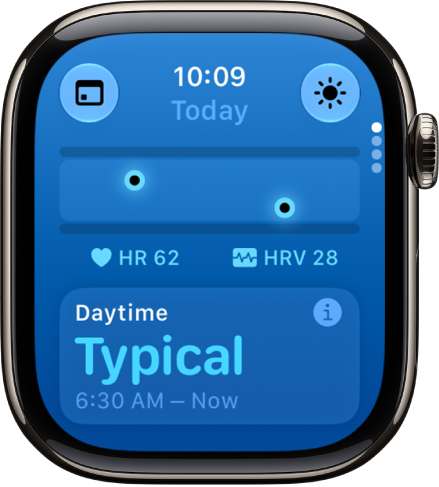
A screen in the Vitals app showing daytime health metrics.

  1. Start the Vitals app on your Apple Watch.
  2. Tap the Overnight Vitals button to switch to daytime vitals.
  3. Do any of the following:
    • Learn more about your daytime vitals: Tap Daytime, then tap More Info. You can learn more about your health results, what it means when your vitals are within their typical ranges, or if one of them has changed from your recent history.
    • View your health metrics: Turn the Digital Crown to a metric and tap the metric to learn more about the metric and factors that may cause an increase or decrease.
  4. To return to overnight vitals, tap the Daytime Vitals button.

To view your daytime vitals for the last 7 days, tap the Calendar button at the top-left corner. To return to your daytime vitals summary, tap the Summary button.

View your vitals on iPhone or iPad

  1. Go to the Health app on your iPhone or iPad.
  2. Tap Browse and tap Vitals.
  3. Tap a health metric to learn more.

Turn on Vitals notifications

You get notifications by default when at least two of your overnight metrics fall outside of your typical range, and you can turn them back on if you’ve turned off notifications for Vitals.

  1. Start the Settings app on your Apple Watch and then tap Vitals.
  2. Turn on Notifications.

Note: The back of your Apple Watch needs skin contact for features like wrist detection, haptic notifications, blood oxygen level measurements, and the heart rate sensor. Wearing your Apple Watch with the right fit—not too tight, not too loose, and with room for your skin to breathe—keeps you comfortable and lets the sensors do their job.

*Not all features are available in all areas and on all models.

See also

Tag: Health

The Mindfulness app on your Apple Watch encourages you to set aside a few minutes a day to focus, center, and connect as you breathe.

In a Reflect session, you read a theme and focus your attention, and in a Breathe session, you inhale as the animation grows and exhale as it shrinks. Sessions last between 1 and 5 minutes.

Here’s how to start a Reflect or Breathe session on Apple Watch.

Start a Reflect or Breathe session

  1. Start the Mindfulness app on your Apple Watch.
  2. Do one of the following:
    • Start a Reflect session: Tap Reflect, read the theme, focus your attention and then tap Begin.
    • Start a Breathe session: Tap Breathe, inhale slowly as the animation grows. Exhale as it shrinks.

To end a session before it completes, swipe right, then tap End.

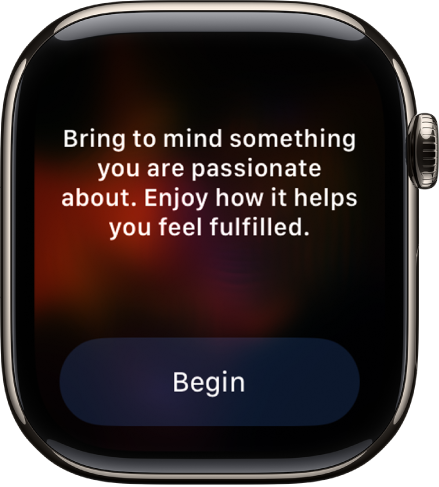
The Mindfulness app showing a thought you can reflect on. A Begin button is below.

Set the duration of a session

  1. Start the Mindfulness app on your Apple Watch.
  2. Tap the More Options button next to Reflect or Breathe.
  3. Tap Duration, then choose an option.

    You can choose a time between 1 and 5 minutes.

Adjust mindfulness settings

Mindfulness reminders can come as frequently as you choose, and you can change your breath rate, choose haptics settings, and mute mindfulness reminders for the day.

  1. Start the Settings app on your Apple Watch.
  2. Tap Mindfulness and then do any of the following:
    • Set mindfulness reminders: Below Reminders, turn Start of Day and End of Day on or off; tap Add Reminder to create additional reminders.
    • Get or stop a weekly summary: Turn Weekly Summary on or off.
    • Mute mindfulness reminders: Turn on Mute for today.
    • Change your breath rate: Tap Breath Rate to change the number of breaths per minute.
    • Choose haptics settings: Tap Haptics, then choose None, Minimal, or Prominent.

You can also open the Apple Watch app on your iPhone, tap My Watch, tap Mindfulness, then adjust a setting.

See your heart rate during mindfulness sessions

Complete a Reflect or Breathe session. Your heart rate appears in the Summary screen.

  1. Start the Mindfulness app on your Apple Watch.
  2. Complete a Reflect or Breathe session.

    Your heart rate appears in the Summary screen.

You can also review your heart rate later. Go to the Health app on your iPhone, tap Browse, tap Heart, then tap Heart Rate. Tap Show More Heart Rate Data, swipe up, then tap Breathe.

See also

Tag: Health

In the Sleep app, you can view a sleep score based on estimates of how long you slept, how consistent your bedtime was compared with your recent history, and the amount and duration of awake periods during sleep. Your sleep score appears after you wake up, as a score from 0 to 100, with a classification and a detailed breakdown to help you understand how to make your sleep more restorative. It’s calculated from sleep duration, bedtime consistency, and interruptions.

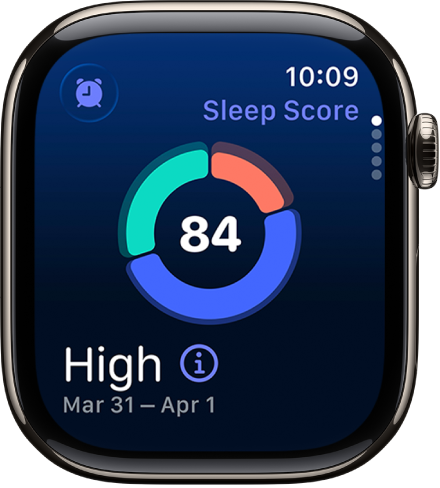
The sleep score screen showing a score in the center of the screen. A rating and the time spent asleep appears at the bottom-left of the screen.

To view your sleep score, do the following:

  1. Start the Sleep app on your Apple Watch.
  2. To learn more about your sleep score, tap the Info button.

Your sleep score is calculated based on estimates of sleep duration (50 points), bedtime consistency (30 points), and interruptions (20 points). Your total score ranges from Very Low to Very High, with the following breakdown:

  • Very Low: 0-40
  • Low: 41-60
  • OK: 61-80
  • High: 81-95
  • Very High: 96+

Note: Bedtime consistency looks at when you fell asleep over the last 13 nights, and Interruptions looks at how often you wake up and how long you’re awake during your sleep.

See also

Tag: Health