Got a tip for us?

Health

When you log your menstrual cycle, you can check the predicted date for your next period or fertile window, receive notifications about when your next period or fertile window is expected to be approaching, view details about your cycle history, and more.

A timeline at the top of Cycle Tracking shows predicted period days and more, and you can check the dates for your predicted next period and your reported last period.

Here’s how to view menstrual cycle predictions and history in Health on iPhone.

Note: Health can also use data from Apple Watch to improve the predictions for your period and fertile windows.

View your cycle timeline

Tap Browse, then tap Cycle Tracking.

At the top of the screen, a timeline shows the following icons.

Icon Description
A light red circle A predicted period day.
A light blue oval A predicted day of your fertile window.
A light purple oval A day you likely ovulated (requires Apple Watch Series 8 or later or any Apple Watch Ultra model to be paired with your iPhone; not available in all regions).
A solid red circle A day you logged a period.
A purple dot A day you added information (for example, noting a headache or cramping).

To select different days, swipe the timeline.

Check the dates for your predicted next period and for your reported last period
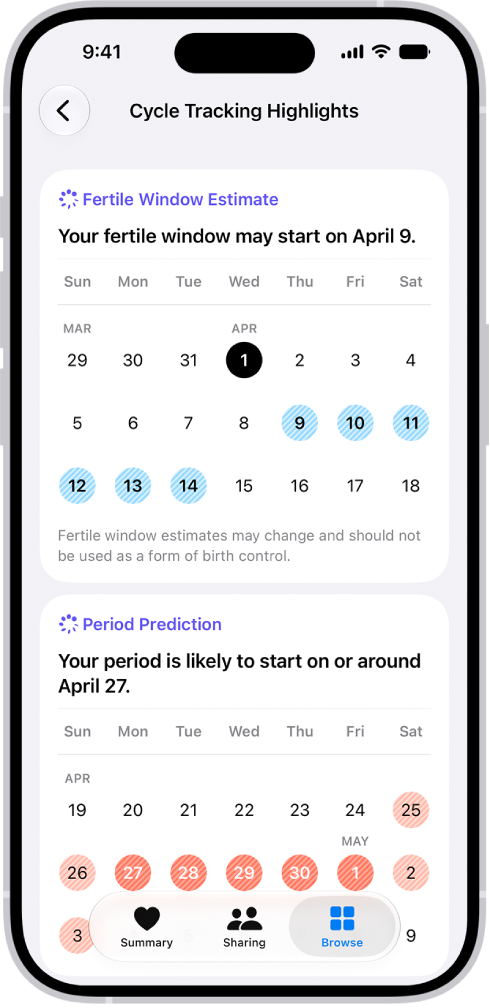
The Cycle Tracking highlights screen in Health showing calendars for fertile window estimates and period predictions.

  1. Start the Health app on your iPhone.
  2. Tap Browse, then tap Cycle Tracking.
  3. Scroll to Highlights to see when your next period is likely to start.

If you don’t see the estimate, tap Show All next to Highlights.

  1. Scroll to Summary to see the date of your last period and your typical cycle length.

If you don’t see a period prediction, make sure you have Period Predictions turned on in Options.

View your cycle history

  1. Start the Health app on your iPhone.
  2. Tap Browse, then tap Cycle Tracking.
  3. To see a summary of your last three cycles, scroll down to Your Cycles.
  4. To see summaries of all previous cycles, tap Cycle History.

To send or a save a PDF of your cycle history, tap Export PDF, tap the Share button, then choose an option.

  1. To see details about a cycle, tap it.

To change any details for the cycle, tap Edit.

To send or a save a PDF of the cycle details, tap Export PDF, tap the Share button, then choose an option.

If you receive a Cycle Deviation notification

If your logged cycle history shows a possible cycle deviation, you can get a notification. Common cycle deviations include irregular periods, infrequent periods, prolonged periods, and persistent spotting. They may indicate an underlying condition, or they may be due to other factors.

When you receive a notification, do the following to review your logged cycle history:

  1. Start the Health app on your iPhone.
  2. Tap Review Cycle History in the Possible Cycle Deviation notification.
  3. Follow the onscreen instructions to confirm, add, or edit the data in your cycle history.

If a cycle deviation is detected, a screen suggests what to do next.

View your cycle summary

A summary shows your last menstrual period, typical cycle length, typical period length, ongoing factors, and more.

  1. Start the Health app on your iPhone.
  2. Tap Browse, then tap Cycle Tracking.
  3. Scroll down then tap Summary.
  4. Scroll to view statistics of your last year of data.

Change cycle tracking notifications, cycle prediction displays, and other options

You can hide period and fertility predictions, turn off period, fertility, and cycle deviation notifications, and more, then turn any of these back on at any time.

  1. Start the Health app on your iPhone.
  2. Tap Browse, then tap Cycle Tracking.
  3. Scroll down, tap Options, and then turn options on or off.

About your health data and privacy

Per Apple, the information you add about yourself in Health is yours to use and share. You can decide what information is stored in Health as well as who can access your data.

When your iPhone is locked with Face ID, Touch ID, or a passcode, all of your health and fitness data in Health, other than your Medical ID, is encrypted. Any health data synced to iCloud is encrypted both in transit and on Apple servers. And if you have a version of iOS, iPadOS, and watchOS (if you’re using iPad and Apple Watch for cycle tracking) with default two-factor authentication and a passcode, your health and activity data is stored in a way that Apple can’t read it.

This means that when you use the Cycle Tracking feature and two-factor authentication, your health data synced to iCloud is encrypted end to end, and Apple doesn’t have the key to decrypt the data and therefore cannot read it.
Tag: Health

You can share health data stored in the Health app, such as health alerts and trends, with friends, family, and others caring for you.

The people you share with can also see the health notifications you get, like high heart rate and irregular rhythm notifications. You can review or change what you’re sharing, or stop sharing data with a contact or a provider. You can share health and fitness data with apps and devices, too.

Share health data with someone

The people you share health data with can also see the health notifications you get, including high heart rate and irregular rhythm notifications. Notifications for significant trends, like a steep decline in activity, can be shared, too.

Note: To share health data with someone, you need to include them in your contacts.

  1. Open the Health app on your iPhone.
  2. Tap Sharing, then do one of the following:
    • Set up sharing for the first time: Tap Share with Someone.
    • Share with an additional contact: Tap Add another person and then tap Next.
  3. Use the search field to find someone in your contacts list and tap their contact information to select them.
  4. Tap See Suggested Topics or Set Up Manually, then choose topics to share.
  5. Scroll down to see all topics on a screen, choose options, and then tap Next to see the next screen.
  6. Tap Share, then tap Done.

Once your invitation is accepted, you get a notification.

Review or change the data you’re sharing with others

  1. Open the Health app on your iPhone.
  2. Tap Sharing.
  3. Tap the name of a person or a healthcare provider.
  4. Scroll down, then tap View Shared Data.
  5. Make any changes, then tap Done.

Stop sharing data with a contact or a provider

  1. Open the Health app on your iPhone.
  2. Tap Sharing.
  3. Tap the name of a person or a healthcare provider.
  4. Tap Stop Sharing or Remove Account.

Note: If you start sharing data with someone, simply removing them from Contacts doesn’t stop the information from being shared.

Share health and fitness data with apps and devices

Other apps can share health and fitness data with Health if you give them permission. Install a workout app, for example, and its exercise data can show up in Health. The workout app can also read and use data shared by other devices and apps, such as your heart rate and weight. Didn’t give an app permission to share data with Health during setup? You can give permission later, or remove an app’s permission.

  1. Open the Health app on your iPhone.
  2. Tap Summary, then tap your picture or initials.
  3. Below Privacy, tap Apps or Devices.

The screen lists the items that requested access to Health data.

  1. To change the access for an item, tap it. Turn on or off permission to write data to—or read data from—Health.

Share your health and fitness data in XML format

Health can export all of your health and fitness data in XML format, a common format for sharing data between apps.

  1. Open the Health app on your iPhone.
  2. Tap Summary, then tap your picture or initials.
  3. Tap Export All Health Data. Then choose a method for sharing your data.
Tag: Health

The Health app securely stores your health information from iPhone, iPad, and Apple Watch, as well as from compatible third-party apps and connected devices. You can also manually enter data for body measurements, symptoms, menstrual cycle information, and more.

iPhone does a lot of the work on its own. It automatically stores and analyzes valuable health data, including steps, flights of stairs, walking speed, and mobility data. Apple Watch and other apps and devices can add more.

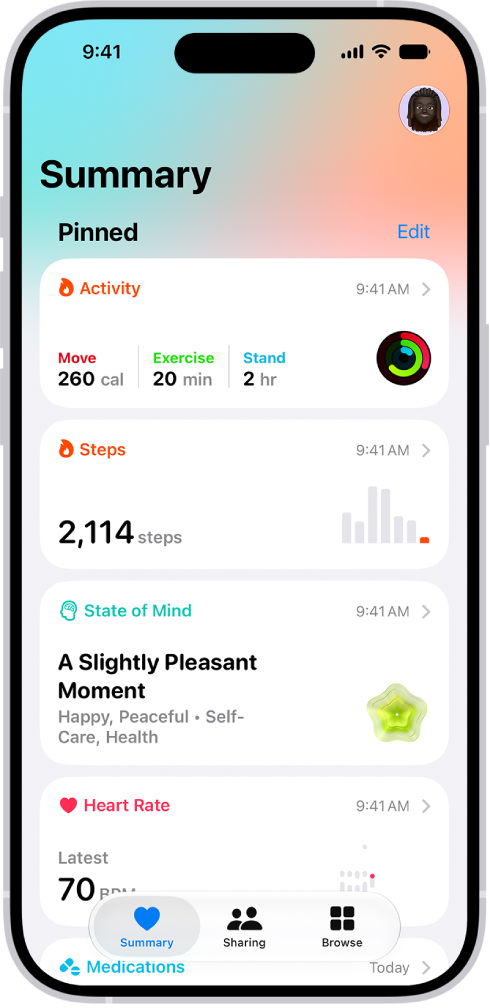
The Summary screen in Health. Information about activity, sleep score, state of mind, and medications appears below Pinned.

Health data from iPhone

Your iPhone stores and analyzes valuable health data automatically, including the following:

  • Steps, flights of stairs, and other walking data: Built-in sensors on your iPhone capture the number of steps you take, the number of flights of stairs you climb, your walking speed, and more. You can browse highlights, trends, and details about this data in the Activity category in Health.
  • Mobility data: iPhone stores important mobility metrics such as walking asymmetry, double support time, and more. Over time, as you walk with iPhone in your pocket or wear it near your waist, these metrics are used to calculate and record your walking steadiness. You can browse this data in the Mobility category. You can also receive a notification and share your notification with others if your steadiness becomes low enough to put you at increased risk of falling in the next 12 months.
  • Headphone audio levels: Audio level measurements from connected AirPods, EarPods, or other compatible headphones are automatically stored in Health. You can review this data in the Hearing category to help you understand your headphone listening habits.
  • Sleep history: If you set up a sleep schedule in Health, iPhone estimates the periods you’re lying in bed with the intention to sleep. You can review this data in the Sleep category to help you meet your sleep goals.
  • Health records from your healthcare providers: You can set up automatic downloads of health records of your allergies, medical conditions, medications, and more from supported healthcare organizations (not available in all countries or regions). You can browse these records in Health.

Health data from Apple Watch

After you pair iPhone with Apple Watch, periodic heart rate and blood oxygen measurements are automatically sent from Apple Watch to Health, where you can browse highlights, trends, and details in the Heart and Respiratory categories. You can also set up Apple Watch to send additional information to Health, including the following:

  • Exercise minutes and other activity metrics: You can view these metrics in the Activity category in Health on iPhone.
  • A history of time in daylight (Apple Watch SE 2nd generation, Apple Watch Series 6 or later, and all Apple Watch Ultra models): The ambient light sensor in Apple Watch estimates how much time you’ve spent in daylight. You can view details in the Other Data category in Health on iPhone.
  • Notifications about high or low heart rates, low cardio fitness (watchOS 7.2 or later), and irregular heart rhythms (not available in all countries or regions): You can view the details about these notifications in the Heart category.
  • Environmental noise levels and notifications about loud sounds: You can view the details about noise in your environment in the Hearing category.
  • Overnight health metrics in the Vitals app: You can view overnight health metrics—heart rate, respiratory rate, wrist temperature, blood oxygen, and sleep duration—to get a better understanding of your daily health status. If you wear your Apple Watch to sleep for multiple nights, the Vitals app establishes a typical range for each of your health metrics. If multiple metrics are outside your typical range, you’ll receive a notification along with context for factors that may be involved—like medications or illness, for example. You can view the details about your overnight vitals in the Vitals category.
  • A history of hard falls (Apple Watch SE and Apple Watch Series 4 and later): In the Other Data category, you can view details about the number of times fallen.
  • Sleep score in the Sleep app: You can view a sleep score—a score based on estimates of how long you slept, the consistency of when you fell asleep relative to your recent history, and the amount and duration of awake periods during sleep. Your sleep score appears around 15 minutes after you wake up. You can also view the amount of sleep you had the night before, the time spent in each sleep stage, and your sleep average over the last 14 days. You can view details about your sleep score in the Sleep category.
  • Notifications of possible hypertension (Apple Watch Series 9, Apple Watch Ultra 2 and later): You can wear Apple Watch to analyze your heart data, which can be used to detect signs of possible hypertension. If your Apple Watch detects patterns of hypertension, you receive a notification to discuss them with your healthcare provider. You are also prompted to use a third-party blood pressure cuff to take measurements over a 7-day period. You can view details about hypertension notifications in the Heart category.

Health data from other apps and devices

To let health and fitness apps from the App Store share data with Health, follow their onscreen instructions as you’re setting them up.

Follow the setup instructions for devices like blood pressure monitors and weight scales to store their data. Bluetooth® devices have to be paired with iPhone.

Note: At any time, you can change the health data permissions you’ve given apps and devices.

Data that you add manually

You can enter data about your medications, body measurements, menstrual cycles, and more manually.

  • Add information about your menstrual cycles: By logging menstrual cycle information, you can get period and fertile window predictions.
  • Add your medications, vitamins, and supplements: By adding these items, you can get reminders to take them and learn more about them.
  • Set up a sleep schedule: Scheduling regular times for getting to bed and waking up can help you meet your sleep goals.
  • Add information to a Medical ID: You can provide information about your medical conditions, medications, emergency contacts, and more in an emergency Medical ID. First responders and others can view this critical information directly on your iPhone, even while it’s locked.
  • Add information to other Health categories: Tap Browse, tap a category, tap the Details button for the data you want to update, then tap Add Data at the top right.

Important: iPhone, iPad, and Apple Watch aren’t medical devices.

Tag: Health

You can track and manage the medications, vitamins, and supplements you take. You can add and schedule a new medication, and choose the medication type, strength, shape, and colors.

If you set a medication schedule, the Health app reminds you to log the medication, and you can get follow-up reminders if it hasn’t been logged 30 minutes after the scheduled time. Critical Alerts show up on the Lock Screen with a sound, even when a Focus is on or iPhone is muted.

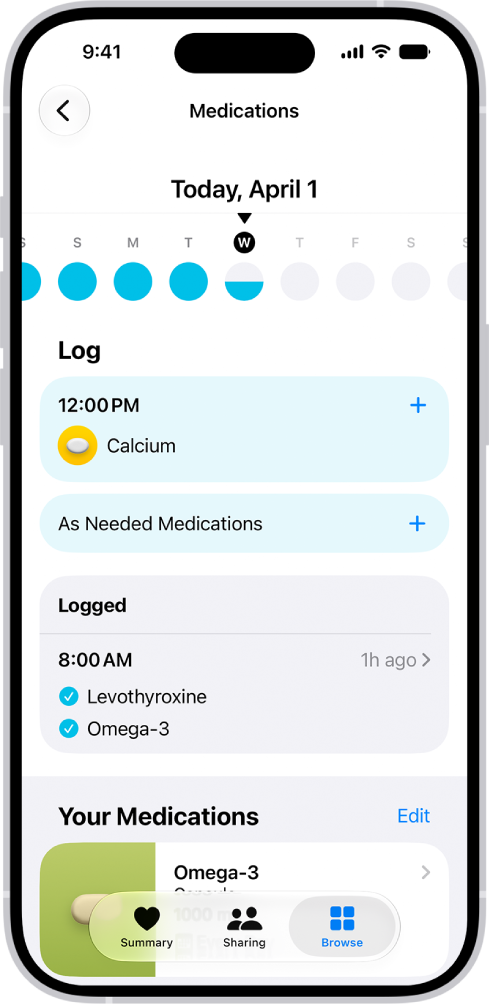
The Medications screen in Health showing the date and a log for medications.

Note: Some features are not available in all countries or regions. The Medications feature is not a substitute for professional medical judgment. Additional information is available on the labels of your medications. Consult your healthcare provider prior to making any decisions related to your health.

Add and schedule a new medication

  1. Start the Health app on your iPhone.
  2. Tap Browse and tap Medications.
  3. Tap Add a Medication (to start your list) or Add Medication (to add to your list).
  4. To identify the medication, do one of the following:

    • Type the name: Tap the text field and enter the name. Then tap Add.

      In the U.S. only, suggestions appear as you begin typing. You can select a suggestion, or finish typing the name, then tap Add.

    • Use the camera: (U.S. only) Tap the Camera button next to the text field. Then follow the onscreen instructions.

If a match isn’t found, tap Search by Name, then type the name (as described above).

  1. Do the following:

    • Choose the medication type: Tap an option and tap Next.
    • Choose the medication strength: Tap an option and tap Next.
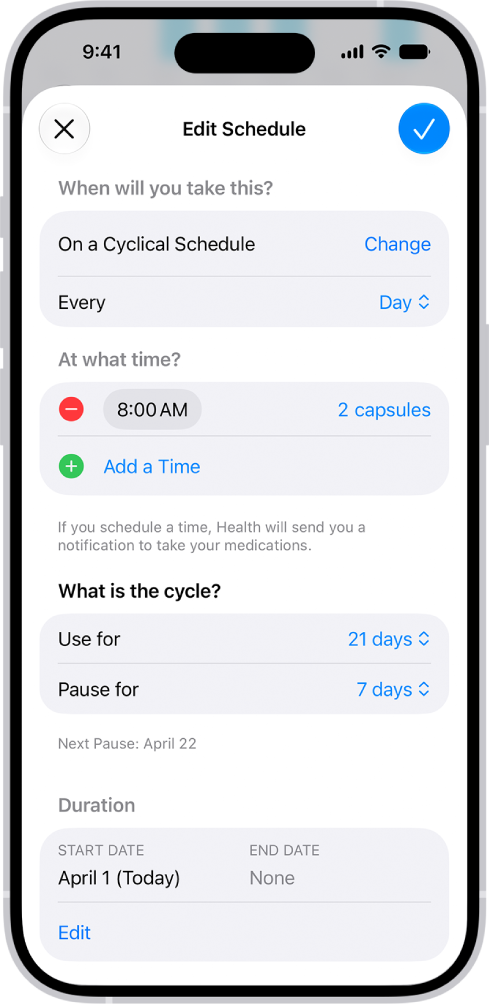
    • Set a schedule: Follow the onscreen instructions to set the frequency and duration of your scheduled medication. Then tap Next.

      Tap Change under “When will you take this?” to choose a different schedule type, like On a Cyclical Schedule, or Every Few Days.

    • Choose the shape (optional): Tap an option and tap Next.
    • Choose the colors (optional): Tap an option and tap Next.
  2. When you’re finished, tap Done.

Turn on Follow Up Reminders and Critical Alerts

With a medication schedule set, the Health app sends notifications reminding you to log the medication. And if a medication still hasn’t been logged 30 minutes after the scheduled time, you can get follow-up reminders.

  1. Start the Health app on your iPhone.
  2. Tap Browse and tap Medications.
  3. Tap Options at the bottom of the screen and turn on Follow Up Reminders.

When you turn on Follow Up Reminders, you can also turn on Critical Alerts for each of your medications. Critical Alerts appear on the Lock Screen and play a sound (even if a Focus is on or iPhone is muted).

  1. Tap Critical Alerts and tap the button next to a medication. Tap Allow.

To turn off Critical Alerts, go to Settings > Apps > Health > Notifications, then tap the button next to Critical Alerts.

Change the schedule for a medication or update other information

The Medications screen in Health showing options to change the schedule for a medication.

  1. Start the Health app on your iPhone.
  2. Tap Browse and tap Medications.
  3. Scroll down to Your Medications. Then do any of the following:
    • Change the schedule for a medication: Tap a medication, scroll down to Schedule, tap Edit, and tap a field to change it.
    • Change the icon, nickname, or notes for a medication: Tap a medication, scroll down to Details, tap Edit to change the icon or tap either of the text fields, and make your changes.
    • Reorder your list: Tap Edit above the list of your medications, touch and hold the Reorder button for a medication and drag it to a new position. Then tap the Done button.
    • Archive a medication: Swipe left on its name in the list of your medications. Then tap Archive.
    • Make an archived medication reappear in your list of medications: Tap Edit above the list of your medications and then tap the Add button next to the medication name, then tap the Done button. Any schedule you previously set is not preserved.
    • Delete a medication: Tap a medication, scroll down, and then tap Delete Medication.

Log when you take a medication

Whether it’s scheduled or unscheduled, you can log a medication at any time. By default, your iPhone follows the schedule you created in the Health app and reminds you when it’s time to log your medications.

Note: Check that your devices are signed in to the same Apple Account, connected to the internet, and updated to the latest OS version. Otherwise, your Health app data won’t sync across them.

The Medications screen in Health showing a log of medications.

  1. Start the Health app on your iPhone.
  2. Tap Browse and tap Medications.
  3. Select a day and then do one of the following:
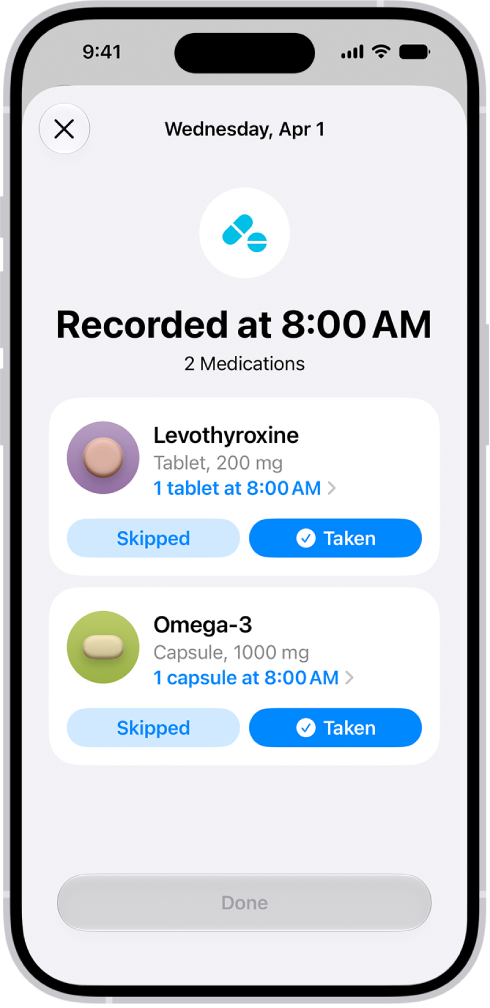
    • Log whether you took a scheduled medication: Tap the name of a medication in the list below Log. Below the medication, tap Taken or Skipped.
    • Log an unscheduled medication: Tap As Needed Medications in the list below Log. Below the medication, tap Taken.
  4. When you’re finished, tap Done.

Quick tip: When you receive a notification to log a scheduled medication, just press and hold it, then choose an option.

To review your history of taking the medication, tap Browse, tap Medications, then tap the medication (in the list of your medications).

Share your medication list

  1. Start the Health app on your iPhone.
  2. Do one of the following:

    • Share your list (or just specific medications) with a loved one: See Share your data in Health.

      Tip: If you add a new medication after you start sharing, add it to your shared list.

    • Share your list as a PDF: Tap Browse, tap Medications, scroll down, tap Export PDF, tap the Share button, and then choose an option.
Tag: Health

You can learn about the intensity level of your cardio-focused workout by viewing Heart Rate Zone information on your Apple Watch. Heart Rate Zones are a percentage of your maximum heart rate and are automatically calculated and personalized using your health data.

On Apple Watch, Heart Rate Zones are presented in five segments—estimated effort levels ranging from easier to harder. By monitoring your Heart Rate Zone, you can make your workout more efficient and challenge yourself to improve your fitness, and you can manually edit your zones, too.

Note: Heart Rate Zones are calculated only if you’ve entered your date of birth in the Health app on your iPhone.

View your Heart Rate Zone during a workout

  1. Open the Workout app on your Apple Watch.
  2. Start a cardio-focused workout—an outdoor run, for example.
  3. Turn the Digital Crown to the Heart Rate Zone workout view.

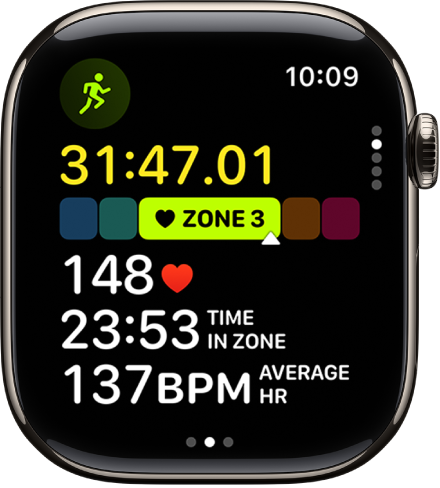
    The screen shows your Heart Rate Zone, heart rate, time in the current zone, and your average heart rate.

A running workout in progress shows the workout’s elapsed time, the zone you’re currently in, heart rate, time in zone, and average heart rate.

Review Heart Rate Zone data

  1. Open the Fitness app on your iPhone.
  2. Tap Sessions and tap a workout. Tap Show More next to Heart Rate.

    A graph details the estimated time spent in each zone.

Edit Heart Rate Zones

You can manually edit your Heart Rate Zones, which are calculated for you from your health data by default.

  1. Open the Settings app on your Apple Watch.
  2. Go to Workout and tap Heart Rate Zones.
  3. Tap Manual and tap zone 2, 3, or 4. Then enter lower and upper limits.

You can also open the Apple Watch app on your iPhone, tap My Watch, go to Workout > Heart Rate Zones, tap Manual, tap zone 2, 3, or 4, then enter lower and upper limits.

See also

The Noise app measures the ambient sound levels in your environment using the microphone and duration of exposure. When Apple Watch detects that the decibel level has risen to a point where hearing could be affected, it can notify you with a tap on the wrist.

You can choose a threshold for those notifications and monitor your exposure to noise over time in the Health app. You can see noise levels on the watch face, too.

Note: The Noise app uses the microphone to sample and measure the sound levels in your environment. Your Apple Watch doesn’t record or save any sounds to measure these levels.

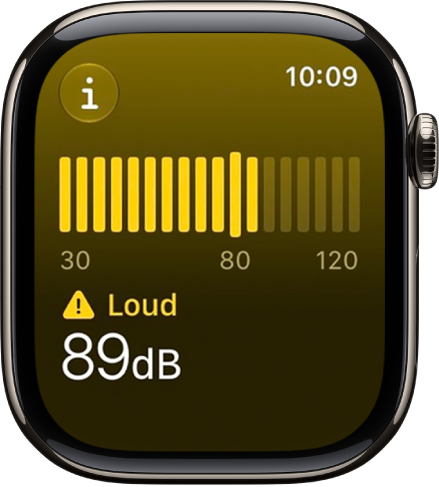
The Noise app showing a sound level of 89 decibels with the word “Loud” above.

Monitor the noise level

  1. Open the Noise app on your Apple Watch.
  2. Tap the More Info button for details about sound levels.

Quick tip: For environmental noise levels on the watch face, add the noise complication.

Choose a threshold for noise notifications

  1. Open the Settings app on your Apple Watch.
  2. Tap Noise, tap Noise Threshold, and then choose a threshold.

You can also go to the Apple Watch app on your iPhone, tap My Watch, tap Apps, tap Noise, then tap Noise Threshold.

Monitor your exposure to noise over time

The Health app shows your high, low, and average sound levels over different periods of time.

  1. Go to the Health app on your iPhone or iPad.
  2. In the Hearing category, tap Environmental Sound Levels.

Turn off noise measuring

  1. Open the Settings app on your Apple Watch.
  2. Tap Noise, then tap Environmental Sound Measurements.
  3. Turn off Measure Sounds.

You can also go to the Apple Watch app on your iPhone, tap My Watch, tap Apps, tap Noise, then turn off Environmental Sound Measurements.

See also

Tag: Health

Use the Blood Oxygen app on supported Apple Watch models to measure the percentage of oxygen your red blood cells carry from your lungs to the rest of the body. Knowing how well oxygenated your blood is can help you understand your overall health and wellness.

The app measures your blood oxygen level periodically throughout the day if background measurements are turned on, and you can also take an on-demand measurement. It’s not available for use by people under 18.

Note: Blood Oxygen app measurements are not intended for medical use. For models of Apple Watch purchased in the United States on or after January 18, 2024 with part numbers ending in LW/A or LS/A, the Blood Oxygen data analysis is performed on iPhone, and results can be viewed in the Health app.

What you need

  • Make sure the Blood Oxygen app is available in your country or region.
  • Update your iPhone XS or later to the latest version of iOS.
  • Update your supported Apple Watch to the latest version of watchOS.

Note: The Blood Oxygen app is not available for use by people under 18 years old. You can confirm or set up your age in your Medical ID.

Set up Blood Oxygen

  1. Start the Settings app on your Apple Watch.
  2. Tap Blood Oxygen, then turn on Blood Oxygen Recordings.

Measure your blood oxygen level

With background measurements turned on, the Blood Oxygen app measures your blood oxygen level periodically throughout the day. You can take an on-demand measurement anytime, too.

  1. Start the Blood Oxygen app on your Apple Watch.
  2. Rest your arm on a table or in your lap, and make sure your wrist is flat, with the Apple Watch display facing up.
  3. Tap Start and then hold your arm very still during the 15-second countdown.
  4. At the end of the measurement, you receive the results. For models of Apple Watch purchased in the United States on or after January 18, 2024 with part numbers ending in LW/A or LS/A, results cannot be viewed on Apple Watch, and are exclusively available in the Health app on iPhone. Tap Done.

Note: To get the best results, the back of your Apple Watch needs skin contact. Wearing your Apple Watch not too tight or too loose, with room for your skin to breathe, and flush with the top of your wrist, helps ensure successful Blood Oxygen measurements.

Turn off background measurements when the Sleep Focus or Theater Mode is active

Because blood oxygen measurements use a bright red light shining against your wrist, they may be more visible in dark places. If you find the light distracting, you can turn off measurements.

  1. Start the Settings app on your Apple Watch.
  2. Tap Blood Oxygen. Turn off In Sleep Focus and In Theater Mode.

View your Blood Oxygen measurements history

  1. Start the Health app on your iPhone.
  2. Tap Browse and tap Respiratory. Then tap Blood Oxygen.
Tag: Health

A Medical ID provides information about you that may be important in an emergency, like allergies and medical conditions. When you set up your Medical ID in the Health app on your iPhone, that information is also available on your Apple Watch.

If you share your Medical ID, your Apple Watch can send your medical information to emergency services when you call or text 911 or use Emergency SOS (U.S. and Canada only). Your Apple Watch can also display your Medical ID so that it’s available to someone attending to you in an emergency.

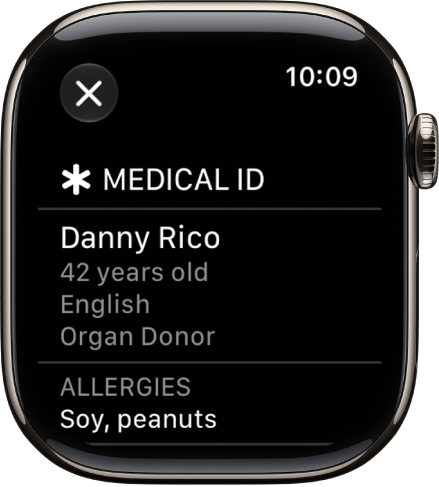
The Medical ID screen showing the person’s name, age, language, organ donor status, and emergency contacts.

Set up your Medical ID on iPhone

On your paired iPhone, go to the Health app, then set up your Medical ID with important health information and your emergency contacts. You may also want to turn on Share During Emergency Call.

View your Medical ID on Apple Watch

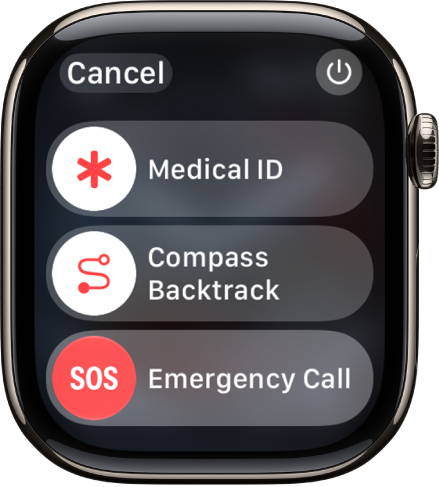
  1. Press and hold the side button until the sliders appear.

    The emergency services screen. Near the top is the Medical ID slider, in the middle is the Compass Backtrack slider, and at the bottom is the Emergency Call slider.

  2. Slide the Medical ID slider to the right.
  3. Tap Done when you’re finished.

You can also go to the Settings app on your Apple Watch, tap SOS, then tap Medical ID.

See also

Tag: Health

You can manage the medications, vitamins, and supplements you take in the Health app on your iPhone or iPad. In the Medications app on your Apple Watch, you can keep track of your medications and log them with reminders.

You set up a medication schedule on your iPhone or iPad first. You can also turn on Follow Up Reminders and Critical Alerts.

Here’s how to track your medications on Apple Watch.

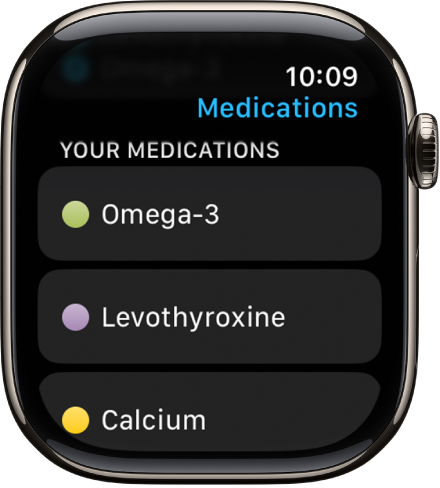
The Medications app showing a list of all medications.

Note: The Medications feature should not be used as a substitute for professional medical judgment. Additional information is available on the labels of your medications, but please consult your healthcare provider prior to making any decisions related to your health.

Set up a medication schedule on iPhone or iPad

  1. Go to the Health app on your iPhone or iPad.
  2. Do one of the following:

    • On iPhone: Tap Browse and tap Medications.
    • On iPad: Tap the sidebar, then tap Medications.
  3. Tap Add a Medication (to start your list) or Add Medication (to add to your list).
  4. To identify the medication, do one of the following:

    • Type the name: Tap the search field, enter the name, and then tap Add.

      In the U.S. only, suggestions appear as you begin typing. You can select a suggestion, or finish typing the name, then tap Add.

    • Use the camera: (U.S. only; on iPhone SE (2nd generation and later), iPhone XS, iPhone XR, and later) Tap the Camera button next to the search field. Follow the onscreen instructions.

      If a match isn’t found, tap Search by Name, then type the name (as described above).

  5. Do the following:

    • Choose the medication type: Tap an option and tap Next.
    • Choose the medication strength: Tap an option and tap Next.
    • Set a schedule: Follow the onscreen instructions to set the frequency and duration of your scheduled medication. Then tap Next.

      Tap Change under “When will you take this?” to choose a different schedule type, like On a Cyclical Schedule, or Every Few Days.

    • Choose the shape (optional): Tap an option and tap Next.
    • Choose the colors (optional): Tap an option and tap Next.
  6. When you’re finished, tap Done.

Log your medications

By default, your Apple Watch reminds you when it’s time to log your medications based on the schedule you’ve created in the Health app on iPhone or iPad. To log your medications, follow these steps.

Note: Health app data only syncs across devices that are signed in to the same Apple Account, have internet access, and run the latest OS version.

  1. If you’ve received a notification to log your medications, tap the notification. Otherwise, open the Medications app on your Apple Watch.
  2. Tap the current medications schedule—the medications you take in the morning, for example.
  3. Tap Log All as Taken.

    Apple Watch records the dosage, the number of units taken, and the time you took the medication.

  4. To log individual medications, scroll down, tap Taken below a medication, and tap the Done button.

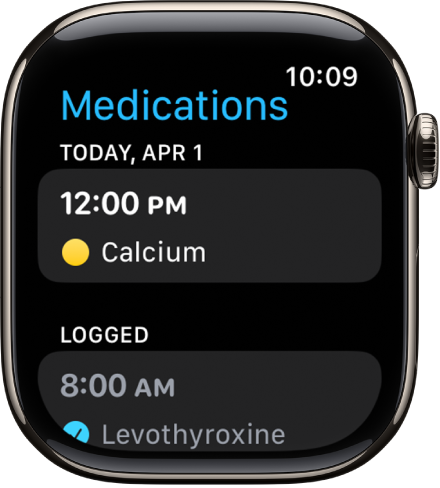
    The medication’s name and time logged appears below Logged.

  5. To change the status of a logged medication, tap it and tap Taken or Skipped. Then tap the Done button.

The Medications app showing logged medications.

To view the log and your medication history on your iPhone, open the Health app, tap Browse, then tap Medications. On iPad, open the Health app, tap the sidebar, then tap Medications.

Turn on Follow Up Reminders and Critical Alerts

If you set a medication schedule, the Health app sends notifications reminding you to log the medication. You can also get follow-up reminders when a medication hasn’t been logged 30 minutes after the scheduled time.

  1. Go to the Health app on your iPhone or iPad.
  2. Do one of the following:

    • On iPhone: Tap Browse and tap Medications.
    • On iPad: Tap the sidebar, then tap Medications.
  3. Tap Options at the bottom of the screen and turn on Follow Up Reminders.

    When you turn on Follow Up Reminders, you can also turn on Critical Alerts for each of your medications. Critical Alerts appear on the Lock Screen and play a sound (even if a Focus is on or your iPhone is muted).

  4. To receive critical alerts, tap Critical Alerts and tap the button next to a medication. Tap Allow.

To turn off all critical alerts, go to the Settings app on your iPhone or iPad, tap Apps, tap Health, tap Notifications, then tap the button next to Critical Alerts.

See also

Tag: Health

On supported models, Apple Watch can detect when you start washing your hands and encourage you to keep going for 20 seconds, the time recommended by global health organizations.

It starts a 20-second timer when it detects handwashing, and if you stop early, you’re encouraged to finish.

Turn on Handwashing

  1. Start the Settings app on your Apple Watch.
  2. Tap Handwashing and turn on Handwashing Timer.

Apple Watch starts a 20-second timer as soon as it detects that you’ve started washing your hands. Stop washing in less than 20 seconds, and your watch encourages you to finish the job.

To see a report of your average handwashing times, go to the Health app on your iPhone, tap Browse, tap Other Data, then tap Handwashing.

See also

Tag: Health