Got a tip for us?

Health

After you set up health record downloads from a healthcare provider, your records are securely and automatically downloaded to iPad, where they’re available for viewing in the Health app.

You can search for a health record category or a type of data, like blood pressure, and pin important lab results so they appear at the top for quick access. Third-party apps can request access to your health records, too, and you can delete an organization and its records from iPad.

View your health records

  1. Start the Health app on your iPad.
  2. Tap the Browse button to display the Health Categories list and then do one of the following:
    • Tap the search field, then enter the name of a health record category (such as clinical vitals) or a type of data (such as blood pressure).
    • Scroll down, then tap a category (such as Allergies or Clinical Vitals) below Health Records.
    • Scroll down, then tap the name of a specific organization.

To see more details, tap any section where you see the Details button.

Note: If you don’t see health records that you expect from a healthcare provider, make sure that you’re signed in to your account with the provider. Tap the Browse button, scroll to your list of accounts, tap the name of your provider, then sign in if asked.

Pin important lab results

You can pin results to the top of the Lab Results screen for quick access.

  1. Start the Health app on your iPad.
  2. Tap the Browse button, then tap Lab Results.
  3. Tap the More button, then tap Edit.
  4. Tap the Pin button next to a result.

    You can also touch and hold a result, then tap Pin this Lab.

  5. When you’re finished, tap the More button and tap Done.

Share your health records with other apps

Before you grant a third-party app’s request for access to your health records, be sure that you trust the app with your records.

  1. To grant access, choose which categories to share—such as allergies, medications, or immunizations—when asked.
  2. Choose whether to grant access to your current and future health records or to only your current records.

    If you choose to share only your current records, you’re asked to grant access whenever new records are downloaded to your iPad.

To stop the app from getting your health records, turn off its permission to read data from Health.

Delete an organization and its records from iPad

  1. Start the Health app on your iPad.
  2. Tap Summary in the sidebar and tap Profile next to your picture or initials at the top left.
  3. Tap Health Records, tap the name of an organization, and then tap Remove Account.

See also
Tag: Health

You can log menstrual cycle information to get period and fertile window predictions.

When you set up cycle tracking, entering the requested information helps improve those predictions. You can log the days of a period and track symptoms, spotting, basal body temperature, and more, and you can edit your log and manage cycle factors. You can also log multiple period days at once, and log the flow level for a day.

Here’s how to log menstrual cycle information in Health on iPad.

Set up cycle tracking

  1. Go to the Health app on your iPad.
  2. Tap the Browse button and tap Cycle Tracking.
  3. Tap Get Started, then follow the onscreen instructions.

    To help improve predictions for your period and fertile windows, enter the requested information.

Log your cycle information

Health can track information like spotting, symptoms, basal body temperature, and more, along with the days of a period you log.

  1. Start the Health app on your iPad.
  2. Tap the Browse button and tap Cycle Tracking.
  3. Do any of the following:

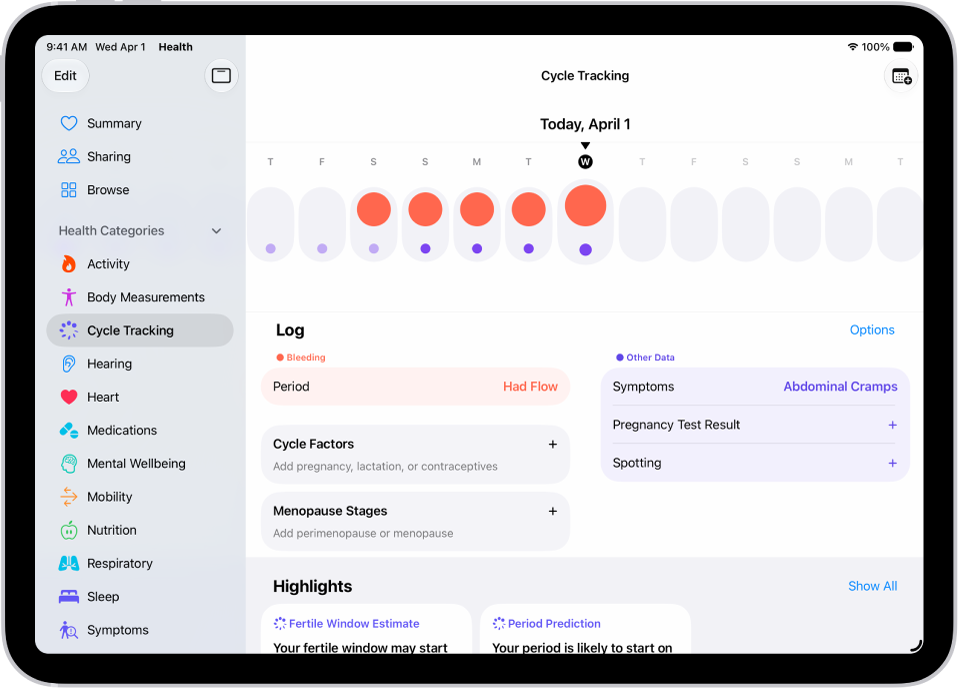
    The Cycle Tracking screen showing the timeline for a week at the top of the screen. Solid red circles and purple dots mark the first 5 days on the timeline. Below the timeline are options to add information about periods, symptoms, and more.

    • Log a period day: Tap a day in the timeline at the top of the screen. Or tap Add Period at the top right and select days from the monthly calendar.
    • Log multiple period days: Tap the Add Period button at the top right, select days from the monthly calendar, and tap the Done button.
    • Log the flow level for a day: Swipe the timeline to select a day, tap Period (below Bleeding), select an option, and then tap Done.
    • Log symptoms, spotting, or other information: Swipe the timeline to select a day, tap a category (below Other Data), supply the information, and then tap Done.

To add categories to the data logging screen, tap Options next to Log, then choose from the categories below Log.

Note: You can also use Apple Watch to help log your cycle information.

Edit your log

Your logged information appears in the timeline at the top of the screen, where a solid red circle represents a day you logged a period and a purple dot represents a day you logged with additional information. Data for the day selected in the timeline appears in the Cycle Log (below the timeline). To change your logged information, do the following:

  1. Start the Health app on your iPad.
  2. Tap the Browse button and tap Cycle Tracking.
  3. Swipe the timeline to select a day.
  4. Tap a category of data (such as Menstruation or Symptoms), make your changes. Then tap Done.

To unmark a period day, tap its solid red circle in the timeline.

Manage cycle factors

Health uses any information you enter about pregnancy, lactation, and contraceptive use to help manage your cycle predictions.

  1. Tap the Browse button and tap Cycle Tracking.
  2. Tap Factors, then do any of the following:
    • Add a factor: Tap the Add button, select a factor, tap Started if you need to change the start date, and then tap the Done button.
    • Change the end date for a current factor: Tap the factor, tap Ended, select a date, and tap the Done button.
    • Delete a current factor: Tap the factor, then tap Delete Factor From Health.

About your health data and privacy

The information you add about yourself in Health is yours to use and share. You can decide what information is stored in Health as well as who can access your data.

Apple says when your iPad is locked with Face ID, Touch ID, or a passcode, all of your health and fitness data in Health, other than your Medical ID, is encrypted. Any health data synced to iCloud is encrypted both in transit and on Apple servers. And if you have a version of iPadOS, iOS, and watchOS (if you’re using iPhone and Apple Watch for cycle tracking) with default two-factor authentication and a passcode, your health and activity data is stored in a way that Apple can’t read it.

This means that when you use the Cycle Tracking feature and two-factor authentication, your health data synced to iCloud is encrypted end-to-end, and Apple doesn’t have the key to decrypt the data and therefore cannot read it.

See also

Tag: Health

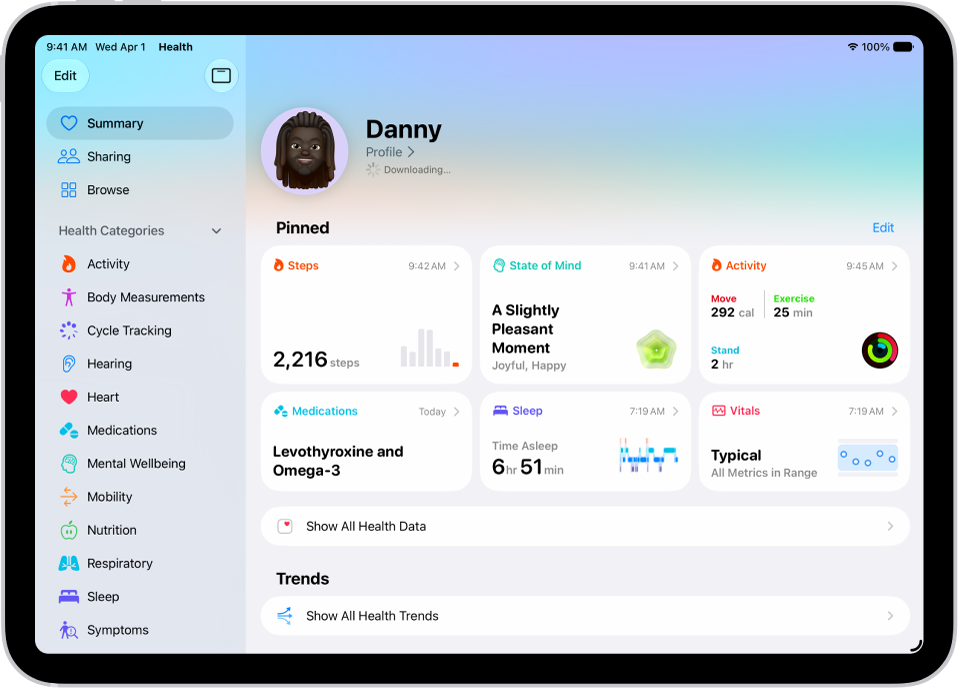
The Health app on iPad keeps health data from your iPad, iPhone, Apple Watch, and compatible apps and third-party devices in one place. You can fill out your Health Details and schedule your medications. You can also check your headphone levels and track your menstrual cycle.

iPad automatically stores and analyzes health details, including health records from your medical providers, and you can manually add information about medications you’re taking. With Cycle Tracking, you can log your period and record symptoms like cramps.

The Summary screen in Health. Information about steps, state of mind, activity, medications, sleep, and vitals appears below Pinned.

Find your health data in one place

iPad automatically stores and analyzes valuable health details, including health records from your medical providers, headphone audio levels, and more. You can also manually add information about medications you’re taking, your menstrual cycle, and more. To display all of your health data, go to the Health app and scroll down to see highlights.

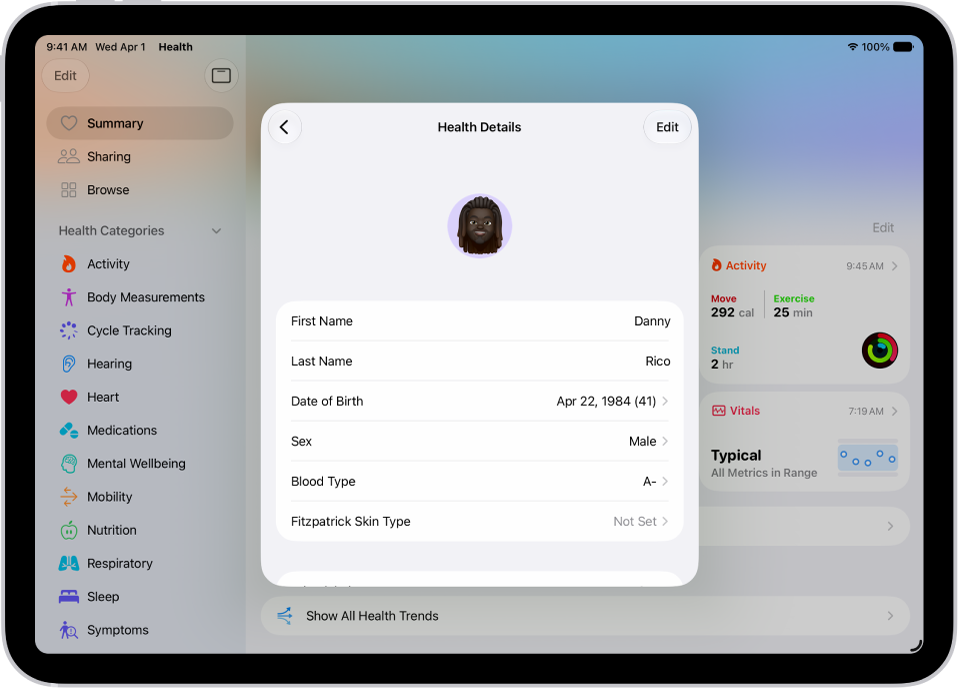
The Health Details screen, which includes fields for name, birth date, sex, blood type, and other information.

Fill out your health details

To personalize your experience, add your name, date of birth, sex, and other basic information to Health Details. To edit your health details, tap Profile next to your picture or initials at the top left, tap Health Details, then tap Edit.

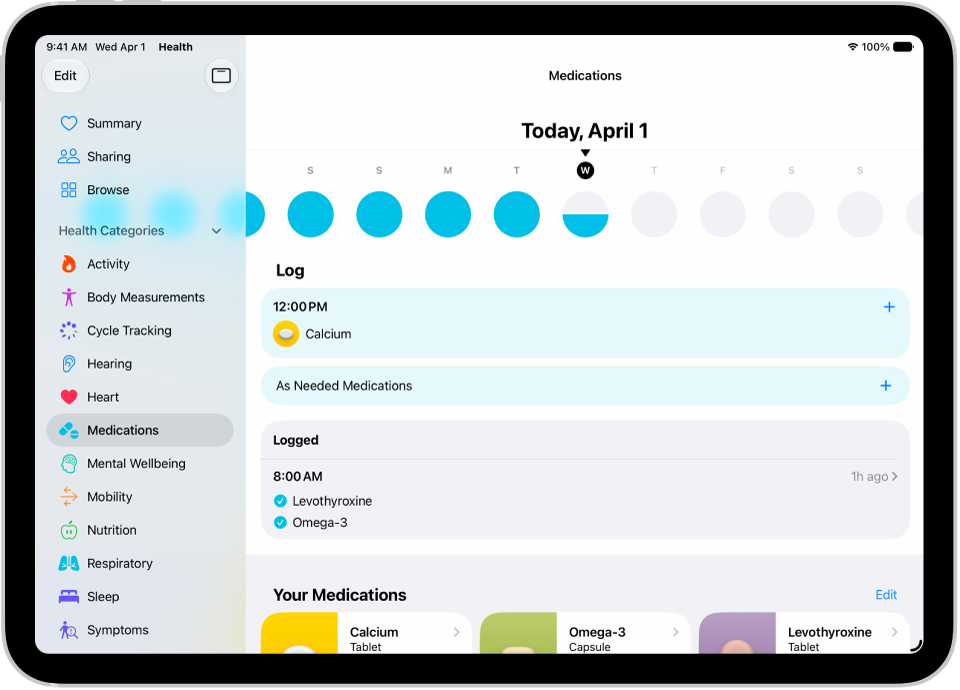
The Medications screen in Health showing the date and a log for medications.

Schedule your medications

Create a list of the medications you’re taking, schedule when to take them, and log when you do. To add a new medication, tap the Browse button, tap Medications, then tap Add a Medication.

The Cycle Tracking screen showing the timeline for a week at the top of the screen. Solid red circles and purple dots mark the first 5 days on the timeline. Below the timeline are options to add information about periods, symptoms, and more.

Track your menstrual cycle

With Cycle Tracking, you can log your period, record symptoms like cramps, and track cycle factors like lactation. You can also use it to help predict when your next period or fertile window will begin. To set up Cycle Tracking, tap the Browse button, tap Cycle Tracking, then tap Set Up Cycle Tracking.

For more ways to track your health, see these guides:

Tag: Health

When you sign in with your Apple Account, your health and fitness information in the Health app is stored in iCloud automatically. It’s encrypted while it travels between iCloud and your device, and while it’s stored in iCloud.

Whether or not you use iCloud, you can also back up your Health data by encrypting a computer backup, as described in Back up iPad. For your Health data to sync across devices, they need to be signed in to the same Apple Account, connected to the internet, and updated to the latest OS version. You can stop storing your data in iCloud at any time.

Note: For Health app data to sync across devices, check that they’re signed in to the same Apple Account and connected to the internet, and that they’re updated to the latest OS version.

Manage your Health data in iCloud

You can make sure your Health data stays synced across all of your devices. And if you’d rather stop storing your data, you can do that at any time.

  1. Open the Settings app on your iPad.
  2. Tap your name, then tap iCloud.
  3. Tap Show All, tap Health, and then turn Sync with iPad on or off.

See also

Tags: Health, iCloud

You can reflect on how you’re feeling and log your momentary emotions and daily moods to keep track of your mental wellbeing. You can also learn how your state of mind may correlate with lifestyle factors like exercise, sleep, time in daylight, and mindful minutes.

You log an emotion for how you feel right now, or a mood for how you’ve felt overall today. You can also log your state of mind for a previous day, add more context, and view your state of mind history.

Log your state of mind

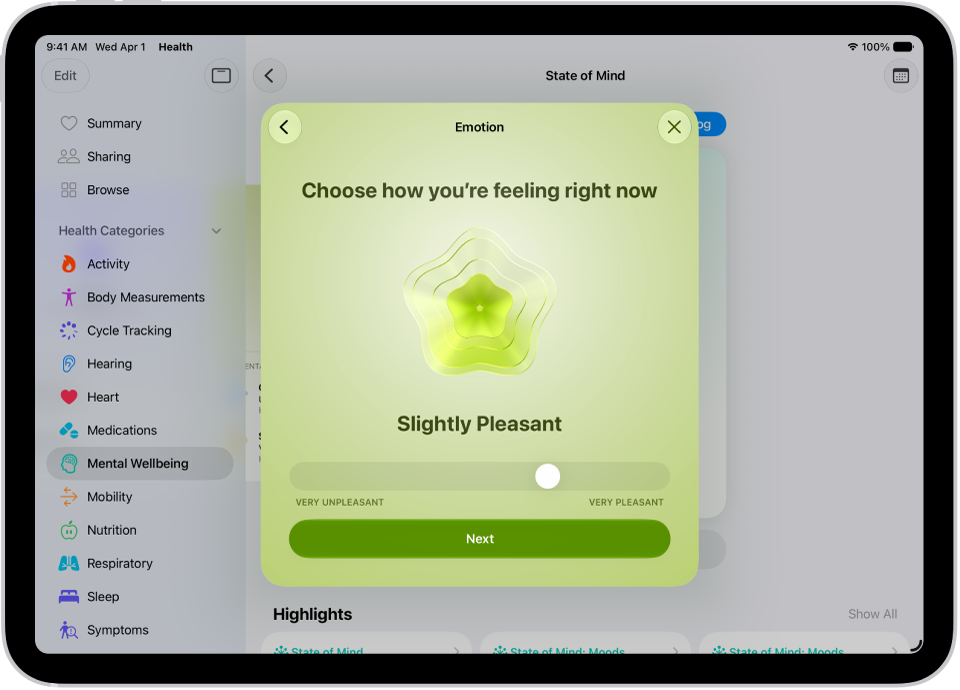
A screen in the Health app identifying the current mood as Slightly Pleasant. At the bottom of the screen is a slider to adjust the level of the emotion.

  1. Go to the Health app on your iPad.
  2. Tap the Browse button and tap Mental Wellbeing. Then tap State of Mind.
  3. If this is your first time logging, tap Get Started. Otherwise, tap Log.

    Tip: To log your state of mind for a previous day, tap the Calendar Button at the top-right corner, tap a day, then tap Log.

  4. Choose one of the following:

    • Log an emotion: Tap How you feel right now and then tap Next.
    • Log a mood: Tap How you’ve felt overall today and then tap Next.
  5. Drag the slider to indicate how you’re feeling. Then tap Next.
  6. Tap any words that describe how you’re feeling (optional) and tap Next.
  7. Tap any words that describe what’s having the biggest impact on you (optional) and tap Done.

If you’ve described what’s having the biggest impact on you, you can tap Additional Context to enter more information.

View your state of mind history

  1. Open the Health app on your iPad.
  2. Tap the Browse button and tap Mental Wellbeing. Then tap State of Mind.
  3. Tap Show in Charts, then do any of the following:

    • View your state of mind over time: Tap an option from the time range selections at the top of the chart.
    • View the types of entries you’ve logged: Tap States and then tap Daily Moods or Momentary Emotions to see those entries on the graph.
    • View factors associated with your entries: Tap Associations. Then scroll through the different factors you logged in your state of mind entries.
    • View lifestyle factors associated with your entries: Tap Life Factors and tap a lifestyle factor to see it alongside your state of mind entries.

      You can also tap the Show Information button next to each lifestyle factor to learn more about how it can impact your mental wellbeing.

See also

Tag: Health

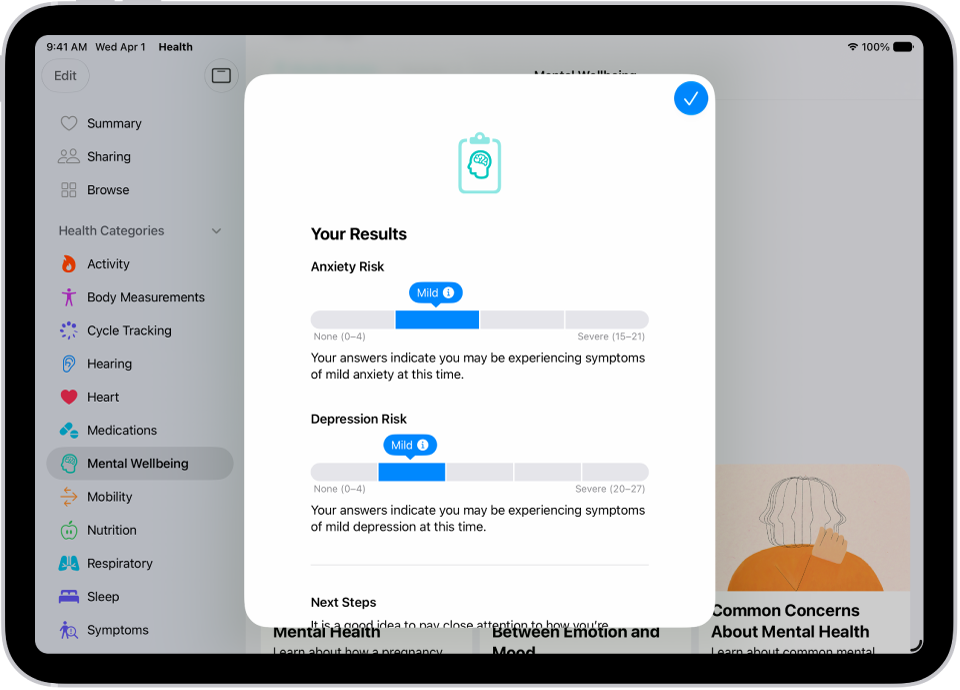
You can take age-appropriate standardized mental health assessments to answer questions about how you’re feeling, and see your current risk for depression or anxiety. These questionnaires will help you understand if you should talk to your doctor, and you’ll have a PDF of the results that you can share.

The results and resources are provided for informational purposes only and are not a substitute for advice provided by a doctor or other qualified health care professional. You can also choose how often to take a questionnaire, and whether to be notified to take one.

Note: The Anxiety Risk assessment and the Depression Risk assessment are available for ages 13 and older.

Take a mental health assessment

A screen in the Health app showing results of a mental health questionnaire.

  1. Go to the Health app on your iPad.
  2. Tap the Browse button and tap Mental Wellbeing.
  3. Do one of the following:
    • Take an assessment for anxiety or depression: Tap Anxiety Risk or Depression Risk and tap Take Questionnaire.
    • Take an assessment for both anxiety and depression: Scroll down to Get More From Health. Tap Take Questionnaire.
  4. Tap Begin and then answer the prompts.
  5. When you’re finished, tap Done. Then you can do any of the following:
    • Learn more about your results: Tap the More Info button next to your level or risk.
    • Export your results as a PDF: Tap Export PDF.
    • Get access to articles and crisis resources: Scroll down to Learn More and tap an option.
  6. When you’re finished viewing your results, tap Done.

Note: The Patient Health Questionnaire-9 (PHQ-9) and Generalized Anxiety Disorder-7 (GAD-7), developed by Drs. Robert L. Spitzer, Janet B. W. Williams, Kurt Kroenke and colleagues, with an educational grant from Pfizer Inc., can be useful tools to help identify if you are at risk for depression and/or anxiety. They are provided in Health for informational purposes only, and the results are not a medical diagnosis. The assessments are clinically validated only in certain countries and languages. If you have concerns about your mental health, you should consult a clinician.

Manage mental health assessment settings

  1. Start the Health app on your iPad.
  2. Tap the Browse button and tap Mental Wellbeing.
  3. Tap Anxiety Risk or Depression Risk, scroll down to the bottom of the screen, and then tap Options below Export PDF.
  4. Do any of the following:
    • Change how often you want to take mental health questionnaires: Tap Frequency, then choose an option.
    • Choose whether to be notified to take a questionnaire: Turn Notifications on or off.
    • Receive prompts to take a questionnaire after a pattern of unpleasant moods: Turn Unpleasant Logging on or off.

With Periodic Questionnaires and Unpleasant Logging turned on, you’re prompted to take a questionnaire a couple of times a year, or if you’ve had a pattern of unpleasant moods.

See also

Tag: Health

When you log a pregnancy in the Health app on iPhone or iPad, you can view your gestational age on Apple Watch and log bleeding and symptoms.

The Health app on iPhone and the Cycle Tracking app on Apple Watch can help you better understand your data during pregnancy by making adjustments and recommendations to reflect changes in your physical and mental health. On iPhone or iPad, you can log the first day of your last period or an estimated due date.

Log a pregnancy on iPhone or iPad

A screen in the Cycle Tracking app, showing a logged pregnancy with a logged symptom at the bottom of the screen.

  1. Go to the Health app on iPhone or iPad.
  2. Do one of the following:

    • On iPhone: Tap Browse, then tap Cycle Tracking.
    • On iPad: Tap the sidebar, then tap Cycle Tracking.
  3. Scroll down and tap Factors. Then tap the Add button.
  4. Tap Pregnancy, then tap Begin.
  5. Do one of the following:

    • Log the first day of your last period: Tap Last Menstrual Period.
    • Log an estimated due date: Tap Estimated Due Date.
    • Log how far along the pregnancy is in weeks: Tap Estimated Gestational Age.
    • Log when the embryo was transferred during IVF: Tap Embryo Transfer Date.

    Note: To log a previous pregnancy, tap Log a Past Pregnancy.

  6. Tap Next, follow the onscreen instructions and tap Next.
  7. Tap Next and then do the following:

    • Turn on mental health questionnaire reminders (optional): Tap Turn On Notifications.
    • Add your pregnancy to your Medical ID (optional): Tap Turn On Notifications.
    • Review your medication information: Tap Learn More below a medication to learn about any potential impact on your pregnancy and tap Next.
  8. Review the Cycle Timeline and tap Done.

While logging a pregnancy, you get a variety of recommendations of notifications that should be turned on or off during and after pregnancy:

  • Walking Steadiness: Recommended to be turned on. Walking Steadiness can alert you more quickly during your third trimester, when the risk of falling can increase.
  • High Heart Rate (Apple Watch only): If your high heart rate notification threshold is set below 120 beats per minute (bpm), you’re asked to review and adjust it.
  • Cardio Fitness (Apple Watch only): Cardio Fitness notifications are recommended to be turned off during and until 12 weeks after the end of your pregnancy.

View your pregnancy summary

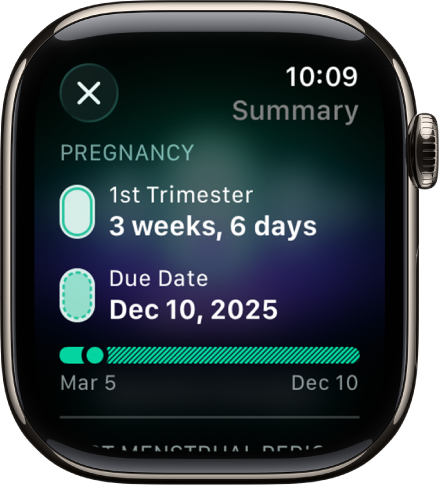
A screen in the Cycle Tracking app showing a pregnancy summary, with a gestational age and due date at the center of the screen.

  1. Open the Cycle Tracking app on your Apple Watch.
  2. Tap the Info button to view your gestational age, estimated due date, and last menstrual period.

Log bleeding and other symptoms

  1. Open the Cycle Tracking app on your Apple Watch.
  2. Do any of the following:

    • Log bleeding: With the day showing in the timeline, tap Log. Tap Bleeding During Pregnancy, tap Had Bleeding, tap a bleeding level, and then tap Done.

      Note: If you’ve logged bleeding during your pregnancy, you receive a notification recommending that you contact your doctor or care team.

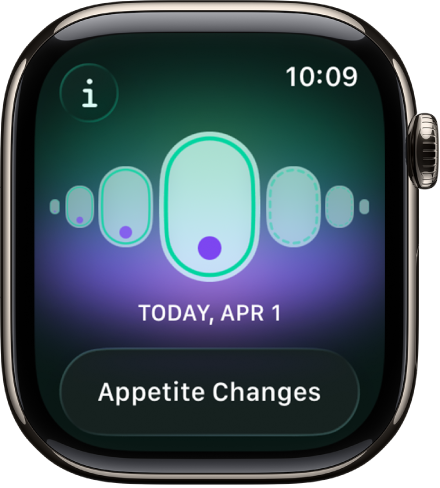
    • Log symptoms or other information: With the day showing in the timeline, tap Log. Tap Symptoms, choose an option, and then tap Done.

      Your most recently logged symptoms appear below Recent Symptoms.

See also

Tag: Health

You can wear Apple Watch to bed and track breathing disturbances while you’re sleeping. These measurements can be used in an algorithm to detect signs of moderate to severe sleep apnea (not available in all countries or regions).

Each day, you’re given an assessment of your breathing disturbances for the night before. If those disturbances come up more often over a 30-day period, you receive a notification of possible sleep apnea, along with a PDF to discuss with your healthcare provider.

Important: Your Apple Watch is not a medical device and is not intended to replace talking with your doctor for diagnosis, treatment, or monitoring of sleep apnea.

Note: Sleep apnea notifications are not intended for use if you have diagnosed sleep apnea, or are under 18 years old.

Set up sleep apnea notifications

  1. Open the Health app on your iPhone.
  2. Tap your picture or initials at the top right.
  3. Tap Health Checklist and tap Set Up below Sleep Apnea Notifications. Follow the onscreen instructions.

Review your breathing disturbances data

  1. Open the Health app on your iPhone.
  2. Tap Browse, tap Respiratory, and tap Breathing Disturbances.

Turn off sleep apnea notifications

  1. Open the Health app on your iPhone.
  2. Tap your picture or initials at the top right.
  3. Tap Health Checklist and tap Sleep Apnea Notifications. Then turn Sleep Apnea Notifications off.

See also

Tag: Health

Cycle Tracking in the Health app on iPhone can provide notifications when your logged cycle patterns are suggestive of perimenopause. After logging perimenopause or menopause in the Health app, you can track related symptoms in the Cycle Tracking app.

It’s simple. You can log symptoms like hot flashes, night sweats, and sleep changes, and log bleeding after menopause, too, and if you do, you receive a notification recommending that you contact your doctor.

Important: Cycle Tracking in the Health app should not be used for birth control or to diagnose a health condition. Cycle deviation notifications are based solely on the user’s logged cycle history. Cycle deviation notifications inclusive of perimenopause are for ages 40 and above. These notifications are not intended to replace traditional methods of diagnosis, monitoring, or treatment of perimenopause or menopause.

Log stages of perimenopause or menopause

  1. Open the Health app on your iPhone.
  2. Tap Browse, then tap Cycle Tracking.
  3. Scroll down, then tap Menopause Stages.
  4. Tap the Add button and tap Next.
  5. Do one of the following:

    • Log perimenopause: Tap I’m in perimenopause.
    • Log menopause: Tap I’ve reached menopause.

    To learn more, tap “Learn About Perimenopause and Menopause.”

  6. Follow the onscreen instructions.

To track menopause after perimenopause, tap Menopause Stages, tap the Add button, then follow the onscreen instructions. Your perimenopause history is saved and all cycle deviation detection, predictions, and fertile window estimates are turned off.

With perimenopause or menopause logged, you can also log related symptoms such as hot flashes, sleep changes, night sweats, and more.

Log bleeding after menopause and other symptoms

  1. Open the Cycle Tracking app on your Apple Watch.
  2. Swipe to select a day and then tap Log.
  3. Tap Bleeding After Menopause, tap Had Bleeding and tap a bleeding level. Then tap the Done button.

Note: When you log bleeding after menopause, you receive a notification recommending that you contact your doctor.

Tag: Health

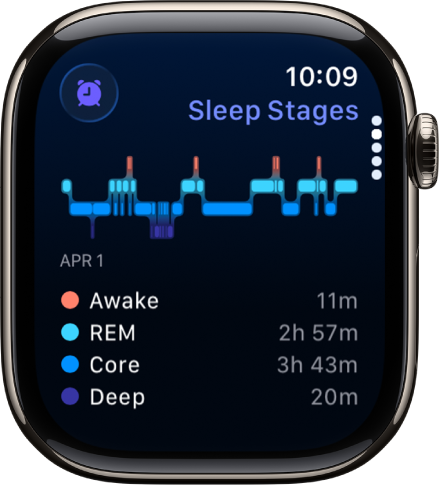
Wear your watch to bed, and Apple Watch can estimate the time you spent in each sleep stage—REM, Core, and Deep—as well as when you might have woken up.

When you wake up, open the Sleep app to learn how much sleep you got and see your sleep trends over the past 14 days, including your sleep score. You can also review your sleeping respiratory rate.

Here’s how to track your sleep on Apple Watch.

The Sleep app showing estimated time spent awake and in REM, Core, and Deep sleep.

View your recent sleep history

Go to the Sleep app on your Apple Watch to see your sleep score, the time you spent in each sleep stage, the amount of sleep you got the night before, and your sleep average over the last 14 days.

To see your sleep history and sleep score on iPhone, go to the Health app on iPhone, tap Browse, then tap Sleep. For more details, tap Sleep or Sleep Score.

Change sleep settings

  1. Start the Settings app on your Apple Watch.
  2. Tap Sleep and then adjust these settings:

    • Turn On at Wind Down: By default, the Sleep Focus begins at the wind down time you set in the Sleep app. If you’d prefer to control the Sleep Focus manually in Control Center, turn this option off.
    • Sleep Screen: Your Apple Watch display and iPhone Lock Screen are simplified to reduce distractions.
    • Show Time: Show the date and time on your iPhone and Apple Watch while the Sleep Focus is active.
  3. Turn Sleep Tracking and Charging Reminders on or off.

    When Sleep Tracking is on, your Apple Watch tracks your sleep and adds sleep data to the Health app on your iPhone.

    Turn on Charging Reminders to have your Apple Watch remind you to charge your watch before your wind down time and notify you when your watch is fully charged.

    You can also change these sleep options on your iPhone. Open the Apple Watch app on your iPhone, tap My Watch, then tap Sleep.

Review your sleeping respiratory rate

Your Apple Watch can help track your breathing rate as you sleep, which can give you greater insight into your overall health. After wearing your watch to bed, do the following:

  1. Start the Health app on your iPhone.
  2. Tap Browse, then tap Respiratory.
  3. Tap Respiratory Rate and tap Show More Respiratory Rate Data.

    The Sleep entry shows the range of your respiratory rate as you’ve slept.

Note: Apple Watch is not a medical device, and Respiratory Rate measurements are not intended for use in medical diagnosis, treatment, or for any other medical purpose.

Turn off respiratory rate measurements

  1. Start the Settings app on your Apple Watch.
  2. Tap Privacy & Security and tap Health.
  3. Tap Respiratory Rate, then turn off Respiratory Rate.

You can also open the Apple Watch app on your iPhone, tap My Watch, tap Privacy, then turn off Respiratory Rate.

See also

Tag: Health