Got a tip for us?

Health

To personalize your experience, add your name, date of birth, sex, blood type, and other basic information to Health Details. When you first open Health, you’re asked to provide this basic information, and you can fill in anything you skipped later on the Health Details screen.

Fill out the Health Details screen

The first time you open Health, you’re asked to provide basic health information about yourself. Didn’t supply all of it? You can add the rest later on the Health Details screen.

  1. Go to the Health app on your iPad.
  2. Tap Summary in the sidebar and tap Profile next to your picture or initials at the top left.
  3. Tap Health Details and tap Edit.

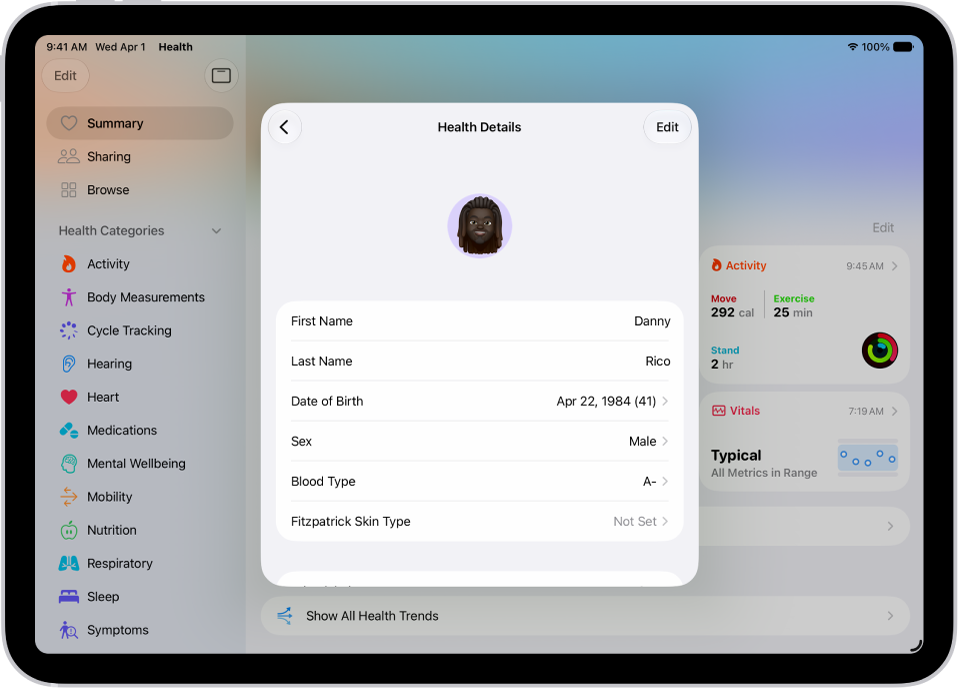
    The Health Details screen, which includes fields for name, birth date, sex, blood type, and other information.

  4. To make a change, tap a field.
  5. When you’re finished, tap the Checkmark button. Then swipe down to exit.

See also

Tag: Health

You can take a Hearing Test with your AirPods Pro 2 to provide insight into your hearing. Hearing test results (audiograms) depict the results of a pure-tone audiometry test—they display how loud sounds need to be for you to hear them.

The difference between the decibel level you need and a normal level indicates your level of hearing loss. If there’s no difference, your hearing is normal, and if there’s some or a lot of difference, your hearing is impaired. You can review your results in the Health app and export a PDF of your audiogram.

Note: The Hearing Test is available for ages 18 and older. Not available in all countries or regions.

Take a Hearing Test

  1. Go to the Health app on your iPad.
  2. Tap the Browse button and then tap Hearing.
  3. Scroll down to Get More From Health. Tap Take Hearing Test.
  4. Tap Get Started, then follow the onscreen instructions.

The Health app is where you review your Hearing Test results. It can also export a PDF version of your audiogram so you can share it with your hearing healthcare professional.

See also

While using headphones with iPad, you can check whether the audio level is OK by viewing the Hearing control in Control Center. In the Health app, you can review the history of your headphone listening habits.

If you listen to loud headphone audio for long enough to affect your hearing, iPad automatically sends you a notification that you should turn down the volume. The next time you connect your headphones after that, your volume is automatically set to a lower level, though you can turn it up again. The Headphone Level meter shows your live audio level in decibels, and you can also reduce loud headphone sounds.

Quick tip: In the Health app, tap the Search button, tap Hearing, and then tap Headphone Notifications to review the details of a headphone notification.

Check your headphone levels while you listen

You can view your live headphone levels in Control Center.

  1. Open Control Center.
  2. Tap the Add button at the top left of Control Center and then tap Add a Control.
  3. Scroll down to Hearing Accessibility, then tap Hearing.
  4. Tap the Hearing Devices button.

    The audio level (in decibels) of your headphones is displayed on the Headphone Level meter.

Note: Live Listen (below the Headphone Level meter) turns on or off with a tap. For more, see our article, Use iPad as a remote microphone with Live Listen. Headphone level monitoring and Live Listen typically aren’t used together, since the Headphone Level monitor is intended for listening to audio playback, while Live Listen picks up external sounds with the iPad microphone.

Check your headphone levels over time

  1. Start the Health app on your iPad.
  2. Tap the Browse button and then tap Hearing.
  3. Tap Headphone Audio Levels and then do any of the following:
    • See exposure levels over a period of time: Tap the tabs at the top of the screen. (All levels are measured in decibels.)
    • Learn about the sound level classifications: Tap the Show Information button.
    • Change the time span displayed in the graph: Swipe the graph left or right.
    • Display highlights: Scroll down to Highlights and then tap Show All.

To learn more about your headphone audio levels, tap Show More Data.

Reduce loud headphone sounds

  1. Start the Settings app on your iPad.
  2. Tap Sounds, scroll down, and tap Reduce Loud Audio below Headphones.
  3. Turn on Reduce Loud Audio, then drag the slider.

    iPad analyzes your headphone audio and reduces any sound above the level you set.

    Note: If you set up Screen Time for family members, you can prevent them from changing the Reduce Loud Sounds level. Go to Settings > Screen Time > Content & Privacy Restrictions > Reduce Loud Sounds, then select Don’t Allow.

Get headphone audio notifications

You can find headphone notifications on the Summary screen of the Health app.

Note: Depending on your country or region, Headphone Notifications may be turned on by default, and in some countries or regions, you may not be able to turn it off. If allowed in your country or region, you can do the following:

  1. Start the Settings app on your iPad.
  2. Tap Sound, then scroll down to Headphones.
  3. Turn Headphone Notifications on or off.

You can also set a maximum decibel level in the Settings app to keep your headphone audio at a comfortable level.

For the most accurate headphone audio measurements, use Apple or Beats headphones. With other headphones, the audio can be estimated based on your iPad’s volume.

See also

You can learn more about the medications you add to your medications list. You can find out what a medication is used for, how it works, its potential side effects, and how to pronounce it, and you can learn about interactions between your medications.

You can also learn whether interaction factors like alcohol might interact with your medications, and track your medications and log your state of mind in Health.

Learn about a medication

In Health, you can learn more about what a medication is used for and how it works, plus its potential side effects and how to pronounce it.

  1. Go to the Health app on your iPad.
  2. Tap the Browse button and then tap Medications.
  3. Tap the medication (in the list of your medications). Scroll down to About.

Learn about interactions between your medications

  1. Start the Health app on your iPad.
  2. Tap the Browse button and then tap Medications.
  3. Scroll down, then tap Drug Interactions.
  4. To learn whether interaction factors like alcohol might interact with your medications, tap Edit (in the Interaction Factors area), select the factors that apply, and tap Done.
  5. To learn more about an interaction, tap it.

See also

Tag: Health

You can receive notifications about a loved one’s health, and you can view data about their activity, mobility, heart rate, and health trends in the Health app.

You can invite someone to share health data with you, and they choose which health information to share and when to stop sharing. When you view their shared data, you can quickly respond with Message, Call, or FaceTime, and even start a conversation about a chart.

Invite someone to share health data

  1. Start the Health app on your iPad.
  2. Tap Sharing in the sidebar and tap Ask Someone to Share.
  3. Choose a sharing option.

The person you selected receives an invitation and can then choose which health information to share. Let the invitee know that you need to be included in their contacts.

Accept an invitation to view another person’s health data

  1. After the invitation arrives, do one of the following:
    • Tap the invitation, such as on the Lock Screen or in Notification Center.
    • In Health, tap Sharing in the sidebar, then tap View in the invitation at the top of the screen.
  2. Tap Accept, then tap Done.

View shared data and quickly respond to it

  1. Start the Health app on your iPad.
  2. Tap Sharing in the sidebar and then tap the contact card listed below Sharing With You.
  3. You can do any of the following:

    • Quickly respond: Tap Message, Call, or FaceTime.
    • See more detail: Tap an item on the screen.

      If the detail includes chart data, you can start a conversation about it by tapping Message. The chart is included in your message.

Ask another person to share their health data with you

If you ask, people can share their health data with you from an iPad on iPadOS 17 or later or an iPhone running iOS 15.6 or later. What data they share, and when they stop sharing, stays under their control.

  1. Start the Health app on your iPad.
  2. Tap Sharing in the sidebar, tap Ask Someone to Share, and then choose an option.
  3. Let your invitee know that you need to be included in their contacts to share with you, and that if they need assistance, sharing instructions are available in Share health data with someone.

See also

Tag: Health

You can track and manage the medications, vitamins, and supplements you take. You can add and schedule a new medication, and choose the medication type, strength, shape, and colors.

If you set a medication schedule, the Health app reminds you to log the medication, and you can get follow-up reminders if it hasn’t been logged 30 minutes after the scheduled time. Critical Alerts show up on the Lock Screen with a sound, even when a Focus is on or iPad is muted.

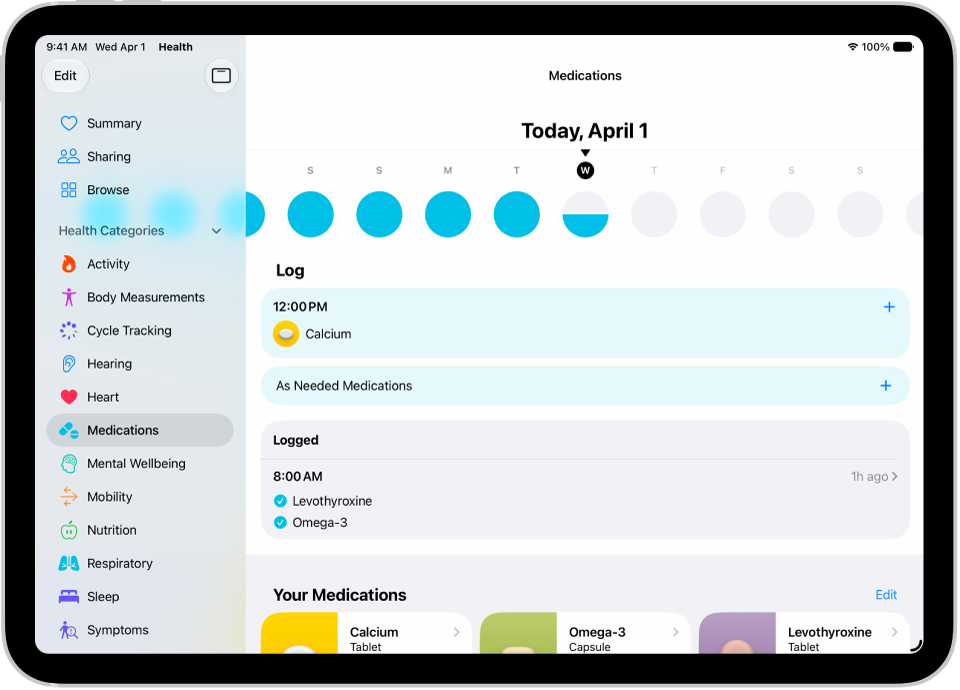
The Medications screen in Health showing the date and a log for medications.

Note: Some features are not available in all countries or regions. The Medications feature is not a substitute for professional medical judgment. Additional information is available on the labels of your medications. Consult your healthcare provider prior to making any decisions related to your health.

Add and schedule a new medication

  1. Go to the Health app on your iPad.
  2. Tap the Browse button and then tap Medications.
  3. Tap Add a Medication (to start your list) or Add Medication (to add to your list).
  4. To identify the medication, tap the text field and enter the name. Then tap the medication.

    In the U.S. only, suggestions appear as you begin typing. You can select a suggestion, or finish typing the name, then tap Add.

  5. Do the following:

    • Choose the medication type: Tap an option and tap Next.
    • Choose the medication strength: Tap an option and tap Next.
    • Set a schedule: Follow the onscreen instructions to set the frequency and duration of your scheduled medication. Then tap Next.

      Tap Change under “When will you take this?” to choose a different schedule type, like On a Cyclical Schedule, or Every Few Days.

    • Choose the shape (optional): Tap an option and tap Next.
    • Choose the colors (optional): Tap an option and tap Next.
  6. When you’re finished, tap Done.

Turn on Follow Up Reminders and Critical Alerts

If you’ve set a medication schedule, you receive notifications from the Health app that remind you to log the medication. And when a medication still hasn’t been logged 30 minutes after the scheduled time, follow-up reminders can come too.

  1. Open the Health app on your iPad.
  2. Tap the Browse button and then tap Medications.
  3. Tap Options at the bottom of the screen and turn on Follow Up Reminders.

    When you turn on Follow Up Reminders, you can also turn on Critical Alerts for each of your medications. Critical Alerts appear on the Lock Screen and play a sound (even if a Focus is on or iPad is muted).

  4. Tap Critical Alerts and tap the button next to a medication. Tap Allow.

    To turn off Critical Alerts, go to Settings > Apps > Health > Notifications, then tap the button next to Critical Alerts.

Change the schedule for a medication or update other information

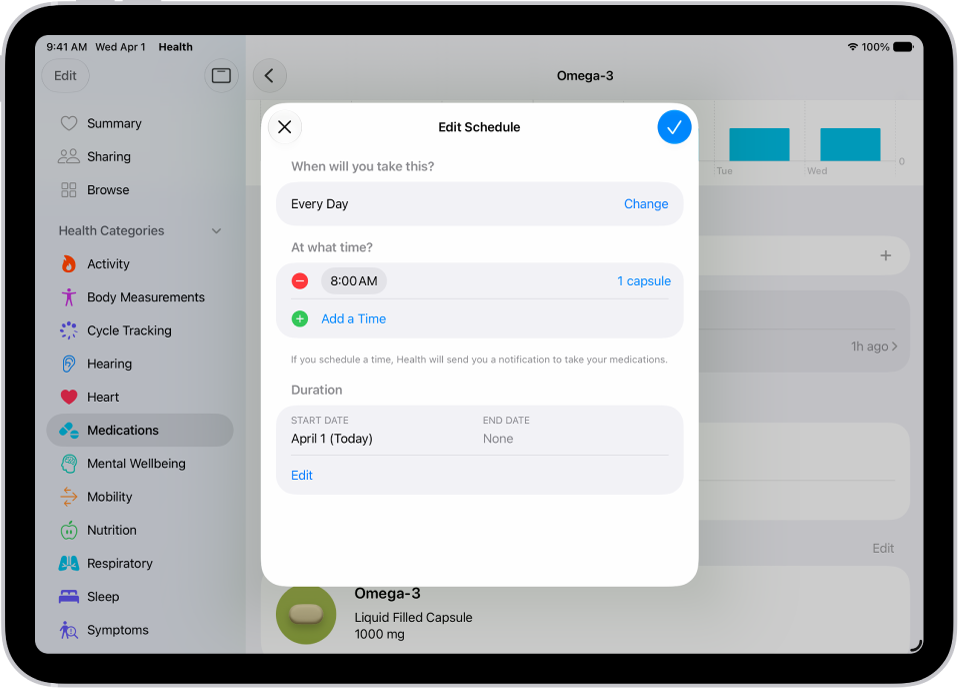
The Medications screen in Health showing options to change the schedule for a medication.

  1. Open the Health app on your iPad.
  2. Tap the Browse button and then tap Medications.
  3. Scroll down to Your Medications. Then do any of the following:
    • Change the schedule for a medication: Tap a medication, scroll down to Schedule, tap Edit, and tap a field to change it.
    • Change the icon, nickname, or notes for a medication: Tap a medication, scroll down to Details, tap Edit to change the icon or tap either of the text fields, and make your changes.
    • Reorder your list: Tap Edit above the list of your medications, touch and hold the Reorder button for a medication and drag it to a new position. Then tap the Done button.
    • Archive a medication: Tap a medication, scroll down, and tap Archive Medication.
    • Make an archived medication reappear in your list of medications: Tap Edit above the list of your medications and then tap the Add button next to the medication name, then tap the Done button. Any schedule you previously set is not preserved.
    • Delete a medication: Tap a medication, scroll down, and then tap Delete Medication.
    • Change how you receive notifications about taking medications: See View and respond to notifications and Change notification settings.

Log when you take a medication

Scheduled or unscheduled, any medication can be logged at any time. Your iPad reminds you when it’s time to log your medications by default, based on the schedule you’ve created in the Health app.

Note: Your Health app data syncs across devices when they’re signed in to the same Apple Account, online, and running the latest OS version.

  1. Open the Health app on your iPad.
  2. Tap the Browse button and then tap Medications.
  3. Select a day at the top of the screen.
  4. Do one of the following:
    • Log whether you took a scheduled medication: Tap the name of a medication in the list below Log. Below the medication, tap Taken or Skipped.
    • Log an unscheduled medication: Tap As Needed Medications in the list below Log. Below the medication, tap Taken.
  5. When you’re finished, tap Done.

Quick tip: When a notification arrives to log a scheduled medication, press and hold it and choose an option.

To review your history of taking the medication, tap the Search button, tap Medications, then tap the medication (in the list of your medications).

Share your medication list

  1. Open the Health app on your iPad.
  2. Do one of the following:

    • Share your list (or just specific medications) with a loved one: See Share your data in Health.

      Tip: If you add a new medication after you start sharing, add it to your shared list.

    • Share your list as a PDF: Tap the Browse button, tap Medications, scroll down, tap Export PDF, tap the Share button, and choose an option.

See also

Tag: Health

You can view your health and fitness information in one place. For example, you can check whether your metrics change over time, and see how well you’re meeting goals for activity, sleep, mindfulness, and more.

You can pin the categories that matter most to you, like Medications, Heart Rate, and Steps, and see your highlights. Health can also tell you about significant changes in data like your resting heart rate, steps, and sleep.

Customize your pinned health categories on the Summary screen

Pin and arrange the health categories that matter most to you, such as Heart Rate, Medications, Steps, and more.

  1. Go to the Health app on your iPad.
  2. Tap Summary in the sidebar. Tap Edit next to Pinned.
  3. Do any of the following:
    • Pin a health category: Tap the Pin button next to a category.
    • Unpin a health category: Tap the Delete button next to a category.
    • Reorder the health categories in your Pinned list: Drag the Reorder button next to a category up or down.
  4. When you’re finished, tap the Done button.

View your highlights

  1. Start the Health app on your iPad.
  2. Tap Summary in the sidebar and scroll down to Highlights to see highlights of your recent health and fitness data.
  3. Do the following:
    • View more data about a highlight: Tap its graph.
    • View all highlights: Tap Show All Highlights.

View your health trends

Significant changes in types of data like amount of sleep, number of steps, and resting heart rate can trigger alerts from Health, helping you keep track of your health data over time. Trend lines then show how much these metrics have changed and for how long.

  1. Open the Health app on your iPad.
  2. Tap Summary in the sidebar. Then scroll down to Trends to view any recent trends.
  3. If Health has detected trends, you can do the following:
    • View more data about a trend: Tap its graph.
    • View all trends: Tap Show All Health Trends.

To receive notifications about your health trends, tap Summary, tap Profile next to your picture or initials at the top left, tap Notifications, then turn on Trends.

View trends, highlights, and details for a specific health category

  1. Start the Health app on your iPad.
  2. Tap the Browse button to display the Health Categories list and then do one of the following:
    • Tap a category. (To see all categories, scroll up and down.)
    • Tap the search field, then type the name of a category (such as Mobility) or a specific type of data (such as Walking Speed).
  3. Depending on the data type, you may be able to do the following:
    • View details about any of the data: Tap the Details button.
    • See weekly, monthly, and yearly views of the data: Tap the tabs at the top of the screen.
    • Manually enter data: Tap Add Data in the top-right corner of the screen.
    • Pin to the Summary screen: Tap Pin to Summary. (You may need to scroll down.)
    • View which apps and devices are allowed to share the data: Below Options, tap Data Sources & Access. (You may need to scroll down.)
    • Delete data: Tap Show All Data below Options, swipe left on a data record, and then tap Delete. To delete all data, tap Edit and tap Delete All.
    • Change the measurement unit: Tap Unit below Options, then select a unit.

Learn more about health and fitness

  1. Start the Health app on your iPad.
  2. Tap Summary in the sidebar and scroll down to Get More From Health or Articles.
  3. Tap an item to learn more.

Many health categories show recommended apps alongside your data when you view the details.

See also

Tag: Health

The Health app securely stores your health information from iPhone, iPad, and Apple Watch, as well as from compatible third-party apps and connected devices. You can also manually enter data for body measurements, symptoms, menstrual cycle information, and more.

iPad automatically stores and analyzes some health data, like headphone audio levels, sleep history, and health records from your healthcare providers. Health and fitness apps from the App Store can share data with Health, too, along with devices like blood pressure monitors and weight scales.

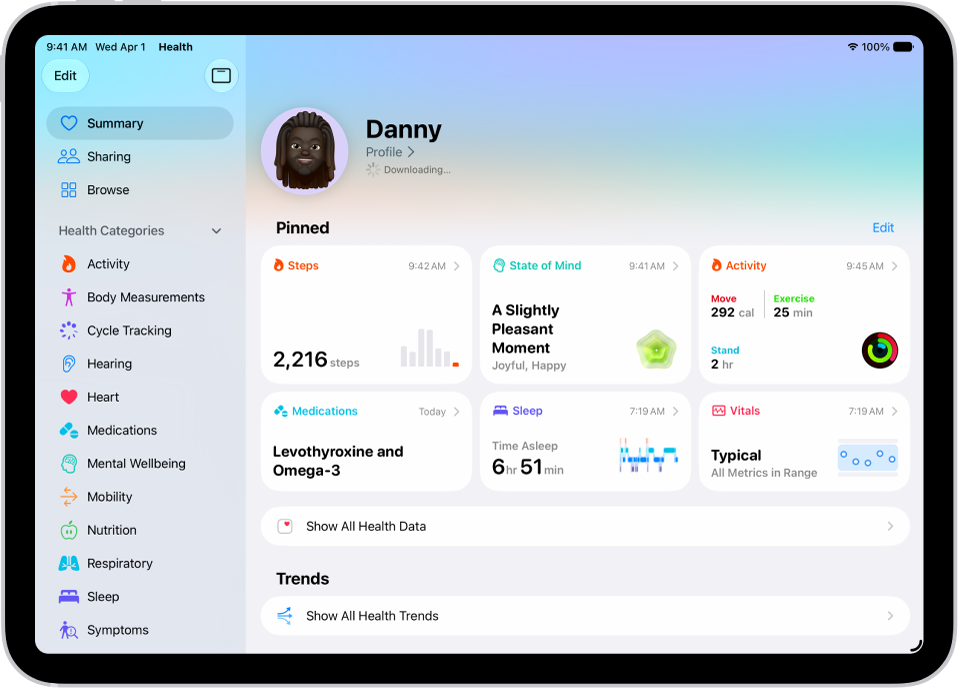
The Summary screen in Health. Information about steps, state of mind, activity, medications, sleep, and vitals appears below Pinned.

Health data from iPad

iPad automatically stores and analyzes valuable health data, such as the following:

  • Headphone audio levels: Audio level measurements from connected AirPods, EarPods, or other compatible headphones are automatically stored in Health. You can review this data in the Hearing category to help you understand your headphone listening habits.
  • Sleep history: If you set up a sleep schedule in Health on iPhone, iPhone estimates the periods you’re lying in bed with the intention to sleep. You can review this data in the Sleep category on iPad to help you meet your sleep goals.
  • Health records from your healthcare providers: If you download health records you can browse health records of your allergies, medical conditions, medications, and more from supported healthcare organizations on iPad (not available in all countries or regions).

Health data from other apps and devices

As you set up health and fitness apps that you download from the App Store, follow their onscreen instructions to allow them to share data with Health.

To store data from devices like blood pressure monitors and weight scales, follow their setup instructions. Bluetooth® devices need to be paired with iPad.

Note: For apps and devices, you can change health data permissions whenever you’d like.

Data that you add manually

You can manually enter data about your menstrual cycles, medications, body measurements, and more.

  • Add information about your menstrual cycles: By logging menstrual cycle information, you can get period and fertile window predictions. See Log menstrual cycle information in Health.
  • Add your medications, vitamins, and supplements: By adding these items, you can get reminders to take them and learn more about them. See Track your medications in Health.
  • Add information to other Health categories: Tap the Browse button, tap a category, tap the Details button for the data you want to update, then tap Add Data at the top right.

Important: iPhone, iPad, and Apple Watch aren’t medical devices. See Important safety information for iPad.

See also

Tag: Health

You can share health data stored in the Health app, such as health alerts and trends, with friends, family, and others caring for you.

The people you share with can see the health notifications you receive, too, including high heart rate and irregular rhythm notifications. You can also share notifications for significant trends, like a steep decline in activity. They need to be in your contacts first, and you can review or change what you’re sharing at any time.

Here’s how to share your data in Health on iPad.

Share health data with someone

Health notifications you receive, including irregular rhythm and high heart rate notifications, are visible to the people you share health data with. Sharing notifications for significant trends, such as a steep decline in activity, is another option.

Note: To share health data with someone, you need to include them in your contacts.

  1. Open the Health app on your iPad.
  2. Tap Sharing in the sidebar. Do one of the following:
    • Set up sharing for the first time: Tap Share with Someone.
    • Share with an additional contact: Tap Add another person and then tap Next.
  3. Use the search field to find someone in your contacts list and tap their contact information to select them.
  4. Tap See Suggested Topics or Set Up Manually, then choose topics to share.
  5. Scroll down to see all topics on a screen, choose options, and then tap Next to see the next screen.
  6. Tap Share, then tap Done.

When your invitation is accepted, you receive a notification.

Review or change the data you’re sharing with others

  1. Open the Health app on your iPad.
  2. Tap Sharing in the sidebar. Then tap the name of a person or a healthcare provider.
  3. Scroll down, then tap View Shared Data.
  4. Make any changes, then tap Done.

Stop sharing data with a contact or a provider

  1. Open the Health app on your iPad.
  2. Tap Sharing in the sidebar. Then tap the name of a person or a healthcare provider.
  3. Tap Stop Sharing or Remove Account.

Note: If you start sharing data with someone, simply removing them from Contacts doesn’t stop the information from being shared.

Share health and fitness data with apps and devices

With your permission, other apps can share health and fitness data with Health. A workout app you install, for instance, can have its exercise data appear in Health, and it can read and make use of your heart rate, weight, and other data shared by other devices and apps. If you skipped giving an app permission to share data with Health when you set it up, you can give permission later or remove it from an app.

To share your records from healthcare providers with apps, see Share your health records with other apps.

  1. Open the Health app on your iPad.
  2. Tap Summary in the sidebar and tap Profile next to your picture or initials at the top left.
  3. Below Privacy, tap Apps or Devices.

    The screen lists the items that requested access to Health data.

  4. To change the access for an item, tap it. Turn on or off permission to write data to—or read data from—Health.

Share your health and fitness data in XML format

XML, a common format for sharing data between apps, is the format Health uses when you export all of your health and fitness data.

  1. Open the Health app on your iPad.
  2. Tap Summary in the sidebar and tap Profile next to your picture or initials at the top left.
  3. Tap Export All Health Data. Then choose a method for sharing your data.

See also

Tag: Health

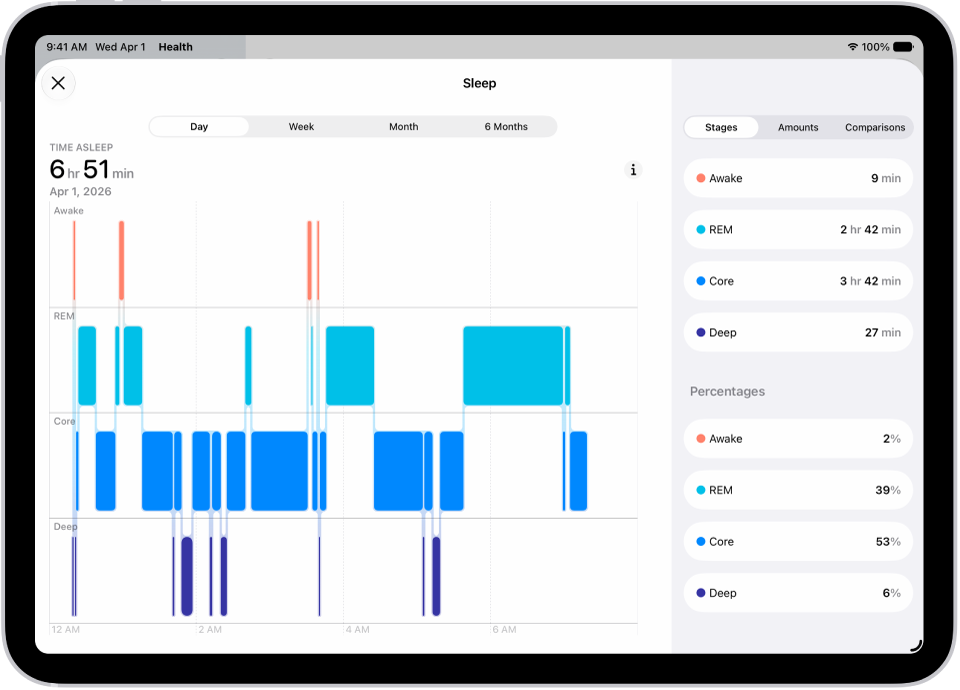
Sleep data provides insight into your sleep habits. To obtain sleep data, you can use a sleep tracker or monitor, set up a sleep schedule on iPhone and let iPhone estimate your time in bed, or manually add the data on your iPad.

In the Health app, you can view sleep data by week or month, change the time span displayed in the graph, and view the details for a day. You can also get cumulative sleep data.

The Sleep screen in Health showing the estimated time spent awake and in REM, Core, and Deep sleep.

  1. Go to the Health app on your iPad.
  2. Tap the Browse button and tap Sleep.
  3. Tap Sleep and then do any of the following:
    • View sleep data by week or month: Tap a tab at the top of the screen.
    • Change the time span displayed in the graph: Swipe the graph left or right.
    • View the details for a day: Tap the column for the day.
    • Manually add sleep data: Tap Add Data in the top-right corner of the screen.
    • Get cumulative sleep data: Tap Show More Sleep Data.

See also

Tag: Health